
Task Define
Overview
The Task Define feature allows administrators to define and manage the individual tasks that are performed as part of Workforce Task operations within the property.
A task definition connects a Task Category with a Task Shift and provides the task details, priority, and estimated duration. This allows properties to create standardized tasks that can be assigned and managed by employees based on operational requirements.
Each task definition can include a Task Category, Task Shift, Task Title, Task Description, Priority, estimated duration, and an optional Document.
Task Define is a single-screen feature — existing task definitions are displayed in a list, and new tasks can be created from the same screen.
Task Define Screen
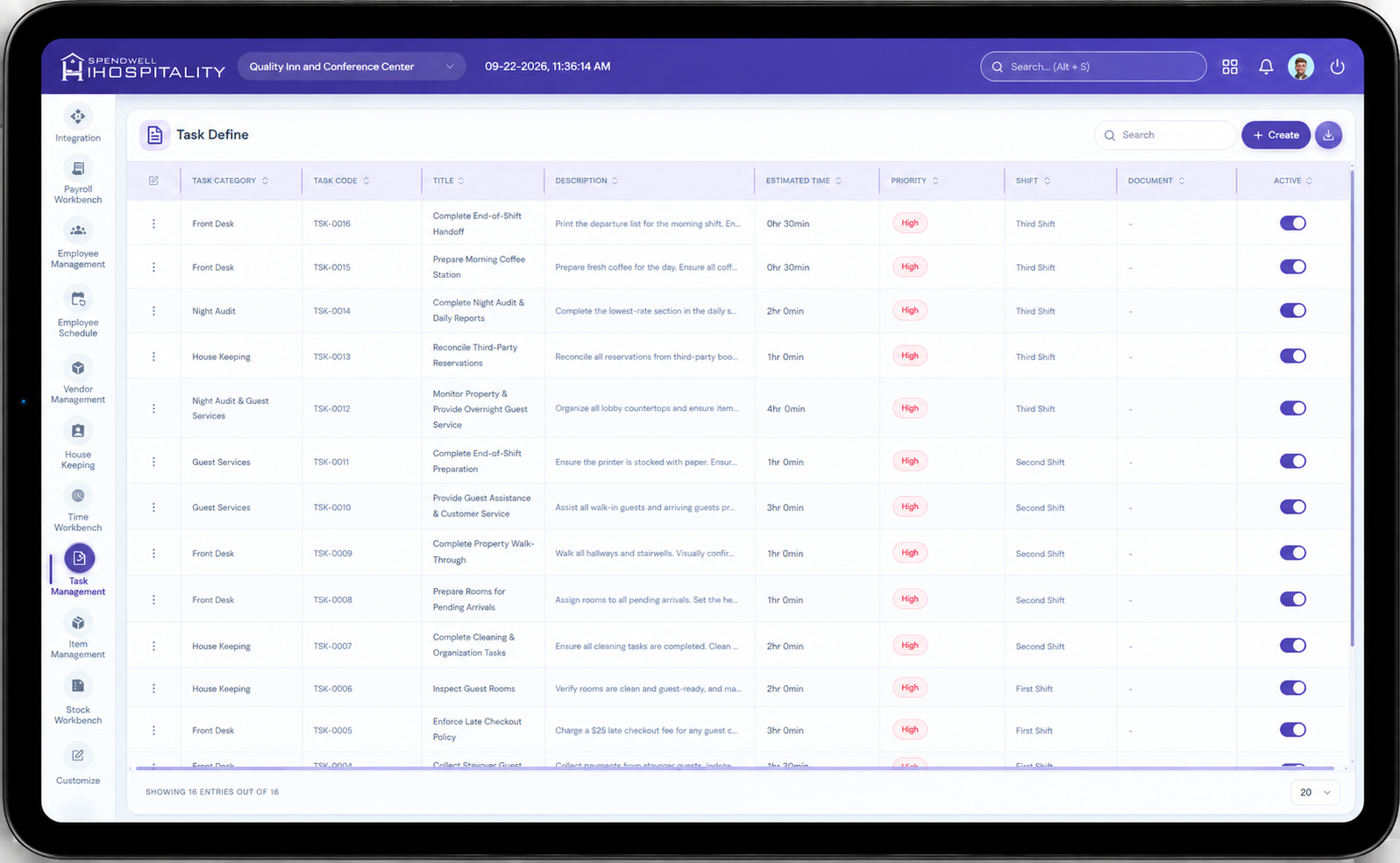
The Task Define screen displays all configured workforce task definitions.
The screen provides the following information:
- Task Category — Displays the category associated with the task.
- Shift — Displays the shift during which the task is intended to be performed.
- Title — Displays the name of the task.
- Task Code — Displays the unique system-generated code assigned to the task.
- Description — Provides details about what needs to be completed for the task.
- Priority — Indicates the importance or urgency of the task.
Administrators can create a new task definition using the Create button.
Add Task Define
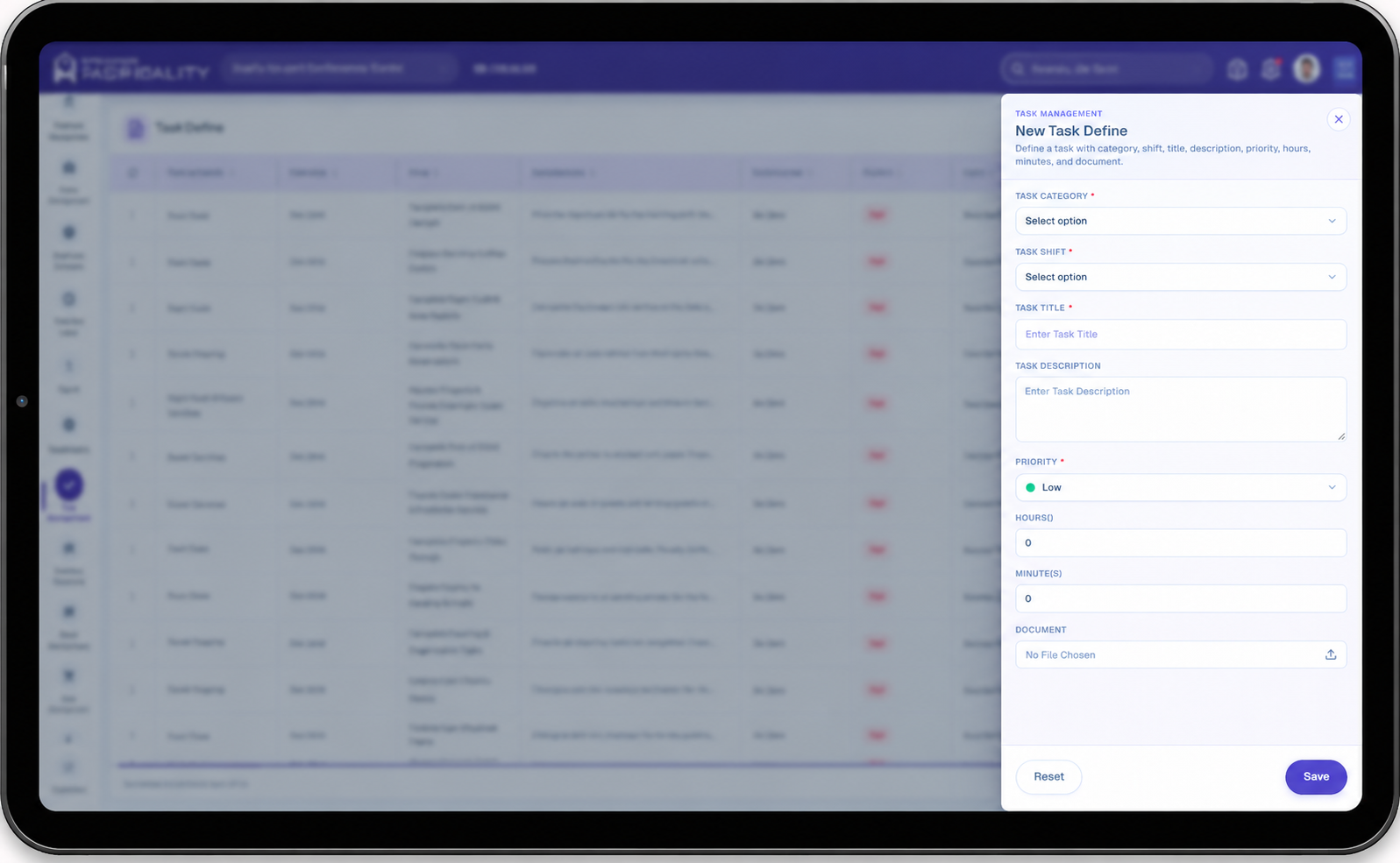
When the administrator clicks the Create button, the Add Task Define panel opens on the right side of the screen.
The panel allows the administrator to configure a new workforce task using the following fields:
- Task Category
- Task Shift
- Task Title
- Task Description
- Priority
- Hour(s)
- Minute(s)
- Document
Fields marked with an asterisk (*) are required.
Key Fields
- Task Category — Required field used to associate the task with a configured task category, such as Cleaning, Quality Assurance, Food Preparation, or Safety & Compliance.
- Task Shift — Required field used to associate the task with a configured shift, such as Morning, Evening Shift, or Night Shift.
- Task Title — Required field containing the name of the task, such as Utensil Deep Cleaning, Weekly Inventory Count, or Service Readiness Check.
- Task Description — Optional field used to provide detailed instructions or additional information about the task.
- Priority — Required field used to define the importance of the task. For example, Low, Medium, or High.
- Hour(s) — Defines the estimated number of hours required to complete the task.
- Minute(s) — Defines the estimated number of additional minutes required to complete the task.
- Document — Optional field that allows an administrator to attach a supporting document or reference file related to the task.
- Task Code — A unique task identifier displayed in the Task Define list. The system assigns the task code when the task is created.
- Save — Saves the task definition with the configured information.
- Save & Add New — Saves the current task definition and keeps the panel open so another task can be created.
- Reset — Clears the entered information without saving the task.
- Create — Opens the Add Task Define panel for creating a new task.
- Close (X) — Closes the Add Task Define panel without saving the current entry.
Task Duration
The Hour(s) and Minute(s) fields are used to define the expected duration of a task.
For example:
| Hour(s) | Minute(s) | Estimated Duration |
|---|---|---|
| 0 | 15 | 15 minutes |
| 0 | 30 | 30 minutes |
| 1 | 0 | 1 hour |
| 1 | 30 | 1 hour 30 minutes |
| 2 | 0 | 2 hours |
This duration can help employees and managers understand the expected time required to complete the task.
Steps
Create a New Task Definition
Task Definition Components
A task definition is made up of the following primary components:
Task Category → Task Shift → Task Title → Task Description → Priority → Duration → Document
- Task Category identifies the type of work.
- Task Shift identifies the operational shift for the task.
- Task Title identifies the specific activity to be completed.
- Task Description provides instructions or additional details.
- Priority indicates the importance of completing the task.
- Duration defines the expected time required to complete the task.
- Document provides an optional reference or supporting file.
Important Notes
- Task Category, Task Shift, Task Title, and Priority are required fields when creating a task definition.
- Task Category must be selected from the configured Task Category master.
- Task Shift must be selected from the configured Task Shift master.
- Use clear and action-oriented Task Titles so employees can easily understand the required activity.
- The Task Description should provide sufficient instructions when the task requires additional clarification.
- Set the Priority according to the operational importance of the task.
- Use Hour(s) and Minute(s) to define the expected completion time.
- A supporting Document can be attached when employees need additional instructions, procedures, checklists, or reference material.
- The system assigns a unique Task Code to each task definition.
- Task definitions should be reviewed regularly to ensure that task descriptions, priorities, durations, and supporting documents remain accurate.
- Only appropriate and active Task Categories and Task Shifts should be used when configuring new task definitions.
- Use Save & Add New when multiple task definitions need to be created consecutively.
- Review all task information before clicking Save to ensure the task is configured correctly.
No comments to display
No comments to display