
Employee Policy
Overview
The Employee Policy feature allows administrators to create and manage policies that apply to employees within a property. Policies can be used to define organizational, management, or other employee-related rules and guidelines.
Each policy can be associated with a Property, Policy Category, User Role, Version, and Policy Type. Administrators can also define the policy content, description, and settings such as whether the policy is mandatory, downloadable, or requires a signature.
The Employee Policy feature provides a centralized place to maintain employee policies and control how they are presented to employees.
Employee Policy Screen
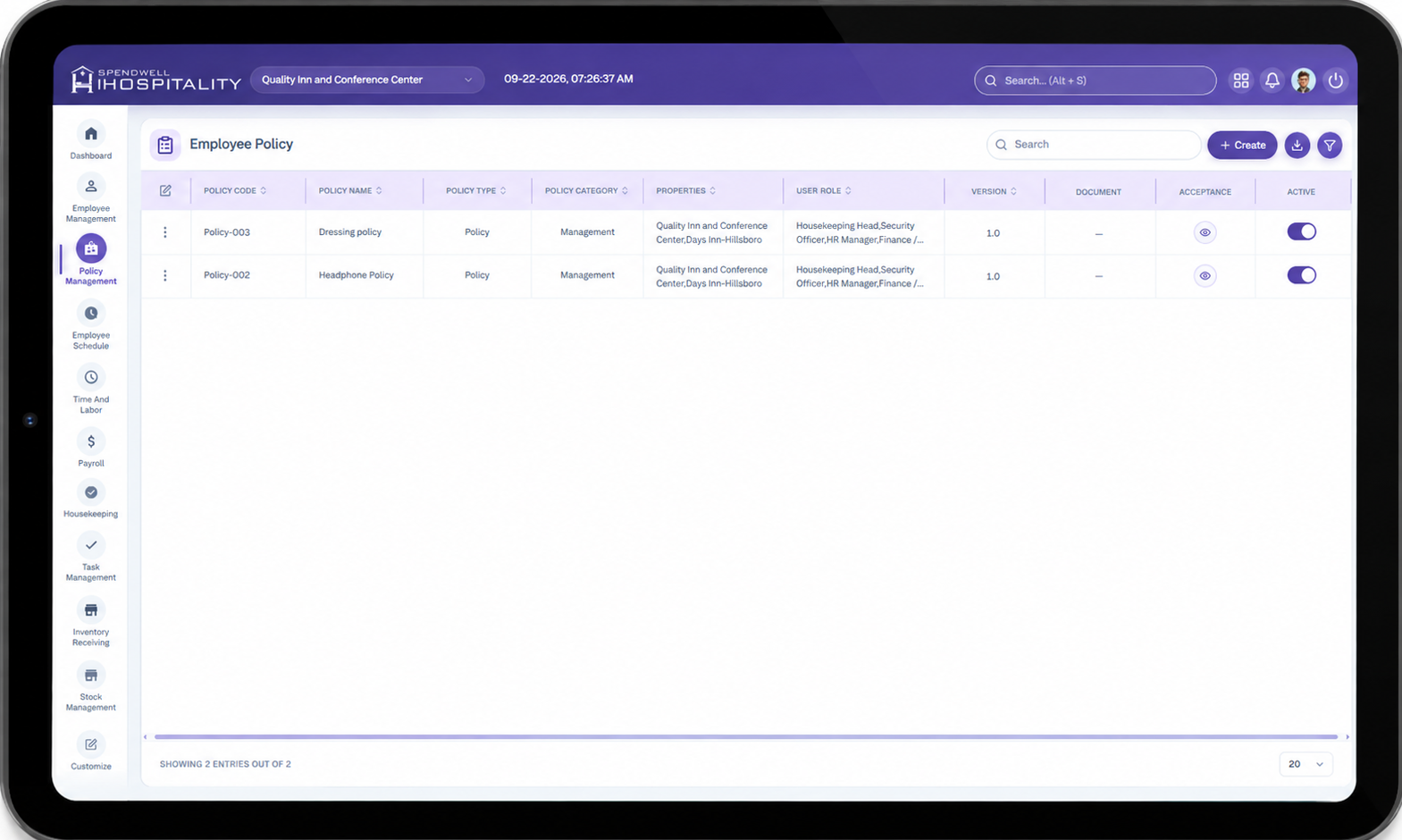
The Employee Policy screen displays all configured employee policies along with their key details and status.
The screen includes the following information:
- Policy Code — Unique code assigned to the policy.
- Policy Name — Name of the employee policy.
- Policy Type — Type of policy configured.
- Policy Category — Category under which the policy is organized.
- Acceptance — Provides access to view the policy acceptance information.
- Active — Toggle to enable or disable the policy.
- Version — Indicates the current version of the policy.
- Document — Displays the associated policy document, if available.
- Properties — Shows the property to which the policy is assigned.
- User Role — Shows the user role for which the policy is applicable.
Administrators can use the Create button to add a new employee policy.
Key Fields
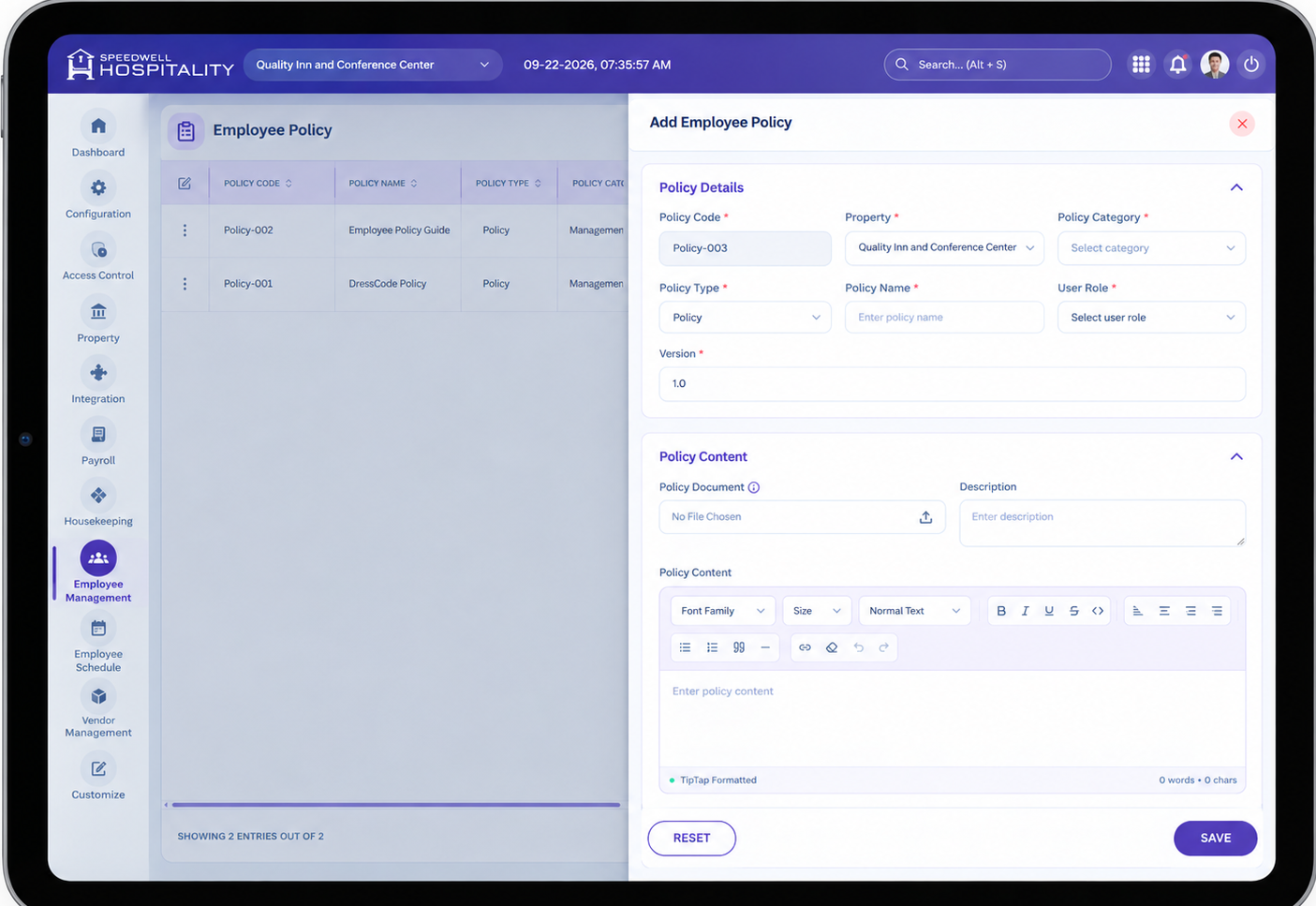
Policy Details
- Policy Code — Unique code used to identify the employee policy.
- Property — Property for which the employee policy is being created.
- Policy Category — Category used to classify the policy, such as Corporate or Management.
- Policy Type — Defines the type of policy being created.
- Policy Name — Name or title of the employee policy.
- User Role — User role to which the policy applies.
- Version — Version number of the policy used to identify revisions or updates.
Policy Content
- Policy Document — Allows an administrator to upload a document associated with the policy.
- Description — Short description explaining the purpose or scope of the policy.
- Policy Content — Rich-text editor used to enter and format the actual policy information. It supports formatting options such as fonts, font size, bold, italic, underline, alignment, lists, and quotations.
Policy Settings
- Download Allowed — Allows employees to download the policy document or content.
- Is Mandatory — Marks the policy as mandatory for the applicable employees.
- Signature Required — Indicates that employees are required to provide a signature or acknowledgement for the policy.
- Show Policy On — Defines where or during which employee process the policy should be displayed, such as Employee Onboarding.
Actions
- Save — Saves the employee policy and closes the panel.
- Save & Add New — Saves the current policy and keeps the panel open to create another policy.
- Reset — Clears the entered values without saving.
- Create — Opens the Add Employee Policy panel.
Steps
Create an Employee Policy
Important Notes
- Policy Code, Property, Policy Category, Policy Type, Policy Name, User Role, and Version are required when creating an employee policy.
- A policy can be associated with a specific Property and User Role.
- The Version field should be updated when significant changes are made to an existing policy.
- Policy Document can be uploaded when a separate document needs to be associated with the policy.
- Is Mandatory can be used to identify policies that employees must acknowledge or follow.
- Signature Required can be enabled when formal employee acknowledgement is required.
- The Active toggle on the policy list can be used to enable or disable an existing policy.
- Show Policy On determines the employee process or location where the policy is presented.
- Review all policy details and settings before selecting Save.
No comments to display
No comments to display