
Item Subcategory
Overview
The Item Subcategory feature allows to create and manage subcategories used to further organize inventory items within a property.
Item subcategories provide a more specific classification under an Item Category and are used when creating and managing Items.
The Item Subcategory feature is a single-screen feature — existing subcategories are displayed in a list, and new subcategories can be created from the same screen.
Item Subcategory Screen
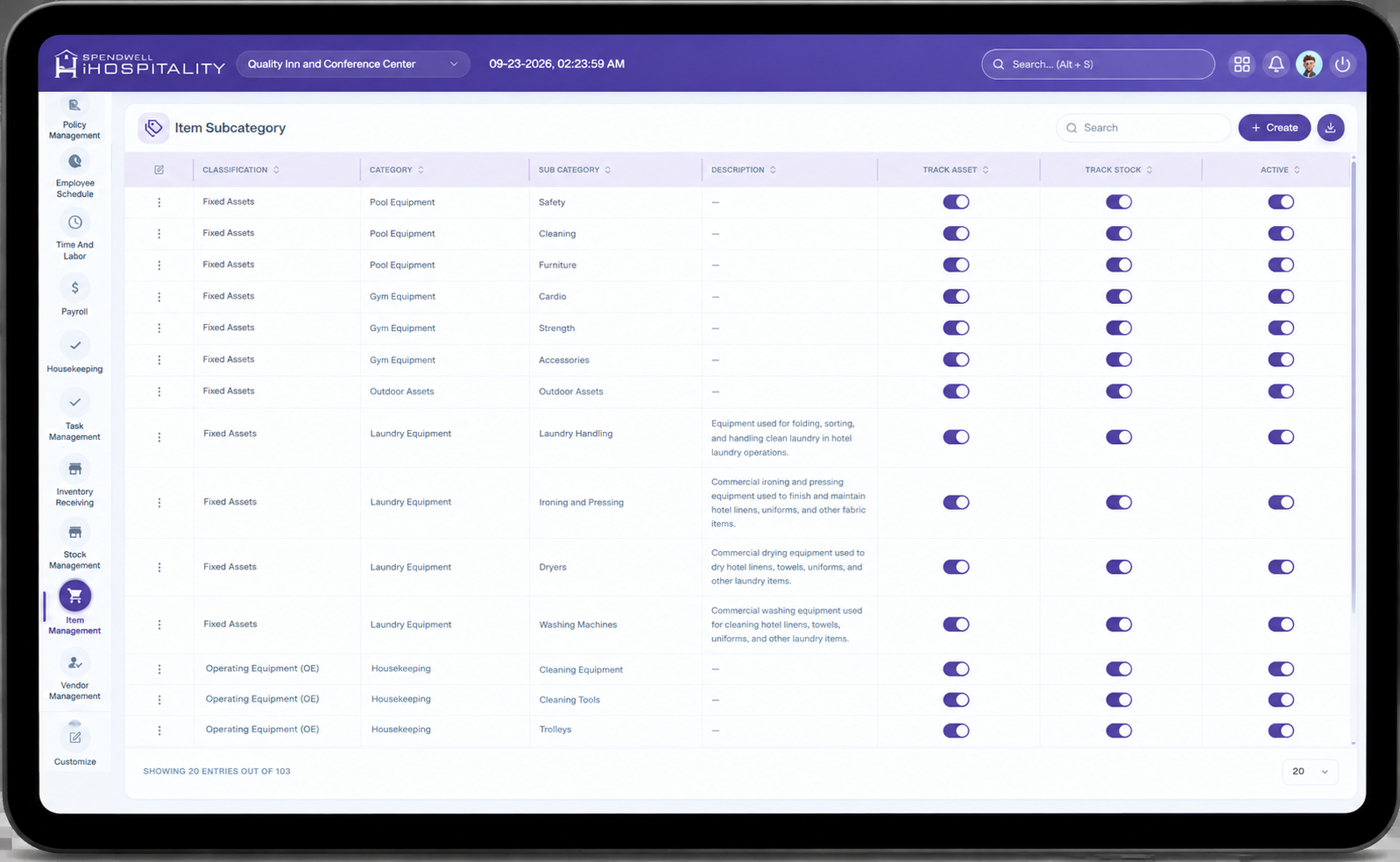
The screen provides the following controls:
- Category — Displays the parent item category associated with the subcategory.
- Sub Category — Displays the name of the item subcategory.
- Create — Opens the Add Item Sub Category panel for creating a new subcategory.
Administrators can review the configured subcategories and manage the inventory classification structure from the list.
Key Fields
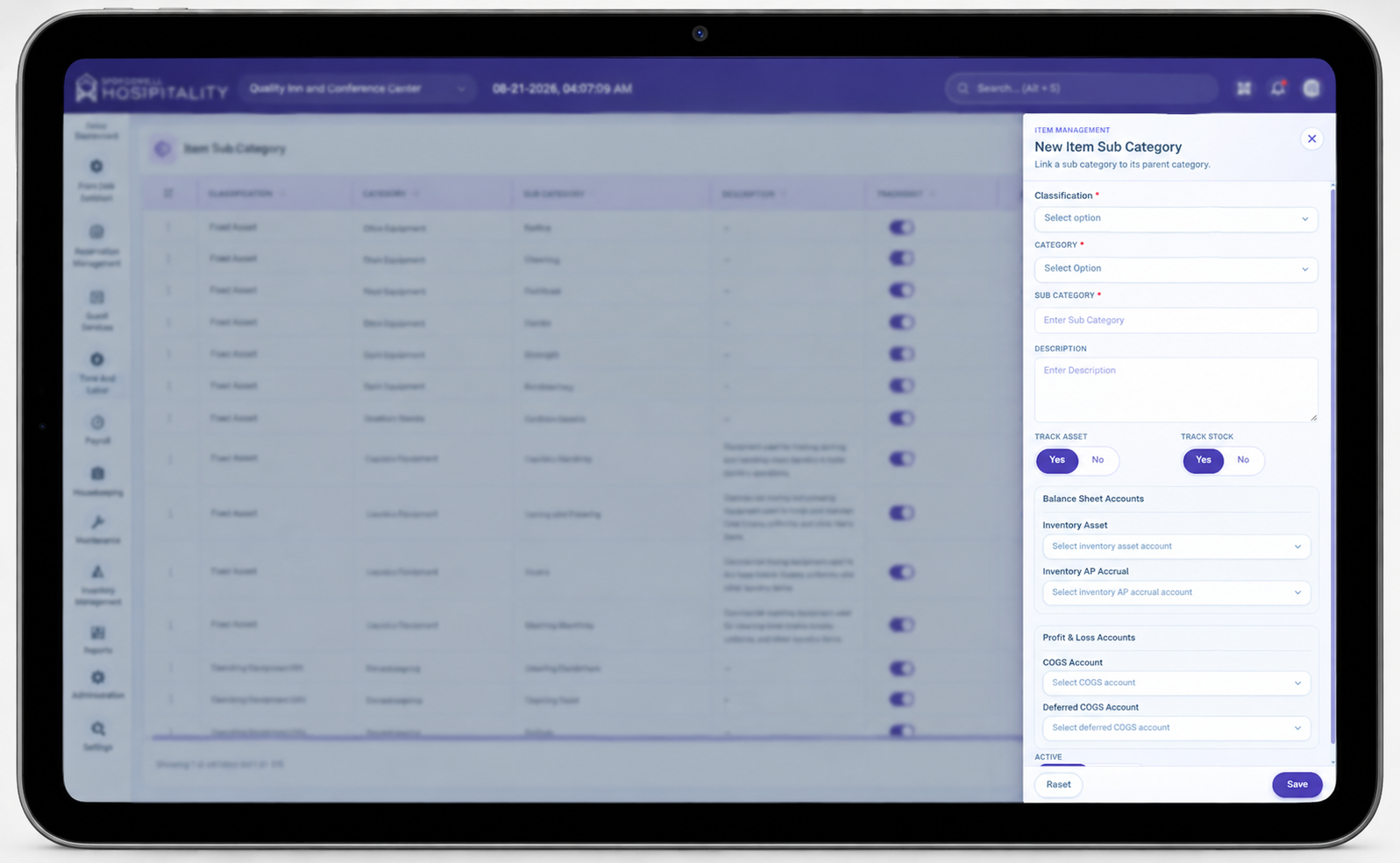
- Item Category — Required field used to select the parent category under which the subcategory will be created, such as Asset Category, Guest Room Accessories, Coffee & Tea Supplies, or Water Supplies.
- Sub Category — Required field used to enter the name of the subcategory, such as Room Asset Sub Category, Electrical Sub Category, Alarm Clock Radio, USB Charging Hub, or Water Dispensers.
- Save — Saves the newly created subcategory and closes the panel.
- Save & Add New — Saves the current subcategory and keeps the panel open so another subcategory can be created.
- Reset — Clears the entered information without saving.
- Create — Opens the Add Item Sub Category panel.
Steps
Create a New Item Subcategory
Important Notes
- Item Category and Sub Category are required fields when creating a new item subcategory.
- The parent Item Category should be created before creating its associated subcategories.
- Each subcategory should be associated with the appropriate parent category to maintain a clear inventory structure.
- Subcategories provide a more detailed classification of items within an item category.
- Use clear and consistent subcategory names to make inventory items easier to identify and manage.
- Multiple subcategories can be created under the same Item Category.
- Item subcategories should be configured before creating items that use those classifications.
No comments to display
No comments to display