
My Availability
Overview
The My Availability feature allows employees to define when they are available or unavailable to work. Employees can set specific working hours for selected days and submit their availability to their manager for review.
Keeping availability up to date helps managers create schedules based on employee availability, reduce scheduling conflicts, and improve workforce planning.
My Availability Screen
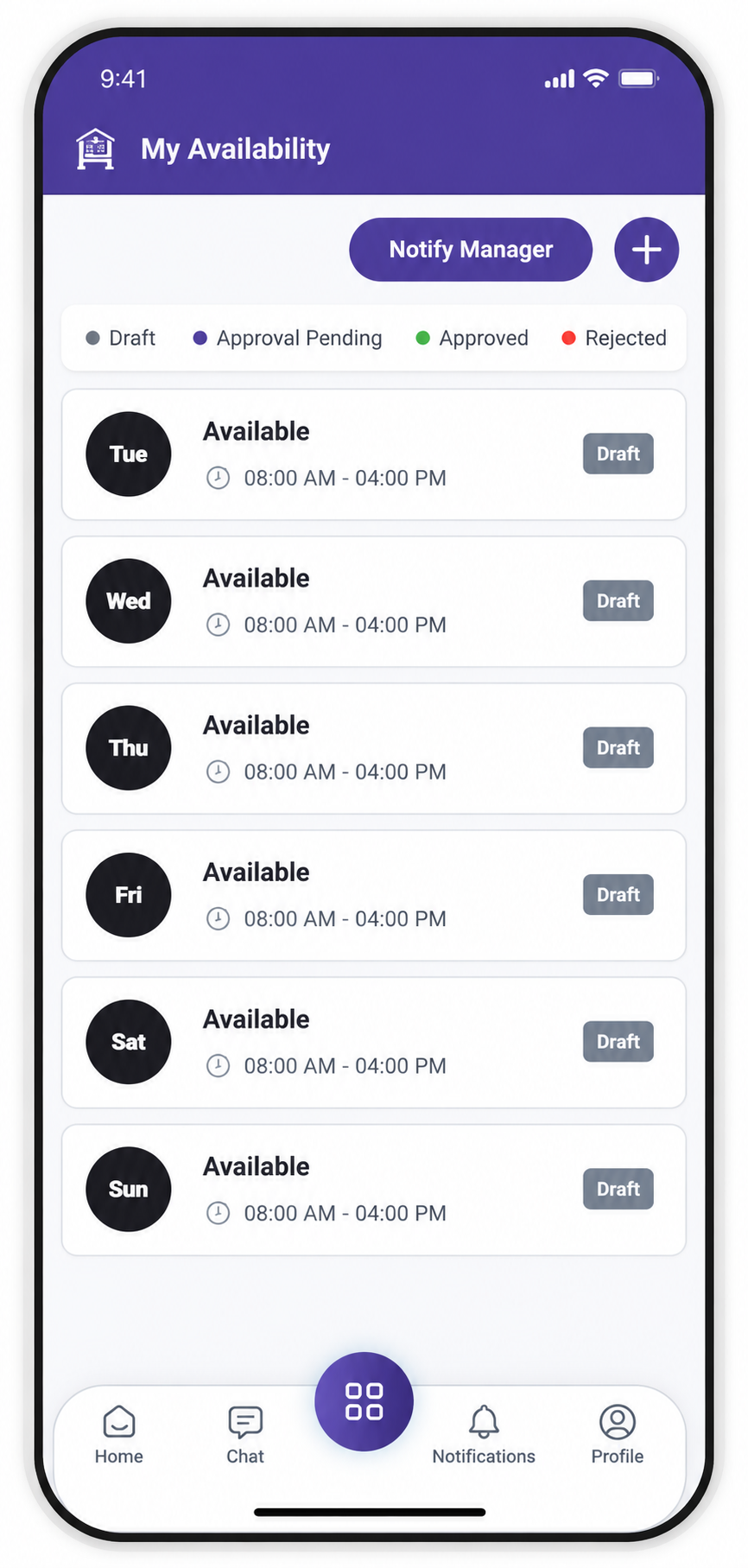
The My Availability screen displays the employee's saved availability for each day. Each entry shows the availability type, working hours, and current status.
Key Information
- Day — The day for which availability is configured.
- Availability Type — Shows whether the employee is Available or Unavailable.
- Working Hours — Displays the configured start and end time.
- Status — Shows the current status of the availability.
Availability Status
| Status | Meaning |
|---|---|
| Draft | Availability has been created but has not been submitted to the manager. |
| Approval Pending | Availability has been submitted and is waiting for manager review. |
| Approved | The manager has approved the availability. |
| Rejected | The manager has rejected the availability. |
My Availability List
The availability list allows employees to review their configured availability and check the current status of each entry.
Create Availability
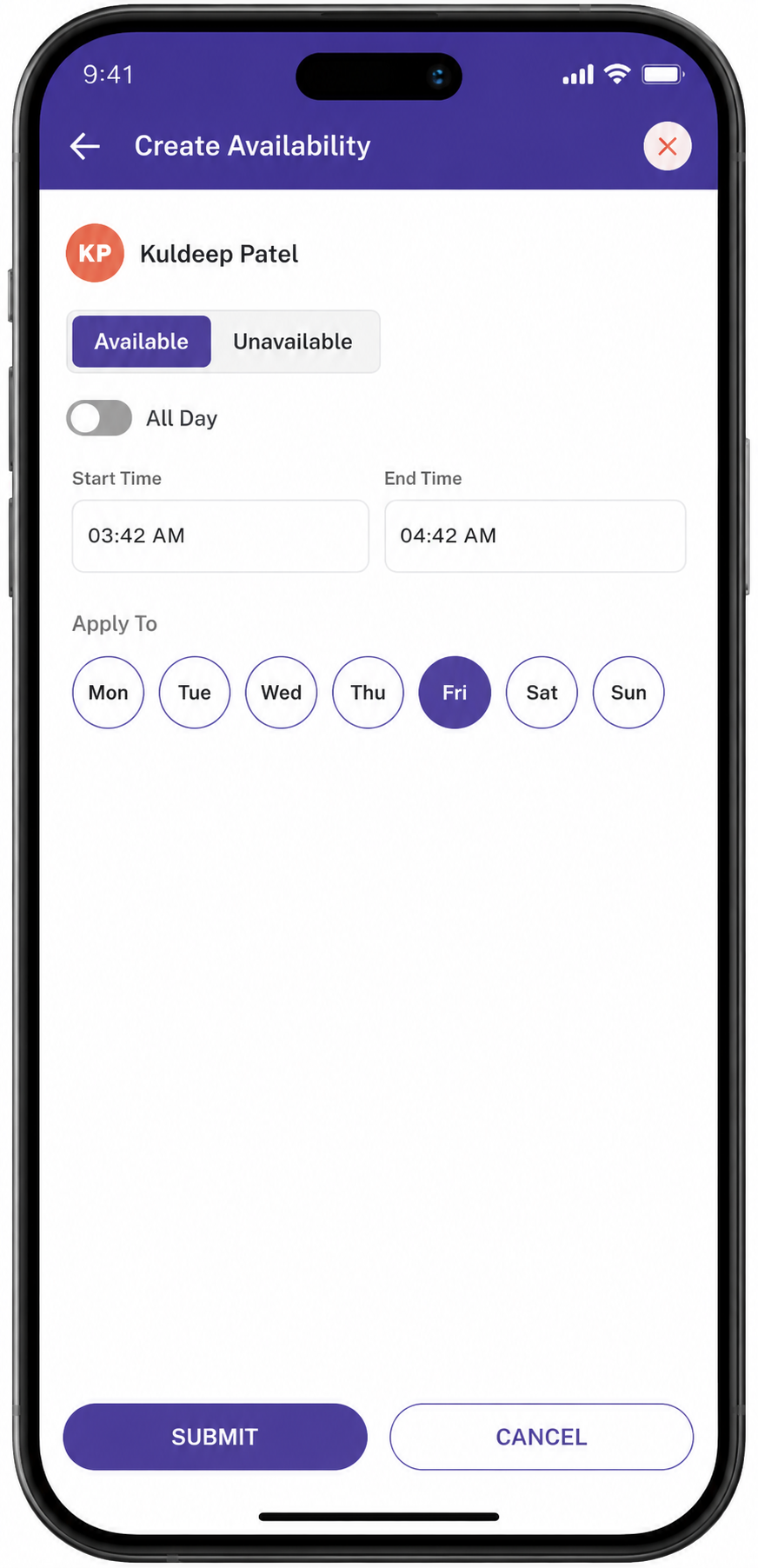
Employees can create a new availability entry by selecting the + button on the My Availability screen.
Steps
Availability Options
Available
Indicates that the employee is available to work during the selected day and time.
All Day
When enabled, the availability applies to the entire selected day instead of a specific time range.
Review Availability
After creating an availability entry, employees can return to the My Availability screen to review the saved information.
Employees can verify:
- Selected days
- Available or unavailable status
- Start and end times
- Current approval status
Newly created availability is initially shown as Draft until it is submitted to the manager.
Notify Manager
After creating or updating availability, employees can select Notify Manager to send their availability changes to their manager for review.
Employees can also add an optional note to provide additional information about the change.
Steps
- Select Notify Manager.
- Enter an optional note.
- Review the information.
- Select Notify Manager to submit the notification.

Example Note
This is my next week availability.
After the notification is submitted, the availability moves from Draft to Approval Pending.
Manager Review
Once the availability is submitted, the manager reviews the request.
The manager can:
- Approve the availability.
- Reject the availability.
Approved
When the manager approves the request, the availability status changes to Approved and can be considered when creating employee schedules.
Rejected
When the manager rejects the request, the availability status changes to Rejected. The employee can review the request and make the necessary changes before submitting it again.
Availability Workflow
The complete availability workflow is:
Create Availability → Draft → Notify Manager → Approval Pending → Manager Review → Approved / Rejected
Approved Flow
Create → Notify Manager → Approval Pending → Manager Approves → Approved → Used for Scheduling
Rejected Flow
Create → Notify Manager → Approval Pending → Manager Rejects → Rejected → Employee Updates Availability
Important Notes
- Keep your availability accurate and up to date.
- Availability does not automatically create a work shift.
- Availability is used by managers when creating employee schedules.
- Notify your manager after making changes that require approval.
- Approval is required before submitted availability is treated as approved for scheduling purposes.
- Weekly Availability — Once an availability schedule is set for a week, it remains effective for the applicable weeks until the employee updates or changes their availability.
- If an employee does not make any changes, the existing availability continues to apply to future scheduling periods.
No comments to display
No comments to display