
Lost & Found
Overview
The Lost & Found module on the iHospitality Hub enables staff to report guest lost-item claims and to record and manage items recovered on property. Both workflows are completed directly from a shared kiosk device, with each report or record time-stamped and attributed to the employee who created it.
This module only appears on hubs where Lost & Found was checked under Hub Modules, and only for employees whose User Role has Can iHospitality Hub Login enabled — see the iHospitality Hub – Setup page.
Lost & Found Screen
After signing in and tapping Lost & Found, the employee sees two options.
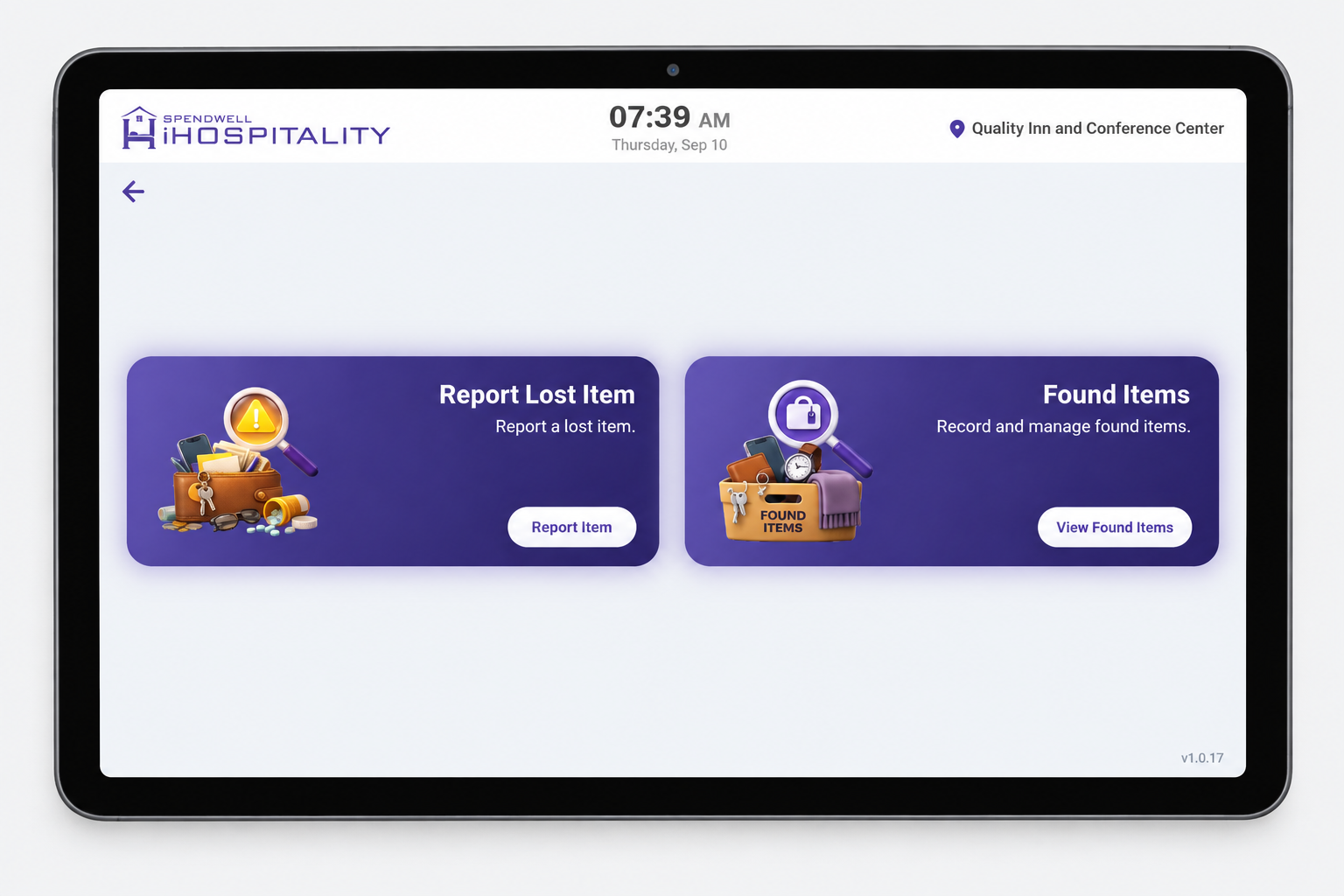
What this screen means: pick Report Lost Item when a guest has lost something, or Found Items to log or manage an item that's been found.
| Option | What it does |
|---|---|
| Report Lost Item | Log a report for an item a guest has lost. |
| Found Items | Record a newly found item, or view/manage items already logged as found. |
Report Lost Item
Lost Item List
Tapping View Found Items—equivalent for lost reports — opens the Lost Item list — every lost item report logged for the property.
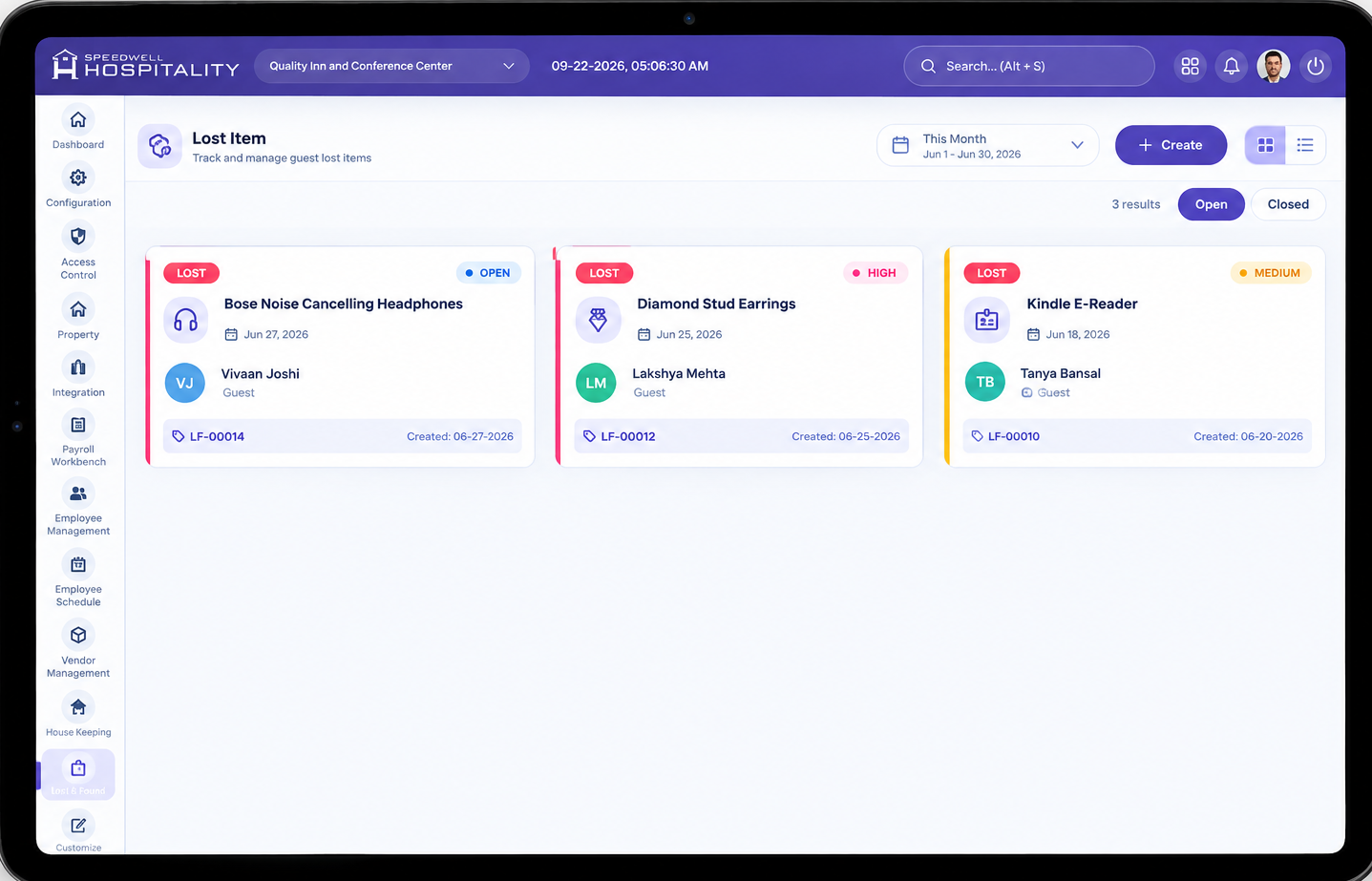
| Element | Description |
|---|---|
| Open / Closed tabs | Filter reports by status. |
| Date range filter | e.g., "This Month," with a specific date range shown underneath. |
| Search | Search existing reports. |
| + Create | Opens the New Lost Request form (below). |
| Priority badge | Low / Medium / High. |
| Item name | What was lost, e.g., "Shoes," "Car key." |
| Lost at | Room number(s) or area where the item was lost. |
| Reporter | Avatar initials + name of the guest who reported it. |
| L&F ID | Unique reference code for the report, e.g. L&F-00036. |
| Date | When the report was logged (e.g. "Today"). |
| View (eye icon) | Opens the full report — only shown on some cards. |
| Delete (trash icon) | Deletes the report. |
New Lost Request Form
Tap + Create (or Report Item from the Lost & Found screen) to log a new lost item report.
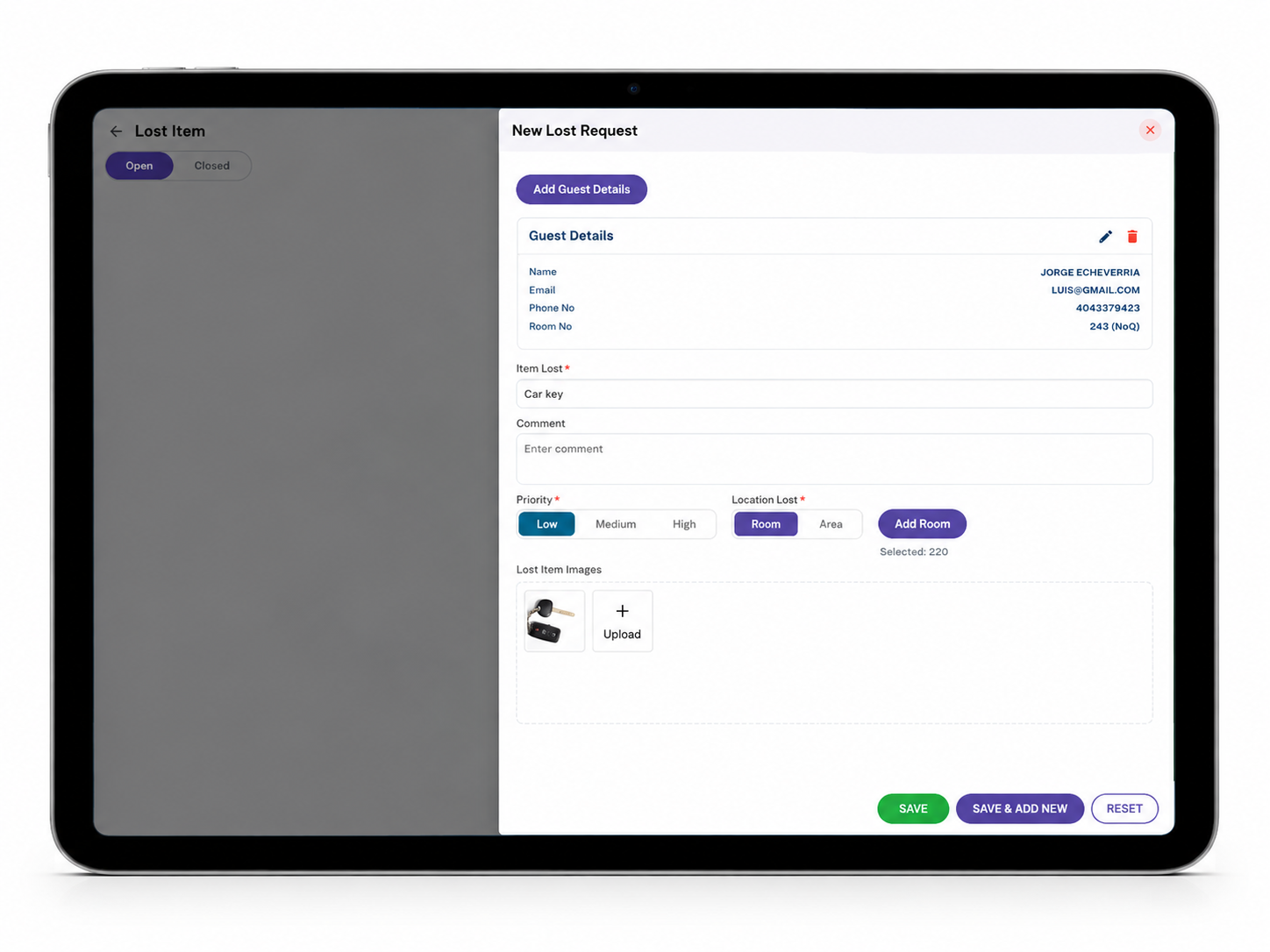
| Field | Required | Description |
|---|---|---|
| Add Guest Details | — | Button that adds a Guest Details card to the form — Name, Email, Phone No., and Room No. — so the report is tied to the guest who lost the item. |
| Item Lost | Yes | What was lost, e.g., "Car key." |
| Comment | No | Free-text notes about the item or the loss. |
| Priority | Yes | Low / Medium / High. |
| Location Lost | Yes | Room or Area — then Add Room to select the specific room/area. The selection appears as "Selected: 220." |
| Lost Item Images | No | Upload one or more photos of the item, or a reference photo, via + Upload. |
Steps
- From the Lost & Found screen, tap Report Item (or + Create from the Lost Item list).
- Tap Add Guest Details and fill in the guest's Name, Email, Phone No., and Room No.
- Enter the Item Lost and an optional Comment.
- Select the Priority.
- Select Room or Area under Location Lost, then tap Add Room to choose the specific location.
- Upload a photo under Lost Item Images if available.
- Tap SAVE (or SAVE & ADD NEW to log another report immediately).
Found Items
New Found Request Form
Tap View Found Items from the Lost & Found screen, then + Create to log a newly found item. 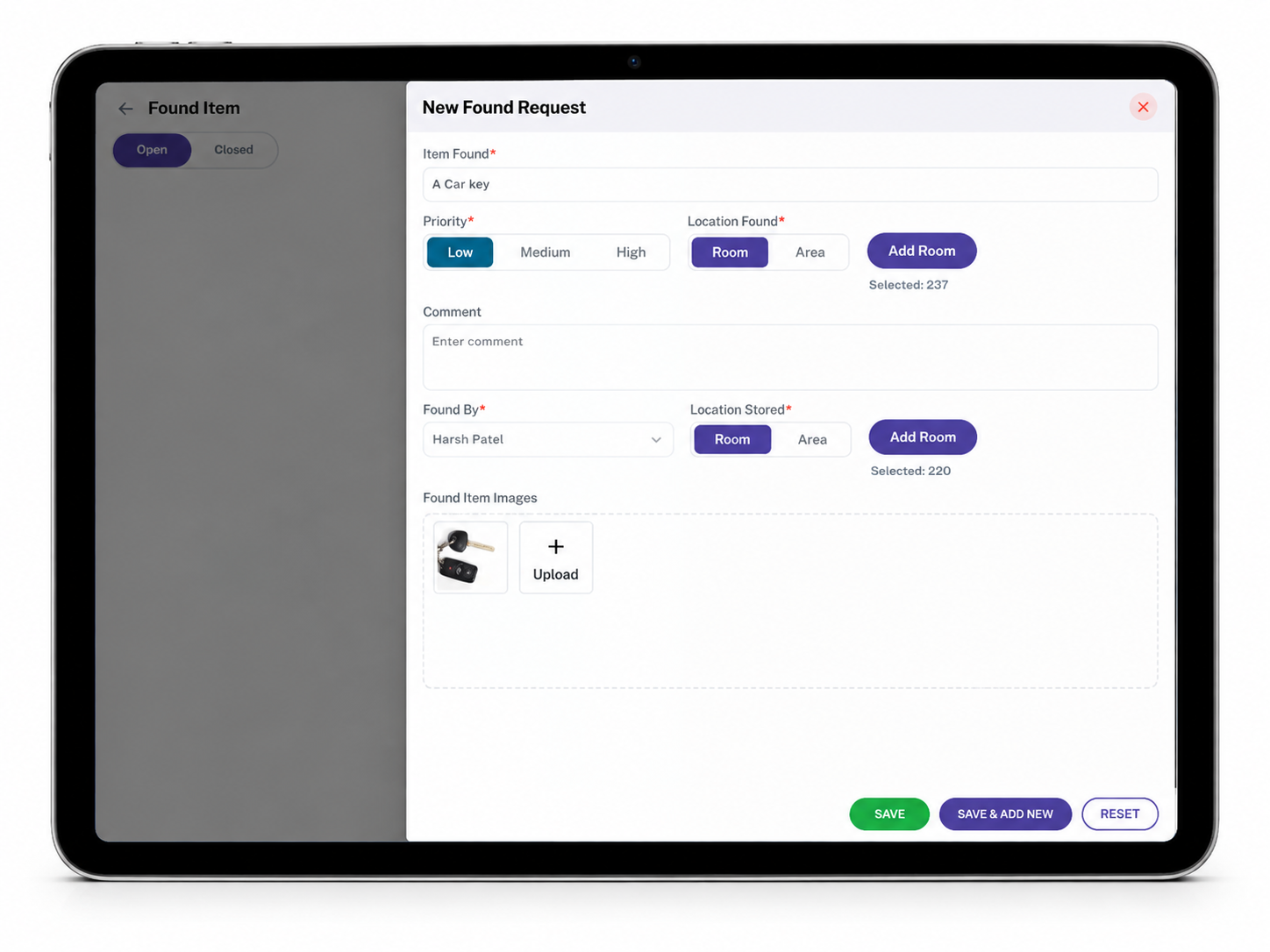
| Field | Required | Description |
|---|---|---|
| Item Found | Yes | What was found, e.g., "A Car key." |
| Priority | Yes | Low / Medium / High. |
| Location Found | Yes | Room or Area where the item was found, then Add Room to select the specific location. |
| Comment | No | Free-text notes about the item. |
| Found By | Yes | The employee who found the item, selected from a dropdown. |
| Location Stored | Yes | Room or Area where the item is currently being kept; then Add Room to select the specific location. |
| Found Item Images | No | Upload one or more photos of the item via + Upload. |
Steps
- From the Lost & Found screen, tap View Found Items, then + Create.
- Enter the Item Found and select a Priority.
- Select Room or Area under Location Found, then Add Room to choose the specific location.
- Enter an optional Comment.
- Select who found it under Found By.
- Select Room or Area under Location Stored, then Add Room to choose where it's being kept.
- Upload a photo under Found Item Images if available.
- Tap SAVE (or SAVE & ADD NEW to log another item immediately).
The Found Items list itself (Open/Closed tabs, cards, search, date filter) is expected to follow the same layout as the Lost Item list above — to be confirmed against the live screen before publishing.
Workflow
Report a lost item: Employee taps Lost & Found → Report Item → Add Guest Details → Enter Item Lost, Priority, Location Lost → (optional photo) → SAVE
Log a found item: Employee taps Lost & Found → View Found Items → + Create → Enter Item Found, Priority, Location Found, Found By, Location Stored → (optional photo) → SAVE
Important Notes
- A lost report is tied to the guest who reported it (Guest Details); a found report is tied to the employee who found it (Found By) — they capture different information because they start from different situations.
- Found Items tracks two separate locations — Location Found (where it turned up) and Location Stored (where it's being kept now) — don't confuse the two when logging a found item.
- The eye icon on a Lost Item card opens that report's full details; not every card shows it, which may depend on whether the report has additional detail to view.
- This module only appears on hubs where Lost & Found was checked under Hub Modules — see the iHospitality Hub – Setup page.
No comments to display
No comments to display