
Maintenance Task
This is the daily board. A technician starts the job, works through the checklist, and pauses before leaving. An inspector checks the work when the category requires it. A supervisor assigns the work order before it starts.
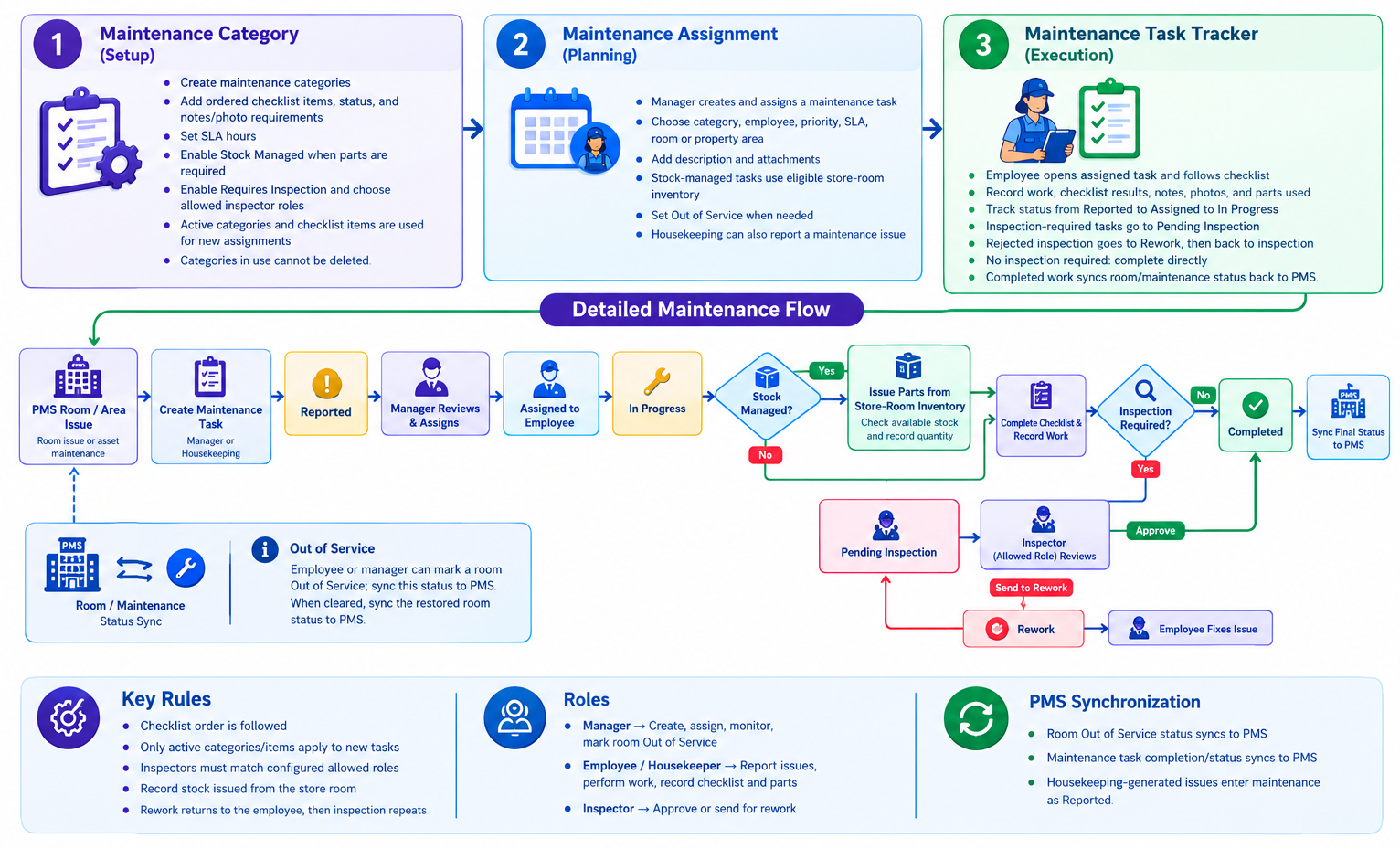
Open this from Maintenance. You can use a list or a board with one column per stage.
Maintenance Task has two views. The icons in the top-right corner switch between them. Desktop opens in Kanban View. A phone opens in Plain View. The search, the reported date range, and the filters stay the same in both.
Switch the view
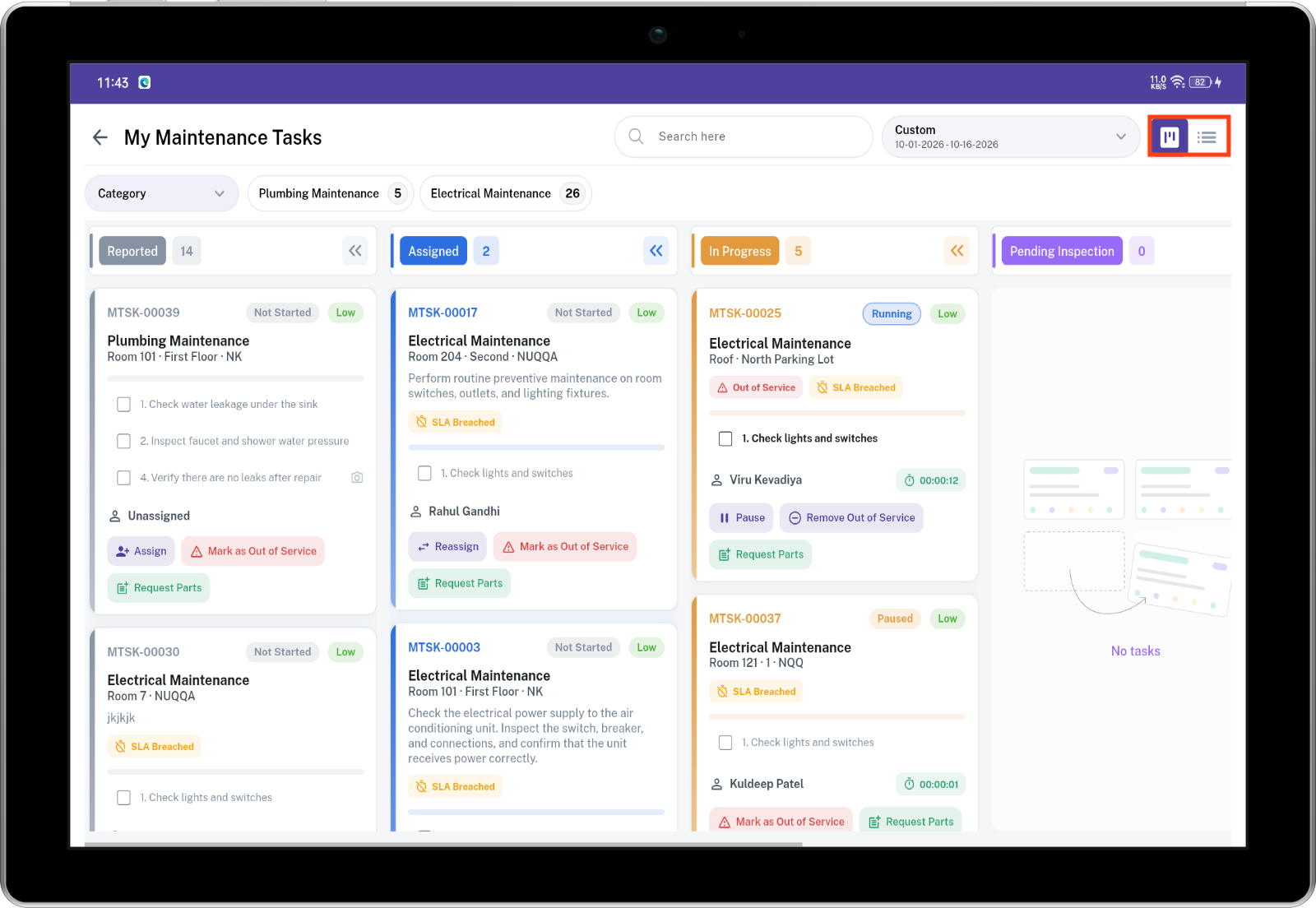 The board icon is Kanban View. The list icon is Plain View. Tap one to change the layout. The same work orders stay on screen. Only the way they are arranged changes.
Kanban View
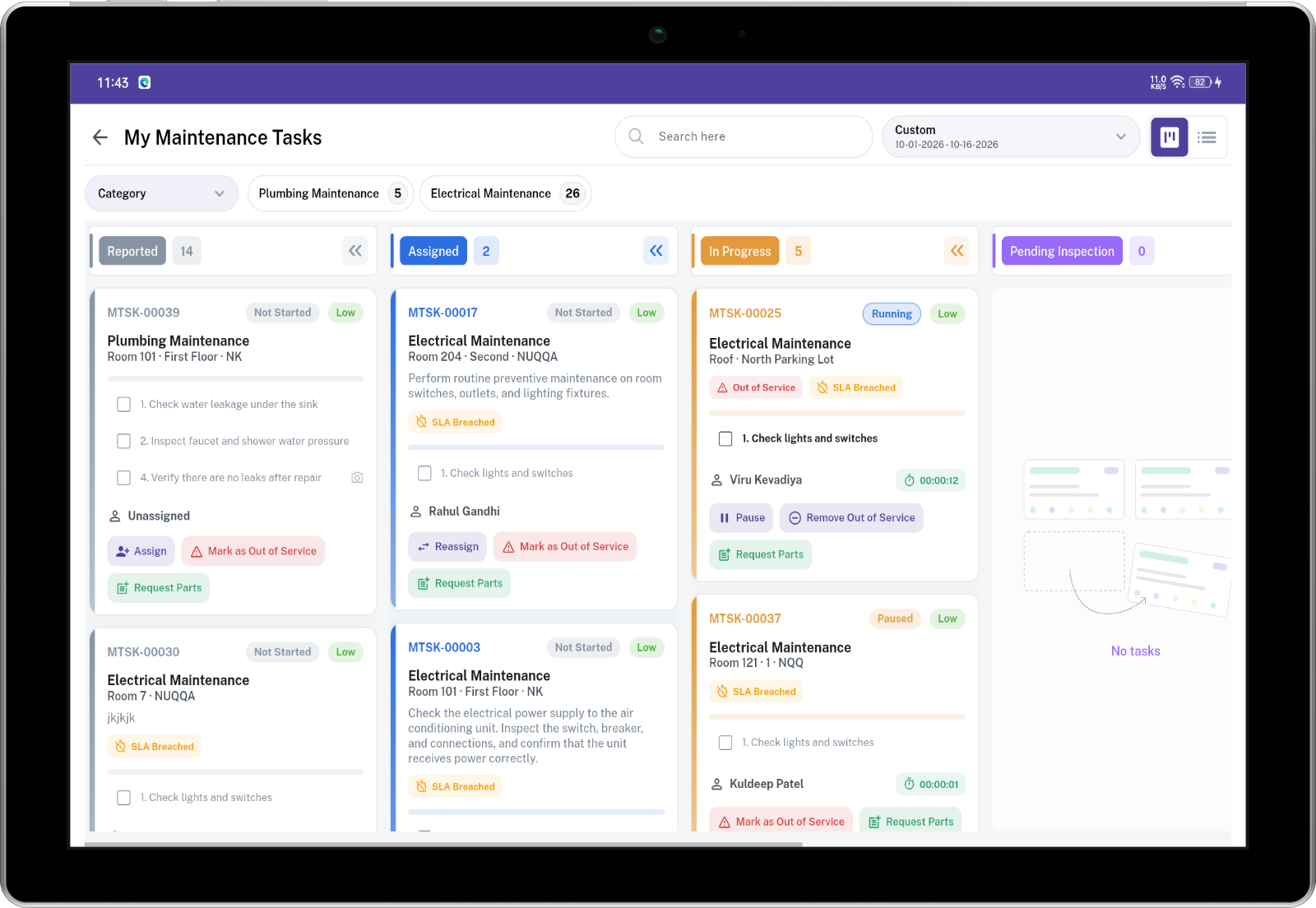
Kanban View is the column board. One column is one stage. Cards sit in the column that matches where the work is now. Each column has its own color, name, and count. Scroll inside a column to load more cards for that stage only.
Drag a card into the next allowed column to move it. Drag a Reported card onto Assigned to assign it to yourself. A card in Pending Inspection is not dragged to Rework or Completed. Those moves happen by marking checklist steps.
| Column | What it means |
|---|---|
| Reported | Created. No technician yet. |
| Assigned | A technician is named. Work has not started. |
| In Progress | The technician is working, or has paused. |
| Pending Inspection | The technician is done. Inspection has not started, or is underway. |
| Rework | The inspector sent one or more steps back. |
| Completed | Closed. It stays closed. |
Plain View
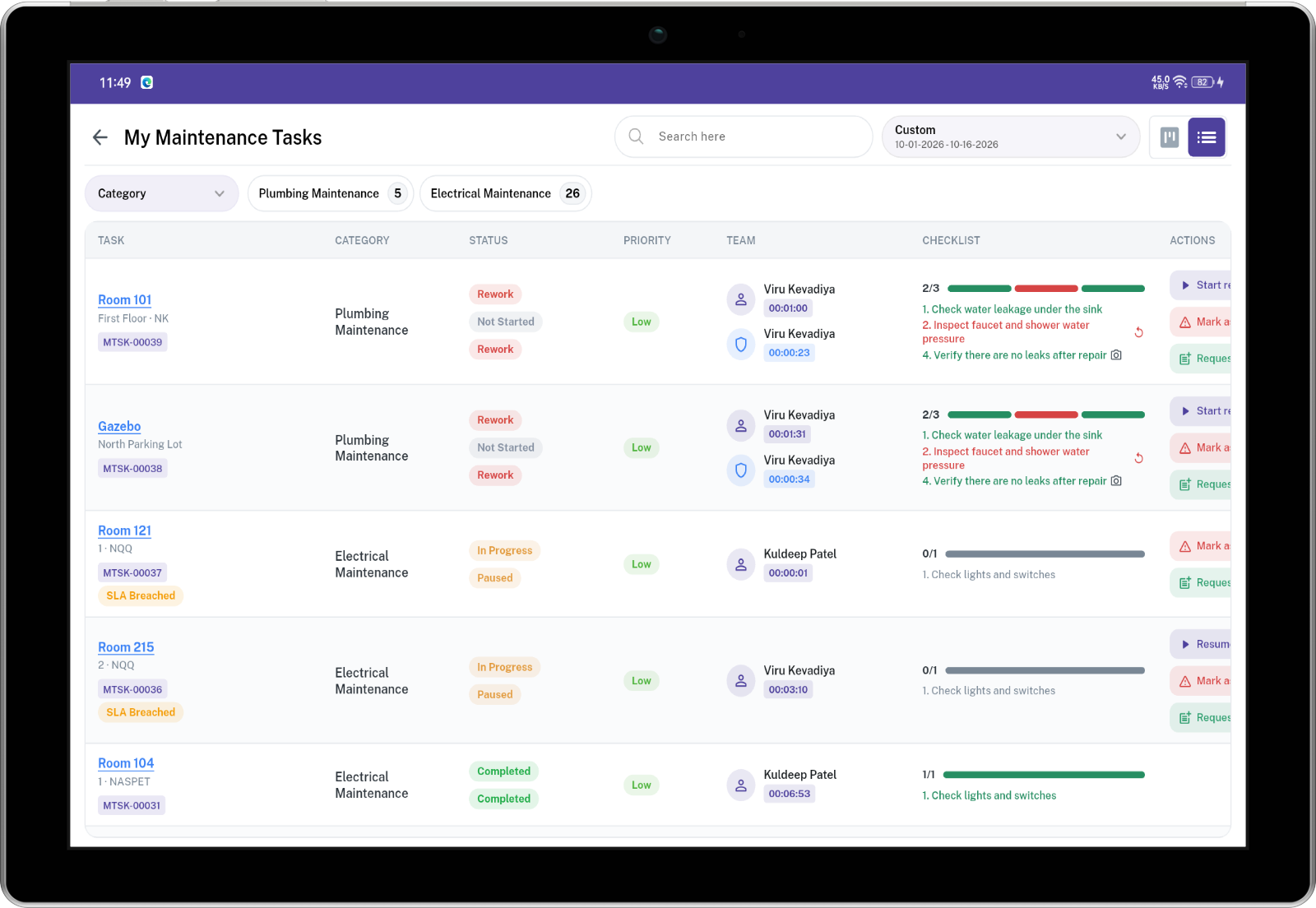
Plain View is one table. There are no columns to drag between. Newest reported work orders are first. Load more at the bottom brings the next page.
| Column | What it shows |
|---|---|
| Task | Work order code, room or area, and stage |
| Category | Maintenance category |
| Status | Timer status: Not Started, Running, Paused, or Completed |
| Priority | Low, Medium, High, or Critical |
| Team | Technician and the inspector when one has started |
| Checklist | How many steps are done |
| Actions | The same buttons as on the Kanban card for that stage |
Filters
Switch between list and columns. The columns follow the order above. Each column loads more work orders as you scroll. The list is newest reported first.
Filters, each with a count of matching work orders:
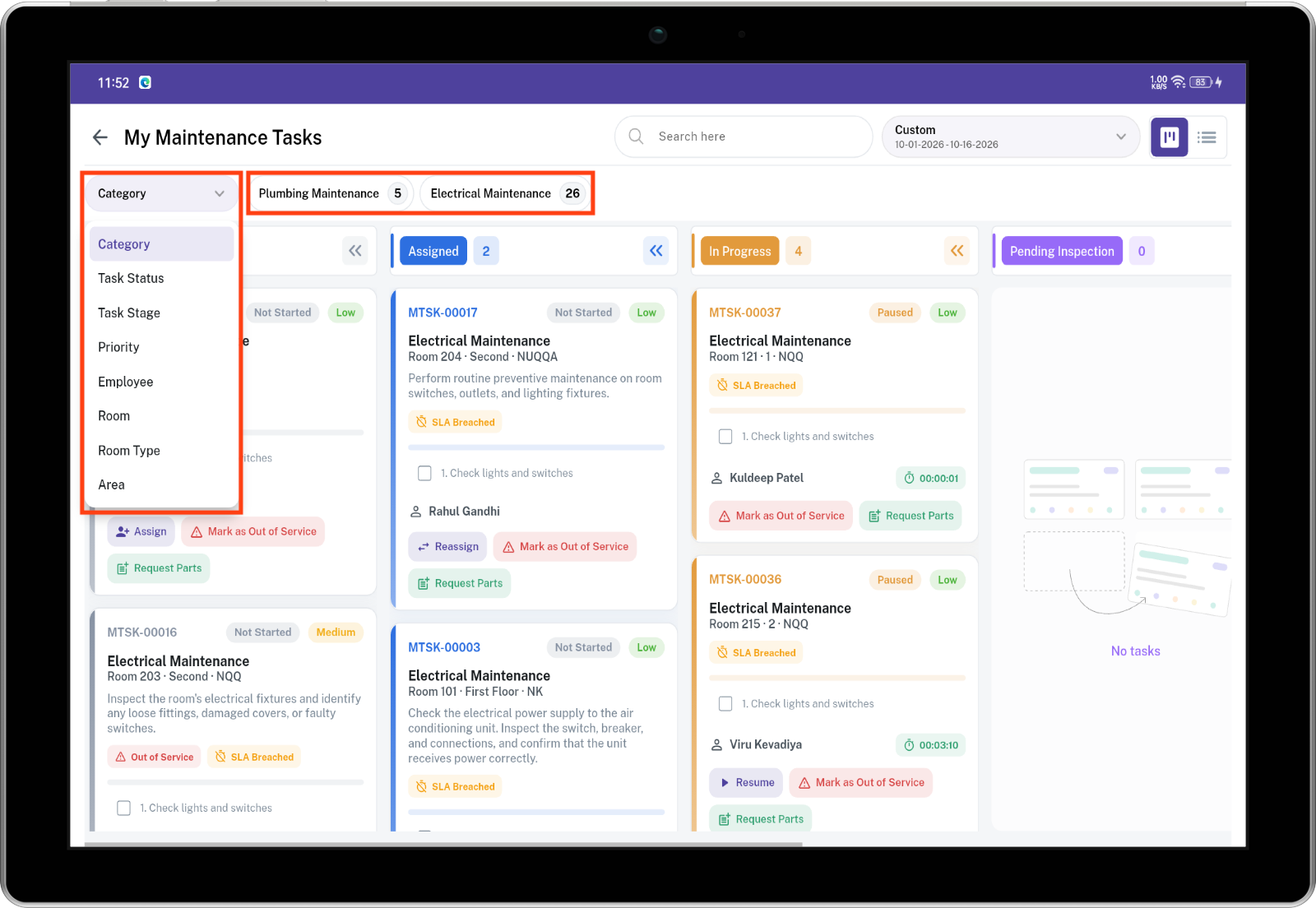
- Category
- Timer status
- Column
- Priority
- Employee
- Room
- Room type
- Area
Choosing a category narrows the other filters. The date range uses the reported date.
A card shows the code, category, room or area, priority, technician, time target, and checklist progress.
Stage and timer
The stage is the column. The timer status is whether work inside that column is stopped, running, or paused.
A work order can sit in In Progress while the timer is Paused. Pausing does not move it to another column.
| Order | Stage | Meaning |
|---|---|---|
| 1 | Reported | Created, and no technician is assigned. |
| 2 | Assigned | A technician is named. The timer has not started. |
| 3 | In Progress | The technician is working or has paused. |
| 4 | Pending Inspection | The technician is done. An inspector has not started, or is inspecting now. |
| 5 | Rework | The inspector sent one or more steps back. |
| 6 | Completed | Closed. It stays closed. |
Timer
| Timer status | Meaning |
|---|---|
| Not Started | The timer for this column has not been started. |
| Running | The timer is running. |
| Paused | The timer is paused. The time already counted is kept. |
| Completed | Used when the column is Completed. |
| Column | Timer you will see |
|---|---|
| Reported | Not Started |
| Assigned | Not Started |
| In Progress | Running or Paused |
| Pending Inspection | Not Started while waiting, then Running or Paused during the inspection |
| Rework | Not Started until the technician starts again |
| Completed | Completed |
Two clocks are kept separate:
- Work time counts while the technician’s timer is running in In Progress.
- Inspection time counts while the inspector’s timer is running in Pending Inspection.
A person can have one running work timer and one running inspection timer. Starting a second timer of the same kind prompts them to confirm. Confirming pauses the other job and starts this one.
How a work order moves
- A technician can be changed only in Reported and Assigned.
- In Progress goes to Completed when inspection is not required and every checklist step is done.
- In Progress goes to Pending Inspection when inspection is required and every checklist step is done.
- From Pending Inspection, Rework and Completed happen by marking checklist steps, one at a time. The card is not dragged there.
- Completed cannot be edited, deleted, or moved.
Who sees which work orders
| Login | What the board shows |
|---|---|
| Admin | Every work order at the property. |
| Supervisor, with full edit rights | Work assigned to them and to people in roles under them, work they reported, inspection work their role may see, and unassigned work. |
| Technician or inspector, with self-edit rights | Work assigned to them, work they reported, and inspection work they are allowed to see. |
Inspection work appears for you in Pending Inspection, Rework, and Completed when an inspection is required and either you have already started that inspection, or nobody has started it and your job role is one of the category’s inspection roles.
For the maintenance person
You are the technician named on the work order. Start, Pause, Resume, and Start Rework are shown to you.
| Column | What you do |
|---|---|
| Assigned | Tap Start. The card moves to In Progress and your work time starts. |
| In Progress, timer running | Tap Pause when you leave the job. |
| In Progress, timer paused | Tap Resume. |
| In Progress, and there is no checklist | Tap Send for Inspection when inspection is required. Tap Complete when it is not. |
| Rework | Tap Start Rework, then fix the steps the inspector sent back. |
If another job of yours is already running, confirm to pause that one and start this one.
Checklist
While your timer is running, mark steps from the top. You can mark only the next step that is still waiting or was sent back.
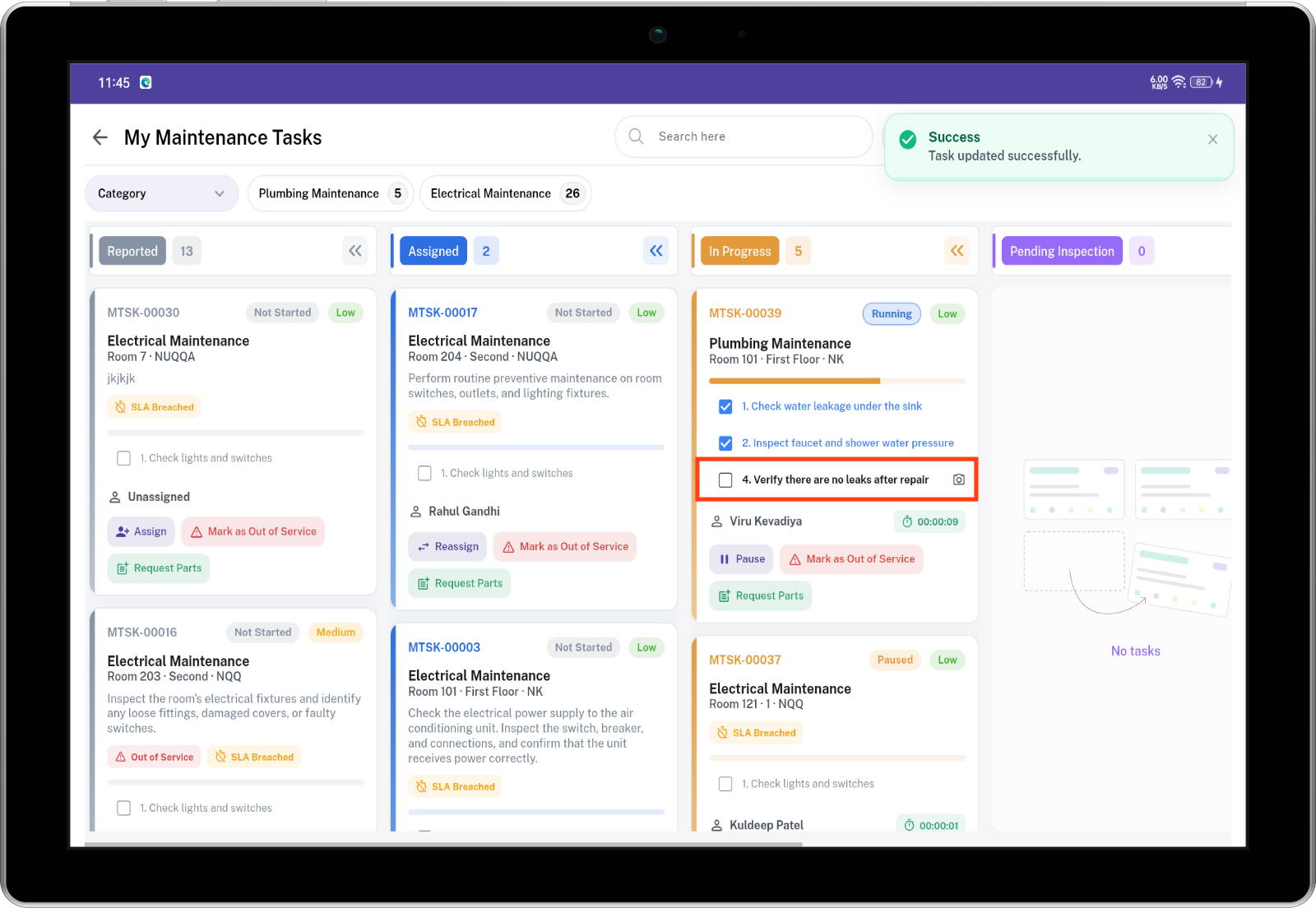
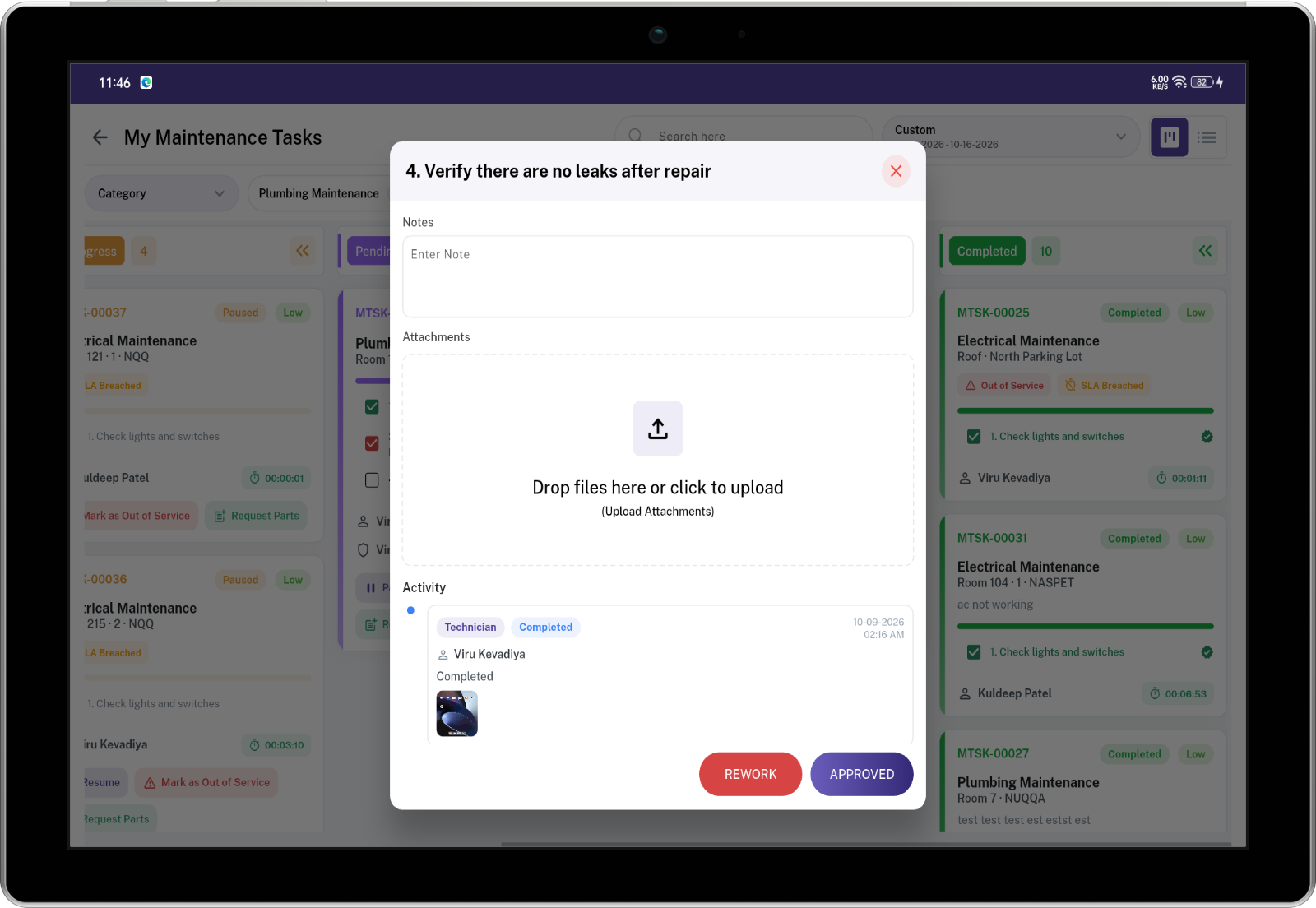
- When inspection is required, a step you finish becomes Completed. The inspector still has to accept it.
- When inspection is not required, a step you finish becomes Approved.
- When the step requires notes and photos, add a note or a photo. Saving with both empty is rejected.
When every step is Completed or Approved:
- Inspection required: the card moves to Pending Inspection.
- Inspection not required: the card moves to Completed.
On Rework, approved steps stay approved. Redo the steps that were sent back. When those are finished again, the card returns to Pending Inspection.
You can open a finished step to read its notes and photos.
Checklist colors
| Color | Meaning |
|---|---|
| Gray | Waiting, or not the step anyone can mark right now. |
| Black | The step it is your turn to mark. |
| Blue | The technician marked it done. It is waiting for inspection, or inspection was not required. |
| Green | Approved. |
| Red | Sent back for rework. While the technician is redoing that step, it is shown as the current step instead of red. |
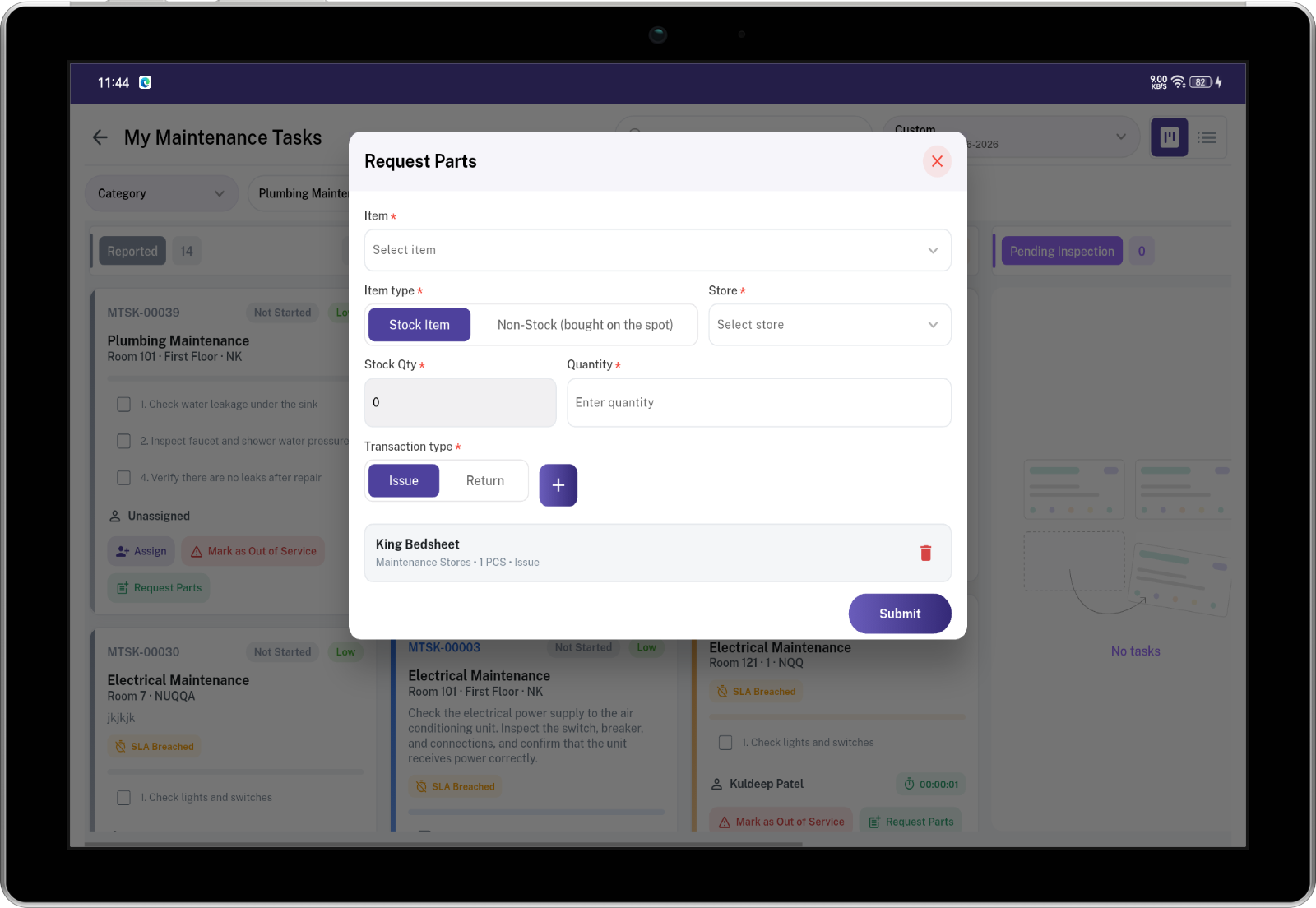
Parts
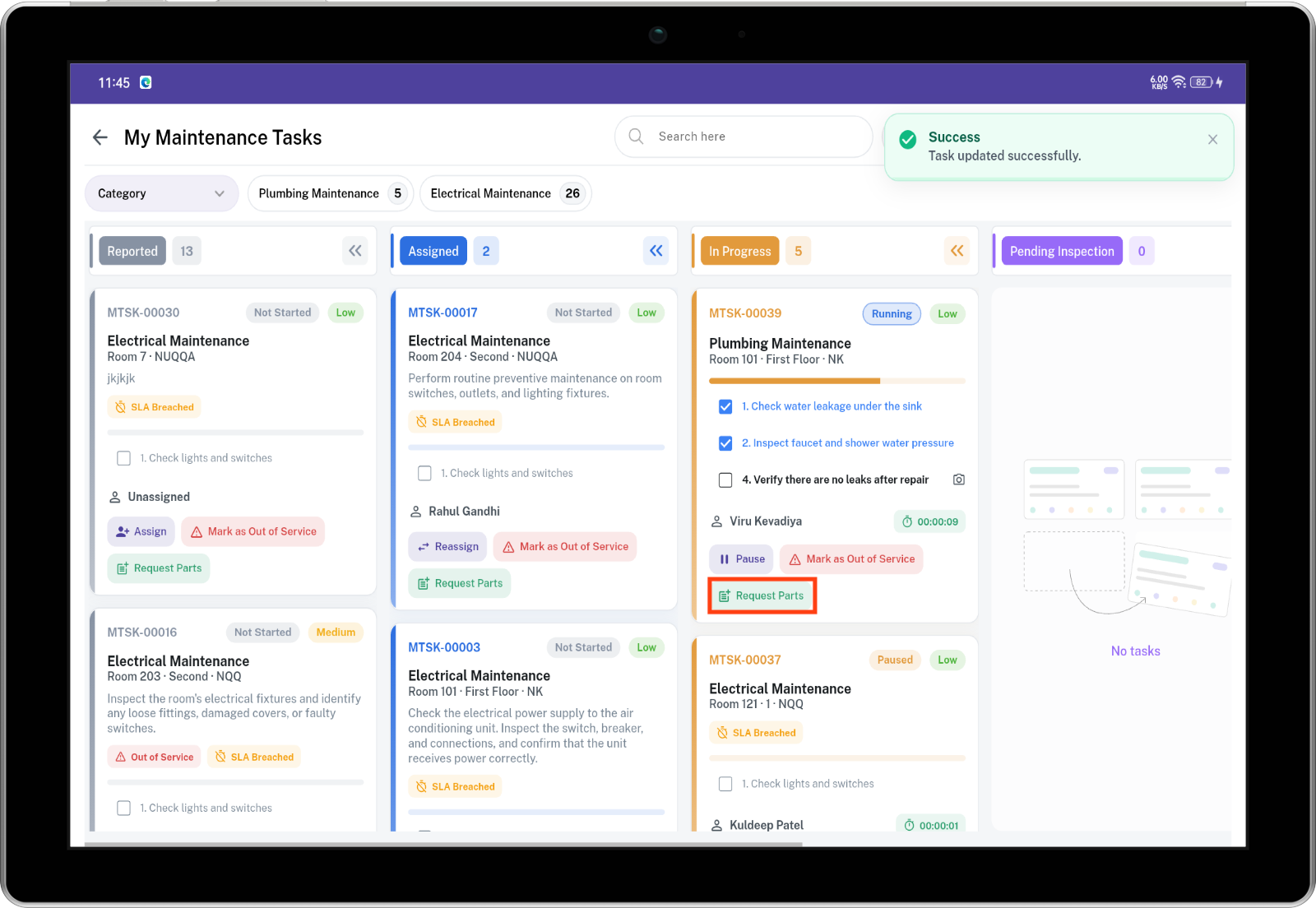
Request Parts is available after the work order has left Reported and before it is Completed, for a person allowed to update that work order.
For each part:
- Choose an item, or Other / Not Found when the part is not in the system.
- For a stock item, choose a storeroom that still has quantity available.
- Enter the quantity and the unit.
- Choose Issue for parts used, or Return for parts put back.
- A part bought on the spot does not need a storeroom balance.
Room out of service
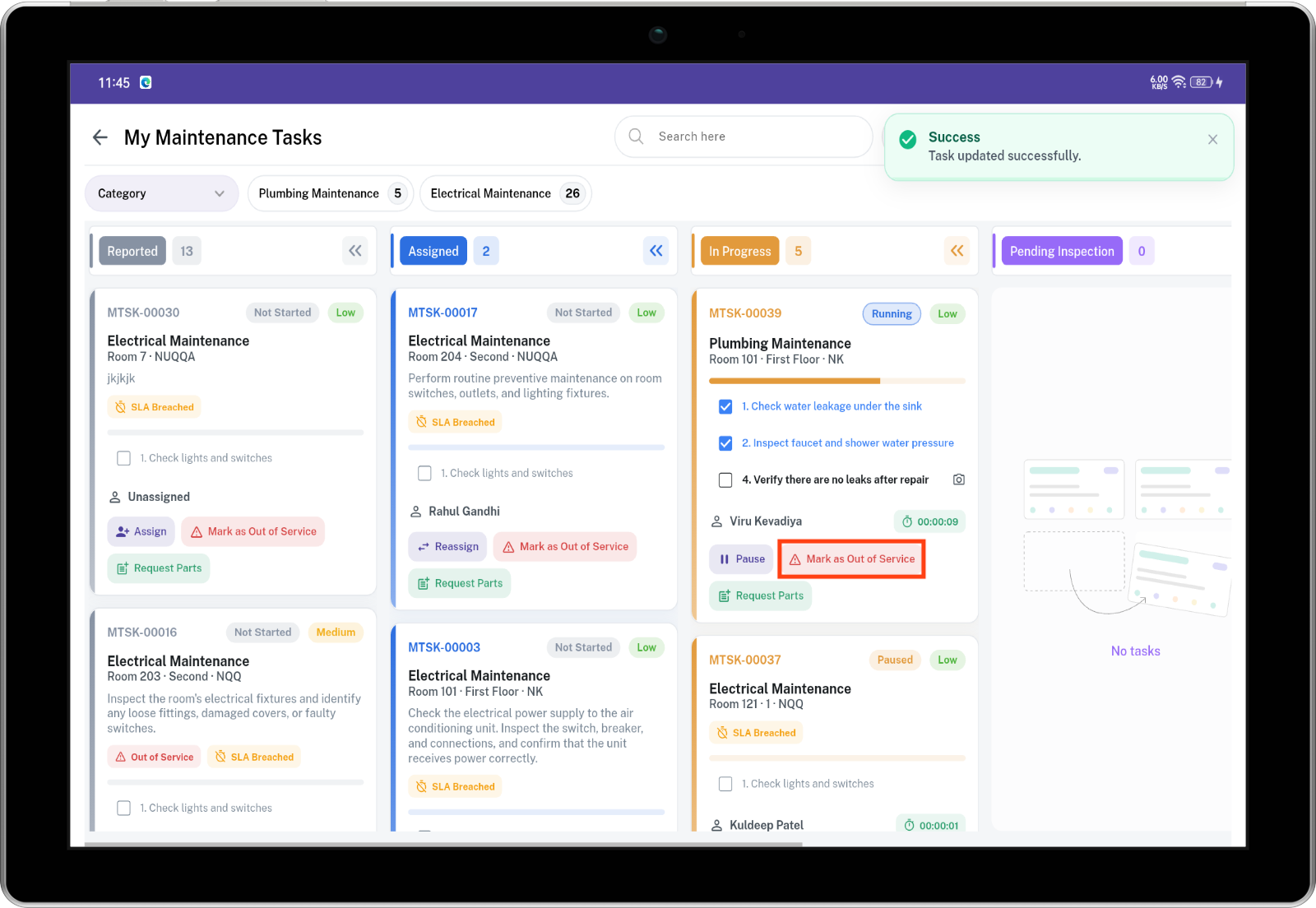
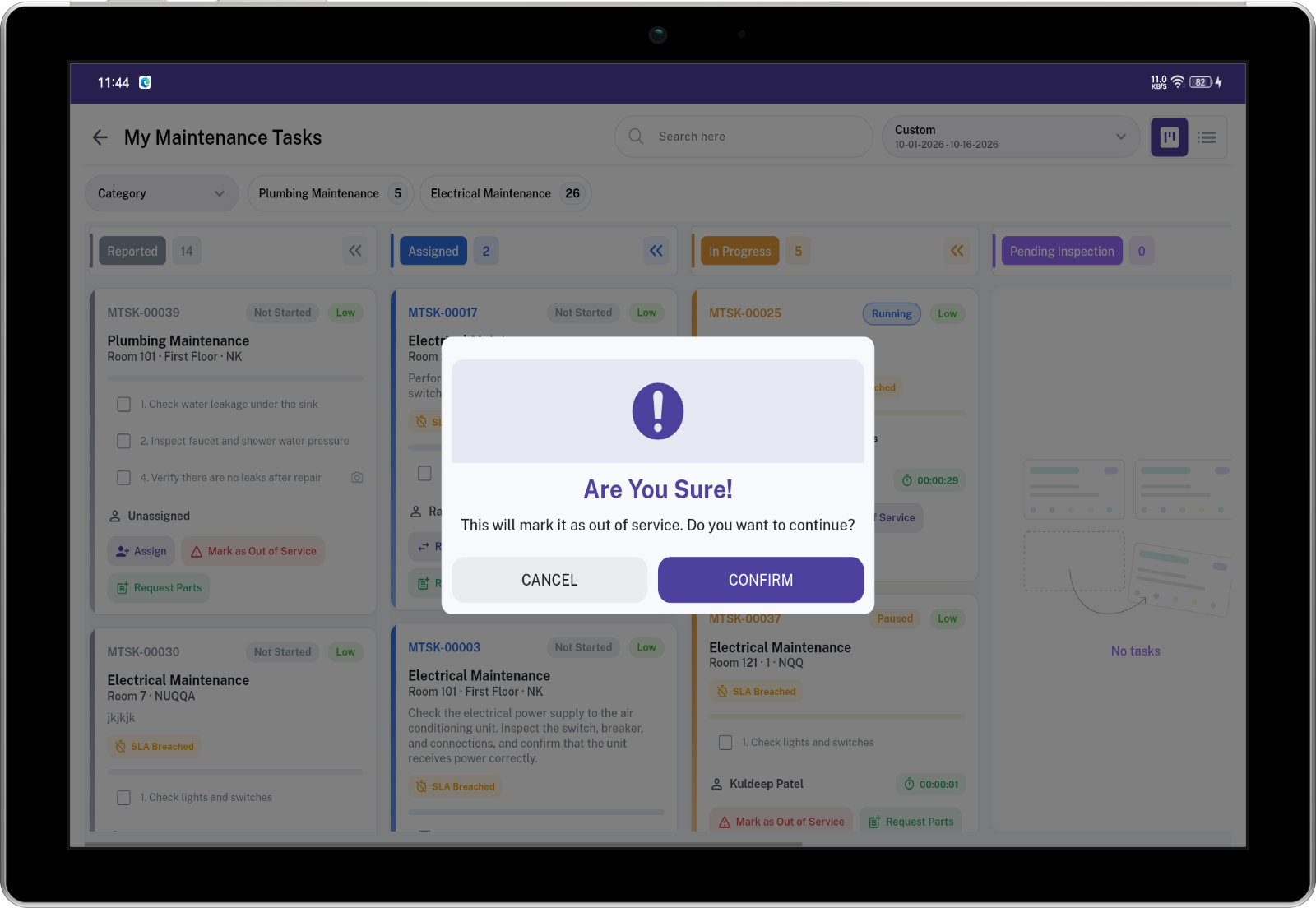
On a guest-room work order, Mark Out of Service takes the room out of order. Back in Service puts it back. This stays available until the work order is completed by a person allowed to assign that work order.
A public area has no room, so this action is rejected. Turning the same setting on or off a second time is rejected.
The room is updated in SpendWell. Sending that change to the hotel system is switched off.
For the inspector
You work in Pending Inspection. You see a work order there when its category requires inspection, and your role is allowed to inspect it, or you are already the inspector on it.
Start the inspection
- Open the work order. The timer is Not Started.
- Tap Start Inspection. Your name is saved on the work order. The inspection stays with you.
- Use Pause and Resume the same way the technician does. If you already have another inspection running, confirming pauses that one.
The inspection has to be started before the work order can be approved or sent back. An admin can act as well. Another inspector does not take over after you have started.
Mark each step
Go through the steps the technician marked Completedin order.
| Choice | When to use it |
|---|---|
| Approved | That step is acceptable. |
| Rework | The technician must do that step again. Add a note or a photo. |
The whole card is not dragged to Rework or Completed. When the last step is marked:
- Every step Approved: the work order moves to Completed. The technician and the person who reported it are told it was approved.
- Any step Rework: the work order moves to Rework. The technician is told. The work order is marked as rework.
When the technician finishes those steps, the work order comes back to Pending Inspection with you still as the inspector. Approved steps stay approved. Check the steps they redid.
A category that does not require inspection never enters this column. The technician closes it.
For the person who assigns work
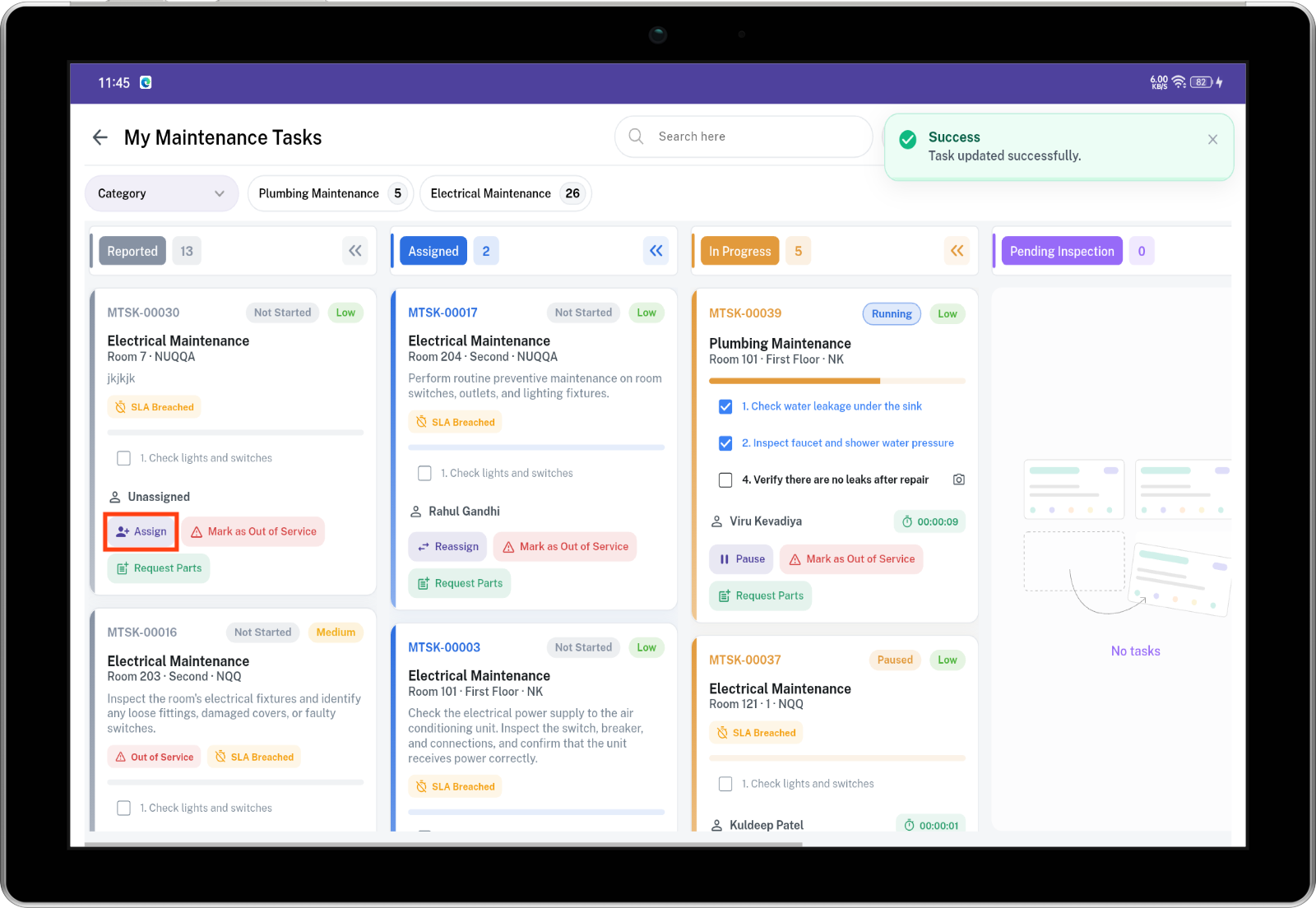

| Action | When it is available |
|---|---|
| Assign on a Reported card | Only active employees whose department is Maintenance are shown. The card moves to Assigned and that person is notified. |
| Drag a Reported card onto Assigned | Assigns it to you. |
| Reassign on an Assigned card | Before the timer starts. The previous technician is told it was removed. The new technician is told it is theirs. |
| Clear the technician | The card returns to Reported. |
Details
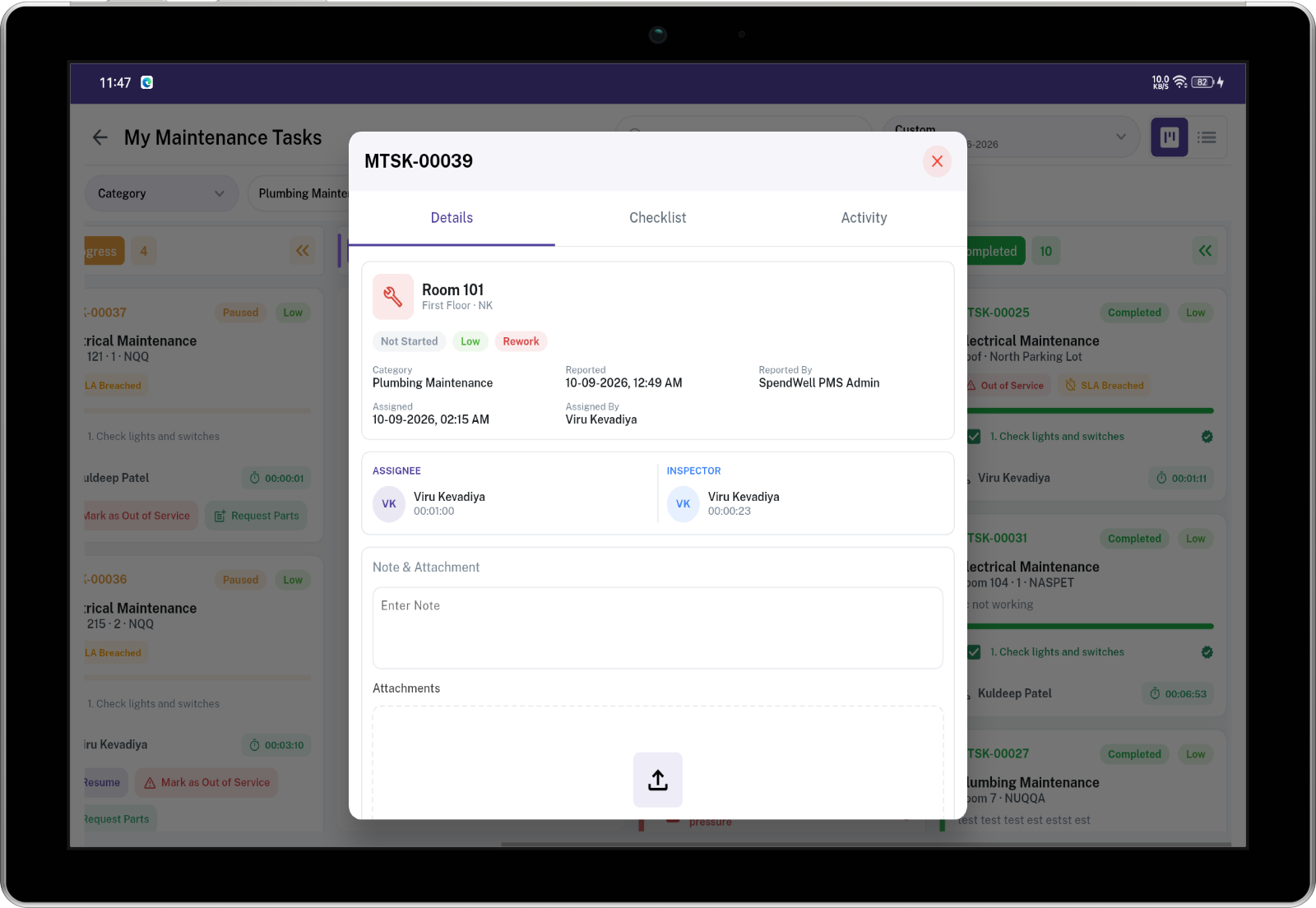
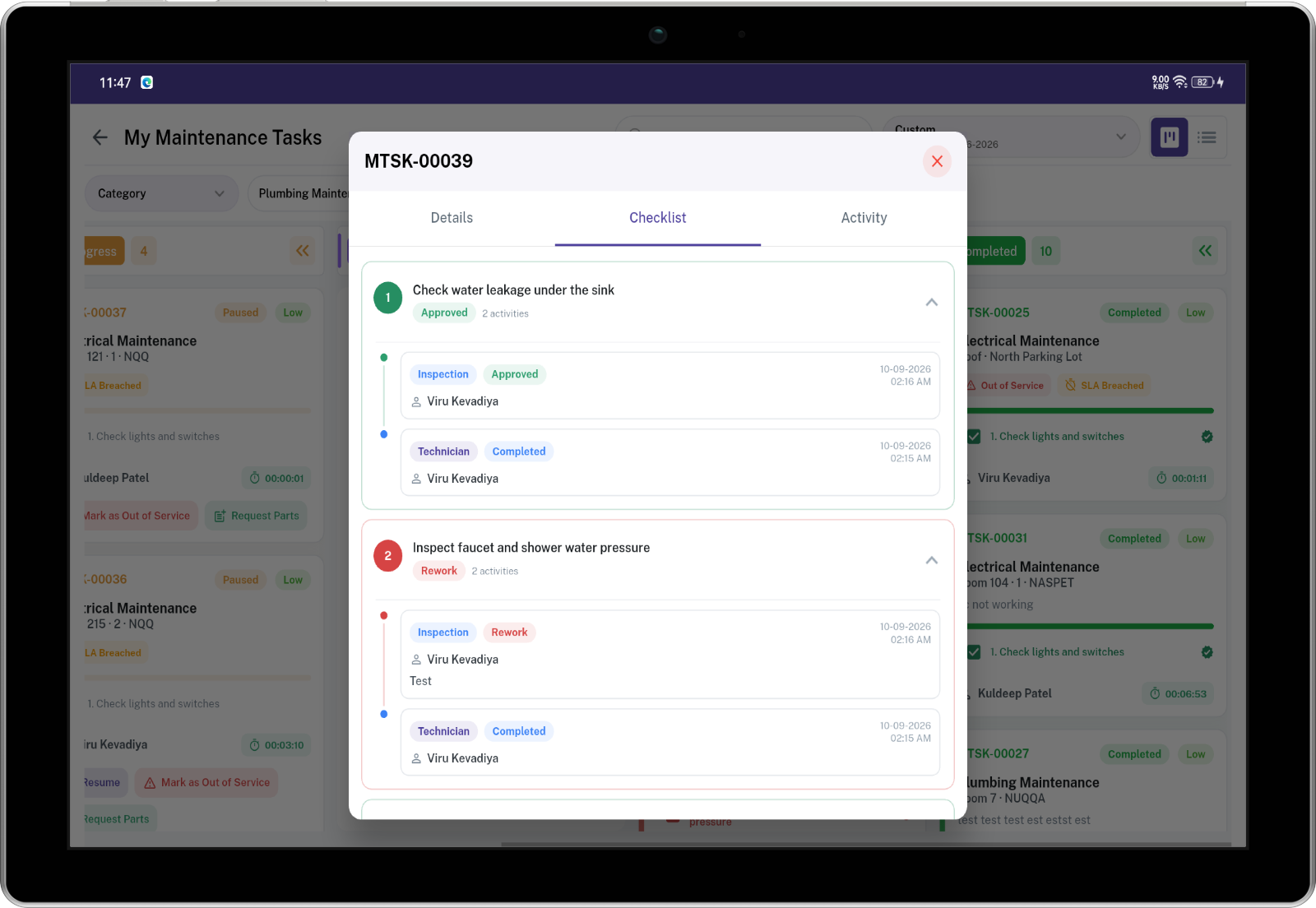
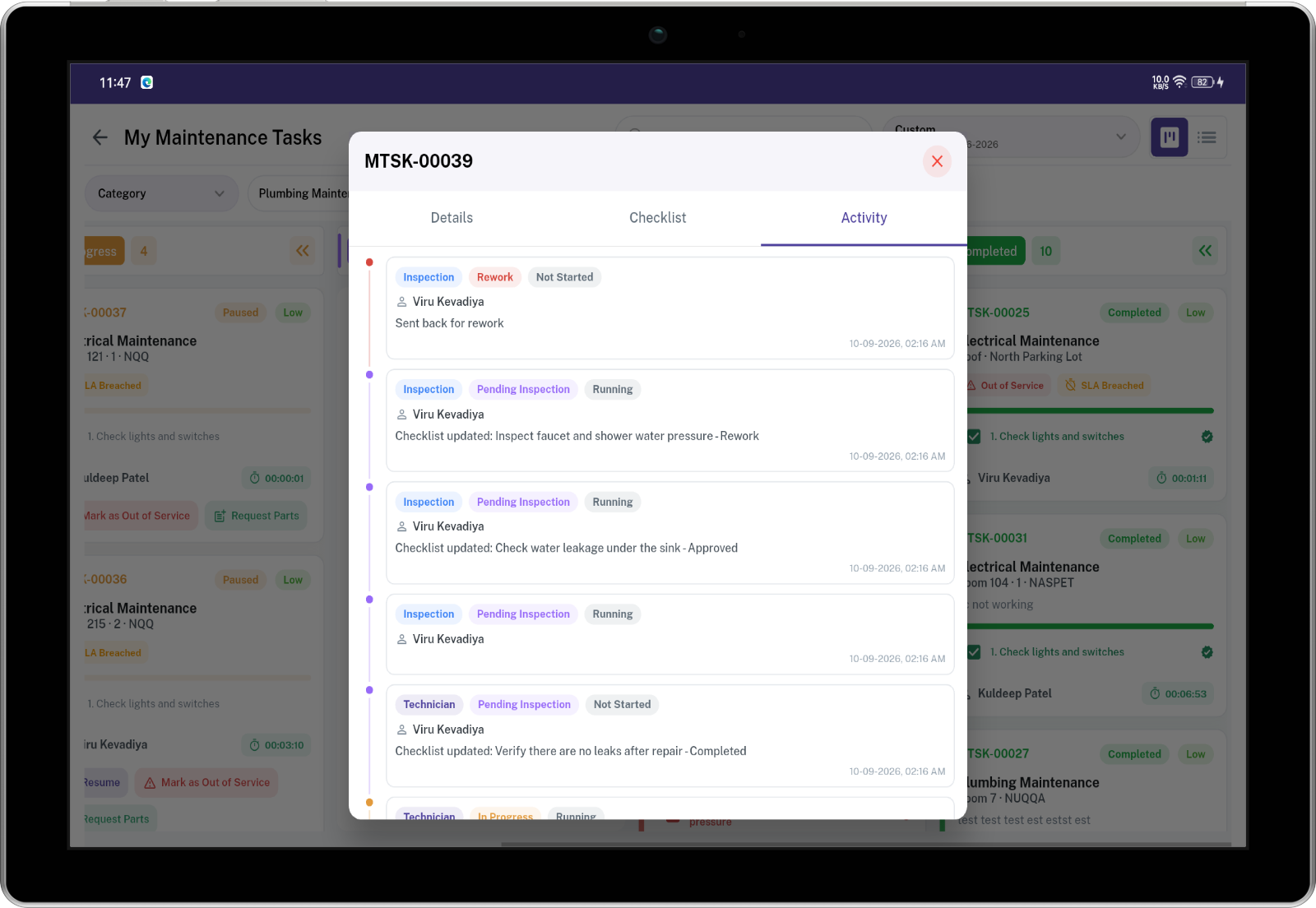
Tap the work order code. Three tabs open.
- Details shows location, priority, who reported it, who it is assigned to, the time target, and the dates.
- Checklist lists every step and its result.
- Activity is the history, newest first: assign, start, pause, checklist, parts, inspection, and out of service.
Notifications
You are not notified about an action you just performed.
| What happened | Who is told |
|---|---|
| Assigned | The new technician |
| Technician removed | The person who was removed |
| Ready for inspection | Everyone at the property in the allowed inspector roles, until someone starts it. After that, the inspector who started it. |
| Sent back for rework | The technician |
| Approved | The technician and the person who reported it |
| Completed by the technician, with no inspection | The technician and the person who reported it |
The notification opens Maintenance Task.
One job from report to close
Category Plumbing. Time target: 4 hours. Inspection is required. The inspector role is Maintenance Inspector. Steps: shut off the water, replace the supply line (note or photo required), test for leaks.
- Housekeeping reports a leak in room 109 and does not pick a technician. The card is in Reported. The due time is four hours after the report. All three steps are waiting.
- The Maintenance Inspector assigns Ramesh. The card moves to Assigned. Ramesh is notified.
- Ramesh taps Start. The card is In Progress and his timer is running.
- He completes the three steps in order and attaches a photo of the supply line. The card moves to Pending Inspection. People in the Maintenance Inspector role are notified.
- Priya taps Start Inspection. She approves the first and third steps and sends the supply line back with a note. The card moves to Rework. Ramesh is notified.
- Ramesh taps Start Rework, redoes the supply line, and attaches a new photo. The card returns to Pending Inspection.
- Priya approves the supply line. Every step is approved. The card moves to Completed. Ramesh and the housekeeper who reported it are notified.
If that category did not require inspection, finishing the steps in step 4 would approve them and move the card straight to Completed.
No comments to display
No comments to display