
Userrights
Overview
The User Rights module allows administrators to control what users can access and what actions they can perform in Spendwell iHospitality.
Rights can be assigned based on:
- Module Type — Web or App
- User Role — Assign rights to all employees under a selected role
- Employee — Assign rights to a specific employee
- Module — Filter and manage rights for a specific module
- Form — Configure rights for individual screens or forms
The User Rights screen allows you to manage the following permissions:
| Permission | Description |
|---|---|
| 👁️ Can View | Controls whether the user can view the form and its data |
| ➕ Can Add | Controls whether the user can create new records |
| ✏️ Can Update | Controls whether the user can edit existing records |
| 🗑️ Can Delete | Controls whether the user can delete records |
| 📋 Can Manage Request? | Controls whether the user can manage or process requests |
Each applicable permission can be configured as All or Self.
User Rights Screen
The User Rights screen provides filters at the top and a permission matrix below.
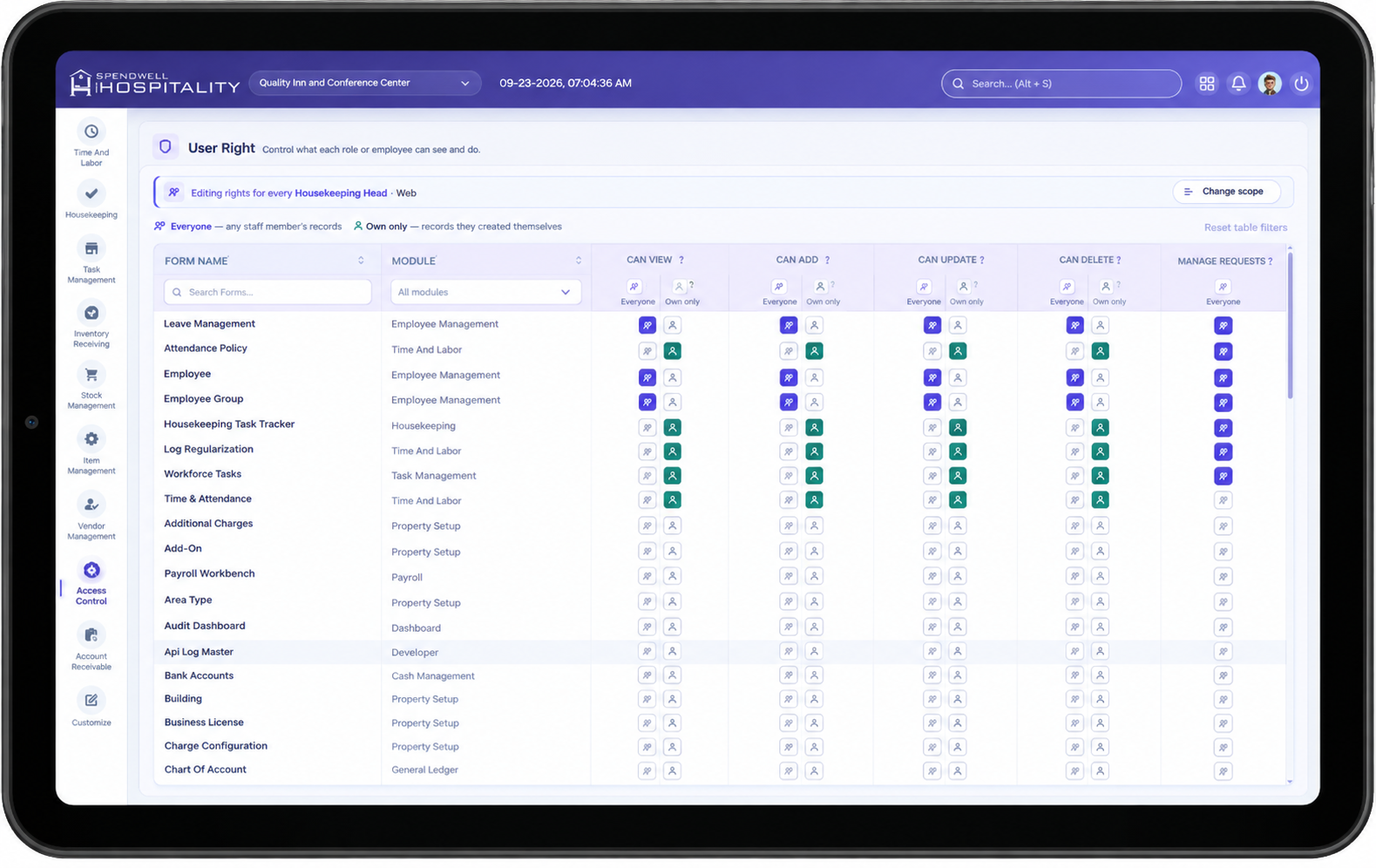
| Field | Description |
|---|---|
| Module Type | Select where the rights will apply: Web or App |
| User Role | Select a role to assign rights to all employees under that role |
| Employee | Select a specific employee to assign individual rights |
| Module | Filter forms belonging to a specific module |
| Search Here | Search for a form by name |
| Create | Save or create the configured user rights |
| Reset Filters | Clear the selected filters and reset the screen |
Note: Select either a User Role or an Employee based on how you want to assign the rights.
How User Rights Assignment Works
User Rights can be assigned in two ways.
1. Role-Wise Rights
Use User Role when the same permissions should be assigned to multiple employees.
Example
Suppose you select:
- Module Type: App
- User Role: Housekeeping
When rights are configured and saved, the selected permissions apply to the employees associated with the Housekeeping role.
Best Used For
- Employees with the same responsibilities
- Department-level access
- Standard permission setup
- Assigning rights to multiple users at once
2. Employee-Wise Rights
Employee-Wise Rights are used when a specific employee needs customized permissions.
Example
- Module Type: App
- Employee: Aarav Patel
Only Aarav Patel receives this specific permission.
Best Used For
- Specific employee access
- Customized permissions for individual employees
- Giving different rights to employees with the same role
- Managing employee-specific form access
- Granting access to selected forms only
All vs Self
All
All means the user can access data of the users below their role in the User Role Hierarchy.
Example
Hierarchy:
Hotel Manager
    ↓
Housekeeper
    ↓
Laundry Staff
If Tushar is a Hotel Manager and has:
View → All
Tushar can view data of the roles below him in the hierarchy:
Tushar
Hotel Manager
    ↓
✓ Housekeeper data
    ↓
✓ Laundry Staff data
All = Access data of users under the logged-in user's role hierarchy.
Self
Self means the user can access only their own data.
Example
If Tushar is logged in and has:
View → Self
Then:
Tushar
    ↓
✓ Tushar's own data

✕ Housekeeper data
✕ Laundry Staff data
No comments to display
No comments to display