
Document Sequence
The Document Sequence feature is used to create a standard numbering format for documents, records, or transactions.
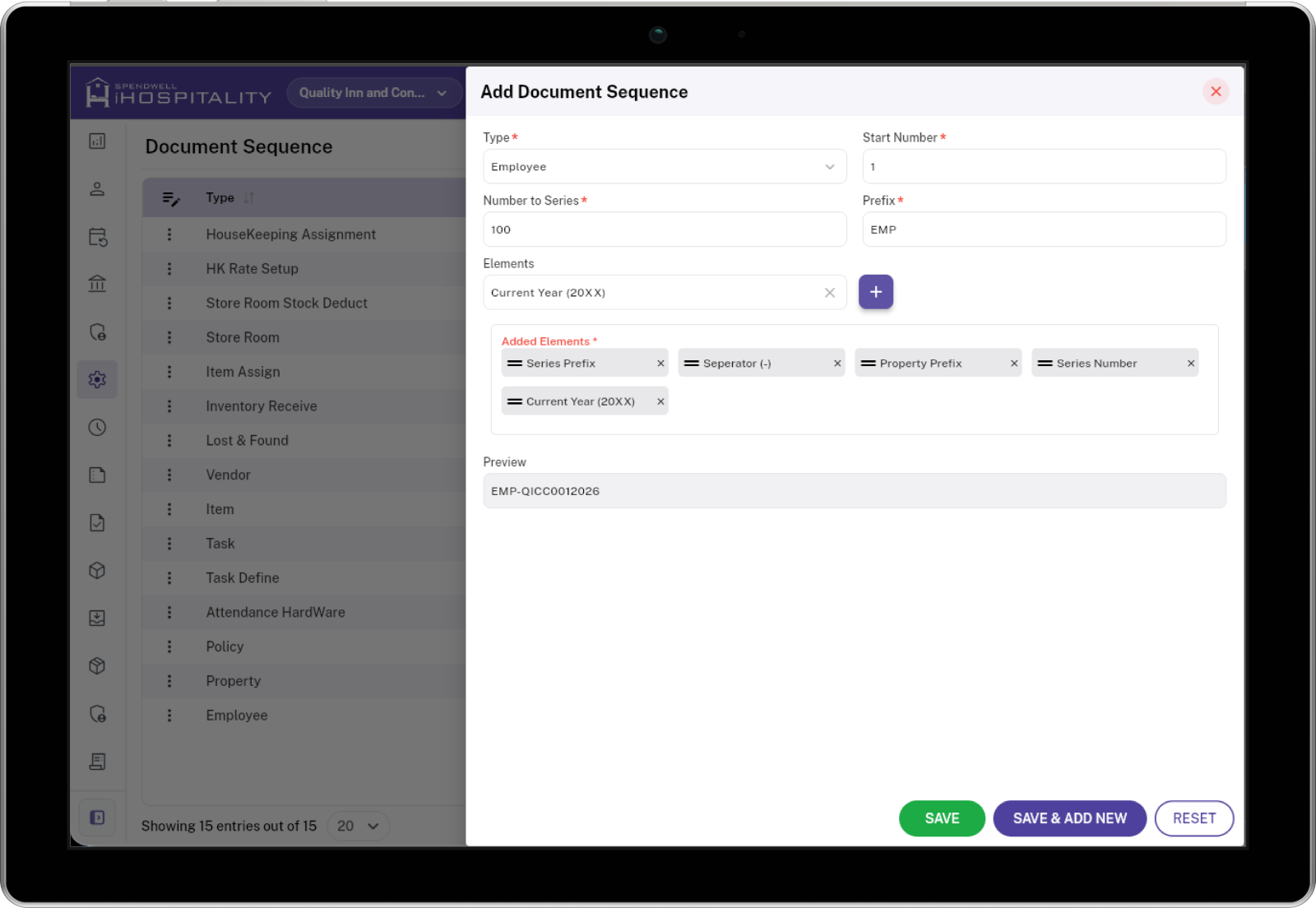
Purpose: Create a document numbering format such as
EMP-QICC0012026.
1. What Goes Where?
| Field | What to enter |
|---|---|
| Property* | Select the property |
| Type* | Select what the sequence is for |
| Date Range* | Select the active period, when shown |
| Reset | Choose when numbering restarts: Every Day, Every Month, Every Year, Never |
| Start Number* | First number in the sequence |
| Number to Series* | Number/range covered by the series |
| Prefix* | Short identifier for the sequence |
| Elements | Select parts to build the number |
| Added Elements* | Arrange the selected parts in order |
| Preview | Shows the resulting format |
* = Required field
2. Build the Number
Think of the Added Elements area as building blocks.
| 1 | 2 | 3 | 4 | 5 |
|---|---|---|---|---|
| Series Prefix | Separator | Property Prefix | Series Number | Current Year |
EMP |
- |
QICC |
001 |
2026 |
Result
EMP-QICC0012026
So:
EMP + - + QICC + 001 + 2026
→ EMP-QICC0012026
3. How to Create a Sequence
| Step | Action | Example |
|---|---|---|
| 1 | Select Property | Quality Inn and Conference Center |
| 2 | Select Type | Employee |
| 3 | Set Date Range if available | 01-Jan-2026 → 31-Dec-2026 |
| 4 | Select Reset if required | Every Year |
| 5 | Enter Start Number | 1 |
| 6 | Enter Number to Series | 100 |
| 7 | Enter Prefix | EMP |
| 8 | Select an Element | Current Year (20XX) |
| 9 | Click + | Adds the element |
| 10 | Drag elements into the required order | Prefix → Separator → Property → Number → Year |
| 11 | Check Preview | EMP-QICC0012026 |
| 12 | Click Save | Sequence created |
4. Elements — What They Do
The Elements are the building blocks of the final document number.
Select an element, click +, and arrange the added elements in the required order.
| Element | What it does | Example |
|---|---|---|
| Series Number | Uses the Start Number and formats it with leading zeros based on the length of Number to Series. | Start Number 1, Number to Series 100 → 001 |
| Series Prefix | Uses the value entered in the Prefix field. | Prefix EMP → EMP |
| Company Prefix | Uses the configured company preview/label for the selected company. | ABC |
| Property Prefix | Uses the configured prefix/label for the selected property. | QICC |
| Vendor Prefix | Uses the vendor name or vendor prefix configured for the record. | VEND |
| Category Prefix | Uses the category name or category prefix configured for the record. | FOOD |
| Current Year (20XX) | Adds the complete current year. | 2026 |
| Current Year (YY) | Adds the last two digits of the current year. | 26 |
| Current Month (MM) | Adds the current month as a 2-digit number. | January → 01 |
| Current F.Y (20XX/YY) | Adds the financial year in start year/end year format. The financial year starts in April. |
2026/27 |
| Current F.Y (20XX-YY) | Adds the financial year in start year-end YY format. The financial year starts in April. |
2026-27 |
| Month Alphabets (MM) | Adds the current month using its 3-letter abbreviation. | January → Jan |
| Year Alphabets (YY) | Adds the last two digits of the current year. | 2026 → 26 |
| Current Day (DD) | Adds the current day as a 2-digit number. | 5 → 05 |
| Separator (-) | Adds a hyphen between elements. | - |
| Separator (/) | Adds a slash between elements. | / |
Important: The order of these elements controls the final document number.
5. Change the Order
Current order
Prefix → Separator → Property → Number → Year
EMP-QICC0012026
If you change the order
Year → Separator → Prefix → Number
2026-EMP001
Drag and drop the items in Added Elements to change their order.
6. Add / Remove Elements
| Action | How |
|---|---|
| Add | Select an item in Elements → click + |
| Remove | Click × on the element |
| Reorder | Drag the element to a new position |
| Check result | Look at Preview |
Example
Remove Current Year:
EMP-QICC0012026
↓
EMP-QICC001
7. Reset Options
| Reset option | Meaning |
|---|---|
| Every Day | Numbering restarts each day |
| Every Month | Numbering restarts each month |
| Every Year | Numbering restarts each year |
| Never | Numbering does not automatically restart |
8. Buttons
| Button | Action |
|---|---|
| SAVE | Save the sequence |
| SAVE & ADD NEW | Save and immediately create another sequence |
| RESET | Reset the form |
No comments to display
No comments to display