
Property Registration
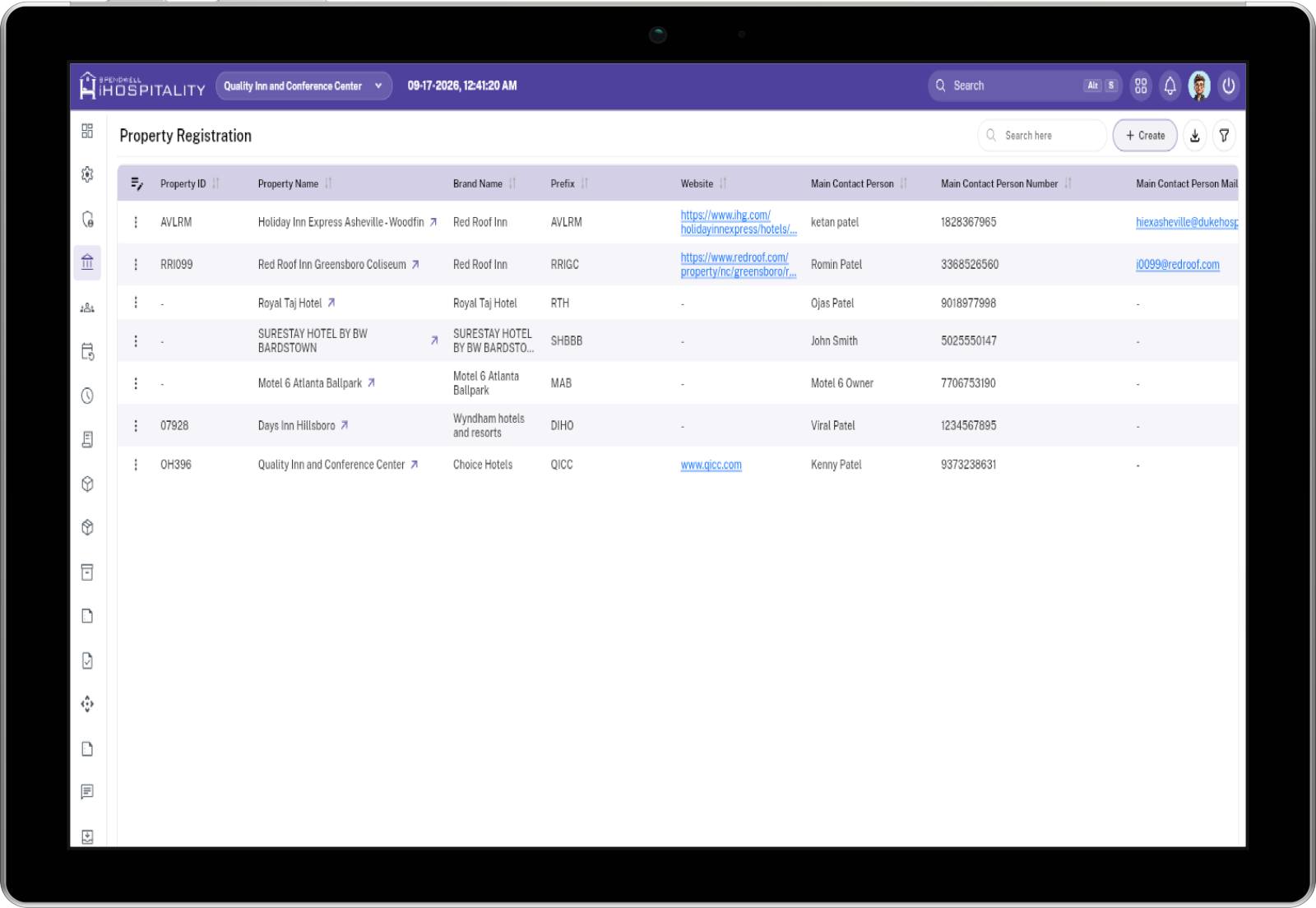
The Property Registration page stores complete property information, including property details, contacts, business details, branding, PMS connection, and images. It is used to link properties with employees, reservations, rooms, tasks, inventory, housekeeping, reports, and other property-based operations.
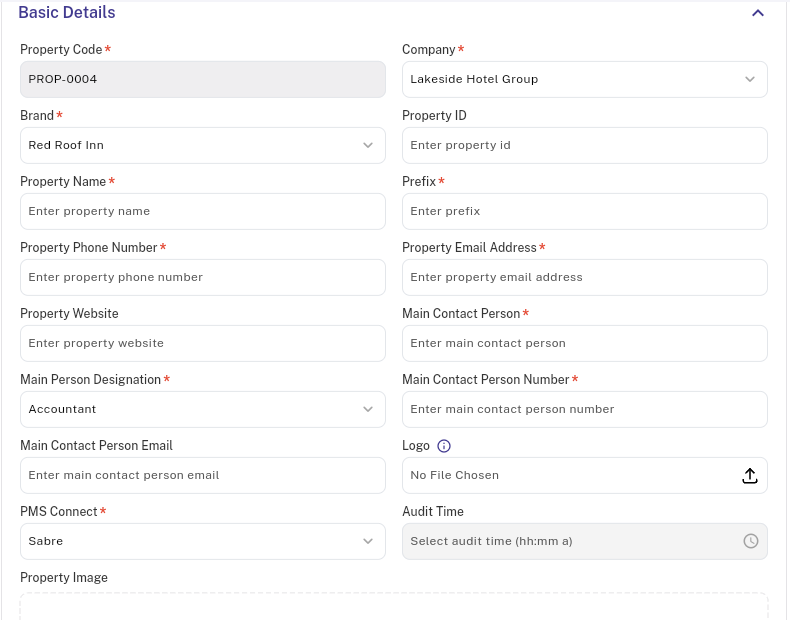
Basic Details
| Field | Required | Description |
|---|---|---|
| Property Code | Yes | System-generated property series code. It is read-only and populated automatically when the property is added. |
| Company | Yes | Company that owns the property. Select the correct company before entering the remaining details. |
| Brand | Yes | Property brand. The active brand list also supplies the brand logo and stores it with the selected property. |
| Property ID | No | Optional business or external identifier for the property. It must be unique within the company when provided. |
| Property Name | Yes | Display and business name of the property. It must be unique within the company. |
| Prefix | Yes | Property prefix used by downstream property-related numbering or identification. It must be unique within the company. |
| Property Phone Number | Yes | Main phone number for the property. Enter a valid 10-digit number. |
| Property Email Address | Yes | Main email address for the property. Enter a valid email address. |
| Property Website | No | Optional property website. Enter a complete, valid website address. |
| Main Contact Person | Yes | Name of the primary contact person for the property. |
| Main Person Designation | Yes | Designation selected for the primary contact. Only active designations are available. |
| Main Contact Person Number | Yes | Phone number of the primary contact. Enter a valid 10-digit number. |
| Main Contact Person Email | No | Optional email address of the primary contact. |
| Logo | No | Optional property logo uploaded through the file picker. Supported image extensions are configured by the application. |
| PMS Connect | Yes | PMS connection used by the property. Select the active connection that matches the property's operational system. |
| Audit Time | No | Optional time used for the property's audit scheduling configuration. |
| Property Image | No | Optional collection of property images. Multiple image files are accepted. |
Key Usage for Basic Details
- Property Code is created automatically. Employees do not need to enter or change it.
- Company determines where the property belongs. Administrators should check this before saving.
- Property Name, Property ID, and Prefix identify the property in lists, searches, reports, and related setup screens. Use consistent naming so employees can find the correct property.
- PMS Connect determines how the property works with its connected PMS. Select the correct connection before saving.
- Main Contact Person details should be kept current because they are used when the property needs to be contacted.
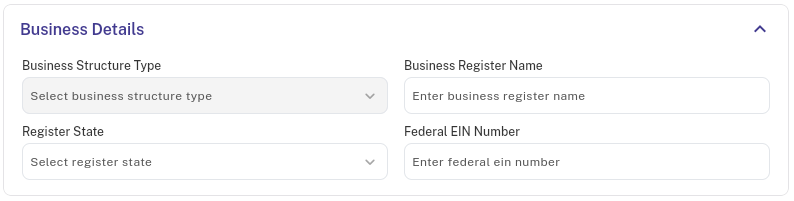
Business Details
| Field text | Required | Description |
|---|---|---|
| Business Structure Type | No | Optional legal or organizational structure. |
| Business Register Name | No | Optional registered business name. |
| Register State | No | Optional state where the business is registered. |
| Federal EIN Number | No | Optional federal employer identification number. Enter numbers only, without decimals, and use no more than 10 characters. |
Important Checks Before Saving
Complete every required field before saving. The application checks duplicate values and displays a message when a value is already used by another property in the same company.
| Field | Requirement |
|---|---|
| Property Name | Required and unique within the company |
| Prefix | Required and unique within the company |
| Property ID | Optional, but must be unique within the company when entered |
| Federal EIN Number | Optional, but must be unique within the company when entered |
If a duplicate message appears, search the property list first and correct the value or edit the existing property instead of creating a duplicate.
How Administrators Use Property Registration
- Open the Property Registration page and select Add.
- Complete Basic Details, using a clear property name and the correct company, brand, contact information, and PMS connection.
- Complete Business Details when the property's legal or registration information is available.
- Review the details, especially Property Name, Property ID, Prefix, PMS Connect, and contact information.
- Save the property. The Property Code is created automatically.
- Configure the property's location, timing, charges, taxes, rooms, and policies from the related property configuration pages.
- Assign the property to the employees who need to work with it.
- Edit the property when contact details, branding, PMS connection, or business information changes. Avoid creating a second property for the same location.
How Employees Use a Property
Employees normally do not create properties. An administrator assigns one or more properties to their employee profile.
- Select the assigned property when opening a property-based task or screen.
- Check the property name before adding reservations, tasks, room information, inventory, housekeeping work, reports, or other transactions.
- Use only the properties available in the employee's assignment list.
- Contact an administrator when the required property is missing, has the wrong name, or shows as Inactive.
- Employees should not change the Property Name, Prefix, PMS Connect, or status unless they have administrator permission.
The selected property connects daily work across reservations, rooms, employees, tasks, inventory, housekeeping, reports, integrations, and other operational areas. Using the wrong property can place work, reports, or configuration under the wrong location.
Active and Inactive Properties
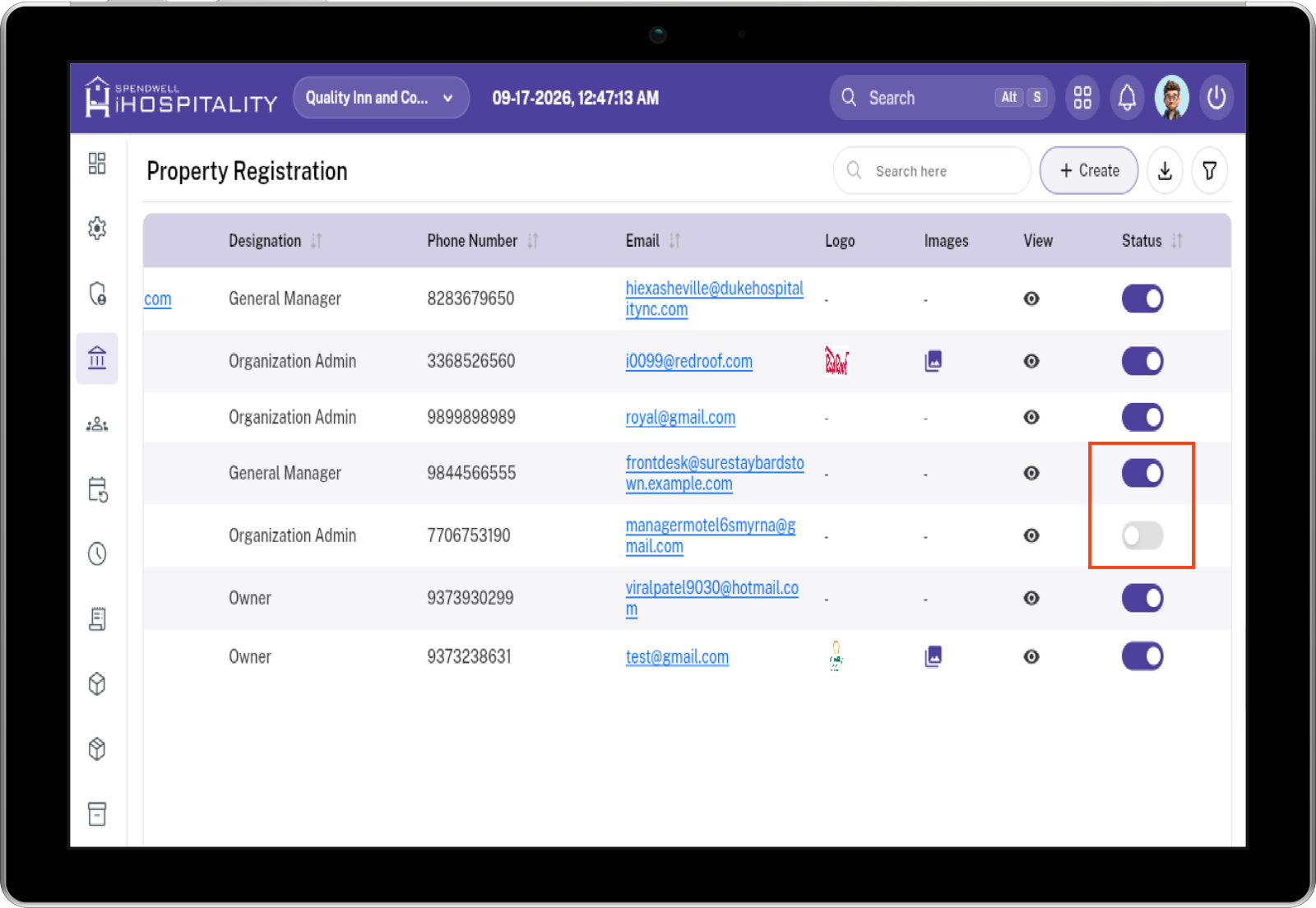
The Add form does not contain a status field. New properties are Active by default. Administrators manage status from the Property list through the Status switch.
What the status means
- Active: the property can be selected and used by workflows that require an available property.
- Inactive: the property remains stored for history and existing references, but should not be offered for new operational work.
- Inactive is a soft status, not deletion. Do not remove the record merely to disable it because many modules retain references to the property.
How status is reflected in the project
The Property list displays and edits the status using the Status switch. Employees can work only with properties that are Active and assigned to them. Historical reports and administrative screens may show Inactive properties when history is required, but the status should be clearly visible.
Recommended status change flow
- Open the Property list and find the property.
- Switch the status to Inactive when the property should no longer receive new operational work.
- Tell affected employees that the property is no longer available for new work.
- Keep existing rooms, employees, reservations, reports, and history intact.
- Switch the property back to Active only after confirming it is ready for operational use.
Related Configuration Forms
Property Registration stores the main property information. After saving, administrators can complete Location, Charge Configuration, Timing, Room Configuration, Tax, Policy, and PMS Connect setup. Employees use the completed property record in their assigned operational screens.
No comments to display
No comments to display