
Task Shift Summary
Overview
The Task Shift Summary feature provides a day-wise summary of Workforce Tasks completed and closed for a property.
The summary is generated once per business day and includes all tasks from all configured shifts for that day. It provides managers and administrators with a consolidated view of task activity, including total tasks, estimated time, actual time, employees present, and close-day information.
The system can close the task day in two ways:
- Manual Close — A manager or authorized user closes the day manually from the Workforce Tasks screen.
- Automatic Close — If the user does not close the day manually, the system automatically closes the day at the property's configured Audit Time.
When the system performs the automatic close, any Open or Active/Running tasks are automatically moved to Completed so that the day's task activity can be finalized.
Task Shift Summary Screen
The Task Shift Summary screen displays one record for each closed business day.
The summary is day-wise, not shift-wise. All tasks from the First Shift, Second Shift, Third Shift, or any other configured shifts are combined into the corresponding business day's summary.
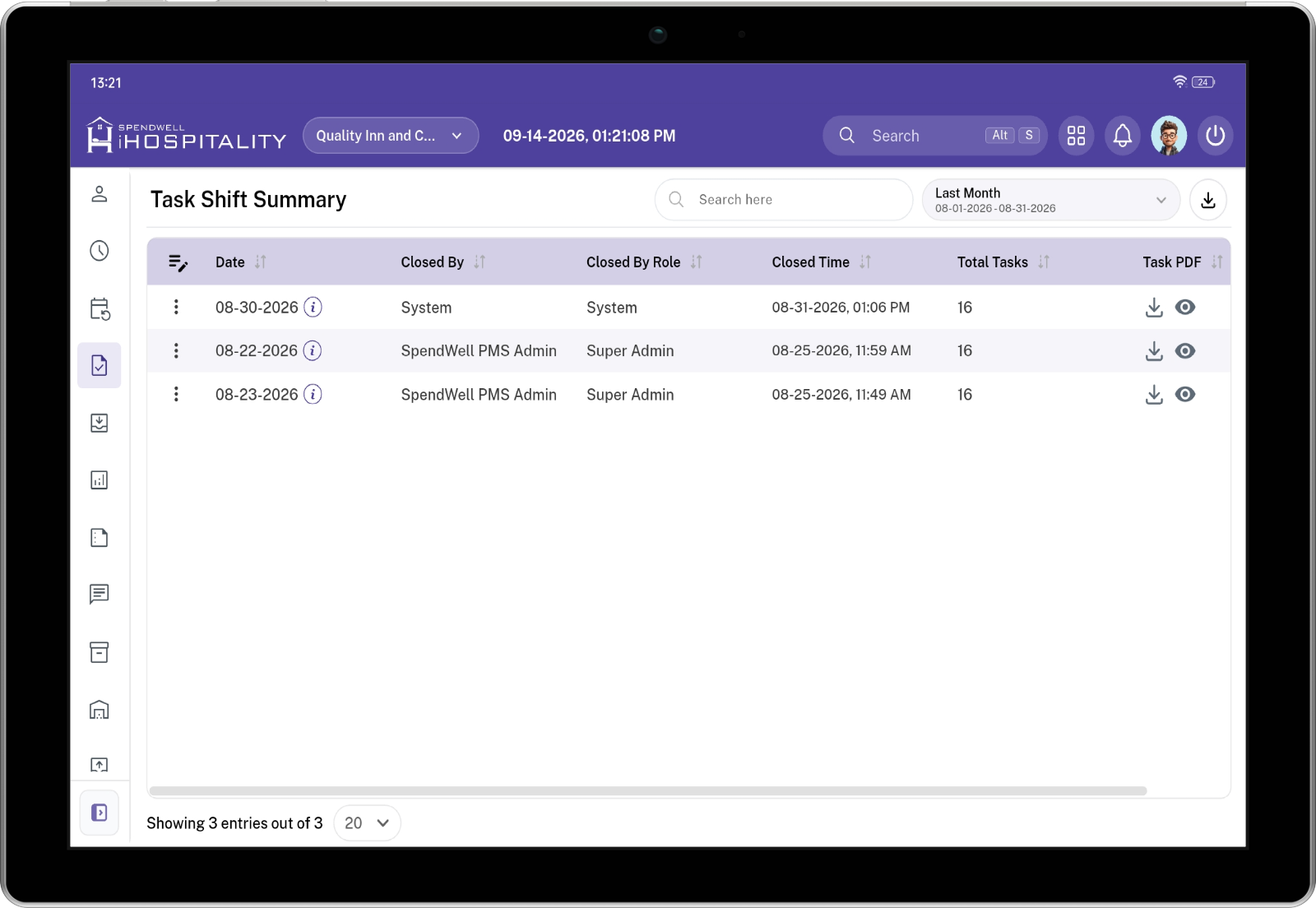
Key Information
| Column | Description |
|---|---|
| Date | Business date for which the task day was closed. |
| Closed By | User or system that closed the task day. This can be a manager/authorized user or System when the day was automatically closed. |
| Closed By Role | Role of the user who closed the day. For an automatic close, this is shown as System. |
| Closed Time | Date and time when the task day was closed. |
| Total Tasks | Total number of tasks included in the day's summary across all shifts. |
| Task PDF | Provides options to view or download the task summary PDF. |
Day-Wise Summary
Each row represents one complete business day.
For example, if a property has:
- First Shift — 6 tasks
- Second Shift — 5 tasks
- Third Shift — 5 tasks
The Task Shift Summary displays:
Total Tasks: 16
as one daily summary instead of creating separate summary records for each shift.
The PDF contains the complete task activity for that business date.
View Task Summary
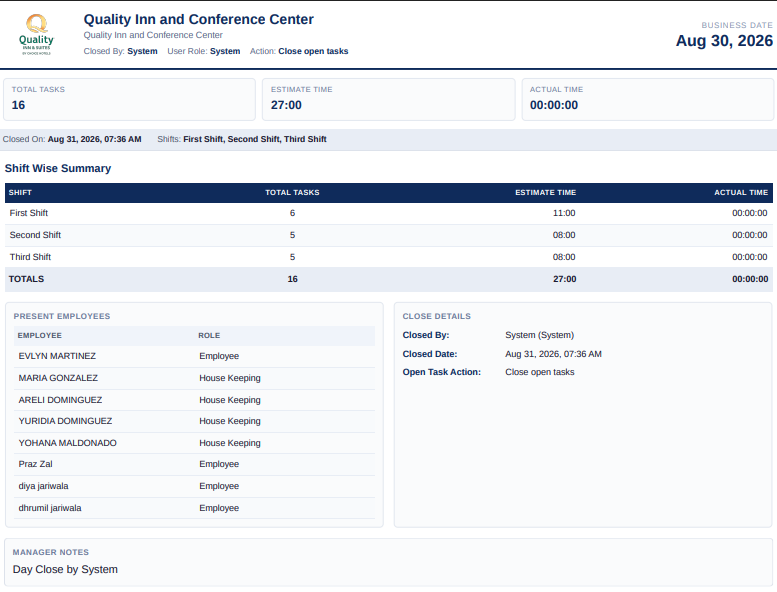
The View option allows an authorized user to open the generated task summary and review the complete details for the selected business day.
Dummy Image:Replace the image URL above with the final Task Summary PDF/view screenshot.
The summary provides information such as:
- Business date
- Total tasks
- Total estimated time
- Total actual time
- Close information
- Present employees
- Manager notes
- Task details
- Task code
- Task category
- Assignee
- Task status
- Estimated time
- Actual time
Task Summary Details
The daily task summary contains the following sections.
Summary Information
The top section provides an overall summary for the selected business date.
| Field | Description |
|---|---|
| Business Date | The business date associated with the task summary. |
| Total Tasks | Total number of tasks for the entire day across all shifts. |
| Estimate Time | Combined estimated duration of all tasks. |
| Actual Time | Combined actual time recorded for the tasks. |
| Closed By | User or system that closed the task day. |
| Closed Date | Date and time when the day was closed. |
| Open Task Action | Indicates how Open/Active tasks were handled when the day was closed. |
Present Employees
The summary includes employees who were present and available during the task day.
Dummy Image:Replace the image URL above with the final screenshot.
The employee section can include:
| Field | Description |
|---|---|
| Employee | Name of the employee who was present. |
| Role | Employee's assigned role. |
This information helps managers understand which employees were available during the business day.
Close Details
The Close Details section records how and when the task day was closed.
| Field | Description |
|---|---|
| Closed By | Name of the user or system that closed the day. |
| Closed Date | Date and time when the day was closed. |
| Open Task Action | Action automatically applied to Open or Active tasks during closing. |
Manual Close
If a manager closes the day manually, the summary records the manager's user information.
Example:
Closed By: John Smith
Closed By Role: Manager
Closed Date: Aug 31, 2026, 07:36 AM