
PMS Dashboard
Overview
The PMS Dashboard provides a real-time, property-level summary of reservations, room status, and room availability. It allows administrators and staff to quickly review occupancy, arrivals/departures, housekeeping status, and rate information for the selected property and date, all from a single screen.
The PMS Dashboard refreshes automatically every 10 minutes, pulling updated data from the PMS Dashboard. Each section also includes a manual refresh control to pull the latest data on demand.
PMS Dashboard Screen
The Choice Dashboard displays a property selector and date selector at the top, followed by four main sections:
- Reservations — Displays key reservation metrics such as occupancy, ADR, arrivals, departures, and check-in status for the current date.
- Room Status — Displays a breakdown of rooms by housekeeping and occupancy status, with links to view the corresponding rooms.
- Room Status Breakdown — Displays a summary of check-ins, stay-overs, vacant rooms, and out-of-order rooms.
- Available Rooms by Room Type — Displays a table of room types with their available count and rate.
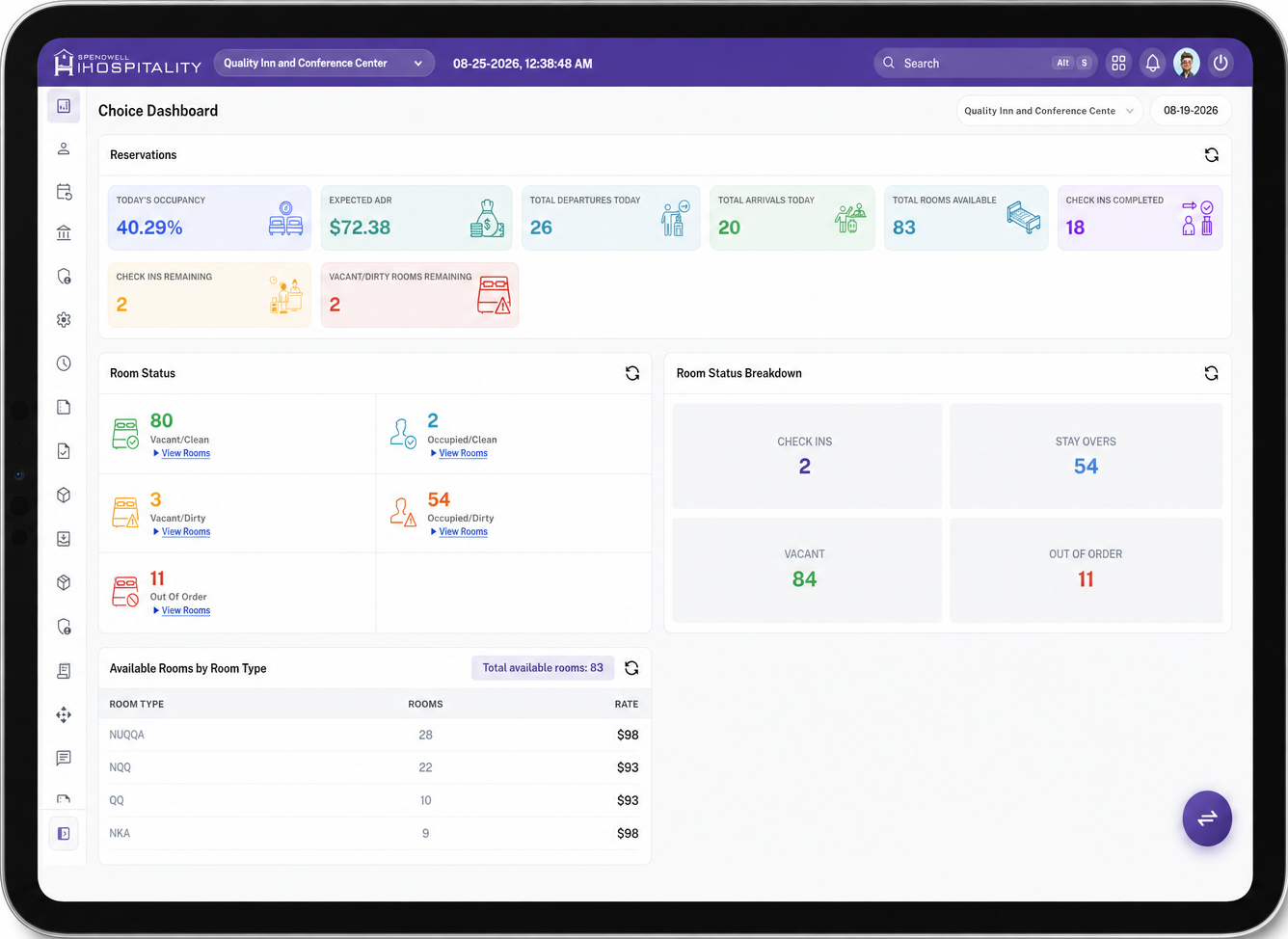
ChoicePMS Dashboard - Tablet View
Displays a comprehensive view of reservation metrics, room status, check-in/stay-over/vacant/out-of-order breakdowns, and available rooms by room type with pricing, for the selected property and date.
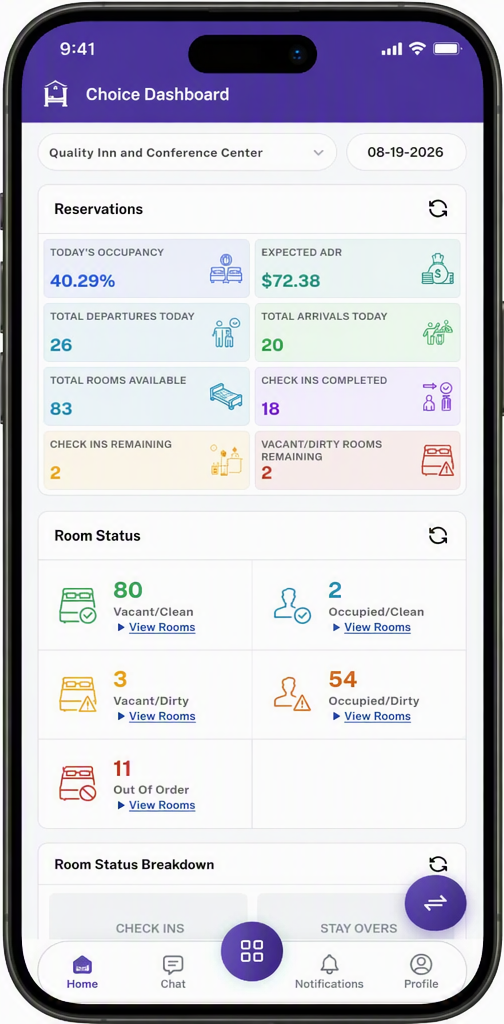
ChoicePMS Dashboard - Mobile View
Displays key reservation metrics such as occupancy, ADR, arrivals, and departures, along with a real-time breakdown of room status for the selected property and date.
Key Fields
Header
- Property Selector — Allows the user to select the property for which dashboard data is displayed.
- Date — Displays the date and time as of which the dashboard data is shown.
- Property / Date (Reservations panel) — Allows filtering the Reservations section by a specific property and date.
Reservations
- Today's Occupancy — Displays the current occupancy percentage for the selected date.
- Expected ADR — Displays the expected Average Daily Rate for the selected date.
- Total Departures Today — Displays the total number of guests scheduled to depart on the selected date.
- Total Arrivals Today — Displays the total number of guests scheduled to arrive on the selected date.
- Total Rooms Available — Displays the total number of rooms available for the selected date.
- Check Ins Completed — Displays the number of check-ins completed so far for the selected date.
- Check Ins Remaining — Displays the number of check-ins still pending for the selected date.
- Vacant/Dirty Rooms Remaining — Displays the number of rooms that are vacant but not yet cleaned.
- Refresh — Manually refreshes the Reservations data.
Room Status
- Vacant/Clean — Displays the count of rooms that are vacant and clean, with a link to view those rooms.
- Occupied/Clean — Displays the count of rooms that are occupied and clean, with a link to view those rooms.
- Vacant/Dirty — Displays the count of rooms that are vacant and not yet cleaned, with a link to view those rooms.
- Occupied/Dirty — Displays the count of rooms that are occupied and not yet cleaned, with a link to view those rooms.
- Out Of Order — Displays the count of rooms marked out of order, with a link to view those rooms.
- View Rooms — Navigates to the filtered list of rooms for the selected status.
- Refresh — Manually refreshes the Room Status data.
Room Status Breakdown
- Check Ins — Displays the number of rooms associated with today's check-ins.
- Stay Overs — Displays the number of rooms occupied by guests staying over (not checking in or out today).
- Vacant — Displays the total number of vacant rooms, regardless of clean/dirty status.
- Out Of Order — Displays the total number of rooms marked out of order.
- Refresh — Manually refreshes the Room Status Breakdown data.
Available Rooms by Room Type
- Total available rooms — Displays the total number of available rooms across all room types.
- Room Type — Displays the code or name of the room type.
- Rooms — Displays the number of available rooms for that room type.
- Rate — Displays the rate associated with that room type.
- Refresh — Manually refreshes the Available Rooms by Room Type data.
Steps
View Reservations Summary
View Room Status
- Open the Choice Dashboard.
- Review the Room Status section for the counts of Vacant/Clean, Occupied/Clean, Vacant/Dirty, Occupied/Dirty, and Out Of Order rooms.
- Click View Rooms next to any status to see the corresponding filtered room list.
- Click Refresh to manually update the data if needed.
View Room Status Breakdown
- Open the Choice Dashboard.
- Review the Room Status Breakdown section for Check Ins, Stay Overs, Vacant, and Out Of Order counts.
- Click Refresh to manually update the data if needed.
View Available Rooms by Room Type
- Open the Choice Dashboard.
- Review the Total available rooms count.
- Review the Available Rooms by Room Type table for the Rooms and Rate associated with each Room Type.
- Click Refresh to manually update the data if needed.
Important Notes
- The Choice Dashboard refreshes automatically every 10 minutes from the PMS Dashboard.
- Each section (Reservations, Room Status, Room Status Breakdown, Available Rooms by Room Type) also has its own manual Refresh control to fetch the latest data on demand.
- Data shown reflects the selected property and date.
- The Room Status and Room Status Breakdown sections both summarize room information but from different groupings — one by cleaning/occupancy combination, the other by guest activity type (check-ins, stay-overs) and room condition.
- The Available Rooms by Room Type table always reflects the current total available rooms across all listed room types.