New Page
Housekeeping
Overview
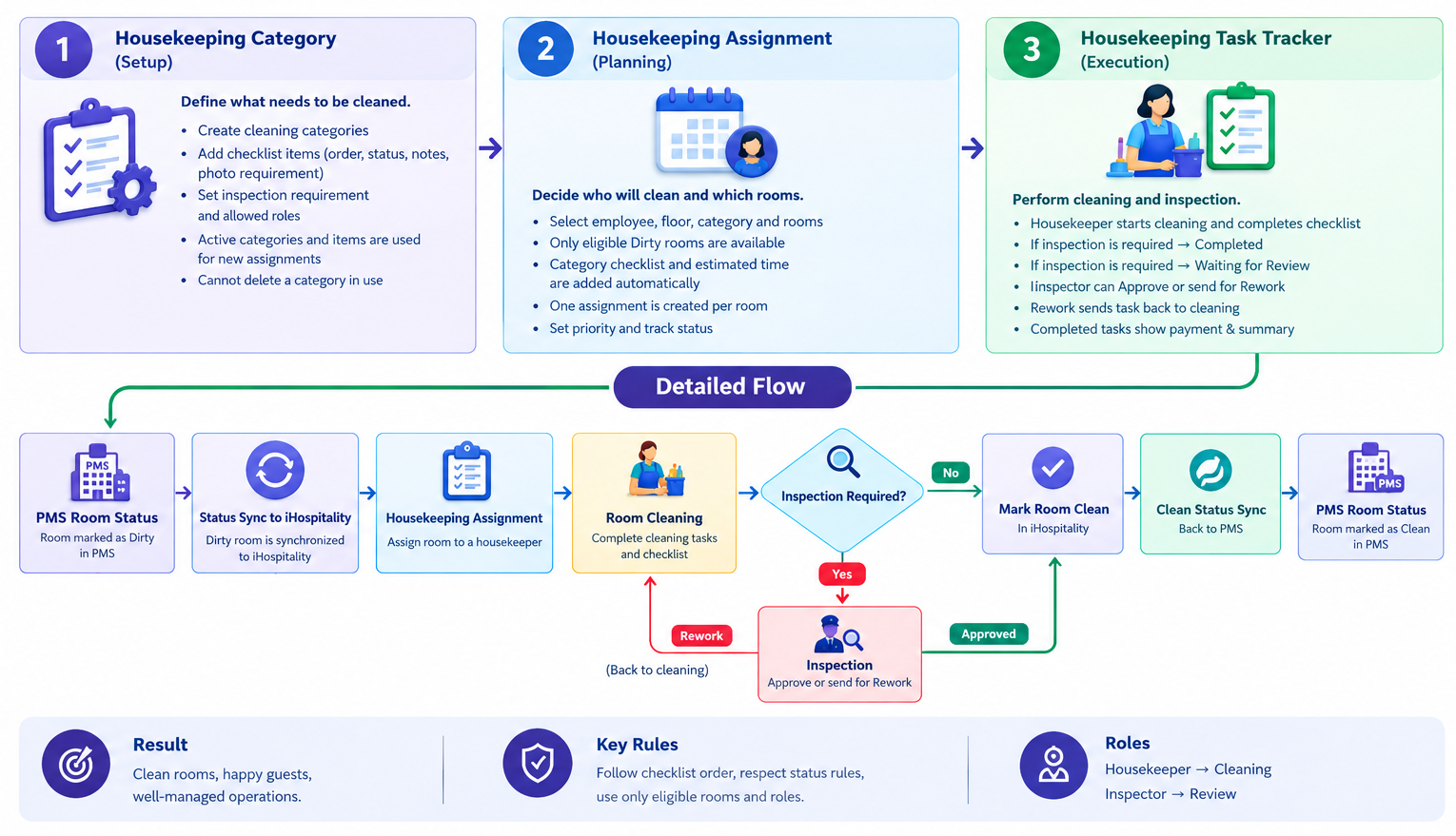
The SpendWell iHospitality Housekeeping module manages the complete room-cleaning lifecycle, from receiving the room housekeeping status from the property's PMS through cleaning, inspection, and synchronizing the final room status back to the PMS.
SpendWell iHospitality keeps the housekeeping status synchronized between the PMS and iHospitality so that both systems maintain consistent room-cleanliness information.
PMS Housekeeping Status Synchronization
When a room is marked Dirty in the PMS, its housekeeping status is synchronized with SpendWell iHospitality. The room then becomes available for housekeeping operations and can be assigned to a housekeeper.
The housekeeper performs the required cleaning activities and completes the configured housekeeping checklist. If the selected housekeeping category requires inspection, the room is submitted for inspection before it can be completed.
Once the cleaning is completed and any required inspection is successfully passed, the room is marked Clean in iHospitality. The Clean housekeeping status is then synchronized back to the PMS so that the PMS also reflects the room as Clean.
This provides a continuous housekeeping workflow:
PMS Dirty → iHospitality Dirty → Housekeeping Assignment → Room Cleaning → Inspection (if required) → iHospitality Clean → PMS Clean
Housekeeping Workflow
The Housekeeping module consists of three main areas:
- Housekeeping Category – Defines the type of cleaning work and the checklist.
- Housekeeping Assignment – Assigns cleaning work to employees and specific rooms.
- Housekeeping Task Tracker – Manages the actual cleaning, inspection, rework, and completion process.
1. Housekeeping Category
Purpose: Define the type of cleaning work and the checklist required to complete it.
Housekeeping Categories establish the cleaning standards that housekeepers must follow for different types of cleaning activities.
Key Features
- Create cleaning categories such as Guest Room Cleaning or Deep Cleaning.
- Add checklist items and define their display order.
- Set checklist items as Active or Inactive.
- Configure whether checklist items require notes or photos.
- Specify whether the category requires inspection.
- When inspection is required, define the user roles permitted to perform the inspection.
- At least one checklist item is required to create a category.
- Inactive categories and checklist items are not used for new assignments.
- Categories that are already in use cannot be deleted.
Stage: Setup
2. Housekeeping Assignment
Purpose: Assign housekeeping work to an employee and specific rooms.
Once rooms are available for housekeeping, a supervisor or authorized user can assign them to the appropriate housekeeper.
Key Features
- Select the Employee, Floor, Housekeeping Category, and Room(s).
- Only eligible Dirty rooms are available for new assignments.
- The selected category automatically provides the applicable checklist.
- The assignment includes the estimated cleaning time.
- Each selected room receives its own housekeeping assignment and assignment code.
- Set the assignment Priority.
- Track the assignment status throughout the housekeeping process.
- The assigned employee is notified after the assignment is saved.
- Assignments can only be deleted before work has started and while they remain unpaid.
Stage: Planning
3. Housekeeping Task Tracker
Purpose: Perform the assigned cleaning work and manage inspection, rework, and completion.
The Task Tracker is the operational workspace where housekeepers perform their assigned room-cleaning tasks and inspectors review completed work when inspection is required.
Housekeeper
The housekeeper can:
- Start the cleaning timer.
- Complete the checklist items in the configured order.
- Add required notes or photos.
- Complete the task when inspection is not required.
- Submit the task for inspection when inspection is required.
- Complete required checklist items again if the task is returned for Rework.
Inspector
When inspection is required, the inspector can:
- Open tasks waiting for inspection.
- Start the inspection.
- Review the completed checklist items.
- Approve checklist items or mark them for Rework.
- Complete the inspection when all required items are approved.
- Return the task to the housekeeper when additional cleaning is required.
If all required work is successfully completed, the housekeeping task is marked Completed and the room is marked Clean.
Stage: Execution
Housekeeping Flow