
Overview
The SpendWell iHospitality Maintenance module manages the complete maintenance lifecycle, from identifying a maintenance issue in a room or property area through task creation, assignment, execution, inspection, rework, and completion.
The module supports two maintenance task creation workflows: Maintenance Assignment by Manager and Maintenance Task Creation from the Housekeeping module by Housekeeper. Both workflows use the same maintenance categories, checklist configuration, task tracking, inventory management, and completion process.
SpendWell iHospitality also synchronizes room Out of Service status and maintenance task status with the property's PMS, helping maintain consistent room and maintenance information across both systems.
Maintenance Workflow
The Maintenance module consists of three main areas:
- Maintenance Category – Defines maintenance types, checklists, SLA, stock requirements, and inspection rules.
- Maintenance Assignment – Allows managers to create and assign maintenance tasks and housekeepers to report maintenance issues through the Housekeeping module.
- Maintenance Task Tracker – Manages task execution, checklist completion, inventory usage, inspection, rework, and final completion.
Maintenance Flowchart
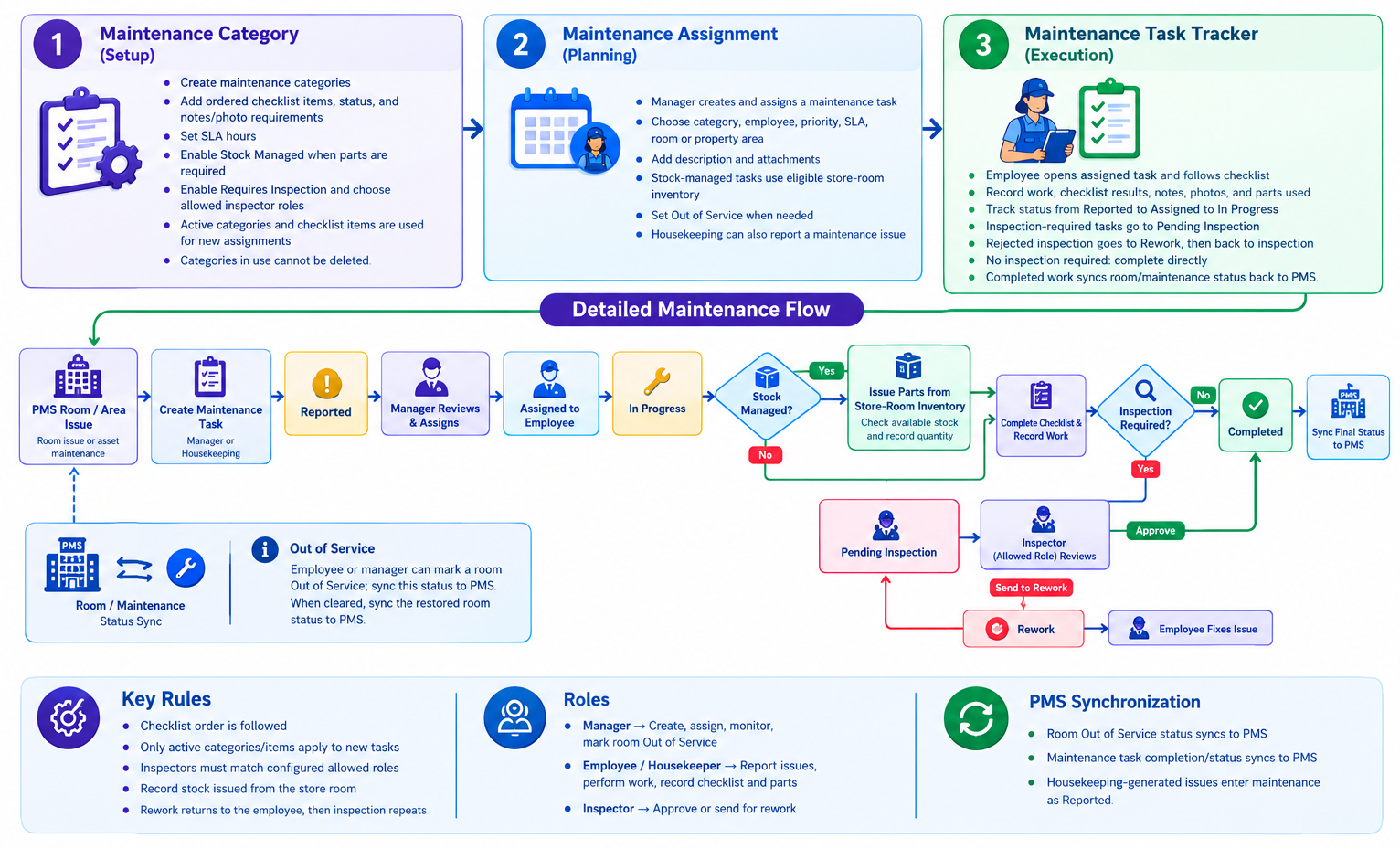
1. Maintenance Category
Purpose: Define the type of maintenance work and the requirements for completing it.
Maintenance Categories establish the standards and requirements employees must follow for different maintenance activities.
Key Features
- Create maintenance categories such as Electrical Maintenance, Plumbing Maintenance, and HVAC Maintenance.
- Add checklist items and configure their display order.
- Set checklist items as Active or Inactive.
- Configure whether checklist items require notes or photos.
- Define the maintenance SLA in hours.
- Enable Stock Managed when maintenance work requires parts or materials from store-room inventory.
- Enable Requires Inspection when maintenance work must be inspected before completion.
- Configure the user roles authorized to inspect maintenance tasks.
- Active categories and checklist items are used for new assignments.
- Inactive categories and checklist items are excluded from new assignments.
- Categories already in use cannot be deleted.
Stage: Setup
2. Maintenance Assignment
Purpose: Create maintenance tasks, identify the affected location, and assign work to employees.
Maintenance tasks can enter the system through two separate workflows.
A. Maintenance Assignment by Manager
The manager creates and assigns maintenance tasks directly from the Maintenance module.
Key Features
- Generate a maintenance code for the task.
- Select the maintenance category and assigned employee.
- Set the task priority and SLA.
- Select the location type: Room or Area.
- For room-based tasks, select the applicable floor and room.
- For area-based tasks, select the applicable property area.
- Add a task description and upload supporting attachments.
- Mark the room Out of Service when required.
- Automatically apply the configured maintenance checklist.
- Check store-room inventory when Stock Managed is enabled.
- Create the task and make it available in the Maintenance Task Tracker.
Workflow: Create Assignment → Configure Task Details → Check Stock Requirements → Assign Employee → Task Available in Task Tracker
B. Maintenance Task Creation by Housekeeper
The housekeeper reports a maintenance issue directly from the Housekeeping module when a defect or maintenance requirement is identified during room cleaning or other housekeeping activities.
Key Features
- Create a maintenance task without leaving the Housekeeping module.
- Identify the affected room or property area.
- Select the applicable maintenance category.
- Enter the issue description and add supporting photos or attachments.
- Save the reported issue with the Reported status.
- Make the task available to the manager for review.
- Allow the manager to validate the issue, set priority and SLA, and assign an employee.
- Continue the task through the same Maintenance Task Tracker used for manager-created tasks.
Workflow: Identify Issue → Create Maintenance Task → Enter Details → Save as Reported → Manager Review → Assign Employee
3. Maintenance Task Tracker
Purpose: Execute maintenance work and manage checklist completion, inventory usage, inspection, rework, and closure.
The Maintenance Task Tracker provides a centralized workspace where employees and managers can monitor maintenance tasks throughout their lifecycle.
Maintenance Task Statuses
- Reported: A new maintenance issue has been created and is awaiting review or assignment.
- Assigned: The maintenance task has been assigned to an employee.
- In Progress: The assigned employee has started the maintenance work.
- Pending Inspection: The employee has completed the required work and submitted the task for inspection.
- Rework: The inspector has identified work that requires correction.
- Completed: The maintenance work has been completed and all required inspection steps have been passed.
Employee Responsibilities
The assigned employee can:
- Open the assigned maintenance task.
- Start the task and move it to In Progress.
- Review and complete the configured maintenance checklist in the required order.
- Add notes and photos when required.
- Record parts and materials used for maintenance.
- Complete the work and submit it for inspection when inspection is required.
- Complete the task directly when inspection is not required.
- Fix rejected items when the task is returned for Rework.
- Resubmit the corrected task for inspection.
Manager Responsibilities
The manager can:
- Review maintenance issues reported by housekeepers.
- Create and assign maintenance tasks directly.
- Set task priority, SLA, category, location, and employee.
- Monitor task progress and overdue work.
- Mark a room Out of Service when necessary.
- Monitor inventory usage for stock-managed maintenance.
- Review task progress and manage room status according to permissions.
Inspector Responsibilities
When inspection is required, an authorized inspector can:
- Open tasks in Pending Inspection.
- Review the completed maintenance checklist and supporting notes or photos.
- Approve the completed work.
- Send the task to Rework if corrective work is required.
- Review the task again after the employee completes the rework.
- Approve the task when the required work meets the property's maintenance standards.
If inspection is not required, the task proceeds directly to Completed after the required work and checklist are completed.
Stage: Execution, Inspection, and Completion
4. Inventory and Stock Management
Purpose: Track maintenance parts and materials issued from the property's store-room inventory.
When a maintenance category is configured as Stock Managed, the maintenance workflow checks the available inventory before parts are issued for the task.
Key Features
- Check available quantities in the applicable store-room inventory.
- Select the parts or materials required for the maintenance task.
- Record the quantity issued against the maintenance task.
- Update inventory balances according to the actual quantity issued.
- Maintain a record of parts used for each maintenance task.
- Support inventory tracking for stock-managed maintenance work.
When Stock Managed is disabled, the task follows the normal maintenance workflow without the required store-room stock-issue process.
5. Room Out of Service Management
Purpose: Prevent a room from being treated as available when maintenance makes it unsuitable for guest occupancy.
Key Features
- Mark the affected room Out of Service during maintenance task creation or execution.
- Synchronize the Out of Service room status with the PMS.
- Keep the room unavailable according to the property's configured PMS room-status rules.
- Clear the Out of Service condition after the issue is resolved and the room is authorized to return to service.
- Synchronize the restored room status back to the PMS.
Important: Completing a maintenance task does not automatically clear the room's Out of Service condition. Room availability should be restored only after the required authorization and room-status checks.
Key Rules
- Maintenance tasks can be created by a manager or reported by a housekeeper.
- Both entry points use the same maintenance task lifecycle.
- Housekeeping-generated issues start with the Reported status and are reviewed before assignment.
- Only active maintenance categories and checklist items apply to new assignments.
- Checklist items must be completed in the configured order.
- Only authorized user roles can inspect tasks.
- Stock-managed maintenance must follow the configured store-room inventory issue process.
- Tasks requiring inspection cannot be completed until the required inspection is approved.
- Rejected tasks return to the employee for Rework and must be submitted for inspection again.
- Tasks not requiring inspection can proceed directly to Completed after all required work is finished.
- Room Out of Service status and relevant maintenance task updates are synchronized with the PMS according to the configured integration.
- A room's Out of Service status must be cleared separately when appropriate.
Roles and Responsibilities
- Manager: Creates assignments, reviews reported issues, assigns employees, monitors maintenance progress, manages Out of Service status, and oversees inventory usage.
- Housekeeper: Reports maintenance issues from the Housekeeping module and submits them for manager review.
- Maintenance Employee: Performs assigned maintenance work, completes checklists, records notes and photos, tracks parts used, and resolves rework.
- Inspector: Reviews maintenance work, approves successful tasks, or returns tasks for rework according to authorized roles.
PMS Synchronization
SpendWell iHospitality synchronizes relevant maintenance and room-status information with the property's PMS.
- Maintenance issue reporting: Housekeeping-generated maintenance issues enter the Maintenance module with the Reported status.
- Room Out of Service: Room availability changes are synchronized with the PMS.
- Maintenance task status: Relevant task status updates are synchronized according to the configured PMS integration.
- Room restoration: When an authorized user clears the Out of Service condition, the restored room status is synchronized with the PMS.
This workflow helps maintain consistent maintenance records and room availability information across SpendWell iHospitality and the PMS.