
Housekeeping Category
Overview
Housekeeping Category is used to set up cleaning types for your property — for example, Guest Room Cleaning, Deep Cleaning, or Lost & Found Check.
Each category includes:
- A category name
- A checklist of tasks housekeepers must complete
- An option to show or hide checklist labels
- An option to require inspection after cleaning
- The user role(s) allowed to inspect, if inspection is required
Categories are listed and created from the same screen. The checklist for a category is added inside that category.
Housekeeping Category Screen
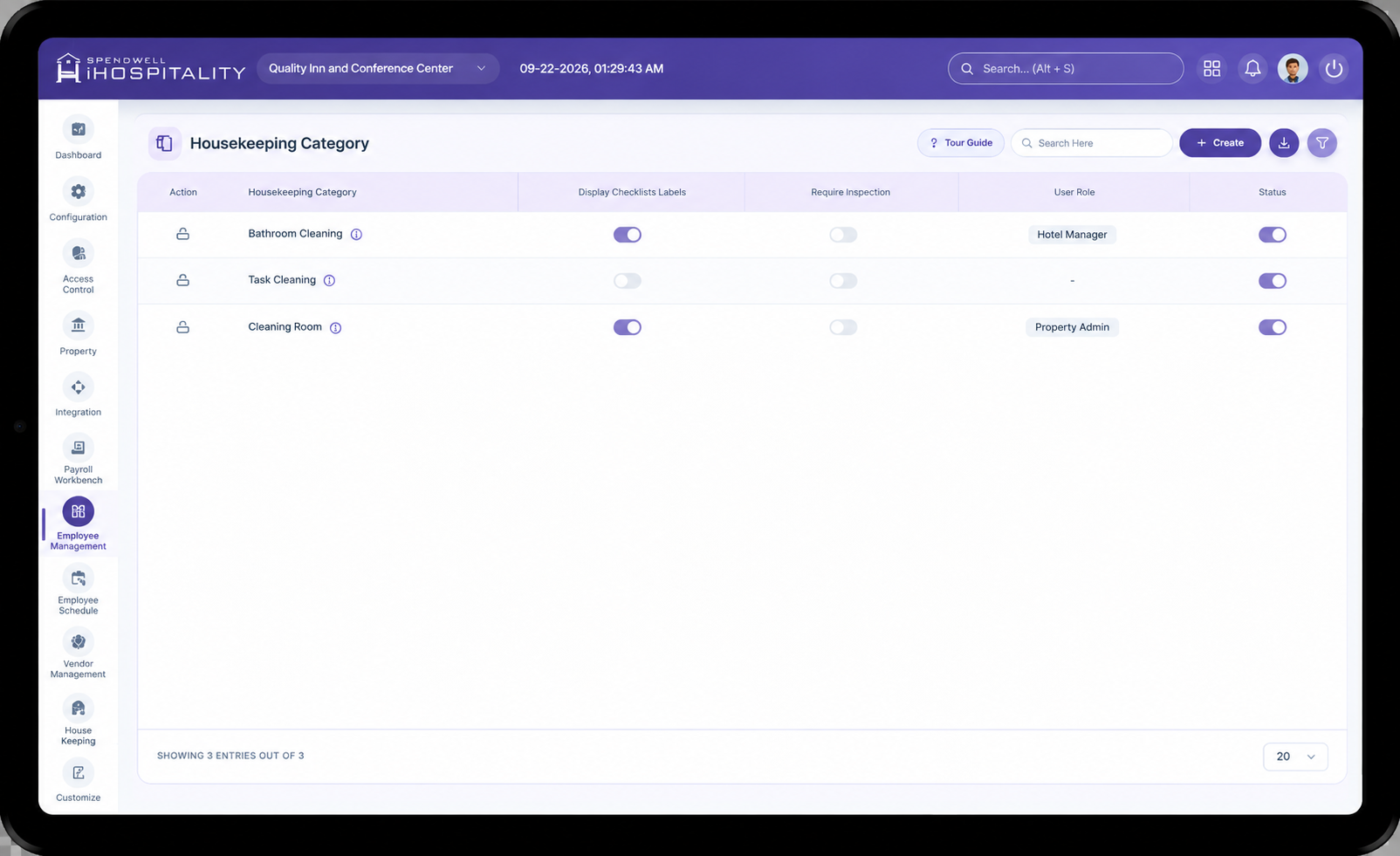
This screen shows all housekeeping categories for the property, including checklist labels, inspection, user role, and active/inactive status. Administrators can add a new category and its checklist from this same view.
Key Fields
Housekeeping Category List
| Field | What it means |
|---|---|
| Housekeeping Category | Name of the cleaning type (e.g. Guest Room Cleaning, Deep Cleaning). Click the name to view details. |
| Display Checklist Labels | Shows or hides checklist labels for that category. |
| Require Inspection | Indicates whether a supervisor must inspect the room after cleaning. |
| User Role | Role(s) allowed to inspect that category (e.g. Employee, Front Desk, Housekeeper Head). Shown when inspection is required. |
| Status | Enables or disables the category without deleting it. |
Add Housekeeping Category Panel
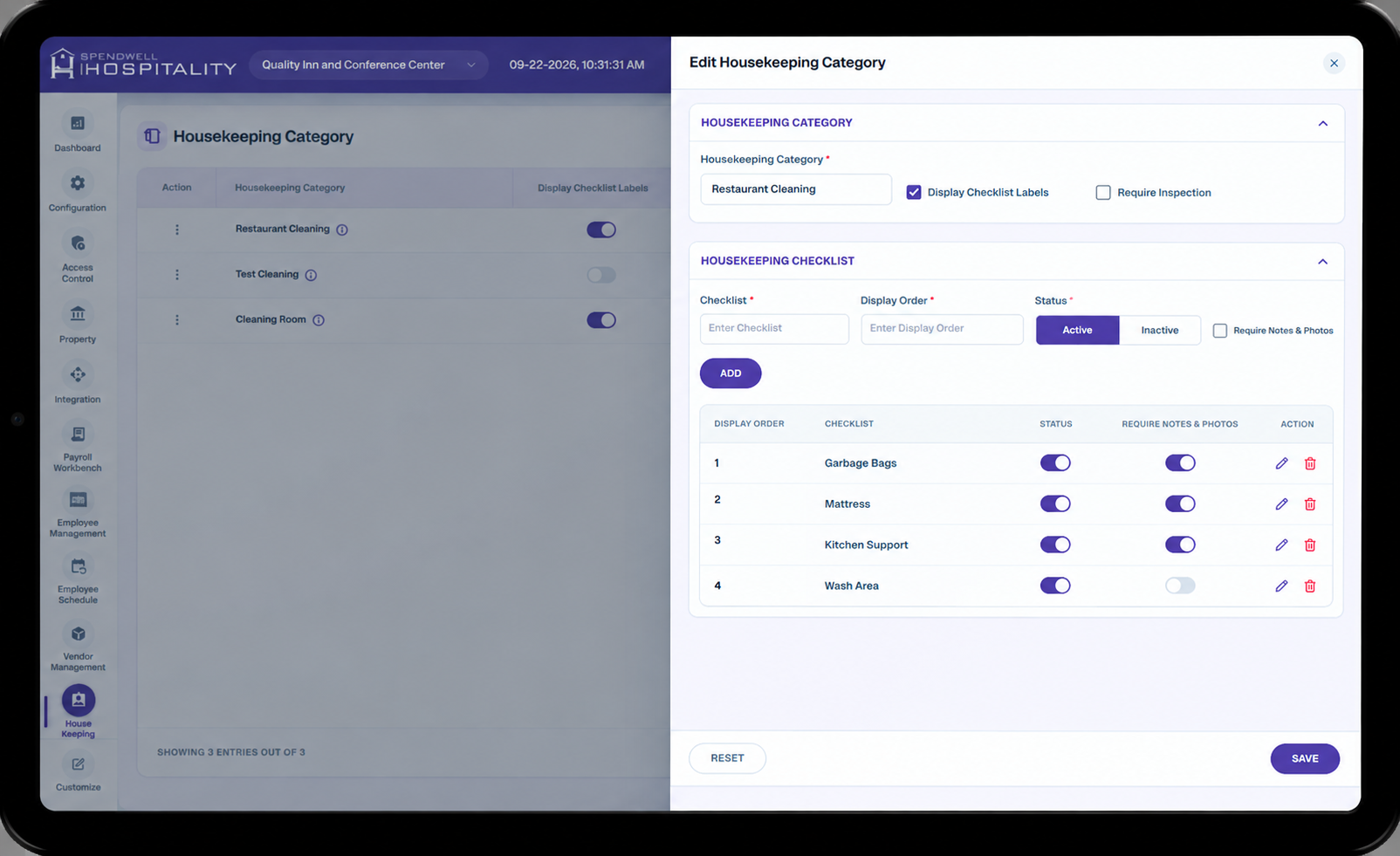
Use Create to open this panel. Fill the category details first, then add checklist items.
Housekeeping Category
| Field | Required | What it means |
|---|---|---|
| Housekeeping Category | Yes | Name of the category. Must be unique for the current property. |
| Display Checklist Labels | No | Tick this to show checklist labels to staff. |
| Require Inspection | No | Tick this if the room must be inspected after cleaning. |
| User Role | Yes, if inspection is on | Select one or more roles who can inspect. This field appears only after Require Inspection is ticked. |
Housekeeping Checklist
At least one checklist item is required to save the category.
| Field | Required | What it means |
|---|---|---|
| Checklist | Yes | Name of the task (e.g. Make Bed, Clean Bathroom). Maximum 25 characters. Each name must be unique in this category. |
| Display Order | Yes | Order the task appears on screen (1, 2, 3…). Maximum 2 digits. Each number must be unique in this category. |
| Status | No | Active — given to housekeepers. Inactive — kept in the category but not used on new assignments. New items are Active by default. |
| Require Notes & Photos | No | Tick this if the housekeeper must add notes and photos for this task. |
| Add | — | Adds the task to the checklist table below. |
| Checklist Table | — | Shows all tasks with Display Order, Checklist name, Status, Require Notes & Photos, and Action (edit or remove). |
Panel Actions
| Button | What it does |
|---|---|
| Save | Saves the category and its checklist, then closes the panel. |
| Save & Add New | Saves the category and keeps the panel open to add another. |
| Reset | Clears the entered values without saving. |
Steps
Create a Housekeeping Category
- Open the Housekeeping Category screen.
- Click Create.
- Enter a unique Housekeeping Category name.
- Tick Display Checklist Labels if staff should see task names.
- Tick Require Inspection if a supervisor must inspect after cleaning.
- If inspection is on, select at least one User Role.
- Under Housekeeping Checklist, enter the Checklist name, Display Order, and Status.
- Tick Require Notes & Photos for that task if needed.
- Click Add to add the task to the table.
- Repeat steps 7–9 for more tasks. At least one task is required.
- Click Save, or Save & Add New to save and create another category.
Manage an Existing Category
- Open the Housekeeping Category screen.
- Find the category in the list.
- Use the Display Checklist Labels, Require Inspection, and Status toggles to change settings from the list.
- Use the action menu (three-dot icon) to Edit the name, user roles, or checklist, then click Save.
- Use Delete only if the category is not already in use. If it is linked to Room Estimation or Housekeeping Assignment, delete is blocked.
Important Notes
- The category name is required and must be unique for the property. If it already exists, the system shows: Housekeeping category already exists.
- Checklist name and Display Order cannot be repeated inside the same category.
- User Role appears only when Require Inspection is enabled, and at least one role must be selected.
- Display Checklist Labels and Require Inspection are set separately for each category.
- Turning Status off disables the category. It is not deleted, and the checklist is kept.
- Inactive checklist items are not given to housekeepers on new assignments.
- Notes and photos can be required for some tasks and optional for others.
- If you rename a category, the new name is also updated where that category is already used (Room Estimation and Housekeeping Assignment).
- A category in use cannot be deleted until those links are removed.