
Housekeeping Assignment
Overview
Housekeeping Assignment is used to assign housekeeping work to employees for specific rooms. From this screen you can see who is assigned to which room, the priority and status of the work, the rate, and the current housekeeping (cleanliness) status of the room.
Each assignment includes:
- The employee who will clean the room
- The floor and room(s)
- The housekeeping category (which sets the checklist and estimated time)
- Priority, status, rate, and guest details for the room
Housekeeping Assignment is a single screen feature — assignments are listed and created from the same view.
Housekeeping Assignment Screen
This screen shows all assignments for the selected date range, including room, employee, priority, status, and housekeeping status. Administrators can add a new assignment from this same view.
Use the date range filter (for example, Today) to choose which assignments appear in the list.
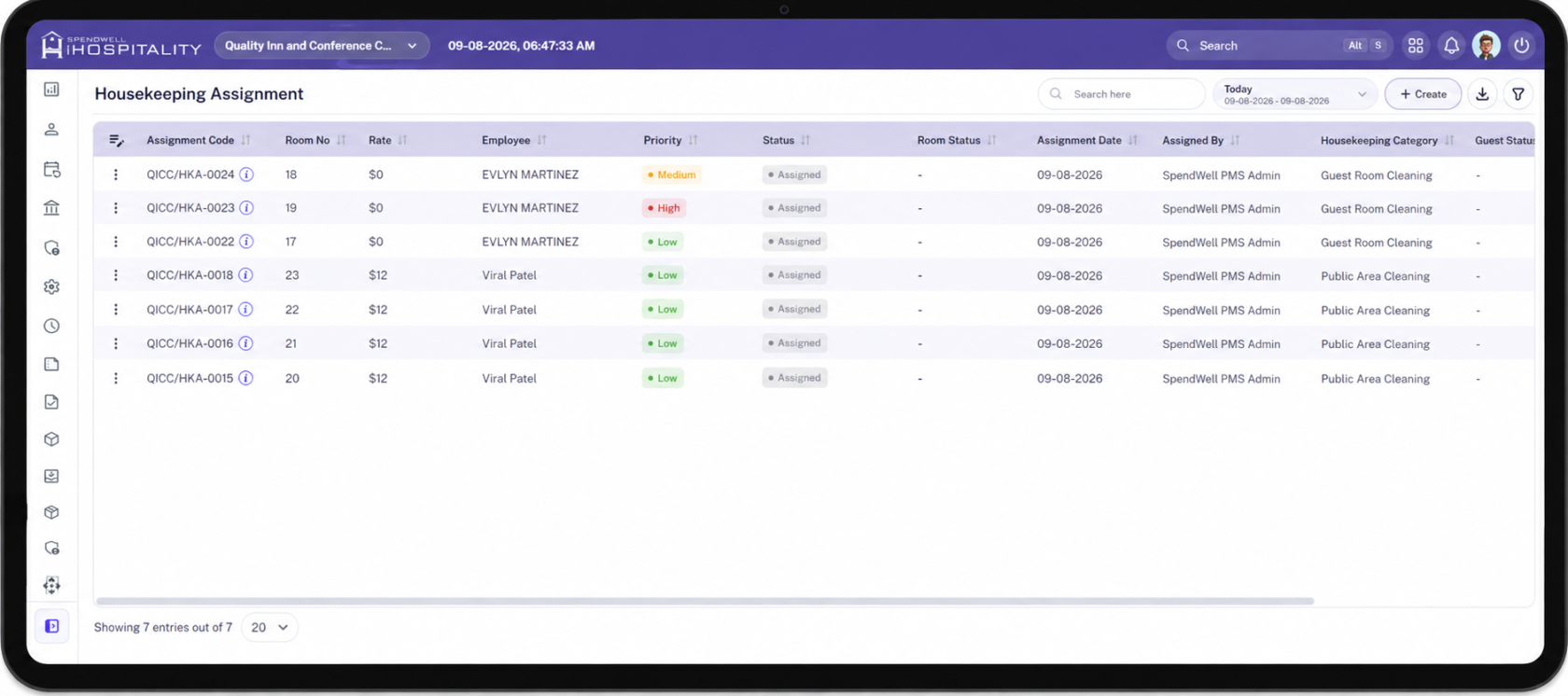
Housekeeping Assignment - Tablet View
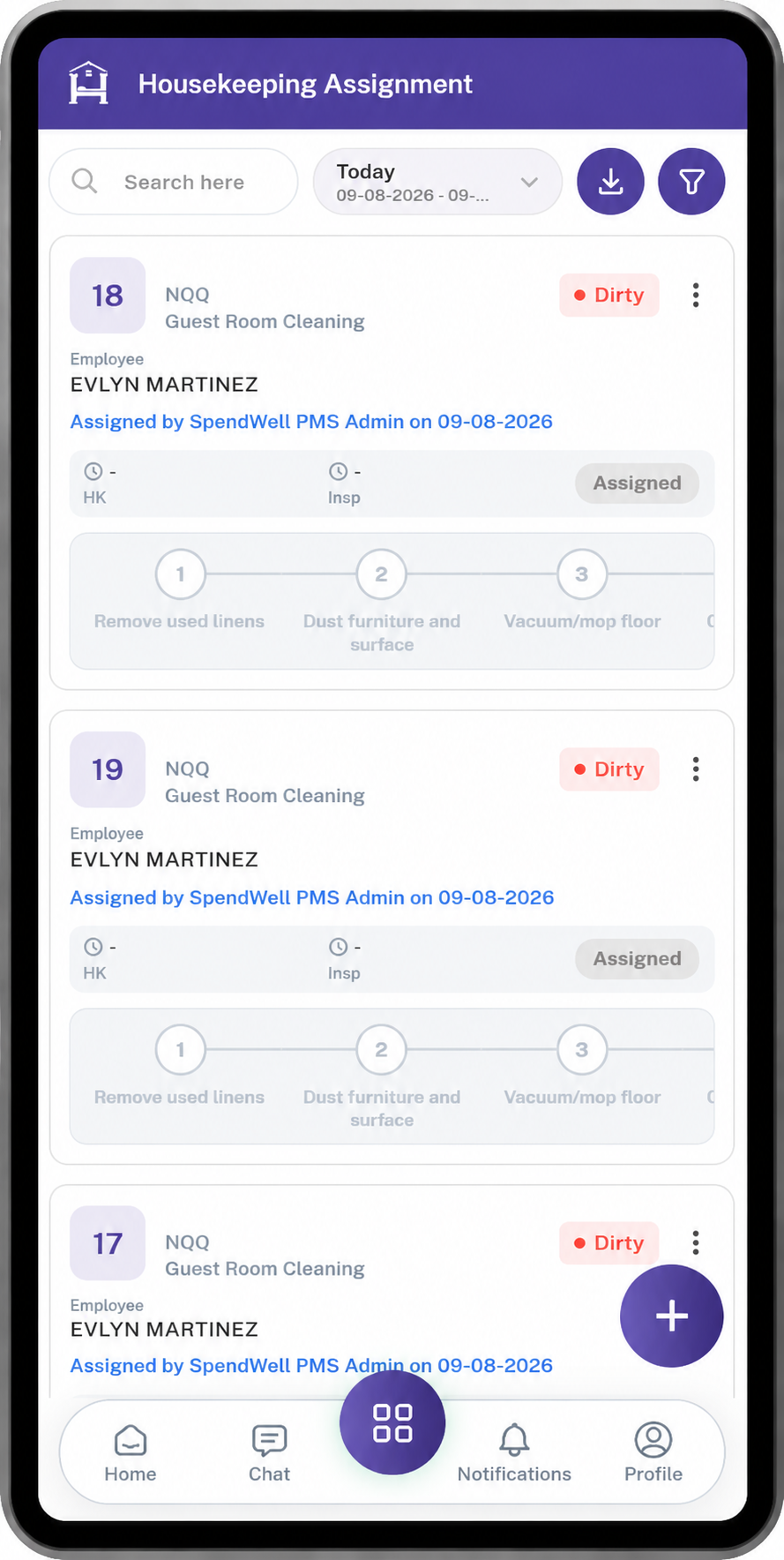
Housekeeping Assignment - Mobile View
Key Fields
Housekeeping Assignment List
| Field | What it means |
|---|---|
| Assignment Code | Unique code for the assignment. This is created automatically. Click the code to view details. |
| Assignment Date | Date the assignment is scheduled for. |
| Room No | Room number for the assignment. |
| Floor | Floor of the room. |
| Room Type | Type of the room (e.g. King, Suite). |
| Rate | Housekeeping rate for the assignment. |
| Employee | Employee assigned to clean the room. |
| Priority | Priority of the work: Low, Medium, or High. |
| Status | Progress of the assignment: Assigned, Cleaning, Paused, Waiting on review, Inspecting, Inspection paused, Rework, or Completed. |
| Room Status | Current status of the room (e.g. Occupied, Vacant). Shows "-" if not applicable. |
| Assigned By | User who created the assignment. |
| Housekeeping Category | Cleaning type for the assignment (e.g. Deep Cleaning). |
| Guest Status | Guest-related status for the room (e.g. Stay Over, Departed). Shows "-" if there is no guest. |
| Guest Name | Name of the guest in the room. Shows "-" if there is no guest. |
| HK Status | Cleanliness of the room: Dirty or Clean. |
| Date Range Filter | Filters the list by assignment date (e.g. Today). |
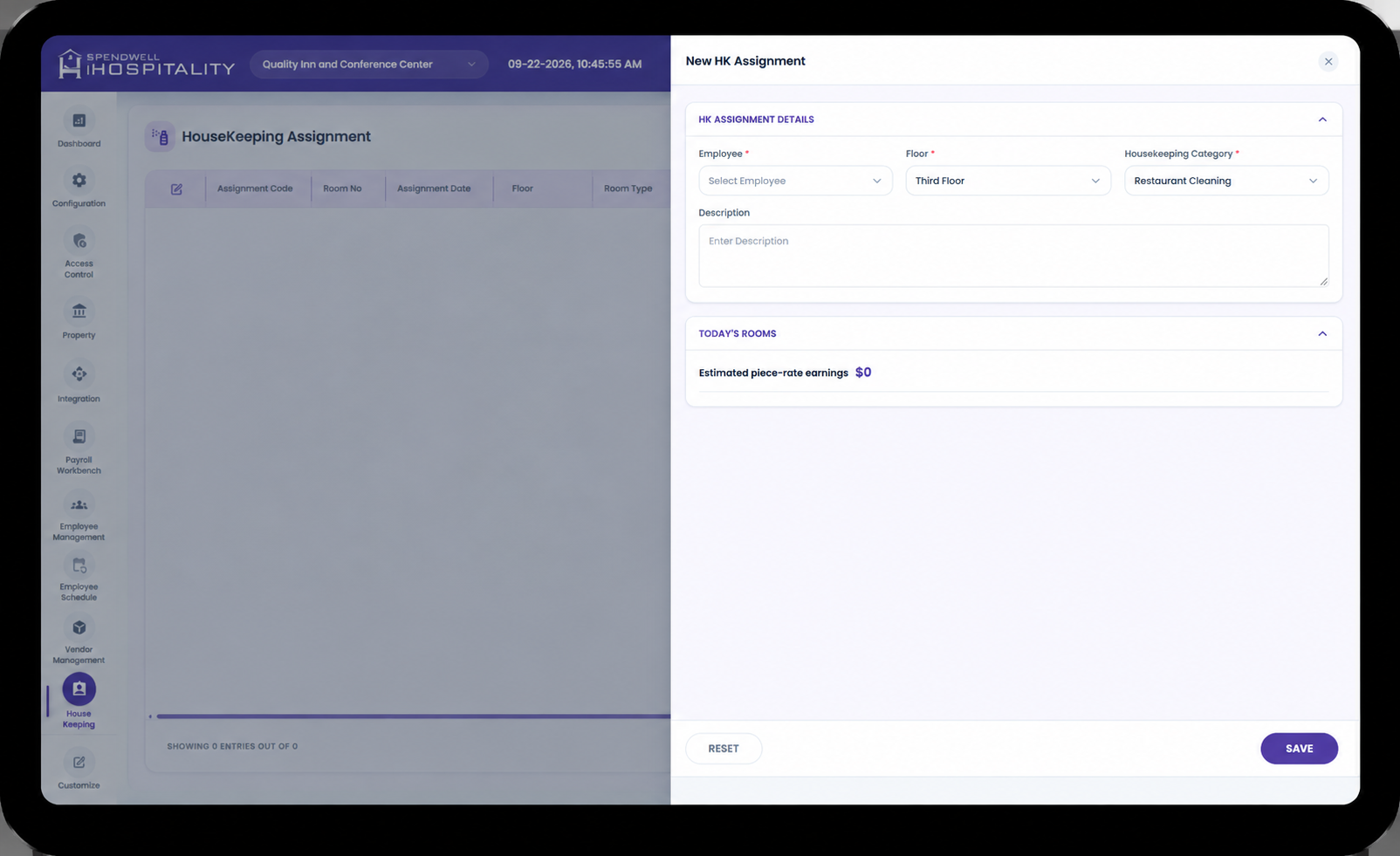
Add HK Assignment Panel
Use Create to open this panel. Fill HK Assignment Details first, then review Today's Rooms.
HK Assignment Details
| Field | Required | What it means |
|---|---|---|
| Employee | Yes | Person who will receive the task. Only Housekeeping department employees are listed. Each name shows attendance: Present, Schedule, or Absent. |
| Floor | Yes | Floor where the rooms are located. |
| Housekeeping Category | Yes | Type of cleaning (e.g. Deep Cleaning). Only Active categories are listed. Changing the category updates the estimated time and checklist. |
| Floor / Section | Yes | Rooms available on the selected floor. Choose the room(s) to assign. Rooms already assigned today, already clean, out of order, or out of inventory are not listed. |
| Description | No | Extra notes about the assignment. |
Today's Rooms
At least one room must be added before you can save.
| Field | What it means |
|---|---|
| Estimated piece-rate earnings | Estimated earnings for the employee from the rooms assigned for the day. The rate comes from the employee's housekeeping rate per room. |
| Estimated Time | Estimated time to complete the work. This comes from Room Estimation for the room type and selected Housekeeping Category. |
| Checklist | Checklist items from the selected Housekeeping Category. Only Active checklist items are shown. The employee is expected to complete these for the assignment. |
Panel Actions
| Button | What it does |
|---|---|
| Save | Saves the assignment(s) and closes the panel. |
| Save & Add New | Saves the assignment(s) and keeps the panel open to add another. |
| Reset | Clears the entered values without saving. |
Steps
Create a Housekeeping Assignment
- Open the Housekeeping Assignment screen.
- Select the required date range using the date filter.
- Click Create.
- Select the Employee. Only Housekeeping department employees are available. Prefer someone marked Present or Schedule.
- Select the Floor.
- Select the Housekeeping Category.
- Select the room(s) under Floor / Section.
- Review Estimated Time and Checklist. These update automatically from the selected category and room type.
- Enter a Description if needed.
- Review Today's Rooms, including estimated piece-rate earnings.
- Click Save, or Save & Add New to save and create another assignment.
After a successful save, the assigned employee receives a notification. One assignment is created for each selected room, each with its own Assignment Code.
Review Housekeeping Assignments
- Open the Housekeeping Assignment screen.
- Select the required date range.
- Review the list for Assignment Code, Room No, Rate, Employee, Priority, Status, Room Status, Assignment Date, Assigned By, Housekeeping Category, Guest Status, Guest Name, and HK Status.
- Use the action menu (three-dot icon) next to an assignment to view or delete it.
Delete is allowed only while the assignment is still Assigned and has not been paid. Once work has started, is completed, or is paid, delete is blocked.
Important Notes
- Employee lists only Housekeeping department staff. Other departments are not shown.
- Employee names are tagged as Present, Schedule, or Absent so you can assign people who are available.
- Employee, Floor, Housekeeping Category, and at least one room are required.
- If no room is selected, the system shows: At least one room must be assigned.
- Selecting a different Housekeeping Category updates Estimated Time and Checklist to match that category.
- Only Active checklist items from the category are copied to the assignment.
- Each assignment is linked to one Housekeeping Category. That category sets the type of cleaning, checklist, and inspection rules.
- Estimated time comes from Room Estimation for that room type and category.
- Estimated piece-rate earnings use the employee's rate per room.
- Only Dirty rooms that are not out of order or out of inventory appear for assignment. Rooms already assigned for the day (and not Completed) are also hidden.
- Guest Status and Guest Name show "-" when no guest is associated with the room.
- The date range filter controls which assignments are visible.
- Assignment Code is system-generated and uniquely identifies each assignment.
- After save, the employee is notified that the task was assigned.
- An assignment cannot be deleted or changed once it is in progress, completed, or paid. The system shows: Housekeeping task cannot be deleted because it is completed or paid.