
Employment Type
Overview
The Employment Type feature allows administrators to define the different categories of employment used across the property. Employment Type describes the nature of an employee's work arrangement — for example, whether they are a full-time staff member, a part-time worker, an intern, or a contractor. Every employee record requires an assigned Employment Type, which is used for classification, reporting, and payroll purposes.
Employment Type List
The Employment Type list screen shows all configured employment types along with their active/inactive status.
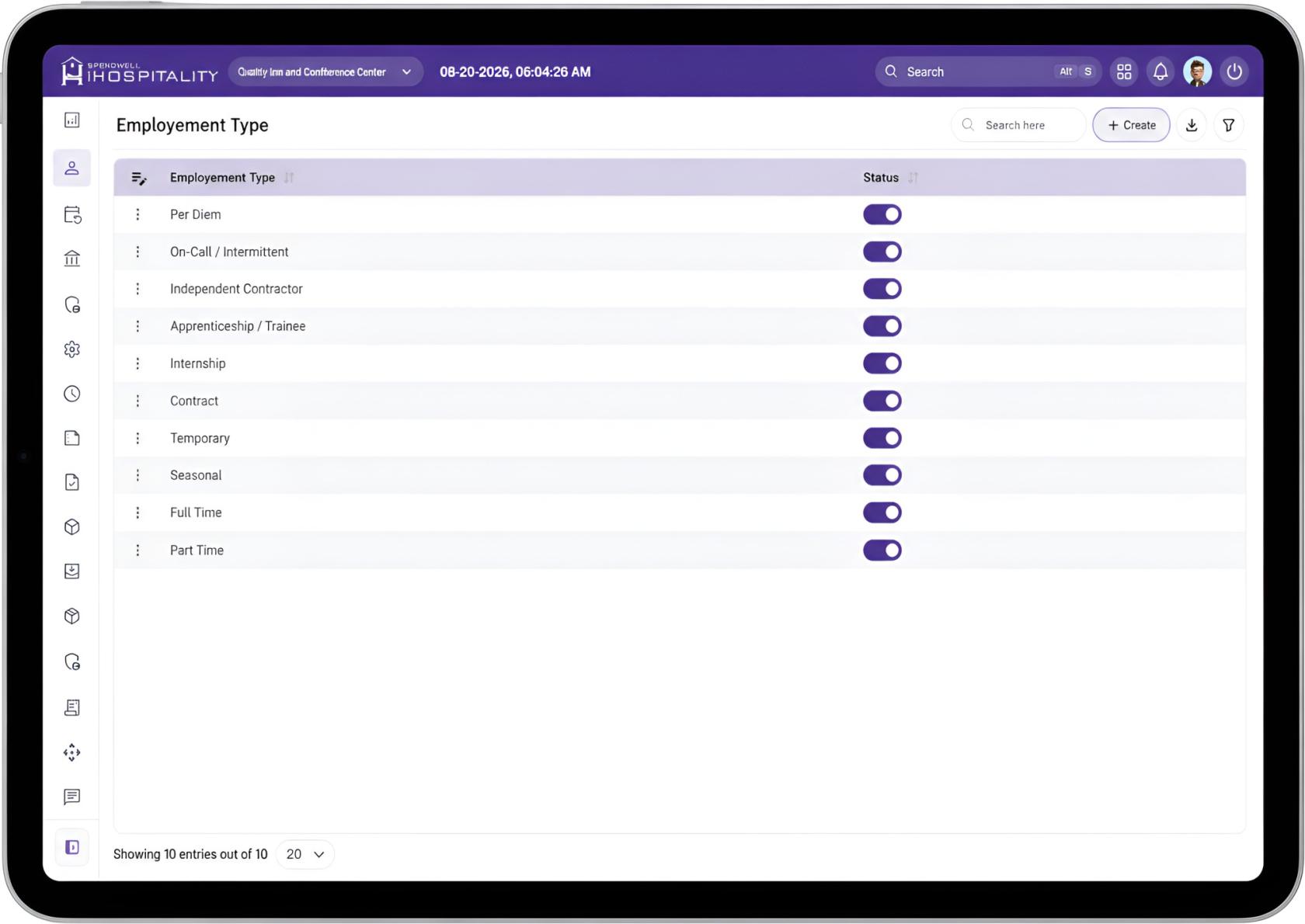
From this screen, administrators can:
- View all existing employment types.
- Enable or disable an employment type using the Status toggle.
- Create a new employment type.
Add Employment Type
The New Employment Type screen is used to create a new employment type.
Key Fields
- Employment Type — Name of the employment type being created (e.g. Full Time, Contract).
- Save — Saves the employment type and closes the panel.
- Save & Add New — Saves the employment type and keeps the panel open to add another.
- Reset — Clears the entered value without saving.
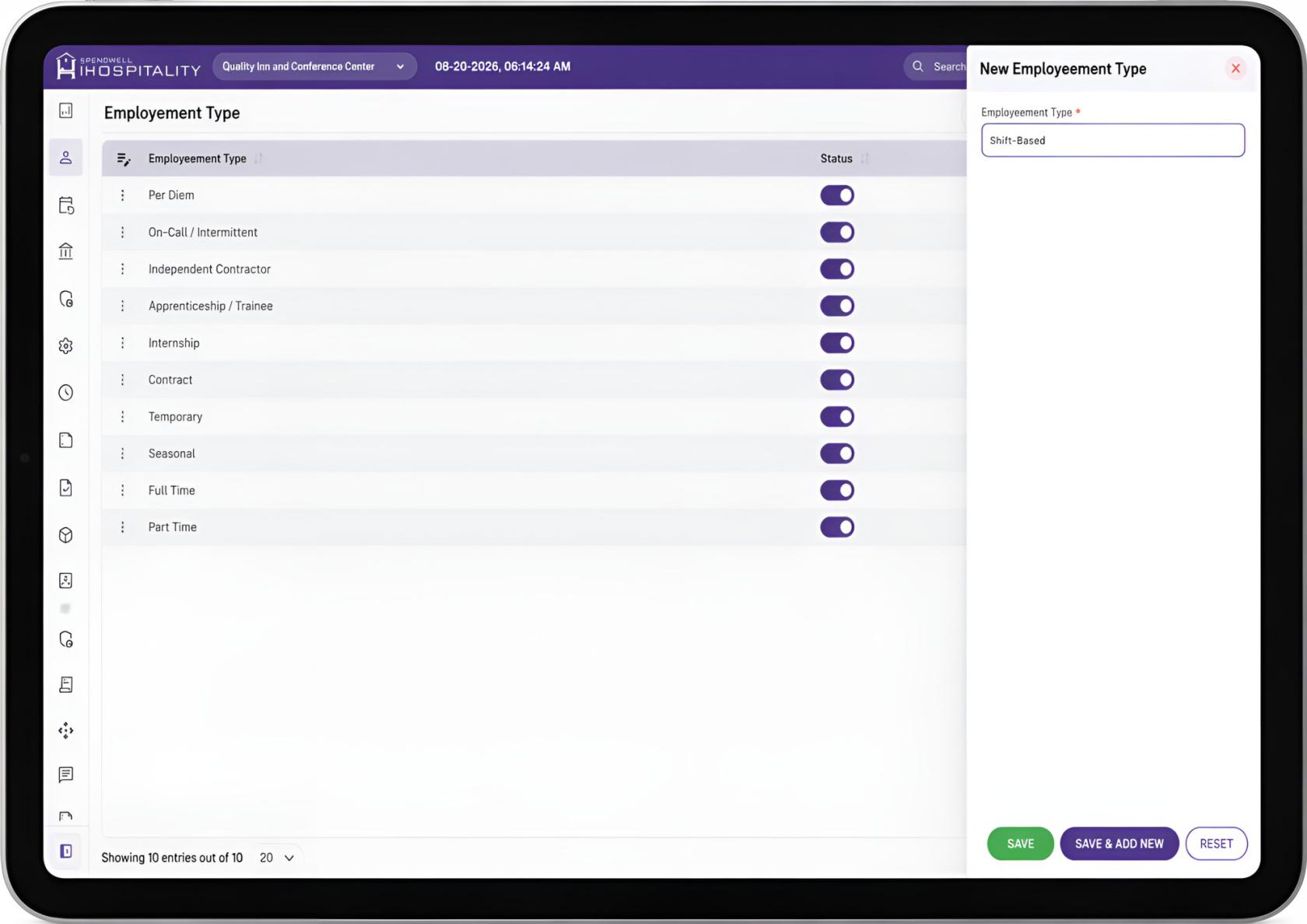
Steps
- Select New Employment Type.
- Enter the Employment Type name.
- Select Save to create it, or Save & Add New to create it and continue adding more.
Important Notes
- Employment Type must be assigned to every employee during onboarding.
- Administrators can enable or disable an employment type without deleting it, using the Status toggle.
- Employment Type is used for classification and reporting; leave and payroll rules are configured separately.