
Employee Group
Overview
The Employee Group feature allows administrators to define groups that employees can be assigned to, based on role, department, or workforce category. Each employee group carries its own leave and shift trade limits — both a yearly count and a monthly count — which control how much paid leave, unpaid leave, sick leave, and shift trades employees in that group can use.
Employee Group is used across the platform wherever leave balances and shift trade limits need to be applied consistently to a set of employees, rather than configured individually per person.
Employee Group List
The Employee Group list screen shows all configured employee groups along with their leave and shift trade limits, so administrators can review or update them at a glance.
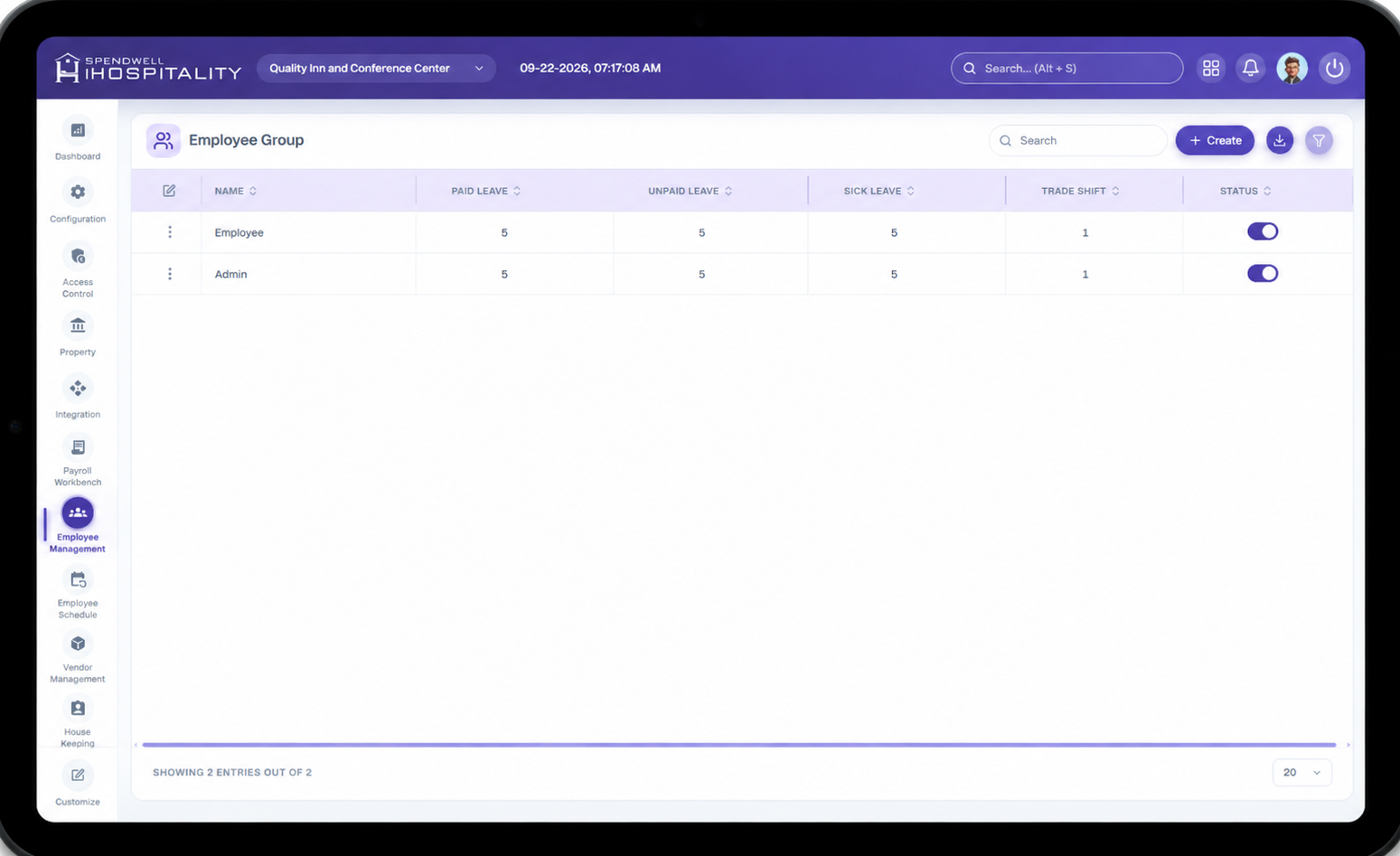
From this screen, administrators can:
- View all existing employee groups.
- Open a group to review or edit its leave and shift trade limits.
- Create a new employee group.
Add Employee Group
The New Employee Group screen is used to create a group and define its leave and shift trade allowances.
Key Fields
- Name — Name of the employee group (e.g. Housekeeping Full-Time, Front Desk Part-Time).
- Paid Leave Count — Total paid leave days allowed per year for employees in this group.
- Unpaid Leave Count — Total unpaid leave days allowed per year for employees in this group.
- Sick Leave Count — Total sick leave days allowed per year for employees in this group.
- Trade Shift Count — Total number of shift trades allowed per year for employees in this group.
- Paid Leave Count Per Month — Maximum paid leave days an employee in this group can take within a single month.
- Unpaid Leave Count Per Month — Maximum unpaid leave days an employee in this group can take within a single month.
- Sick Leave Count Per Month — Maximum sick leave days an employee in this group can take within a single month.
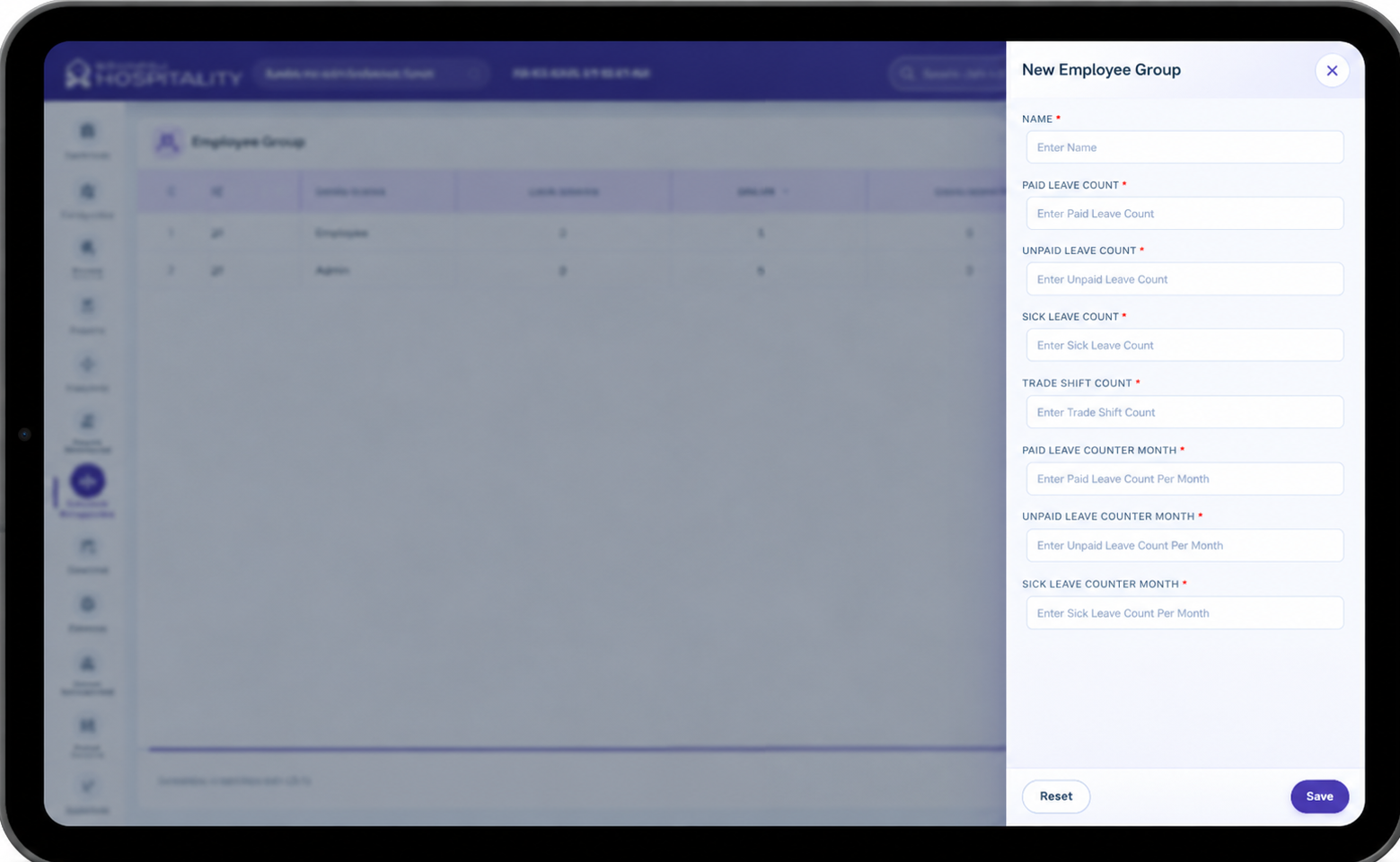
Example: A group named "Housekeeping Full-Time" is set with a Paid Leave Count of 12 (yearly) and a Paid Leave Count Per Month of 2. Employees in this group have 12 paid leave days to use across the year, but can never take more than 2 paid leave days within the same month.
Steps
- Select New Employee Group.
- Enter the Name of the group.
- Enter the Paid Leave Count, Unpaid Leave Count, and Sick Leave Count (yearly totals).
- Enter the Trade Shift Count (yearly total).
- Enter the Paid Leave Count Per Month, Unpaid Leave Count Per Month, and Sick Leave Count Per Month.
- Select Save to create the group.
Note: Once created, employees can be assigned to this group, and their leave requests and shift trades will be validated against both the yearly and monthly limits configured here.
Important Notes
- Employee Group defines both yearly and monthly limits for Paid Leave, Unpaid Leave, and Sick Leave.
- Employee Group also defines a yearly limit for Trade Shift Count.
- All required fields must be filled in before a group can be saved.
- Leave and shift trade requests submitted by employees are validated against the limits set on their assigned employee group.