
Workforce Task
Overview
The Workforce Tasks module on the iHospitality Hub lets employees view, work on, and track the tasks assigned to their shift — organized by category (Cleaning, Quality Assurance, Food Preparation, etc.) and tracked through Open → Active → Completed. Employees can start a live timer on a task, attach notes/files, reassign it, and a manager can close out the day once everything is done.
This module only appears on hubs where Workforce Tasks was checked under Hub Modules, and only for employees whose User Role has Can iHospitality Hub Login enabled — see the iHospitality Hub – Setup page.
Workforce Tasks Screen (Board View)
After signing in and tapping Workforce Tasks, the employee sees a board of tasks for the selected date, shift, and category.
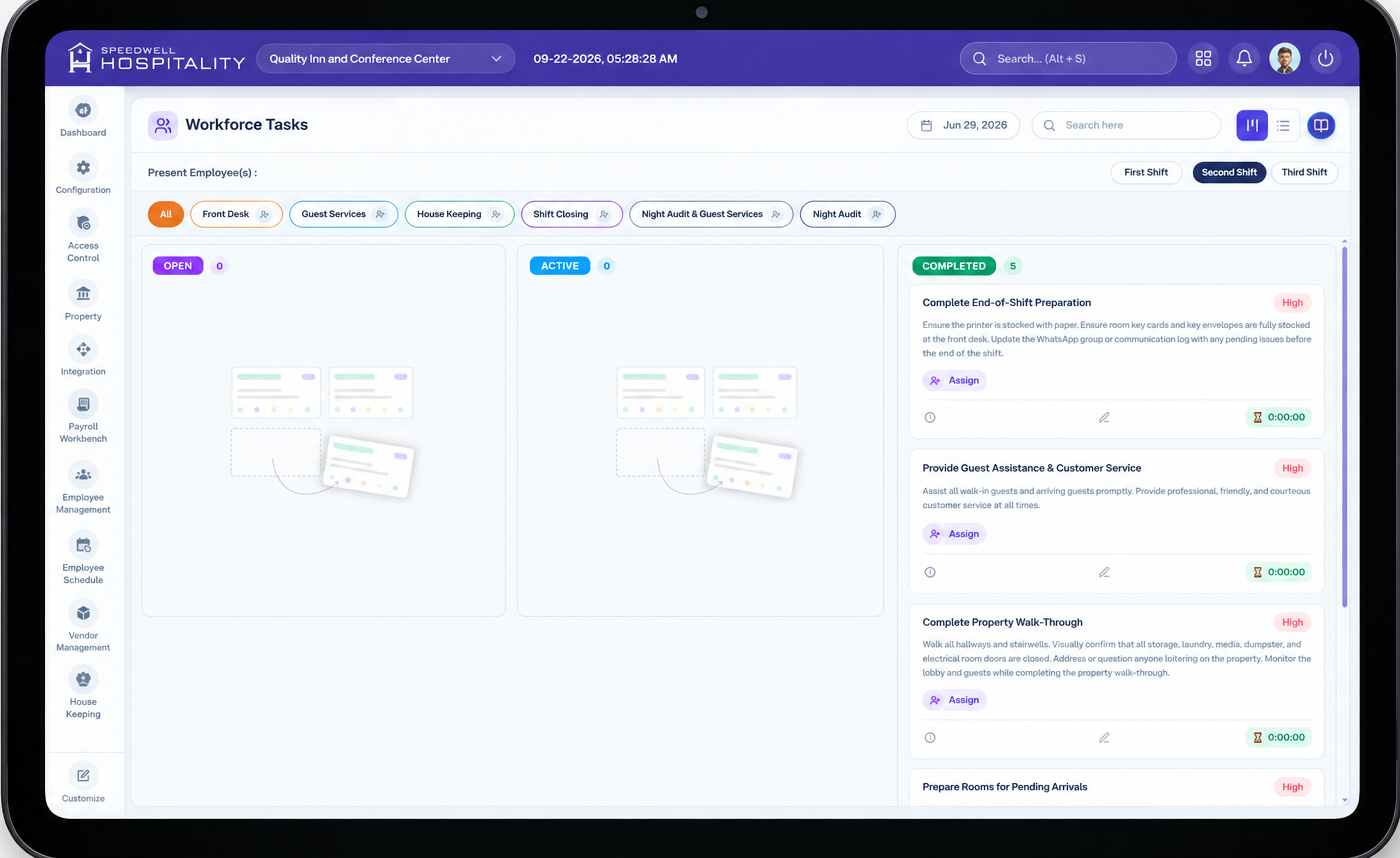
What this screen means: this is the default board view — tasks are grouped into three columns by status, and can be filtered by shift and category using the controls above the board. Click any screenshot on this page to open it full-screen.
Key Information
| Element | Description |
|---|---|
| Date picker | Selects which day's tasks are shown (defaults to today). |
| Search | Searches tasks by name. |
| View toggle | Switches between Board view (kanban, shown above) and List view (see below). |
| Close Day (lock icon) | Opens the Close Day confirmation — see Actions below. |
| Present Employee(s) | Shows the employee(s) currently on shift as avatar chips, for quick reference when assigning tasks. |
| Shift filter | Morning / Evening Shift / Night Shift — only tasks for the selected shift are shown. |
| Category tabs | Cleaning, Quality Assurance, Food Preparation, Plating & Serving, Cleaning & Sanitization, Safety & Compliance. Selecting a tab filters the board to that category's tasks; the + person icon on each tab assigns an employee to that whole category. |
| Board columns | OPEN, ACTIVE, COMPLETED, each with a live count of tasks in that state. |
Task Card
Each task card shows:
| Element | Description |
|---|---|
| Title & priority | Task name plus a priority badge (Low / Medium / High). |
| Description | Optional short explanation of the task. |
| Estimation | Target/planned time for the task (e.g. 00:36:00). |
| Assignee | Avatar showing the assigned employee's initials (e.g. "YD"). |
| Timer (Active tasks only) | Elapsed time with Pause and Stop controls once the task has been started. |
Icon row (bottom of every card):
| Icon | Action |
|---|---|
| 🕐 History | View the task's activity/status log. |
| 📎 Attachment | View files attached to the task. |
| ✏️ Edit | Opens Notes & Attachments (see Actions below). |
| 👤 Assign | Assign or reassign the task to a different employee. |
| → Move to next stage | Advances the task (Open → Active → Completed). |
List View
Switching to list view shows the same tasks as a table, grouped by category, with more detail visible per row.
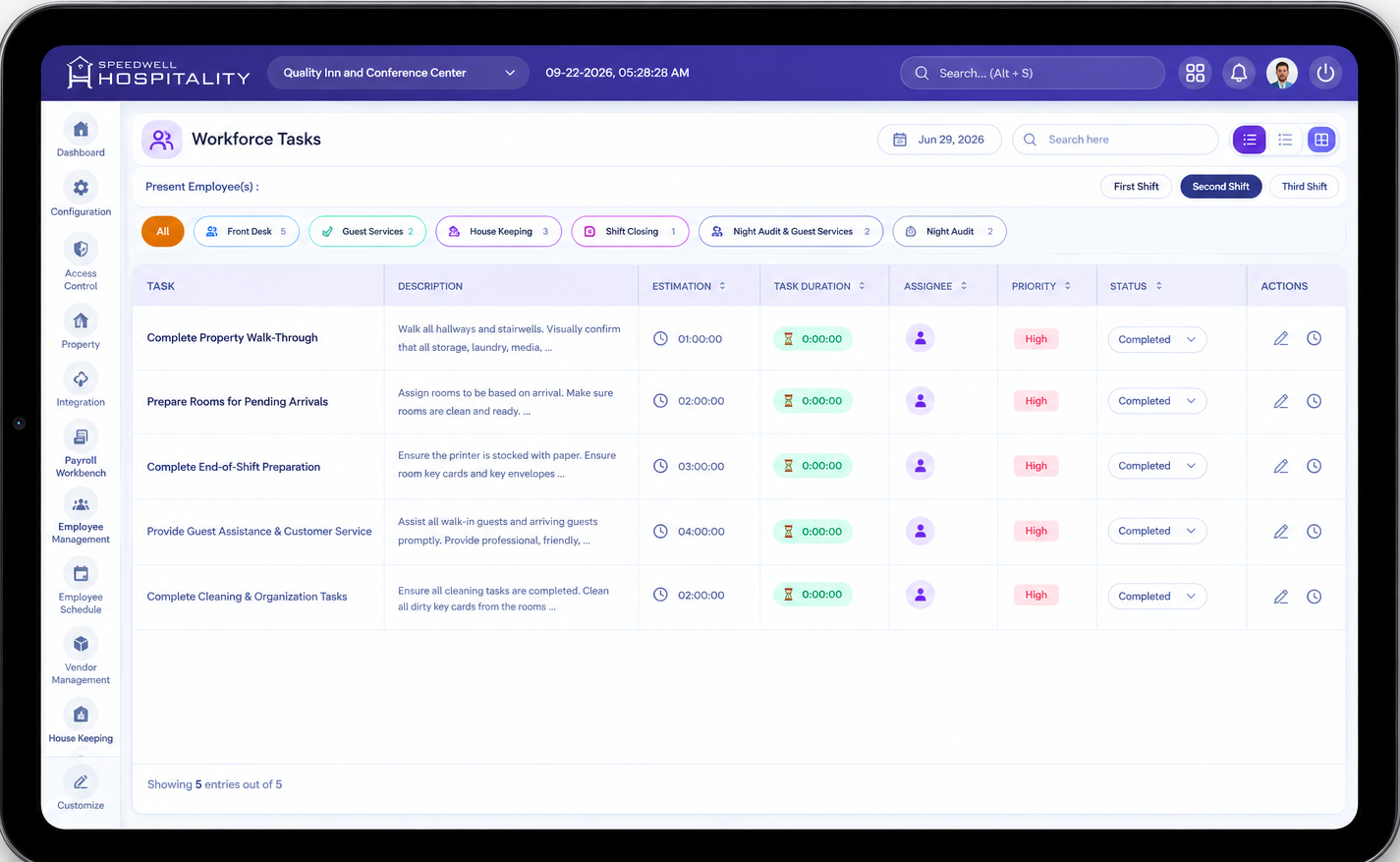
What this screen means: each category (e.g. "Quality Assurance") is an expandable group; if a category has no tasks for the selected shift, it shows "No Data Found!".
| Column | Description |
|---|---|
| Task | Task name. |
| Description | What the task involves. |
| Estimation | Target/planned time for the task. |
| Task Duration | Actual time spent — shows a live running timer with Play/Pause/Stop for an active task. |
| Assignee | Avatar of the employee assigned to the task. |
| Priority | Low / Medium / High, color-coded. |
| Status | Dropdown — Open / Active / Completed. Changing this here has the same effect as tapping the → arrow on the board. |
| Document | Attachment icon — view files attached to the task. |
| Notes & Attachments | Edit icon — opens the same Notes & Attachments form as the board view. |
| Info | Opens the task's full details (see Actions below). |
Actions
Start, Pause, and Stop a Task's Timer
- On the board, find the task under OPEN and tap the → arrow to move it to ACTIVE (or change its Status to Active in list view).
- Once active, a timer control appears on the card showing elapsed time, with Pause (⏸) and Stop (⏹) buttons.
- Tap Pause to temporarily stop timing without ending the task; tap again to resume.
- Tap Stop, or move the task to COMPLETED, once the work is done.
Add Notes & Attachments to a Task
-
On a task card (or its row in list view), tap the Edit icon.
-
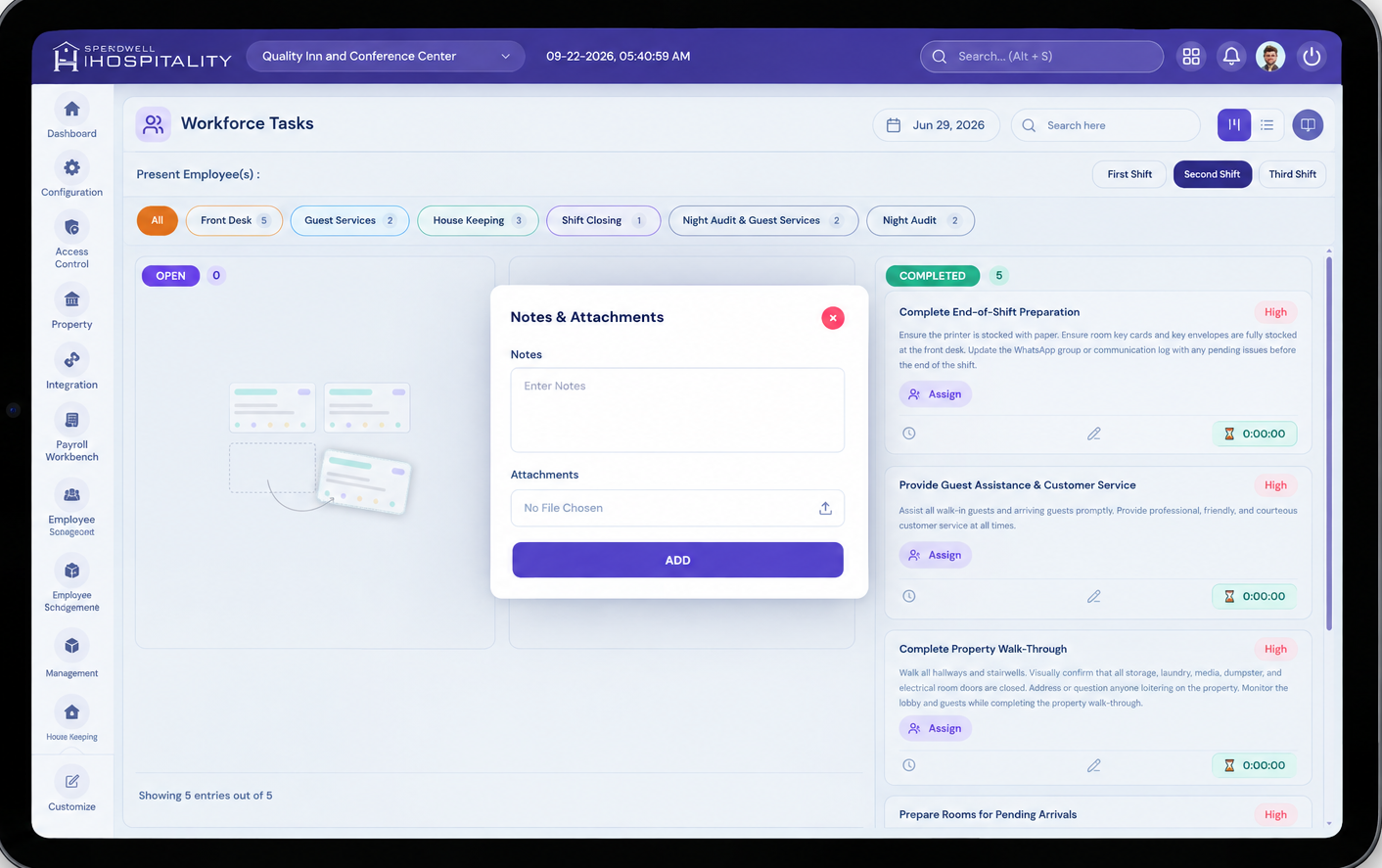
The Notes & Attachments form opens.
-
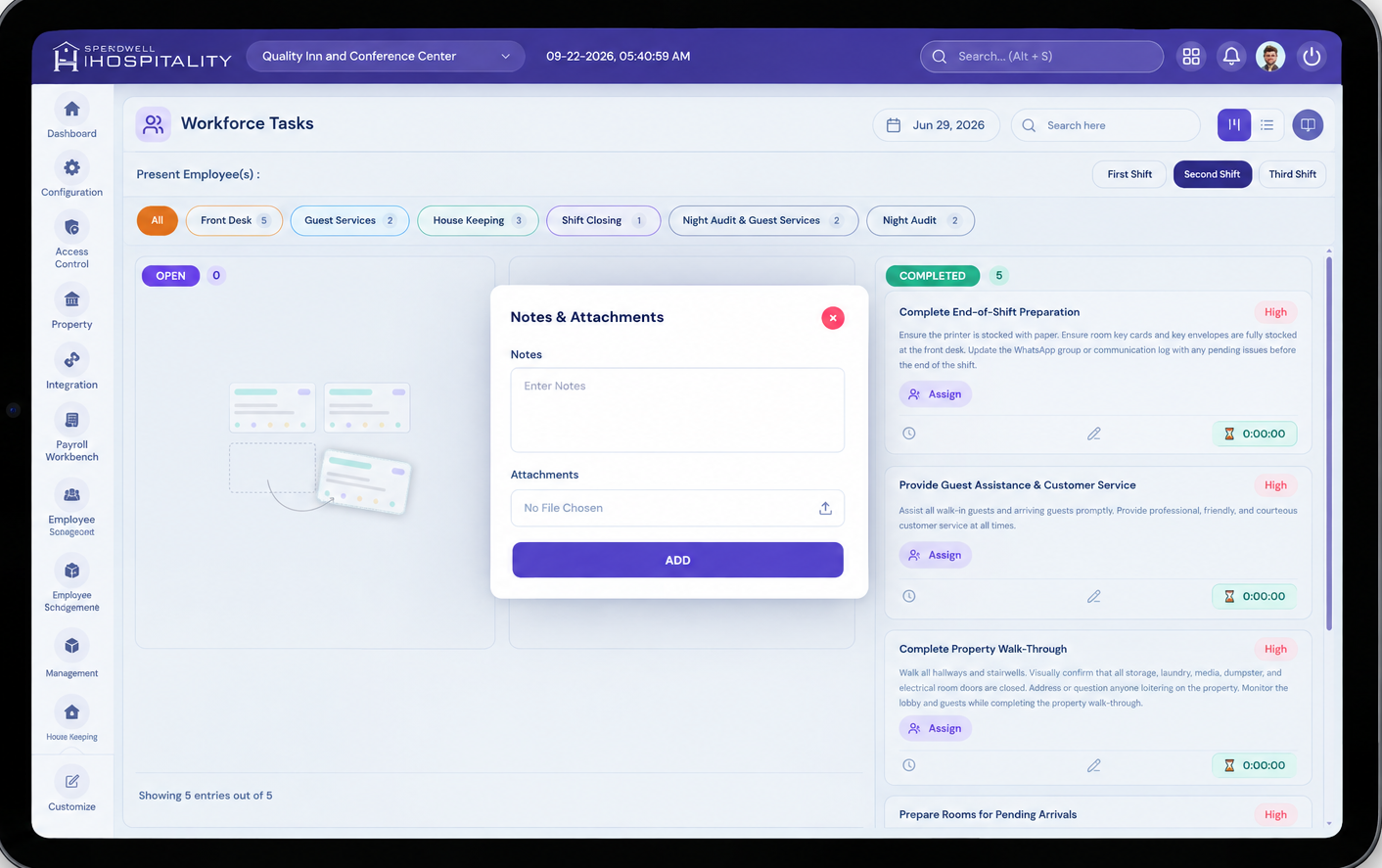
What this screen means: Notes lets you add a free-text comment about the task; Attachments lets you upload a supporting file (e.g. a photo).
-
Enter a note and/or choose a file to attach.
-
Tap ADD to save it to the task.
View Task Details (Info)
-
Tap the Info icon (list view) on any task.
-
A full detail modal opens for that task — everything about it and who worked on it, in one place.
-
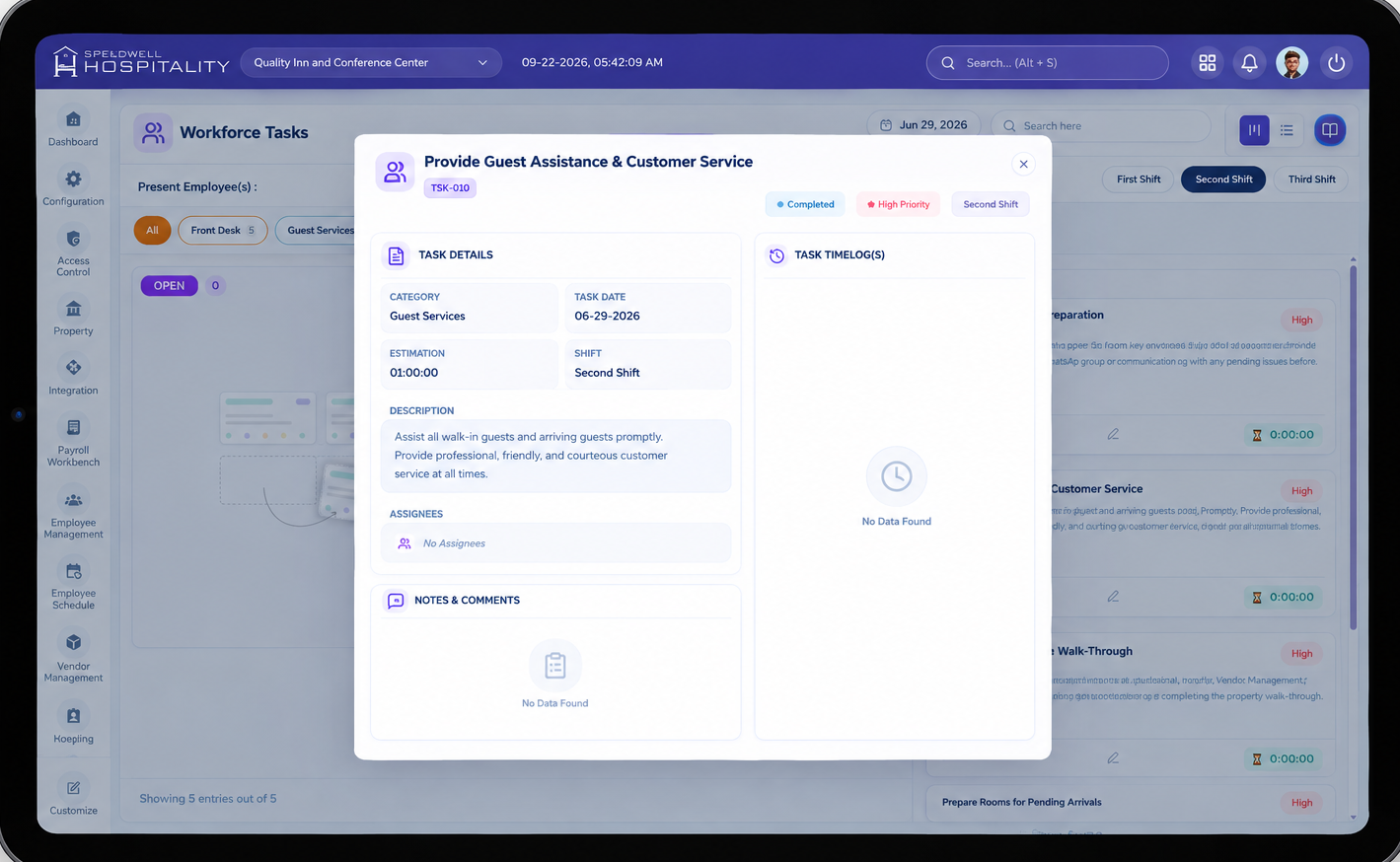
What this screen means: the header shows the task name, its ID (e.g.
BASC-00140), current stage, priority, and shift. Below that, Task Details and Task Employees show two different things — what the task is, and who actually worked on it.
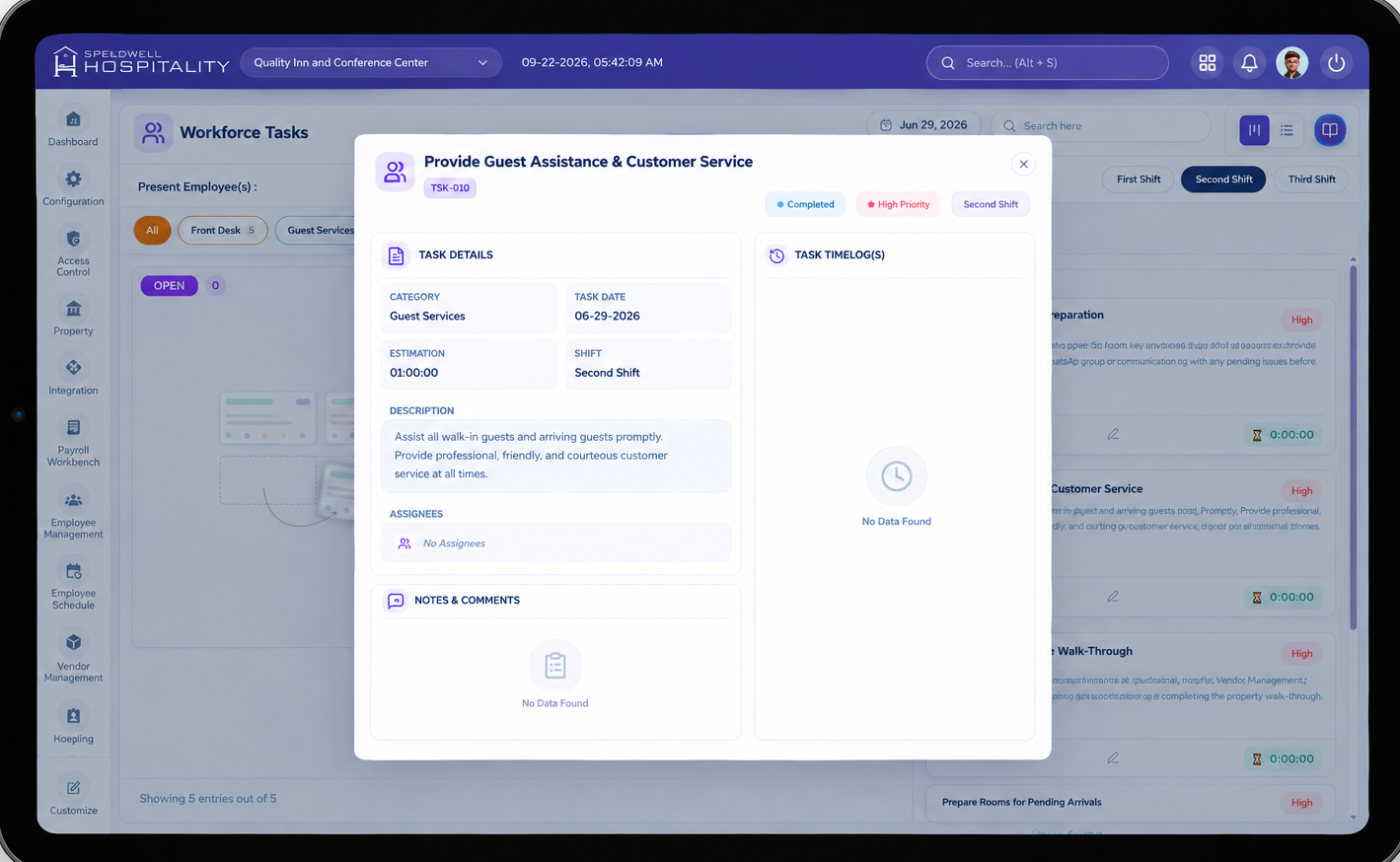
Task Details (left panel)
| Field | Description |
|---|---|
| Task Type | The category the task belongs to, e.g. "Quality Assurance." |
| Due Date | The date the task is scheduled for. |
| Start Time / End Time | The task's planned start and end time. |
| Description | What the task involves, plus its estimated duration (e.g. "80 mins"). |
| Assigned To | Avatar of the employee currently assigned. |
| Notes & Attachments | Every note/file added to this task, shown with who added it and when. |
Task Employees (right panel)
| Field | Description |
|---|---|
| Employee name | Who actually worked the task. |
| Start / End | The actual time this employee started and ended work on the task — this is real timer activity, not the planned Start/End Time on the left. |
| Checkin / Checkout | The date/time this employee checked in and checked out of the task. |
Assign or Reassign a Task
- On a task card, tap the person/Assign icon (or use the + person icon on a category tab to assign a whole category).
- Choose the employee to assign the task to from those present on shift.
- The task's Assignee avatar updates to reflect the new assignment.
Close the Day
Once all of the shift's tasks are handled, a manager can close out the day so no further changes are made to it.
-
Tap the lock icon in the top-right of the Workforce Tasks screen.
-
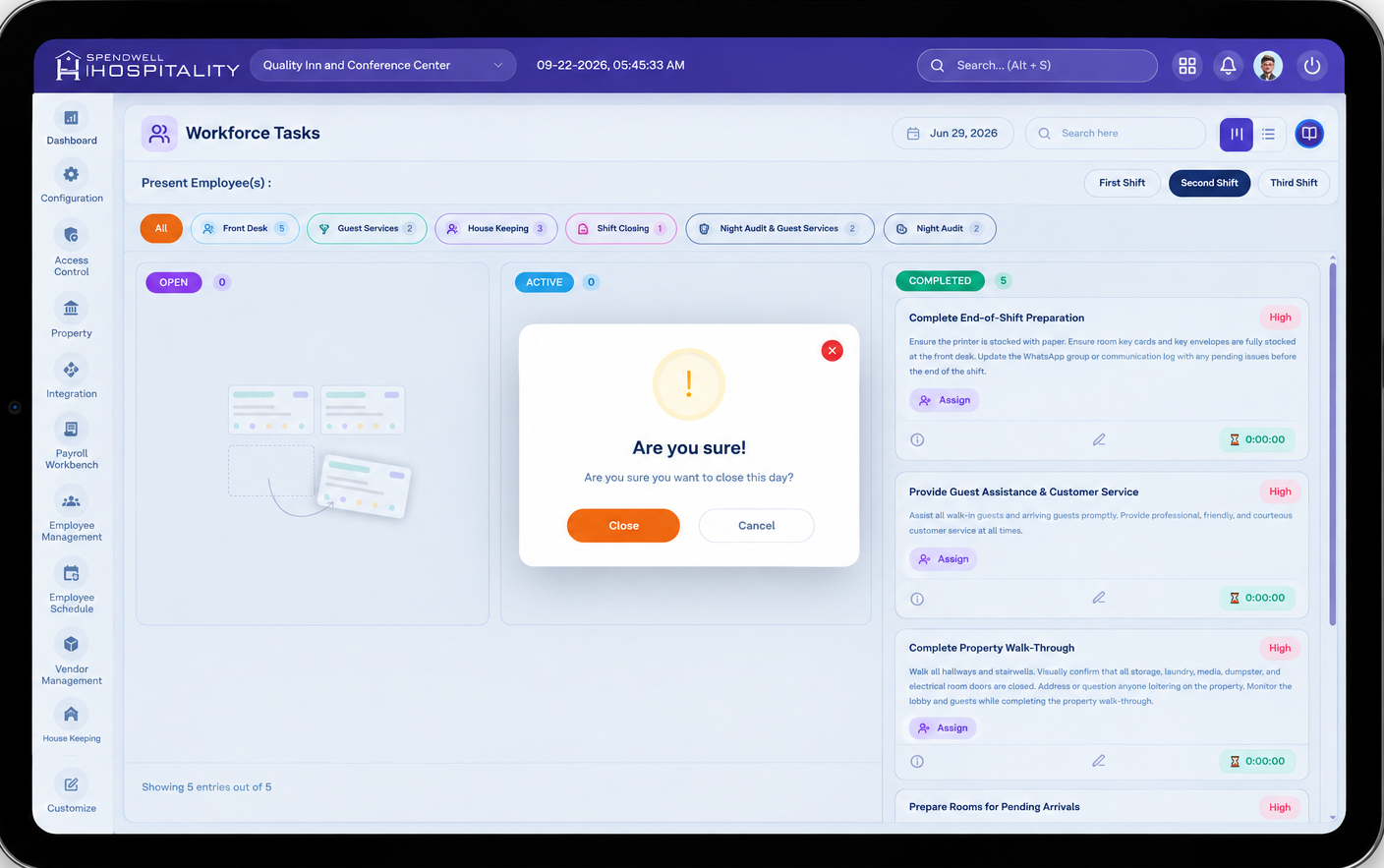
A confirmation appears: "Are you sure you want to close this day?"
-
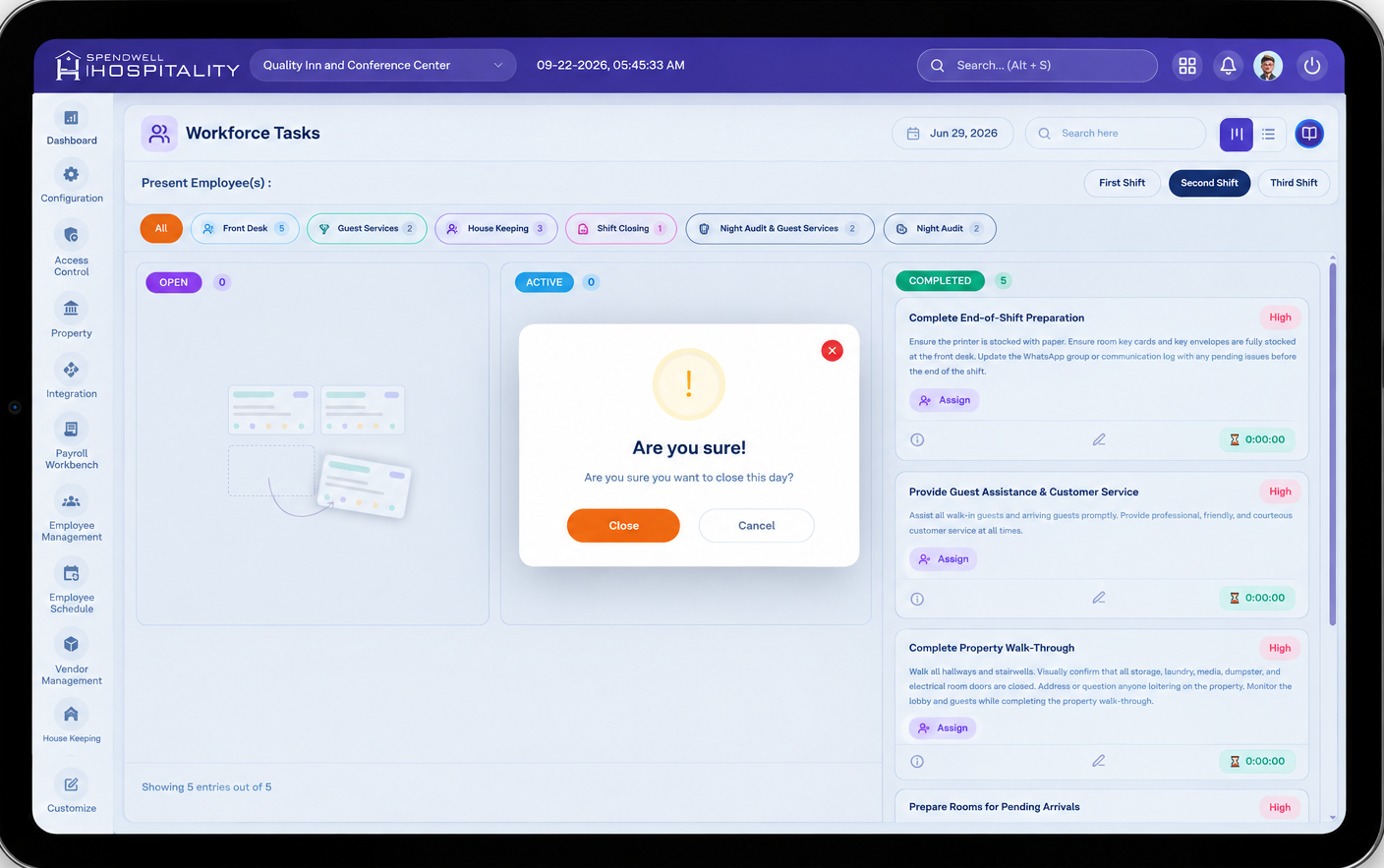
What this screen means: this is a safeguard against accidentally locking a day's tasks — tap CANCEL to back out, or CLOSE to finalize it.
-
Tap CLOSE to confirm, or CANCEL to go back without closing the day.
Workflow
Employee taps Workforce Tasks → Identifies via PIN/face → Selects shift & category → Task moves Open → Active (timer starts) → Pause/Resume as needed → Completed (timer stops)
To document work along the way: Task card → Edit icon → Notes & Attachments → Enter note / attach file → ADD
At end of shift: Lock icon → Are you sure? → CLOSE
Important Notes
- Moving a task's status can be done either from the board (→ arrow) or from the Status dropdown in list view — both do the same thing.
- The timer on an Active task tracks actual time spent, separately from the task's Estimation (its planned/target time) — useful for comparing planned vs. actual effort.
- Present Employee(s) only shows employees currently on shift, so assignment is limited to people actually available to do the work.
- Close Day is a safeguard action — always confirm before finalizing, since it's meant to lock in that day's task activity.
- This module only appears on hubs where Workforce Tasks was checked under Hub Modules — see the iHospitality Hub – Setup page.