
Clock In / Clock Out
Overview
The Clock In / Clock Out module on the iHospitality Hub allows employees to record their work hours directly from a shared kiosk device. An employee taps the module, identifies themselves with their Employee ID/PIN (or face login), and can clock in, take a break, clock out, or add a manual entry if a punch was missed — all without needing their own device.
Clock In / Clock Out Screen
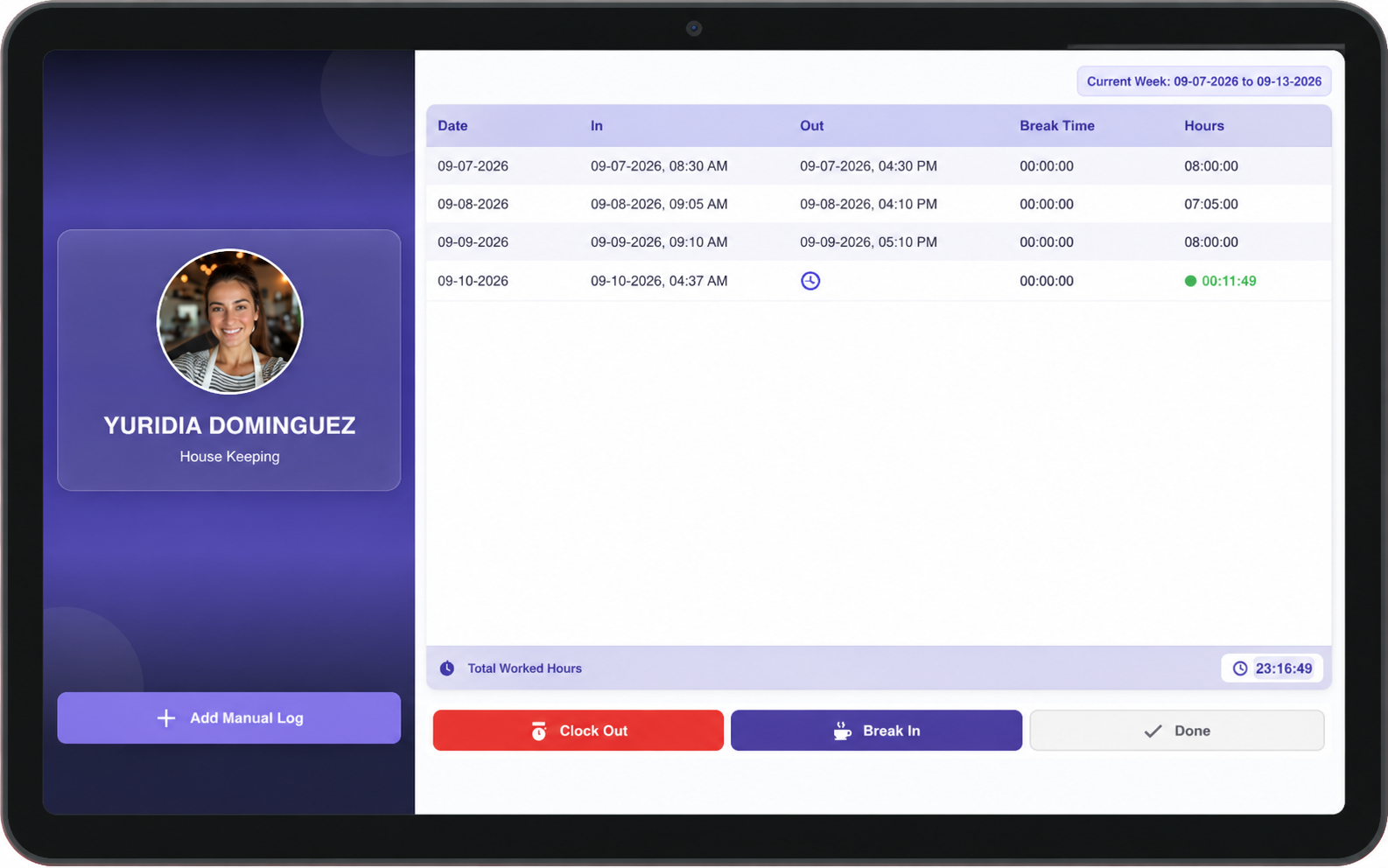
After signing in, the employee sees their personal weekly time log.
Key Information
- Employee profile — Shows the signed-in employee's name and role (e.g. "Kuldeep Patel — Hotel Manager").
- Current Week — The date range for the week currently being displayed.
- Date — The day the entry belongs to.
- In — Timestamp of the clock-in for that day.
- Out — Timestamp of the clock-out for that day (blank while the shift is still open).
- Break Time — Total break duration logged for that day.
- Hours — Total hours worked for that day, updates live while clocked in.
- Total Worked Hours — Running total for the current week, shown at the bottom of the screen.
Actions
Employees can take the following actions from this screen:
- Clock In — Starts the employee's shift and begins tracking hours.
- Break — Starts a break during an open shift; ending the break resumes the shift clock. Break duration is tracked separately in Break Time and does not count toward Hours.
- Clock Out — Ends the current shift.
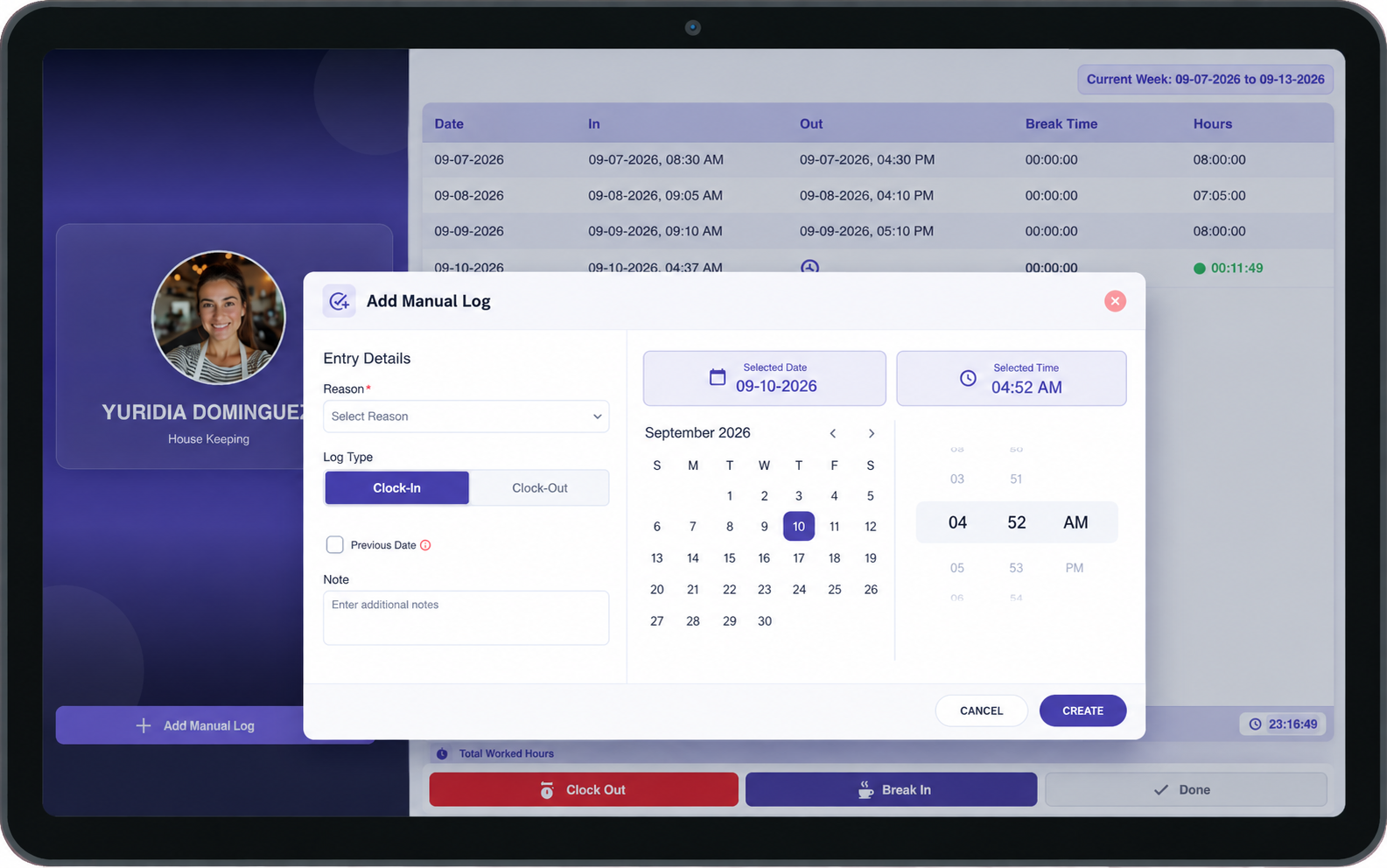
- Add Manual Log — Lets the employee add or correct a time entry, e.g. when a clock-in or clock-out was missed (regularization).
- Done — Returns to the hub home screen.
Steps — Clock In
- On the hub home screen, tap Clock In / Clock Out.
- Identify yourself with your Employee ID/PIN or face login.
- Tap Clock In.
- The shift starts; the day's row in the log begins tracking time.
Steps — Take a Break
- From the weekly log screen, tap Break.
- The break starts; break time accumulates in Break Time instead of Hours.
- Tap the same control again to end the break and resume the shift.
Steps — Clock Out
- From the weekly log screen, tap Clock Out.
- The shift ends; the day's Out time and Hours are finalized.
- Tap Done to return to the hub home screen.
Steps — Add Manual Log (Regularization)
- From the weekly log screen, tap Add Manual Log.
- Select the date and enter the correct In/Out time(s) that were missed.
- Save the entry.
- The corrected entry appears in that day's row in the weekly log.
Workflow
Employee taps Clock In / Clock Out → Identifies via PIN/face → Clock In → (optional) Break → Clock Out → Done
If a punch was missed on a prior day: Weekly log → Add Manual Log → Enter correct time(s) → Save → Entry corrected
Important Notes
- Every action is tied to the employee who signed in on the hub — the shared device itself does not have its own time log.
- Break Time is tracked separately from Hours; time spent on break does not count as worked hours.
- Add Manual Log is the way to fix a missed clock-in or clock-out after the fact, rather than needing a manager to edit the record elsewhere.
- Total Worked Hours reflects the current week only and resets each week according to the property's configured week range.
- This module only appears on hubs where Clock In / Clock Out was checked under Hub Modules — see the iHospitality Hub – Setup page.