
Profile Update
After completing the Mandatory Password Setup, the employee is taken to the Edit Profile flow.
The profile update process is divided into 5 steps:
Employee Details → Personal Details → Payroll Details → Address Details → Identity Documents
Each step contains information that the employee should review or complete before moving to the next step.
Profile Update Steps
| Step | Section | Purpose |
|---|---|---|
| 1 | Employee Details | Review employment and organization information |
| 2 | Personal Details | Review and complete personal information |
| 3 | Payroll Details | Review and complete payroll information |
| 4 | Address Details | Add or update address information |
| 5 | Identity Documents | Provide required identity document information |
💡 Tip: Complete each step carefully and select Save & Continue to move to the next section.
Step 1 — Employee Details
The Employee Details section displays the employee's employment and organization information.
All fields in this step are disabled and read-only. Employees can review the information but cannot edit or change these fields.
If any information is incorrect, contact your manager or administrator.
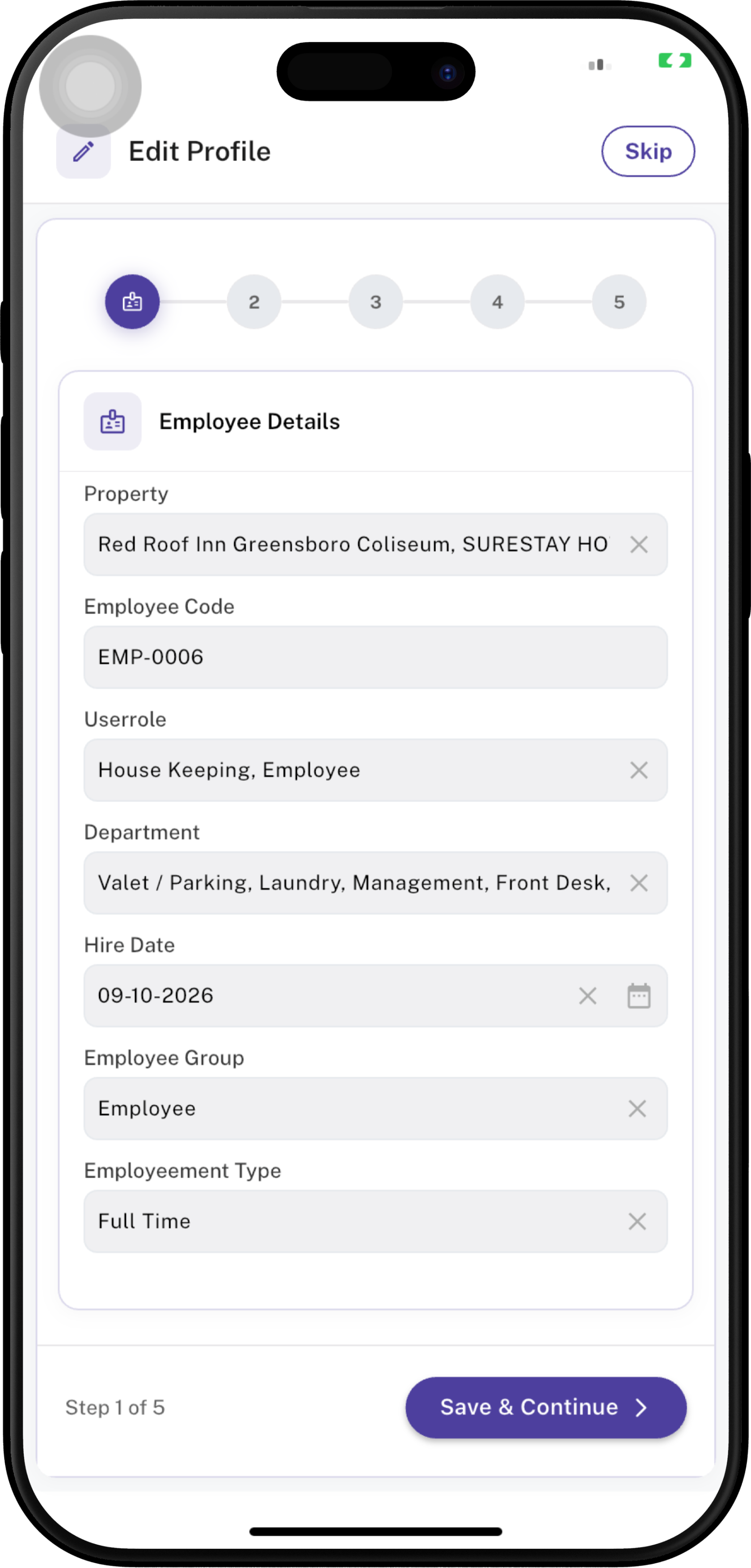
| Field | Description |
|---|---|
| Property | Displays the property where the employee is assigned. |
| Employee Code | Displays the unique employee code assigned to the employee. |
| Userrole | Displays the role assigned to the employee, such as Housekeeping or Employee. |
| Department | The department(s) associated with the employee, such as Front Desk, Laundry, Management, or Valet/Parking. |
| Hire Date | The employee's official hire/start date recorded in the system. |
| Employee Group | The employee group assigned to the employee, such as Employee. |
| Employment Type | The employee's employment classification, such as Full Time. |
▶️ Continue to the Next Step
After reviewing all Employee Details, tap Save & Continue button. ⚠️ If any Employee Details are incorrect: Contact your manager or administrator. These fields are disabled and cannot be updated by the employee.
Step 2 — Personal Details
The Personal Details section contains the employee's personal information.
Some information may already be populated, while other fields may require the employee to enter or update information.
Fields marked with a red * are required.
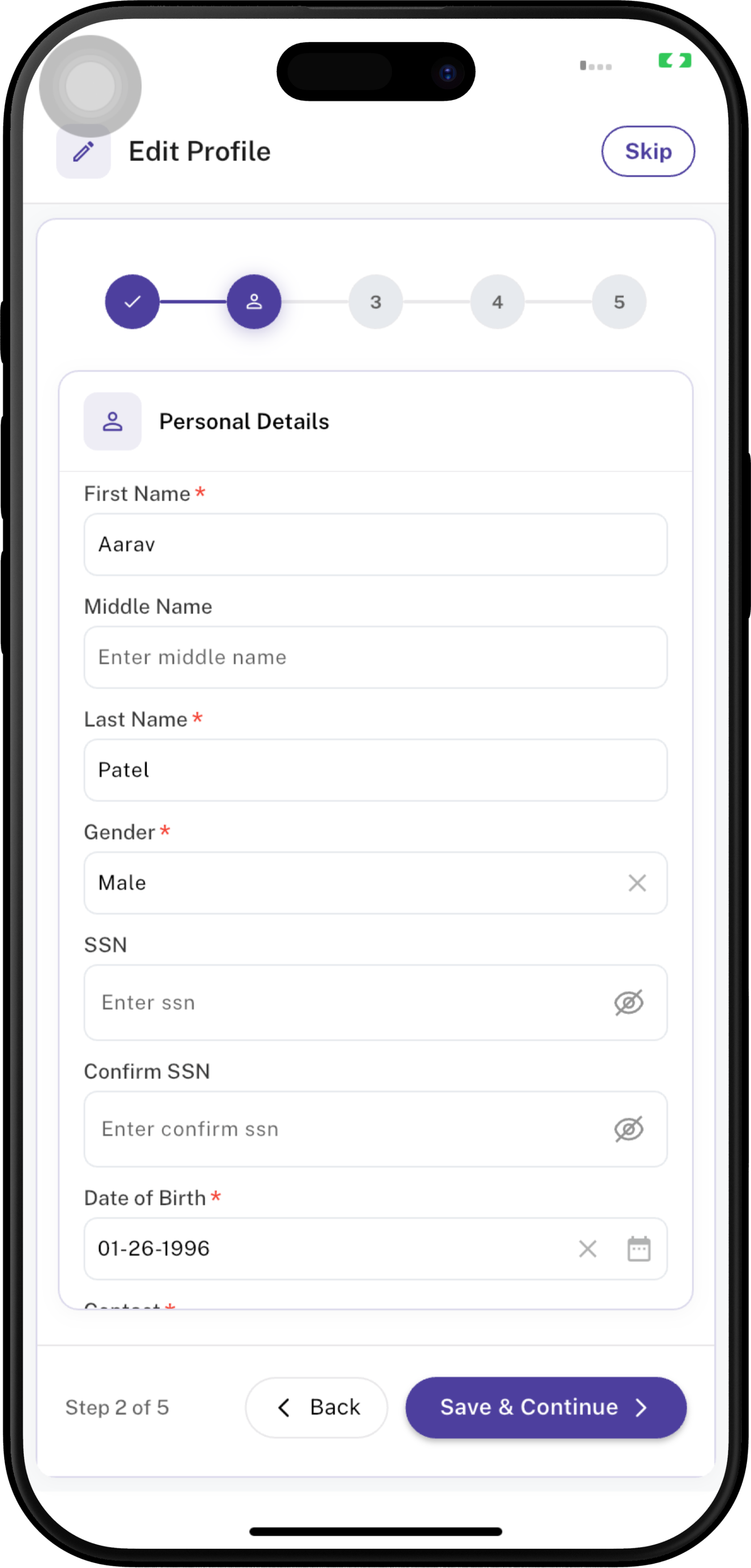
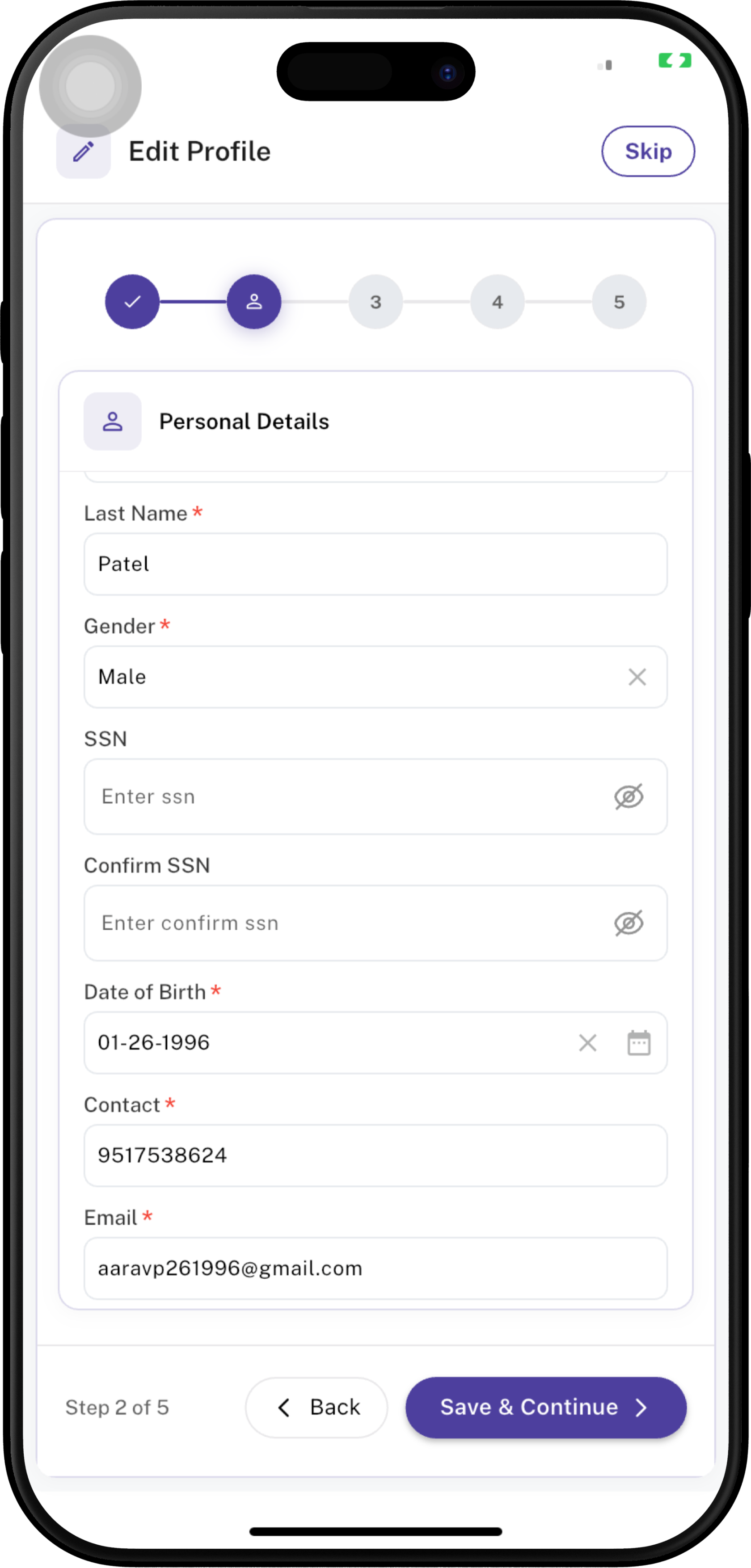
| Field | Description | Required |
|---|---|---|
| First Name | Employee's first/given name. | ✅ Yes |
| Middle Name | Employee's middle name, if applicable. | No |
| Last Name | Employee's family/last name. | ✅ Yes |
| Gender | Employee's gender. | ✅ Yes |
| SSN | Employee's Social Security Number. | No |
| Confirm SSN | Re-enter the SSN to confirm that it was entered correctly. | No |
| Date of Birth | Employee's date of birth. | ✅ Yes |
| Contact | Employee's contact/mobile phone number. | ✅ Yes |
| Employee's registered email address. | ✅ Yes |
Step 3 — Payroll Details
The Payroll Details section contains payroll-related information, including:
- Employee ID
- Passcode
- Associate ID
- Payroll File No
- Payroll Group
- Pay Cycle
- ADP Template
- Payroll Type
Complete any editable required fields and select Save & Continue to proceed.

🔐 Security: Keep your passcode confidential and do not share it with other employees.
Step 4 — Address Details
The Address Details section is used to provide the employee's address information.
The screen may include:
- Latitude
- Longitude
- Street Address
- Country
- State
- City
- Zip Code
Enter or select the required information and tap Save & Continue.

Step 5 — Identity Documents
The Identity Documents step is used to provide the required identity/document information requested by the organization.
Complete the required document details and submit the information according to your organization's requirements.
🔒 Privacy Reminder: Only provide documents requested by your organization and keep personal information secure.
✅ Profile Update Checklist
- Mandatory password setup completed
- Step 1 — Employee Details reviewed
- Step 2 — Personal Details completed
- Step 3 — Payroll Details completed
- Step 4 — Address Details completed
- Step 5 — Identity Documents completed
- Profile update submitted successfully
🎯 Completion
After completing all required profile steps, the employee can continue using the Employee App and the features available according to their role and permissions.
✨ Tip: Review each section carefully before selecting Save & Continue. If a read-only field in Step 1 is incorrect, contact your manager or administrator.