
Pay Slip
The Salary Slip shows an employee's salary details for a selected pay period. It helps the employee understand how much they earned, what was deducted, and how much was paid.
Payslip Overview
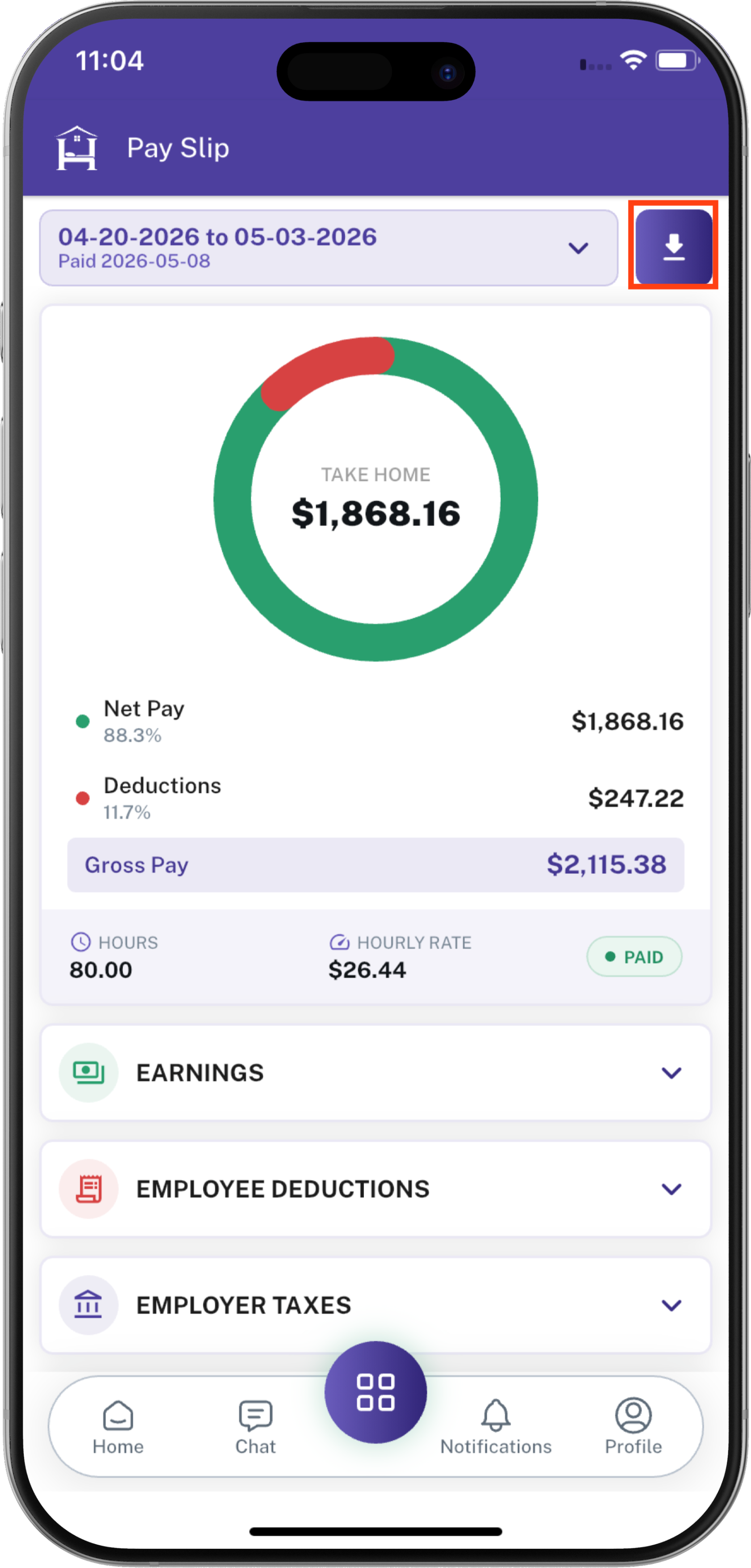
The payslip screen displays a summary of the employee’s salary for the selected payroll period.
It includes:
- Pay period and payment date
- Take-home pay
- Net pay
- Deductions
- Gross pay
- Total working hours
- Hourly rate
- Payment status
- Earnings details
- Employee deductions
- Employer taxes
- Direct deposit information
- Payslip download option
Payslip Header
At the top of the screen, the Pay Slip title identifies the current page.
The header contains:
- Pay period: Shows the start date and end date for the selected salary period.
- Paid date: Shows the date on which the salary was paid.
- Download button: Allows the employee to download the payslip.
The displayed dates and amounts depend on the selected payroll record.
Download Payslip
How to Download a Payslip
- Open the Pay Slip screen from the Employee App.
- Select the required pay period if more than one payslip is available.
- Review the salary summary and payment details.
- Tap the Download icon.
- Save or open the downloaded payslip from the device’s download location.
The downloaded file can be used for personal records, salary verification, or sharing with an authorized person.
Select Pay Period
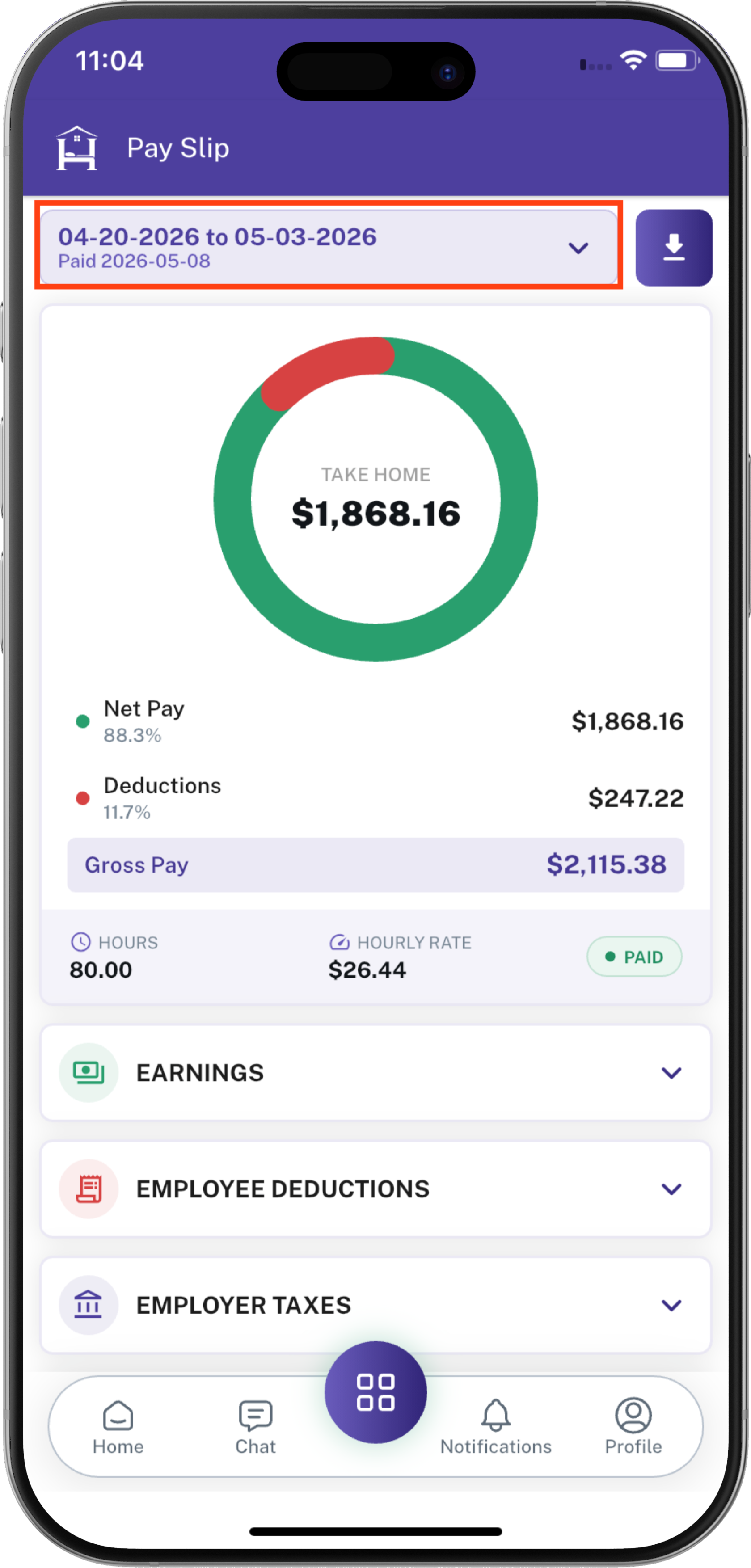
The Pay Period selector allows employees to choose which payroll record they want to view.
Tap the pay-period field at the top of the Pay Slip screen to open the Select Pay Period window.
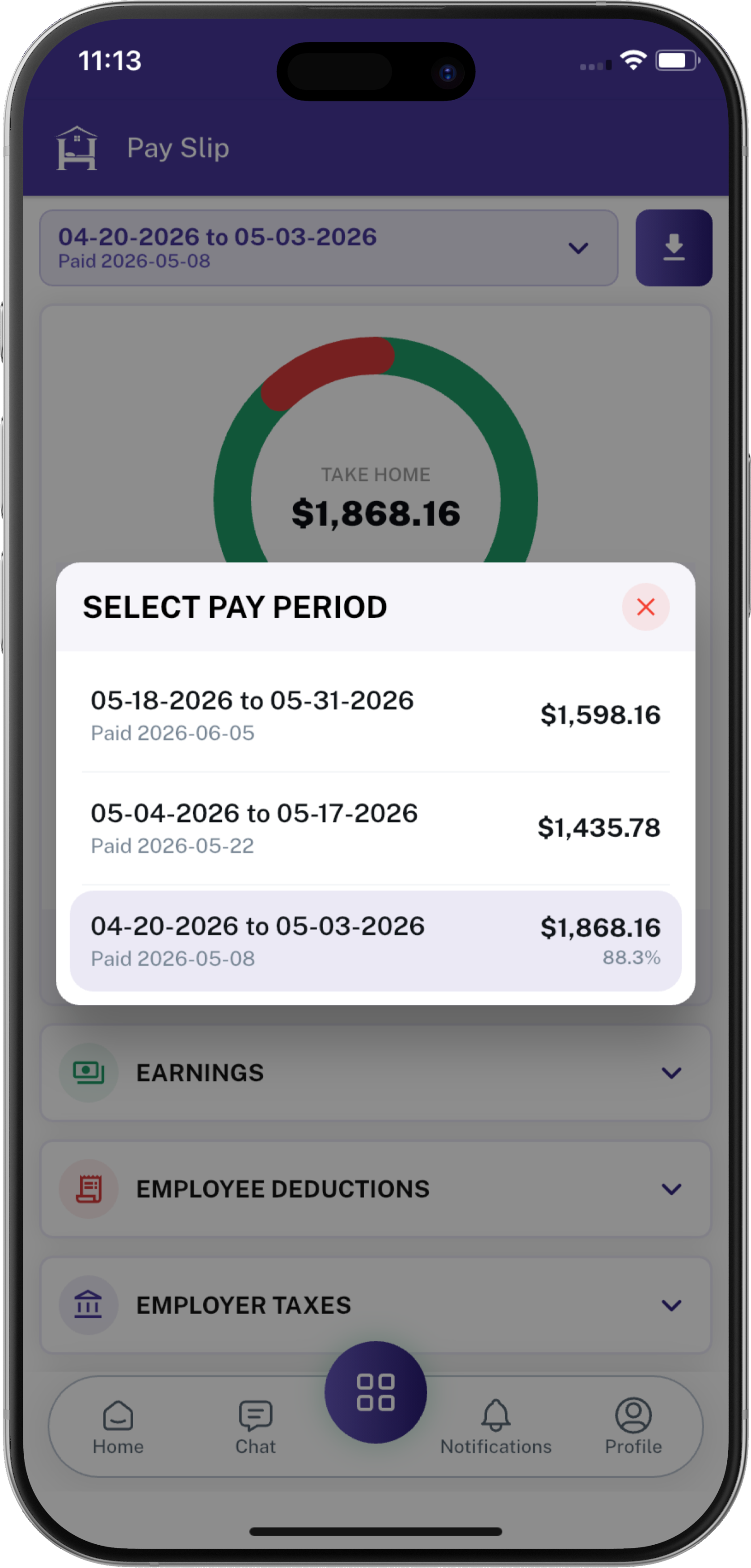
The selection window displays available payroll records. Each record shows:
- Pay Period: The start date and end date covered by the payroll.
- Paid Date: The date the employee was paid.
- Net Pay Amount: The take-home amount associated with that payroll period.
- Percentage: The net-pay percentage displayed for the selected record, when available.
How to Select a Pay Period
- Tap the Pay Period field at the top of the screen.
- The Select Pay Period window opens.
- Review the available payroll periods.
- Tap the required pay-period record.
- The selected period becomes active.
- The payslip screen refreshes to show the salary details for that period.
The selected pay period is displayed in the top field after the selection window closes.
Selecting a different pay period updates the payslip summary, including take-home pay, net pay, deductions, gross pay, hours, hourly rate, payment status, and available payroll details.
Take Home
The Take Home section displays the final amount the employee receives after deductions.
The amount is shown in the center of the circular salary chart.
Example
Take Home: $1,868.16
The chart visually compares:
- Net Pay: The amount received by the employee.
- Deductions: The amount subtracted from gross pay.
The green section represents net pay, while the red section represents deductions.
4. Net Pay
The Net Pay row shows the employee’s final payable salary after deductions.
It includes:
- Net pay percentage
- Net pay amount
Example
Net Pay Percentage:88.3%Net Pay Amount:$1,868.16
Net pay is the amount that the employee receives after applicable deductions have been removed.
5. Deductions
The Deductions row shows the total amount deducted from the employee’s gross salary.
It includes:
- Deduction percentage
- Total deduction amount
Example
Deduction Percentage:11.7%Deduction Amount:$247.22
Deductions may include employee taxes, benefits, or other payroll deductions configured by the organization.
6. Gross Pay
The Gross Pay section displays the employee’s total salary before deductions.
Example
Gross Pay: $2,115.38
Gross pay is the total amount earned during the selected pay period before employee deductions are applied.
Salary Calculation
Gross Pay - Deductions = Net Pay
$2,115.38 - $247.22 = $1,868.16
7. Hours
The Hours section showsShows the total number of payable or recorded working hours forincluded in the selectedsalary pay period.
Example
Hours: 80.00calculation.
This value helps the employee understand how the salary was calculated based on recorded working time.
8. Hourly Rate
TheShows Hourlyhow Rate section displaysmuch the employee’semployee pay rateearns per hour.
Example
Hourly Rate: $26.44
The hourly rate may be used to calculate gross earnings based on the employee’s recorded hours and payroll rules.
9. Payment Status
The payment status indicates whether the payslip has been paid.
Example
PAID
A green Paid status indicates that the payroll record is marked as paid.
The status may vary depending on the payroll processing stage.
Payslip Detail Tabs
The payslip screen contains expandable detail tabs. Tap a tab to view additional information.
10. Earnings
The Earnings tab displaysshow the employee’smoney earningearned components forby the selectedemployee during the pay period. Total earnings before employee deductions.
This section may include:
Regular payHourly earningsOvertime earningsHoliday payBonusAllowancesOther earning components
How to View Earnings
- Tap Earnings.
- Review the listed earning components.
- Check the amount associated with each earning type.
- Collapse the section when finished.
The exact earning items depend on the employee’s payroll configuration.
11. Employee Deductions
The Employee Deductions tabshow displaystaxes deductionsor other amounts taken from the employee’employee's pay. These amounts are removed from gross pay before the employee receives final pay.
This section may include:
Employee taxesInsurance deductionsBenefit deductionsRetirement or pension deductionsOther employee-specific deductions
How to View Employee Deductions
- Tap Employee Deductions.
- Review each deduction type.
- Check the amount deducted for each item.
- Confirm that the total matches the deductions shown in the salary summary.
12. Employer Taxes
The Employer Taxes tab displaysshow taxes or employer-paid payroll contributions associated with the employee.
These amounts are generally paid by the employeremployer. andThese may not be deducted from the employee’s take-home pay.
This section may include:
Employer tax contributionsEmployer payroll chargesOtherare employer-paidstatutorycostscontributionsrelated
the employee. They are separate from employee deductions.
How to View Employer Taxes
- Tap Employer Taxes.
- Review the employer tax items.
- Check the amount associated with each item.
- Collapse the section after reviewing the details.
Employer taxes are shown for payroll transparency and may be separate from employee deductions.
13. Direct Deposit
The Direct Deposit tabshows displayswhere the employee’employee's salary paymentwas informationdeposited. when direct deposit is configured.
This sectionshows maythe include:
Depositbank accountinformationused Banktoorreceivefinancialtheinstitutionsalary.detailsOnly Deposittheamountlast Depositfourmethoddigits Paymentareallocationvisibledetailsfor
How to View Direct Deposit
- Tap Direct Deposit.
- Review the available deposit information.
- Confirm the payment method and deposit amount.
- Collapse the section when finished.
Sensitive bank information should be handled carefully and shared only with authorized users.
Important Notes
- Payslip values are based on the selected payroll period.
- Earnings and deductions may vary from one pay period to another.
- Employer taxes are separate from employee deductions.
- The download option should be used to save a copy of the payslip for future reference.
- Employees should contact their manager or payroll administrator if any salary information appears incorrect.