
Employee Onboarding Process
Overview
The employee onboarding process ensures that a new employee is created by the manager, receives the required login credentials at your email address, and completes the first-time setup, and finishes the onboarding process before using the Employee App and iHospitality Hub (KDS).
Onboarding Flow
Manager Adds Employee → Welcome Email Sent → Language Selection → Employee App Login → Change Password → iHospitality Hub Login → Change iHospitality Hub Passcode → Complete Onboarding → Start Using the System
Step 1 --- Manager Adds the Employee
The manager first creates the employee profile in the system.
The manager enters the required employee information, including:
- Employee Name
- Email Address
- Employee Code
- Passcode
- Other required employee details
The Employee Code and Passcode are used to access iHospitality Hub (KDS).
Note: Make sure the employee's email address is correct because the welcome email and Employee App login details will be sent to this address.
Step 2 --- Welcome Email Is Sent to the Employee
After the manager adds the employee, the system sends a welcome email to the employee's registered email address.
The email provides the information required to get started.
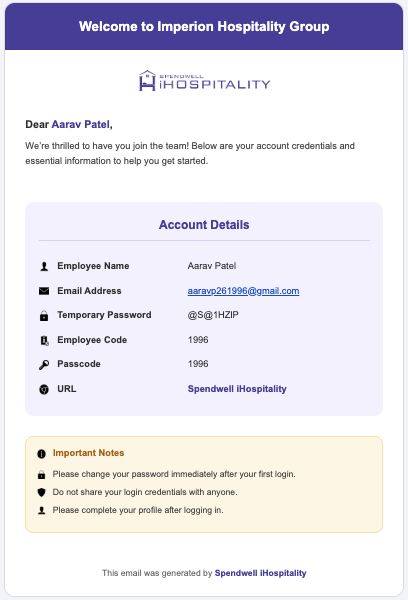
Welcome Email Contains
| Information | Purpose |
|---|---|
| Employee Name | Identifies the employee |
| Email Address | Used to log in to the Employee App |
| Temporary Password | Used for the first Employee App login |
| Employee Code | Used for iHospitality Hub (KDS) |
| Passcode | Used for iHospitality Hub (KDS) |
Important Credential Difference
- Employee App: Email Address + Temporary Password
- iHospitality Hub (KDS): Employee Code + Passcode
Important: The temporary password must be changed after the employee's first Employee App login. The iHospitality Hub passcode must also be changed as part of the initial setup.
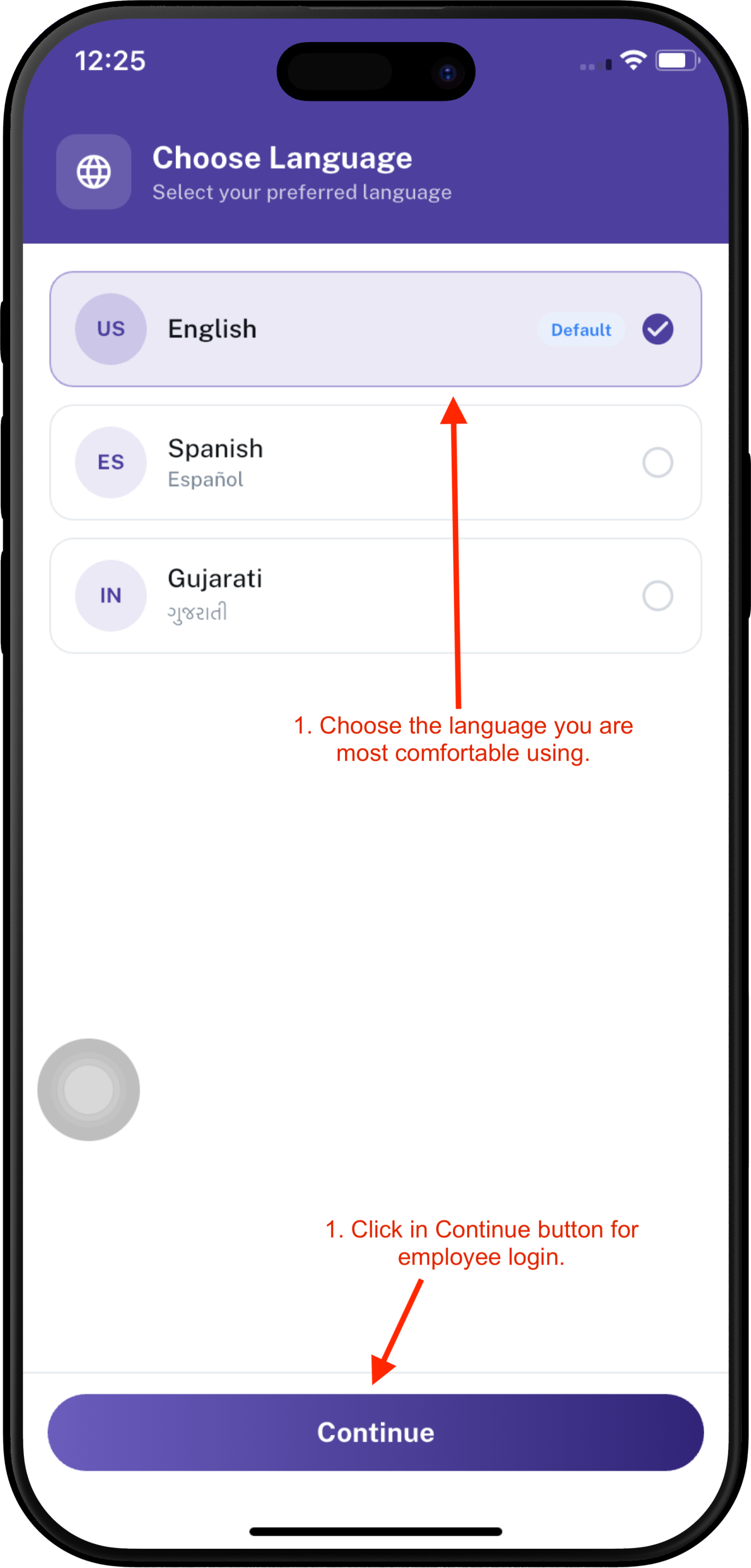
Step 3 --- Select Your Language
Before logging in to the Employee App, choose the language you are most comfortable using.
- Open the Employee App.
- Select your preferred language from the available language options.
- Continue to the Employee App login screen.
Note: Choose the language you are most comfortable with. The selected language will be used throughout the Employee App where supported.
Step 4 --- Log In to the Employee App
After selecting your preferred language, log in to the Employee App using one of the available login methods.
The Employee App provides three ways to log in:
- Email Address + Password
- Face Login
- Email OTP
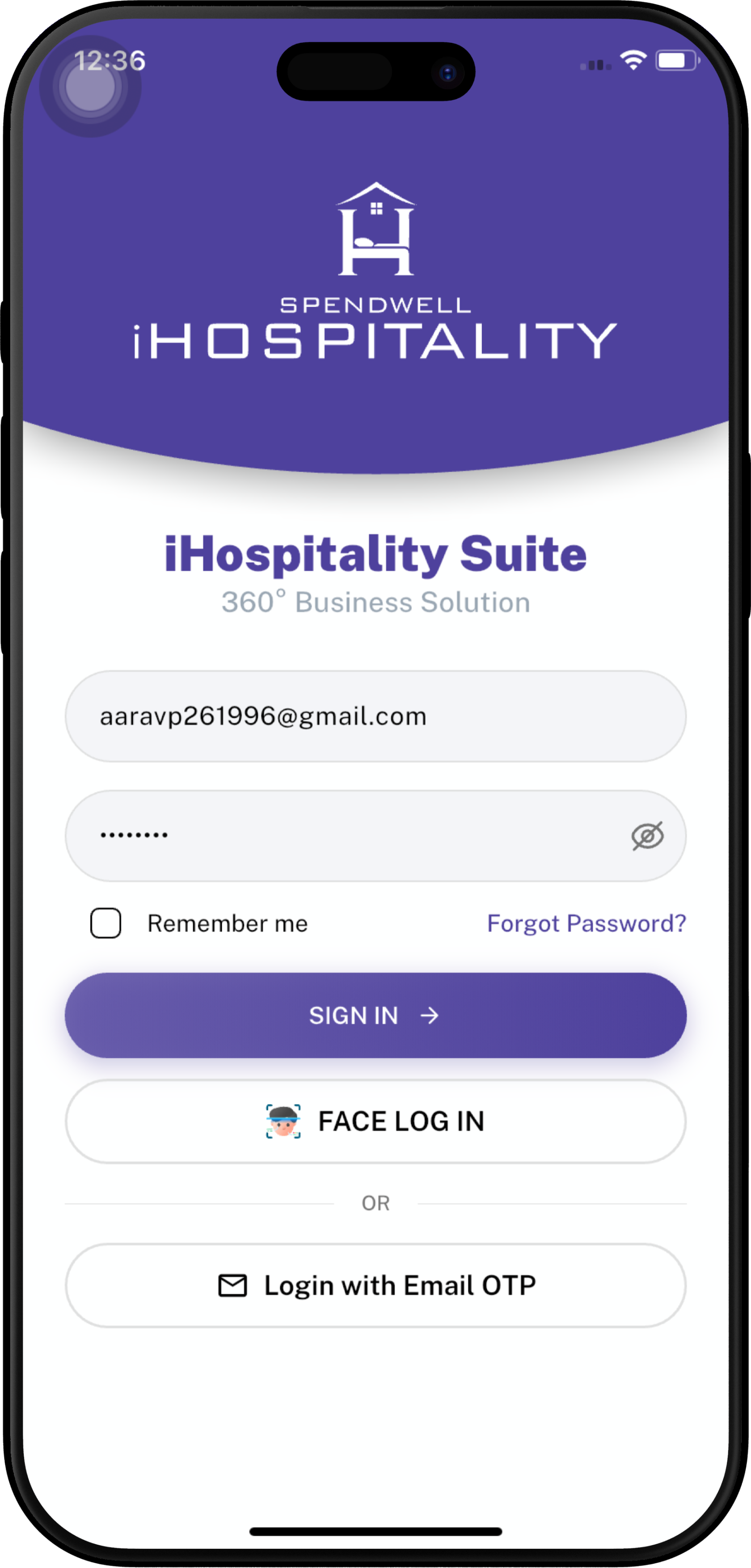
1. Log in with Email Address and Password
Use the email address and temporary password provided in the welcome email.
- Enter your registered Email Address.
- Enter your Password.
- Tap SIGN IN button.
- If this is your first login, you may be required to change the temporary password.
Login Credentials
| Field | Description |
|---|---|
| Email Address | Employee's registered email address |
| Temporary Password | Temporary password received in the welcome email |
Screenshot
2. Log in with Face
If Face Login is available and has been set up for the employee, the employee can use facial recognition to access the Employee App.
- Select FACE LOG IN on the login screen.
- Position your face within the camera area.
- Follow the on-screen instructions.
- If your face is successfully verified, you will be logged in to the Employee App.
- If your face cannot be verified, the message "Face Recognition Failed!" will be displayed. Try again by positioning your face correctly within the camera area.
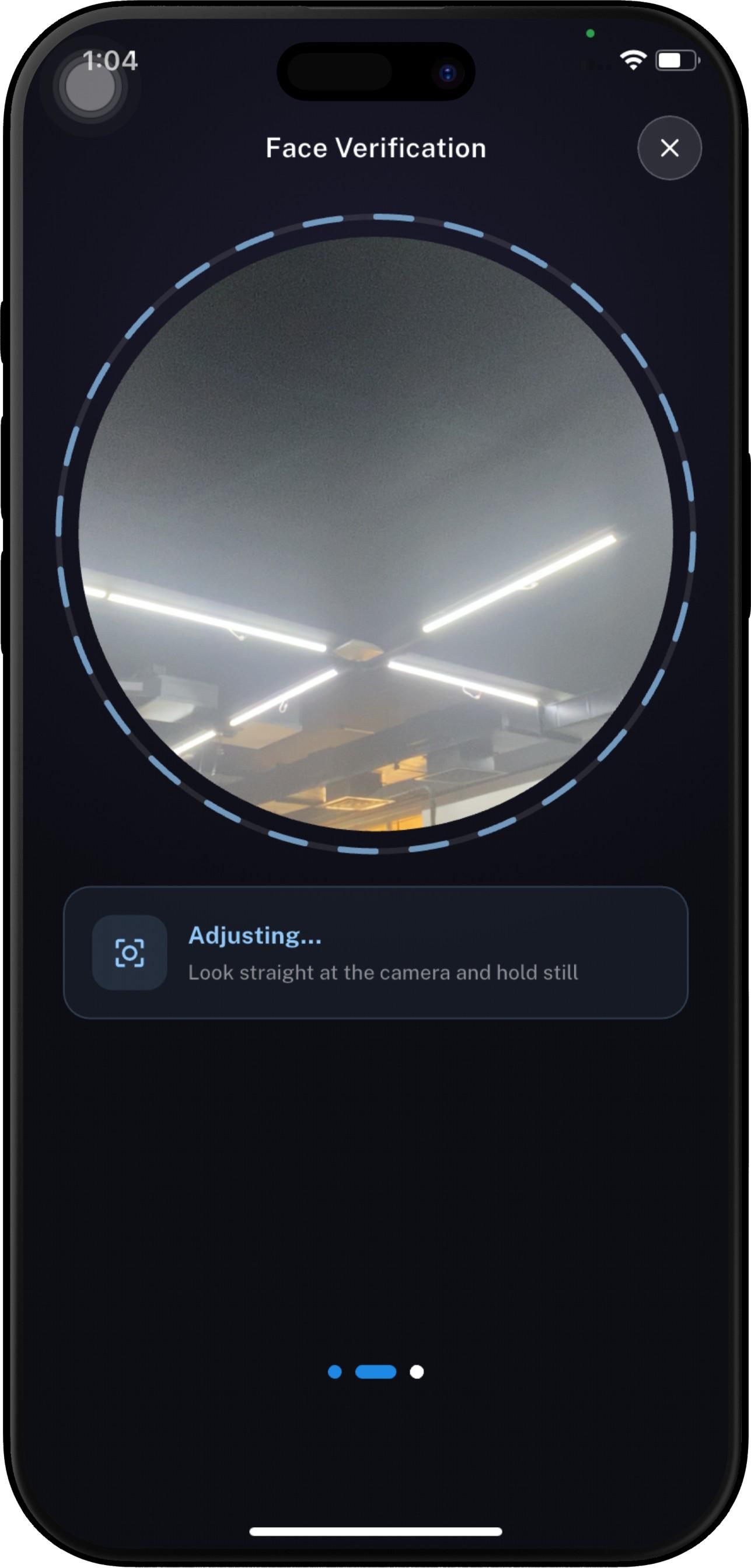
Note: Make sure your face is clearly visible and there is sufficient lighting for successful face recognition.
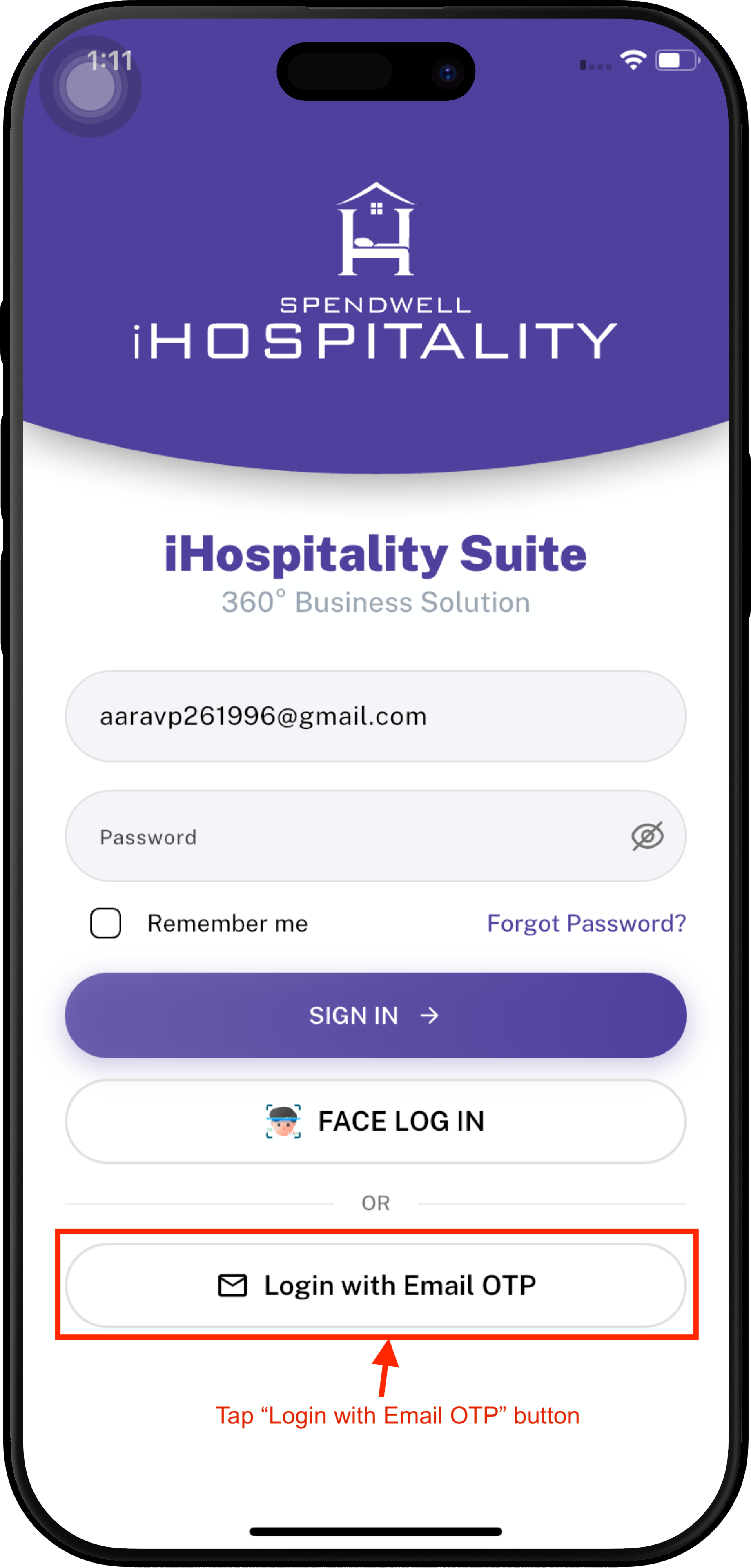
3. Log in with Email OTP
You can also log in using a One-Time Password (OTP) sent to your registered email address.
|
01 EMAIL LOGIN
|
02 VERIFY OTP
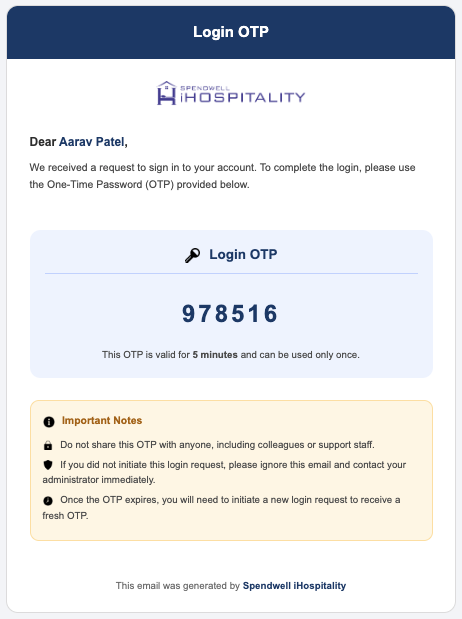
A mail with the OTP has been sent to your registered Email Address. ⏱ OTP valid for 5 minutes |
03 SIGN IN
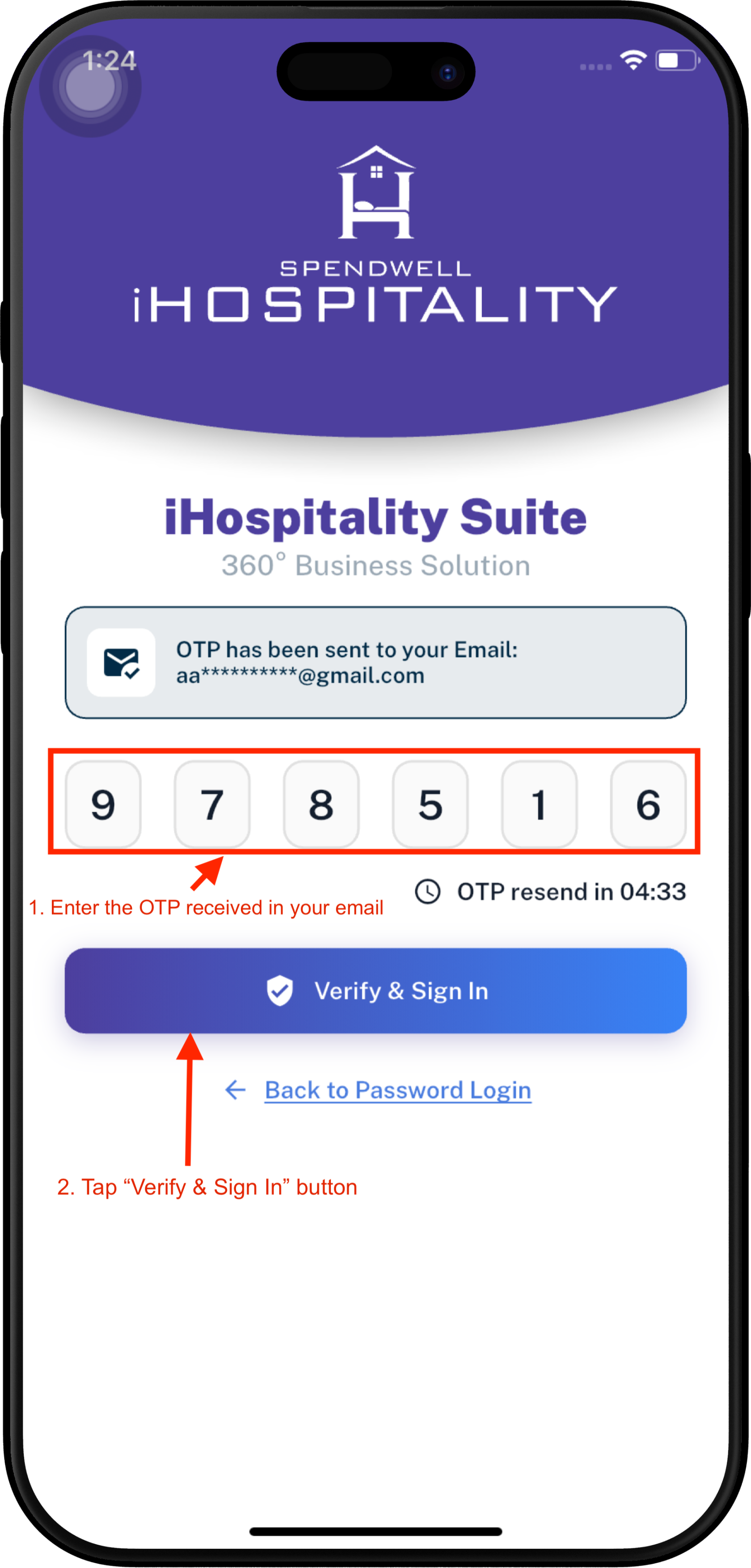
Enter the OTP received from the email. |
Important: 💡 Didn't receive the OTP? After 5 minutes, tap Resend OTP to receive a new OTP in your registered email.
The OTP is valid for a limited time. Use the latest OTP received in your email.
Note: Use the login method available to you on the Employee App. For the first login, use the temporary password provided in the welcome email if you are using Email + Password login.