
Housekeeping Task Tracker
Overview
The Housekeeping Task Tracker provides a consolidated view of housekeeping performance across employees for a selected period. It allows administrators to review assigned and cleaned room counts, worked duration, and payroll — both at an overall level and broken down by individual employee, date, and room.
The Task Tracker is organized by a selected date range and can be filtered by property and search terms to review housekeeping activity in detail. By default, the Task Tracker displays data for Today's date; a different date range can be selected using the date picker.
Housekeeping Task Tracker Screen
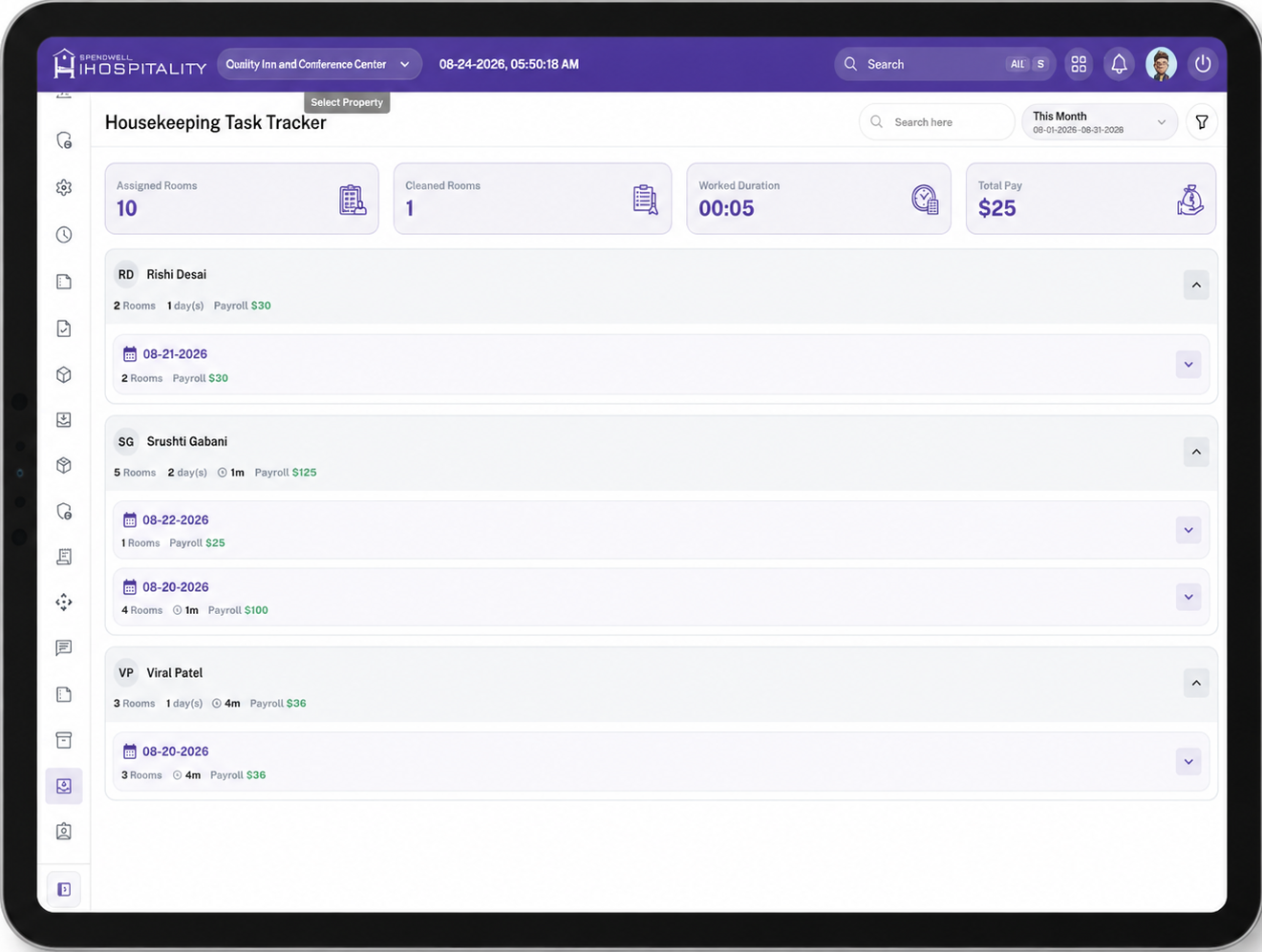
The Housekeeping Task Tracker screen displays a property selector and date range filter at the top, followed by summary cards and a drill-down breakdown of housekeeping activity:
- Summary Cards — Displays overall Assigned Rooms, Cleaned Rooms, Worked Duration, and Total Pay for the selected period.
- Employee List — Displays each employee with their total rooms, days worked, worked duration, and payroll, expandable to show a day-wise breakdown.
- Day-wise Breakdown — Displays the rooms assigned, duration worked, and payroll for each specific date under an employee, expandable to show room-level detail.
- Room-wise Detail Table — Displays each assigned room along with its category, task status, HK status, checklist progress, priority, guest and room details, time, rate, and payable amount.
Key Fields
Header
- Property Selector — Allows the user to select the property for which the Task Tracker data is displayed.
- Date — Displays the date and time as of which the dashboard data is shown.
- Search — Allows searching the Task Tracker by employee name or other relevant terms.
- Date Range Filter — By default, displays Today's date. Clicking the filter opens a date picker with quick options (Today, Yesterday, This Week, Last Week, This Month, Last Month, Custom) along with a calendar to select a specific date or custom range.
- Filter — Allows applying additional filters to the Task Tracker list.
Summary Cards
- Assigned Rooms — Displays the total number of rooms assigned across all employees for the selected period.
- Cleaned Rooms — Displays the total number of rooms cleaned across all employees for the selected period.
- Worked Duration — Displays the total time worked across all employees for the selected period.
- Total Pay — Displays the total payroll amount across all employees for the selected period.
Employee Row
- Employee Name / Initials — Displays the name and initials of the employee.
- Rooms — Displays the total number of rooms assigned to the employee for the selected period.
- Day(s) — Displays the number of days the employee worked within the selected period.
- Duration — Displays the total worked duration for the employee, where applicable.
- Payroll — Displays the total payroll amount earned by the employee for the selected period.
- Expand/Collapse — Allows expanding or collapsing the employee row to view or hide the day-wise breakdown.
Day-wise Breakdown Row
- Date — Displays the specific date of the housekeeping activity.
- Rooms — Displays the number of rooms assigned/cleaned on that date.
- Payroll — Displays the payroll amount earned on that date.
- Expand/Collapse — Allows expanding or collapsing the date row to view or hide the room-wise detail table.
Room-wise Detail Table
- Room — Displays the room number along with its floor and the associated assignment code.
- Category — Displays the Housekeeping Category assigned to the room, such as Deep Cleanings.
- Task Status — Displays the current status of the housekeeping task, such as Assigned.
- HK Status — Displays the housekeeping cleanliness status of the room, such as Dirty.
- Checklist — Displays checklist progress for the room as a fraction of items completed out of total items.
- Priority — Displays the priority level of the task, such as Low.
- Guest Status — Displays the guest-related status for the room, if applicable.
- Room Type — Displays the type/code of the room, such as NQQ.
- Room Status — Displays the current room status, if applicable.
- HK Time / Est — Displays the actual housekeeping time taken against the estimated time.
- Insp. Time / Est — Displays the actual inspection time taken against the estimated time.
- Rate — Displays the rate applicable per room.
- Payable — Displays the payable amount for that room.
Steps
View Overall Housekeeping Summary
View Employee-wise Housekeeping Details
- Open the Housekeeping Task Tracker screen.
- Select the required date range as needed.
- Locate the required employee from the list.
- Review the employee's total Rooms, Day(s), Duration, and Payroll.
- Click the expand control to view the day-wise breakdown for that employee.
- Click the expand control on a date row to view the room-wise detail table for that date.
- Review each room's Category, Task Status, HK Status, Checklist progress, Priority, Guest Status, Room Type, Room Status, HK Time / Est, Insp. Time / Est, Rate, and Payable amount.
Search or Filter Task Tracker Data
- Open the Housekeeping Task Tracker screen.
- Use the Search field to search by employee name or other terms.
- Use the Filter option to apply additional filters as needed.
Important Notes
- The Task Tracker displays Today's date by default; use the date range filter to switch to Yesterday, This Week, Last Week, This Month, Last Month, or a Custom date/range.
- The Task Tracker data reflects the selected property and date range.
- Employee, date, and room rows can each be expanded or collapsed independently to drill down into more detail.
- Worked Duration and time fields (HK Time / Est, Insp. Time / Est) may show "-" if no time has been logged yet.
- Payable amounts remain $0 until the corresponding task is marked complete, based on the room's rate and checklist/task status.
- Payroll amounts shown at the employee and date level are the sum of the payable amounts from the room-wise entries under them.
- The overall summary cards reflect totals across all employees and rooms, not just the ones currently expanded.