
Employee Dashboard
Overview
The Employee Dashboard provides employees with a centralized view of their weekly work-related information. It allows employees to review their scheduled shifts, housekeeping assignments, worked time, time entries, payroll information, and leave status from a single dashboard.
The dashboard is organized by a selected week and provides separate views for Shifts, Housekeeping, Time Entries, and Leave. Employees can switch between these views to review the information relevant to their work schedule and activities.
Employee Dashboard Screen
The Employee Dashboard displays a welcome section with the employee's name and selected property, followed by a weekly date selector and four main dashboard sections:
- Shifts — Displays scheduled shifts for the selected week.
- Housekeeping — Displays housekeeping assignments, completed work, worked time, and payroll information.
- Time Entries — Displays daily clock-in and clock-out records, scheduled vs. actual hours worked, and wages earned.
- Leave — Displays leave balances or leave information for the selected week.
The employee can use the previous and next controls around the date range to move between weeks.
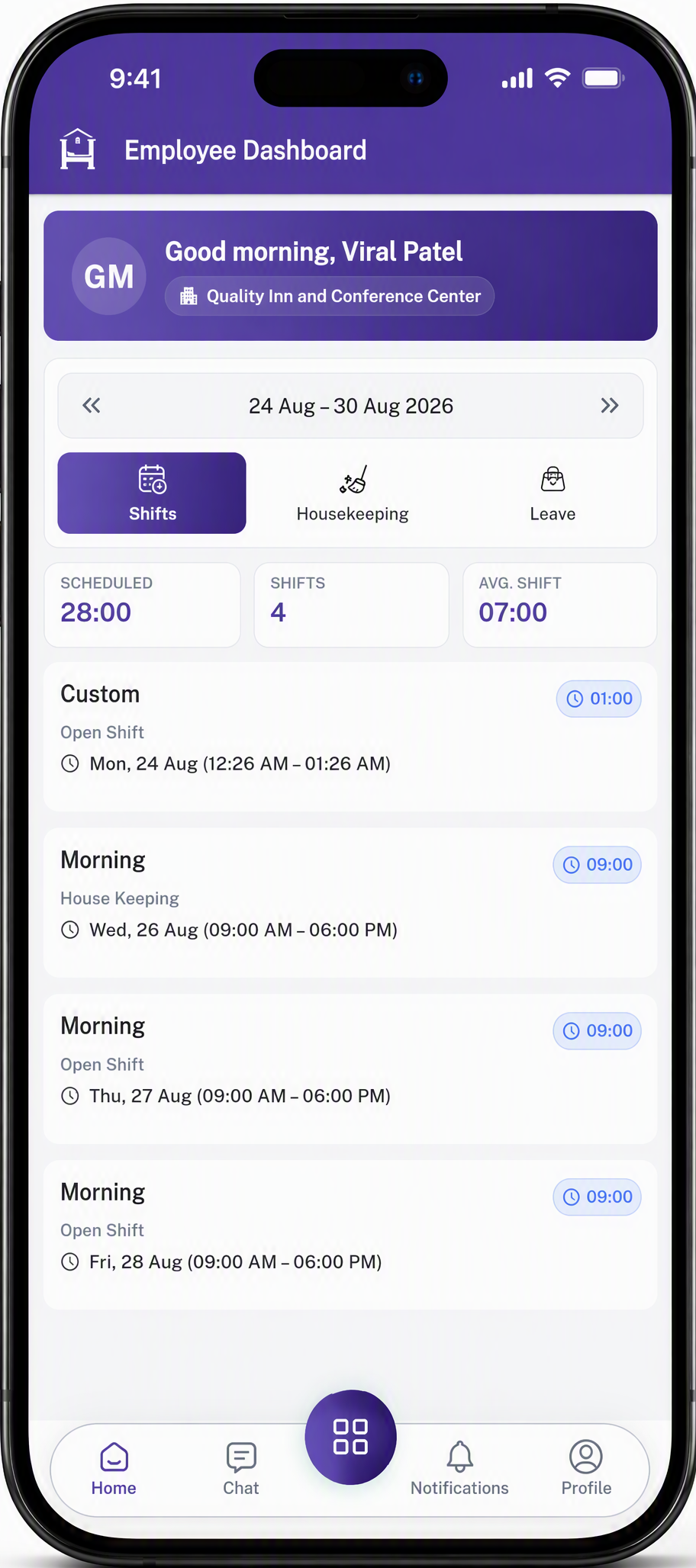
Shifts
Displays the number of shifts scheduled during the selected week.
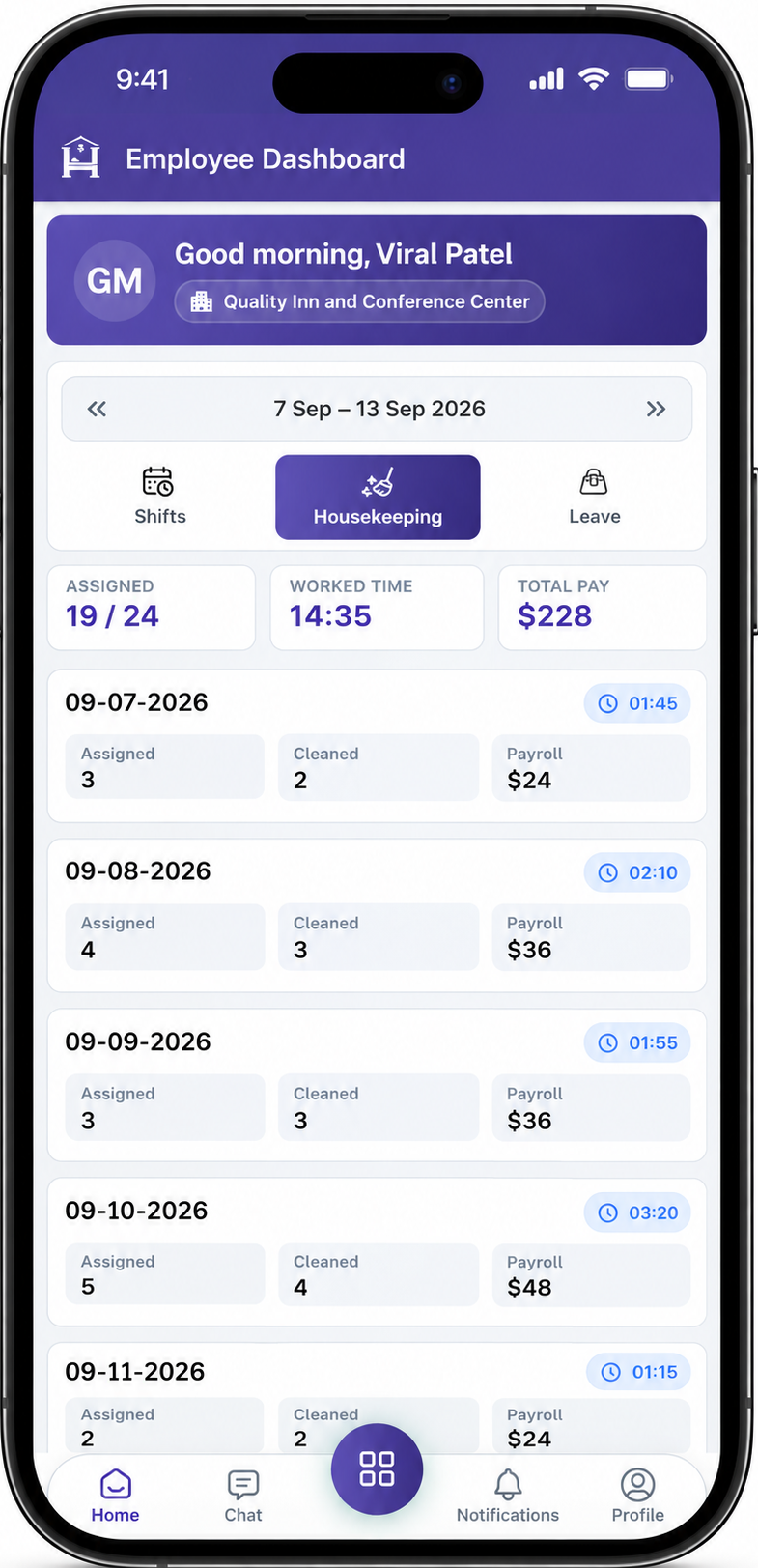
HouseKeeping
Displays the number of housekeeping assignments compared with the total assignments for the selected period.
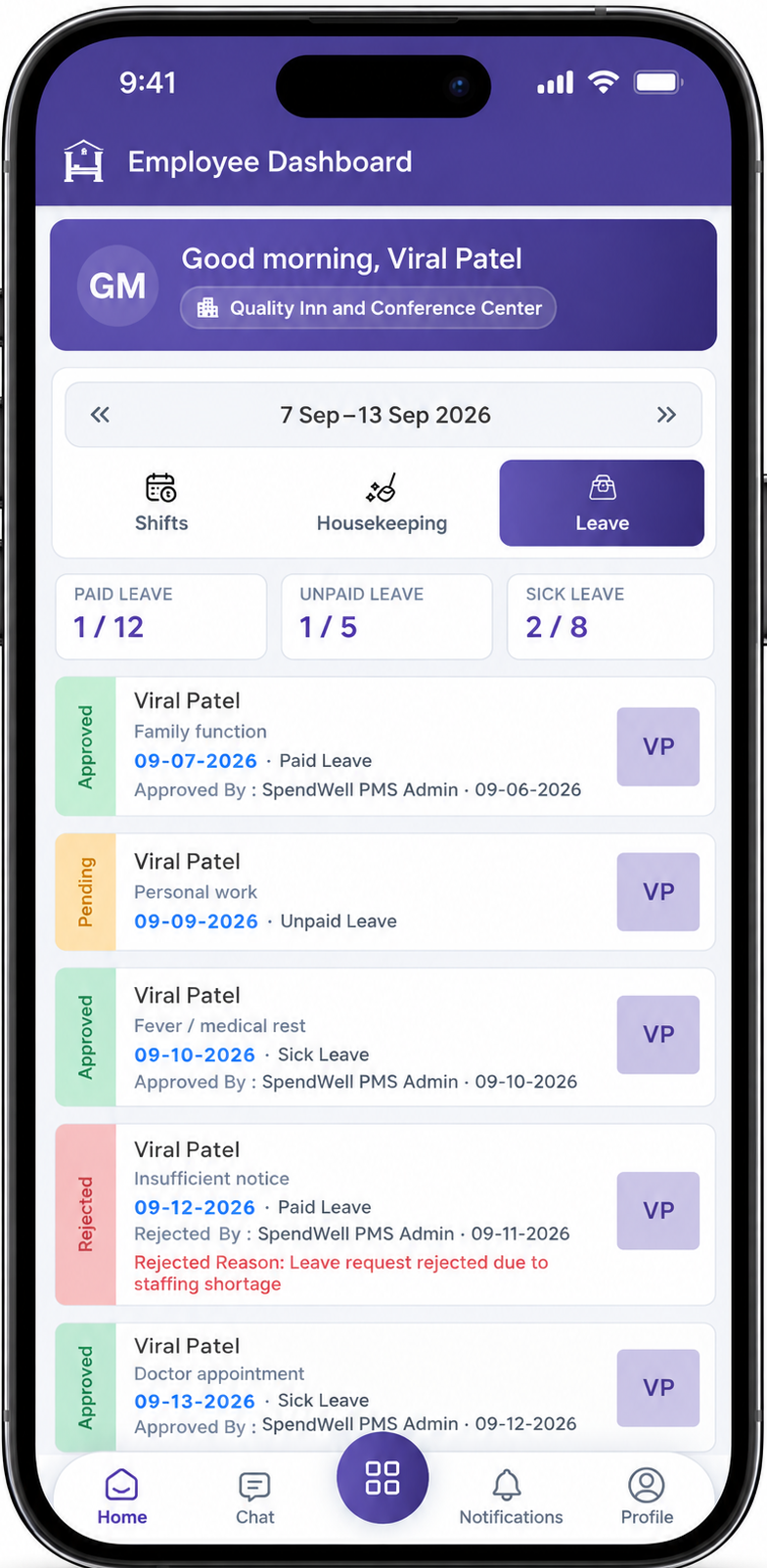
Leave
Displays the number of paid, unpaid, and sick leave days used compared with the total allotted for the selected period, along with the status of each leave request.
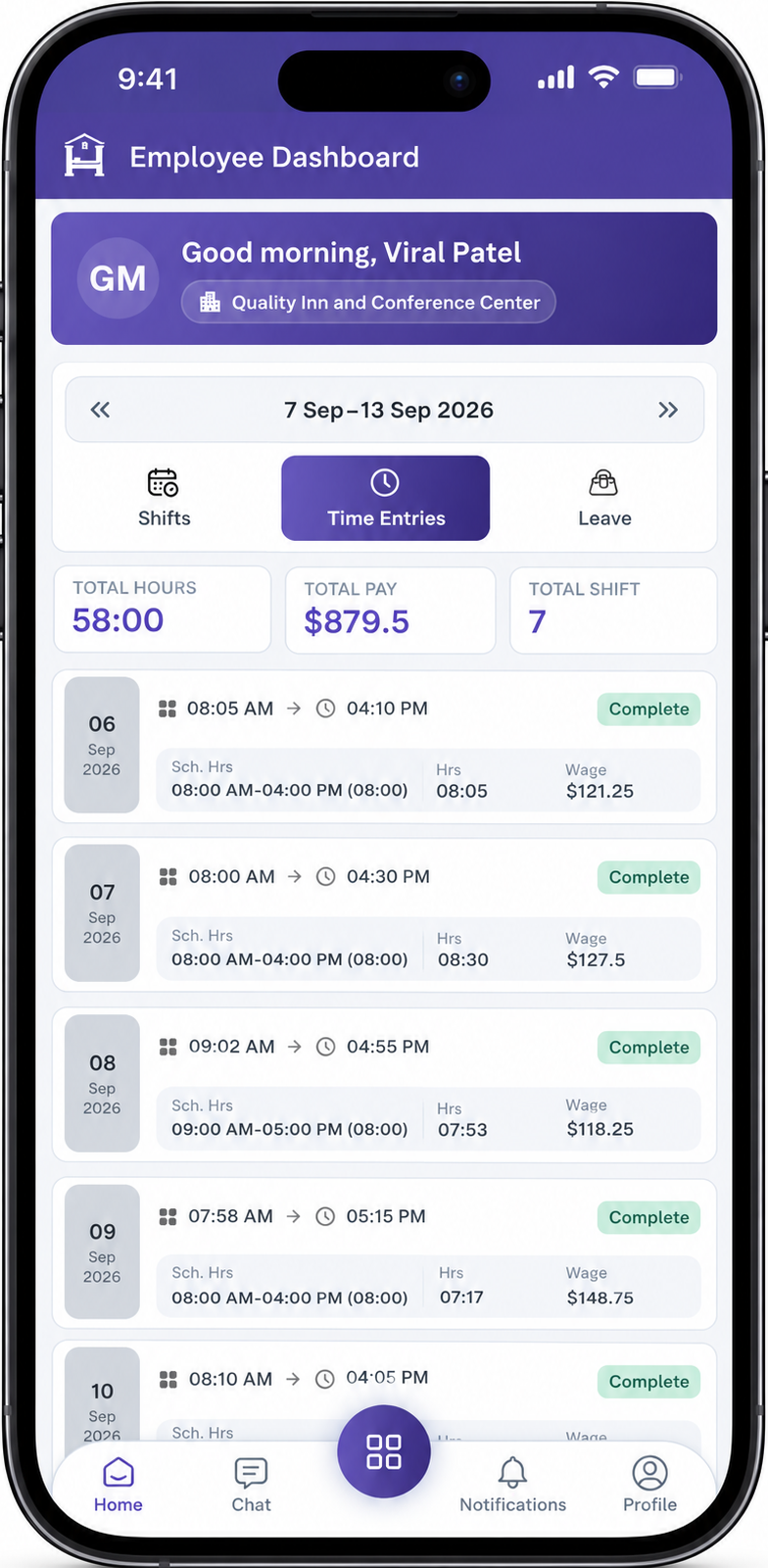
Time Entries
Displays the total hours worked, total pay, and total shifts completed for the selected period, along with a daily log of clock-in/clock-out times against scheduled hours.
Key Fields
Dashboard Header
- Employee Name — Displays the name of the logged-in employee.
- Property — Displays the property associated with the employee.
- Date Range — Shows the currently selected week for which dashboard information is displayed.
- Previous / Next Week — Allows the employee to navigate between weekly periods.
Shifts
- Scheduled — Displays the total scheduled working hours for the selected week.
- Shifts — Displays the number of shifts scheduled during the selected week.
- Avg. Shift — Displays the average duration of the scheduled shifts.
- Shift Name — Displays the name or type of the assigned shift, such as Morning or Custom.
- Department — Displays the department associated with the shift.
- Shift Date & Time — Displays the scheduled date and working time for the shift.
Housekeeping
- Assigned — Displays the number of housekeeping assignments compared with the total assignments for the selected period.
- Worked Time — Displays the total time worked on housekeeping activities.
- Total Pay — Displays the total payroll amount associated with the displayed housekeeping work.
- Assigned — Displays the number of housekeeping tasks assigned for a particular date.
- Cleaned — Displays the number of assigned housekeeping tasks that have been completed.
- Payroll — Displays the payroll amount associated with the selected housekeeping date.
Time Entries
- Total Hours — Displays the total hours worked for the selected week.
- Total Pay — Displays the total wages earned for the selected week.
- Total Shift — Displays the number of completed shifts for the selected week.
- Date — Displays the date of the time entry.
- Clock In / Clock Out — Displays the actual clock-in and clock-out times recorded for the shift.
- Sch. Hrs — Displays the originally scheduled start and end time along with the scheduled duration.
- Hrs — Displays the actual number of hours worked based on the recorded clock-in and clock-out times.
- Wage — Displays the wage amount earned for that day based on hours worked.
- Status — Displays the completion status of the time entry, such as Complete.
Leave
- Paid Leave — Displays the paid leave information for the selected period.
- Unpaid Leave — Displays the unpaid leave information for the selected period.
- Sick Leave — Displays the sick leave information for the selected period.
- No Leave Message — If no leave request exists for the selected week, the dashboard displays a message indicating that there are no leave requests for that week.
Steps
View Scheduled Shifts
View Housekeeping Information
- Open the Employee Dashboard.
- Select the required week.
- Click the Housekeeping tab.
- Review the Assigned, Worked Time, and Total Pay summary information.
- Review the daily housekeeping information.
- Check the number of tasks Assigned and Cleaned.
- Review the corresponding Payroll information.
View Time Entries
- Open the Employee Dashboard.
- Select the required week.
- Click the Time Entries tab.
- Review the Total Hours, Total Pay, and Total Shift summary cards.
- Review each daily entry to see the Clock In and Clock Out times.
- Compare the Sch. Hrs with the actual Hrs worked.
- Review the Wage earned and the entry Status.
View Leave Information
- Open the Employee Dashboard.
- Select the required week.
- Click the Leave tab.
- Review the Paid Leave, Unpaid Leave, and Sick Leave information.
- If leave requests exist, review the displayed leave information.
- If no requests exist, the dashboard displays the No leave this week message.
Important Notes
- The dashboard information is displayed according to the selected weekly date range.
- Changing the week updates the information shown in the dashboard sections.
- The Shifts, Housekeeping, Time Entries, and Leave sections provide different types of employee information.
- Shift cards display the employee's scheduled department and working time.
- Housekeeping information includes assigned work, completed work, worked time, and payroll.
- Time Entries information includes clock-in/clock-out records, scheduled versus actual hours, wages, and entry status.
- Leave information is categorized into Paid Leave, Unpaid Leave, and Sick Leave.
- When there are no leave requests for the selected week, an appropriate empty-state message is displayed.
No comments to display
No comments to display