
Chat
The Chat module provides a simple and convenient way for employees and managers to communicate within the organization. Users can search for employees, start conversations, view recent chats, check unread messages, and communicate through groups or channels.
📌 Chat Module Overview
The Chat module allows users to:
- Search for employees and start a conversation.
- Send messages to employees or managers.
- View recently active or added conversations.
- Identify unread messages using unread counts.
- Filter chats by All, Unread, Groups, or Channels.
- Create a new Group or Channel using the + button.
- Quickly access Chat from the bottom navigation.
Step 1 — Open the Chat Module
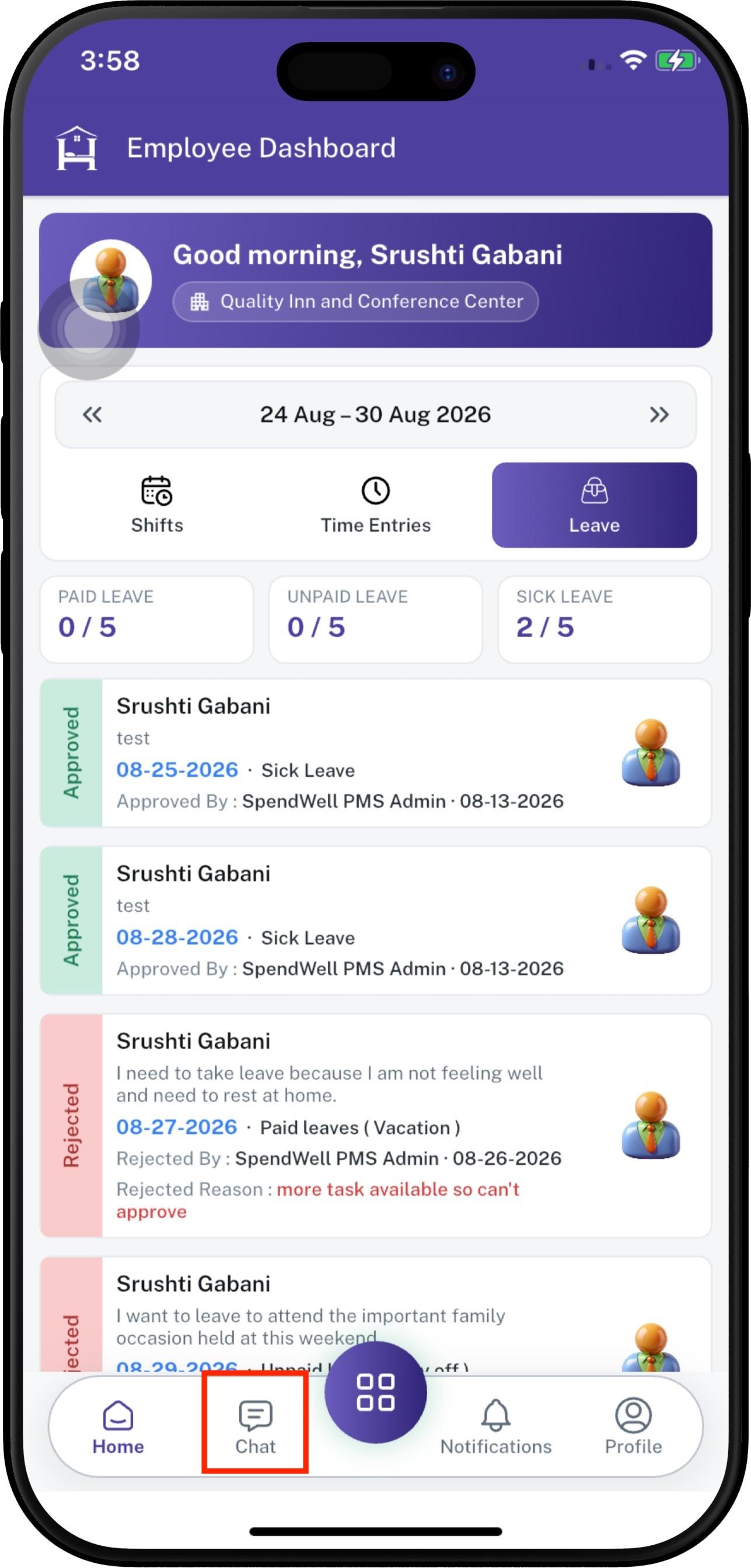
From the Employee App, tap Chat in the bottom navigation bar.
The Chat screen displays the search bar, chat filters, recent conversations, and options for creating a new group or channel.
Step 2 — Search for an Employee
Use the Search bar at the top of the Chat screen to find an employee.
To search for an employee:
- Tap the Search field.
- Enter the employee's name or relevant search text.
- Review the matching employee results.
- Select the employee you want to communicate with.

Step 3 — View Recent Chats
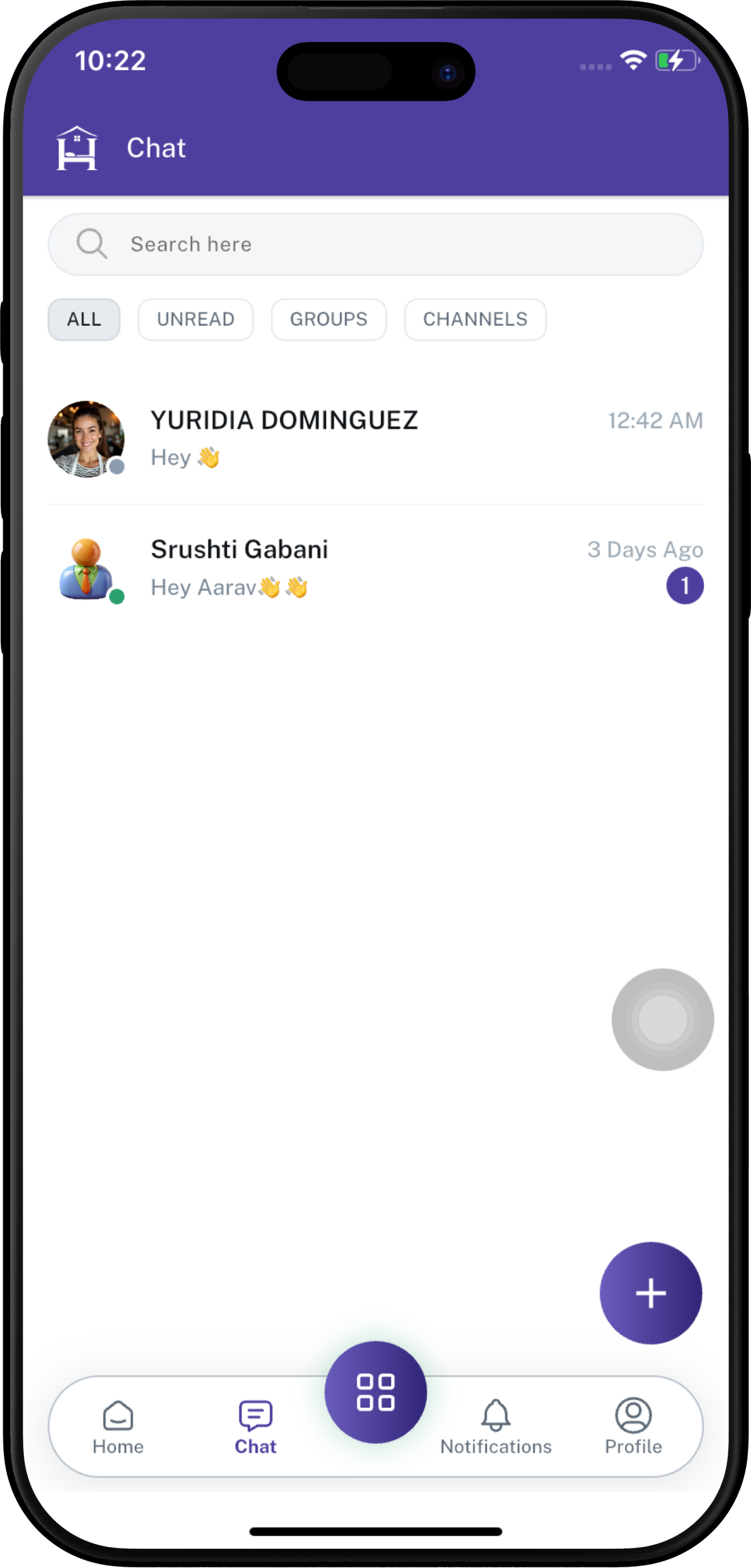
The Chat screen displays recently active conversations.
Each conversation can show information such as:
- Employee or group name.
- Profile image.
- Latest message preview.
- Message time or date.
- Online/availability indicator.
- Unread message count, when applicable.
Recent conversations are displayed so users can quickly continue an existing discussion.
Step 4 — Chat Filters
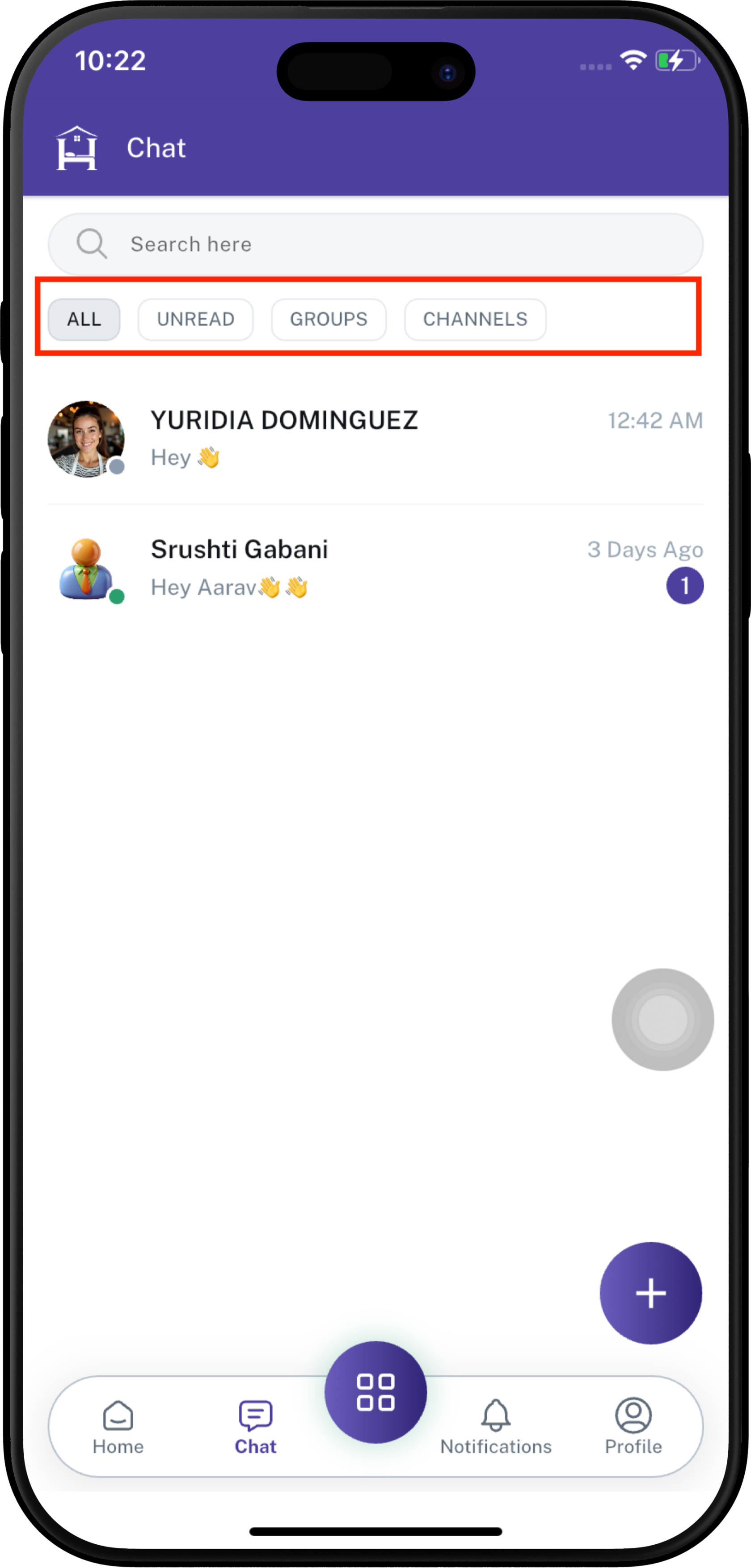
All - The All filter displays the available conversations.
Unread Messages - The Unread filter helps users quickly find conversations containing unread messages.
To view unread chats:
Open theChatGroupsmodule.- TapUnread.The list displays conversations with unread messages.An unread count may appear beside a conversation.Open the conversation to read the pending messages.
For example, a purple badge with 1 indicates that the conversation contains one unread message.
[Insert Unread Chats Screenshot Here]
Step 6 — View All Chats
The All filter displays the available conversations.
This can include:
Individual employee conversations.Manager conversations.Group conversations.Channel conversations.
Tap All to return to the complete chat list.
[Insert All Chats Screenshot Here]
Step 7 — View Groups
The Groups filter allows users to find group conversations separately from individual chats.
To view groups:
TapGroups.Review the available group conversations.Select a group to open the conversation.Read or send messages as required.
Groups are useful when multiple employees or managers need to communicate about the same topic or activity.
[InsertChannels Groups- Screenshot Here]
Step 8 — View Channels
The Channels filter allows users to view available communication channels.
To view channels:
TapChannels.Review the available channels.Select a channel to open it.View or participate in the channel conversation according to the user's access.
Channels can be used for organized communication around departments, teams, announcements, or specific topics.
[Insert Channels Screenshot Here]
Step 9 — Create a New Group or Channel
UseTo start a new group or channel, tap the + button at the bottom-right ofon the Chat screen to create a new communication space.screen.
To
Select New Group or channel:
New 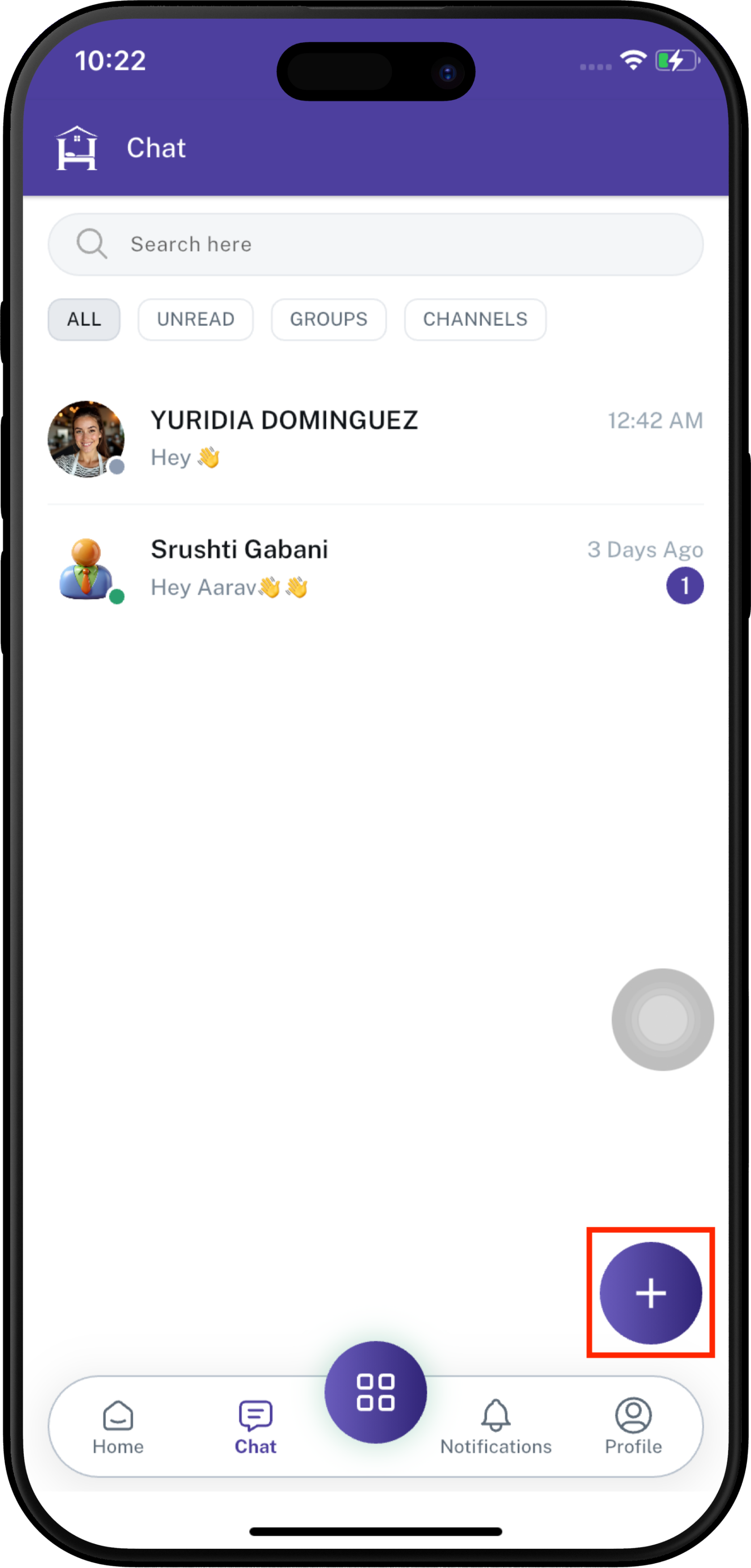
- Channel
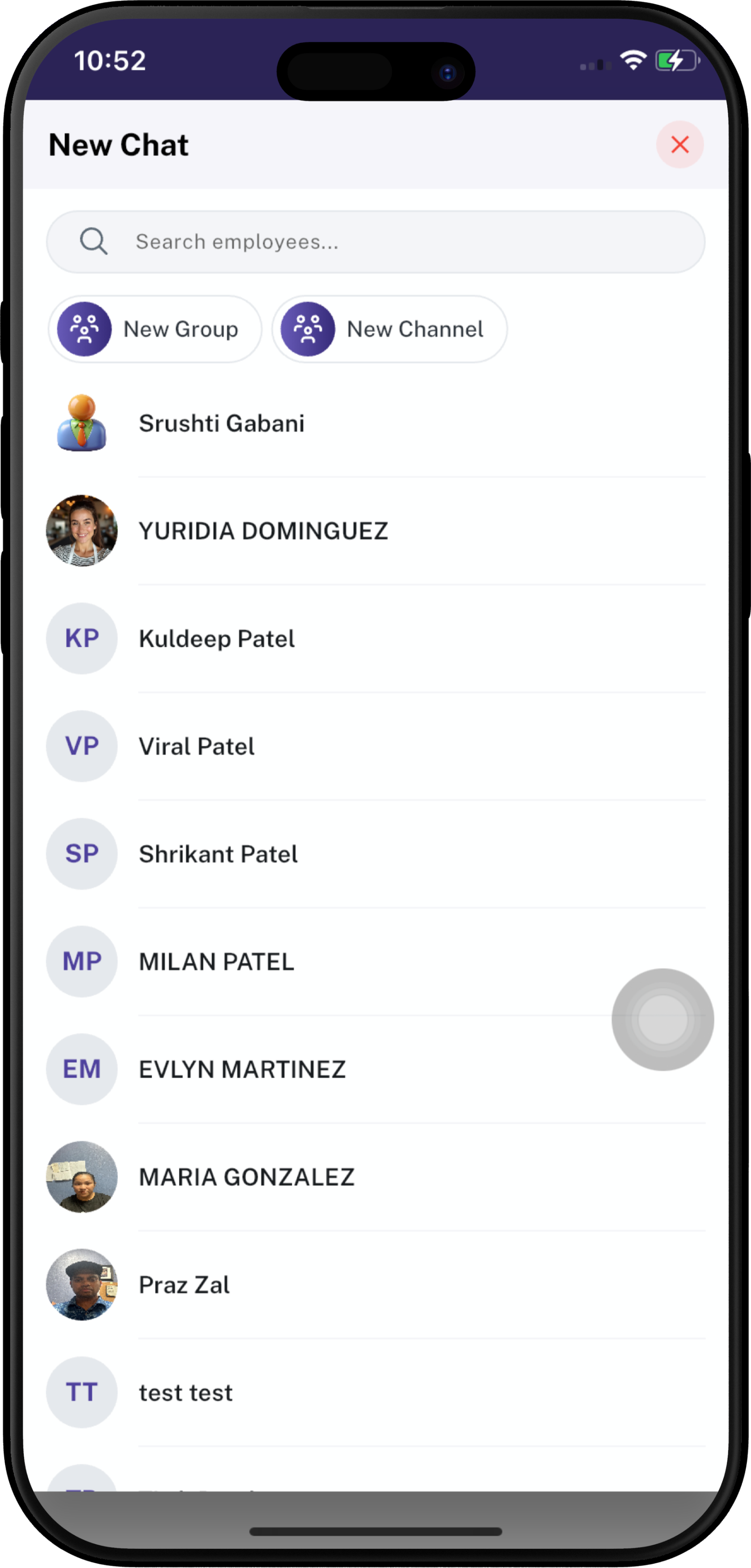
TapAfter tapping the +
button.Selectbutton, therequiredNewoption:Chat screen opens.You can choose between:
- New Group — Create a group for communication with multiple employees.
- New Channel — Create a channel for organized communication and information sharing.
- can also use the Search employees field to find employees.
Step 5.2 — Add New Group
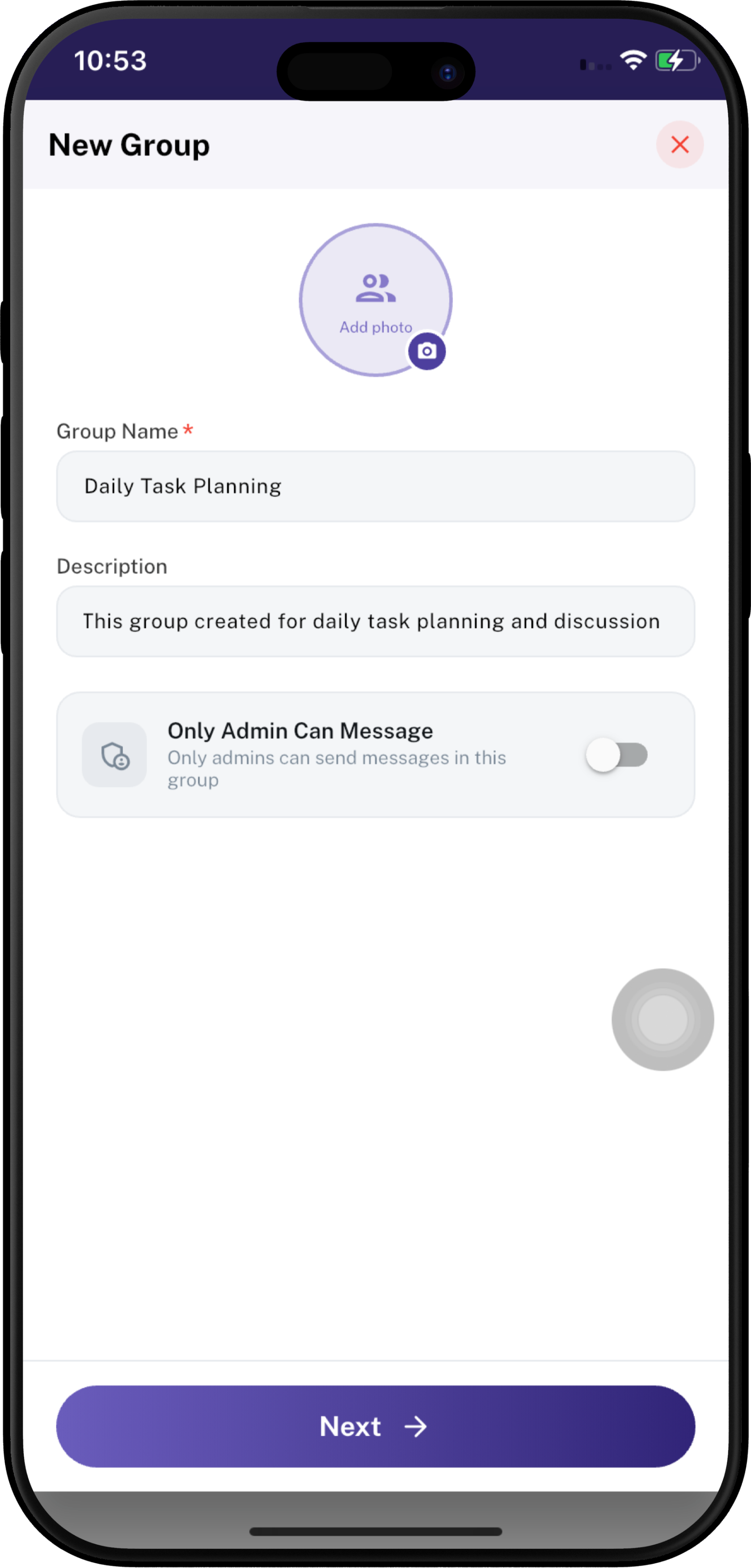
If you select New Group, the New Group screen opens.
Enter the required
namegroupandinformation:details.- Add Photo — Add a photo for the group.
SelectGroup Name — Enter theemployees or members who should have access.Complete the creation process.
The newly created group or channel becomes available from the corresponding Chat section.[Insert New Group / Channel Screenshot Here]Step 10 — Navigate Using the Bottom Menuis a
required — Enter aNavigationPurpose- Description
description HomeOpensexplaining theEmployeepurposeApp home screen.ChatOpens employee, manager, group, and channel conversations.Center / MenuOpensof themaingroup.application- Only
menu.Message NotificationsDisplaysEnableapplication notifications and updates.ProfileOpens the employee profile and account options.TheChatthis optionisifhighlightedonlywhengrouptheadministratorsusershouldisbecurrentlyallowedviewingtothesendChatmessages. - Tap Next to continue.
You
🔎 Chat Search & Filters
The Chat screen provides multiple ways to locate the required conversation.
✅ Chat Workflow
The basic communication workflow is:
Open Chat → Search Employee → Select Employee → Open Conversation → Type Message → Send
For organized communication:
Open Chat → Tap + → Select Group/Channel → Add Members → Create → Start Communication
💡 Key Points
- Chat enables communication between employees and managers.
- Employees can search for another employee before starting a conversation.
- Recent conversations are displayed for quick access.
- Unread messages are identified using an unread count badge.
- Users can filter conversations by All, Unread, Groups, and Channels.
- The + button provides an option to create a new group or channel.
- The Chat module keeps workplace communication accessible from the Employee App.