Preparation Management
PREPRATION MANAGEMENT
Welcome to the Prep Management Module! This guide walks store and kitchen teams through daily tasks, time tracking, and shift wrap-ups so prep work stays organized and on schedule.
1. Before You Start
- Who should use this guide: Kitchen prep staff, shift leads, managers.
- What you need: Your system login and any device with access to the Prep Management Module.
- Recommended daily routine: Review upcoming tasks at the start of every shift, update progress during the shift, and close out tasks plus shift summaries before clocking out.
2. Getting Around
| Area | What You’ll See | Why It Matters |
|---|---|---|
| **Dashboard / Task List** | All tasks for your station and shift, with status (Open, Running, Hold, Completed). | Launch point for the day; shows what needs attention now. |
| **Task Details Panel** | Task description, expected quantity, assignees, timers, stock info. | Gives everything you need to execute the task correctly. |
| **Shift Summary** | Overview of completed tasks, staff attendance, wastage, and cash-out. | Helps managers close the shift and report on performance. |
| **Prep Stock** | Inventory tied to prep tasks, batch numbers, expiry dates. | Keeps prep inventory accurate after tasks finish. |
Tip: Star or favorite your station view so it opens first when you log in.
3. Prep Process at a Glance
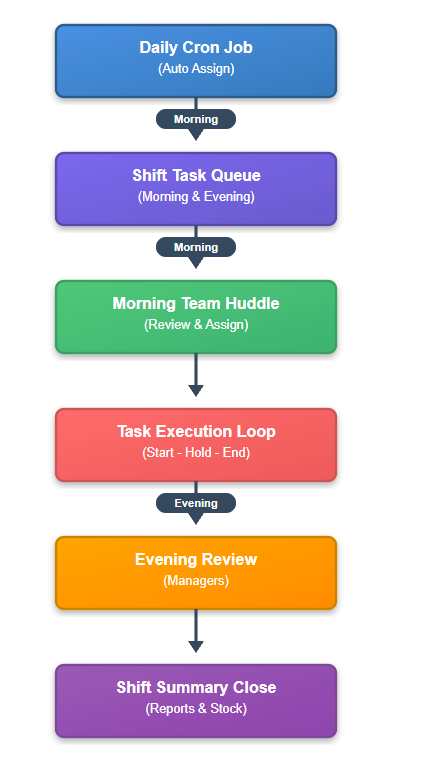
- Automatic setup: Tasks arrive each day without manual effort.
- Team planning: Leads confirm staffing and priorities during the first huddle.
- Live updates: Status changes keep everyone informed throughout the shift.
- Shift wrap-up: Managers close open items, update stock, and generate shift notes.
4. Workflow Maps
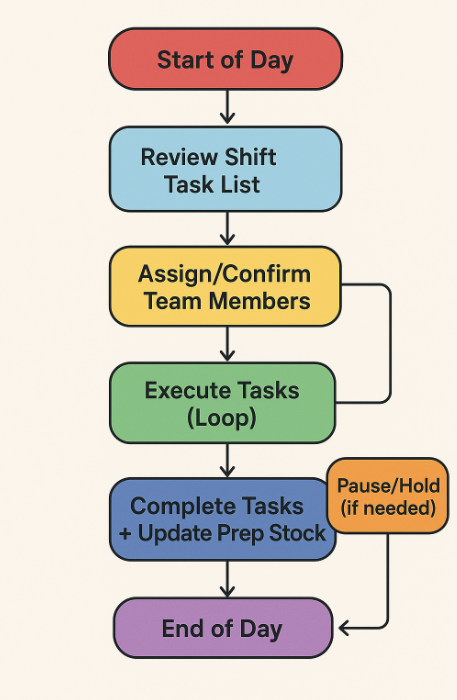
A. Daily Shift Flow
Start of Day
     |
     v
Review Shift Task List
     |
     v
Assign/Confirm Team Members
     |
     v
Execute Tasks (Loop)
     |         \
     |          --> Pause/Hold (if needed)
     v
Complete Tasks + Update Prep Stock
     |
     v
Finalize Shift Summary
     |
     v
End of Day
B. Task Lifecycle (Swimlane Style)
Team Member            System Timer            Manager
-----------            ------------            -------
Select Task
    |                       |
    v                       |
Press "Start"  ----------> Starts Timer
    |                       |
Update Making Qty --------> Logs Progress
    |                       |
Need Pause?                |
    |                      |
Press "Hold"  ----------> Pauses Timer
    |                      |
Resume Work               |
    |                      |
Press "Start" ----------> Resumes Timer
    |                      |
Enter Final Qty ----------> Calculates Stock
    |                      |
Press "Complete" -------> Stops Timer & Marks Done
                           |
                           v
                      Manager reviews in Shift Summary
C. Prep Stock Update Loop
[Task Completed] --> [Final Quantity Entered] --> [Auto Stock Calculation]
         |                                               |
         v                                               v
  Stock Looks Right? ----> Yes ----> Done
         |
         v
        No
         |
         v
[Note Issue in Task] --> [Alert Manager] --> [Manager Adjusts Inventory]
5. Daily Shift Checklist
At Shift Start
- Log in and choose your company, branch, and station (if prompted).
- Review the task list:
- Morning shift (0) and evening shift (1) tasks are created automatically.
- Look for urgent tasks (highlighted or listed at the top).
- Assign team members if needed:
- Check that every task has at least one assignee.
- Add yourself if you’ll work on the task.
During the Shift
- Open the task you’re starting, confirm ingredients/tools are ready.
- Press “Start” to move status to
<span class="editor-theme-code">Running</span>and begin the timer. - Update progress:
- Adjust making quantity as you work.
- Add notes on delays or issues.
- Pause if needed:
- Use
<span class="editor-theme-code">Hold</span>when stepping away. - Restart from
<span class="editor-theme-code">Hold</span>→<span class="editor-theme-code">Active</span>when you resume.
- Use
At Shift End
- Complete tasks:
- Enter final quantity and any wastage details.
- Change status to
<span class="editor-theme-code">Completed</span>; the timer stops automatically.
- Review Prep Stock:
- Confirm stock updates look right.
- Flag discrepancies for the manager.
- Submit shift summary (managers/leads):
- Confirm attendance, cash-out, and wastage entries.
- Generate report if required.
6. Working With Tasks
A. Reading a Task Card
- Task title: Unique name, often includes the item (e.g. “Prepare Dough”).
- Shift type: Morning or Evening.
- Expected quantity: Target amount to prepare.
- Assigned team: Who is responsible; only listed staff can start the task.
- Timer: Shows how long the task has been running.
- Current stock: Remaining stock tied to the task (kitchen tasks only).
B. Visual: Status Buttons at a Glance
[ Open ] --> press Start --> [ Running ] --pause--> [ Hold ]
                               |                      |
                               |----finish task------>|
                                                    [ Completed ]
C. Starting a Task
- Open the task card.
- Check ingredients and tools.
- Click
<span class="editor-theme-code">Start</span>or<span class="editor-theme-code">Mark as Running</span>. - Verify the timer shows the start timestamp.
Remember: Only assigned employees can start the task. Ask a manager to add you if needed.
D. Updating Progress
- Making quantity: Update as you produce items during the shift.
- Notes: Add remarks, e.g. “Waiting for dough to proof” or “Need more containers.”
- Attachments (if available): Upload photos for quality checks.
E. Pausing a Task
- Choose
<span class="editor-theme-code">Hold</span>if you must stop temporarily. - Timer pauses automatically.
- Add a note explaining the pause (e.g. “Mixer maintenance”).
F. Completing a Task
- Enter the final quantity.
- Confirm any wastage or reasons (e.g. spilled mix).
- Click
<span class="editor-theme-code">Complete</span>. Timer stops and prep stock is updated. - Verify prep stock numbers (see Section 7).
7. Prep Stock Basics
Kitchen tasks update prep stock when completed. Keep these points in mind:
- Stock quantity automatically adjusts based on the final quantity you entered.
- Batch numbers, expiry, production date help trace ingredients—enter them if prompted.
- Discrepancies should be reported immediately to your manager.
Quick Check: After finishing a task, open the linked prep stock entry. Confirm the new total matches what’s actually in storage.
8. Shift Summary for Leads & Managers
Shift Close Storyboard
[All Tasks Reviewed] --> [Attendance Marked] --> [Wastage Logged]
          |                        |                     |
          v                        v                     v
     Spot-check timers      Confirm cash-out      Generate summary PDF
          |                        |                     |
          v                        v                     v
      Raise Issues? ----> Yes ----> Leave notes / follow-up
          |
          v
        No
          |
          v
    Finalize Shift & Archive
When to Use
- End-of-shift wrap-up.
- Mid-shift snapshot for quick reviews.
What to Review
- Total tasks: Count and status (how many completed vs. in-progress).
- Task duration: Total time spent, helps identify bottlenecks.
- Attendance: Present employees and managers.
- Wastage: Items, reasons, quantities.
- Cash out: If your location tracks shift cash collections.
Closing the Shift
- Ensure all tasks are
<span class="editor-theme-code">Completed</span>or marked with valid status. - Add attendance, wastage, and cash-out details.
- Save the shift summary.
- Download or email the report if required by policy.
9. Troubleshooting for Store Teams
| Issue | What To Do |
|---|---|
| **Can’t start a task** | Check if you’re listed as an assignee. Ask a manager to add you. |
| **Timer didn’t start** | Ensure you changed status to
. Refresh once; if still off, tell your manager. |
| **Task missing** | Confirm today’s shift is selected. Ask the manager if the daily cron ran or if the task was deactivated. |
| **Prep stock looks wrong** | Recheck final quantity entry. If still off, note the discrepancy and alert the manager. |
| **Stage change blocked** | Follow allowed transitions: Open → Running → Hold/Completed; Hold → Running/Completed. If stuck, call the manager. |
10. Quick Reference
- Statuses
<span class="editor-theme-code">Open</span>: Task is ready, not started.<span class="editor-theme-code">Running</span>: Task in progress, timer on.<span class="editor-theme-code">Hold</span>: Task paused.<span class="editor-theme-code">Completed</span>: Task finished, timer off.
- Shift Types
<span class="editor-theme-code">Morning (0)</span>– Typically 6 AM to 2 PM.<span class="editor-theme-code">Evening (1)</span>– Typically 2 PM to 10 PM.
- Task Types
<span class="editor-theme-code">Kitchen</span>: Requires final item, quantity, and prep stock tracking.<span class="editor-theme-code">Cleaning</span>: Focused on housekeeping tasks.
11. Best Practices
- Review the full task list at least twice per shift (start and mid-shift).
- Use notes to highlight issues; they help when reviewing shift reports.
- Always close timers before leaving—open timers can skew reports.
- Cross-check prep stock values with physical inventory weekly.
- Managers should spot check task durations to ensure realistic timing.
12. Keep Improving
Need help? Contact your store manager or the support team listed in your main system documentation.
Let’s keep prep running smoothly—thanks for keeping the kitchen ready!
New Page