Task Shift
Overview
The Task Shift feature allows administrators to define and manage shifts used for Workforce Tasks within the property.
Task shifts help organize workforce tasks according to the employee's working period, such as Morning, Evening Shift, or Night Shift.
Each task shift can be configured with a shift name, color, display order, and active status. The configured shifts can then be used when managing and assigning workforce tasks.
Task Shift Screen
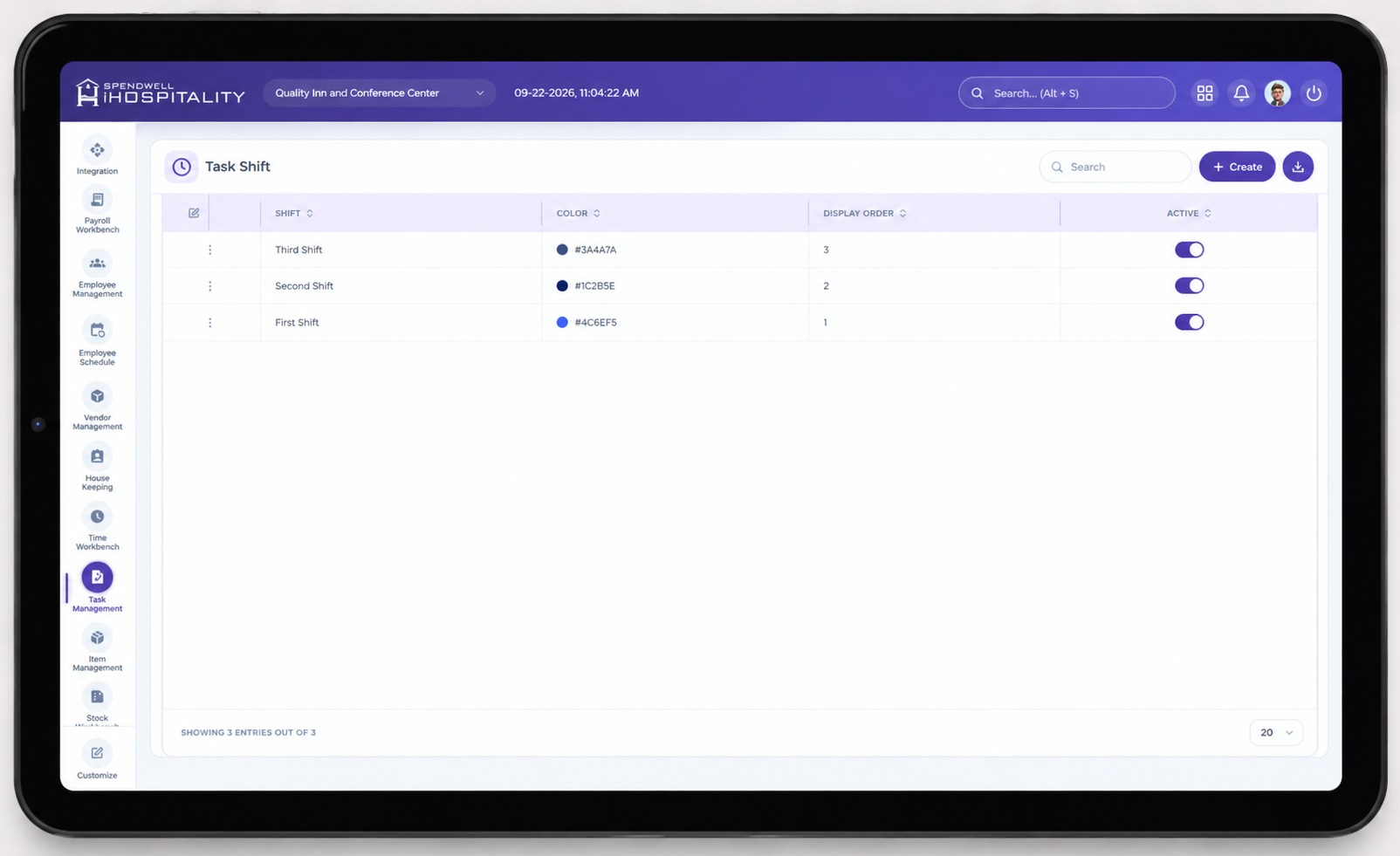
The Task Shift screen displays all configured task shifts along with their assigned color, display order, and active status.
The screen provides the following information:
- Shift — Displays the name of the configured task shift.
- Color — Displays the color assigned to the shift for visual identification.
- Display Order — Defines the order in which task shifts are displayed.
- Active — Indicates whether the task shift is currently active and available for use.
Administrators can create a new task shift using the Create button.
Add Task Shift
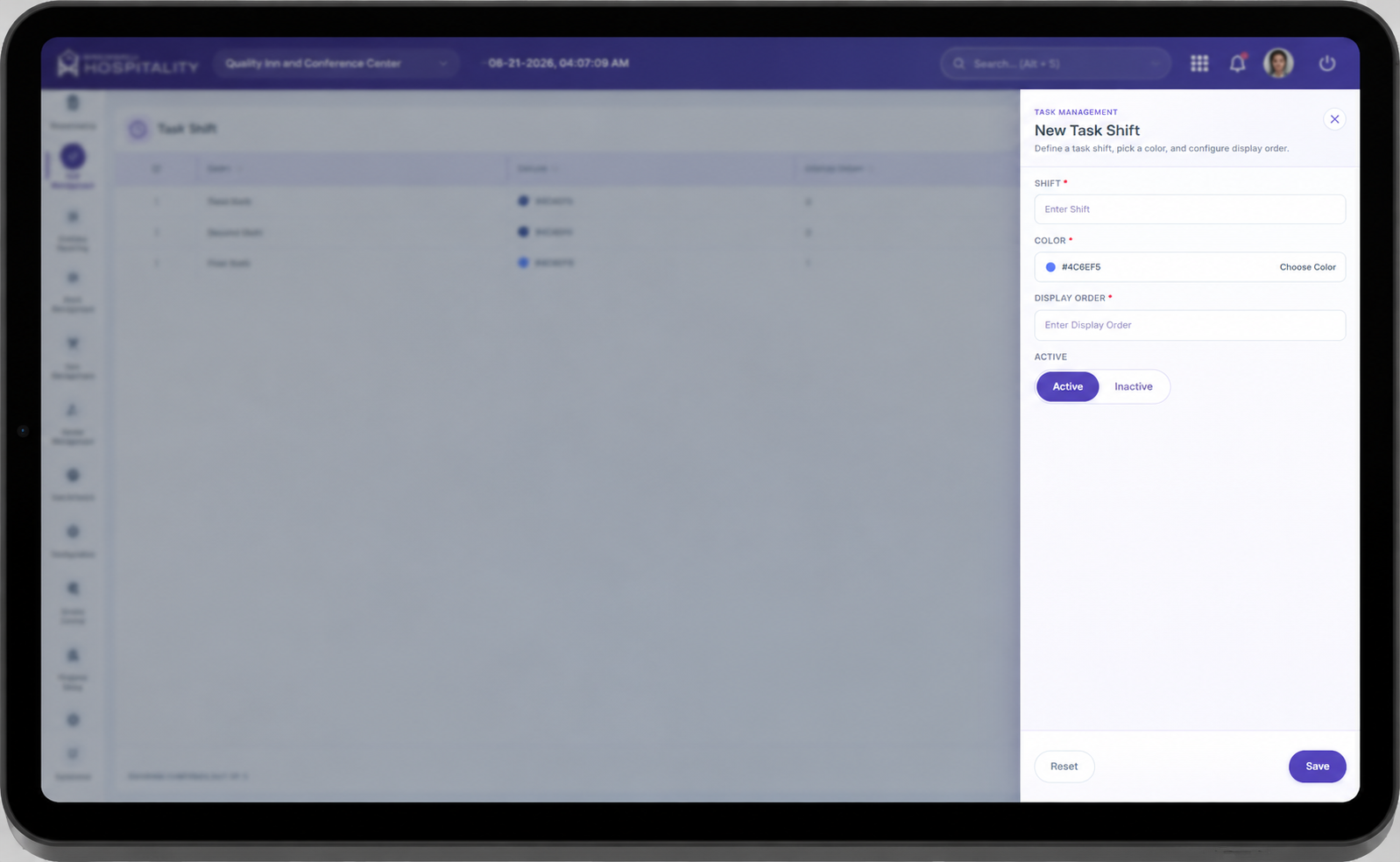
When the administrator clicks the Create button, the Add Task Shift panel opens on the right side of the screen.
The panel allows the administrator to configure a new task shift using the following fields:
- Shift
- Color
- Display Order
All fields marked with an asterisk (*) are required.
Key Fields
- Shift — Name of the task shift being created, such as Morning, Evening Shift, or Night Shift.
- Color — Color assigned to the task shift. The selected color helps users visually identify the shift within Workforce Tasks.
- Display Order — Determines the order in which task shifts are displayed.
- Active — Indicates whether the task shift is active and available for use.
- Save — Saves the task shift with the configured information.
- Save & Add New — Saves the current task shift and keeps the panel open so another task shift can be created.
- Reset — Clears the entered information without saving the task shift.
- Create — Opens the Add Task Shift panel for creating a new task shift.
- Close (X) — Closes the Add Task Shift panel without saving the current entry.
Steps
Create a New Task Shift
Manage Task Shift Status
- Locate the required task shift in the Task Shift list.
- Review the configured Shift, Color, and Display Order.
- Use the Active toggle to enable or disable the task shift.
- An active task shift is available for use in Workforce Tasks.
- An inactive task shift is not available for new task operations while the master record remains configured.
Example Task Shifts
| Shift | Color | Display Order | Status |
|---|---|---|---|
| Morning | #69DA20 |
1 | Active |
| Evening Shift | #3C3489 |
2 | Active |
| Night Shift | #72243E |
3 | Active |
Important Notes
- Shift, Color, and Display Order are required fields when creating a task shift.
- The Shift name should clearly identify the working period or operational shift.
- Use meaningful and consistent shift names across the property.
- The Color helps users quickly identify different shifts within Workforce Tasks.
- Display Order controls the sequence in which task shifts are presented.
- Use unique display order values to maintain a consistent shift sequence.
- Only active task shifts should be used for current Workforce Task operations.
- Deactivating a task shift makes it unavailable for new task operations without requiring the master record to be deleted.
- Properties can configure task shifts according to their operational requirements.
- Common task shifts may include Morning, Evening Shift, and Night Shift.
- Review the shift name, color, display order, and active status before saving the configuration.