Storeroom Stock Deduction
Overview
The Storeroom Stock Deduction feature allows users to deduct inventory from a configured Store Room.
Users can create a deduction by selecting a Store Room, selecting inventory items, entering the quantity to deduct, and providing an optional reason.
The deduction workflow is controlled by the Store Room's Stock Assignment & Issue Approval setting.
If approval is required, the deduction remains Pending until a manager approves or rejects the request. If approved, the requested quantity is deducted from the Store Room stock. If rejected, the held quantity is released back to the Store Room stock.
If approval is not required, the deduction is processed immediately with Direct Deducted status.
Deduction Status
| Status | Description |
|---|---|
| Pending | The deduction request is waiting for approval and the requested quantity is held. |
| Approved | The deduction request has been approved and the requested quantity has been deducted from the Store Room stock. |
| Rejected | The deduction request has been rejected and the held quantity is released back to the Store Room stock. |
| Direct Deducted | The Store Room does not require approval, so the requested quantity is deducted immediately. |
Storeroom Item Stock Deduct List
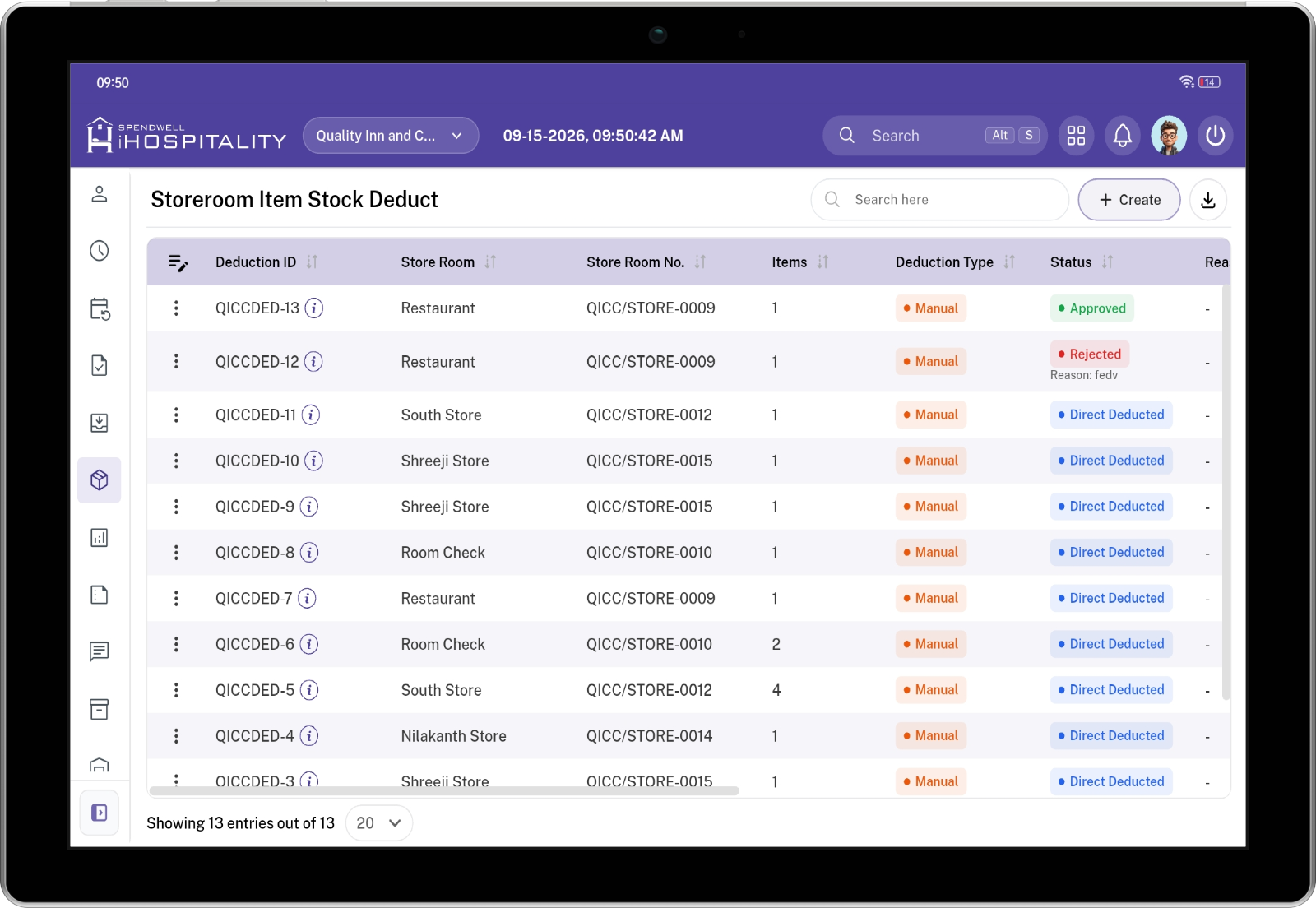
The Storeroom Item Stock Deduct list provides a centralized view of stock deduction records created for the property's Store Rooms.
Users can review deduction details, track the current status, and identify who created and processed each deduction.
List Fields
- Deduction ID — Identifies the unique stock deduction record.
- Store Room — Displays the Store Room from which the stock is deducted.
- Store Room No. — Displays the unique Store Room number or code.
- Items — Displays the number of inventory items included in the deduction.
- Status — Displays the current deduction status.
- Reason — Displays the reason provided for the deduction.
- Requested By — Identifies the user who created the deduction request.
- Requested Date — Displays the date on which the deduction request was created.
- Approved By — Identifies the user who approved or processed the deduction.
- Approved Date — Displays the date on which the deduction was approved or processed.
Create Storeroom Stock Deduction
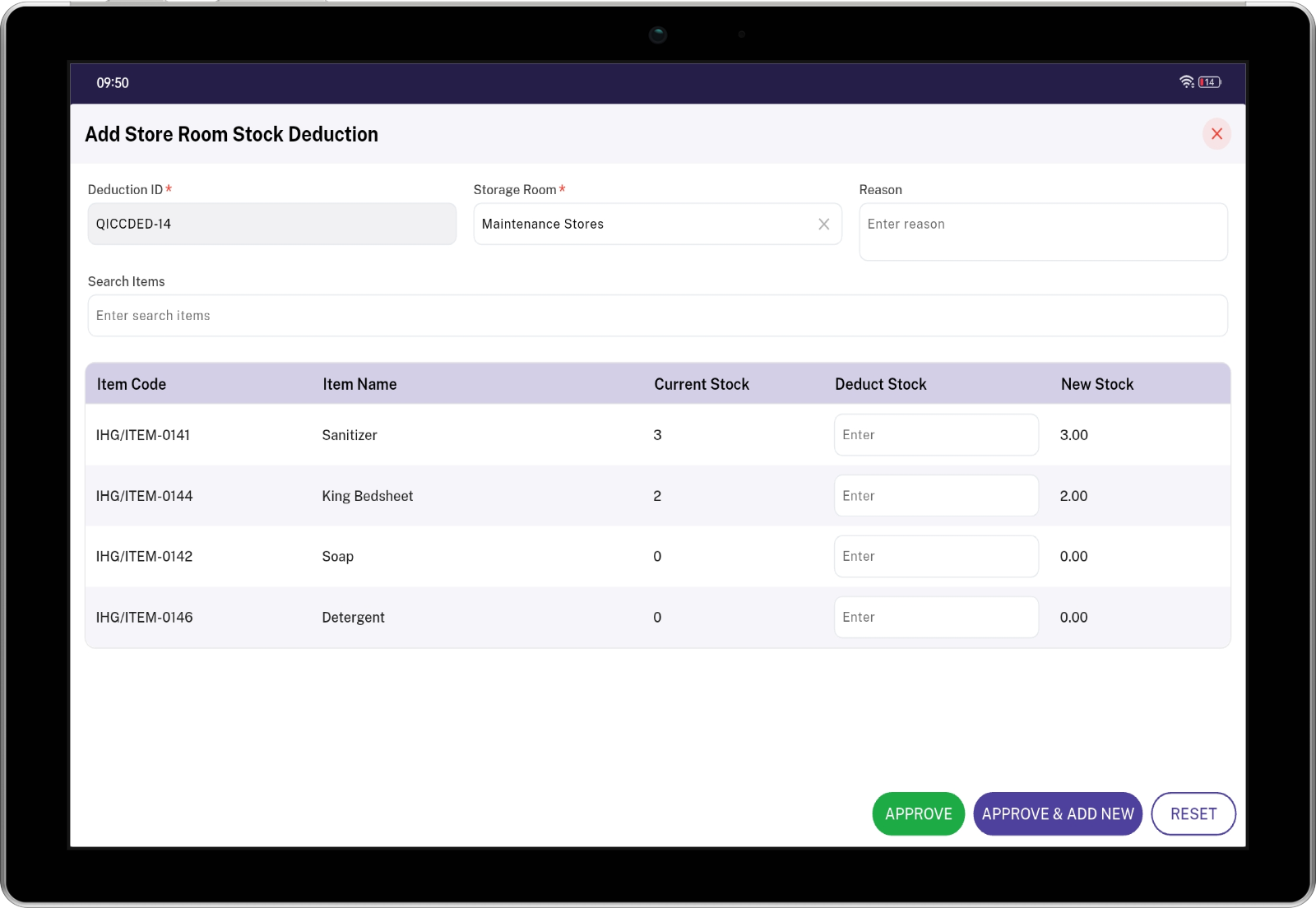
Click Create from the Storeroom Item Stock Deduct list to create a new stock deduction.
The user selects the Store Room, provides an optional reason, and enters the quantity to deduct for the required inventory items.
Key Fields
- Deduction ID — Displays the unique identifier generated for the stock deduction.
- Storage Room — Selects the Store Room from which inventory will be deducted.
- Reason — Specifies the reason for the stock deduction.
- Search Items — Allows users to search for an inventory item.
Store Room Inventory Items
After selecting the Store Room, the system displays the inventory items currently available in that Store Room.
Item Fields
- Item Code — Identifies the inventory item using its configured item code.
- Item Name — Identifies the inventory item available in the Store Room.
- Store Stock — Displays the quantity currently available in the Store Room.
- Deduct Stock — Specifies the quantity to be deducted from the Store Room.
- Store New Stock — Displays the resulting Store Room stock after the deduction.
Stock Calculation
The system calculates the resulting Store Room stock using:
Store New Stock = Store Stock - Deduct Stock
The Deduct Stock quantity cannot exceed the available Store Stock.
Create Stock Deduction
Steps
- Open Storeroom Item Stock Deduct.
- Click Create.
- Select the required Storage Room.
- Enter the Reason, if required.
- Review the inventory items displayed for the selected Store Room.
- Review the Store Stock.
- Enter the required quantity in Deduct Stock.
- Verify the calculated Store New Stock.
- Submit the deduction.
- The system checks the Store Room's Stock Assignment & Issue Approval configuration.
- If approval is required, the deduction is created with Pending status.
- If approval is not required, the deduction is processed as Direct Deducted.
Stock Assignment & Issue Approval
The Stock Assignment & Issue Approval setting determines whether a Store Room stock deduction requires manager approval.
The setting is configured for the Store Room.
Approval Required
When Stock Assignment & Issue Approval is enabled, the deduction request is created with Pending status.
The requested deduction quantity is held while the request is pending.
Create Deduction
       ↓
    Pending
       ↓
 Manager Review
    ↙       ↘
 Approve   Reject
    ↓         ↓
 Approved  Rejected
Approval Not Required
When Stock Assignment & Issue Approval is not enabled, the deduction is processed immediately.
Create Deduction
       ↓
Direct Deducted
       ↓
Store Room Stock Updated
Pending Deduction
When approval is required, the newly created deduction is recorded with Pending status.
The requested quantity is placed on hold until the deduction is approved or rejected.
The held quantity cannot be deducted again through another request while the deduction is pending.
Pending Process
- User creates a stock deduction.
- The system validates the requested quantity against the Store Room stock.
- The deduction is created with Pending status.
- The requested quantity is held.
- The Store Room stock is not permanently deducted.
- A manager reviews the pending deduction.
- The manager approves or rejects the request.
Approve Stock Deduction
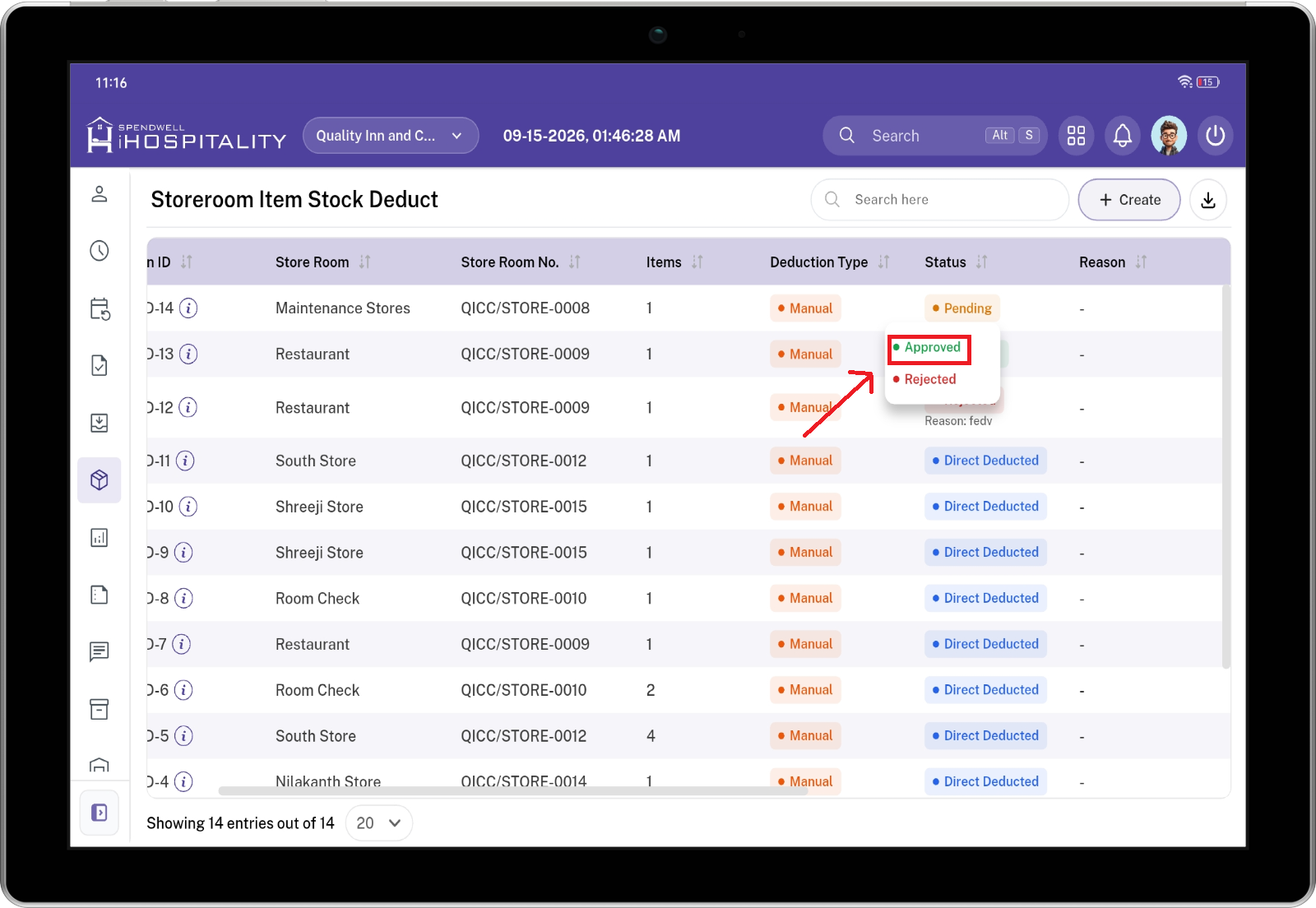
When a manager approves a pending deduction, the requested quantity is deducted from the Store Room stock.
The status changes from Pending to Approved.
Approve Steps
- Open Storeroom Item Stock Deduct.
- Locate the deduction with Pending status.
- Open the deduction record.
- Review the Store Room.
- Review the inventory items.
- Review the Store Stock.
- Review the Deduct Stock quantity.
- Review the deduction reason.
- Click Approve.
- The status changes to Approved.
- The requested quantity is deducted from the Store Room stock.
- The Store New Stock is updated accordingly.
Reject Stock Deduction
When a pending deduction is rejected, the requested quantity is not deducted from the Store Room.
The status changes from Pending to Rejected.
The held quantity is released back to the Store Room stock.
Reject Steps
- Open Storeroom Item Stock Deduct.
- Locate the deduction with Pending status.
- Open the deduction record.
- Review the Store Room and inventory details.
- Review the requested deduction quantity.
- Review the deduction reason.
- Select Reject.
- The status changes to Rejected.
- The held quantity is released.
- The Store Room stock remains available.
Direct Deduction
When Stock Assignment & Issue Approval is not required for the selected Store Room, the deduction is processed immediately.
The deduction is recorded with Direct Deducted status.
No manager approval is required.
Direct Deduction Steps
- Create a new stock deduction.
- Select the Store Room.
- Select the inventory item.
- Enter the quantity in Deduct Stock.
- Verify the Current Stock.
- Verify the New Stock.
- Submit the deduction.
- The system deducts the inventory immediately.
- The deduction is recorded with Direct Deducted status.
Deduction Details
Users can open a deduction record from the Storeroom Item Stock Deduct list to review the complete deduction information.
Deduction Detail Fields
- Deduction ID — Identifies the unique stock deduction record.
- Store Room — Identifies the Store Room from which the stock is deducted.
- Store Room No. — Displays the unique Store Room number or code.
- Item Code — Identifies the inventory item.
- Item Name — Displays the inventory item name.
- Store Stock — Displays the Store Room stock before deduction.
- Deduct Stock — Displays the quantity requested for deduction.
- Store New Stock — Displays the resulting Store Room stock.
- Reason — Displays the reason provided for the deduction.
- Status — Displays the current deduction status.
- Requested By — Identifies the user who created the deduction.
- Requested Date — Displays when the deduction was requested.
- Approved By — Identifies the user who approved or processed the deduction.
- Approved Date — Displays when the deduction was approved or processed.
Request and Approval Tracking
The deduction record maintains request and approval information to provide traceability for each stock deduction.
- Requested By — Identifies the user who created the deduction request.
- Requested Date — Records when the deduction request was created.
- Approved By — Identifies the manager or authorized user who processed the deduction.
- Approved Date — Records when the deduction was approved or directly processed.
For a Direct Deducted record, the user who processed the deduction is recorded in the processing information.
Complete Stock Deduction Flow
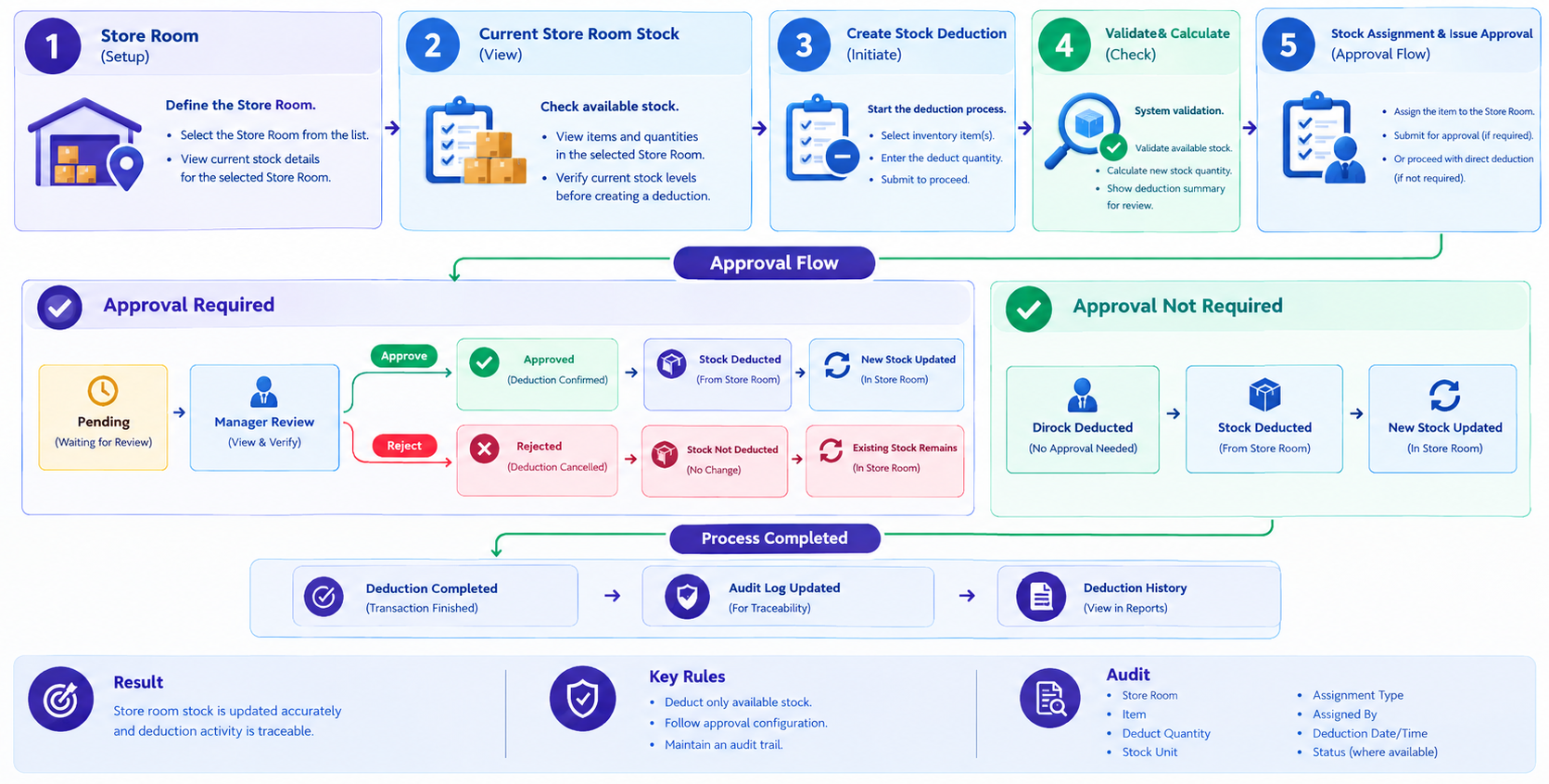
Stock Deduction Rules
- Store Stock represents the inventory currently available in the selected Store Room.
- Deduct Stock represents the quantity requested for deduction.
- Store New Stock is calculated as Store Stock - Deduct Stock.
- The deduction quantity cannot exceed the Store Room's available stock.
- When approval is required, the deduction remains Pending until it is approved or rejected.
- A pending deduction holds the requested quantity.
- Approve deducts the held quantity from the Store Room stock.
- Reject releases the held quantity back to the Store Room stock.
- When approval is not required, the deduction is recorded as Direct Deducted and processed immediately.
- Requested By identifies the user who created the deduction.
- Approved By identifies the user who approved or processed the deduction.
- Requested Date and Approved Date provide request and processing history.
- The deduction status represents the current state of the stock deduction.