My Scheduled Week
Overview
The My Scheduled Week page allows employees to view their weekly work schedule in one place. Employees can review their assigned shifts, including work dates, shift times, and scheduled details. The page also allows employees to see who is scheduled to work with them each day, claim available Open Shifts, and submit Shift Trade Requests to exchange scheduled shifts with eligible employees.
My Scheduled Week Screen
The My Scheduled Week screen provides employees with a weekly view of their scheduled shifts.
Employees can review their assigned shifts by date and time, see who is scheduled to work with them each day, claim available Open Shifts, and submit Shift Trade Requests to exchange shifts with eligible employees.
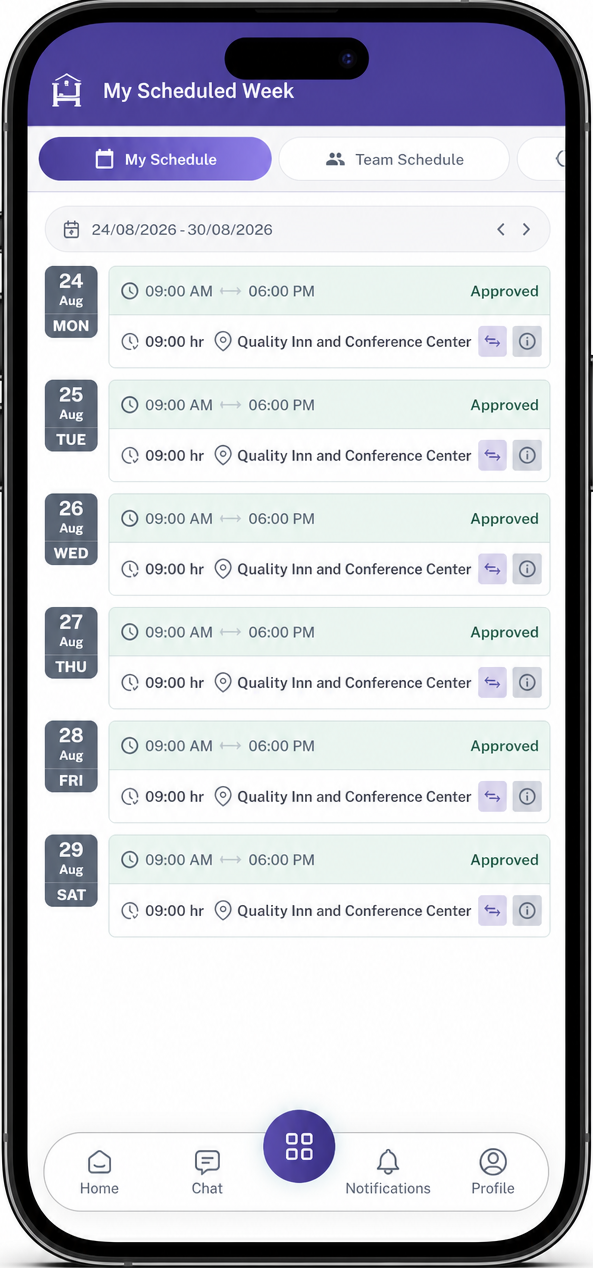
View your scheduled shifts, including dates, working hours, and shift details.
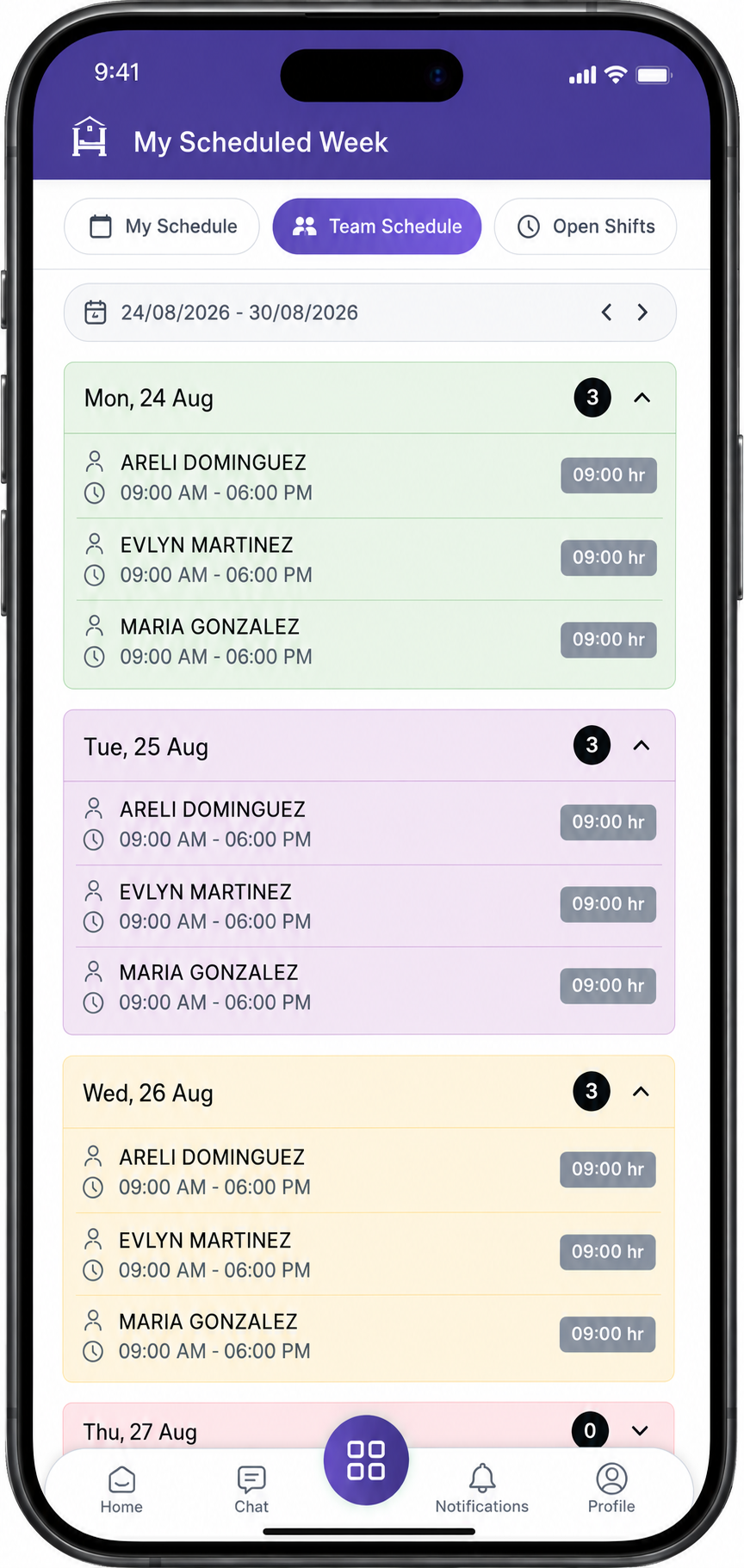
See which team members are scheduled to work alongside you during the week.
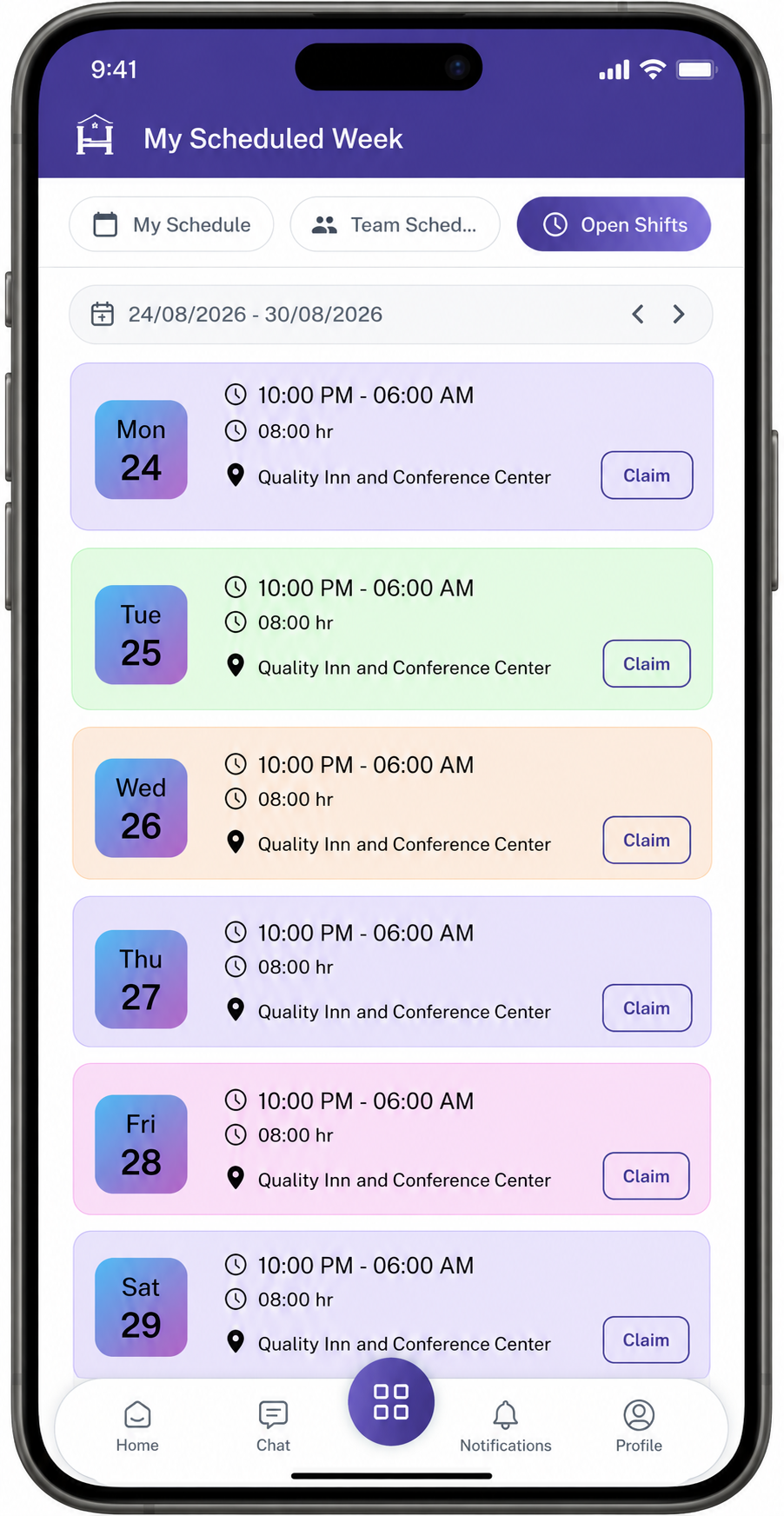
View available open shifts and claim a shift that matches your availability.
Claim an Open Shift
Employees can request an available Open Shift from the My Scheduled Week screen.
When an employee claims an Open Shift, the request is sent to the manager for review. The shift is assigned to the employee only after the manager approves the request.
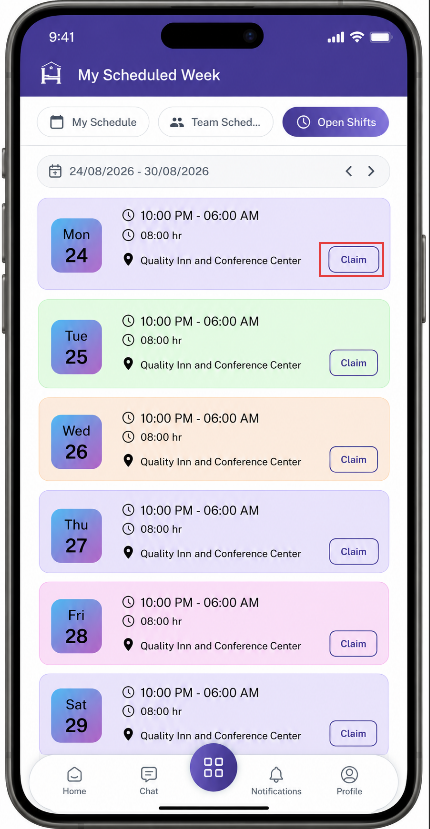
Steps
- Open My Scheduled Week.
- Locate the available Open Shift.
- Select the Open Shift you want to claim.
- Verify that the shift fits your availability and does not conflict with another scheduled shift.
- Select Claim Shift.
- Review the claim request details.
- Select Confirm to submit the request.
After submission, the claim request is sent to the manager for review.
Manager Review of Open Shift Requests
Managers can review Open Shift claim requests from the Manage Open Shift Requests section.
Managers can review the employee requesting the shift and the Open Shift details before taking action.
Approve a Claim Request
- Open Manage Open Shift Requests.
- Locate the pending Open Shift claim request.
- Review the employee and shift details.
- Select Approve.
- Confirm the approval.
Once approved, the Open Shift is assigned to the employee and becomes part of their scheduled shifts.
Reject a Claim Request
- Open Manage Open Shift Requests.
- Locate the pending Open Shift claim request.
- Review the employee and shift details.
- Select Reject.
- Confirm the rejection.
Once rejected, the Open Shift is not assigned to the employee.
Open Shift Claim Workflow
Open Shift Available → Employee Claims Shift → Claim Request Submitted → Manager Reviews Request
Manager Approves → Shift Assigned to Employee → Appears in My Scheduled Week
Manager Rejects → Request Rejected → Shift Not Assigned
Note: Claiming an Open Shift only submits a request. The shift is assigned to the employee after the manager approves the claim request.
Shift Trade
The Shift Trade feature allows employees to request changes to their scheduled shifts directly from the My Scheduled Week screen.
Employees can use the Trade Shift icon on an assigned shift to choose between two options:
- Swap Shift — Request to exchange the selected shift with a shift assigned to another eligible employee.
- Drop Shift — Give up the selected shift so it can become an Open Shift for another eligible employee to claim.
For a Swap Shift, the selected employee must approve the request before it is sent to the manager for final approval.
For a Drop Shift, the shift becomes available as an Open Shift, which can then be claimed by another eligible employee and submitted to the manager for approval.
Important: A shift is not changed or reassigned until the required approval process is completed.
Shift Trade Screen
The Shift Trade option is available directly from an employee's scheduled shift in My Scheduled Week.
When an employee selects the Trade Shift icon, SpendWell displays two options:
- Swap Shift
- Drop Shift
Employees can select the option that matches the action they want to perform.
Trade Shift Options
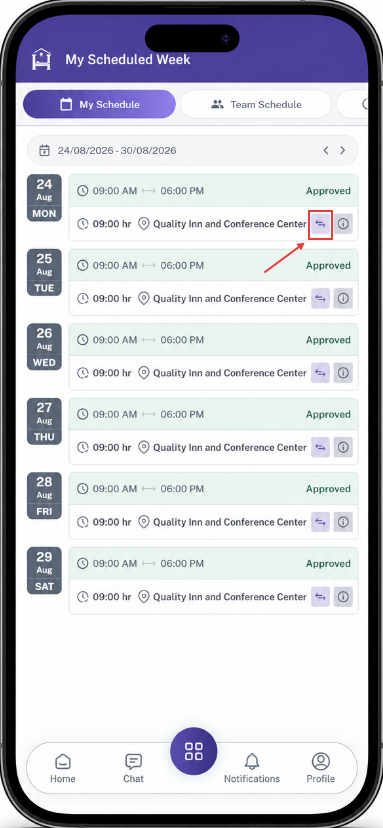
Swap Shift
Request to exchange your scheduled shift with an eligible employee's shift.
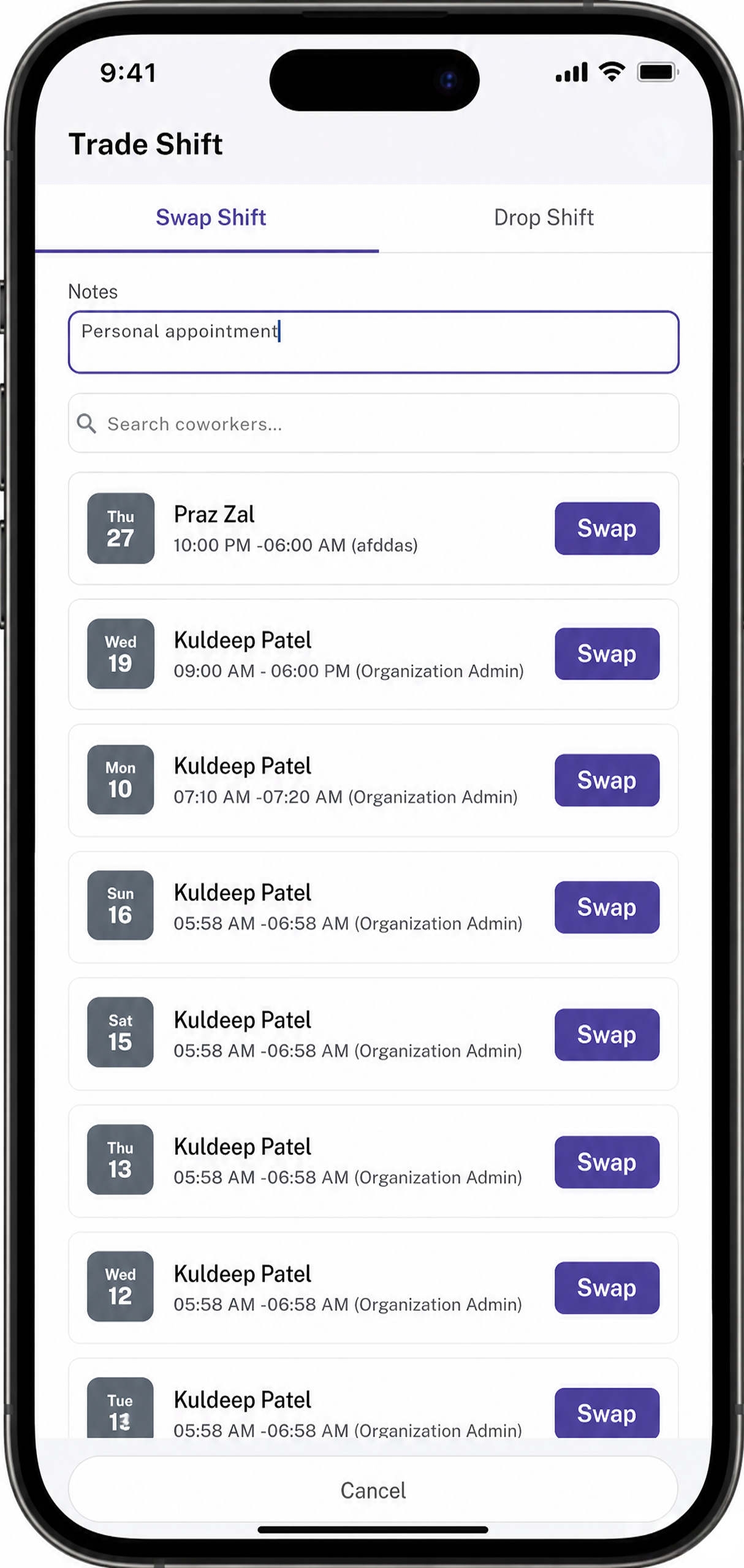
Swap Shift Request
Select an eligible employee and their available shift to submit a swap request.
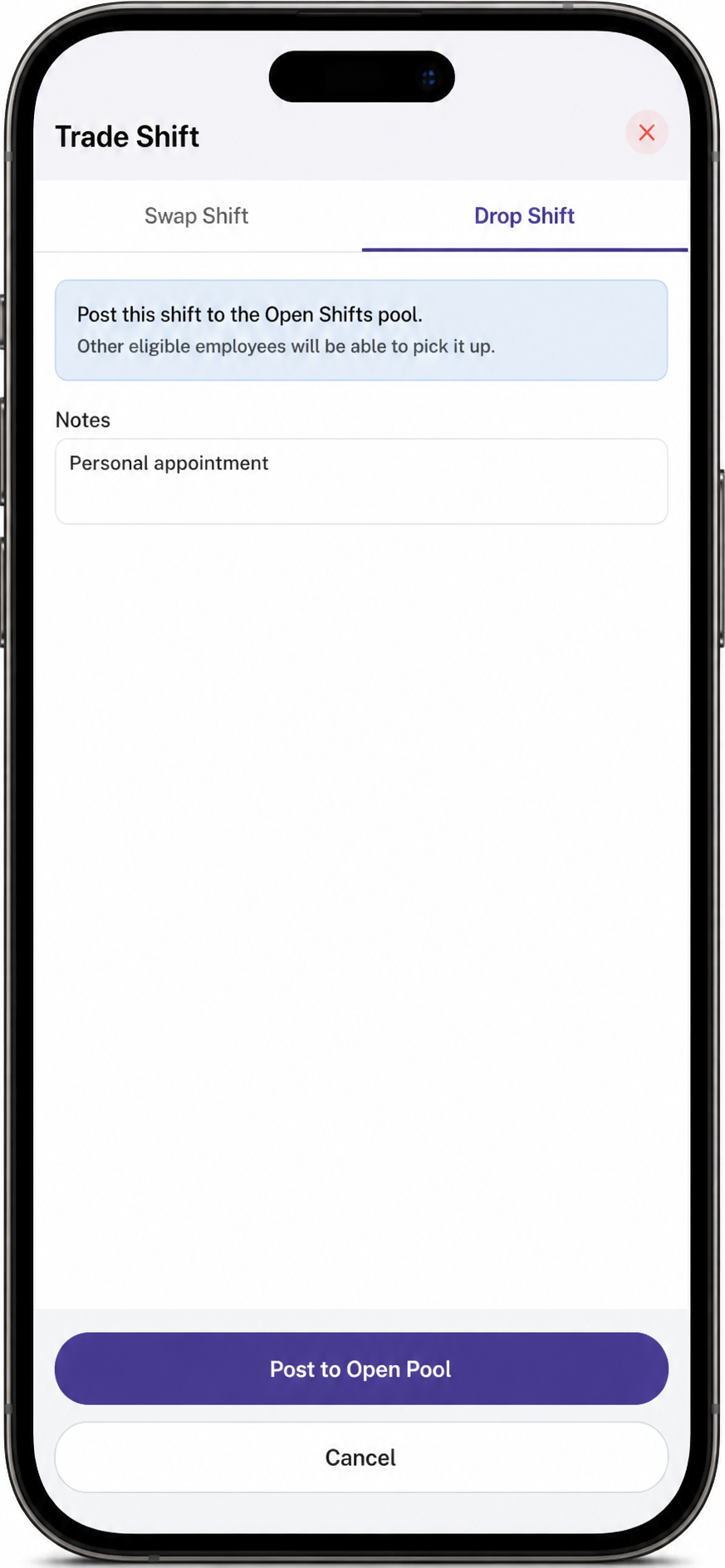
Drop Shift
Give up your scheduled shift so it can become available as an Open Shift.
Swap Shift
The Swap Shift option allows an employee to request an exchange of their scheduled shift with a shift assigned to another eligible employee.
System checks the selected employee's schedule and availability to help prevent scheduling conflicts.
Create a Swap Shift Request
Steps
- Open My Scheduled Week.
- Locate the scheduled shift you want to trade.
- Select the Trade Shift icon.
- Select Swap Shift.
- Select an eligible employee.
- Review the shifts available for that employee.
- Select the shift you want to swap.
- Review the swap details.
- Select Swap.
- Confirm the request.
After submission, the Swap Shift request is sent to the selected employee for approval.
Employee Approval for Swap Shift
After the Swap Shift request is submitted, the selected employee receives the request.
The selected employee can:
- Approve the Swap Shift request.
- Reject the Swap Shift request.
Employee Approves
When the selected employee approves the request:
Employee Approves → Manager Approval Required
The swap is not completed immediately.
The request is sent to the manager for final review and approval in the Scheduling Board.
Employee Rejects
When the selected employee rejects the request:
- The Swap Shift request is rejected.
- The request does not proceed to manager approval.
- Neither employee's schedule is changed.
- Both employees keep their original shifts.
Manager Approval for Swap Shift
After the selected employee approves the request, the manager can review the request from the Scheduling Board.
The manager can review:
- Requesting employee.
- Selected employee.
- Original shift.
- Requested shift.
- Employee availability.
- Existing schedules.
- Potential scheduling conflicts.
- Trade request details.
Approve Swap Shift
If the manager approves the Swap Shift:
- The requesting employee receives the selected employee's shift.
- The selected employee receives the requesting employee's original shift.
- Both shift assignments are updated.
- Both employees' schedules are updated.
- The Swap Shift request is marked Approved.
Reject Swap Shift
If the manager rejects the Swap Shift:
- The shift assignments remain unchanged.
- Both employees keep their original shifts.
- The Swap Shift request is marked Rejected.
Drop Shift
The Drop Shift option allows an employee to request to give up one of their scheduled shifts.
The request is sent to the manager for approval. The shift becomes an Open Shift only after the manager approves the Drop Shift request.
Create a Drop Shift Request
Steps
- Open My Scheduled Week.
- Locate the scheduled shift you want to drop.
- Select the Trade Shift icon.
- Select Drop Shift.
- Review the shift details.
- Select Submit.
- Confirm the request.
After submission, the Drop Shift request is sent to the manager for review.
- Manager Approves → The employee is removed from the shift, and the shift becomes an Open Shift available for eligible employees to claim.
- Manager Rejects → The employee remains assigned to the shift, and no schedule changes are made.
Shift Trade Workflow
Swap Shift Workflow
Employee Selects Trade Shift → Swap Shift → Select Eligible Employee → Select Eligible Shift → Submit Request
Selected Employee Approves → Manager Reviews in Scheduling Board → Manager Approves → Shift Swapped → Both Schedules Updated
Swap Rejection Workflow
Employee Submits Swap Request → Selected Employee Rejects → Request Rejected → No Schedule Change
Manager Rejection Workflow
Selected Employee Approves → Manager Reviews → Manager Rejects → Request Rejected → No Schedule Change
Drop Shift Workflow
Employee Selects Trade Shift → Drop Shift → Submit Drop Shift Request → Manager Reviews
Manager Approves → Employee Removed from Shift → Shift Becomes Open Shift
Manager Rejects → Drop Request Rejected → Employee Remains Assigned to Shift
Important Notes
- Employees can start a Shift Trade request directly from an assigned shift using the Trade Shift icon.
- Swap Shift allows an employee to exchange a shift with another eligible employee.
- Drop Shift allows an employee to give up a scheduled shift.
- A dropped shift becomes an Open Shift that eligible employees can claim.
- For a Swap Shift, the selected employee must approve the request before it proceeds to manager approval.
- If the selected employee rejects a Swap Shift request, the request is rejected and no schedule changes are made.
- The manager provides the final approval for a Swap Shift.
- Manager approval for a Swap Shift updates both employees' shift assignments.
- A claimed Open Shift is assigned only after manager approval.
- Employees' schedules are not automatically changed when a request is submitted.