Inventory Items
Overview
The Inventory Item feature allows to create and manage inventory items used throughout the property.
Each item is organized under an Item Category and Item Subcategory to maintain a structured inventory hierarchy.
Items can be configured as either Global Items or Property-Specific Items:
- Global Item — The item is available across all properties within the system.
- Property-Specific Item — The item is available only at the properties selected by the administrator.
The Item feature is a single-screen feature — existing items are displayed in a list, and new items can be created from the same screen.
Item Screen
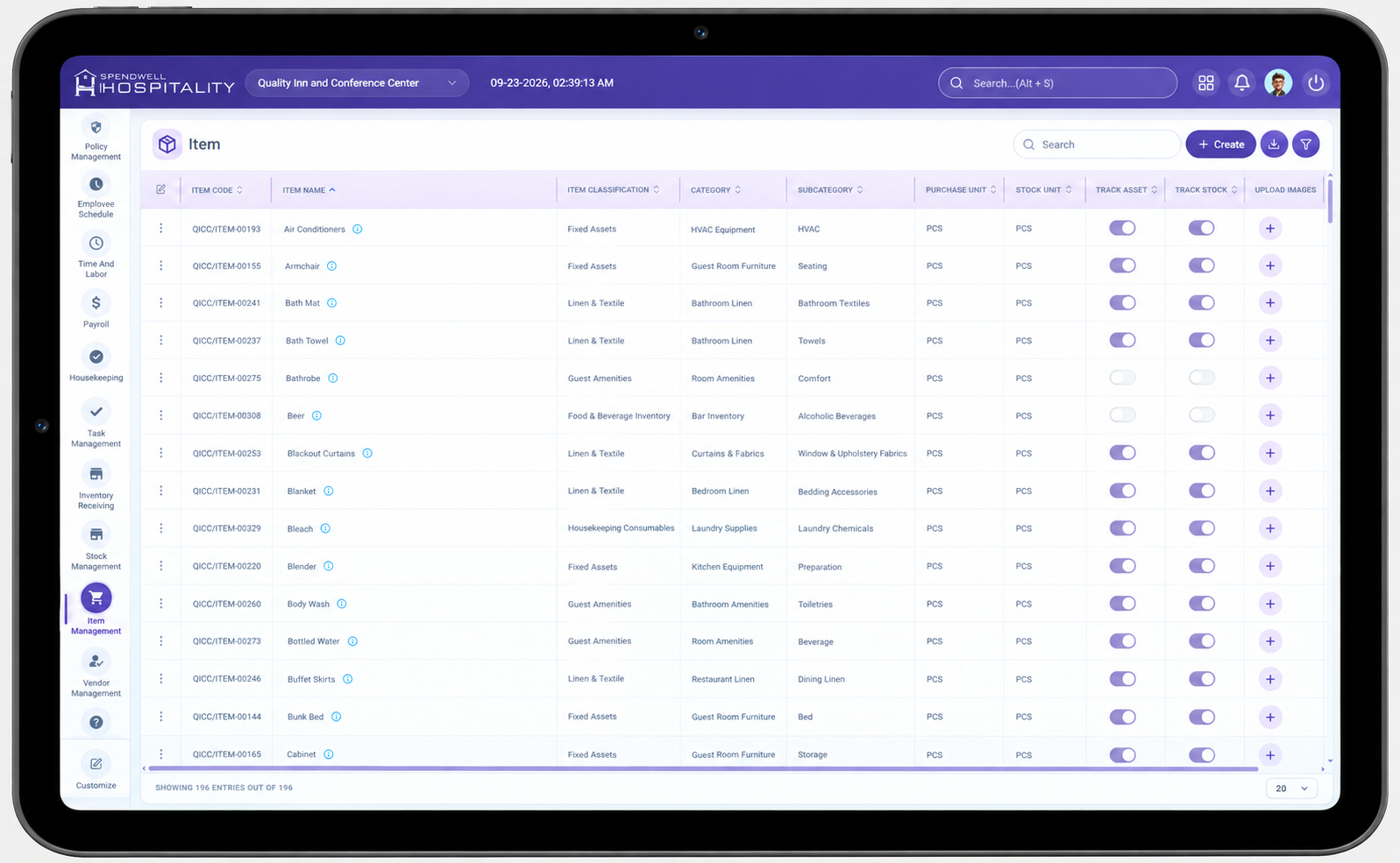
The Item screen displays all configured inventory items along with their category, subcategory, and property availability.
The screen provides the following controls:
- Item — Displays the name of the inventory item.
- Item Category — Displays the category associated with the item.
- Item Subcategory — Displays the subcategory associated with the item.
- Global Item — Indicates whether the item is available across all properties.
- Property — Displays the property associated with the item when it is not configured as a global item.
- Create — Opens the Add Item panel for creating a new inventory item.
Administrators can review existing inventory items and create new items directly from the screen.
Key Fields
- Item Category — Required field used to select the category under which the item will be organized.
- Item Subcategory — Required field used to select the subcategory under which the item will be organized.
- Item — Required field used to enter the name of the inventory item.
- Global Item — Determines whether the item is available across all properties.
- Property — Used to select the property or properties where the item should be available when Global Item is not enabled.
- Save — Saves the newly created item and closes the panel.
- Save & Add New — Saves the current item and keeps the panel open so another item can be created.
- Reset — Clears the entered information without saving.
- Create — Opens the Add Item panel.
Steps
Create a New Item
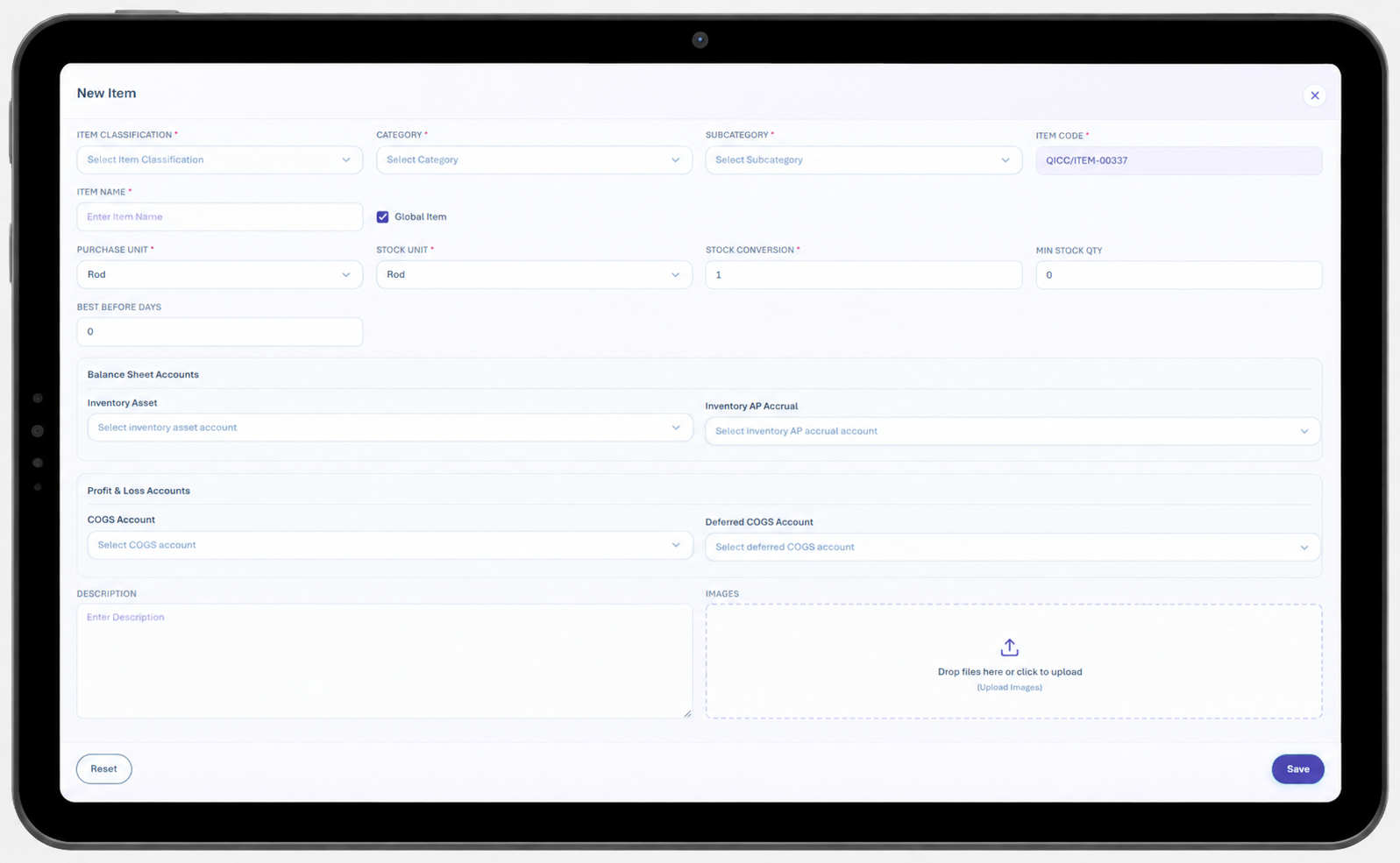
Key Fields
-
Item Category — Required field used to select the main category for the inventory item. The category provides the top-level classification of the item and determines where it belongs within the inventory structure.
-
Item Subcategory — Required field used to select the subcategory under the selected Item Category. The subcategory provides a more specific classification for the inventory item.
-
Item — Required field used to enter the name of the inventory item. The item name should clearly identify the product or material that will be purchased, stored, and managed in inventory.
-
Global Item — Determines whether the item is available across all properties.
- When Global Item is enabled, the item is available for use across all properties.
- When Global Item is disabled, the item is restricted to the specific properties selected by the administrator.
-
Property — Used to select the property or properties where the item should be available when Global Item is disabled. The item can be used only at the selected properties.
-
Purchase Unit — Defines the unit in which the item is purchased from the vendor. Examples include Box, Case, Carton, Pack, or Each.
-
Stock Unit — Defines the unit in which the item is maintained and tracked in inventory. The stock unit can be different from the purchase unit. For example, an item can be purchased by Box but tracked in inventory by Piece.
-
Stock Conversion — Defines the number of stock units contained in one purchase unit. The system uses this value to convert the purchased quantity into the inventory stock quantity.
For example:
Purchase Unit: Box
Stock Unit: Piece
Stock Conversion: 80This means:
1 Box = 80 Pieces
If 5 Boxes are purchased:
5 × 80 = 400 Pieces
Therefore, the inventory quantity becomes 400 Pieces.
-
Minimum Stock Quantity — Defines the minimum quantity of the item that should be maintained in inventory. This value is used as a reference when determining whether additional stock is required.
For example, if the Minimum Stock Quantity is set to 20 Pieces, the inventory should maintain at least 20 Pieces of the item.
-
Still Best Before Day — Defines the number of days the item should remain within its acceptable best-before period. This value can be used to monitor the remaining usable period of inventory items and support inventory management based on product freshness or shelf life.
-
Description — Provides additional information about the inventory item. Administrators can use this field to describe the item, its characteristics, usage, or any other relevant details needed for inventory management.
-
Image — Allows an image to be associated with the inventory item. The image helps users visually identify the item when viewing or managing inventory records.
-
Save — Saves the item and its configured information. After saving, the item becomes available according to its Global Item or Property configuration.
-
Save & Add New — Saves the current item and keeps the create form open so the administrator can immediately create another item.
-
Reset — Clears the information entered in the create form without saving the item.
-
Close — Closes the create form without saving the current changes.