Time & Attendance
Log Regularization
Overview
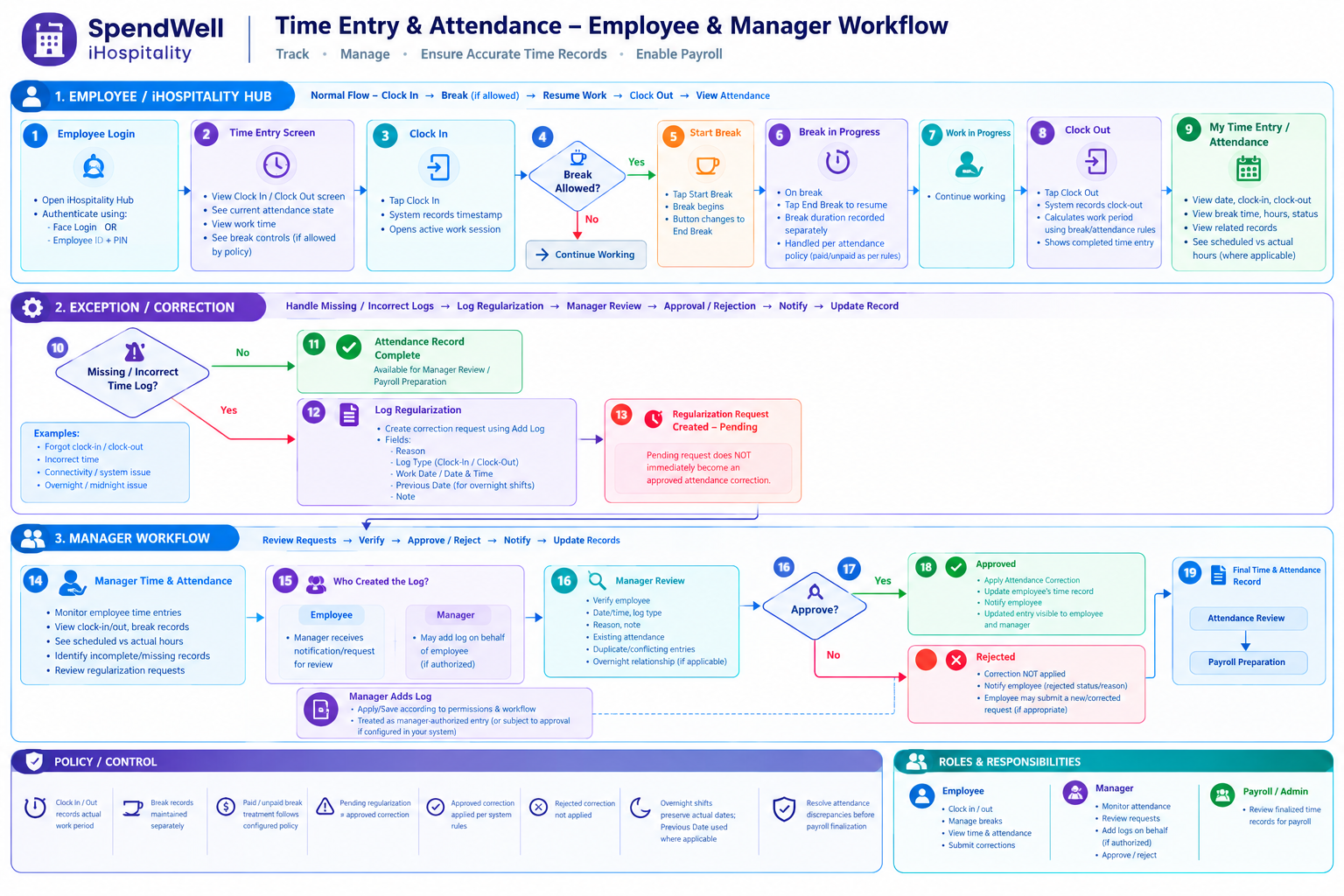
The Log Regularization feature allows employee or managers to correct, add, update, or remove employee clock-in and clock-out records when a time entry is missing or incorrect.
Managers can review employee log regularization requests from one centralized screen, verify the reason and log details, and approve or reject the request.
This feature is especially useful for situations such as:
- Employee forgot to clock in.
- Employee forgot to clock out.
- System or hardware issue.
- Internet connectivity issue.
- Incorrect clock-in or clock-out time.
- Overnight shifts where the clock-out occurs on the following calendar day.
- Other approved reasons requiring a manual time correction.
Log Regularization Screen
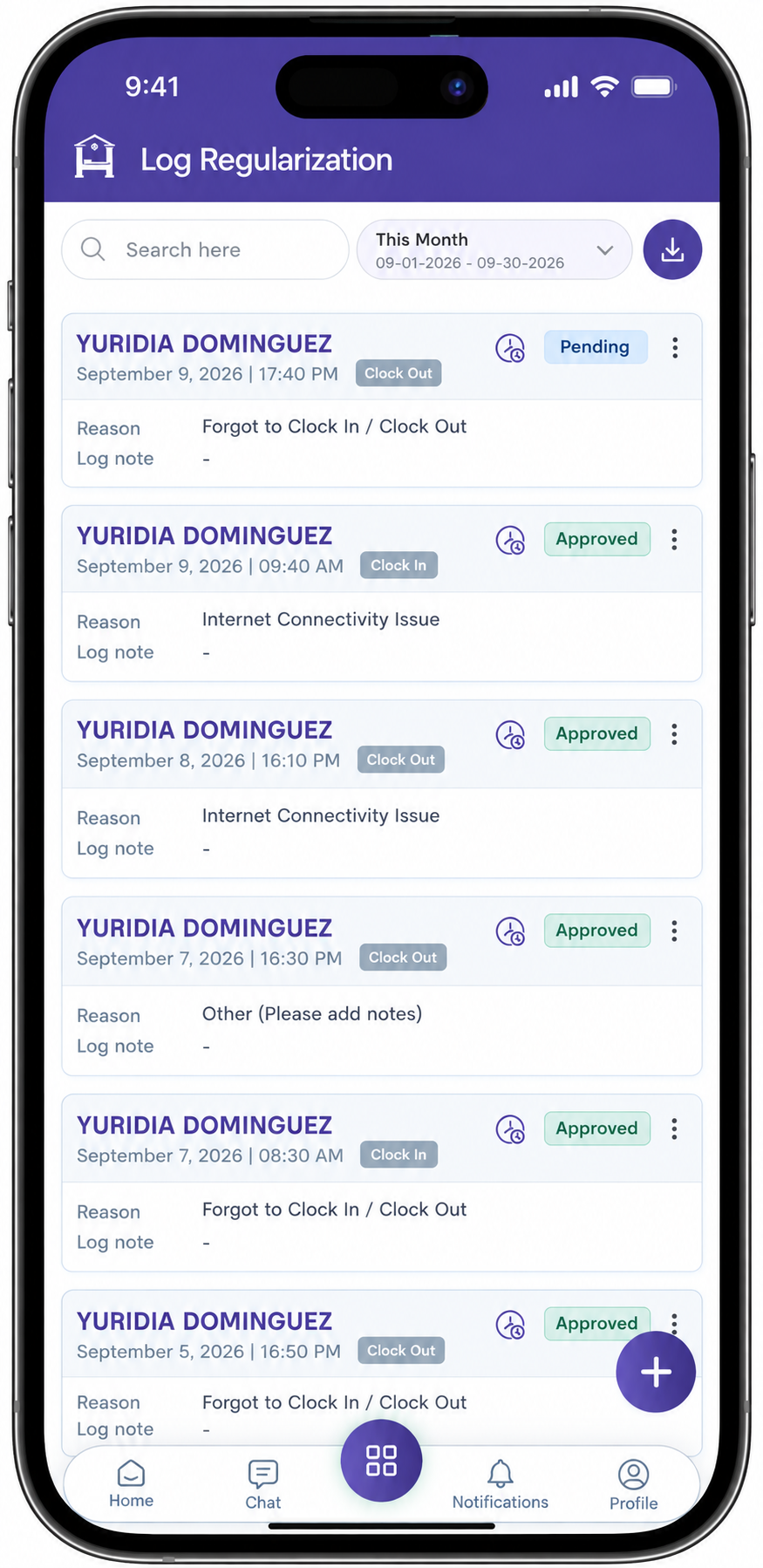
The Log Regularization screen provides a consolidated view of employee log regularization requests.
Managers can review each request by employee, log date, log time, log type, reason, note, and approval status.
Key Information
- Employee --- The employee associated with the regularization request.
- Log Date --- The date and time of the clock-in or clock-out log being regularized.
- Type --- Indicates whether the request is for Clock-In or Clock-Out.
- Reason --- Explains why the log needs to be regularized.
- Log Note --- Additional information provided for the request.
- Status --- Shows whether the request is Pending, Approved, or Rejected.
- Previous Date --- Indicates that the log belongs to the previous workday, which is important for overnight shifts.
- Expand / Collapse --- Allows managers to view or hide additional log details.
Availability Status
Status Meaning
Pending The log regularization request has been added and is waiting for manager approval.
Approved The manager has approved the request and the regularized log can be applied to the employee's attendance record.
Rejected The manager has rejected the request and the regularization should not be applied.
Note: Newly added log regularization requests are initially created with Pending status. A manager must review and approve the request before it becomes an approved attendance adjustment.
Log Regularization List
The log regularization list allows managers to review multiple employee requests from one screen.
Managers can:
- Search regularization records.
- Filter records by date.
- Review employee log details.
- Identify Clock-In and Clock-Out requests.
- View the reason and log note.
- Check the current approval status.
- Open the available action options for a request.
- Add, edit, or delete log regularization entries.
Log Regularization Actions
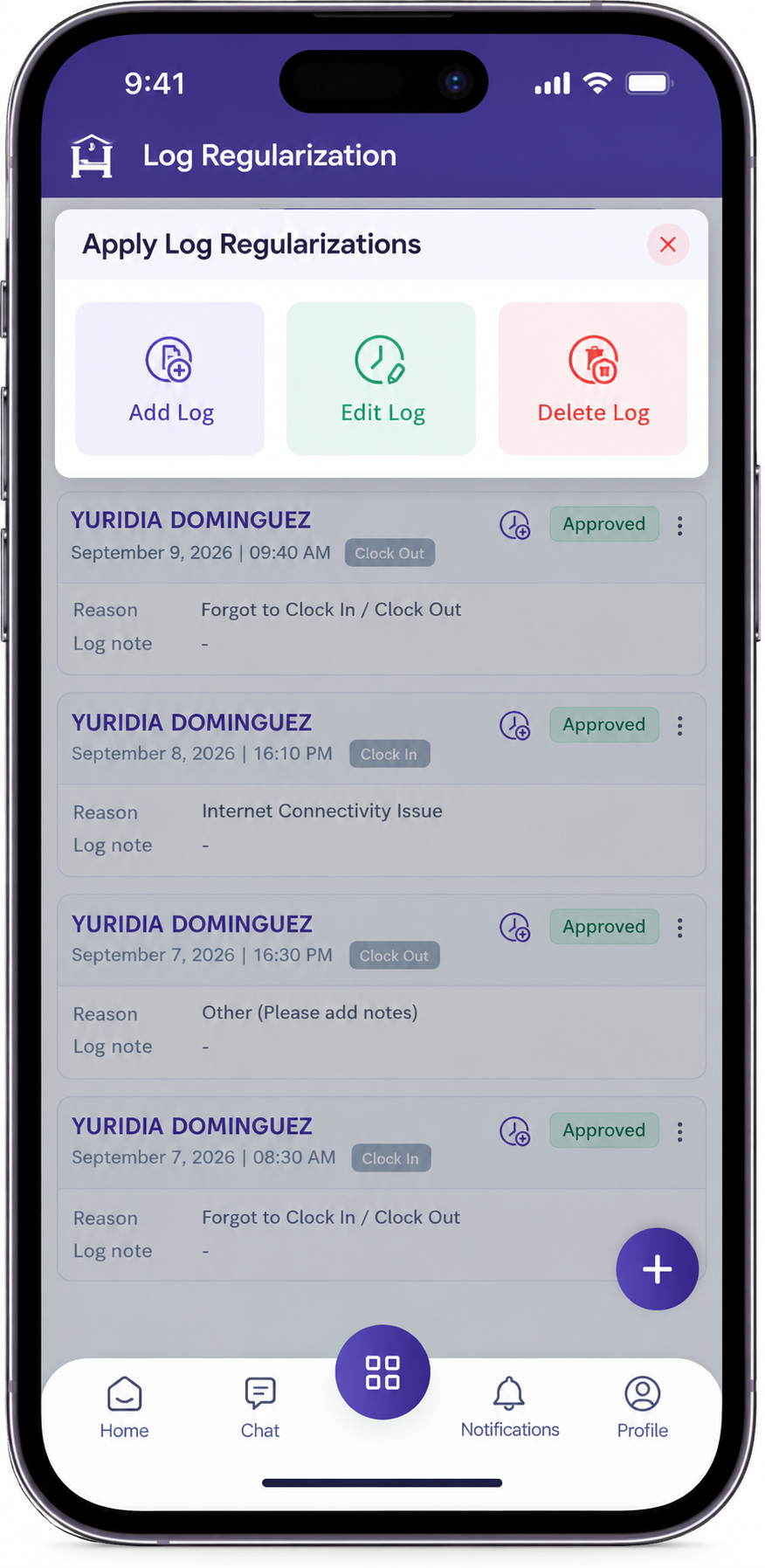
Employee can manage log regularization requests using the following actions:
- Add Log --- Create a new clock-in or clock-out regularization request.
- Edit Log --- Update an existing regularization request.
- Delete Log --- Remove a regularization request when it is no longer required.
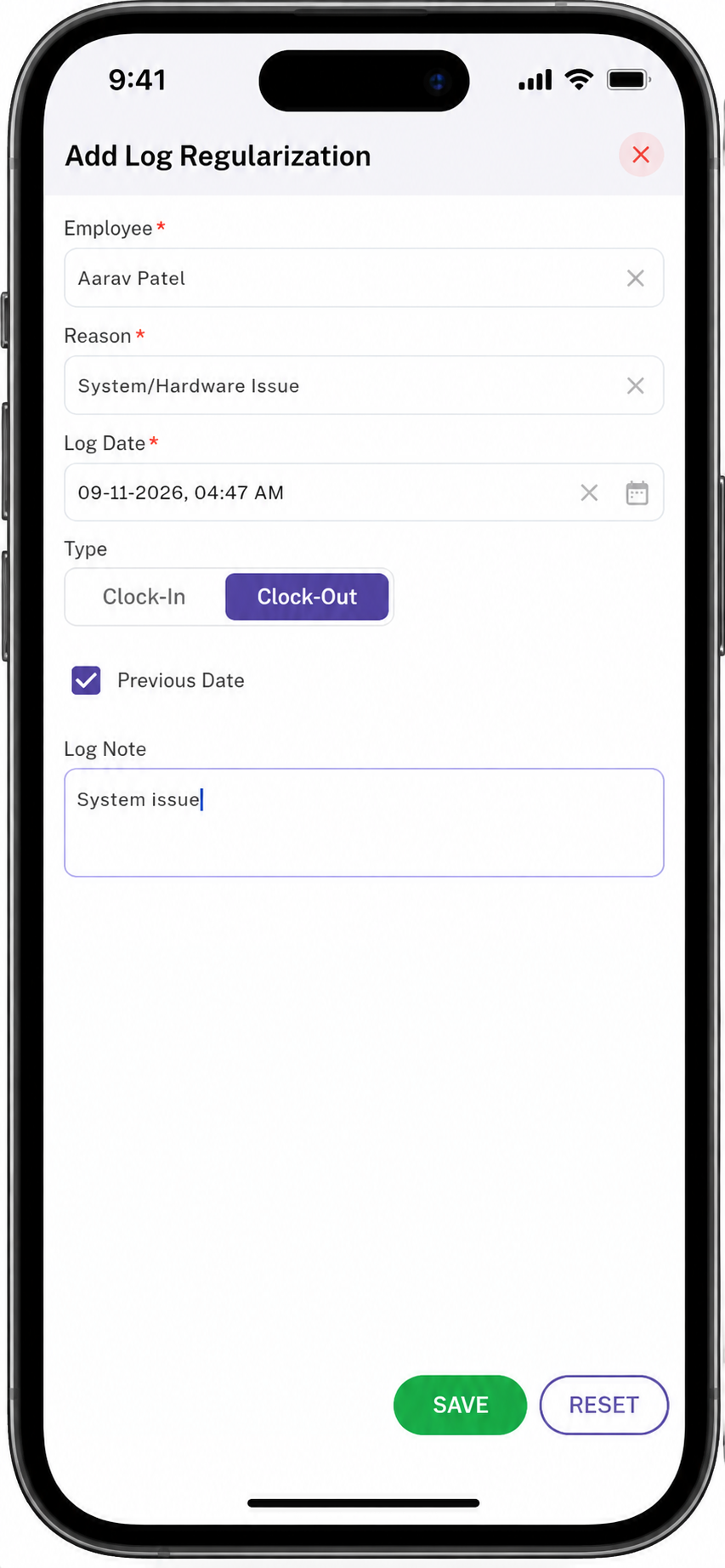
Add Log Regularization
Employee can create a new log regularization request when an employee has a missing or incorrect clock-in or clock-out record.
Add Log Fields
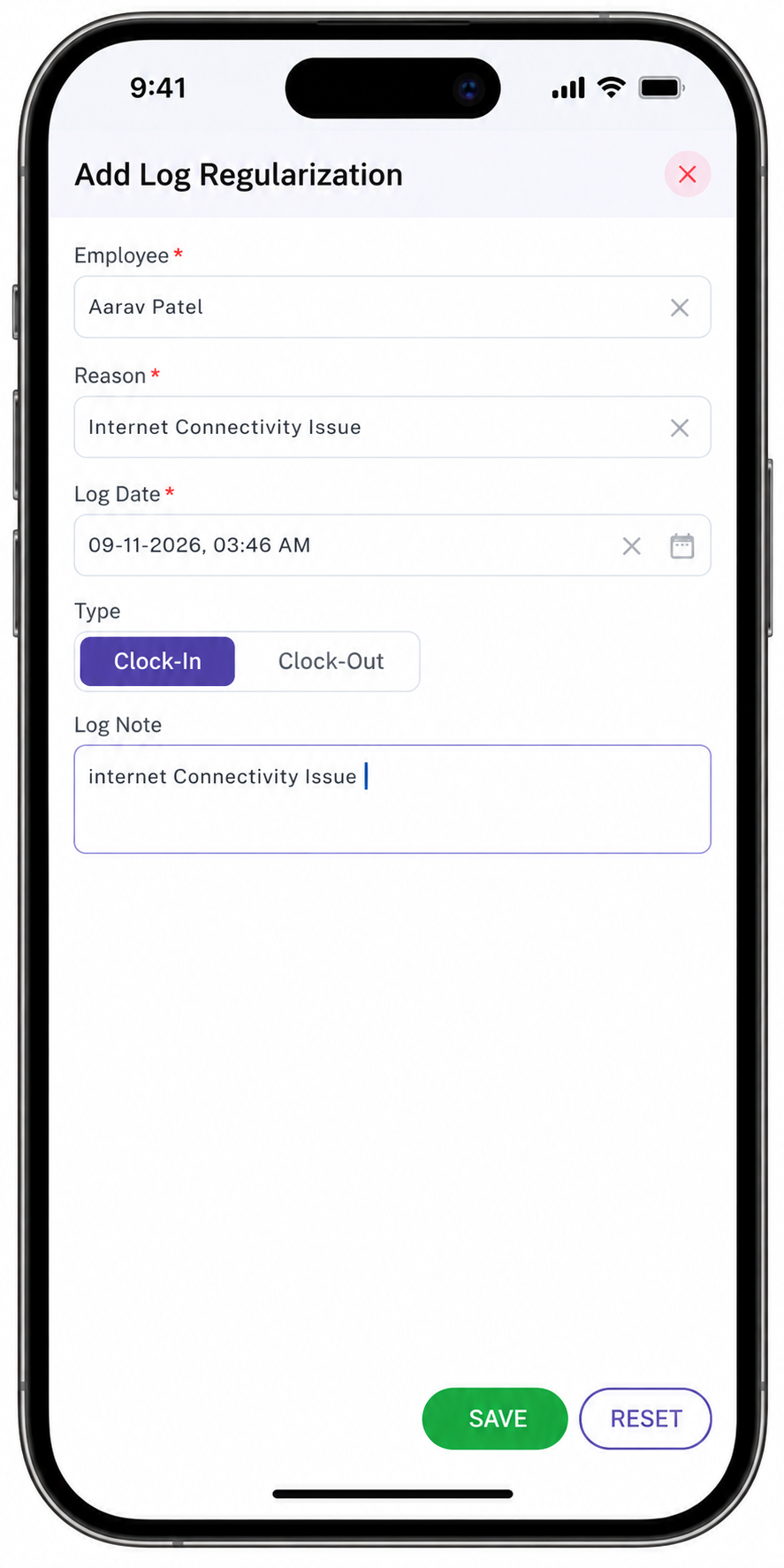
The Add Log Regularization form contains:
- Employee* --- Select the employee whose log requires regularization.
- Reason* --- Select the reason for the regularization.
- Log Date* --- Select the applicable date and time.
- Type --- Select Clock-In or Clock-Out.
- Previous Date --- Indicate that the selected log belongs to the previous workday.
- Log Note --- Enter additional information about the regularization.
Common Reasons
Examples of regularization reasons include:
- Forgot to Clock In / Clock Out
- Internet Connectivity Issue
- System/Hardware Issue
- Other
Create Log Regularization
Steps
- Select Add Log.
- Select the Employee.
- Select the applicable Reason.
- Select the Log Date and time.
- Select Clock-In or Clock-Out.
- Select Previous Date when the log belongs to the previous workday.
- Enter a Log Note when additional information is required.
- Select Save.
- The new regularization request is created with Pending status.
- The manager reviews and approves or rejects the request.
Important: Saving a regularization request does not automatically approve the attendance adjustment. The request must go through the manager approval workflow.
Previous Date for Day and Night Shifts
The Previous Date option is used for overnight or cross-midnight work situations where the log time occurs on the following calendar day but belongs to the employee's previous workday/shift.
Example
An employee works an overnight shift:
9:00 PM → 10:00 AM
The employee clocks in at 9:00 PM on September 10 and is expected to clock out at 10:00 AM on September 11.
If the Clock-Out entry is missing and the manager needs to add the 10:00 AM clock-out:
- The actual clock-out time is 10:00 AM on September 11.
- The workday/shift started on September 10.
- The manager should select Previous Date when the regularization needs to be associated with the previous workday.
Overnight Shift Example
Field Value
Shift Start September 10, 9:00 PM Clock-In September 10, 9:00 PM Clock-Out September 11, 10:00 AM Regularization Type Clock-Out Previous Date Selected Workday September 10
Note: Previous Date is intended for cross-midnight/day-and-night scenarios. It allows the regularization to be associated with the previous workday rather than treating the following calendar date as a new workday.
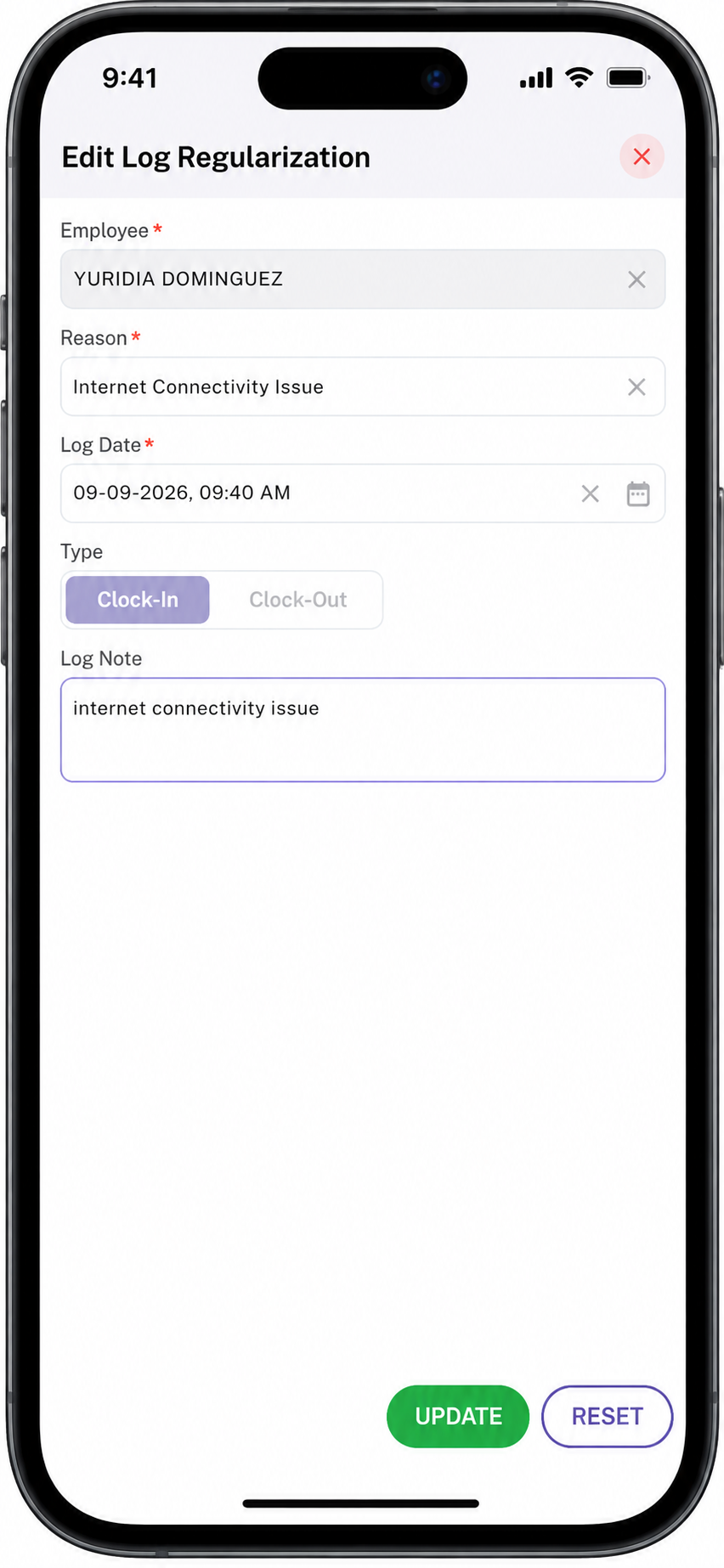
Edit Log Regularization
Employee can edit an existing log regularization request when the employee, reason, log date/time, type, previous-date selection, or note needs to be corrected.
Steps
- Select the applicable regularization request.
- Select Edit Log.
- Review the employee and existing regularization details.
- Update the required information.
- Update Previous Date when applicable.
- Update the Log Note if required.
- Select Update to save the changes.
Editable Information
Managers can update:
- Employee
- Reason
- Log Date and Time
- Clock-In / Clock-Out type
- Previous Date
- Log Note
Note: The regularization should be reviewed again after an important change because the updated request may require manager approval according to the system's approval rules.
Delete Log Regularization
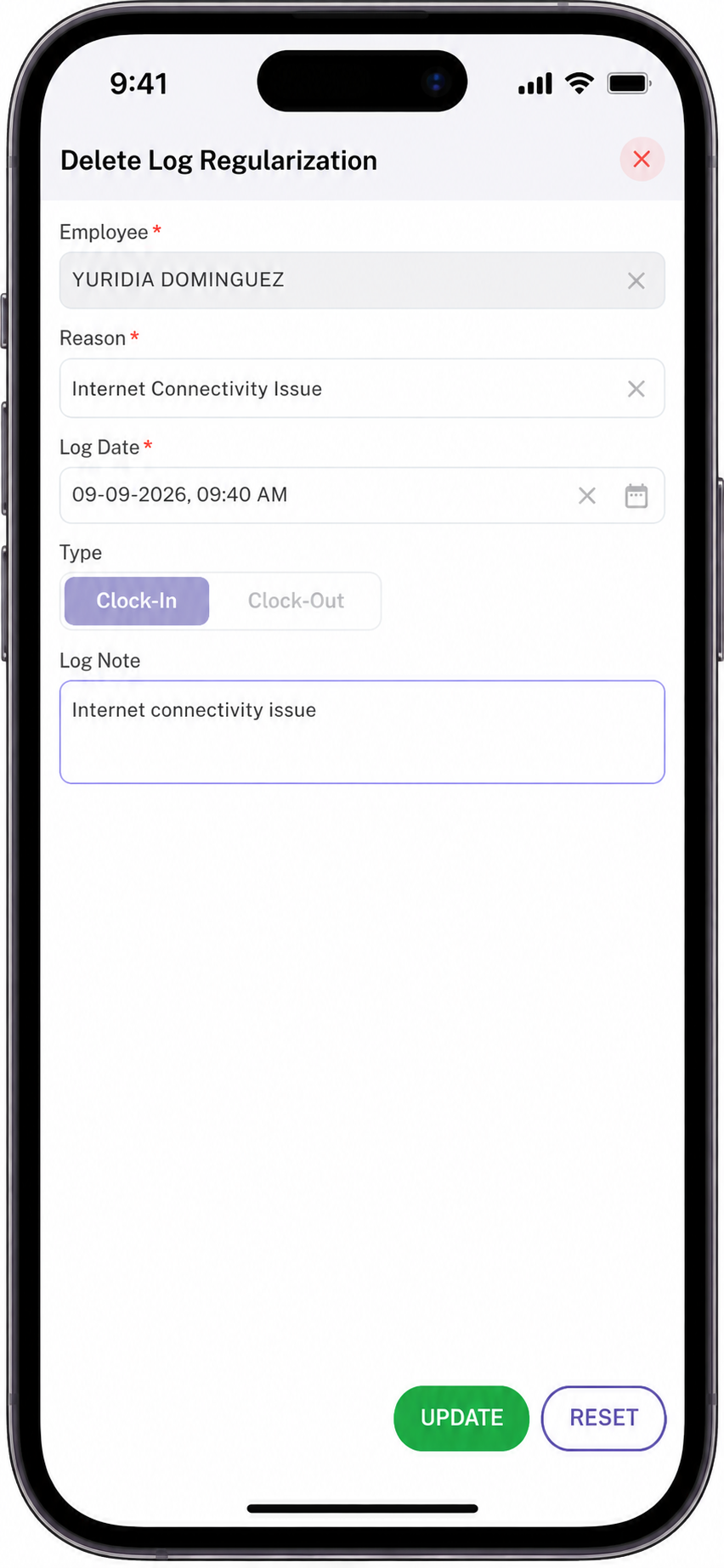
Managers can delete a log regularization request when it is no longer required or was created incorrectly.
Steps
- Select the regularization request.
- Select Delete Log.
- Review the employee and log details.
- Confirm the deletion.
- The selected regularization request is removed according to the system's deletion rules.
Note: Managers should verify the request before deleting it because the regularization may be required for attendance and payroll processing.
Approve and Reject Log Regularization
Every newly created log regularization request requires manager review.
Managers can review the request and decide whether the correction should be applied.
Individual Approval
For a pending request:
Pending → Manager Reviews → Approve → Approved
Once approved, the regularized log can be considered for the employee's attendance record.
Individual Rejection
For a pending request:
Pending → Manager Reviews → Reject → Rejected
A rejected request should not be treated as an approved attendance correction.
Manager Review Information
Before approving a request, the manager should review:
- Employee
- Log date
- Log time
- Clock-In / Clock-Out type
- Previous Date selection
- Reason
- Log Note
- Existing attendance records
- Overnight/day-and-night shift relationship, when applicable
This helps prevent duplicate, incorrect, or incorrectly dated attendance logs.
Day and Night Shift Regularization
Log Regularization supports both regular daytime shifts and overnight shifts.
Day Shift
For a normal shift where the clock-in and clock-out occur on the same calendar date:
Example:
8:00 AM Clock-In → 5:00 PM Clock-Out
The manager selects the applicable date and does not normally need to use Previous Date.
Night / Overnight Shift
For a shift that crosses midnight:
Example:
9:00 PM Clock-In → 10:00 AM Clock-Out
The clock-out occurs on the following calendar date, but the attendance entry may belong to the previous workday.
In this situation, the manager should use Previous Date where applicable.
Log Regularization Workflow
The overall manager workflow is:
View Log Regularization → Select Add / Edit / Delete → Enter or Update Log Details → Save → Pending → Manager Review → Approve / Reject
Add Workflow
Add Log → Enter Details → Save → Pending → Manager Review → Approved / Rejected
Edit Workflow
Select Log → Edit Log → Update Details → Update → Manager Review → Approved / Rejected
Delete Workflow
Select Log → Delete Log → Confirm → Log Removed
Approval Workflow
Pending → Manager Reviews → Approve → Approved
Rejection Workflow
Pending → Manager Reviews → Reject → Rejected
Using Approved Regularization for Attendance
Approved log regularization is used to correct an employee's attendance when the original clock-in or clock-out record is missing or incorrect.
Managers should ensure that:
- The employee is correct.
- The date and time are correct.
- The log type is correct.
- Previous Date is selected when required for an overnight shift.
- The reason accurately explains the correction.
- The request is approved before the correction is considered finalized.
Important: A regularization request is a correction to an attendance log; it does not represent a new scheduled shift.
Important Notes
- Log Regularization allows managers to add, edit, and delete employee clock-in and clock-out corrections.
- Each newly added regularization request starts with Pending status.
- A manager must review the request before it can be Approved.
- Managers can Approve or Reject pending requests.
- Approved requests can be used for the employee's attendance correction.
- Rejected requests should not be treated as approved attendance corrections.
- Previous Date should be used for applicable overnight/day-and-night shifts where the log occurs on the following calendar date but belongs to the previous workday.
- For example, a 9:00 PM Clock-In → 10:00 AM Clock-Out overnight shift may require Previous Date when regularizing the next-day clock-out.
- Managers should verify the date, time, employee, and log type before approving.
- Managers should avoid creating duplicate clock-in or clock-out entries.
- Log Regularization should be reviewed carefully because attendance corrections can affect working hours and payroll calculations.
Overall Process
Employee Log Issue → Employee Adds/Updates Regularization → Pending → Manager Reviews → Approve/Reject → Attendance Updated Accordingly
Time & Attendance
Overview
The Time & Attendance feature allows employees to view and monitor their attendance and time-entry records from one centralized screen.
Employees can review their:
- Total worked hours
- Total wages
- Total shifts
- Scheduled hours
- Clock-in and clock-out times
- Daily worked hours
- Daily wages
- Attendance status
- Face Login attendance entries
- System-generated Auto Clock-Out entries
Time & Attendance provides employees with visibility into their actual working time and allows them to identify missing or incorrect attendance entries that may require Log Regularization.
Time & Attendance Screen
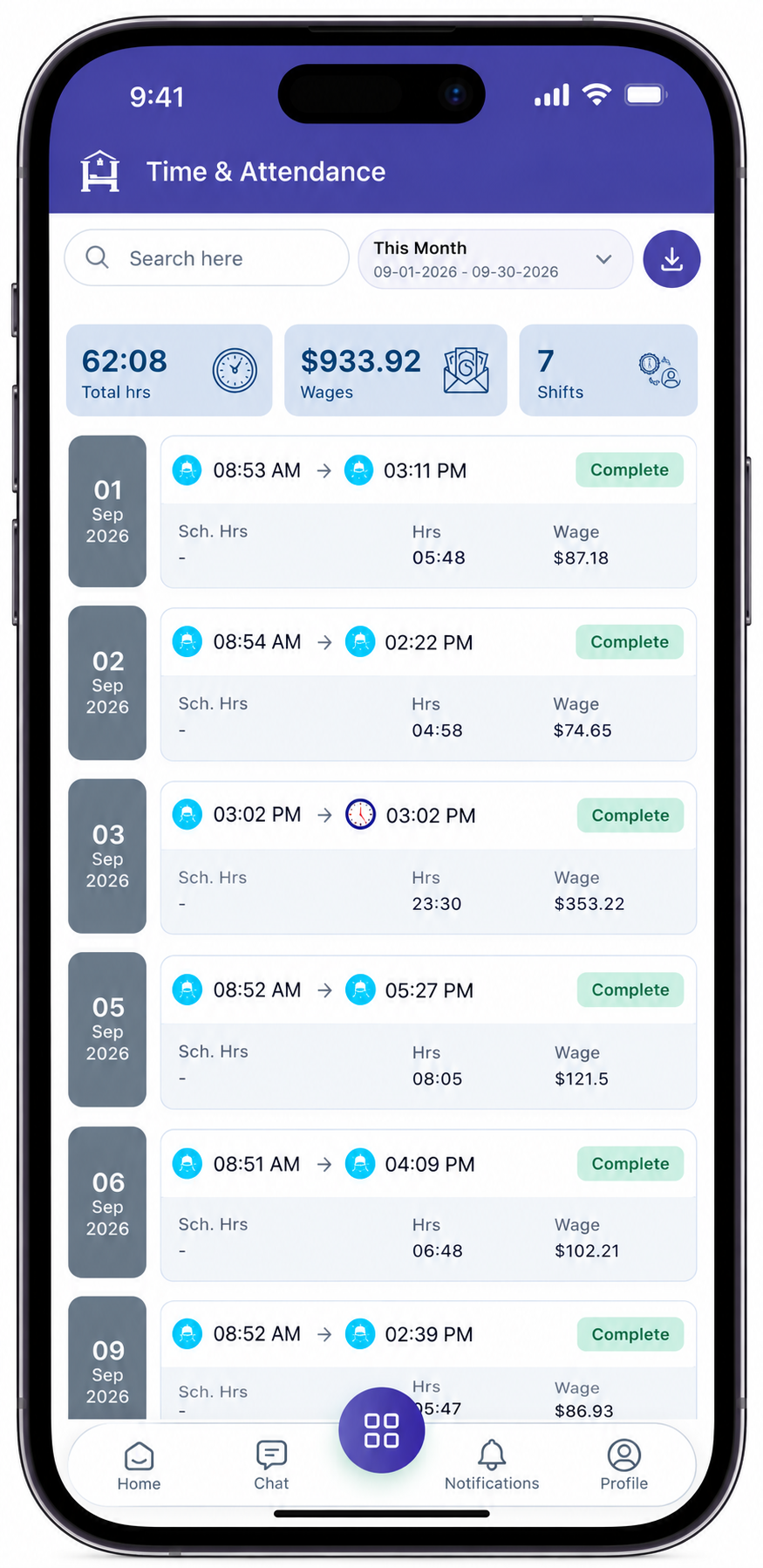
The Time & Attendance screen provides a consolidated view of the employee's attendance records for the selected date range.
Employees can review each daily time entry and compare their scheduled hours with their actual worked hours.
Key Information
- Total Hrs — Total worked hours for the selected date range.
- Wages — Total wages calculated for the selected date range.
- Shifts — Total number of recorded shifts.
- Sch. Hrs — Scheduled working hours for the employee.
- Clock-In — Recorded start time of the work period.
- Clock-Out — Recorded end time of the work period.
- Hrs — Actual worked hours calculated from the attendance entry.
- Wage — Wage calculated for the individual attendance entry.
- Status — Indicates the current state of the attendance record.
Date Filter
Employees can use the date filter to view their attendance records for a specific period.
The selected date range controls the attendance records displayed on the screen and the summary values shown at the top.
Example
This Month
09-01-2026 - 09-30-2026
Employees can select another date range to review attendance for a different period.
Date Filter Usage
- Open Time & Attendance.
- Select the date filter.
- Select the required date range.
- Apply the filter.
- Review the attendance records for the selected period.
Note: Total Hours, Wages, and Shifts are calculated according to the selected date range.
Attendance Summary
The summary section provides a quick overview of the employee's attendance for the selected period.
| Summary | Description |
|---|---|
| Total Hrs | Total worked hours recorded for the selected date range. |
| Wages | Total wages calculated for the selected date range. |
| Shifts | Total number of recorded shifts for the selected date range. |
Total Hours
Total Hrs represents the total recorded worked hours for the selected period.
Wages
Wages represents the total wages calculated from the employee's recorded attendance and applicable wage rules.