# Housekeeping
**Housekeeping Task Tracker** is the working screen for assigned rooms. Housekeepers use it to start, pause, and complete cleaning. Inspectors use it to review rooms that need inspection.
From this screen, you can:
- See assigned rooms grouped by employee and date
- Track cleaning and inspection time
- Complete checklist items, one by one
- Add notes and photos
- See payroll (rate, payable, paid/unpaid)
Tasks come from **Housekeeping Assignment**. This screen is used to **do** the work, not to create new assignments.
---
### Housekeeping Task Tracker Screen
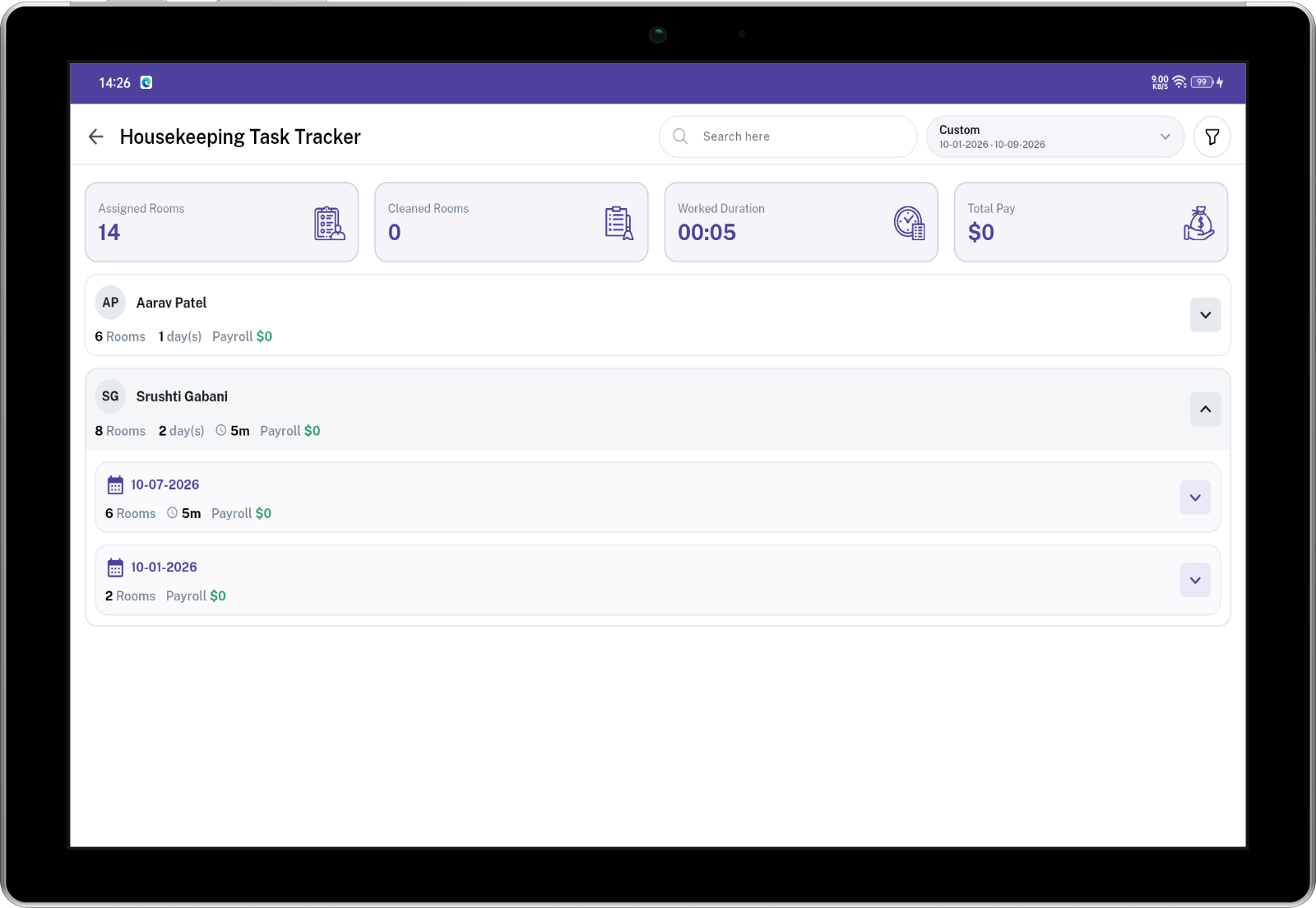
The screen shows summary cards at the top, then a list of employees and their rooms for the selected date range.
If you are logged in as a housekeeper and only your own tasks are shown, the employee card is skipped. You go straight to your dates and rooms.
[](https://docs.spendwelltechsystem.com/uploads/images/gallery/2026-09/imockup-iphone-16-pro-max-1.png)
---
### Filters
| Filter | What it does |
|---|
| **Duration** | Date range for the list (default is **Today**). |
| **Search** | Find rooms, guests, assignment codes, or employees. |
| **Employee** | Show tasks for selected employees. |
| **Housekeeping Category** | Show tasks for selected cleaning types. |
| **Status** | Show tasks by work status (Assigned, Cleaning, and so on). |
| **HK Status** | Show **Dirty** or **Clean** rooms. |
On mobile, tap the filter icon to show or hide filters.
---
### Summary Cards
These cards use the same filters as the list.
| Card | What it means |
|---|
| **Assigned Rooms** | How many rooms are in the current filter. |
| **Cleaned Rooms** | How many of those rooms are **Completed**. |
| **Worked Duration** | Total cleaning time recorded. |
| **Total Pay** | Pay for **completed** rooms only (employee rate per room). |
---
### How the list is organized
Work is grouped in three levels:
1. **Employee** — name, number of rooms, number of days, total time, payroll
2. **Date** — rooms assigned on that day, time, and payroll for that day
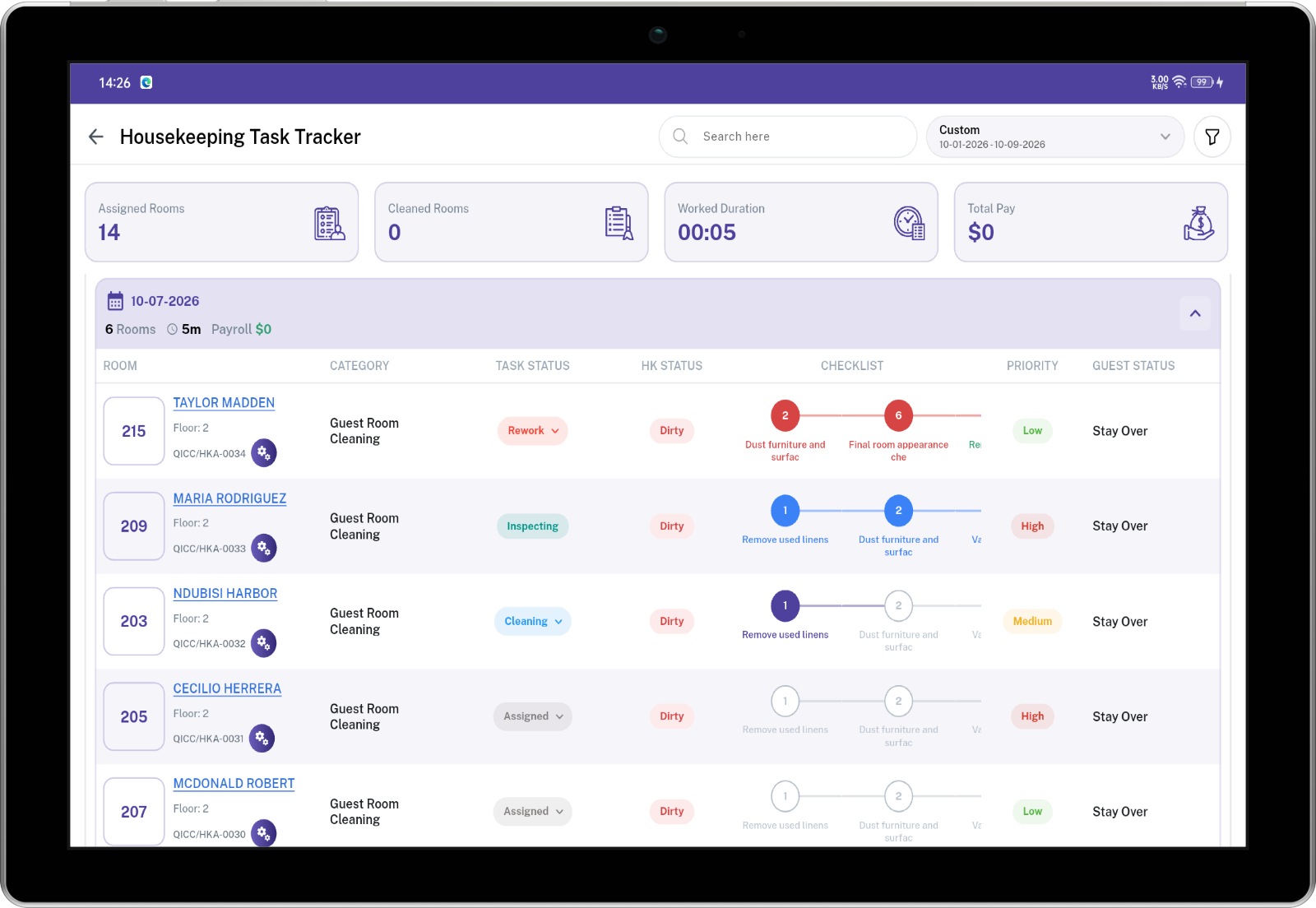
3. **Rooms** — each assigned room with status, checklist, and actions
Tap an employee to open dates. Tap a date to open the room list.
[](https://docs.spendwelltechsystem.com/uploads/images/gallery/2026-09/scaled-1680-/imockup-iphone-16-pro-max.png)
---
### Key Fields — Room List
| Field | What it means |
|---|
| **Room** | Room number. Also shows guest name (tap to open details), floor, and assignment code. |
| **Category** | Housekeeping category for this room (e.g., Deep Cleaning). |
| **Task Status** | Current work status. Tap the status to see allowed actions (Start, Pause, Submit, Complete). |
| **HK Status** | Room cleanliness: **Dirty** or **Clean**. Becomes Clean when the task is completed. |
| **Checklist** | Step-by-step tasks for this room. Tap the next step to complete it. Shows **"-"** if there is no checklist. |
| **Priority** | **Low**, **Medium**, or **High**. |
| **Guest Status** | Stay Over, Departed, and similar. Shows **"-"** if none. |
| **Room Type** | Type of the room. |
| **Room Status** | Occupied, Vacant, and similar. |
| **HK Time / Est.** | Actual cleaning time, plus estimated time. Time counts up while status is **Cleaning**. |
| **Insp. Time / Est.** | Inspection time and estimate. Shown only if inspection is required and you are allowed to inspect. Also shows the inspector name when assigned. |
| **Rate** | Pay rate per room for the assigned employee. |
| **Payable** | Amount due. Shown only after the task is **Completed**. Otherwise 0. |
| **Payment** | **Not payable** (not completed), **Unpaid**, or **Paid**. |
On mobile, each room is a card with play / pause / complete buttons instead of a table.
---
### Task Status
| Status | Simple meaning |
|---|
| **Assigned** | Task is given. Work has not started. |
| **Cleaning** | Housekeeper timer is running. |
| **Paused** | Housekeeper paused the timer. |
| **Waiting on review** | Cleaning is done. Waiting for inspection. |
| **Inspecting** | Inspector timer is running. |
| **Inspection paused** | Inspector paused the timer. |
| **Rework** | Inspector sent the room back. Housekeeper must clean again. |
| **Completed** | Work is finished. Room is marked **Clean**. |
A **Rework** tag can still show after the housekeeper starts again, so you know the room was sent back once.
---
### Who can do what
#### Housekeeper (assigned employee)
- Can start, pause, and resume **their** rooms.
- Completes checklist items in order (next pending or rework item only).
- If the category **does not** require inspection, finishing the last checklist item (or using Complete) marks the room **Completed**.
- If the category **requires inspection**, finishing the last checklist item (or using Submit for Review) sets status to **Waiting on review**. The housekeeper cannot mark the room complete.
#### Inspector
Inspection is allowed when:
- The room requires inspection, **and**
- Status is Waiting on review, Inspecting, or Inspection paused, **and**
- You are the assigned inspector, **or** your user role is allowed for that category, **or** you are an admin.
The **first** person who starts the inspection is saved as the inspector for that room. After that, only that inspector can continue.
Inspectors can:
- Start/pause inspection
- Approve or send back each checklist item
- Complete the room (all items approved) or send the whole room to **Rework**
---
### Checklist
Checklist items come from the **Housekeeping Category**. Only **Active** items are on the task.
| Checklist status | What it means |
|---|
| **Pending** | Not done yet. |
| **Completed** | The housekeeper finished the item. Waiting for inspection (if required). |
| **Rework** | Inspector sent this item back. |
| **Approved** | Inspector approved the item. |
**Rules**
- You can tap only the **next** item in order.
- Labels under the steps appear only if **Display Checklist Labels** is on for that category.
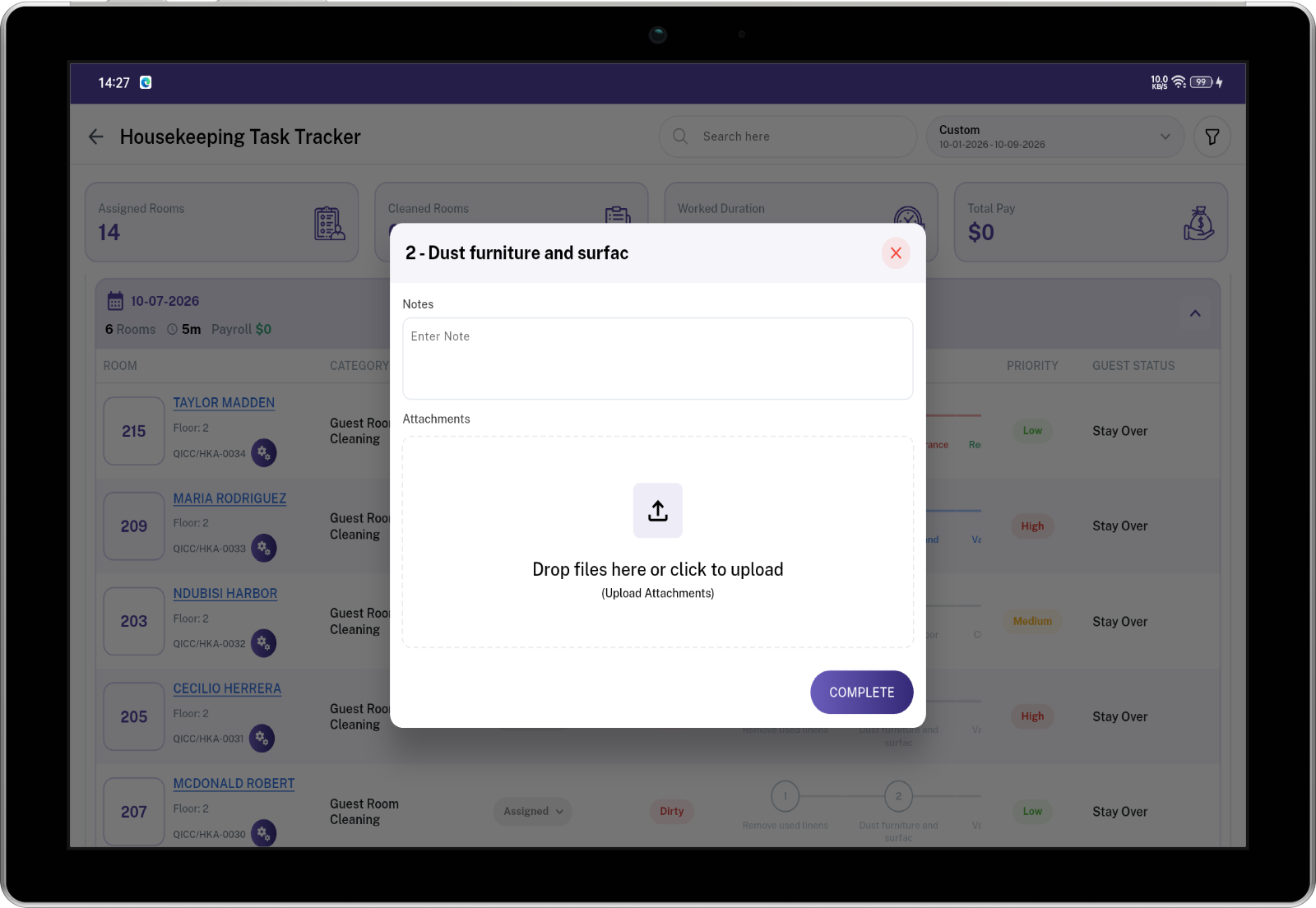
- If **Require Notes & Photos** is on, or you are inspecting, a notes window opens before the item is saved.
- Inspectors must add notes or photos to send an item back for **Rework**. **Approve** does not require notes.
- When the housekeeper finishes **all** items:
- Inspection required → status becomes **Waiting on review**
- Inspection not required → status becomes **Completed**
- When the inspector finishes **all** items:
- Any item is Rework → whole task becomes **Rework**
- All items Approved → whole task becomes **Completed**
[](https://docs.spendwelltechsystem.com/uploads/images/gallery/2026-09/scaled-1680-/imockup-iphone-16-pro-max-2.png)
---
### Task Details
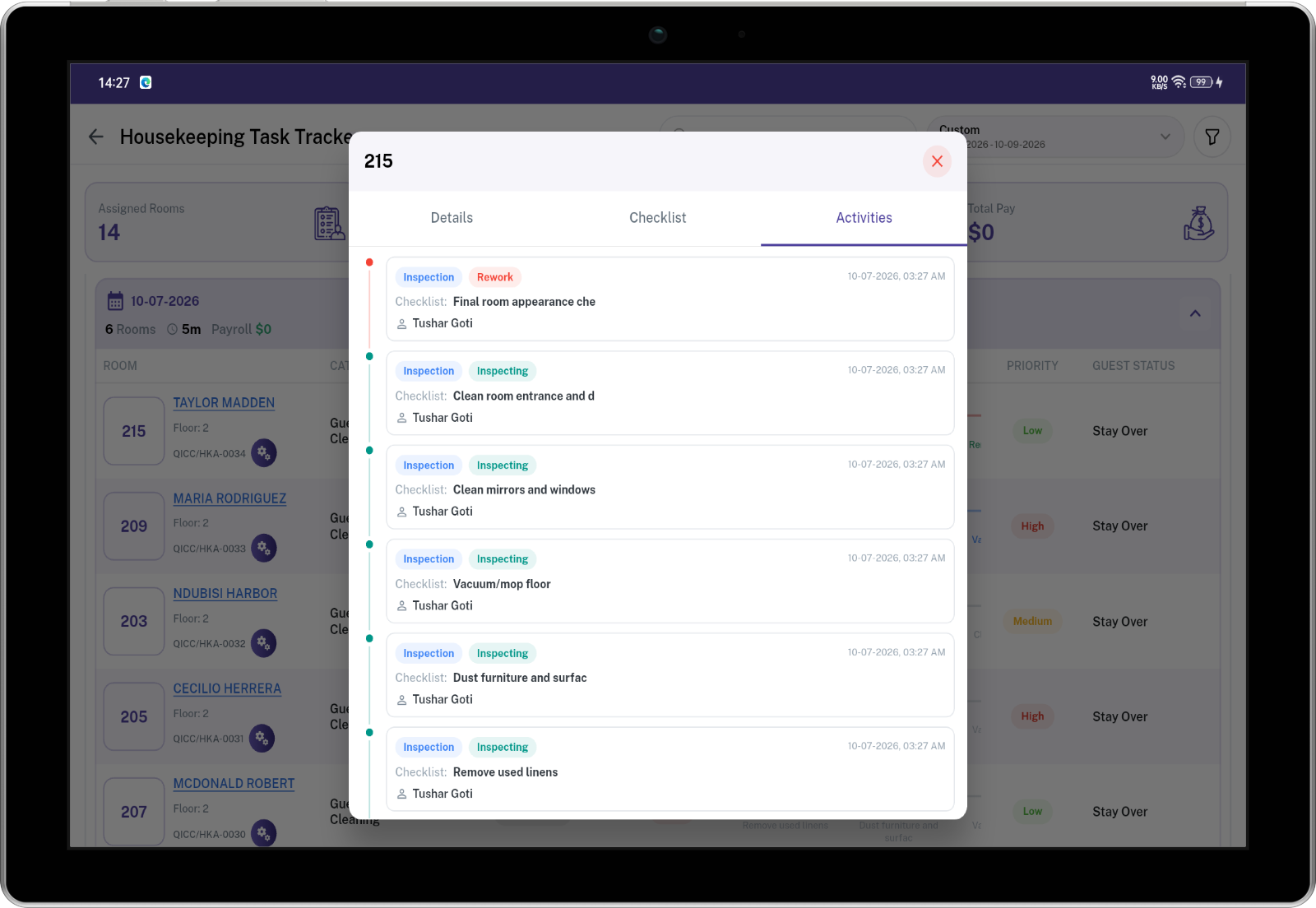
Tap the **guest name** (or the room card on mobile) to open details. There are three tabs.
#### Details
- Room, guest, floor, guest status, room status
- Assignment code, date, room type, category
- Task status, HK Status (Dirty / Clean), priority, rework tag
- Housekeeper name and time (actual + estimated)
- Inspector name and time (if inspection is required)
- Rate, payable, and payment status
- Description (if the assignment had one)
- **Note and Attachment** — add a comment and photos/videos (not available after Completed)
- Previous notes from the team
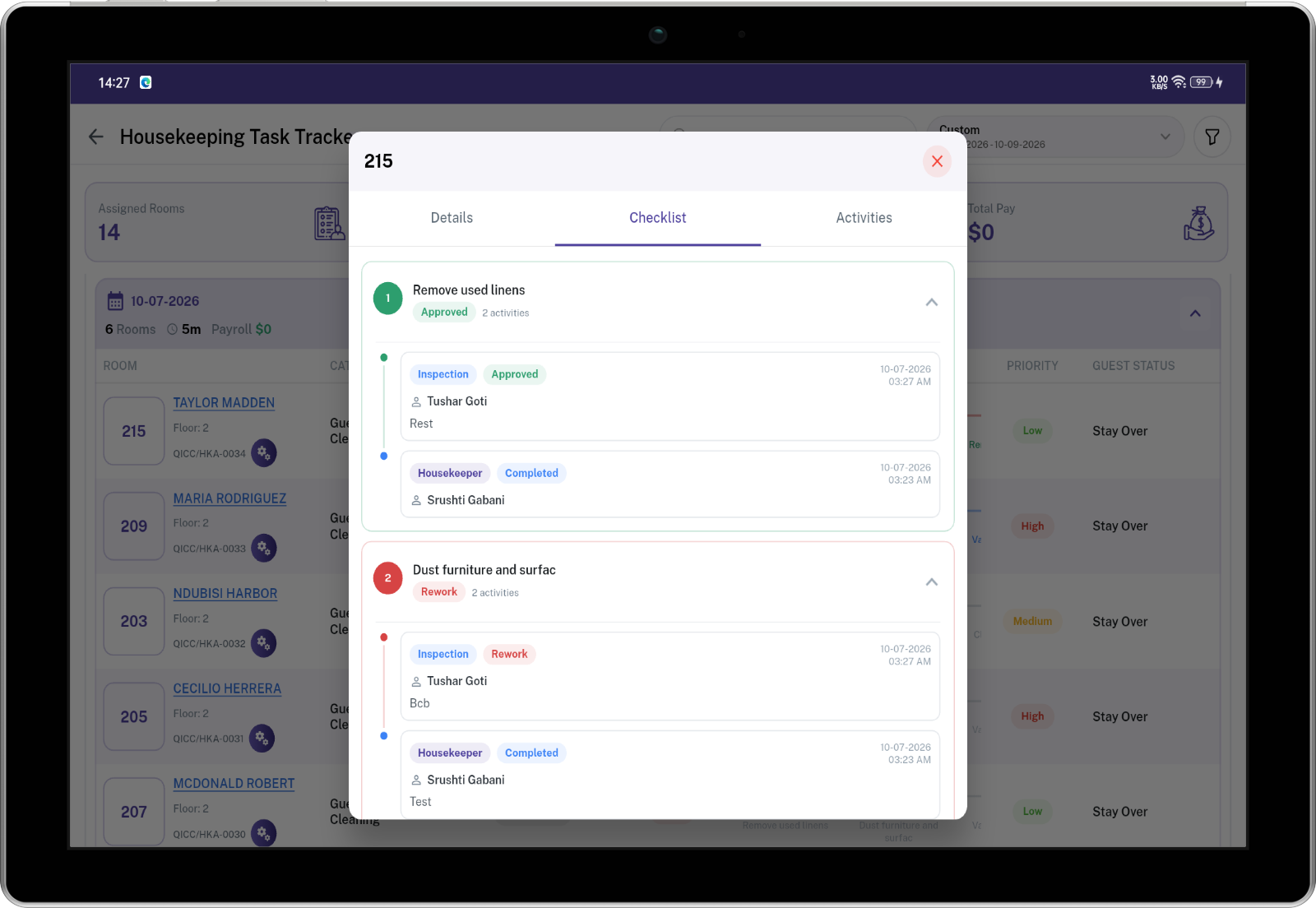
#### Checklist
Full list of checklist items with status, time, and activity history. Expand an item to see who completed, approved, or sent it back.
#### Activities
Timeline of status changes (started cleaning, paused, inspection started, and so on).
[](https://docs.spendwelltechsystem.com/uploads/images/gallery/2026-09/scaled-1680-/imockup-iphone-16-pro-max-3.png)
---
### Checklist Notes Window
Opens when a housekeeper must add notes/photos, or when an inspector reviews an item.
If notes and files are both empty (except Approve), the system shows: **Please add notes or files.**
[](https://docs.spendwelltechsystem.com/uploads/images/gallery/2026-09/scaled-1680-/imockup-iphone-16-pro-max-4.png)
---
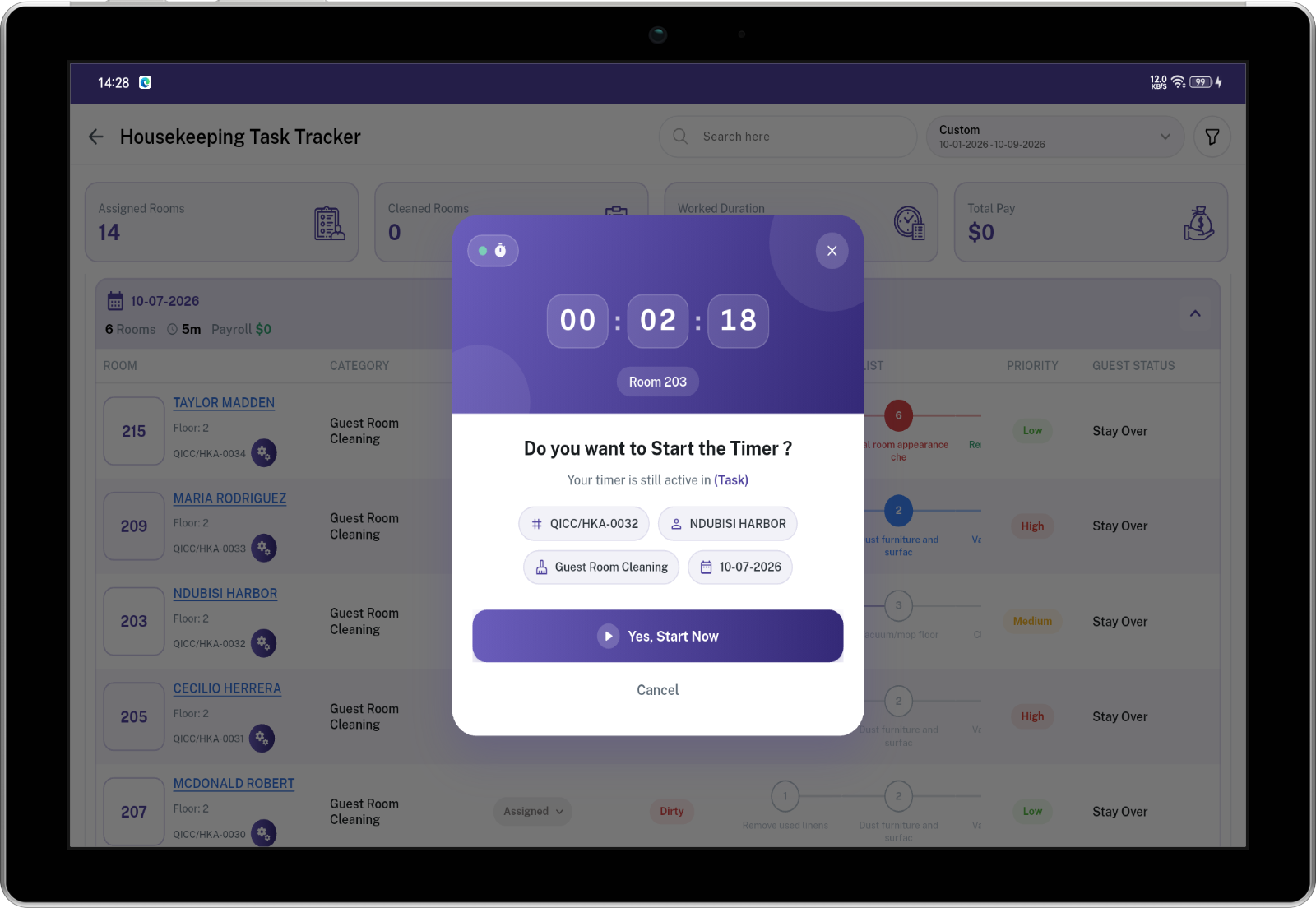
### One timer at a time
A housekeeper can have only **one Cleaning** timer running. An inspector can have only **one Inspecting** timer running.
If you start another room while a timer is already running, a pop-up shows the running task and its live time.
- **Yes, Start Now** — pauses the other task and starts this one
- **Cancel** — keeps the other timer running
[](https://docs.spendwelltechsystem.com/uploads/images/gallery/2026-09/scaled-1680-/imockup-iphone-16-pro-max-5.jpg)
---
### Steps
#### Clean a room (housekeeper)
1. Open **Housekeeping Task Tracker**.
2. Set **Duration** (usually Today).
3. Open your name, then the date, then the room.
4. Tap **Task Status** → **Cleaning** (or the play button on mobile).
5. Complete checklist items in order. Add notes and photos if asked.
6. If inspection is **not** required, the last item (or **Complete**) finishes the room.
7. If inspection **is** required, the last item (or **Submit for Review**) sends the room to inspection. Confirm when asked.
8. If the inspector sends the room back, status becomes **Rework**. Start **Cleaning** again and redo the items marked Rework.
#### Inspect a room (inspector)
1. Open **Housekeeping Task Tracker**.
2. Find rooms in **Waiting on review**.
3. Tap **Task Status** → **Inspecting**.
4. Review each completed checklist item. Choose **Approve** or **Rework**.
5. When all items are done, the room is **Completed** (all approved) or **Rework** (any item sent back).
6. You can pause inspection and resume later.
#### Add a note on a room
1. Open the room **Details**.
2. Under **Note and Attachment**, type a note and/or add photos or video.
3. Click **Save**.
You cannot add notes after the task is **Completed**.
---
### Notifications
| What happened | Who is notified |
|---|
| Room submitted for inspection | Assigned inspector, or all users with the allowed inspector role |
| Room sent back for rework | Assigned housekeeper |
| Room inspected and approved | Assigned housekeeper |
You are not notified for your own action.
---
### Important Notes
- This screen does **not** create assignments. Create them in **Housekeeping Assignment**.
- You only see rooms you are allowed to see: your own tasks, people under you (if you have that right), or rooms you may inspect.
- Only the assigned housekeeper can start or pause cleaning (admins/users with full rights can also update).
- Only the assigned inspector (or allowed role/admin) can inspect.
- You cannot skip checklist items. Finish them in display order.
- If a checklist exists, Submit for Review and Complete are done through the checklist, not from the status menu.
- A room that requires inspection cannot be marked complete by the housekeeper.
- Completing a task marks the **room** as **Clean**.
- Payable amount appears only when status is **Completed**. Total Pay on the summary cards also counts completed rooms only.
- Time keeps counting on screen while Cleaning or Inspecting is active.
- If another timer is running, you must confirm **Start Now** before the new timer starts.
- After Completed, the status cannot be changed.