Housekeeping
Housekeeping Task Tracker is the working screen for assigned rooms. Housekeepers use it to start, pause, and complete cleaning. Inspectors use it to review rooms that need inspection.
From this screen, you can:
- See assigned rooms grouped by employee and date
- Track cleaning and inspection time
- Complete checklist items, one by one
- Add notes and photos
- See payroll (rate, payable, paid/unpaid)
Tasks come from Housekeeping Assignment. This screen is used to do the work, not to create new assignments.
Housekeeping Task Tracker Screen
The screen shows summary cards at the top, then a list of employees and their rooms for the selected date range.
If you are logged in as a housekeeper and only your own tasks are shown, the employee card is skipped. You go straight to your dates and rooms.
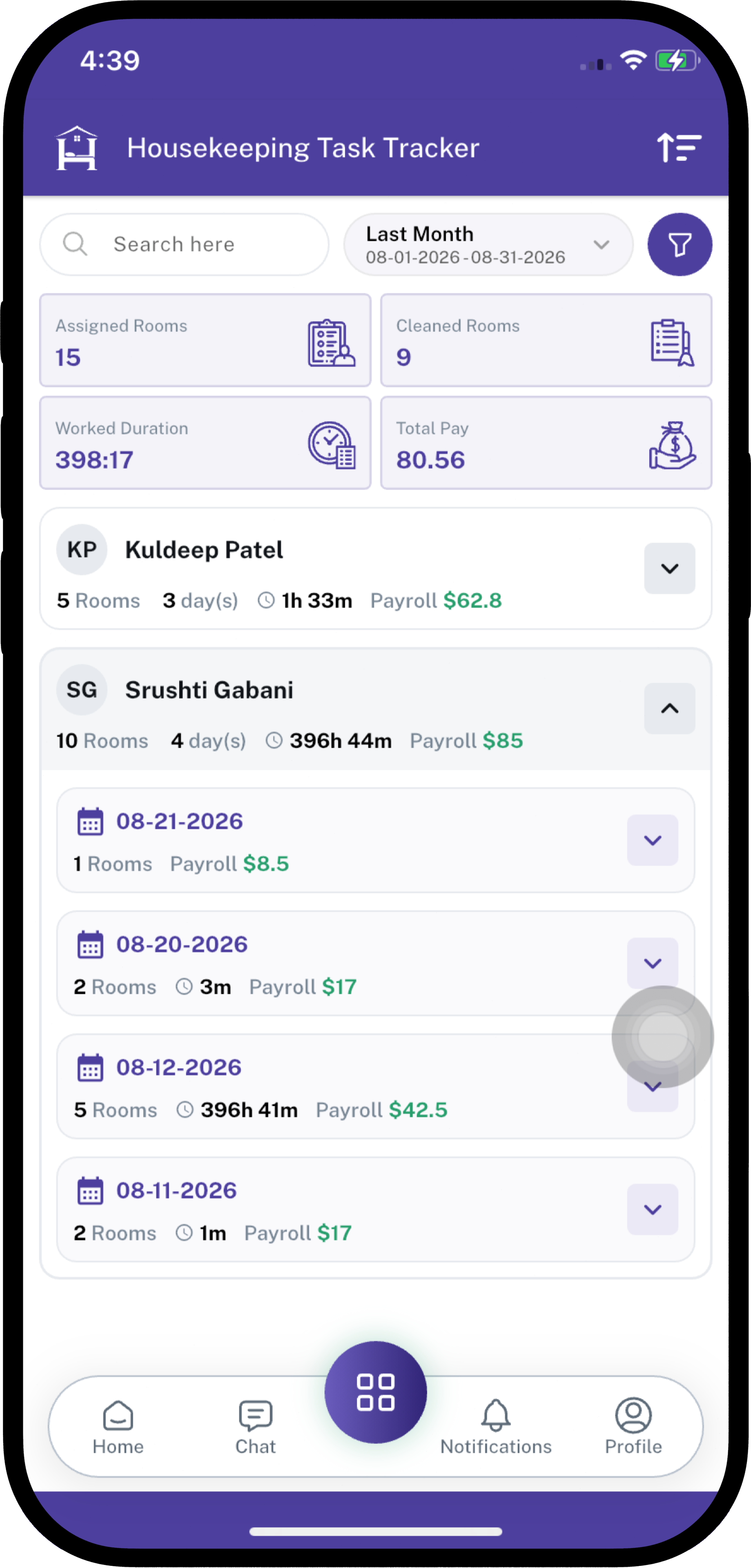
Filters
| Filter | What it does |
|---|---|
| Duration | Date range for the list (default is Today). |
| Search | Find rooms, guests, assignment codes, or employees. |
| Employee | Show tasks for selected employees. |
| Housekeeping Category | Show tasks for selected cleaning types. |
| Status | Show tasks by work status (Assigned, Cleaning, and so on). |
| HK Status | Show Dirty or Clean rooms. |
On mobile, tap the filter icon to show or hide filters.
Summary Cards
These cards use the same filters as the list.
| Card | What it means |
|---|---|
| Assigned Rooms | How many rooms are in the current filter. |
| Cleaned Rooms | How many of those rooms are Completed. |
| Worked Duration | Total cleaning time recorded. |
| Total Pay | Pay for completed rooms only (employee rate per room). |
How the list is organized
Work is grouped in three levels:
- Employee — name, number of rooms, number of days, total time, payroll
- Date — rooms assigned on that day, time, and payroll for that day
- Rooms — each assigned room with status, checklist, and actions
Tap an employee to open dates. Tap a date to open the room list.
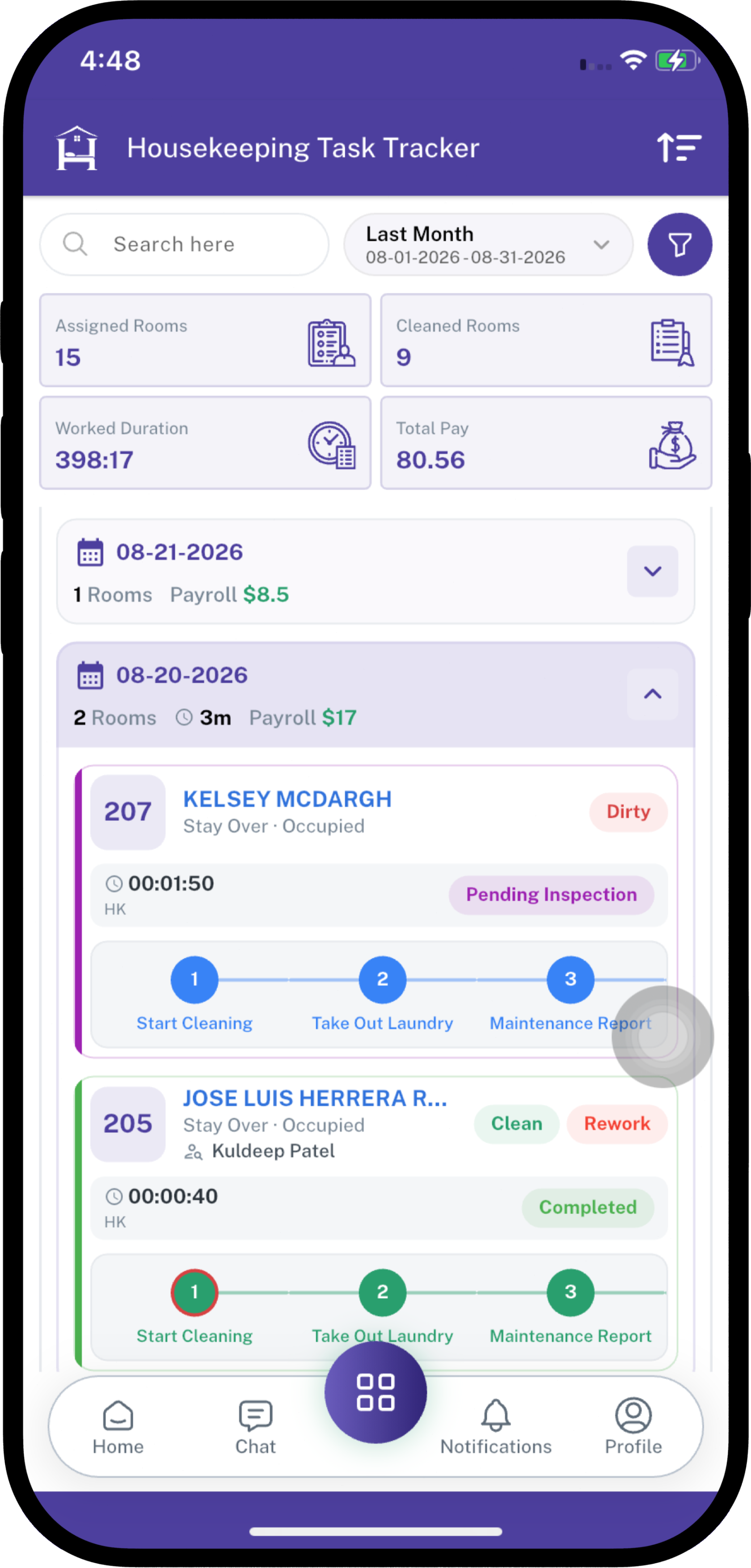
Key Fields — Room List
| Field | What it means |
|---|---|
| Room | Room number. Also shows guest name (tap to open details), floor, and assignment code. |
| Category | Housekeeping category for this room (e.g., Deep Cleaning). |
| Task Status | Current work status. Tap the status to see allowed actions (Start, Pause, Submit, Complete). |
| HK Status | Room cleanliness: Dirty or Clean. Becomes Clean when the task is completed. |
| Checklist | Step-by-step tasks for this room. Tap the next step to complete it. Shows "-" if there is no checklist. |
| Priority | Low, Medium, or High. |
| Guest Status | Stay Over, Departed, and similar. Shows "-" if none. |
| Room Type | Type of the room. |
| Room Status | Occupied, Vacant, and similar. |
| HK Time / Est. | Actual cleaning time, plus estimated time. Time counts up while status is Cleaning. |
| Insp. Time / Est. | Inspection time and estimate. Shown only if inspection is required and you are allowed to inspect. Also shows the inspector name when assigned. |
| Rate | Pay rate per room for the assigned employee. |
| Payable | Amount due. Shown only after the task is Completed. Otherwise 0. |
| Payment | Not payable (not completed), Unpaid, or Paid. |
On mobile, each room is a card with play / pause / complete buttons instead of a table.
Task Status
| Status | Simple meaning |
|---|---|
| Assigned | Task is given. Work has not started. |
| Cleaning | Housekeeper timer is running. |
| Paused | Housekeeper paused the timer. |
| Waiting on review | Cleaning is done. Waiting for inspection. |
| Inspecting | Inspector timer is running. |
| Inspection paused | Inspector paused the timer. |
| Rework | Inspector sent the room back. Housekeeper must clean again. |
| Completed | Work is finished. Room is marked Clean. |
A Rework tag can still show after the housekeeper starts again, so you know the room was sent back once.
Who can do what
Housekeeper (assigned employee)
- Can start, pause, and resume their rooms.
- Completes checklist items in order (next pending or rework item only).
- If the category does not require inspection, finishing the last checklist item (or using Complete) marks the room Completed.
- If the category requires inspection, finishing the last checklist item (or using Submit for Review) sets status to Waiting on review. The housekeeper cannot mark the room complete.
Inspector
Inspection is allowed when:
- The room requires inspection, and
- Status is Waiting on review, Inspecting, or Inspection paused, and
- You are the assigned inspector, or your user role is allowed for that category, or you are an admin.
The first person who starts the inspection is saved as the inspector for that room. After that, only that inspector can continue.
Inspectors can:
- Start/pause inspection
- Approve or send back each checklist item
- Complete the room (all items approved) or send the whole room to Rework
Checklist
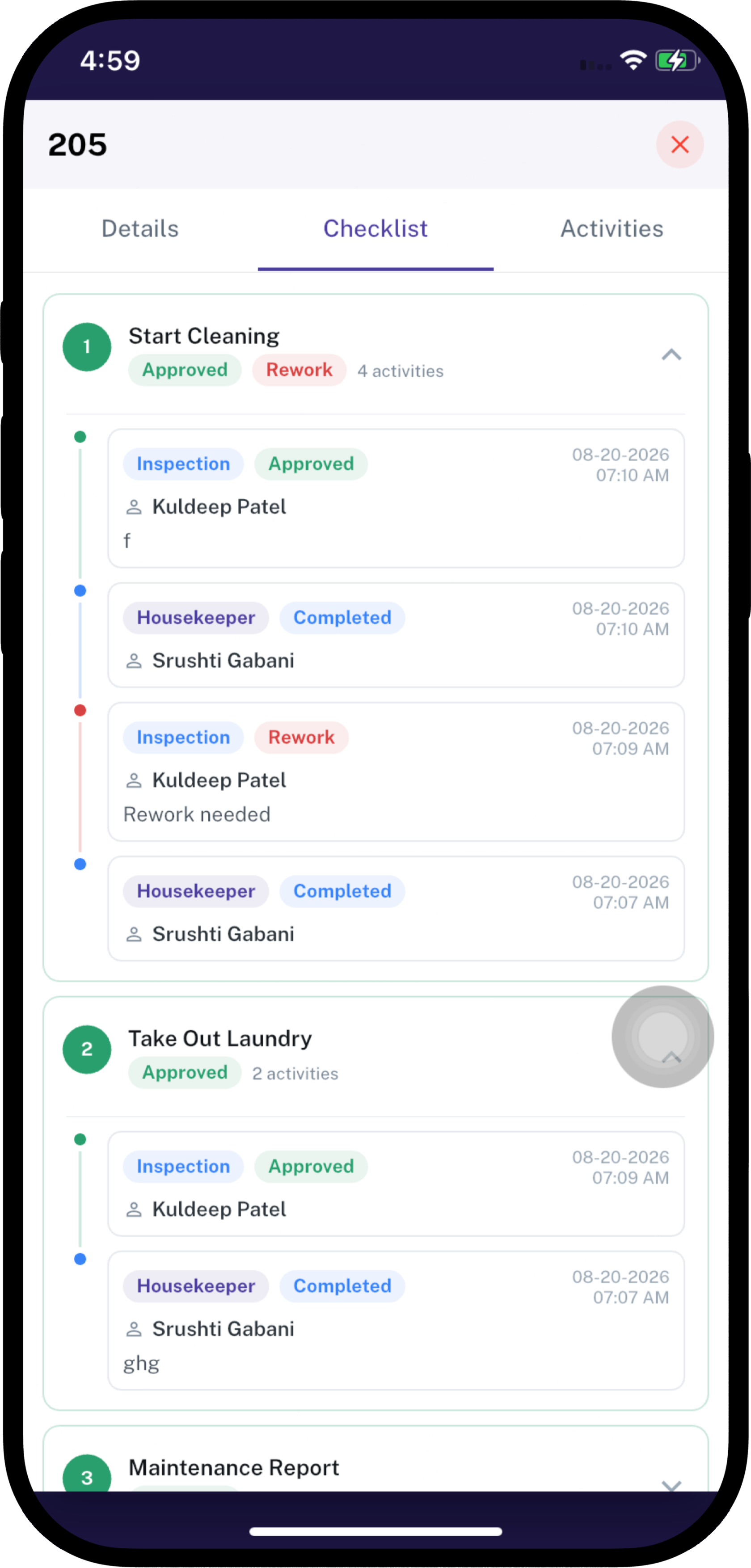
Checklist items come from the Housekeeping Category. Only Active items are on the task.
| Checklist status | What it means |
|---|---|
| Pending | Not done yet. |
| Completed | The housekeeper finished the item. Waiting for inspection (if required). |
| Rework | Inspector sent this item back. |
| Approved | Inspector approved the item. |
Rules
- You can tap only the next item in order.
- Labels under the steps appear only if Display Checklist Labels is on for that category.
- If Require Notes & Photos is on, or you are inspecting, a notes window opens before the item is saved.
- Inspectors must add notes or photos to send an item back for Rework. Approve does not require notes.
- When the housekeeper finishes all items:
- Inspection required → status becomes Waiting on review
- Inspection not required → status becomes Completed
- When the inspector finishes all items:
- Any item is Rework → whole task becomes Rework
- All items Approved → whole task becomes Completed

Task Details
Tap the guest name (or the room card on mobile) to open details. There are three tabs.
Details
- Room, guest, floor, guest status, room status
- Assignment code, date, room type, category
- Task status, HK Status (Dirty / Clean), priority, rework tag
- Housekeeper name and time (actual + estimated)
- Inspector name and time (if inspection is required)
- Rate, payable, and payment status
- Description (if the assignment had one)
- Note and Attachment — add a comment and photos/videos (not available after Completed)
- Previous notes from the team
Checklist
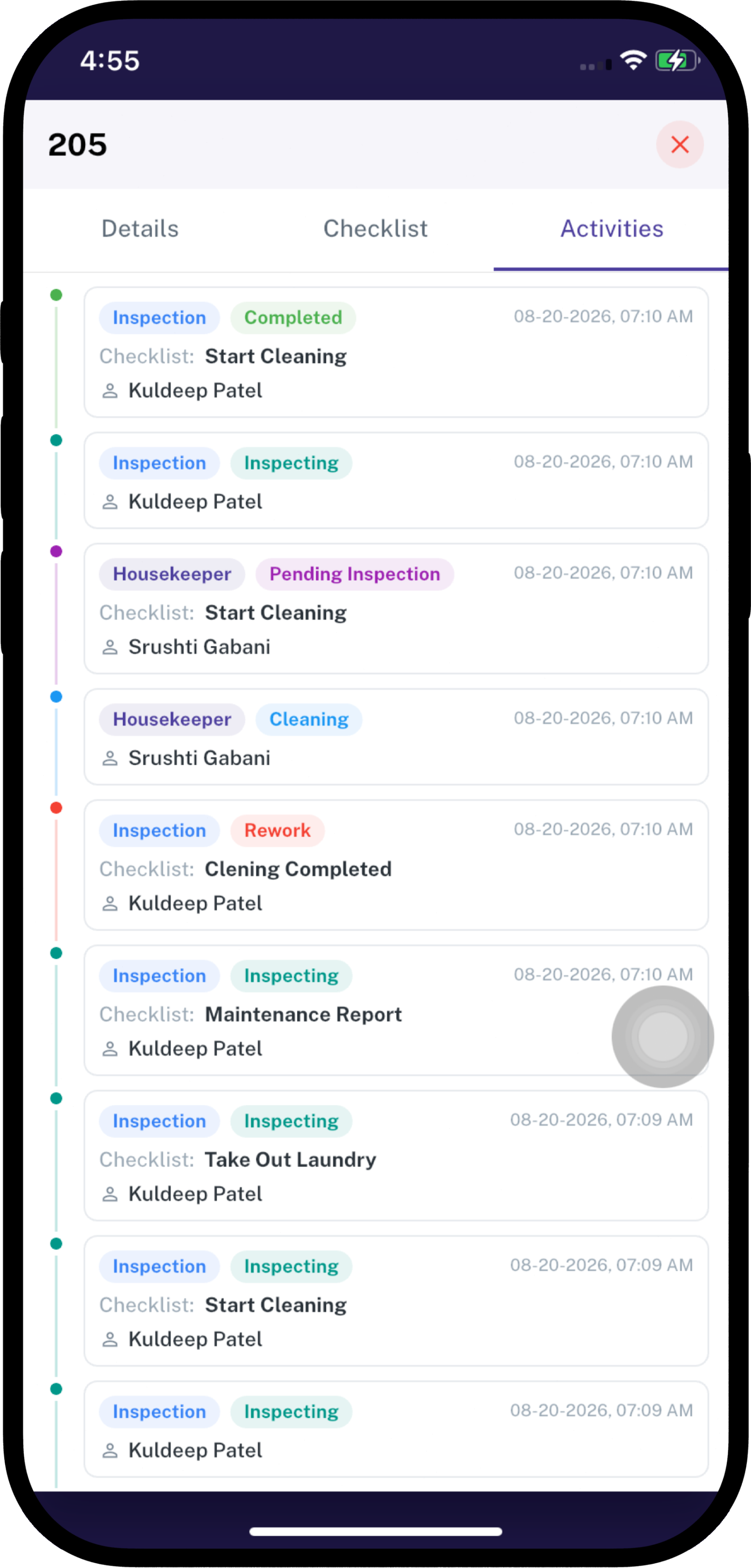
Full list of checklist items with status, time, and activity history. Expand an item to see who completed, approved, or sent it back.
Activities
Timeline of status changes (started cleaning, paused, inspection started, and so on).
Checklist Notes Window
Opens when a housekeeper must add notes/photos, or when an inspector reviews an item.
| Role | Buttons |
|---|---|
| Housekeeper | Complete |
| Inspector | Rework and Approve |
If notes and files are both empty (except Approve), the system shows: Please add notes or files.
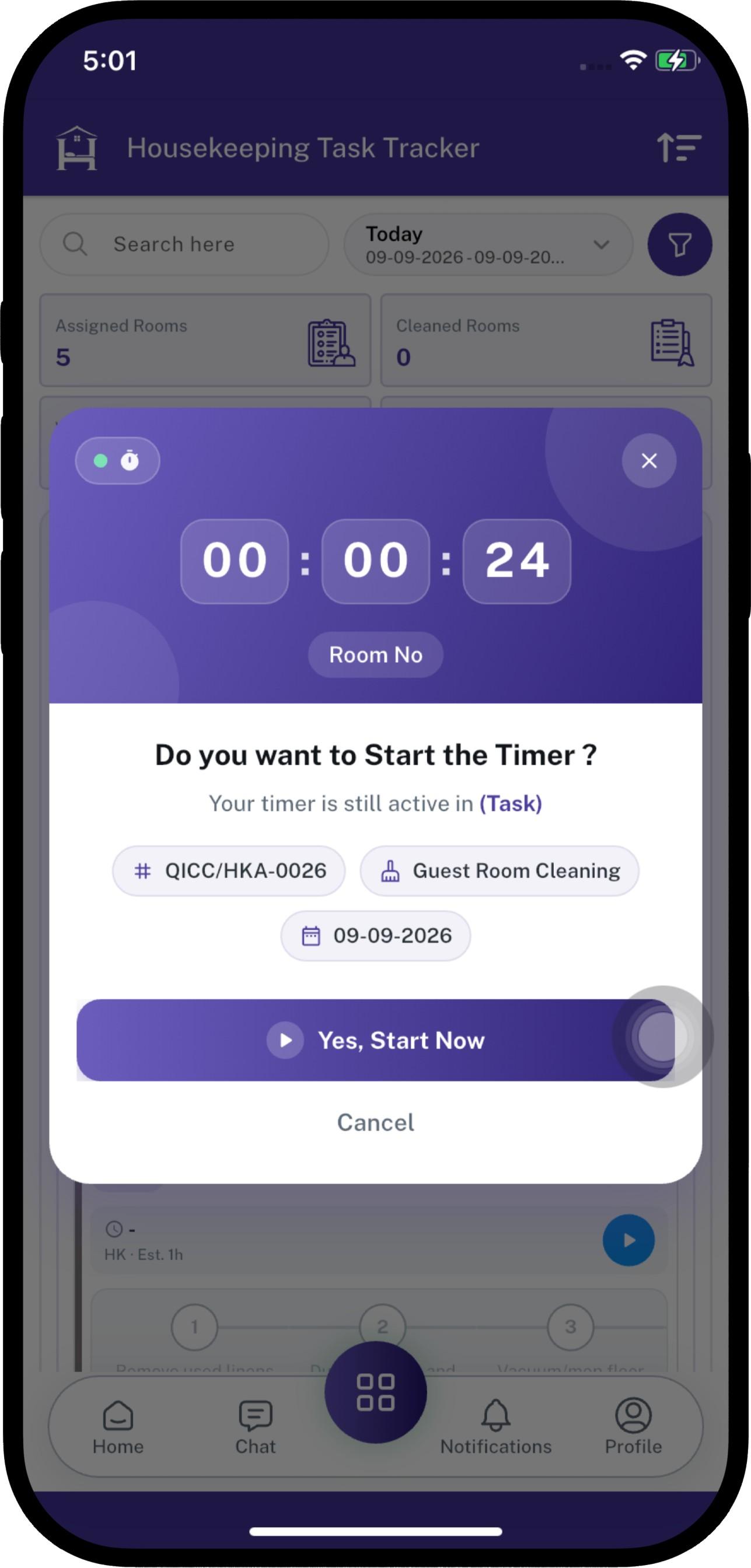
One timer at a time
A housekeeper can have only one Cleaning timer running. An inspector can have only one Inspecting timer running.
If you start another room while a timer is already running, a pop-up shows the running task and its live time.
- Yes, Start Now — pauses the other task and starts this one
- Cancel — keeps the other timer running
Steps
Clean a room (housekeeper)
- Open Housekeeping Task Tracker.
- Set Duration (usually Today).
- Open your name, then the date, then the room.
- Tap Task Status → Cleaning (or the play button on mobile).
- Complete checklist items in order. Add notes and photos if asked.
- If inspection is not required, the last item (or Complete) finishes the room.
- If inspection is required, the last item (or Submit for Review) sends the room to inspection. Confirm when asked.
- If the inspector sends the room back, status becomes Rework. Start Cleaning again and redo the items marked Rework.
Inspect a room (inspector)
- Open Housekeeping Task Tracker.
- Find rooms in Waiting on review.
- Tap Task Status → Inspecting.
- Review each completed checklist item. Choose Approve or Rework.
- When all items are done, the room is Completed (all approved) or Rework (any item sent back).
- You can pause inspection and resume later.
Add a note on a room
- Open the room Details.
- Under Note and Attachment, type a note and/or add photos or video.
- Click Save.
You cannot add notes after the task is Completed.
Notifications
| What happened | Who is notified |
|---|---|
| Room submitted for inspection | Assigned inspector, or all users with the allowed inspector role |
| Room sent back for rework | Assigned housekeeper |
| Room inspected and approved | Assigned housekeeper |
You are not notified for your own action.
Important Notes
- This screen does not create assignments. Create them in Housekeeping Assignment.
- You only see rooms you are allowed to see: your own tasks, people under you (if you have that right), or rooms you may inspect.
- Only the assigned housekeeper can start or pause cleaning (admins/users with full rights can also update).
- Only the assigned inspector (or allowed role/admin) can inspect.
- You cannot skip checklist items. Finish them in display order.
- If a checklist exists, Submit for Review and Complete are done through the checklist, not from the status menu.
- A room that requires inspection cannot be marked complete by the housekeeper.
- Completing a task marks the room as Clean.
- Payable amount appears only when status is Completed. Total Pay on the summary cards also counts completed rooms only.
- Time keeps counting on screen while Cleaning or Inspecting is active.
- If another timer is running, you must confirm Start Now before the new timer starts.
- After Completed, the status cannot be changed.