# Employee Schedule
# Employee Scheduling System - User Guide
# Employee Scheduling User Guide
**Audience:** Property team members and managers (United States)
**Product:** SpendWell PMS — Employee Scheduling
This guide walks you through day-to-day scheduling work: setting when you can work, reading your week, picking up open shifts, trading shifts, requesting time off, and—for managers—building and releasing the team schedule.
> **About screenshots in this guide**
> Wherever you see **Add screenshot here**, insert a clear screen capture from your live system. Crop to the relevant panel, use English UI text, and prefer daytime sample data (no real guest or payroll-sensitive details). Suggested file names are included so your BookStack media library stays organized.
> **About process diagrams**
> BookStack often does not render Mermaid charts. This guide uses plain text process flows that always display. You can also replace any process flow with a flowchart image if you prefer a graphic version.
---
## Index
Click a topic below to open that section on this page.
> **BookStack tip:** Paste this guide in **Markdown** mode (not only WYSIWYG). After save, click an Index link to confirm it jumps. If a link does not move, edit that link in BookStack, type `#` in the URL field, and pick the matching heading from the list BookStack shows.
- [1. Getting started](#bkmrk--2)
- [1.1 What Employee Scheduling is for](#bkmrk--3)
- [1.2 Sign in and open Scheduling](#bkmrk--4)
- [1.3 Quick map — where do I go?](#bkmrk--5)
- [1.4 How a typical week works (process flow)](#bkmrk--6)
- [1.5 Roles at a glance](#bkmrk--7)
- [2. My Availability (employees)](#bkmrk--9)
- [2.1 Why availability matters](#bkmrk--10)
- [2.2 Status meanings](#bkmrk--11)
- [2.3 Preferred vs Unavailable](#bkmrk--12)
- [2.4 Step-by-step: set availability](#bkmrk--13)
- [2.5 Process flow — availability approval](#bkmrk--14)
- [2.6 After you submit](#bkmrk--15)
- [2.7 Tips for U.S. property teams](#bkmrk--16)
- [3. Team Availability (managers)](#bkmrk--18)
- [3.1 Purpose](#bkmrk--19)
- [3.2 Step-by-step: review a request](#bkmrk--20)
- [3.3 Manager best practices](#bkmrk--21)
- [4. Weekly Shifts — My Schedule, Open Shifts, Team Schedule](#bkmrk--23)
- [4.1 My Schedule](#bkmrk--24)
- [4.2 Team Schedule](#bkmrk--25)
- [4.3 When your schedule changes](#bkmrk--26)
- [5. Claim an open shift](#bkmrk--28)
- [5.1 What an open shift is](#bkmrk--29)
- [5.2 Before you claim — checklist](#bkmrk--30)
- [5.3 Step-by-step: claim](#bkmrk--31)
- [5.4 Process flow — open shift claim](#bkmrk--32)
- [5.5 Common problems](#bkmrk--33)
- [6. Trade a shift](#bkmrk--35)
- [6.1 When to use Trade Shift](#bkmrk--36)
- [6.2 Trade types](#bkmrk--37)
- [6.3 Swap — step by step](#bkmrk--38)
- [6.4 Process flow — swap](#bkmrk--39)
- [6.5 Drop to Open — step by step](#bkmrk--40)
- [6.6 Trade statuses](#bkmrk--41)
- [6.7 U.S. workplace tip](#bkmrk--42)
- [7. Request time off (Apply Leave)](#bkmrk--44)
- [7.1 Leave vs availability](#bkmrk--45)
- [7.2 Before you apply — checklist](#bkmrk--46)
- [7.3 Step-by-step: apply](#bkmrk--47)
- [7.4 What the system checks](#bkmrk--48)
- [7.5 Process flow — leave](#bkmrk--49)
- [7.6 After approval](#bkmrk--50)
- [8. Employee Schedule — scheduling board (managers)](#bkmrk--52)
- [8.1 What the board is for](#bkmrk--53)
- [8.2 Views](#bkmrk--54)
- [8.3 Create and assign a shift](#bkmrk--55)
- [8.4 Conflict checks](#bkmrk--56)
- [8.5 Create an open shift](#bkmrk--57)
- [8.6 Copy from a past week](#bkmrk--58)
- [8.7 Forecasts (hours, wages, staffing)](#bkmrk--59)
- [8.8 Suggested manager workflow for building a week](#bkmrk--60)
- [9. Publish, approve, and unpublish](#bkmrk--62)
- [9.1 Status meanings](#bkmrk--63)
- [9.2 Process flow — release cycle](#bkmrk--64)
- [9.3 Publish](#bkmrk--65)
- [9.4 Approve](#bkmrk--66)
- [9.5 Unpublish](#bkmrk--67)
- [9.6 Publish vs Approve (plain language)](#bkmrk--68)
- [10. Shift master (standard shift times)](#bkmrk--70)
- [11. Status reference and notifications](#bkmrk--72)
- [11.1 Shift statuses](#bkmrk--73)
- [11.2 Availability statuses](#bkmrk--74)
- [11.3 Trade statuses](#bkmrk--75)
- [11.4 Leave statuses](#bkmrk--76)
- [11.5 Common notifications](#bkmrk--77)
- [12. Frequently asked questions](#bkmrk--79)
- [General](#bkmrk--80)
- [Employees](#bkmrk--81)
- [Managers](#bkmrk--82)
- [Leave / settings](#bkmrk--83)
- [13. Getting help](#bkmrk--85)
- [14. Screenshot checklist (for your BookStack page)](#bkmrk--87)
---
\## 1. Getting started \### 1.1 What Employee Scheduling is for Employee Scheduling helps your property:
- Plan who works which days and times
- Respect team availability and approved time off
- Give employees a clear view of confirmed shifts
- Fill gaps with open shifts and shift trades
- Track planned hours and estimated labor cost before the week is locked
\### 1.2 Sign in and open Scheduling 1. Sign in with your company username and password.
2. From the main menu, open **Scheduling** (wording may vary slightly by property).
3. Choose the screen for your task (see the quick map below).
**Add screenshot here:** Main menu with Scheduling highlighted.
Suggested file name: `01-main-menu-scheduling.png`
\### 1.3 Quick map — where do I go? | I want to… | Go to |
|---|
| Tell my manager when I prefer to work / cannot work | **My Availability** |
| See my confirmed shifts for the week | **Weekly Shifts** → **My Schedule** |
| Pick up an unassigned shift | **Weekly Shifts** → **Open Shifts** |
| See who else is working on my days | **Weekly Shifts** → **Team Schedule** |
| Swap a shift or drop a shift so someone else can take it | **Trade Shift** |
| Request paid, sick, or unpaid time off | **Apply Leave** |
| Build or edit the team week | **Employee Schedule** |
| Approve or reject availability requests | **Team Availability** |
| Set standard shift names and times (admin/manager) | **Shift** |
If a menu item from this list is missing, your role does not include that right. Ask your manager or administrator.
\### 1.4 How a typical week works (process flow) ```
Employee sets availability
|
v
Manager reviews Team Availability
|
v
Manager builds week on Employee Schedule (Draft)
|
v
Manager Publishes ---> Manager Approves
|
v
Employees see shifts on Weekly Shifts → My Schedule
|
+---> Claim Open Shifts (needs manager approval)
+---> Trade Shift (peer + manager, when required)
+---> Apply Leave for specific dates
```
**Add screenshot here (optional flowchart graphic):** Same flow as a simple left-to-right diagram if you want a visual for leadership training.
Suggested file name: `01-week-overview-flowchart.png`
\### 1.5 Roles at a glance **Team members (employees)** usually can:
- Maintain My Availability
- View Weekly Shifts (My Schedule, Open Shifts, Team Schedule)
- Request Trade Shift
- Apply for leave / time off
- Receive email and in-app alerts for schedule changes
**Managers** can do the above, plus:
- Review Team Availability
- Build the schedule on the Employee Schedule board
- Publish and approve (and unpublish when needed)
- Approve open-shift claims and trade requests
- Review hour and wage forecasts
- Approve or reject leave that affects coverage
**Administrators** typically configure Shift templates/master records, scheduling settings (blackout dates, leave limits, labor-related settings), employee groups (including how many trades are allowed), and broader access across teams or properties.
Managers usually only see people they are allowed to schedule (user roles with **Can Schedule**).
---
\## 2. My Availability (employees) \### 2.1 Why availability matters **My Availability** tells managers when you prefer to work and when you are unavailable.
Once **Approved**, unavailable windows are used when the system checks shift assignment, open-shift claims, and trade suggestions. Submit availability **before** your manager builds the week—late updates are harder to honor.
Availability is a **standing preference** (for example, “I prefer not to work Sunday evenings”).
For a specific day off that uses leave balance, use **Apply Leave** instead.
\### 2.2 Status meanings | Status | What it means for you |
|---|
| **Draft** | Saved on your side only. Manager has not been asked to review. |
| **Pending** | Submitted. Waiting for manager approval. |
| **Approved** | Accepted. Scheduling rules can use these times. |
| **Rejected** | Declined. Update the times and submit again after you talk with your manager. |
Approved entries are often shown in green; rejected in red; pending in yellow/amber (exact colors depend on your property theme).
\### 2.3 Preferred vs Unavailable | Type | Choose this when… | Example |
|---|
| **Preferred** | You want to work these times | Monday 9:00 AM – 5:00 PM |
| **Unavailable** | You cannot work these times | Wednesday 2:00 PM – 6:00 PM (class / appointment) |
You can also mark a **whole day** as preferred or unavailable when your property supports that option.
\### 2.4 Step-by-step: set availability 1. Open **My Availability**.
2. Select the weekday (Monday through Sunday). You can set different windows per day.
3. Choose **Preferred** or **Unavailable**.
4. Enter **Start time** and **End time**, or select whole-day preferred / whole-day unavailable.
5. Add a short note if your property uses notes (for example, “school pickup”).
6. Click **Save**. The record stays in **Draft** so you can edit freely.
7. When the week looks correct, click **Submit** / **Notify Manager** so the status becomes **Pending**.
**Add screenshot here:** My Availability screen with one weekday filled in (Preferred or Unavailable) before submit.
Suggested file name: `02-my-availability-edit.png`
**Add screenshot here:** Same screen after Save, showing Draft status.
Suggested file name: `02-my-availability-draft.png`
**Add screenshot here:** After Notify Manager / Submit, showing Pending.
Suggested file name: `02-my-availability-pending.png`
\### 2.5 Process flow — availability approval ```
Set times --> Save as Draft --> Submit to manager
|
v
Manager reviews request
/ \
Approve Reject
| |
v v
Used for scheduling You are notified
You are notified Update and resubmit
```
**Add screenshot here (optional):** Simple flowchart image of the flow above.
Suggested file name: `02-availability-process.png`
\### 2.6 After you submit - Your manager receives a notification (email and/or in-app).
- You receive a notification when the request is approved or rejected.
- If you edit after submitting, the entry usually returns to **Draft**. Submit again when ready.
- Do not assume Draft preferences will be followed—only **Approved** availability is reliable for scheduling rules.
\### 2.7 Tips for U.S. property teams - Submit availability at least several days before the schedule is built.
- Be specific. “Unavailable all week” is hard to approve without a conversation.
- Keep school, second-job, and recurring appointment windows accurate.
- If rejected, ask what hours the property needs, then resubmit a realistic window.
---
\## 3. Team Availability (managers) \### 3.1 Purpose **Team Availability** is the manager view of the same availability data employees enter in **My Availability**. Use it to approve or reject requests before you build the week.
\### 3.2 Step-by-step: review a request 1. Open **Team Availability**.
2. Find requests in **Pending** status (filter if available).
3. Open an employee’s request.
4. Review preferred windows and unavailable windows for each day.
5. Decide:
- **Approve** — accept the preferences for scheduling
- **Reject** — decline; add a short note explaining what to change
6. Confirm. The employee is notified either way.
**Add screenshot here:** Team Availability list with Pending requests.
Suggested file name: `03-team-availability-list.png`
**Add screenshot here:** Detail view with Approve / Reject actions.
Suggested file name: `03-team-availability-decision.png`
\### 3.3 Manager best practices - Clear pending requests before you start building the board for that week.
- Approve realistic preferences quickly so staff trust the process.
- When rejecting, say what would work (for example, “Sunday AM is fine; we need Sunday PM covered”).
- Prefer a quick conversation for recurring conflicts instead of repeated rejections.
- Managers may also enter availability for an employee when needed; those entries are typically created as Pending for review.
---
\## 4. Weekly Shifts — My Schedule, Open Shifts, Team Schedule Weekly Shifts is the employee-facing week view. It is usually organized into three areas.
**Add screenshot here:** Weekly Shifts landing view with My Schedule / Open Shifts / Team Schedule tabs or sections visible.
Suggested file name: `04-weekly-shifts-overview.png`
\### 4.1 My Schedule **My Schedule** shows your **confirmed (approved)** shifts.
#### What each shift usually shows
- Date and day of week
- Start time and end time (for example, 7:00 AM – 3:00 PM)
- Shift name (Morning, Evening, Night, or your property’s labels)
- Role / position for that shift
- Status (you should mainly see approved / confirmed shifts here)
Where enabled, the view also shows:
- Total hours for the selected week or range
- Forecasted wages based on your hourly rate (estimate only—final pay follows payroll rules)
#### Steps
1. Open **Weekly Shifts**.
2. Select **My Schedule**.
3. Choose the week (or date range) if a picker is shown.
4. Review each shift and your hour / wage totals if displayed.
**Add screenshot here:** My Schedule week view with at least two shifts and totals visible.
Suggested file name: `04-my-schedule-week.png`
#### Important
- Draft work on the manager board is **not** shown here.
- If your manager said the schedule is “out” but you see nothing, ask whether it was **Published** and **Approved**, then refresh.
- Treat approved shifts as your work commitment unless a trade or manager change is completed in the system.
\### 4.2 Team Schedule **Team Schedule** shows teammates scheduled on days **you also work**. Use it for handovers, coverage awareness, and finding someone for a trade conversation.
**Add screenshot here:** Team Schedule for a day you are working, showing other names/roles.
Suggested file name: `04-team-schedule.png`
\### 4.3 When your schedule changes You may receive email and/or in-app alerts when:
- The schedule is published or approved
- A shift assigned to you changes
- An open-shift claim is decided
- A trade request updates
Keep notifications enabled so you do not miss coverage changes.
---
\## 5. Claim an open shift \### 5.1 What an open shift is An **open shift** is a published shift that is not assigned to a named person yet. It appears under **Open Shifts** so eligible team members can claim it. A **manager must approve** the claim before it becomes your shift.
\### 5.2 Before you claim — checklist Confirm all of the following:
- Date and time fit your personal plans
- Role matches work you are trained to do
- No overlap with a shift you already have
- You are not marked **Unavailable** for that window
- You can actually work the shift (do not claim “just in case”)
\### 5.3 Step-by-step: claim 1. Open **Weekly Shifts** → **Open Shifts**.
2. Browse available open shifts.
3. Open one shift and read the details (date, time, role, length, notes).
4. Submit **Claim** (or **Claim This Shift**).
5. Wait for manager approval.
6. After approval, confirm the shift appears on **My Schedule**.
**Add screenshot here:** Open Shifts list.
Suggested file name: `05-open-shifts-list.png`
**Add screenshot here:** Open shift detail with Claim action.
Suggested file name: `05-open-shift-claim.png`
\### 5.4 Process flow — open shift claim ```
Browse Open Shifts
|
v
Conflict check (overlap / unavailable)
|
+----+----+
| |
Fail Pass
| |
v v
Cannot Submit claim
claim |
v
Manager notified
|
+------+------+
| |
Approve Reject
| |
v v
Assigned to you Remains open
Shows on My for others
Schedule
```
**Add screenshot here (optional flowchart image):** `05-open-shift-process.png`
\### 5.5 Common problems | What you see | Likely cause | What to do |
|---|
| Claim fails or is blocked | Overlap or approved unavailability | Pick another shift or update availability with your manager |
| Claim stays Pending | Manager has not reviewed | Follow up with your manager |
| Shift never appears on My Schedule | Rejected, or still pending | Check notifications; refresh My Schedule |
---
\## 6. Trade a shift \### 6.1 When to use Trade Shift Use **Trade Shift** when you cannot work an assigned shift and need coverage handled in the system (not only by text message).
Your employee group may limit how many trades you can complete in a week or period (**Trade Shift Count**). If you hit the limit, you will see a message that the weekly shift trade limit was reached.
\### 6.2 Trade types | Type | What happens |
|---|
| **Swap** | You exchange your shift with another employee’s approved shift |
| **Drop to Open** | You release your shift; the system creates an open-shift path for someone else after manager approval |
\### 6.3 Swap — step by step 1. Open the approved shift you need to trade (from My Schedule / Weekly Shifts).
2. Start **Trade Shift** and choose **Swap**.
3. Review **suggestions**. The system lists eligible coworkers/shifts and excludes leave conflicts, unavailability, and overlaps.
4. Select the swap partner/shift and submit the request.
5. Wait for the **other employee** to accept.
6. Wait for the **manager** to approve.
7. Confirm both My Schedule views updated after approval.
Until both the peer and the manager approve, treat the original shift as your responsibility unless your manager tells you otherwise in writing/policy.
**Add screenshot here:** Trade Shift — Swap selection / suggestions list.
Suggested file name: `06-trade-swap-suggestions.png`
**Add screenshot here:** Pending trade status visible to the requester.
Suggested file name: `06-trade-swap-pending.png`
\### 6.4 Process flow — swap ```
Request swap
|
v
Peer accepts? ----No----> Trade ends
|
Yes
|
v
Manager approves? ----No----> Trade cleared
|
Yes
|
v
Employees are swapped on the shifts
Both parties notified
```
**Add screenshot here (optional flowchart image):** `06-trade-swap-process.png`
\### 6.5 Drop to Open — step by step 1. Open the shift you need to release.
2. Start **Trade Shift** and choose **Drop to Open**.
3. Submit the request.
4. Wait for manager approval.
5. If approved, coverage continues through the open-shift process; if rejected, the trade is cleared and any open draft created for the trade is removed.
**Add screenshot here:** Drop to Open confirmation screen.
Suggested file name: `06-trade-drop-to-open.png`
\### 6.6 Trade statuses | Status | Meaning |
|---|
| Pending peer approval | Waiting on the other employee |
| Accepted by employee | Peer accepted; waiting on manager |
| Rejected by employee | Peer declined; trade closed |
| Approved by manager | Trade completed |
| Rejected by manager | Manager declined; trade flags cleared |
You should receive a **Trade Shift Update** notification when the status changes.
\### 6.7 U.S. workplace tip Shift trades are a courtesy tool, not a guarantee. Departments with tight coverage (front desk, night audit, housekeeping peaks, banquet events) may reject trades that leave the floor short. Always notify your manager early for call-outs; do not wait until shift start.
---
\## 7. Request time off (Apply Leave) \### 7.1 Leave vs availability | Use this | When |
|---|
| **My Availability → Unavailable** | Standing preference (recurring) |
| **Apply Leave** | Specific date(s) of time off, using leave balance |
Leave types at your property may include paid time off, sick leave, unpaid leave, or other types configured by HR.
\### 7.2 Before you apply — checklist - Check remaining balance for the leave type
- Confirm you do **not** already have an assigned shift on those dates (or resolve the shift with your manager first)
- Check whether the dates are **blackout days** (busy periods when time off may be blocked)
- Confirm the request does not break daily leave limits (too many people already off)
\### 7.3 Step-by-step: apply 1. Open **Apply Leave**.
2. Start a **New Leave Request**.
3. Select leave type.
4. Select date(s) on the calendar.
5. Enter a brief reason.
6. Review remaining balance.
7. Submit.
**Add screenshot here:** Apply Leave form with type, dates, and balance visible.
Suggested file name: `07-apply-leave-form.png`
**Add screenshot here:** Leave list showing Pending / Approved / Rejected.
Suggested file name: `07-leave-status-list.png`
\### 7.4 What the system checks - Leave balance
- Existing shifts on selected dates
- Blackout days from Scheduling Setting
- Max concurrent leave count for the day
\### 7.5 Process flow — leave ```
Select type + dates
|
v
System checks (balance / shift conflict / blackout / daily limit)
|
+----+----+
| |
Fail Pass
| |
v v
Fix issue Submit to manager
|
v
Approve or Reject
|
+------+------+
| |
Approved Rejected
| |
v v
Blocks new Closed; talk
shift assign with manager
on those dates
```
**Add screenshot here (optional flowchart image):** `07-leave-process.png`
\### 7.6 After approval Approved leave should prevent new conflicting shift assignments. If you still see a shift on an approved leave day, contact your manager immediately—do not assume the conflict will resolve itself.
---
\## 8. Employee Schedule — scheduling board (managers) \### 8.1 What the board is for **Employee Schedule** is the manager scheduling board. Use it to:
- Create and assign shifts
- Create **Open** shifts for later claiming
- See availability and leave overlays while planning
- Catch conflicts early
- Review hour and wage forecasts
- Copy a prior week as a starting point
- Publish and approve the week
**Add screenshot here:** Employee Schedule board for a full week (draft shifts visible).
Suggested file name: `08-scheduling-board-week.png`
\### 8.2 Views Depending on your property setup, you may switch between views such as:
- **Weekly** — best for overall coverage
- **Hourly** — best for spotting understaffed hours in the day
- Other board layouts your property enables
**Add screenshot here:** Same week in hourly (or alternate) view if you use it for labor planning.
Suggested file name: `08-scheduling-board-hourly.png`
\### 8.3 Create and assign a shift 1. Open **Employee Schedule**.
2. Select the week or date range.
3. Add a shift (button or click on the day/time).
4. Complete the fields:
- **Employee** — choose a person, or choose **Open** for an open shift
- **Date**
- **Start time** / **End time** (or pick from **Shift** master)
- **Role**
- **Notes** (special instructions, event coverage, etc.)
5. Review warnings.
6. Save. New or edited planning work is typically stored as **Draft**.
**Add screenshot here:** Add/Edit Shift form filled with sample data.
Suggested file name: `08-add-shift-form.png`
\### 8.4 Conflict checks | Check | Typical result |
|---|
| Overlapping shifts for the same person | Blocked |
| Pending or approved leave on that day | Blocked |
| Approved unavailability | Warning or block |
| Past dates | Blocked |
#### Force add
Where enabled, **force add** lets you assign despite some conflicts (for example, unavailability). Use it only when coverage truly requires it, tell the employee, and document why. Overuse damages trust and increases call-outs.
**Add screenshot here:** Conflict warning dialog (and force-add option if shown).
Suggested file name: `08-conflict-warning.png`
\### 8.5 Create an open shift 1. Create a shift as usual.
2. Set the employee to **Open** (Open Shift role).
3. Save, then **Publish** when ready so employees can see it under Open Shifts.
4. Approve claims as they arrive.
**Add screenshot here:** Shift form with employee set to Open.
Suggested file name: `08-create-open-shift.png`
\### 8.6 Copy from a past week 1. On the board, choose **Copy** / **Copy From Past Week**.
2. Select the source week and target week.
3. Review every copied shift for leave, unavailability, and overlap issues.
4. Fix problems, then publish and approve.
Copying saves time but never skip the conflict review—last week’s people may be on leave this week.
**Add screenshot here:** Copy week dialog.
Suggested file name: `08-copy-week.png`
\### 8.7 Forecasts (hours, wages, staffing) Use forecast panels to review:
- Total scheduled hours
- Estimated wage cost
- Number of people scheduled
- Daily or hourly coverage gaps
Use this before you approve the week so you are not surprised by overtime risk or thin coverage during peak hours (check-in rushes, breakfast, banquet turns, weekend occupancy).
**Add screenshot here:** Forecast summary for a week.
Suggested file name: `08-forecast-summary.png`
\### 8.8 Suggested manager workflow for building a week 1. Clear **Team Availability** pending requests.
2. Review approved leave and blackout dates.
3. Place must-cover shifts first (nights, desk peaks, housekeeping floors).
4. Fill remaining coverage using preferred availability where possible.
5. Post **Open** shifts for flexible gaps.
6. Check forecasts.
7. Publish.
8. Final review, then Approve.
9. Monitor claims and trades during the week.
---
\## 9. Publish, approve, and unpublish \### 9.1 Status meanings | Status | Can employees see it? | Manager intent |
|---|
| **Draft** | No | Still planning |
| **Published** | Yes (per your process) | Released; still adjustable |
| **Approved** | Yes — confirmed on My Schedule | Final for the period |
| **Unpublished** | No | Returned to planning after unpublish |
\### 9.2 Process flow — release cycle ```
Draft --> Publish --> Published --> Approve --> Approved
|
v
Unpublish (if needed)
|
v
Draft
```
**Add screenshot here (optional flowchart image):** `09-publish-approve-process.png`
\### 9.3 Publish 1. On **Employee Schedule**, filter or review **Draft** shifts for the date range.
2. Fix conflicts and thin coverage.
3. Select the range and choose **Publish**.
4. Confirm.
Employees and/or managers may receive notifications depending on your property setup.
**Add screenshot here:** Publish action / confirmation.
Suggested file name: `09-publish.png`
\### 9.4 Approve 1. Review **Published** shifts one more time.
2. Select the range and choose **Approve**.
3. Confirm.
Approved shifts are what employees rely on for childcare, second jobs, and commute planning. Change them only when necessary, and communicate early.
**Add screenshot here:** Approve action / confirmation.
Suggested file name: `09-approve.png`
\### 9.5 Unpublish Use Unpublish when the approved week needs major changes:
1. Select the approved range.
2. Choose **Unpublish**.
3. Edit as Draft.
4. Publish and Approve again.
5. Tell the team the schedule was revised.
**Add screenshot here:** Unpublish confirmation.
Suggested file name: `09-unpublish.png`
\### 9.6 Publish vs Approve (plain language) | Action | Plain meaning |
|---|
| **Publish** | “The plan is released / visible for the next step.” |
| **Approve** | “This is the confirmed schedule.” |
Editing after release often returns shifts toward Draft. After edits, publish and approve again so My Schedule stays accurate.
---
\## 10. Shift master (standard shift times) Managers/administrators can define reusable shift definitions (name + standard start/end), for example:
- Morning Shift — 7:00 AM – 3:00 PM
- Evening Shift — 3:00 PM – 11:00 PM
- Night Audit — 11:00 PM – 7:00 AM
When you create shifts on the board, selecting a Shift master entry prefills times. You can still adjust for a specific day.
**Add screenshot here:** Shift master list or add form.
Suggested file name: `10-shift-master.png`
---
\## 11. Status reference and notifications \### 11.1 Shift statuses | Status | For employees | For managers |
|---|
| Draft | Hidden | Editable planning |
| Published | May be visible | Still editable |
| Approved | Confirmed | Finalized |
| Unpublished | Hidden again | Back to planning |
\### 11.2 Availability statuses | Status | Meaning |
|---|
| Draft | Not submitted |
| Pending | Waiting on manager |
| Approved | Active for scheduling rules |
| Rejected | Not accepted |
\### 11.3 Trade statuses | Status | Meaning |
|---|
| Pending peer approval | Waiting on coworker |
| Accepted by employee | Waiting on manager |
| Rejected by employee | Closed by coworker |
| Approved by manager | Completed |
| Rejected by manager | Closed by manager |
\### 11.4 Leave statuses | Status | Meaning |
|---|
| Pending | Waiting on manager |
| Approved | Time off confirmed |
| Rejected | Declined |
\### 11.5 Common notifications | Event | Usually sent to |
|---|
| Availability submitted | Manager |
| Availability approved / rejected | Employee |
| Schedule published / approved | Employees and/or managers |
| Open shift claim submitted | Manager |
| Open shift claim approved | Employee |
| Trade shift update | Employees involved and manager |
Exact delivery (email, in-app, SMS if enabled) depends on account and property settings.
**Add screenshot here:** In-app notification example for a schedule or claim update.
Suggested file name: `11-notification-example.png`
---
\## 12. Frequently asked questions \### General **How far in advance will I see my schedule?**
When your manager publishes and approves it. Many U.S. properties aim for about 1–2 weeks ahead, but practices vary by department and occupancy.
**What if I cannot work a scheduled shift?**
Contact your manager as soon as you know. Use **Trade Shift** and/or leave processes according to property policy. Do not no-call / no-show.
**Why don’t I see a menu item from this guide?**
Your role rights do not include it. Ask your manager or administrator.
\### Employees **Why can’t I apply for leave on a date?**
Common reasons: you already have a shift that day, it is a blackout date, your balance is too low, or too many people are already approved off.
**My availability was rejected. What now?**
Ask what hours the property needs, update **My Availability**, and submit again.
**Can I claim more than one open shift?**
Yes, if they do not overlap and pass availability checks.
**How do I know a claim or trade was approved?**
You receive a notification, and the resulting shift appears on **My Schedule**.
**What is the difference between unavailable and leave?**
Unavailable = standing preference. Leave = dated time off with balance and approval.
**Can I see estimated pay for the week?**
Where enabled, My Schedule / forecasts show hours and estimated wages from your rate. Final pay still follows payroll.
\### Managers **What is the difference between publish and approve?**
Publish releases the plan. Approve confirms it for staff.
**Can I assign someone who already has approved leave?**
Normally no. The system blocks that conflict.
**An employee is missing from my board.**
They may be in another property/branch, outside your hierarchy, inactive, or missing a schedulable role (**Can Schedule**).
**How do I create an open shift?**
Create a shift, assign **Open**, publish, then approve claims.
**A trade failed with a weekly limit message.**
The employee’s group trade limit for the period is used up.
**Should I unpublish often?**
No. Unpublish only for material changes, and tell the team when you do.
\### Leave / settings **What is a blackout day?**
A date when time-off requests are restricted because of business need (holiday rush, city-wide events, peak occupancy).
**What is max leave count?**
A limit on how many people can be off on the same day.
---
\## 13. Getting help | Need help with… | Contact |
|---|
| Coverage, trades, schedule conflicts | Your manager |
| Leave policy or balances | HR or your manager |
| Login or technical errors | IT support |
When reporting a problem, include:
1. Screen name (My Availability, Employee Schedule, Weekly Shifts, Trade Shift, etc.)
2. Date and time
3. What you tried to do
4. Screenshot of the error or unexpected result
5. Employee name / shift date (if relevant)
---
\## 14. Screenshot checklist (for your BookStack page) Use this list while you attach images. Check each item off as you upload.
| \# | Suggested file name | What to capture |
|---|
| 1 | `01-main-menu-scheduling.png` | Main menu → Scheduling |
| 2 | `01-week-overview-flowchart.png` | Optional overview flowchart graphic |
| 3 | `02-my-availability-edit.png` | My Availability edit |
| 4 | `02-my-availability-draft.png` | Draft status |
| 5 | `02-my-availability-pending.png` | Pending after submit |
| 6 | `02-availability-process.png` | Optional availability flowchart |
| 7 | `03-team-availability-list.png` | Manager pending list |
| 8 | `03-team-availability-decision.png` | Approve/Reject detail |
| 9 | `04-weekly-shifts-overview.png` | Weekly Shifts tabs |
| 10 | `04-my-schedule-week.png` | My Schedule with shifts |
| 11 | `04-team-schedule.png` | Team Schedule |
| 12 | `05-open-shifts-list.png` | Open Shifts list |
| 13 | `05-open-shift-claim.png` | Claim action |
| 14 | `05-open-shift-process.png` | Optional claim flowchart |
| 15 | `06-trade-swap-suggestions.png` | Swap suggestions |
| 16 | `06-trade-swap-pending.png` | Pending trade |
| 17 | `06-trade-swap-process.png` | Optional swap flowchart |
| 18 | `06-trade-drop-to-open.png` | Drop to Open |
| 19 | `07-apply-leave-form.png` | Leave request form |
| 20 | `07-leave-status-list.png` | Leave statuses |
| 21 | `07-leave-process.png` | Optional leave flowchart |
| 22 | `08-scheduling-board-week.png` | Manager board week |
| 23 | `08-scheduling-board-hourly.png` | Hourly/forecast view |
| 24 | `08-add-shift-form.png` | Add shift form |
| 25 | `08-conflict-warning.png` | Conflict / force add |
| 26 | `08-create-open-shift.png` | Open employee selected |
| 27 | `08-copy-week.png` | Copy week |
| 28 | `08-forecast-summary.png` | Forecast panel |
| 29 | `09-publish.png` | Publish |
| 30 | `09-approve.png` | Approve |
| 31 | `09-unpublish.png` | Unpublish |
| 32 | `09-publish-approve-process.png` | Optional status flowchart |
| 33 | `10-shift-master.png` | Shift master |
| 34 | `11-notification-example.png` | Sample notification |
**How to place a screenshot in BookStack:** upload the image in the editor where the **Add screenshot here** note appears, then delete the placeholder note.
# Employee management
This guide will help you manage employee groups, configure leave policies, create employee profiles, and define employee types. It provides everything you need to organize and maintain your workforce effectively.
# Employee Group
- Objective: Organizes your workforce into structured categories, making management and permissions easier.
**Key Functions**
- Create and manage employee groups
- Assign employees to specific groups
- Use groups for access control, workflows, or reporting
**Core Components & Data Fields **
The "Create" form for this module acts as a template for labor compliance and scheduling flexibility.
| Field / Component
| Description
| Professional Utility
|
| Group Name
| Text input (e.g., "Executive Team," "Staging/Interns").
| Categorizes staff for easier scheduling.
|
| Paid Leave
| Numerical input (Days per Year).
| Automates benefit tracking for full-time staff.
|
| Unpaid Leave
| Numerical input (Days per Year).
| Sets boundaries for part-time or casual labor.
|
| Sick Leave
| Numerical input (Days per Year).
| Essential for health safety (HACCP) compliance.
|
| Trade Shift
| Toggle (Yes/No)
| Determines if this any employee wants to exchange his/her shift with another employee.
|
| Status
| Toggle (Active/Inactive)
| Instantly enables/disables all permissions for this group.
|
- Search Bar: Quick-filter groups by name (e.g., searching "Front" to find "Front of House").
- 'Create' Button: Opens the configuration suite for a new group.
[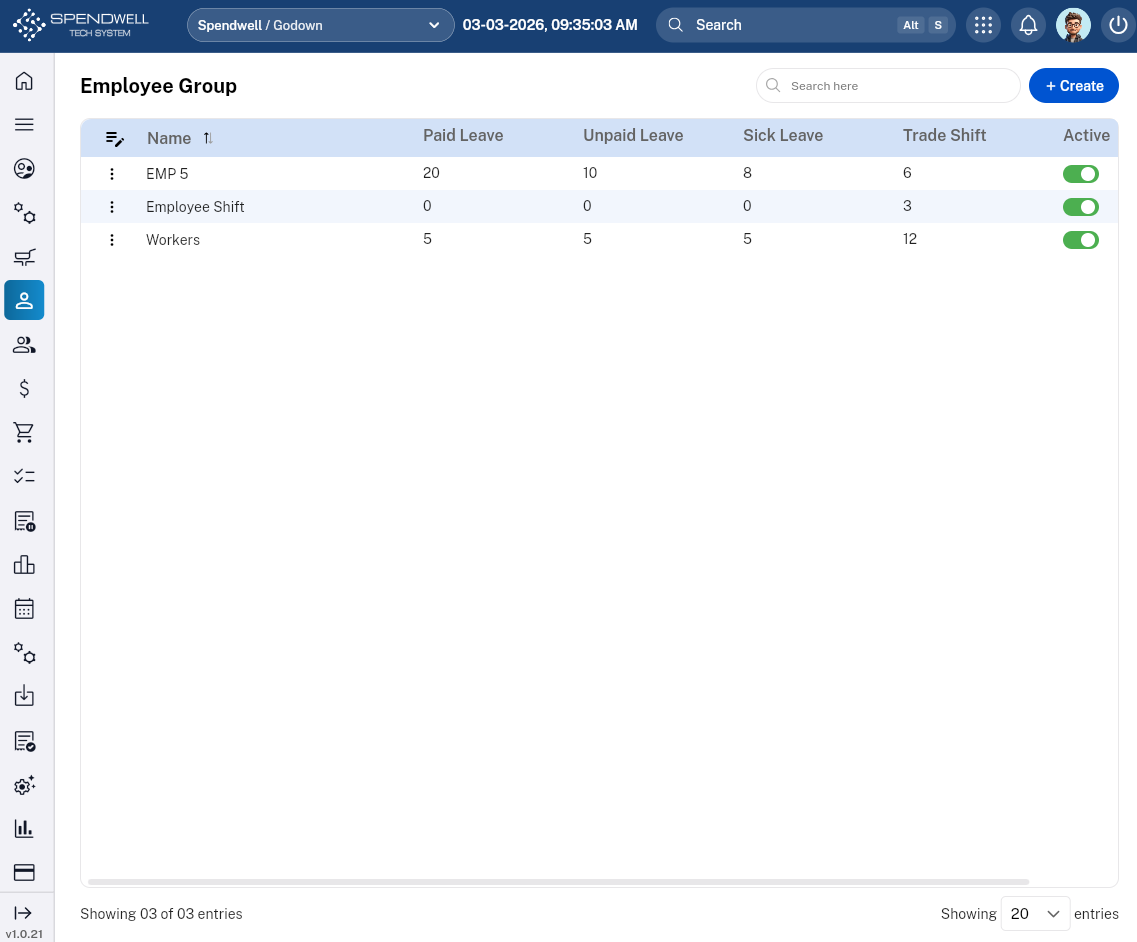](https://docs.spendwelltechsystem.com/uploads/images/gallery/2026-03/fQ4image.png)
*Figure: Employee Group*
[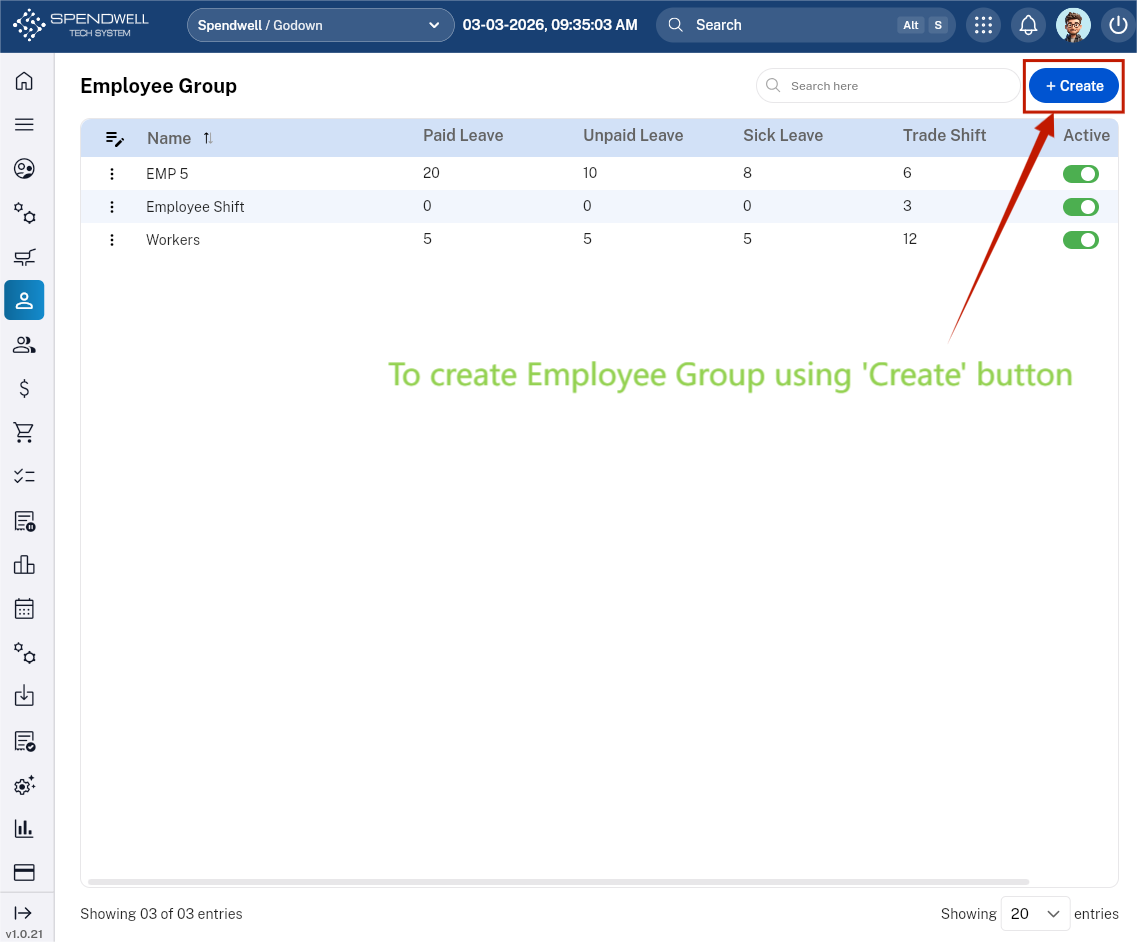](https://docs.spendwelltechsystem.com/uploads/images/gallery/2026-03/screenshot-2026-03-03-093524.png)
We can create an Employee Group along with different parameters:
-Name
-Paid leave count
-Unpaid leave count
-Sick leave count
-Trade shift count
-Paid leave count per month
-Unpaid leave count per month
-Sick leave count per month
# Leave Management
**Objective:** Ensures smooth, transparent, and accurate handling of employee leave requests and policies.
The Leave Management sub‑module handles all leave‑related policies and employee leave configurations.
**Key Functions**
- Define leave types (e.g., Casual Leave, Sick Leave, Earned Leave)
- Set leave rules, entitlements, and carry‑forward limits
- Configure approval processes
- Track leave balances
**Components:**
- **Search Bar:** Filter by Employee Name, Date, Duration or Leave Type (e.g., "Sick Leave").
- **'Create' Button (Request Leave):** Opens a standardized form for staff or managers to log a new absence.
- **Created List (The Dashboard):** A high-visibility view showing all historical leave entries.
- **Functionality**: Enables the creation and management of employee leave records, ensuring that leave requests comply with available entitlements and receive proper manager approval.
[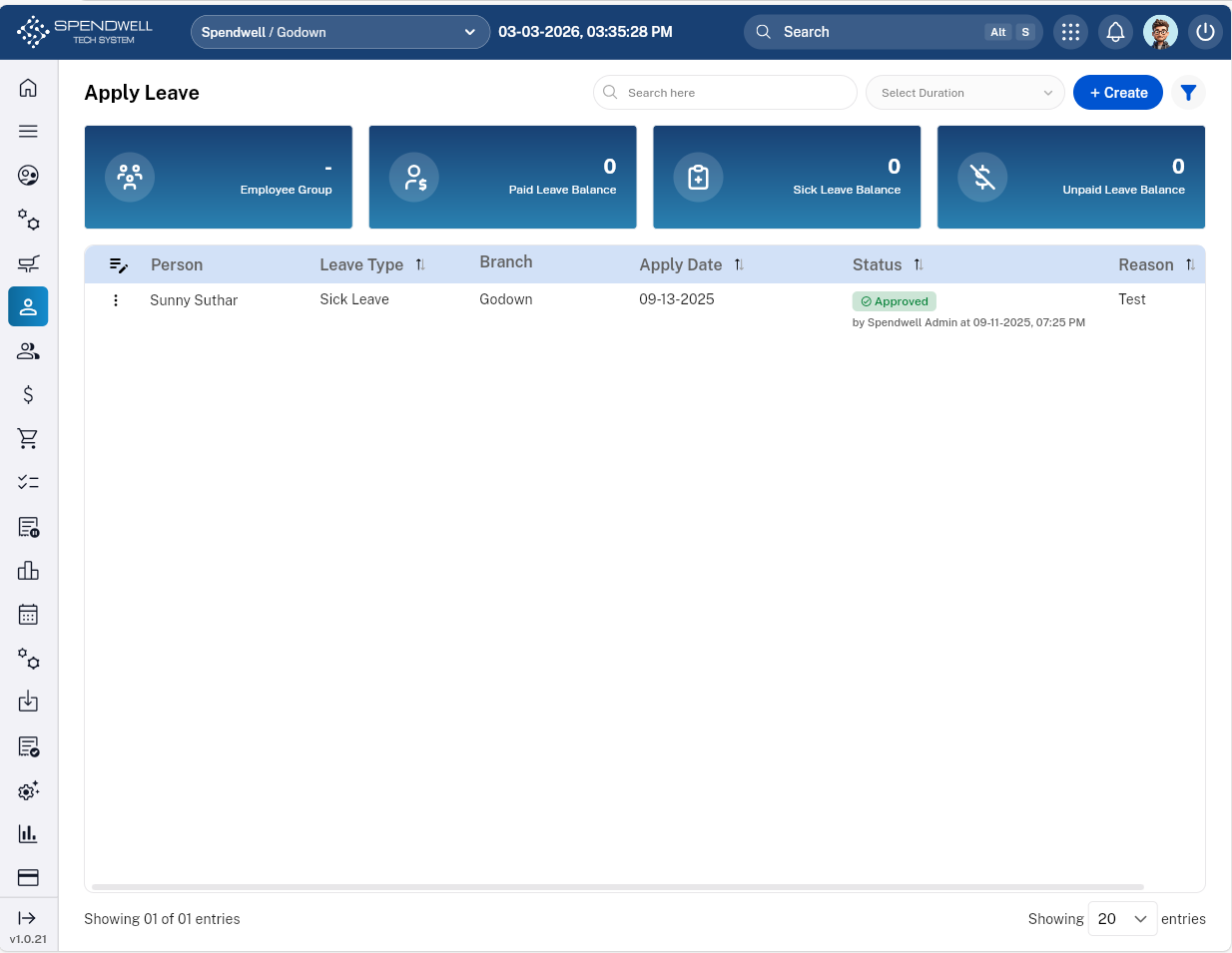](https://docs.spendwelltechsystem.com/uploads/images/gallery/2026-03/screenshot-2026-03-03-153549.png)
*Figure: Leave Management*
*[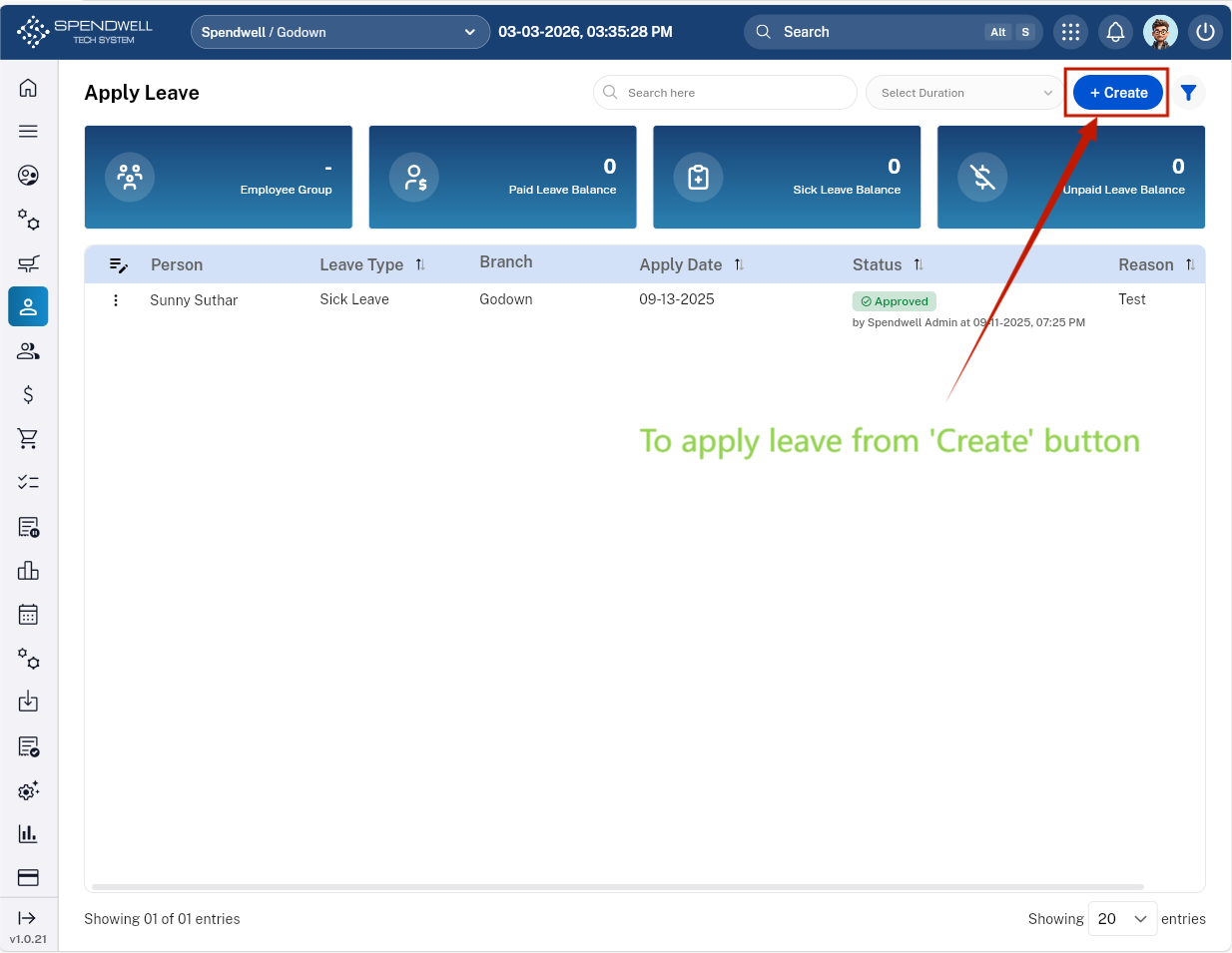](https://docs.spendwelltechsystem.com/uploads/images/gallery/2026-03/xq7screenshot-2026-03-03-153549.png)*
*Figure: Leave Management \[Create Leave\]*
Users can apply leave(s) along with different parameters:
-Leave Date(s)
-Leave Type
-Reason
[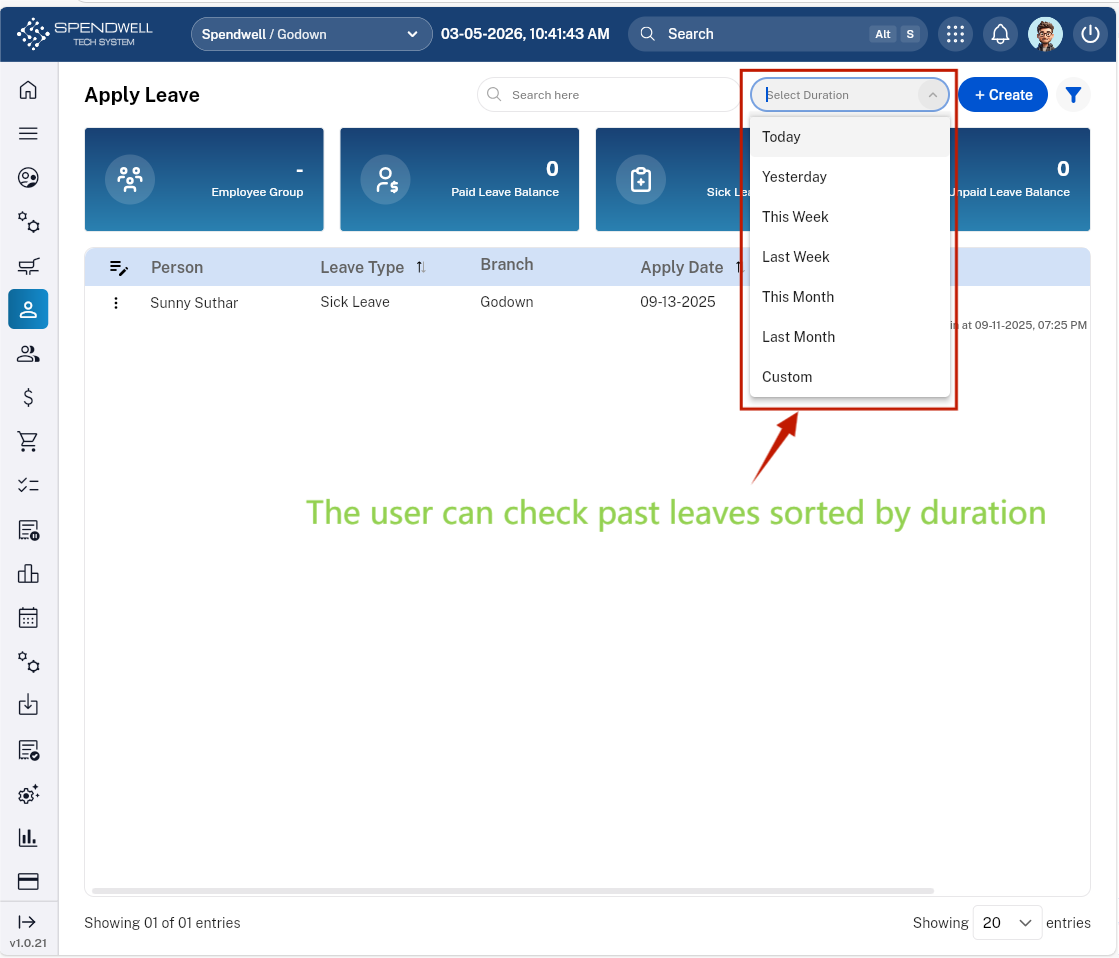](https://docs.spendwelltechsystem.com/uploads/images/gallery/2026-03/screenshot-2026-03-05-104201.png)
*Figure: Leave Management \[Past Leave Duration\]*
-Users are able to review past leaves categorized by duration.
[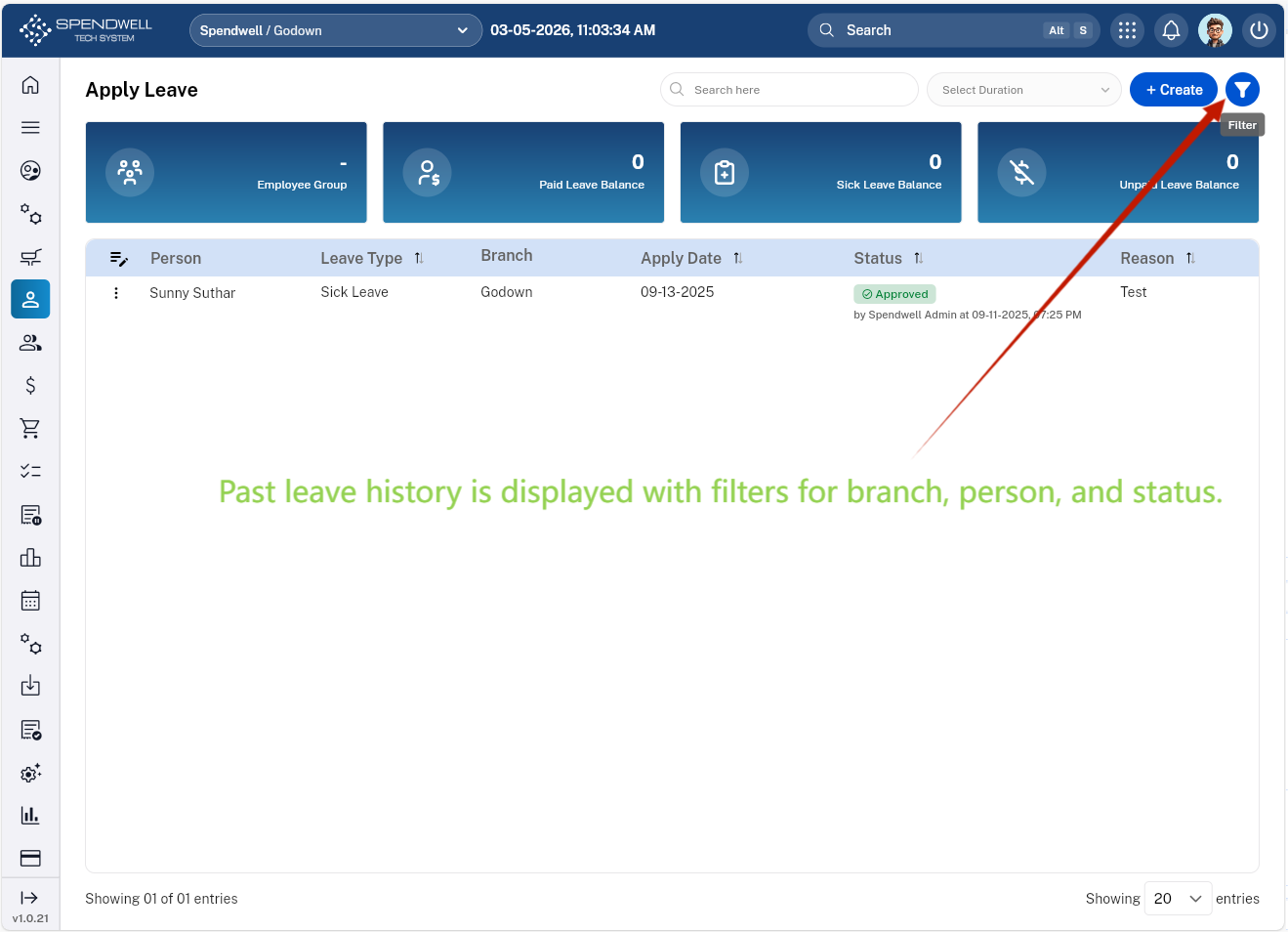](https://docs.spendwelltechsystem.com/uploads/images/gallery/2026-03/screenshot-2026-03-05-110350.png)
[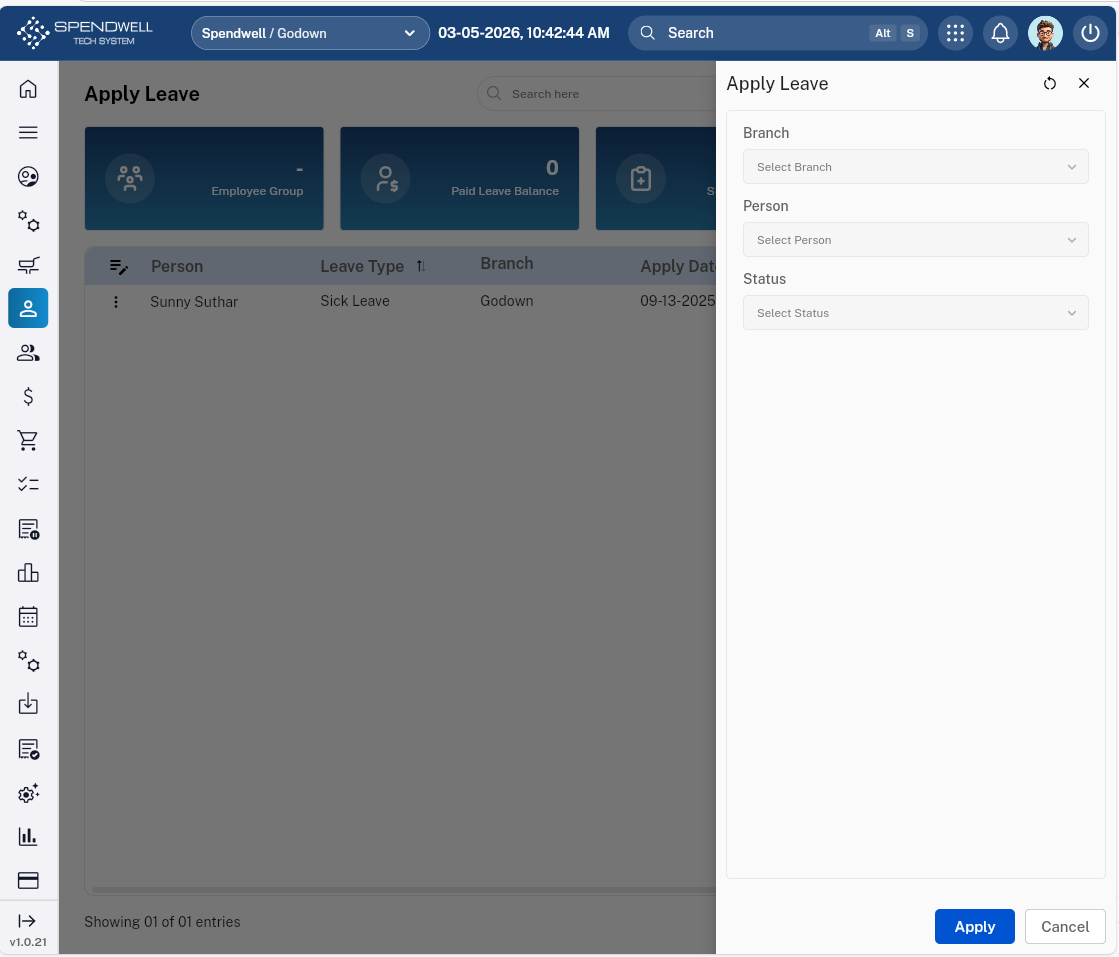](https://docs.spendwelltechsystem.com/uploads/images/gallery/2026-03/screenshot-2026-03-05-104302.png)
*Figure: Leave Management \[Filter leave history by branch, employee, or status\]*
-Users are able to filter past leaves based on branch, person, and status.
# Employee
**Objective:** Maintains a centralized employee directory with all essential details for HR, payroll, and operations.
This sub‑module is used to create and maintain complete employee profiles.
**Key Functions**
- Add new employees with employment details, personal, payroll details, Address details, Emergency contact details, and Identity documents
- Record joining date, role, salary structure, and identification documents
- Manage employee type (Fixed-term/Seasonal, Temporary, Part-time, Full-time)
- Update employee information as needed
- **Functionality**: Facilitates the creation and management of individual employee records, ensuring accurate documentation of personal details, employment information, and supporting documents for streamlined workforce administration.
[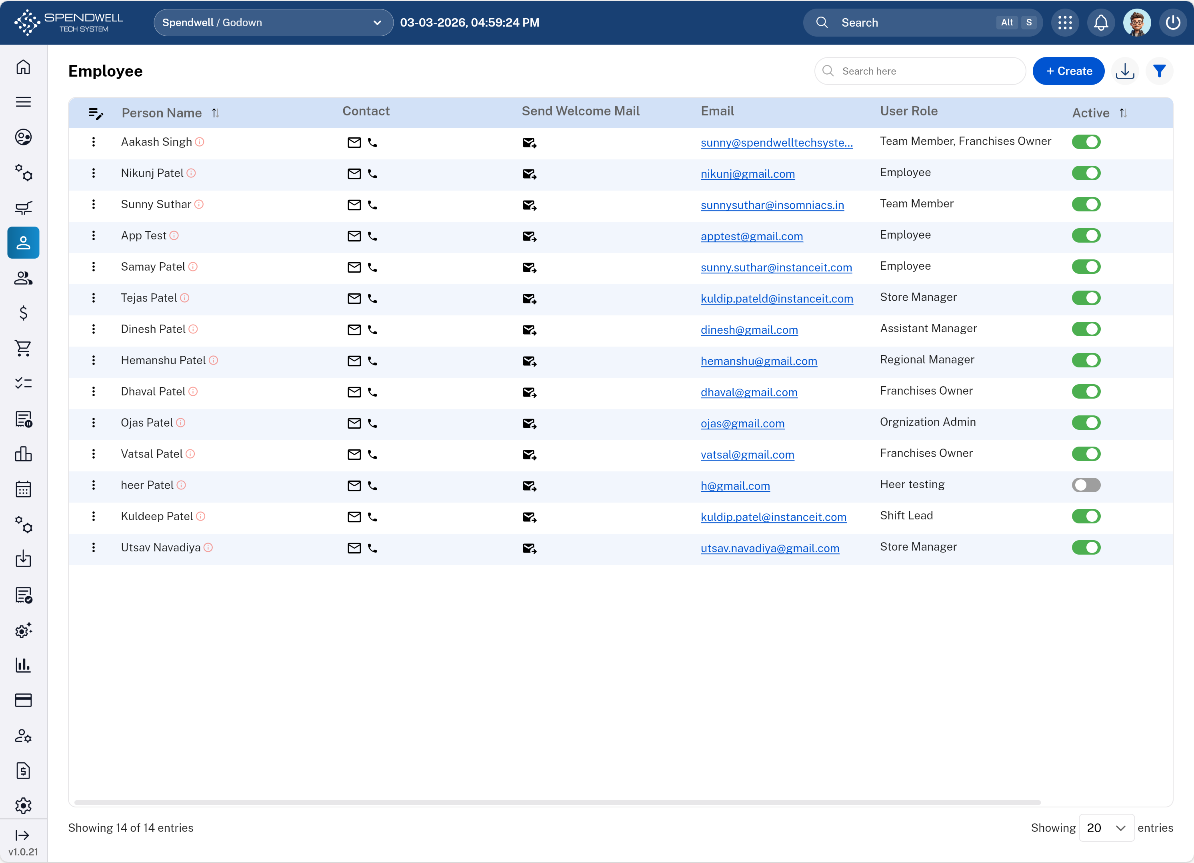](https://docs.spendwelltechsystem.com/uploads/images/gallery/2026-03/screenshot-2026-03-03-165945.png)
*Figure: Employee*
[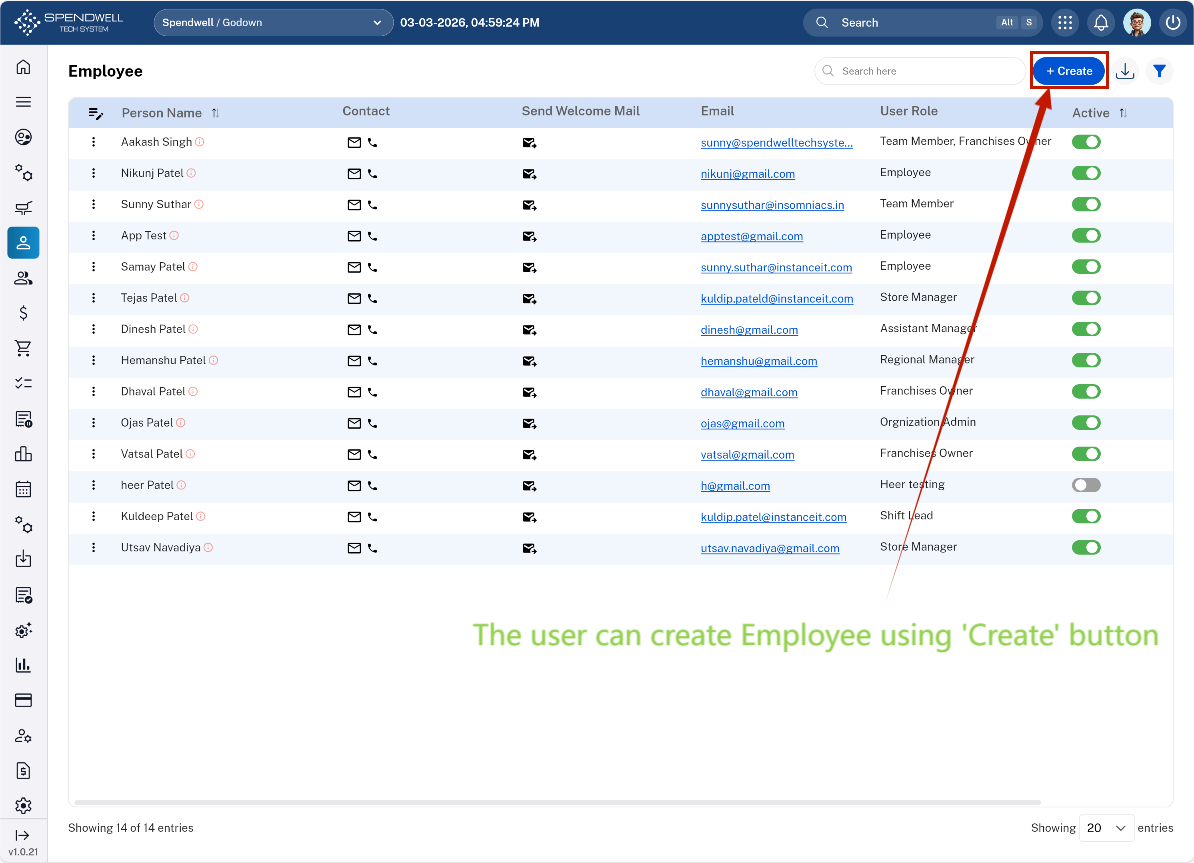](https://docs.spendwelltechsystem.com/uploads/images/gallery/2026-03/Vniscreenshot-2026-03-03-165945.png)
*Figure: Employee\[Employee Creation\]*
Users are able to create employee along with different parameters:
-Employee Details
-Personal Details
-Payroll Details
-Address Details
-Emergency Contact Details
-Identity Documents
[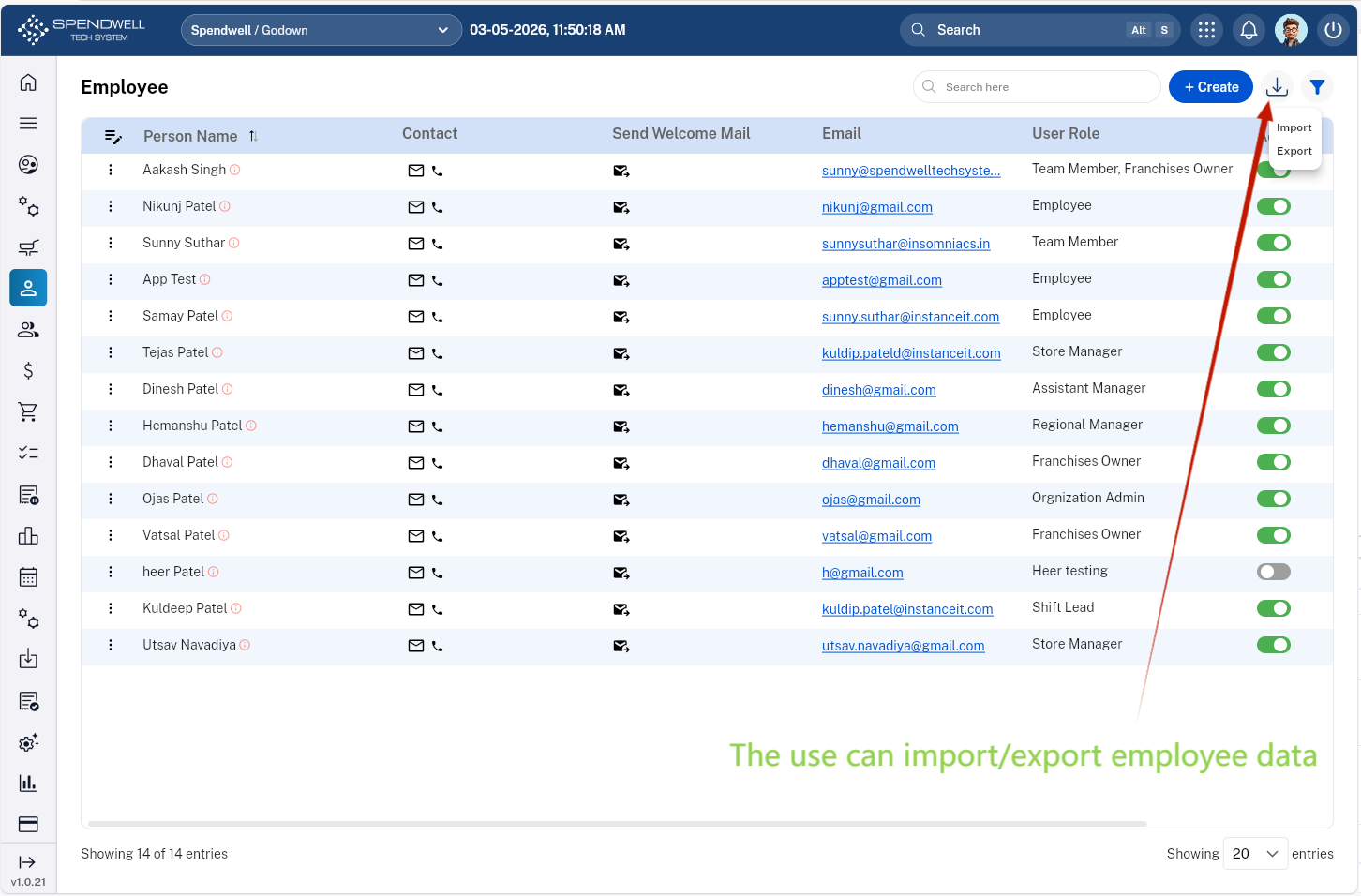](https://docs.spendwelltechsystem.com/uploads/images/gallery/2026-03/screenshot-2026-03-05-115035.png)
*Figure: Employee\[Employee data import/export operation\]*
-Users are able to import and export employee data as needed.
[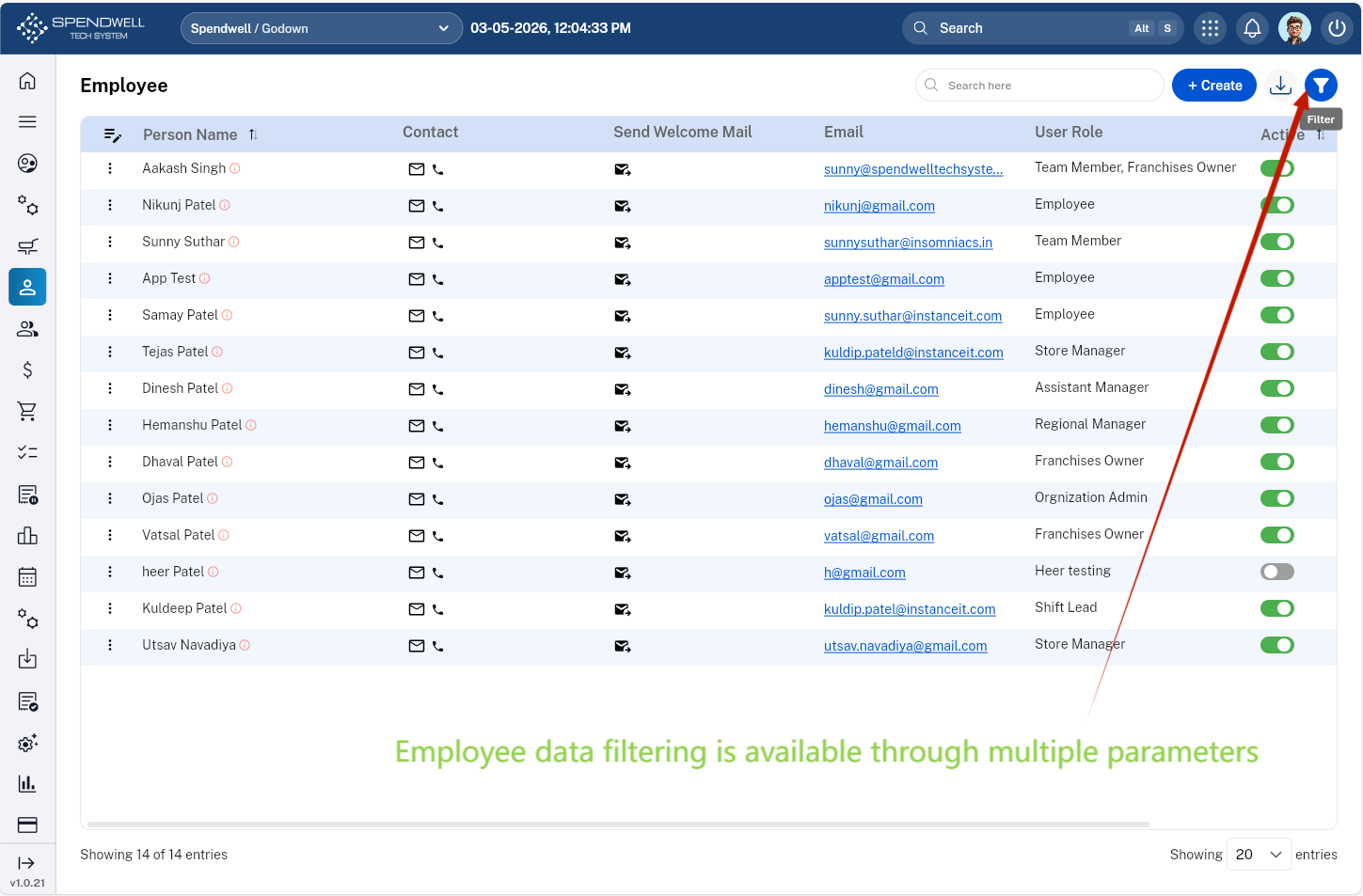](https://docs.spendwelltechsystem.com/uploads/images/gallery/2026-03/screenshot-2026-03-05-120452.png)
*Figure: Employee \[Filter Employee data\]*
The user can filter employee records by fields such as
-User Role
-Person Name
-Contact
-Send Welcome Mail
-Email
# Employee Type
**Objective:** Ensures every employee is assigned to the correct employment category, supporting accurate HR and payroll configurations.
The Employee Type sub‑module classifies employees based on employment structure.
**Key Functions**
Define employee types such as:
- Full‑time
- Part‑time
- Contract/Fixed-term/Seasonal
- Temporary
- Intern
[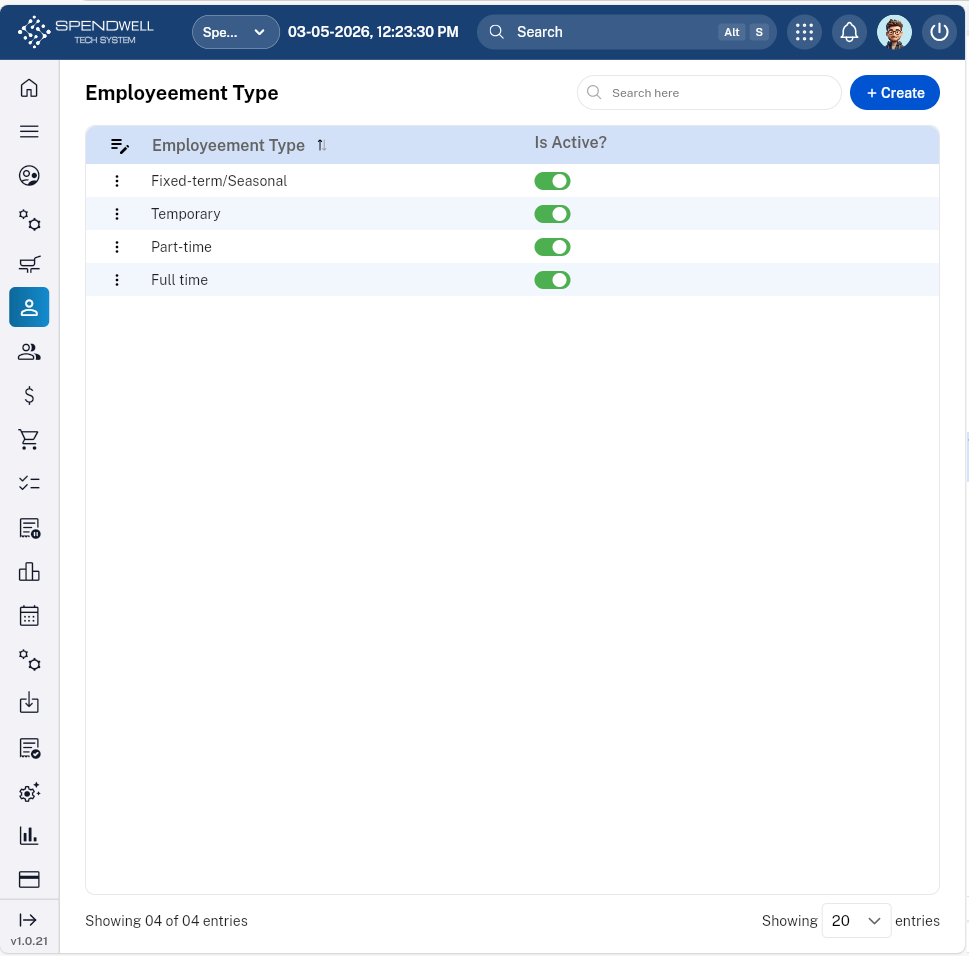](https://docs.spendwelltechsystem.com/uploads/images/gallery/2026-03/screenshot-2026-03-05-122344.png)
*Figure: Employment Type*
*[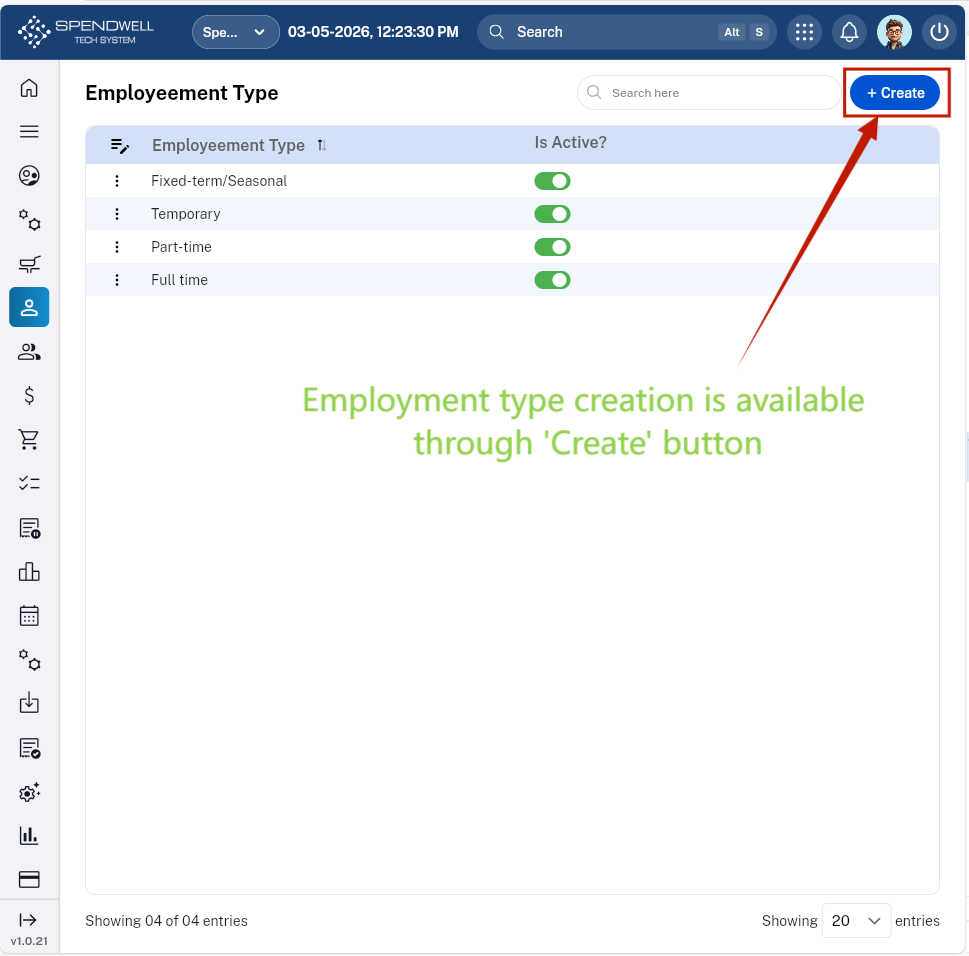](https://docs.spendwelltechsystem.com/uploads/images/gallery/2026-03/u96screenshot-2026-03-05-122344.png)*
*Figure: Employment Type \[Employment Type Creation\]*