# Mandatory Password Setup
#### What You Need to Complete
> After an employee logs in for the **first time**, the employee must complete the password setup before continuing to use the app.
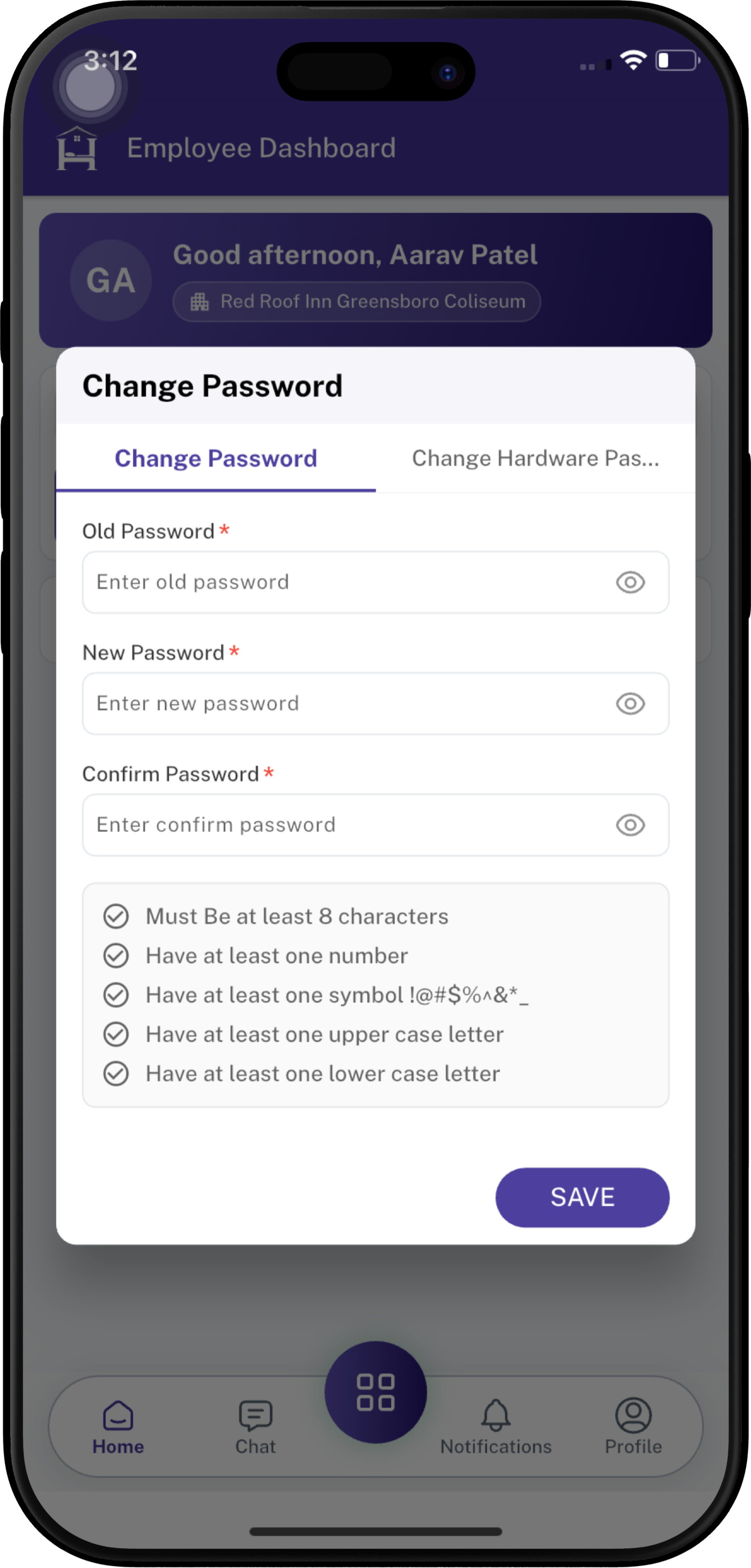
During the first-time login onboarding, you will see the **Change Password** screen with two tabs:
| Tab | Purpose | Required |
|---|---|:---:|
| **Change Password** | Updates your Employee App login password | ✅ Yes |
| **Change Hardware Password** | Updates your iHospitality Hub login passcode | ✅ Yes |
> ⚠️ **Important:** Both password changes are required during first-time onboarding.
---
### 1. Change Employee App Password
The **Change Password** tab is used to replace the temporary/current Employee App password with your new secure password.
#### Step 1 — Open the **Change Password** tab
Select the **Change Password** tab.
> 💡 The selected tab is highlighted in **purple** with an underline. The field is marked with a red `*` because it is required.
👁️ Use the **eye icon** on the right to show or hide the password.
---
#### Step 2 — Enter the **Old Password**
In the **Old Password** field:
- Enter your current Employee App password.
- This is the password you used to log in for the first time.
**Placeholder:** `Enter old password.`
---
#### Step 3 — Enter the **New Password**
In the **New Password** field:
- Enter the new password you want to use for the Employee App.
- Make sure it follows **all password requirements** shown below the fields.
**Placeholder:** `Enter new password.`
#### 🛡️ Password Requirements
Your new password must contain:
- ✅ At least **8 characters**
- ✅ At least **one number**
- ✅ At least **one symbol** — such as `! @ # $ % ^ & * _ -`
- ✅ At least **one uppercase letter** — `A–Z`
- ✅ At least **one lowercase letter** — `a–z`
> 🟢 **Tip:** Use a password that is difficult for others to guess and do not reuse a password you use elsewhere.
---
#### Step 4 — Enter the **Confirm Password**
In the **Confirm Password** field:
- Enter the **same new password** again.
- The confirmation must match the New Password.
**Placeholder:** `Enter confirm password.`
> ⚠️ **Check before saving:** Make sure **New Password** and **Confirm Password** are exactly the same.
---
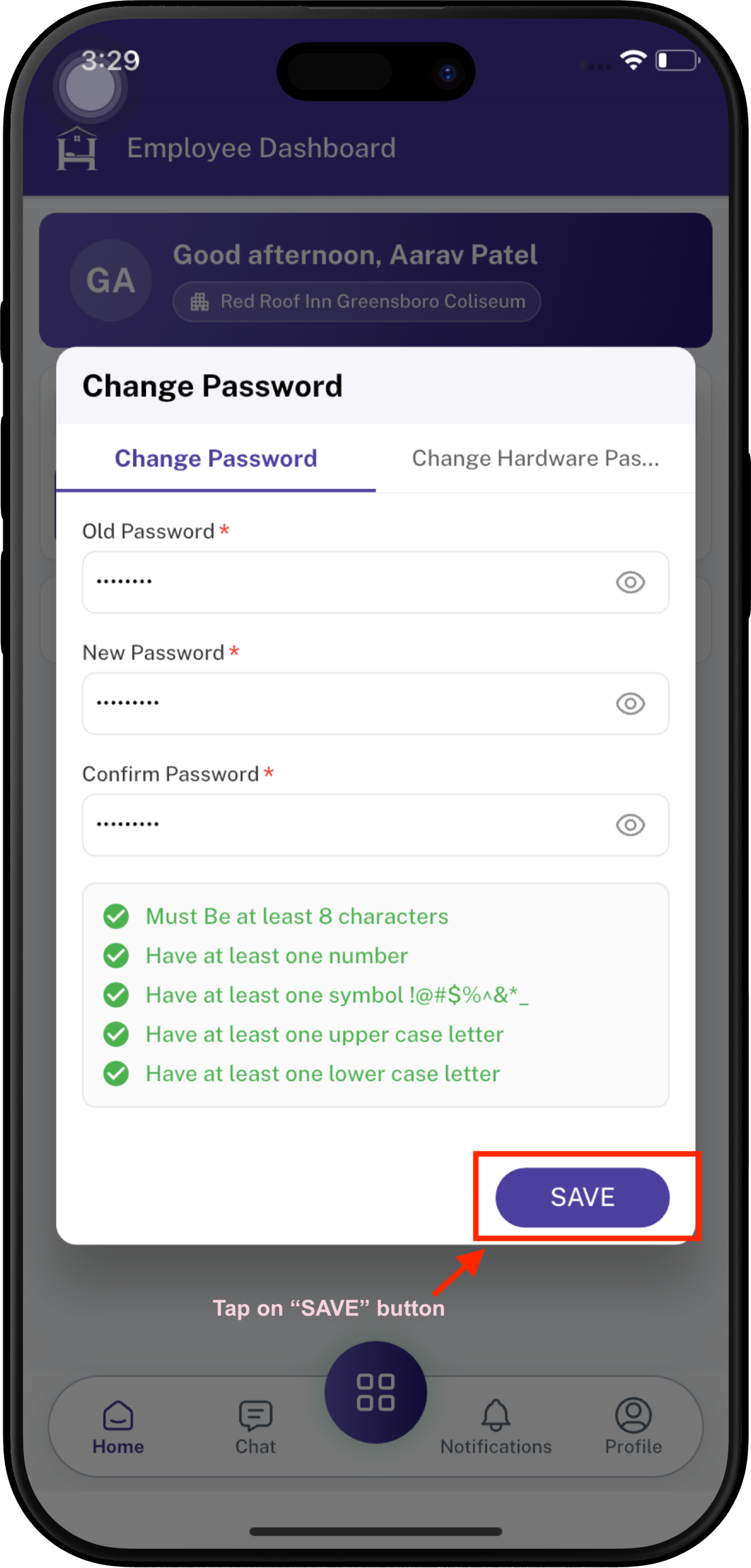
#### Step 5 — Click **SAVE**
After completing all three fields and meeting the password requirements:
> ✅ **Success:** Your Employee App password has been changed to the new password.
---
### 2. Change iHospitality Hub Password
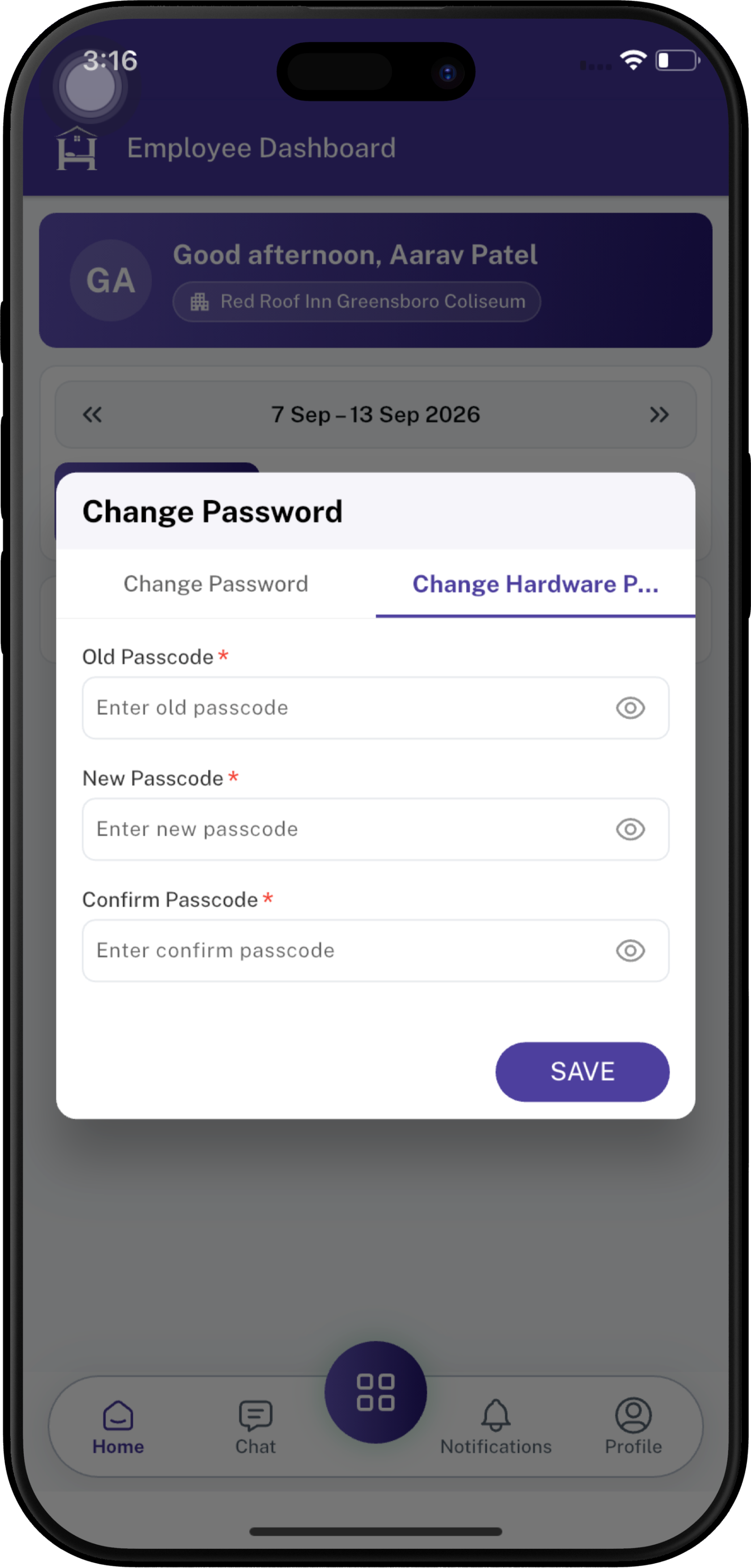
After changing the Employee App password, use the **Change Hardware Password** tab to change the hardware/iHospitality Hub passcode.
#### Step 1 — Select **Change Hardware Password**
At the top of the **Change Password** screen, select:
**Change Hardware Password**
> 💡 The selected tab is highlighted in **purple** with an underline. The field is marked with a red `*` because it is required.
👁️ Use the **eye icon** on the right to show or hide the password.
>
---
#### Step 2 — Enter the **Old Passcode**
In the **Old Passcode** field:
- Enter your current iHospitality Hub hardware passcode.
**Placeholder:** `Enter old passcode.`
---
#### Step 3 — Enter the **New Passcode**
In the **New Passcode** field:
- Enter the new passcode you want to use for the iHospitality Hub hardware login.
**Placeholder:** `Enter new passcode.`
---
#### Step 4 — Enter the **Confirm Passcode**
In the **Confirm Passcode** field:
- Enter the same new passcode again.
- Make sure it matches the **New Passcode** exactly.
**Placeholder:** `Enter confirm passcode.`
> ⚠️ **Check before saving:** **New Passcode** and **Confirm Passcode** must match.
---
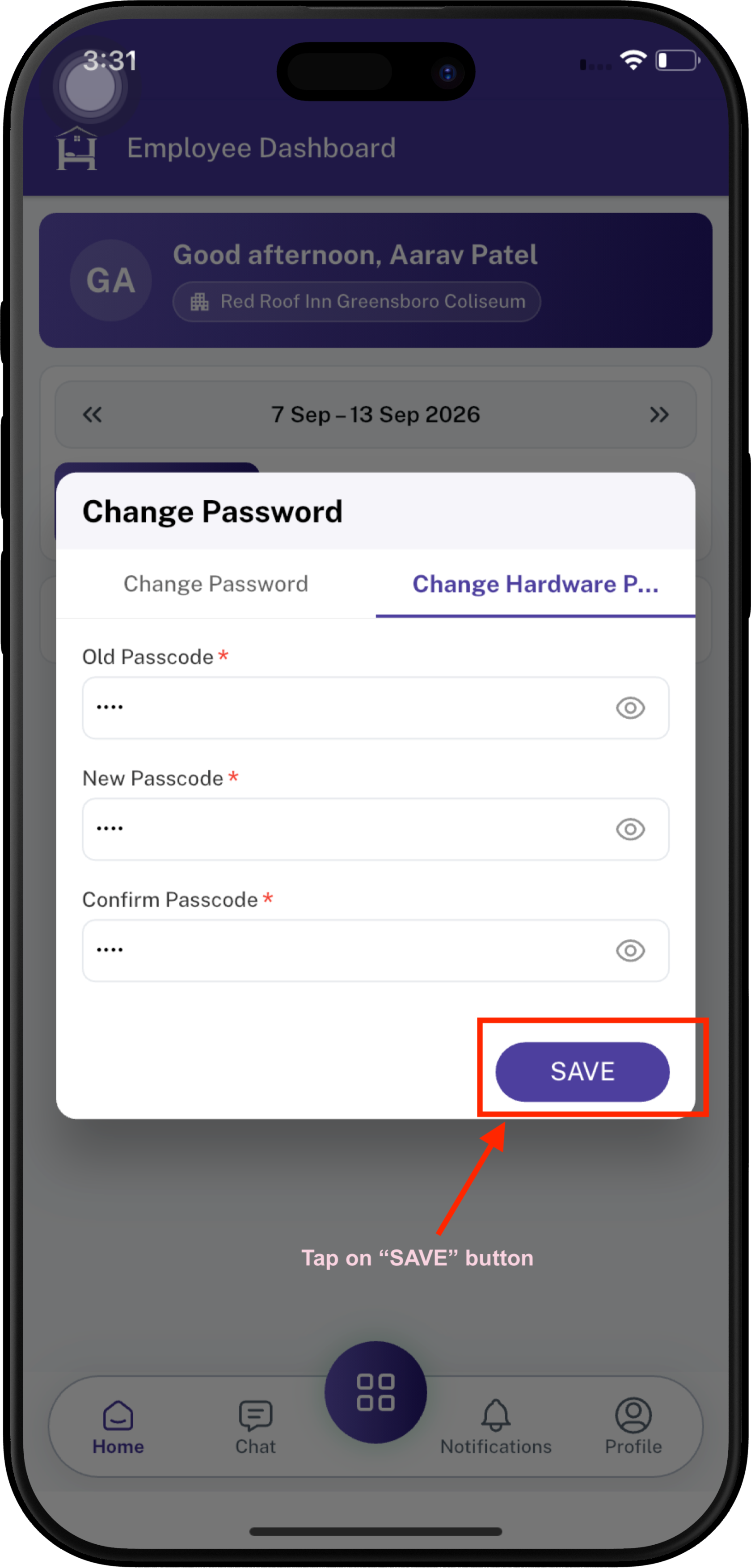
#### Step 5 — Click **SAVE**
After entering all required information. Click **SAVE** to update your iHospitality Hub hardware passcode.
> ✅ **Success:** Your iHospitality Hub hardware passcode has now changed.
---
> 🟢 **Onboarding Complete:** Once both required passwords have been changed successfully, the first-time password setup is complete.
---
#### 🔒 Security Tips
- 🔐 Keep your new passwords/passcodes private.
- 👀 Do not share your password with other employees.
- 🚫 Avoid using easily guessed information.
- 📝 Store your credentials only in an approved secure password manager, if provided by your organization.
- 🔄 Use the updated credentials for future logins.