Mandatory Password Setup
What You Need to Complete
After an employee logs in for the first time, the employee must complete the password setup before continuing to use the app.
During the first-time login onboarding, you will see the Change Password screen with two tabs:
| Tab | Purpose | Required |
|---|---|---|
| Change Password | Updates your Employee App login password | ✅ Yes |
| Change Hardware Password | Updates your iHospitality Hub login passcode | ✅ Yes |
⚠️ Important: Both password changes are required during first-time onboarding.
1. Change Employee App Password
The Change Password tab is used to replace the temporary/current Employee App password with your new secure password.
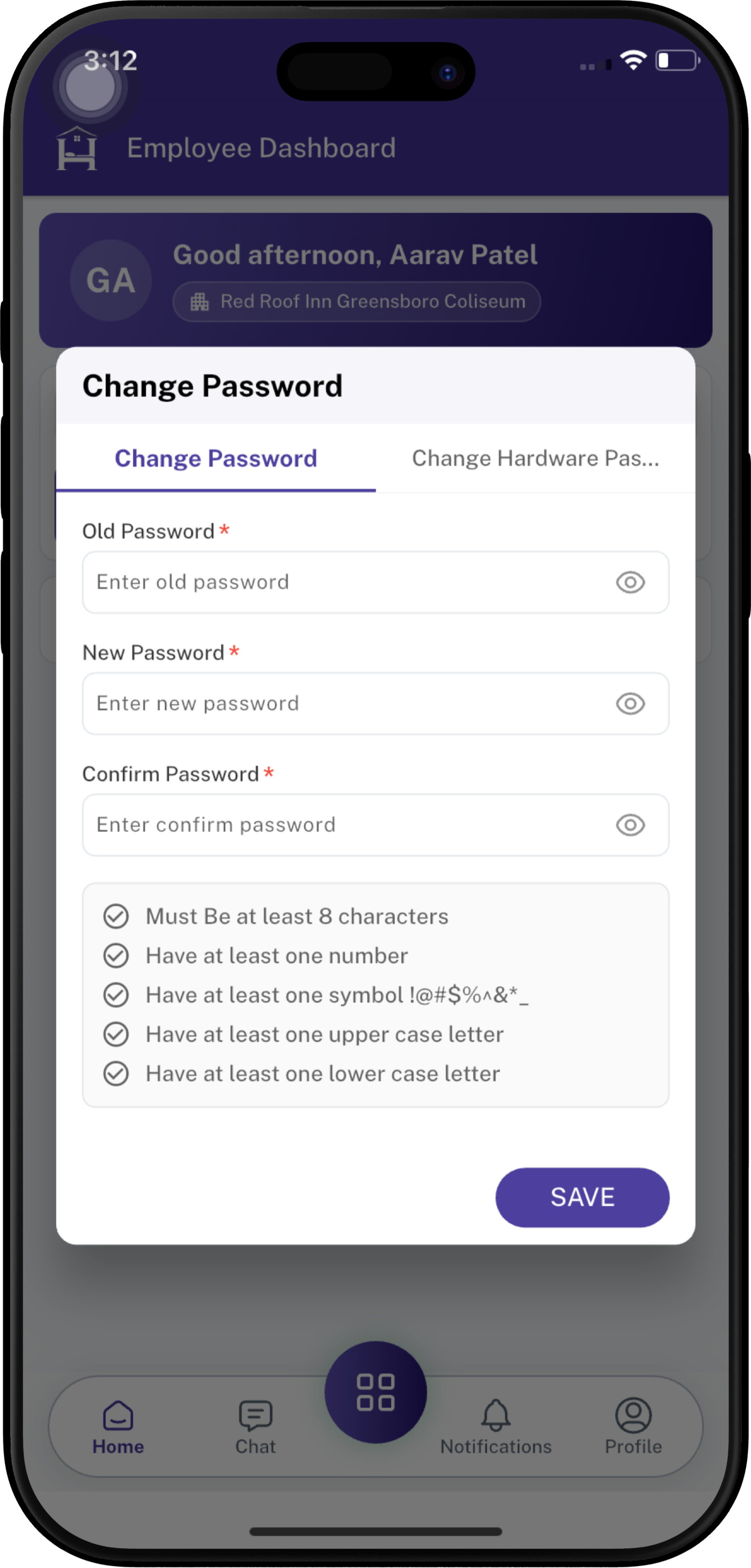
Step 1 — Open the Change Password tab
Select the Change Password tab.
💡 The selected tab is highlighted in purple with an underline. The field is marked with a red
*because it is required.
👁️ Use the eye icon on the right to show or hide the password.
Step 2 — Enter the Old Password
In the Old Password field:
- Enter your current Employee App password.
- This is the password you used to log in for the first time.
Placeholder: Enter old password.
Step 3 — Enter the New Password
In the New Password field:
- Enter the new password you want to use for the Employee App.
- Make sure it follows all password requirements shown below the fields.
Placeholder: Enter new password.
🛡️ Password Requirements
Your new password must contain:
- ✅ At least 8 characters
- ✅ At least one number
- ✅ At least one symbol — such as
! @ # $ % ^ & * _ - - ✅ At least one uppercase letter —
A–Z - ✅ At least one lowercase letter —
a–z
🟢 Tip: Use a password that is difficult for others to guess and do not reuse a password you use elsewhere.
Step 4 — Enter the Confirm Password
In the Confirm Password field:
- Enter the same new password again.
- The confirmation must match the New Password.
Placeholder: Enter confirm password.
⚠️ Check before saving: Make sure New Password and Confirm Password are exactly the same.
Step 5 — Click SAVE
After completing all three fields and meeting the password requirements:
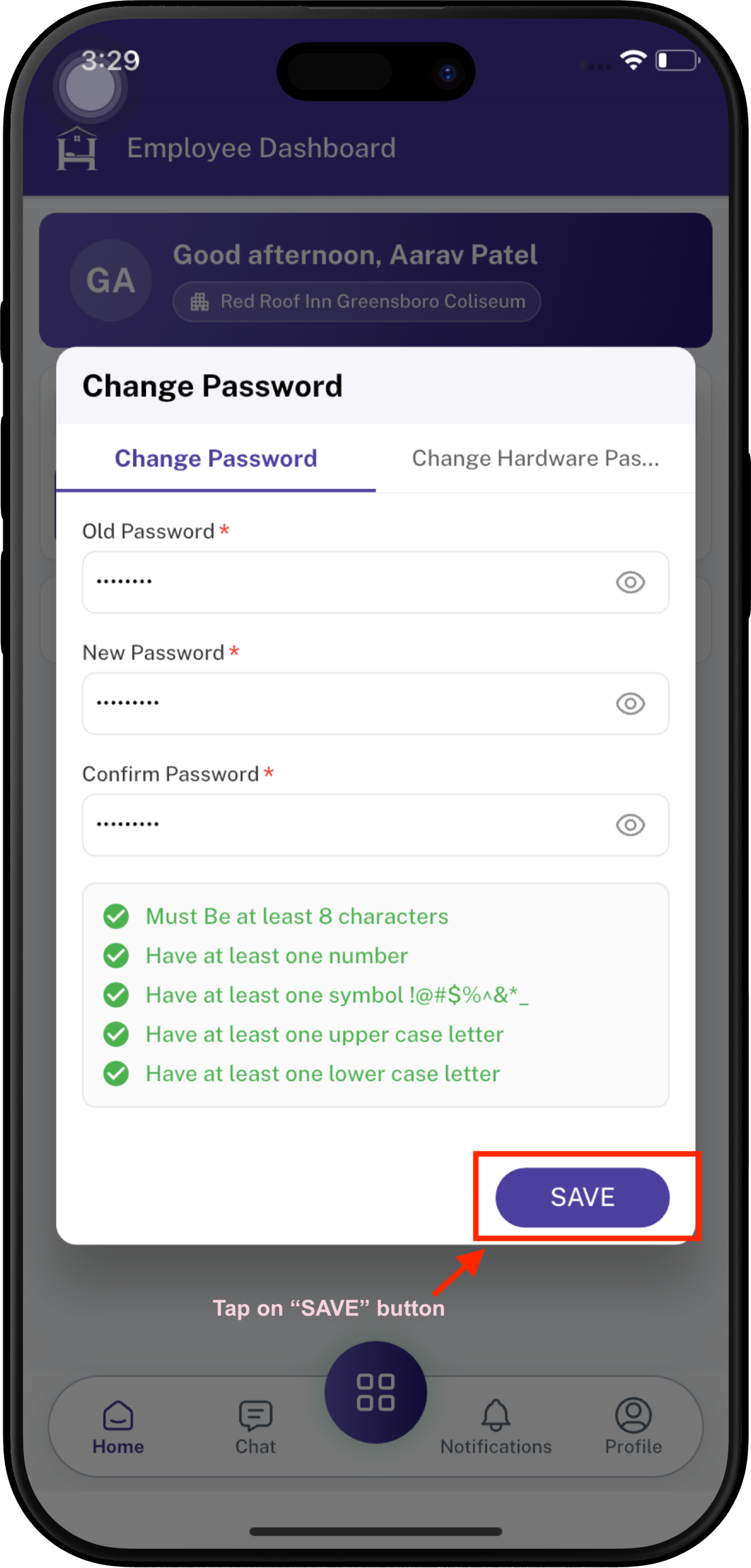
✅ Success: Your Employee App password has been changed to the new password.
2. Change iHospitality Hub Password
After changing the Employee App password, use the Change Hardware Password tab to change the hardware/iHospitality Hub passcode.
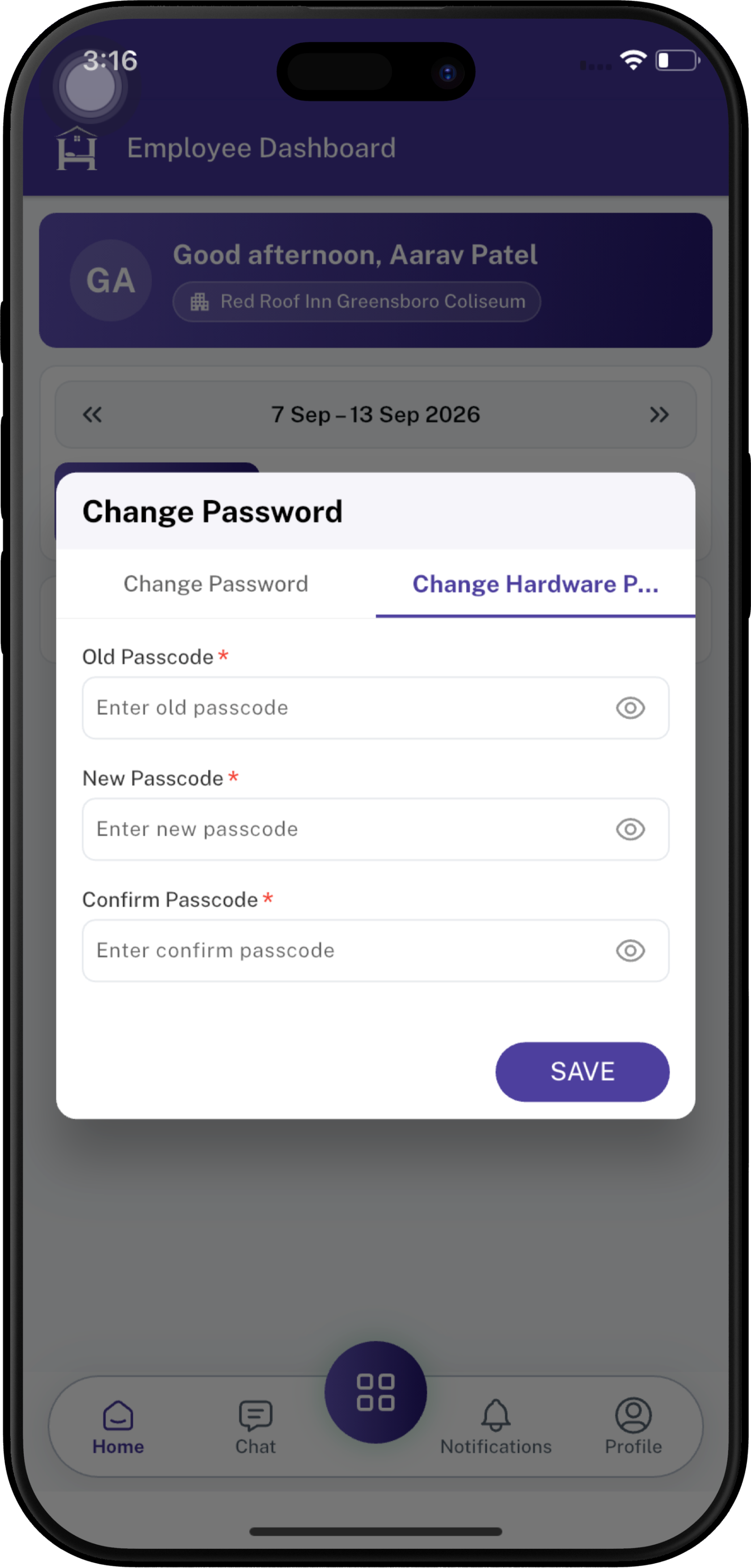
Step 1 — Select Change Hardware Password
At the top of the Change Password screen, select:
Change Hardware Password
💡 The selected tab is highlighted in purple with an underline. The field is marked with a red
*because it is required.
👁️ Use the eye icon on the right to show or hide the password.
Step 2 — Enter the Old Passcode
In the Old Passcode field:
- Enter your current iHospitality Hub hardware passcode.
Placeholder: Enter old passcode.
Step 3 — Enter the New Passcode
In the New Passcode field:
- Enter the new passcode you want to use for the iHospitality Hub hardware login.
Placeholder: Enter new passcode.
Step 4 — Enter the Confirm Passcode
In the Confirm Passcode field:
- Enter the same new passcode again.
- Make sure it matches the New Passcode exactly.
Placeholder: Enter confirm passcode.
⚠️ Check before saving: New Passcode and Confirm Passcode must match.
Step 5 — Click SAVE
After entering all required information. Click SAVE to update your iHospitality Hub hardware passcode.
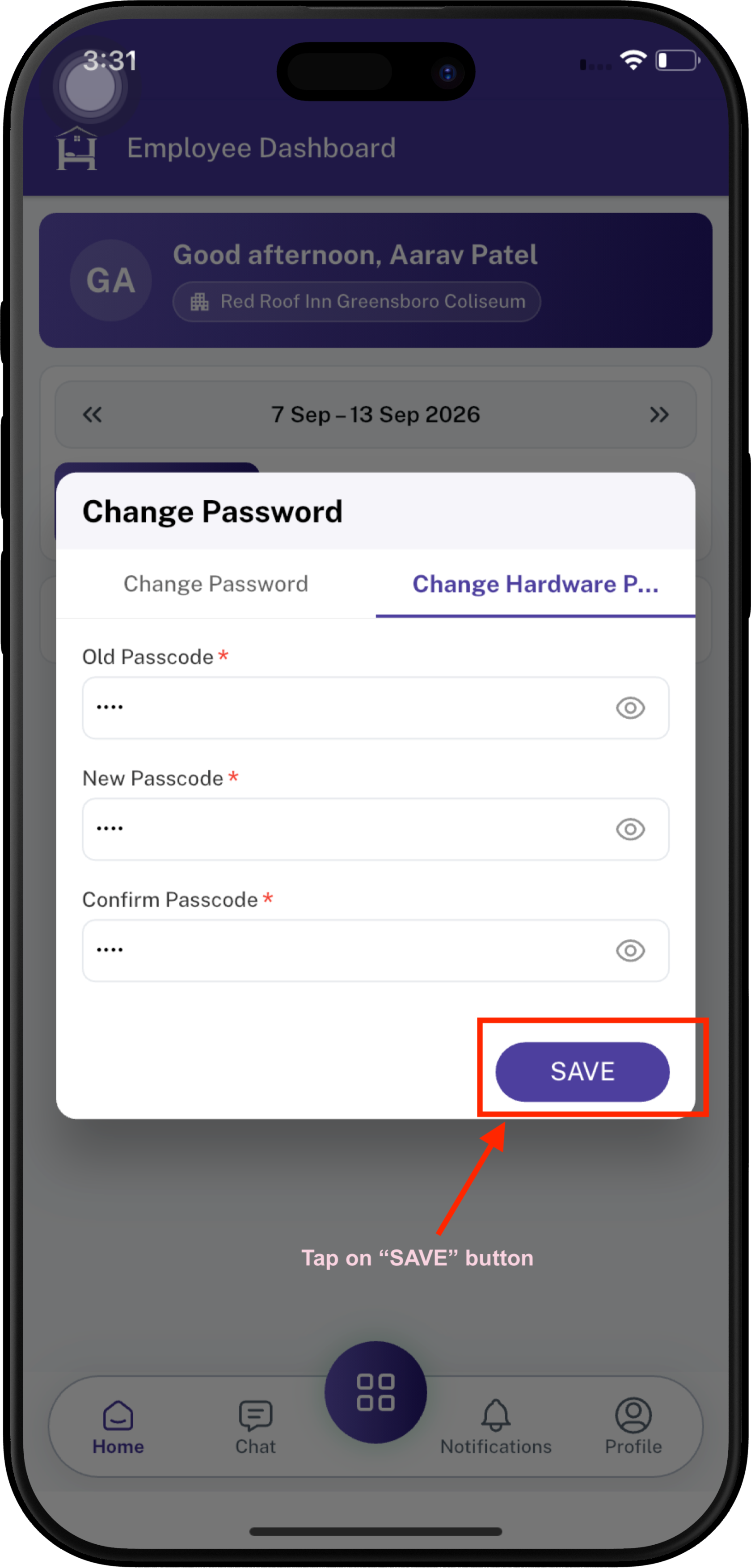
✅ Success: Your iHospitality Hub hardware passcode has now changed.
🟢 Onboarding Complete: Once both required passwords have been changed successfully, the first-time password setup is complete.
🔒 Security Tips
- 🔐 Keep your new passwords/passcodes private.
- 👀 Do not share your password with other employees.
- 🚫 Avoid using easily guessed information.
- 📝 Store your credentials only in an approved secure password manager, if provided by your organization.
- 🔄 Use the updated credentials for future logins.