Leave Management
Overview
The Leave Management feature allows employees to request time off and helps managers track and approve leave across the property. Leave is managed on a full-day basis only — employees select the day(s) they need off and submit a request for manager review.
Leave requests are organized by leave type: Paid Leave, Sick Leave, and Unpaid Leave. Each employee's leave balance is tracked per employee group, with a defined monthly limit for each leave type, so requests that exceed the available balance cannot be submitted.
Leave Management provides visibility into leave dates, leave type, reason, balance, and approval status, helping managers plan schedules accurately and avoid understaffing.
Add Leave Screen
The Add Leave screen allows employees to submit a leave request for one or more full days.
Key Information
- Leave Date — Multi-select field. Employees can select one or more days for the leave request. Leave is applied for full days only; partial or half-day leave is not supported.
- Leave Type — Dropdown selection of Paid Leave, Sick Leave, or Unpaid Leave.
- Reason — Free text field where the employee enters the reason for the leave request.
- Leave Balance — Displays the employee's remaining balance for the selected leave type, based on their employee group's monthly limit.
- Submit — Submits the leave request for manager review. If the selected dates exceed the employee's remaining balance for that leave type, the system blocks submission and displays an error instead of allowing the request to go through.
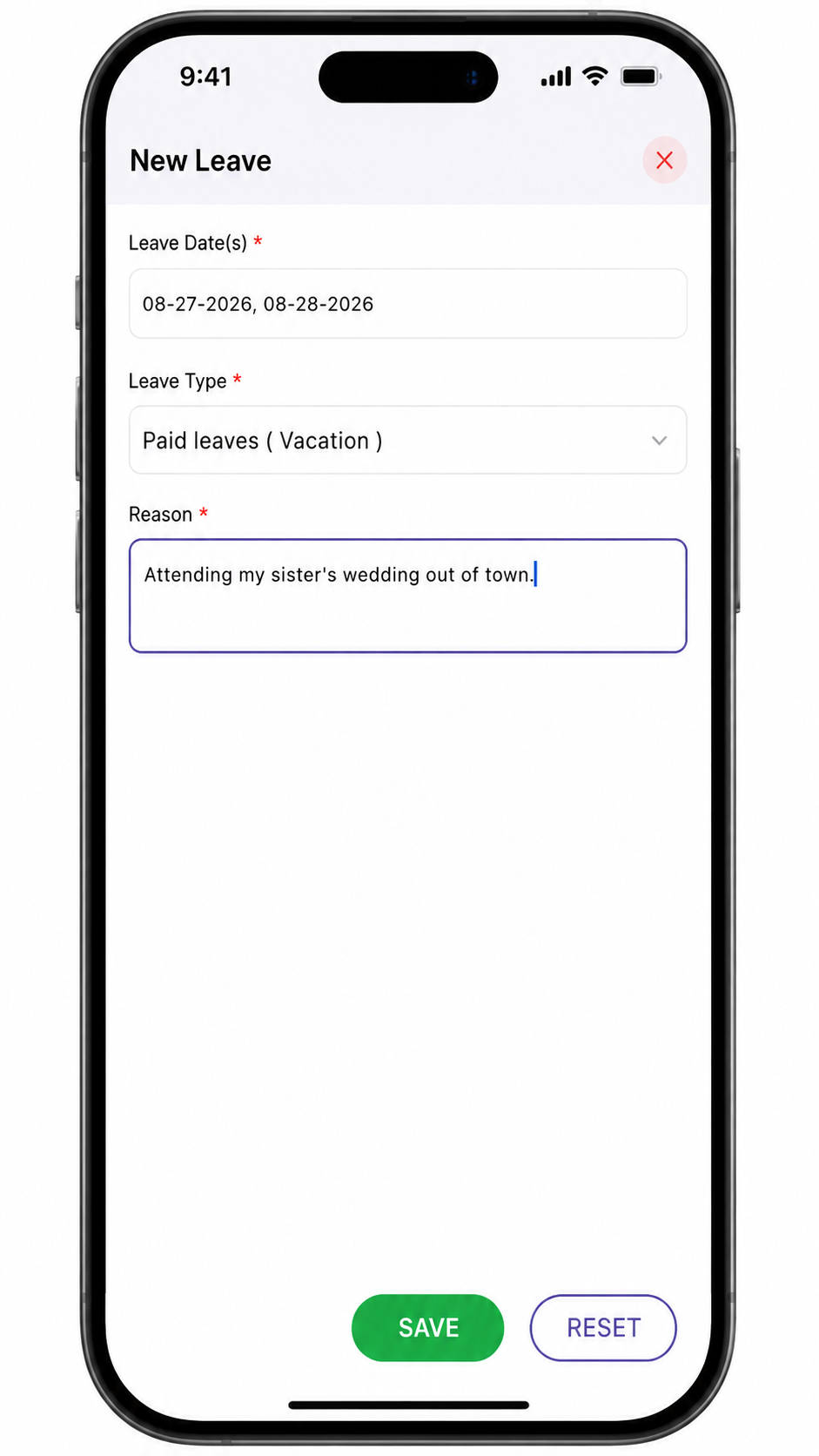
Leave Balance Management
Leave balances are configured per employee group when the group is created or edited, using two limits for each leave type — a yearly count and a monthly count. This ensures an employee's full yearly allowance can't be used up in a single month.
Employee Group — Leave Configuration Fields
| Field | Description |
|---|---|
| Name | Name of the employee group. |
| Paid Leave Count | Total paid leave days allowed per year for this group. |
| Unpaid Leave Count | Total unpaid leave days allowed per year for this group. |
| Sick Leave Count | Total sick leave days allowed per year for this group. |
| Trade Shift Count | Total shift trades allowed per year for this group. |
| Paid Leave Count Per Month | Maximum paid leave days an employee in this group can take in a single month. |
| Unpaid Leave Count Per Month | Maximum unpaid leave days an employee in this group can take in a single month. |
| Sick Leave Count Per Month | Maximum sick leave days an employee in this group can take in a single month. |
When an employee submits a leave request, the system checks the request against both limits:
- Yearly balance — the total leave remaining for that type this year.
- Monthly limit — the maximum allowed for that type in the selected month.
If the request would exceed either the yearly balance or the monthly limit, the request is not allowed and the employee must adjust the dates or leave type before submitting.
Note: Yearly balances reset annually and monthly limits reset each calendar month, both based on the configuration set at the employee group level.
Leave Status
| Status | Meaning |
|---|---|
| Pending | Leave has been submitted and is waiting for manager action. |
| Approved | The leave request has been approved and the balance is deducted accordingly. |
| Rejected | The leave request has been rejected and does not affect the employee's leave balance. |
My Leave List
The leave list allows employees to view all of their submitted leave requests along with the current status of each.
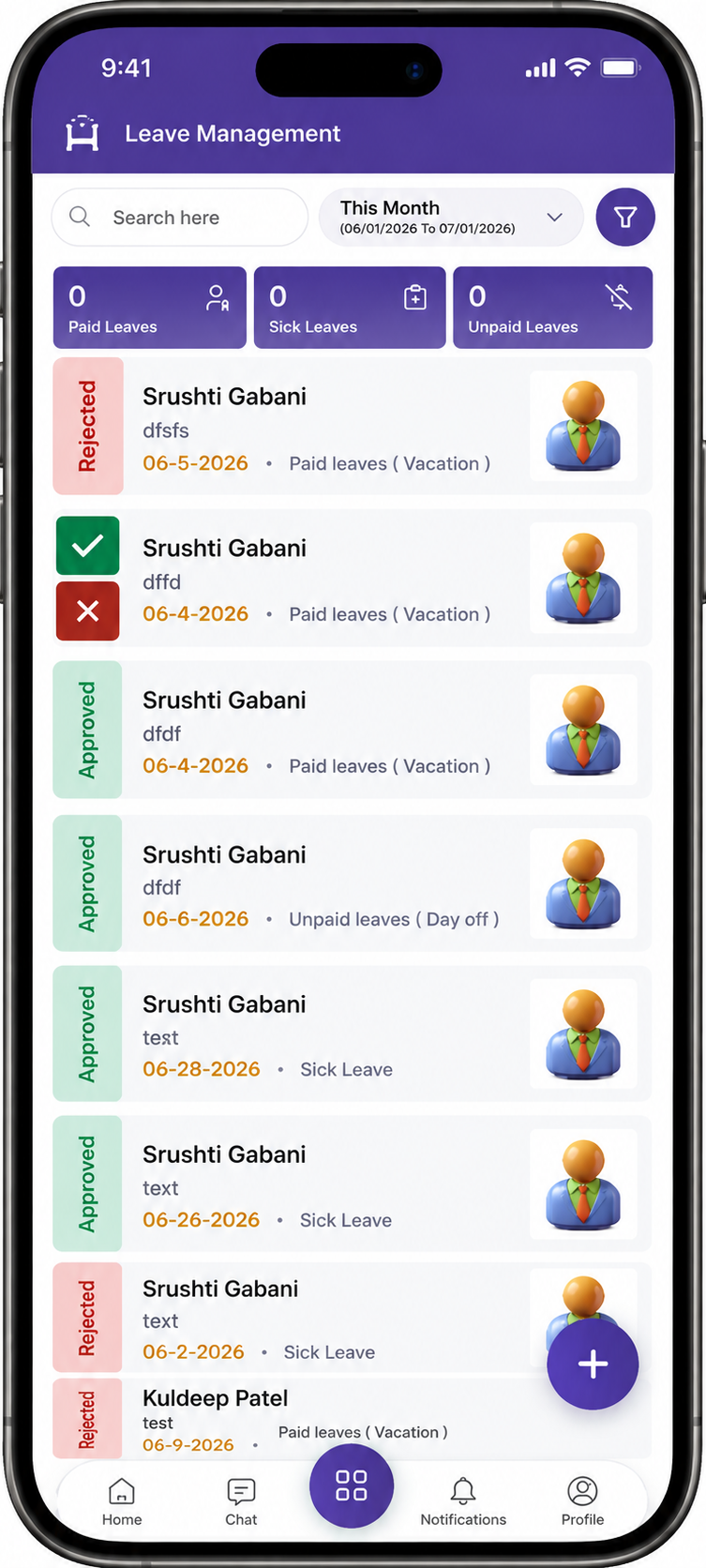
Submit a Leave Request
Steps
- Select Add Leave.
- Select one or more leave dates.
- Select the Leave Type — Paid Leave, Sick Leave, or Unpaid Leave.
- Enter the Reason for the leave request.
- Review the displayed leave balance for the selected type.
- Select Submit.
Note: If the selected dates exceed the available balance for the chosen leave type, the system displays an error and does not allow the request to be submitted.
Approve and Reject Leave
Once a leave request is submitted, it appears on the manager's leave approval screen for review.
Individual Approval or Rejection
Each leave request is reviewed independently.
Managers can:
- Select Approve to approve the leave request. The employee's leave balance is updated accordingly.
- Select Reject to reject the leave request. The employee's leave balance remains unaffected.
Once an action is completed, the request status is updated accordingly and the employee is notified.
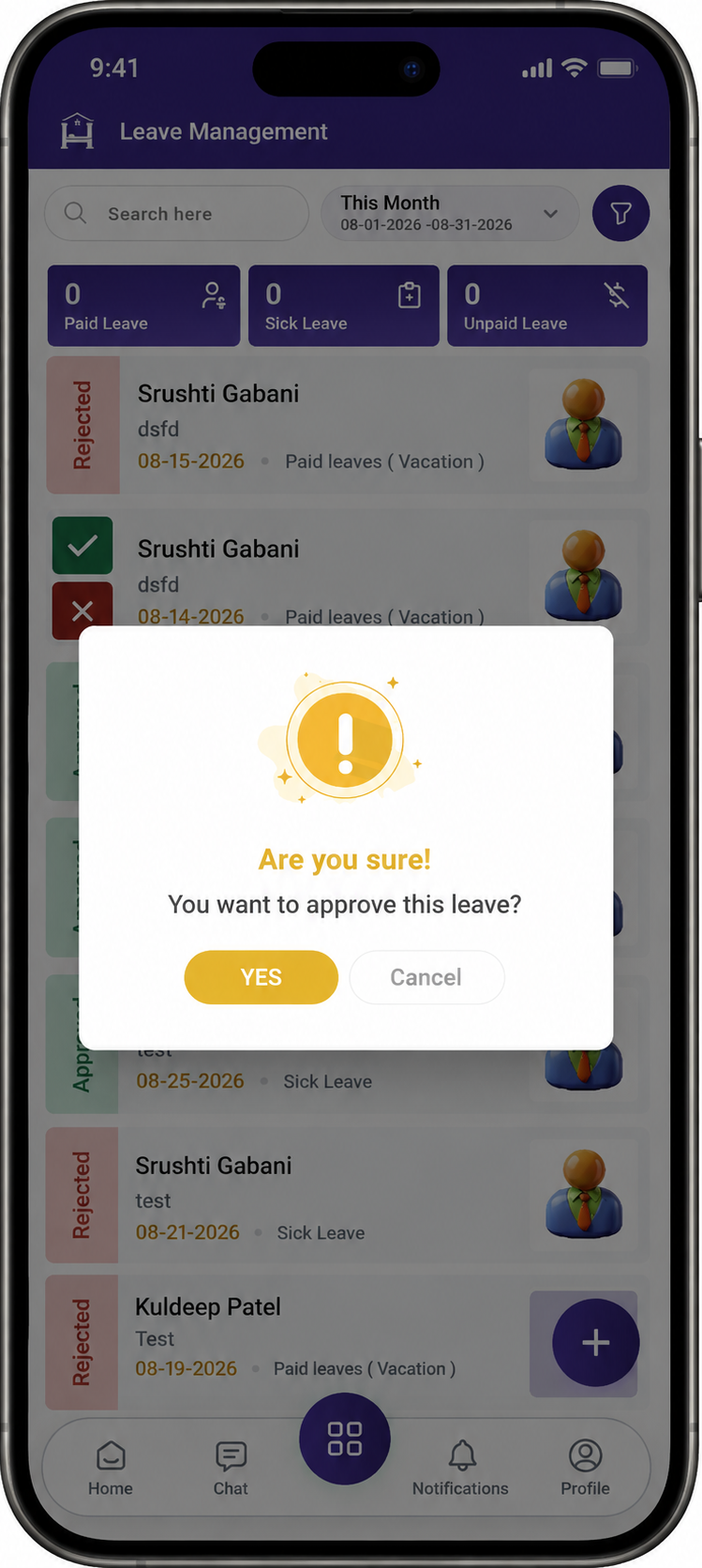
Approve Leave
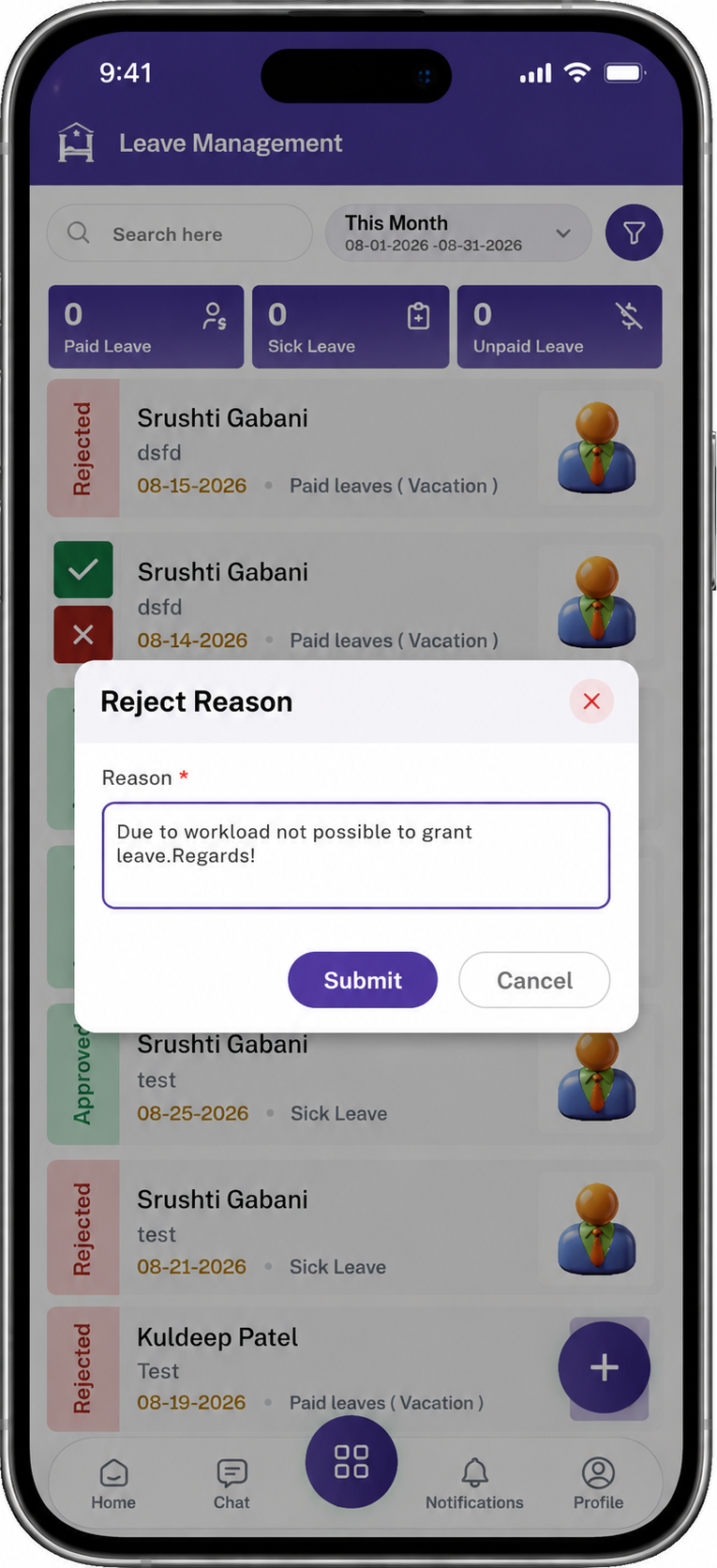
Reject Leave
Leave Management Workflow
The employee and manager workflow is:
Add Leave → Check Balance → Submit → Manager Reviews → Approve / Reject → Leave Updated
Approval
Pending → Manager Reviews → Approve → Approved → Balance Deducted
Rejection
Pending → Manager Reviews → Reject → Rejected → Balance Unaffected
Using Leave Management for Scheduling
Leave Management is used as a reference when creating employee schedules.
Managers can use approved leave to:
- Avoid assigning shifts to employees on approved leave.
- Identify staffing gaps caused by approved leave.
- Plan coverage in advance based on pending and approved leave requests.
- Ensure leave balances are accurately reflected before publishing schedules.
Note: Leave Management does not automatically remove an employee from an already published schedule. Managers should review approved leave before finalizing schedules.
Important Notes
- Leave is applied for full days only — partial or half-day leave is not supported.
- Leave requests are categorized into Paid Leave, Sick Leave, and Unpaid Leave.
- Leave balances are configured per employee group, with both a yearly count and a monthly count set for each leave type (Paid, Unpaid, Sick).
- If a requested leave exceeds either the yearly balance or the monthly limit for the selected type, the system blocks submission.
- Managers can Approve or Reject leave requests individually.
- Approved leave should be used as a reference when building and publishing schedules.
- Leave balances update automatically based on approval status.