# Compliance Policy
## Overview
The **Policy Review** feature allows employees to read company policies, review policy documents, and record whether they **Agree** or **Disagree** with each policy.
Employees can access policies in two ways:
1. **During onboarding** — policies can be presented as part of the employee onboarding/compliance process.
2. **From the Profile page** — employees can open **Compliance Policy** at any time to review pending or previously accepted policies.
---
#### **1. Policy Review During Onboarding**
During employee onboarding, the employee may be required to review company policies before completing the onboarding process.
When a policy is presented, the employee is taken to the **Policy Review** screen.
##### **Step 1 — Open the Policy Review Screen**
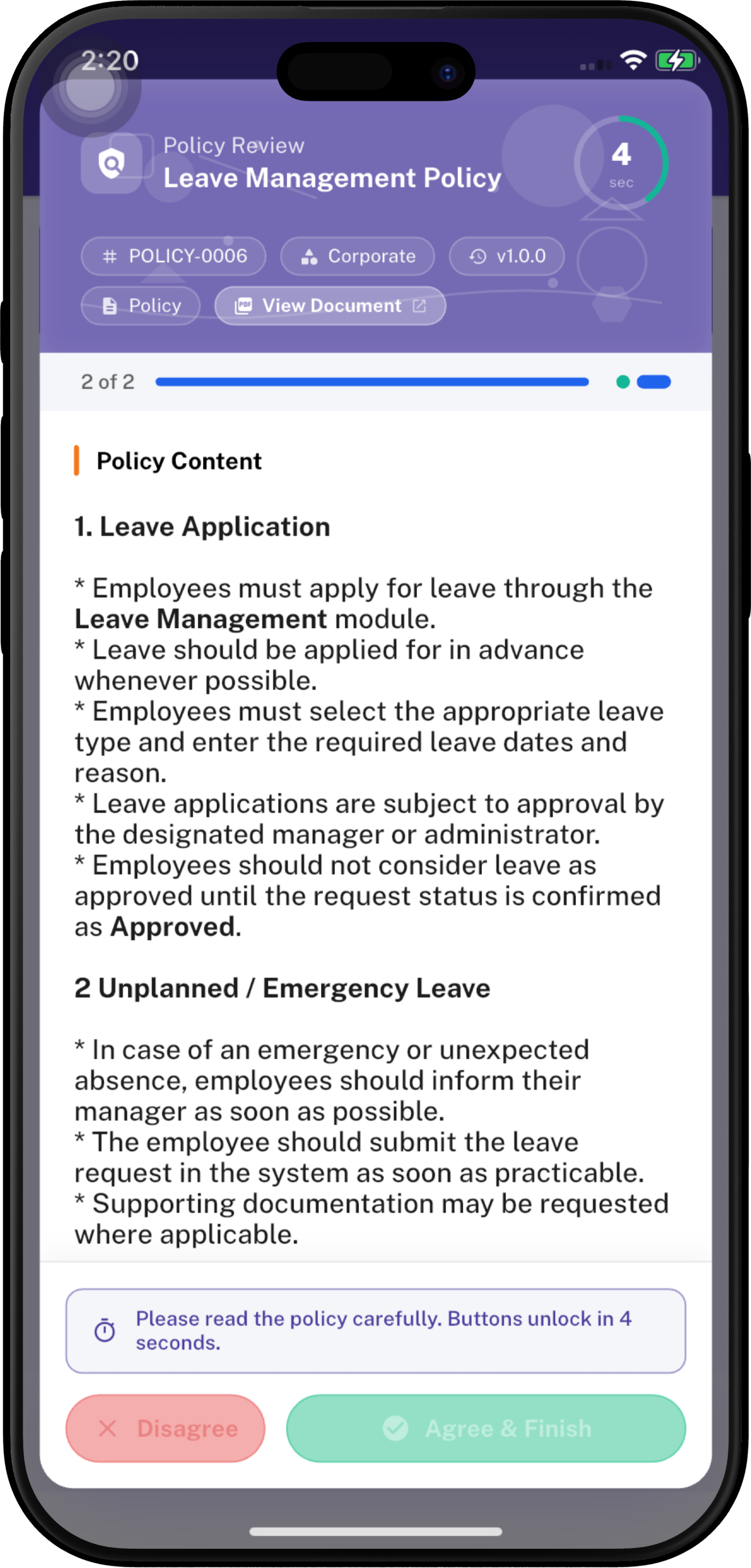
The policy review screen displays the policy information at the top.
The header includes:
| Item | Description |
|---|---|
| **Policy Review** | Indicates that the employee is currently reviewing a company policy. |
| **Policy Name** | Name/title of the policy being reviewed. |
| **Policy Number** | Unique policy identifier. |
| **Policy Type/Scope** | Indicates the policy category or scope. |
| **Version** | Displays the policy version. |
| **Policy** | Indicates that the content being displayed is a policy document/content. |
| **Close (X)** | Closes the policy review window. |
> **Important:** If the policy is mandatory, the employee should complete the review and provide a response before continuing with the applicable onboarding process.
---
##### **Step 2 - Understand the Policy Progress Indicator**
Below the policy header, the screen displays the current policy position and progress.
For example:
> **1 of 2**
This means the employee is currently reviewing the **first policy out of two policies** in the current review sequence.
The progress bar provides a visual indication of how much of the policy review sequence has been completed.
When multiple policies are assigned, the employee continues through them one by one.
---
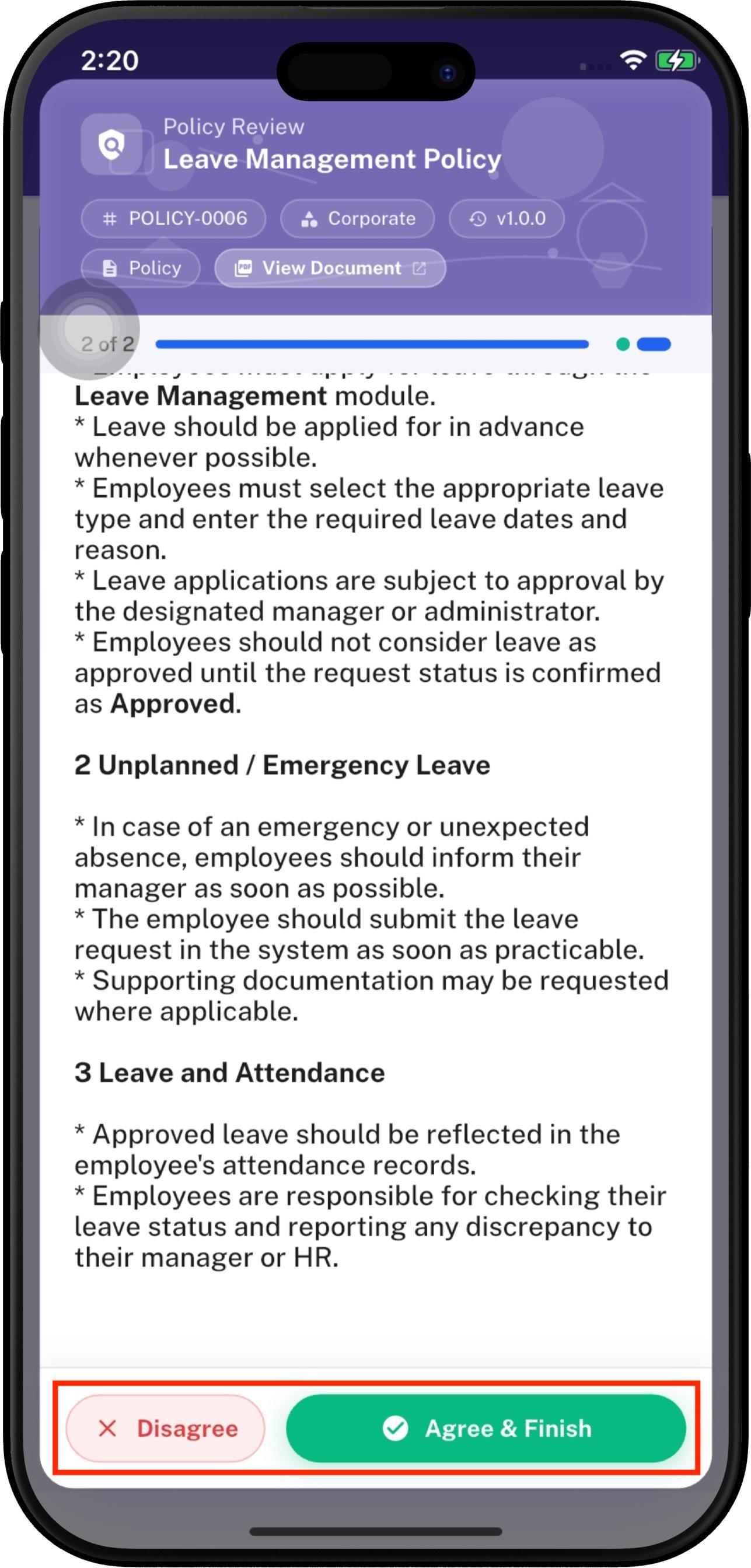
##### **Step 3 - Read the Policy Content**
The **Policy Content** section contains the actual policy information.
Employees should scroll through the content and read the policy carefully.
A policy may contain sections such as:
- Purpose
- When the policy can be used
- Employee responsibilities
- Procedures
- Restrictions
- Required actions
- Other policy-specific rules
> **Employee instruction:** Read the complete policy content before selecting **Agree** or **Disagree**.
---
##### **Step 4 - Agree & Continue**
**Agree & Finish** - Use this button when the employee has read and accepted the policy.
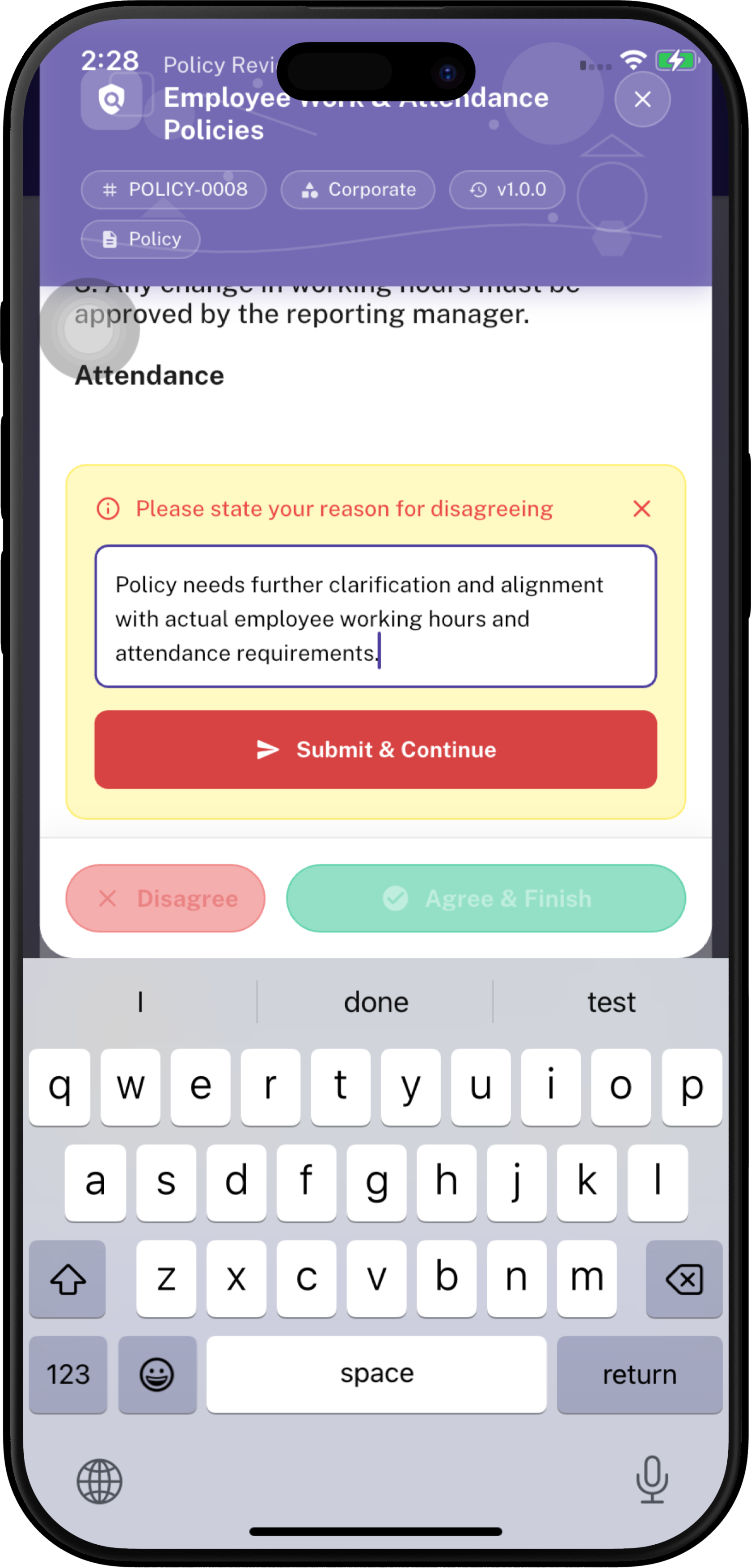
**Disagree** - The **Disagree** button allows an employee to indicate that they do not agree with the policy.
Selecting **Disagree** does not immediately complete the action.
The system opens a reason section where the employee must explain why they disagree. Then tap **Submit & Continue**.
The system records the employee's acceptance and moves to the next required policy, if one exists.
If the employee is reviewing the final required policy, the button may change to:
---
#### **Why is a Reason Required?**
The reason provides management/HR with context about why the employee did not accept the policy.
The reason should be:
- Clear
- Specific
- Professional
- Related to the policy
- Useful for management/HR review
Avoid entering vague reasons such as:
> "I don't agree."
Instead, provide enough information to explain the concern.
---
#### **2. Policy Review from the Profile Page**
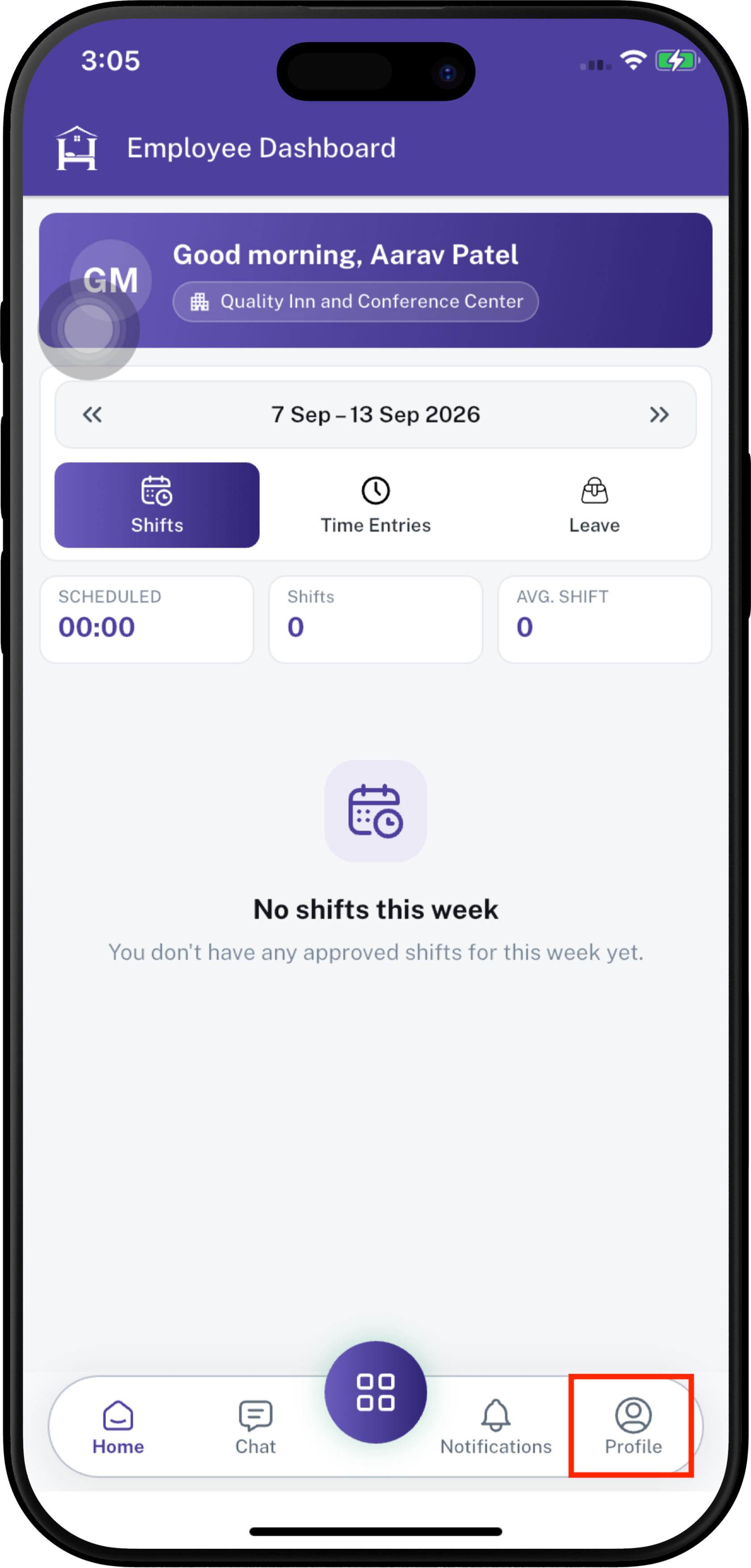
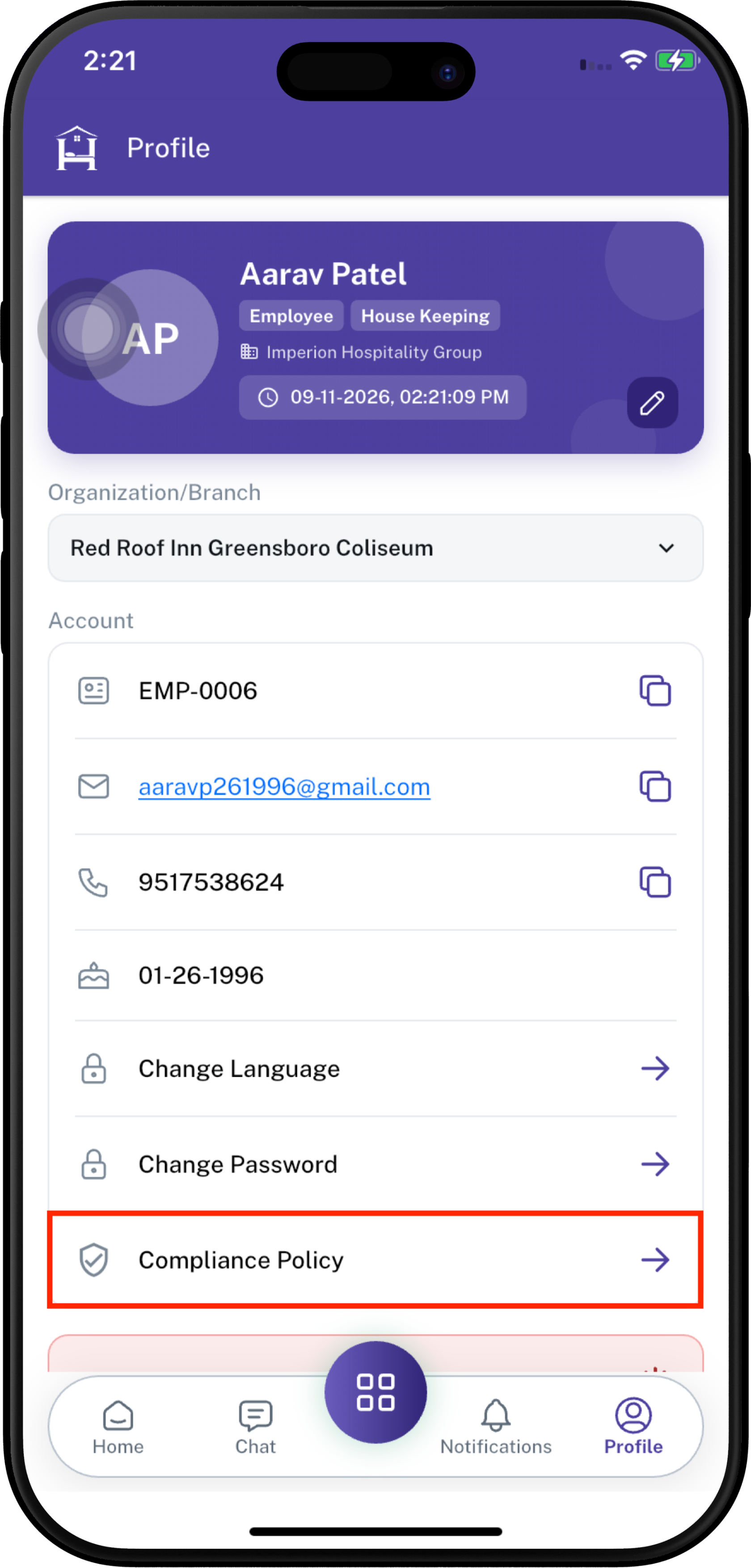
Employees can also access policies after onboarding from the **Profile** page.
1. Open the Employee App.
2. Navigate to **Profile** using the bottom navigation.
3. The Profile page displays employee account information and available profile options.
4. Locate **Compliance Policy**.
5. Tap **Compliance Policy**.
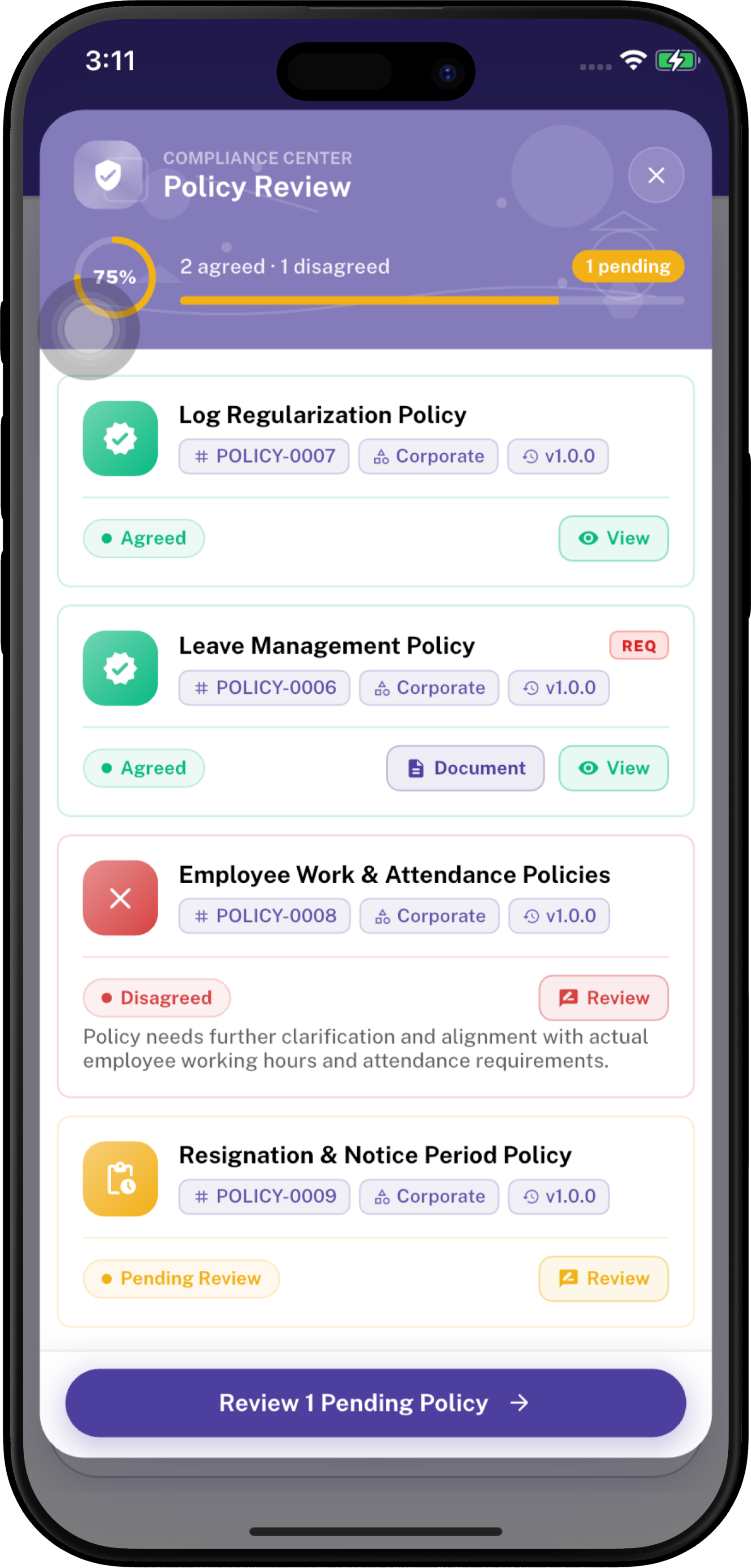
#### **Understanding Policy Status**
Each policy is displayed as a separate policy card.
> 🟡 **Pending Review** - A yellow/orange **Pending Review** status means the employee still needs to review and respond to the policy.
>
> 🟢 **Agreed** - A green **Agreed** status means the employee has already accepted the policy.
>
> 🔴 **Disagreed** - A red **Disagreed** status means the employee previously rejected/disagreed with the policy. The policy card may display the employee's submitted reason and provide a **Review** button.
---
#### **View Document**
This indicates that a policy document/file is available. Tapping the **View Document** button allows the employee to open or download the associated policy documentation.
> **Note:** The **Document** button is only shown when a document is available for that policy.