# Chat

The **Chat** module provides a simple and convenient way for employees and managers to communicate within the organization. Users can search for employees, start conversations, view recent chats, check unread messages, and communicate through groups or channels.

---

#### **Chat Module Overview**

The Chat module allows users to:

- Search for employees and start a conversation.
- Send messages to employees or managers.
- View recently active or added conversations.
- Identify unread messages using unread counts.
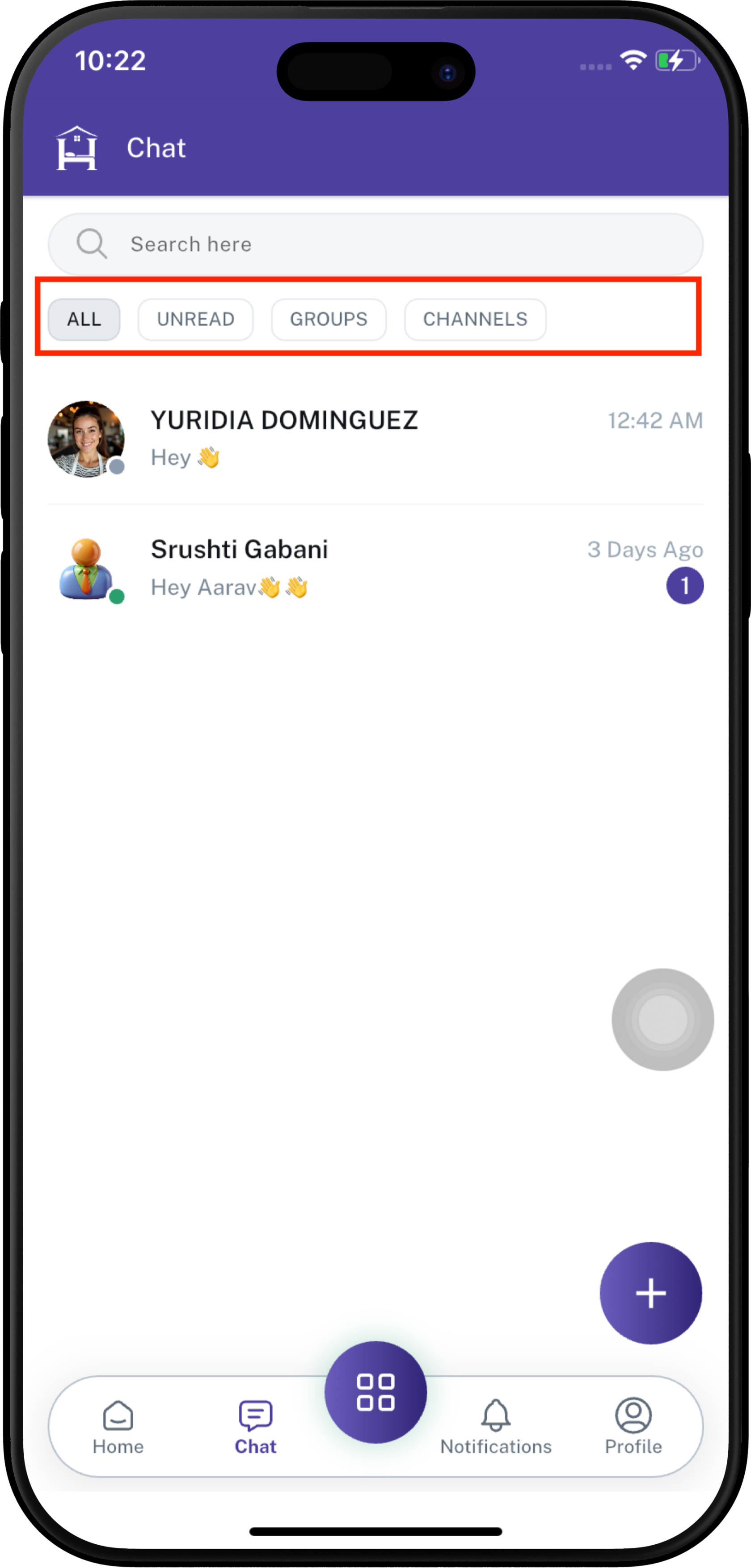
- Filter chats by **All**, **Unread**, **Groups**, or **Channels**.
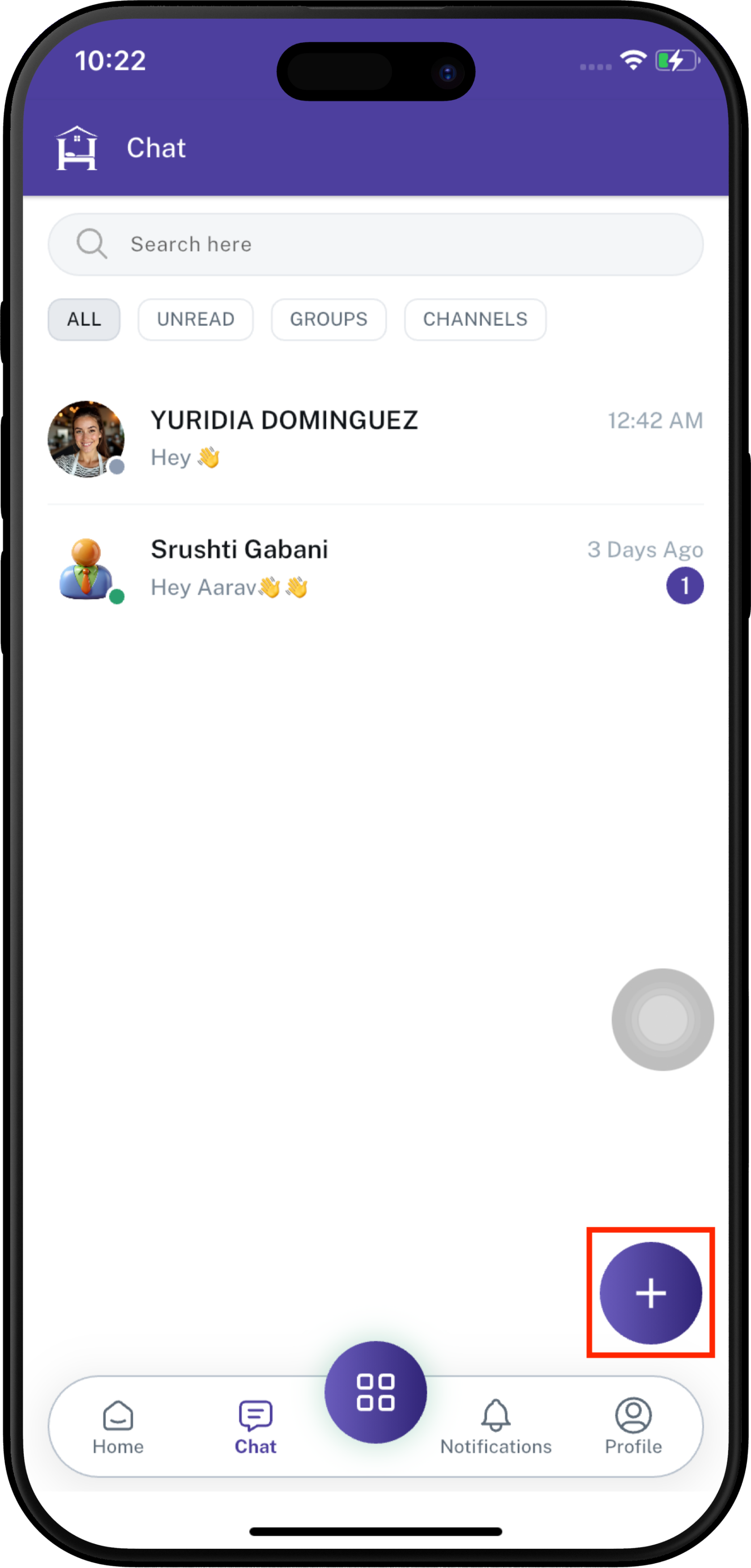
- Create a new **Group** or **Channel** using the **+** button.
- Quickly access Chat from the bottom navigation.

---

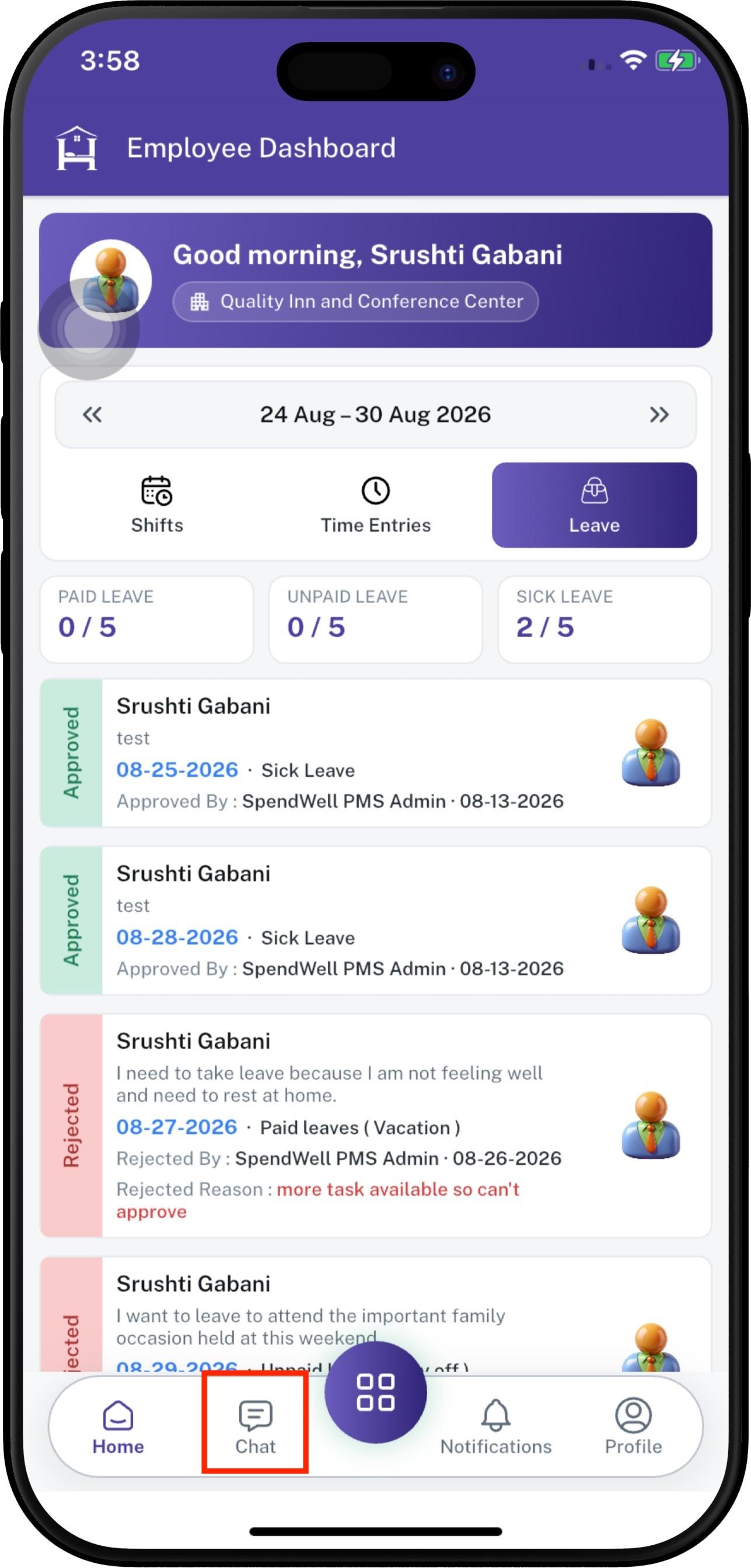
#### **Open the Chat Module**

From the Employee App, tap **Chat** in the bottom navigation bar.

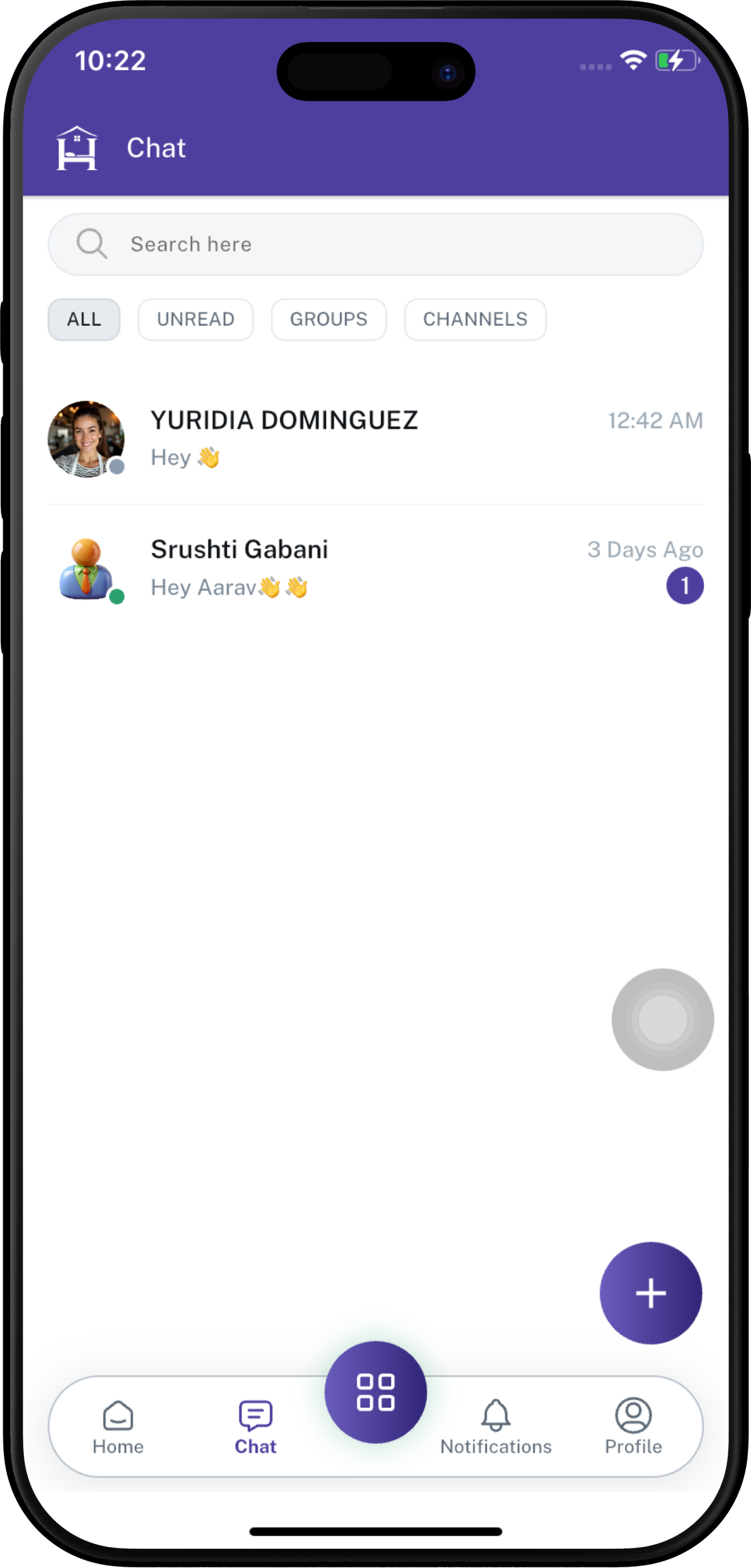
The Chat screen displays the search bar, chat filters, recent conversations, and options for creating a new group or channel.


<div align="center">
  <a href="https://docs.spendwelltechsystem.com/uploads/images/gallery/2026-09/scaled-1680-/Ulqimockup-iphone-16-pro-max-43.jpg">
  <img 
    src="https://docs.spendwelltechsystem.com/uploads/images/gallery/2026-09/scaled-1680-/Ulqimockup-iphone-16-pro-max-43.jpg" 
    alt="Change Employee App Password"
    width=250
  >
</a>
</div>

---

#### **Search for an Employee**

Use the **Search** bar at the top of the Chat screen to find an employee.

**To search for an employee:**

1. Tap the **Search** field.
2. Enter the employee's name or relevant search text.
3. Review the matching employee results.
4. Select the employee you want to communicate with.

<div align="center">
  <a href="https://docs.spendwelltechsystem.com/uploads/images/gallery/2026-09/scaled-1680-/imockup-iphone-16-pro-max-46.png">
  <img 
    src="https://docs.spendwelltechsystem.com/uploads/images/gallery/2026-09/scaled-1680-/imockup-iphone-16-pro-max-46.png" 
    alt="Chat"
    width=250
  >
</a>
</div>

---

#### **View Recent Chats**

The Chat screen displays recently active conversations.

**Each conversation can show information such as:**

- Employee or group name.
- Profile image.
- Latest message preview.
- Message time or date.
- Online/availability indicator.
- Unread message count, when applicable.

Recent conversations are displayed so users can quickly continue an existing discussion.

<div align="center">
  <a href="https://docs.spendwelltechsystem.com/uploads/images/gallery/2026-09/scaled-1680-/imockup-iphone-16-pro-max-47.png">
  <img 
    src="https://docs.spendwelltechsystem.com/uploads/images/gallery/2026-09/scaled-1680-/imockup-iphone-16-pro-max-47.png" 
    alt="Change Employee App Password"
    width=250
  >
</a>
</div>

---

#### **Chat Filters**

**All** - The **All** filter displays the available conversations.

**Unread Messages** - The **Unread** filter helps users quickly find conversations containing unread messages.

**Groups** - The **Groups** filter allows users to find group conversations separately from individual chats.

**Channels** - The **Channels** filter allows users to view available communication channels.

<div align="center">
  <a href="https://docs.spendwelltechsystem.com/uploads/images/gallery/2026-09/scaled-1680-/lwXimockup-iphone-16-pro-max-46.png">
  <img 
    src="https://docs.spendwelltechsystem.com/uploads/images/gallery/2026-09/scaled-1680-/lwXimockup-iphone-16-pro-max-46.png" 
    alt="Change Employee App Password"
    width=250
  >
</a>
</div>
<br>

---

#### **Create a New Group or Channel**

To start a new group or channel, tap the **+** button on the Chat screen.

<div align="center">
  <a href="https://docs.spendwelltechsystem.com/uploads/images/gallery/2026-09/scaled-1680-/pw2imockup-iphone-16-pro-max-47.png">
  <img 
    src="https://docs.spendwelltechsystem.com/uploads/images/gallery/2026-09/scaled-1680-/pw2imockup-iphone-16-pro-max-47.png" 
    alt="Change Employee App Password"
    width=250
  >
</a>
</div>
<br>

##### **Select New Group or New Channel**

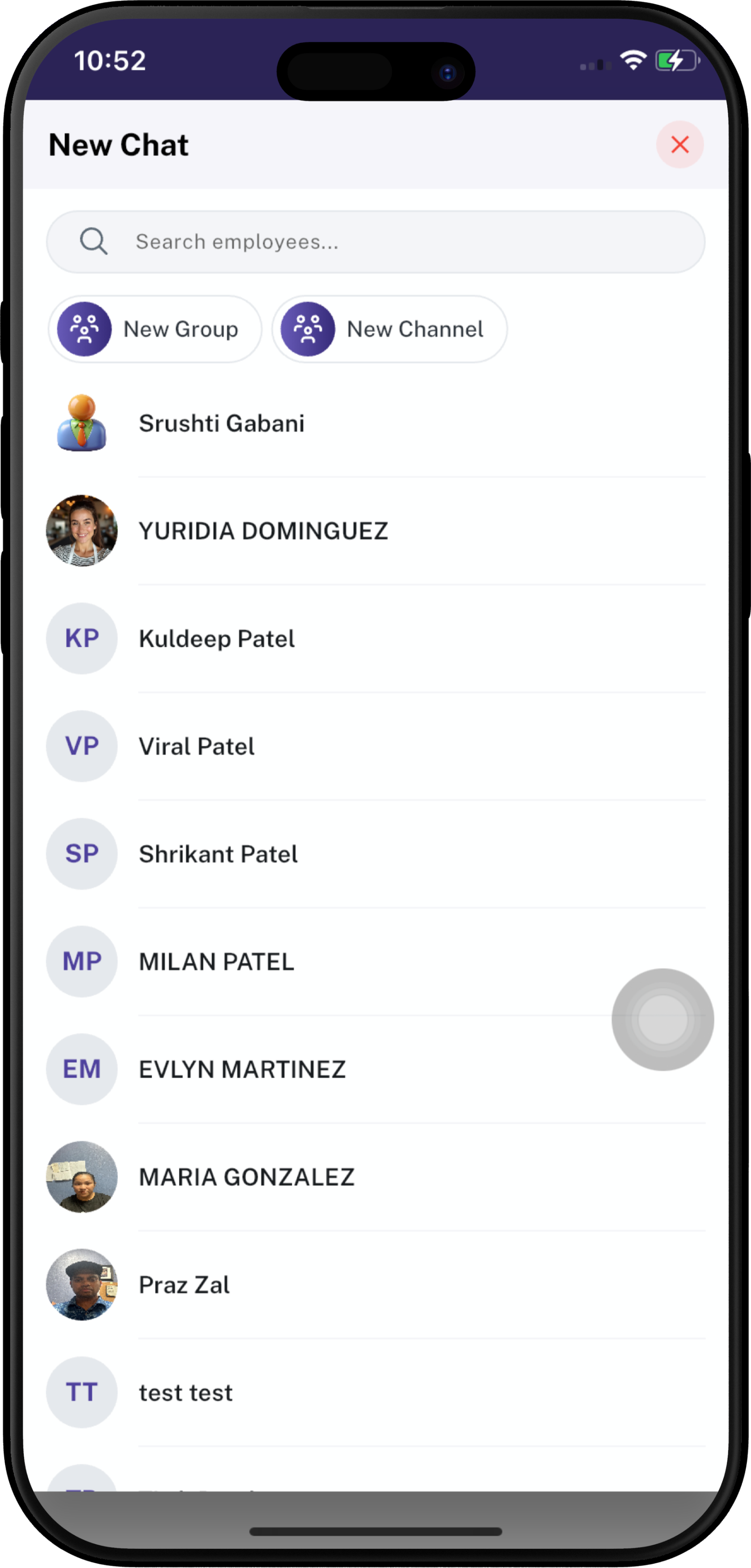
After tapping the **+** button, the **New Chat** screen opens.

You can choose between:
- **New Group** — Create a group for communication with multiple employees.
- **New Channel** — Create a channel for organized communication and information sharing.

You can also use the **Search employees** field to find employees.

<div align="center">
  <a href="https://docs.spendwelltechsystem.com/uploads/images/gallery/2026-09/scaled-1680-/imockup-iphone-16-pro-max-50.png">
    <img 
      src="https://docs.spendwelltechsystem.com/uploads/images/gallery/2026-09/scaled-1680-/imockup-iphone-16-pro-max-50.png" 
      alt="New Group Details"
      width="250"
    >
  </a>
</div>

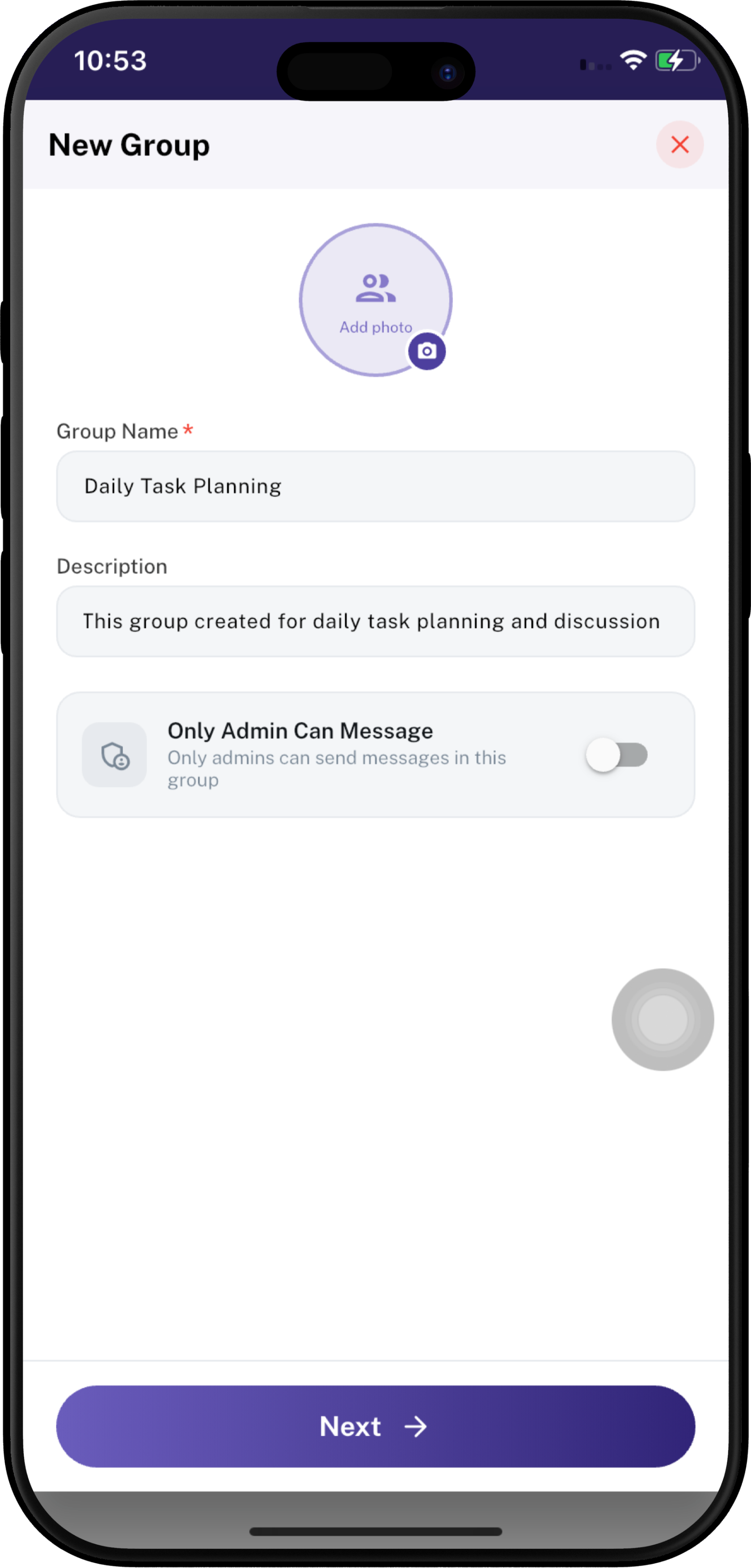
##### **1. Add New Group**

If you select **New Group**, the **New Group** screen opens.

Enter the required group information:

1. **Add Photo** — Add a photo for the group.
2. **Group Name** — Enter the name of the group. This is a required field.
3. **Description** — Enter a description explaining the purpose of the group.
4. **Only Admin Can Message** — Enable this option if only group administrators should be allowed to send messages.
5. Tap **Next** to continue.

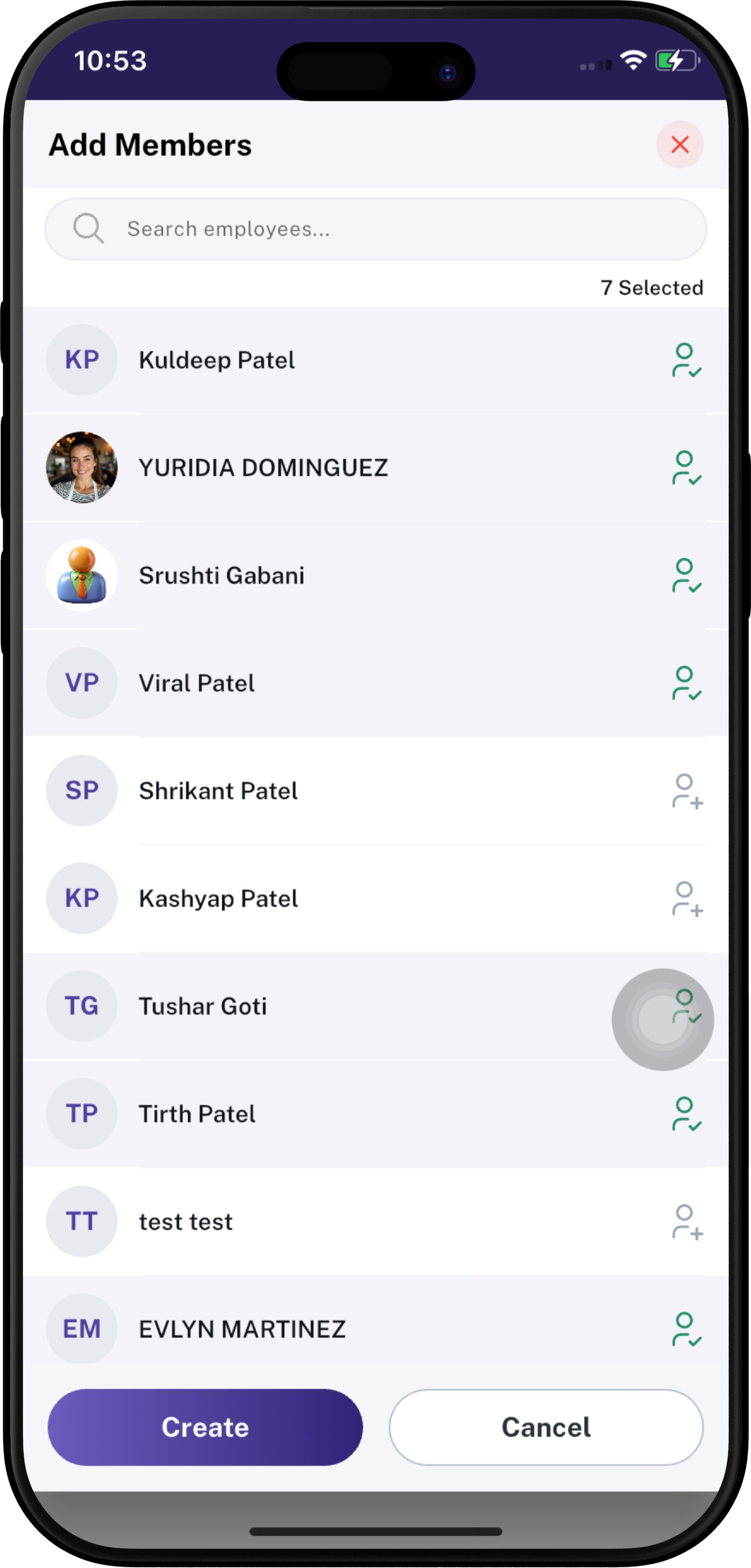
After entering the group details, the **Add Members** screen opens.

1. Use **Search employees** to find employees.
2. Select the employees you want to add to the group.
3. Selected employees are highlighted and displayed in the **Selected** count.
4. Review the selected members.
5. Tap **Create** to create the group.
6. Tap **Cancel** if you want to stop the process.


<div align="center" style="display: flex; justify-content: center; gap: 40px; flex-wrap: wrap;">

  <div>
    <a href="https://docs.spendwelltechsystem.com/uploads/images/gallery/2026-09/scaled-1680-/imockup-iphone-16-pro-max-48.png">
      <img src="https://docs.spendwelltechsystem.com/uploads/images/gallery/2026-09/scaled-1680-/imockup-iphone-16-pro-max-48.png" width="250">
    </a>
    <br>
    <small style="color: black; display: inline-block; margin-top: 10px;">
  <strong>Step 1: Add Group Details</strong>
</small>
  </div>

  <div>
    <a href="https://docs.spendwelltechsystem.com/uploads/images/gallery/2026-09/scaled-1680-/imockup-iphone-16-pro-max-49.png">
      <img src="https://docs.spendwelltechsystem.com/uploads/images/gallery/2026-09/scaled-1680-/imockup-iphone-16-pro-max-49.png" width="250">
    </a>
    <br>
    <small style="color: black; display: inline-block; margin-top: 10px;">
  <strong>Step 2: Add Group Members</strong>
</small>
  </div>

  <div>
    <a href="https://docs.spendwelltechsystem.com/uploads/images/gallery/2026-09/scaled-1680-/imockup-iphone-16-pro-max-52.png">
      <img src="https://docs.spendwelltechsystem.com/uploads/images/gallery/2026-09/scaled-1680-/imockup-iphone-16-pro-max-52.png" width="250">
    </a>
    <br>
    <small style="color: black; display: inline-block; margin-top: 10px;">
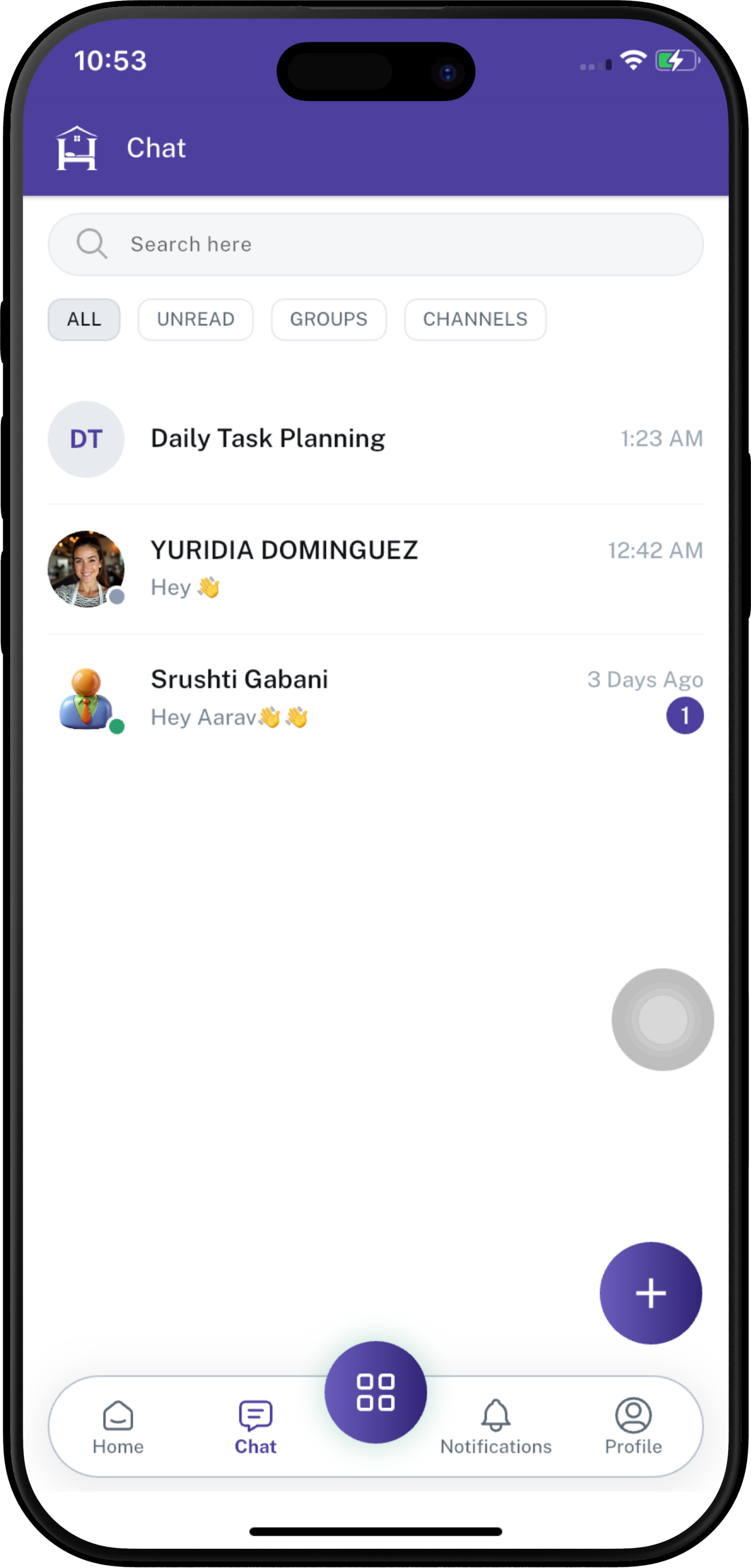
  <strong>Step 3: Showing New Group</strong>
</small>
  </div>

</div>

---

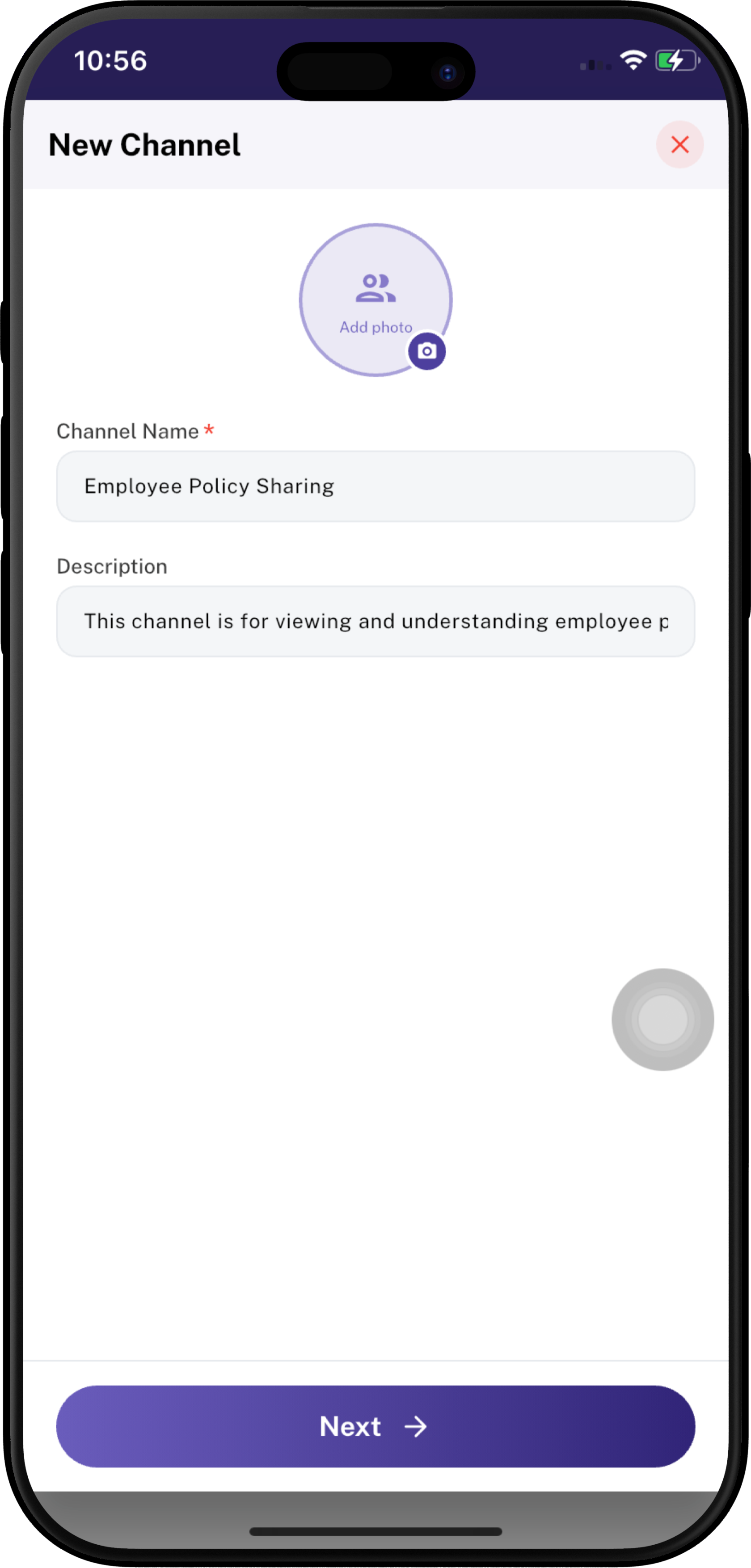
##### **2. Add New Channel**

If you select **New Channel** from the **New Chat** screen, the **New Channel** screen opens.

Enter the required channel information:

1. **Add Photo** — Add a photo for the channel.
2. **Channel Name** — Enter the channel name. This is a required field.
3. **Description** — Enter a description explaining the purpose of the channel.
4. Tap **Next** to continue.

After entering the channel details, the **Add Members** screen opens.

1. Use **Search employees** to find employees.
2. Select the employees you want to add to the channel.
3. Selected employees are highlighted and displayed in the **Selected** count.
4. Review the selected members.
5. Tap **Create** to create the channel.
6. Tap **Cancel** if you want to stop the process.


<div align="center" style="display: flex; justify-content: center; gap: 40px; flex-wrap: wrap;">

  <div>
    <a href="https://docs.spendwelltechsystem.com/uploads/images/gallery/2026-09/scaled-1680-/imockup-iphone-16-pro-max-51.png">
      <img src="https://docs.spendwelltechsystem.com/uploads/images/gallery/2026-09/scaled-1680-/imockup-iphone-16-pro-max-51.png" width="250">
    </a>
    <br>
    <small style="color: black; display: inline-block; margin-top: 10px;">
  <strong>Step 1: Add Channel Details</strong>
</small>
  </div>

  <div>
    <a href="https://docs.spendwelltechsystem.com/uploads/images/gallery/2026-09/scaled-1680-/imockup-iphone-16-pro-max-49.png">
      <img src="https://docs.spendwelltechsystem.com/uploads/images/gallery/2026-09/scaled-1680-/imockup-iphone-16-pro-max-49.png" width="250">
    </a>
    <br>
    <small style="color: black; display: inline-block; margin-top: 10px;">
  <strong>Step 2: Add Channel Members</strong>
</small>
  </div>

  <div>
    <a href="https://docs.spendwelltechsystem.com/uploads/images/gallery/2026-09/scaled-1680-/imockup-iphone-16-pro-max-53.png">
      <img src="https://docs.spendwelltechsystem.com/uploads/images/gallery/2026-09/scaled-1680-/imockup-iphone-16-pro-max-53.png" width="250">
    </a>
    <br>
    <small style="color: black; display: inline-block; margin-top: 10px;">
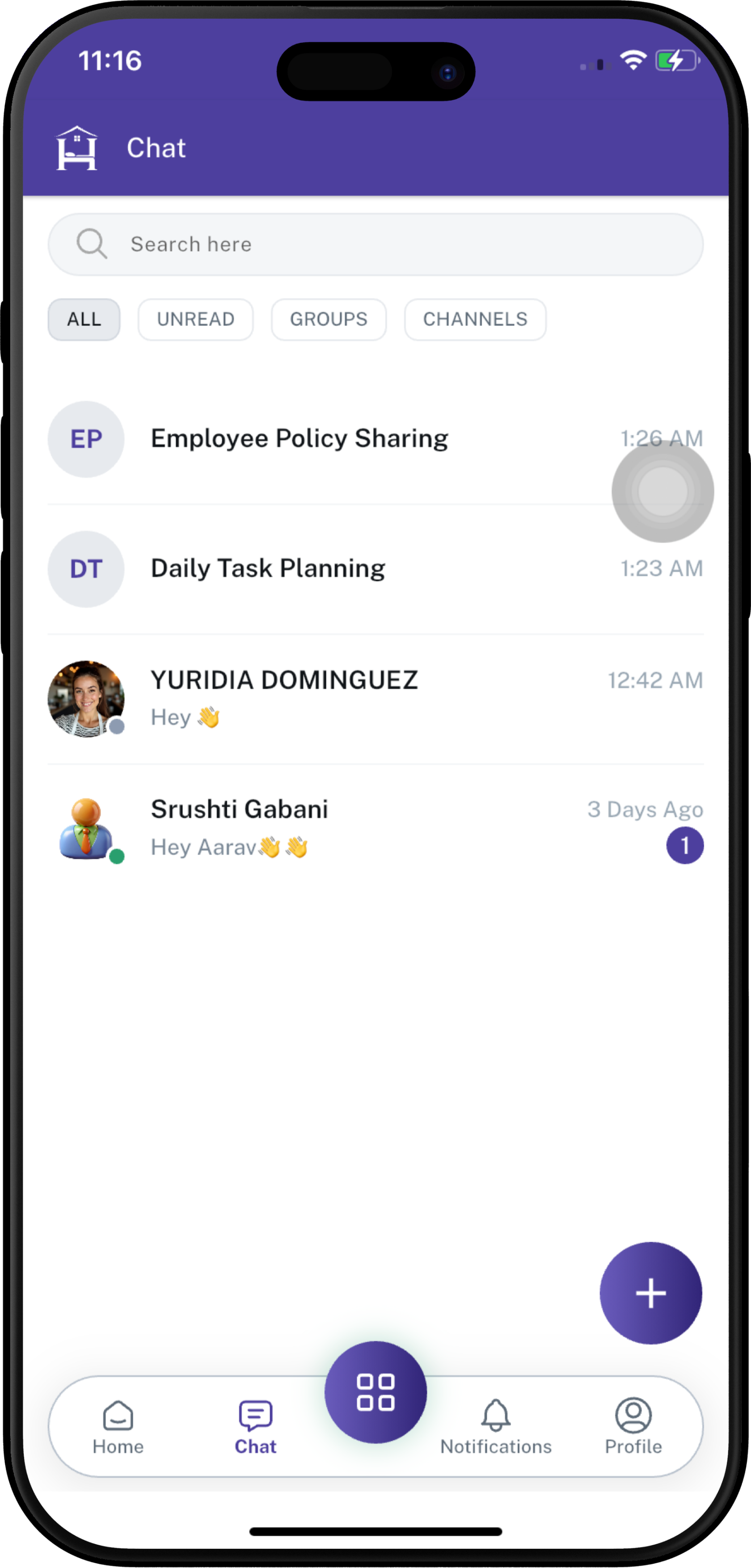
  <strong>Step 3: Showing New Channel</strong>
</small>
  </div>

</div>

---

#### **Group Details and Management**

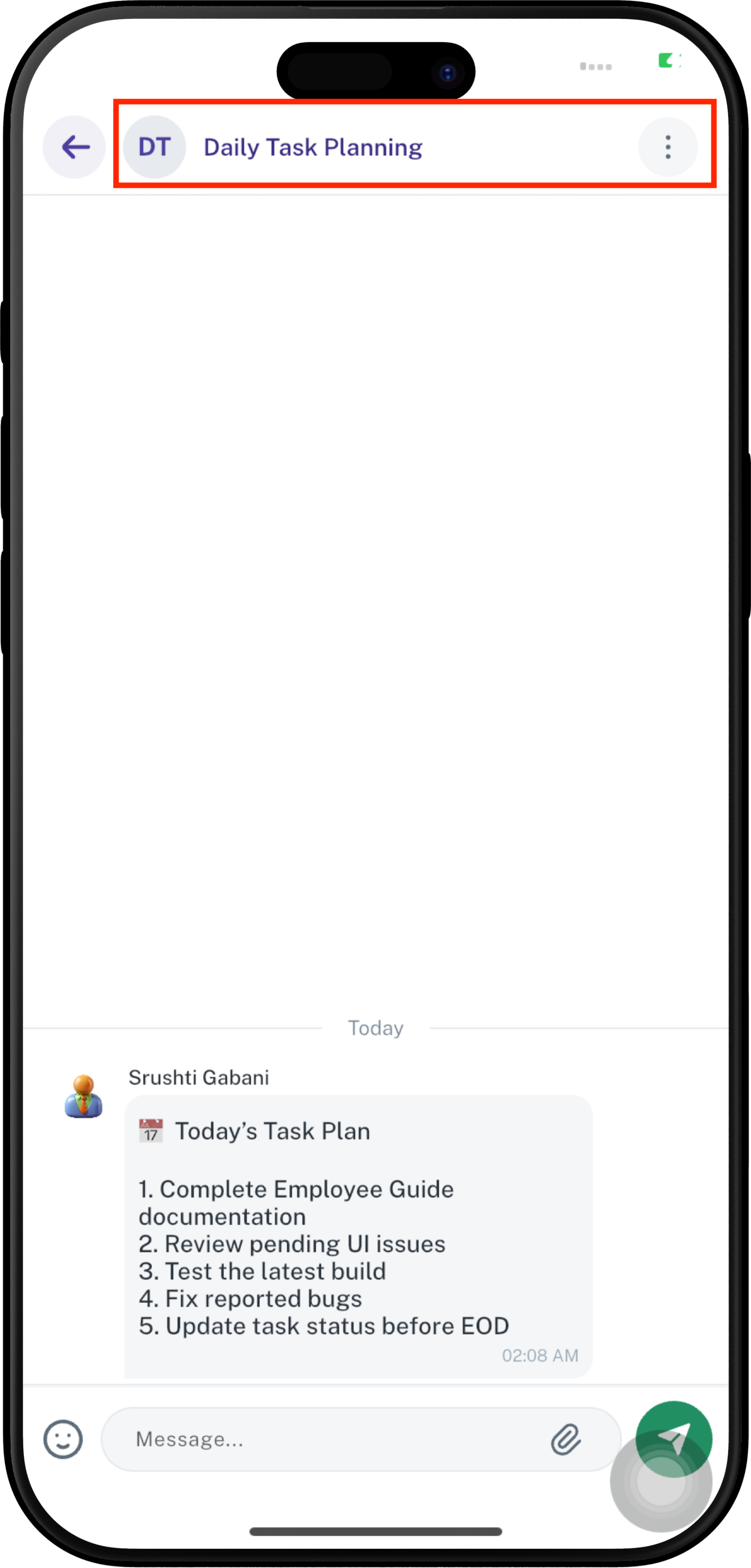
After creating a group, users can open the group and access **Group Info** to view group details and manage members. Management options depend on the user's permissions.

##### **Open Group Info**

1. Open the group conversation.
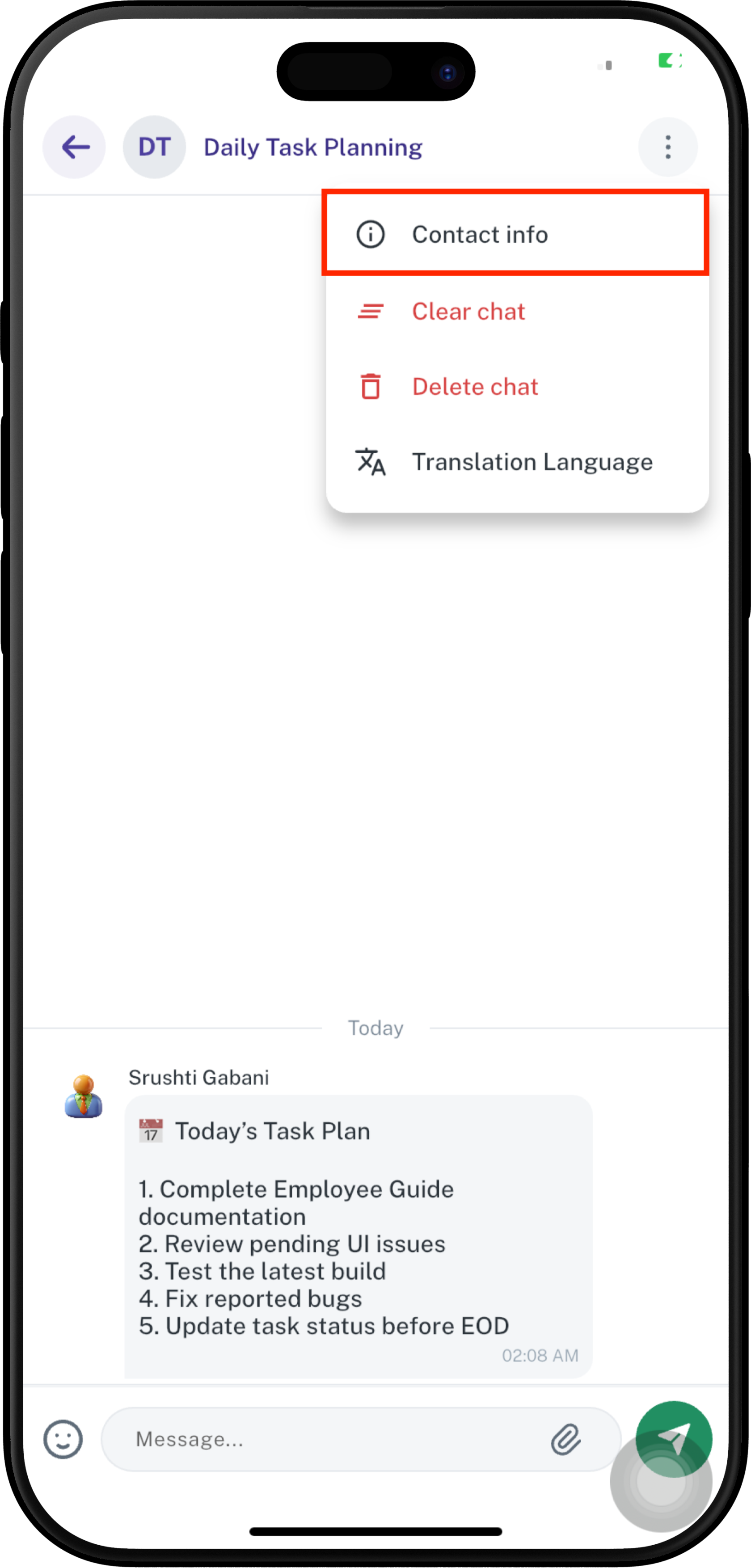
2. Tap the group name or the **⋮** menu in the top-right corner.
3. Select **Contact Info**.

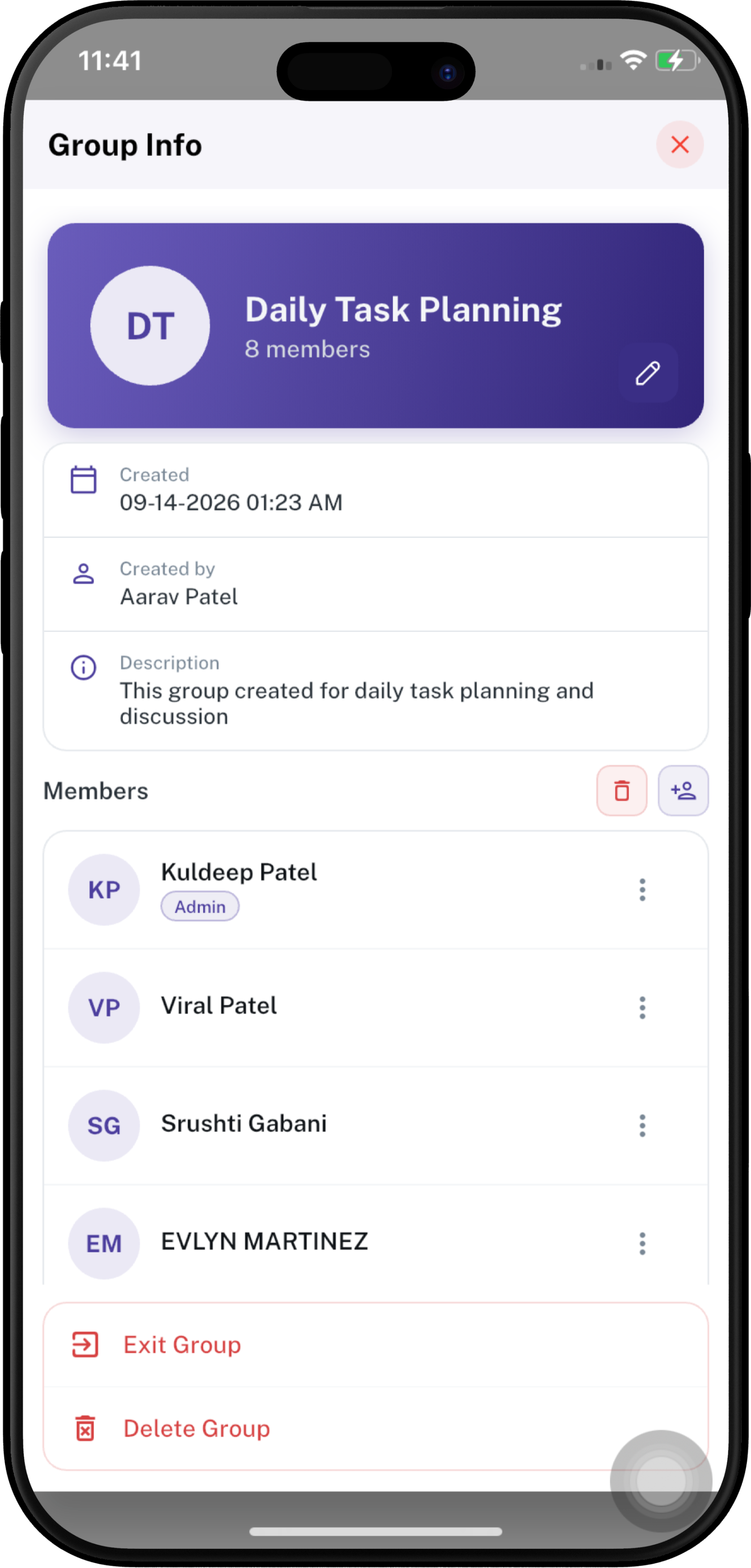
The **Contact Info** screen displays the group name, number of members, creation details, description, member list, and group management options.

<div align="center" style="display: flex; justify-content: center; gap: 60px; flex-wrap: wrap;">
  <div>
    <a href="https://docs.spendwelltechsystem.com/uploads/images/gallery/2026-09/scaled-1680-/1Qqimockup-iphone-16-pro-max-54.png">
      <img src="https://docs.spendwelltechsystem.com/uploads/images/gallery/2026-09/scaled-1680-/1Qqimockup-iphone-16-pro-max-54.png" width="250">
    </a>
  </div>

  <div>
    <a href="https://docs.spendwelltechsystem.com/uploads/images/gallery/2026-09/scaled-1680-/imockup-iphone-16-pro-max-55.png">
      <img src="https://docs.spendwelltechsystem.com/uploads/images/gallery/2026-09/scaled-1680-/imockup-iphone-16-pro-max-55.png" width="250">
    </a>
  </div>
</div>

##### **Group Information**

The Group Info screen shows:

- **Group Name** — Displays the name of the group.
- **Member Count** — Shows the total number of group members.
- **Created** — Shows the date and time when the group was created.
- **Created by** — Shows the employee who created the group.
- **Description** — Shows the purpose or description of the group.


<div align="center" style="display: flex; justify-content: center; gap: 60px; flex-wrap: wrap;">

  <div>
    <a href="https://docs.spendwelltechsystem.com/uploads/images/gallery/2026-09/scaled-1680-/imockup-iphone-16-pro-max-56.png">
      <img src="https://docs.spendwelltechsystem.com/uploads/images/gallery/2026-09/scaled-1680-/imockup-iphone-16-pro-max-56.png" width="250">
    </a>
  </div>

  <div>
    <a href="https://docs.spendwelltechsystem.com/uploads/images/gallery/2026-09/scaled-1680-/imockup-iphone-16-pro-max-57.png">
      <img src="https://docs.spendwelltechsystem.com/uploads/images/gallery/2026-09/scaled-1680-/imockup-iphone-16-pro-max-57.png" width="250">
    </a>
  </div>
</div>


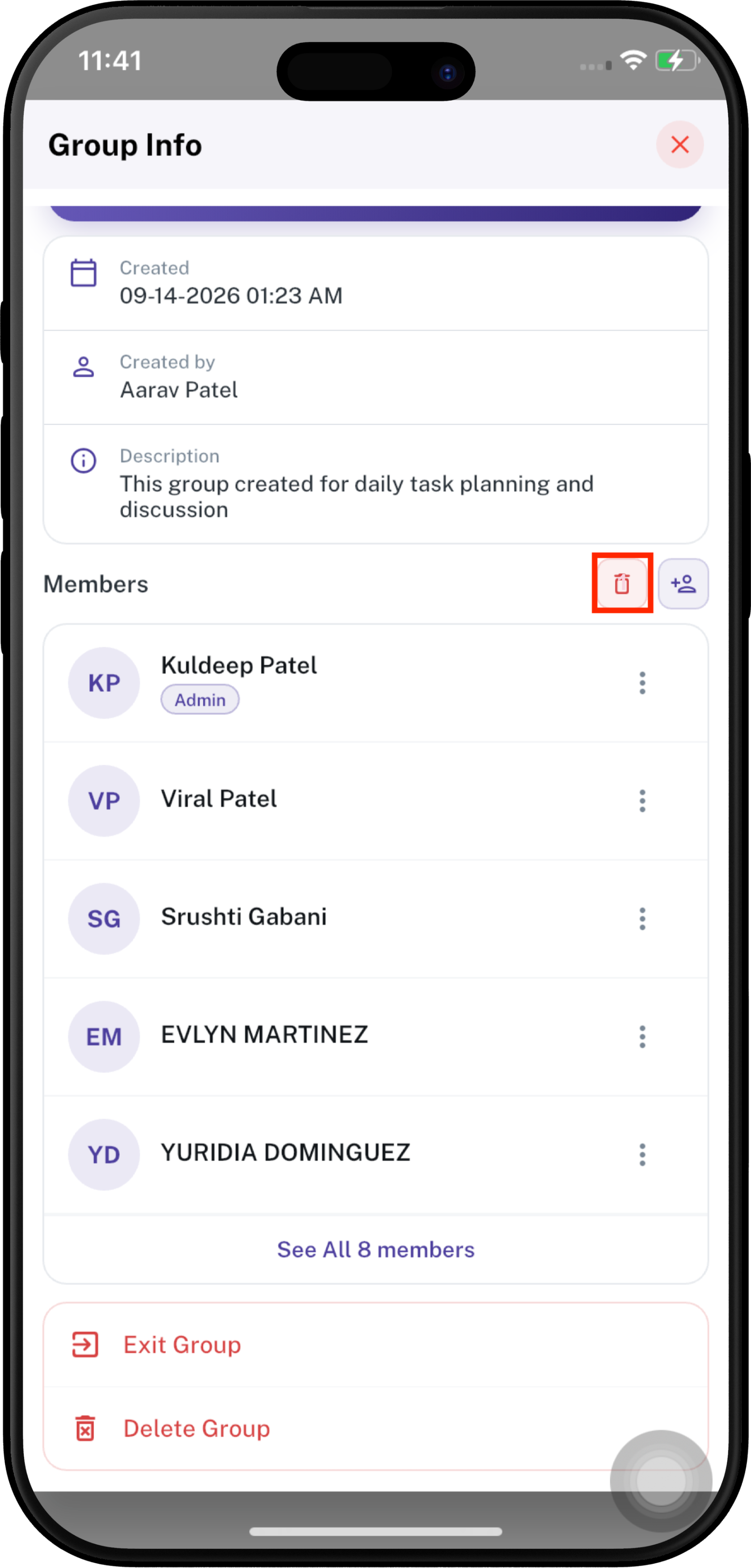
##### **See All Members**

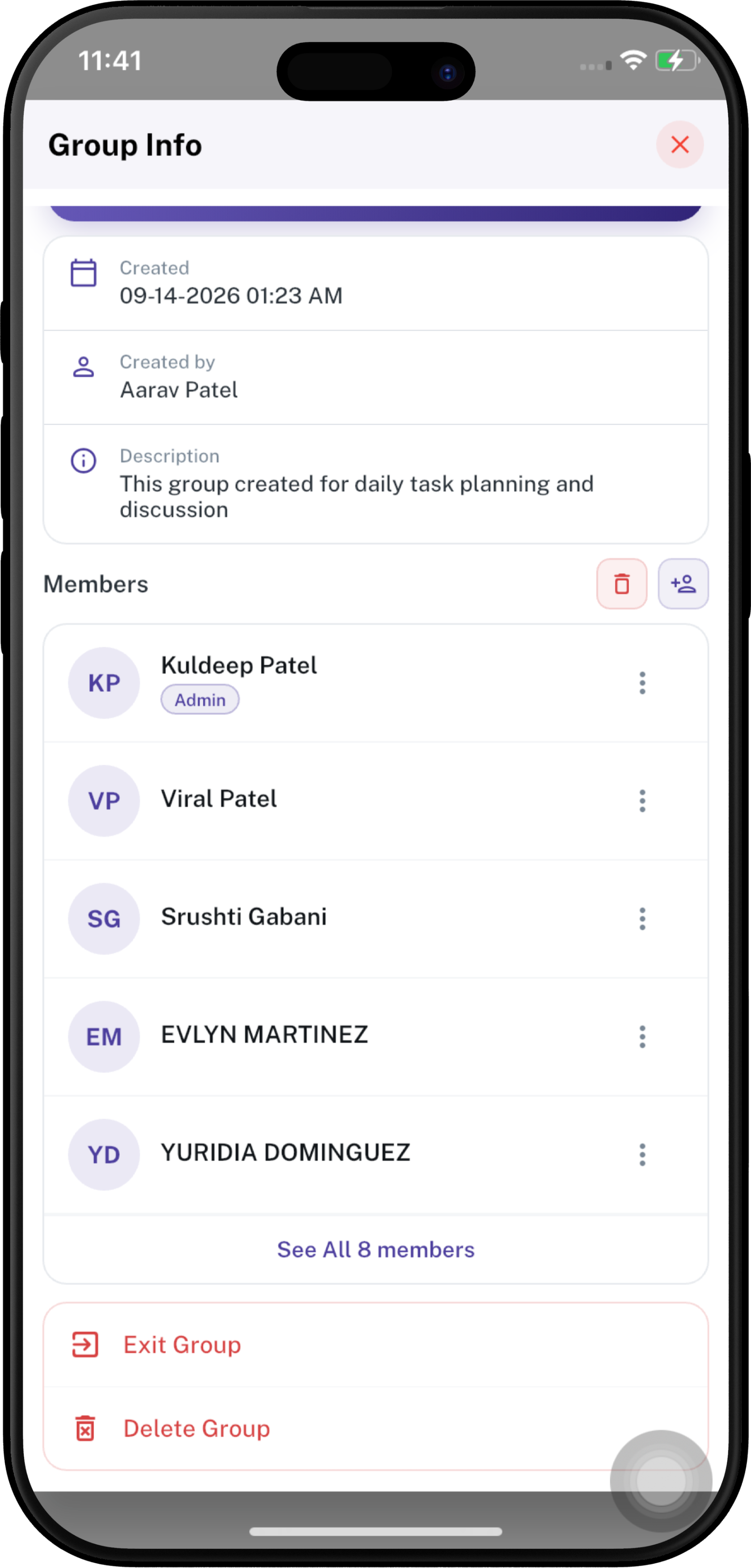
The **Members** section displays the members currently included in the group.

1. Review the members shown on the Group Info screen.
2. Tap **See All 8 members** to view the complete member list.
3. Each member is displayed with their name and profile/avatar.
4. A member with the **Admin** label is a group administrator.

> **Note:** The number of members shown depends on the actual group membership.

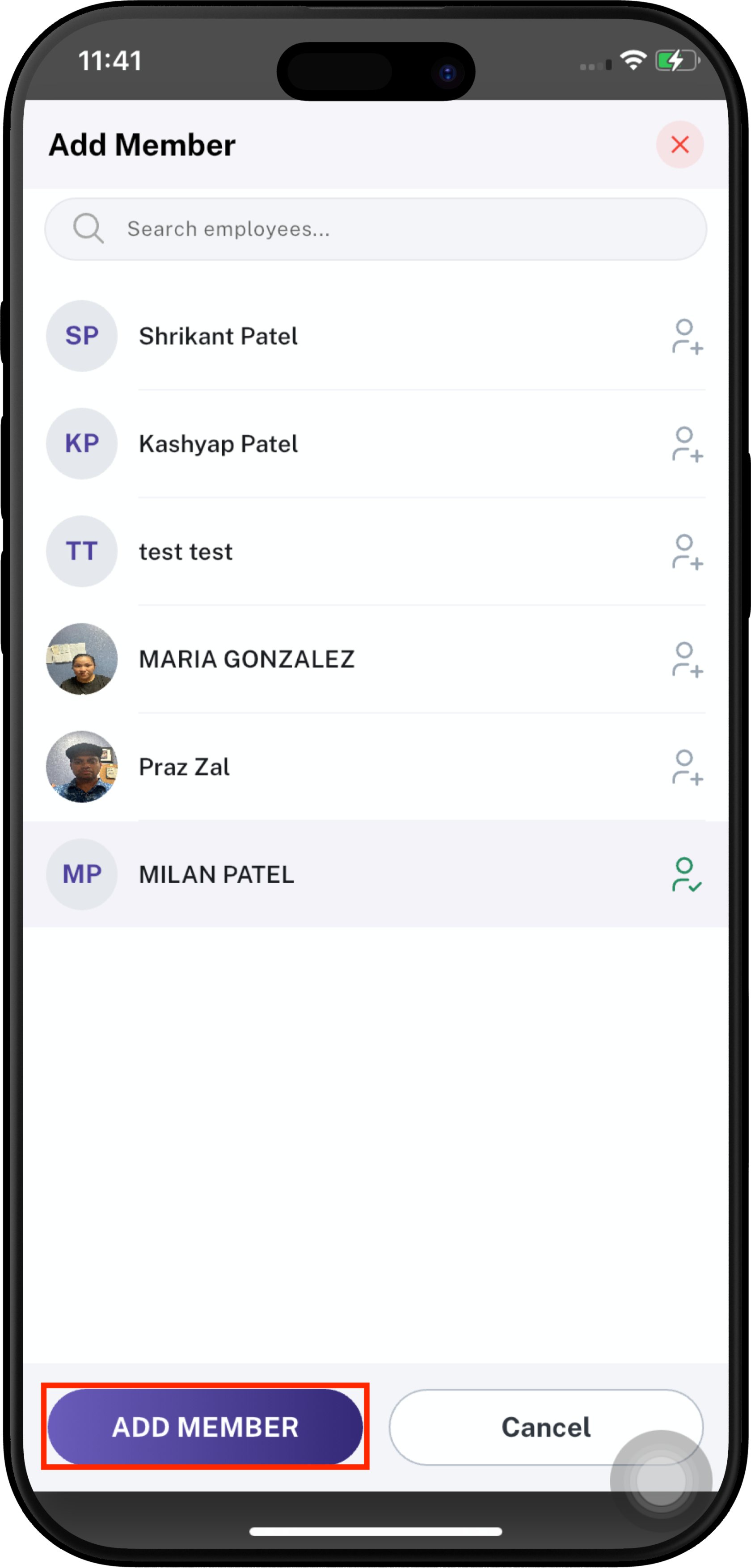
##### **Add Members**

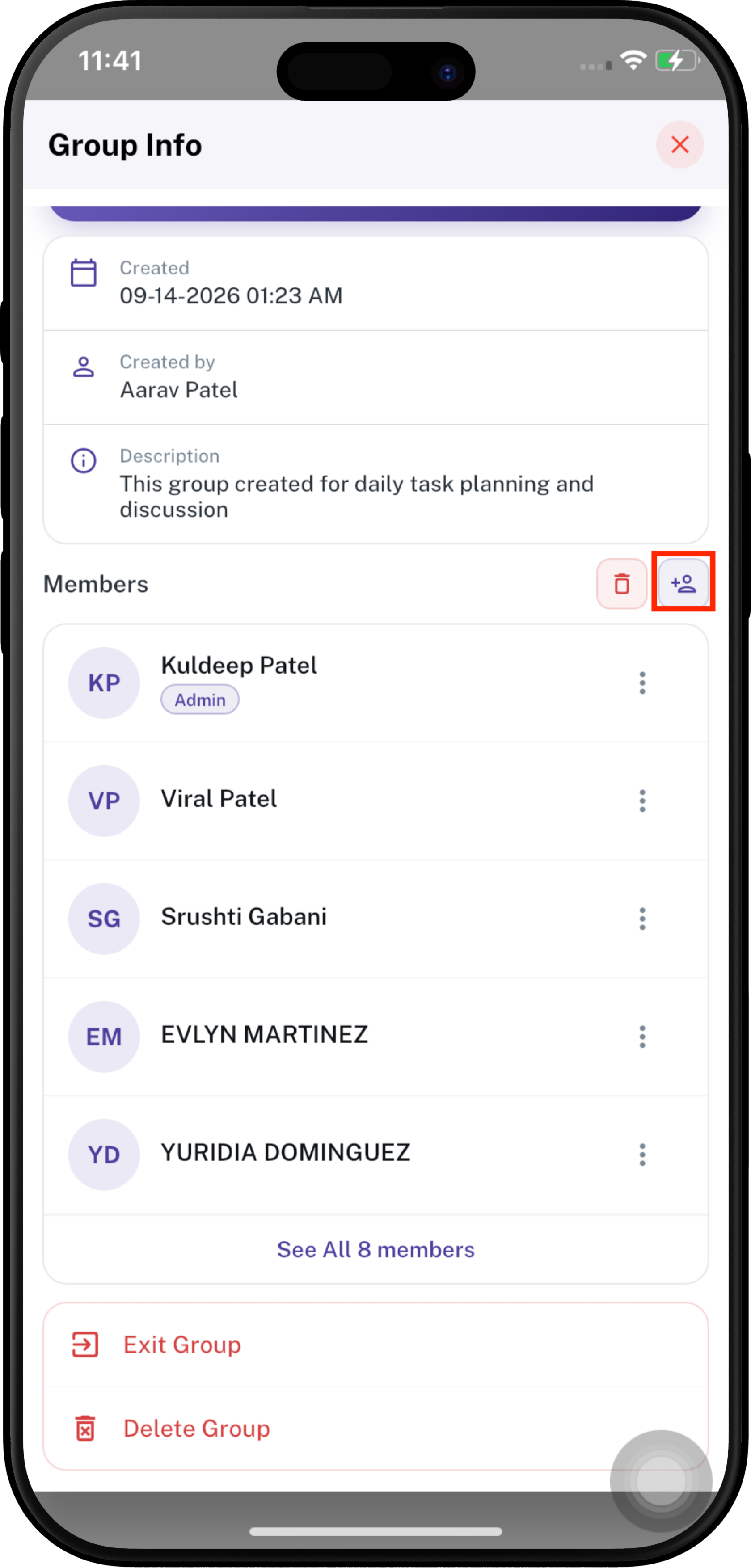
A group administrator can add employees to the group.

1. From **Group Info**, tap the **Add Member** icon.
2. The **Add Member** screen opens.
3. Use **Search employees** to find an employee.
4. Tap the add icon next to the employee you want to add.
5. Selected employees are highlighted.
6. Tap **ADD MEMBER** to confirm.
7. Tap **Cancel** to leave without adding members.

<div align="center" style="display: flex; justify-content: center; gap: 60px; flex-wrap: wrap;">

  <div>
    <a href="https://docs.spendwelltechsystem.com/uploads/images/gallery/2026-09/scaled-1680-/ylhimockup-iphone-16-pro-max-57.png">
      <img src="https://docs.spendwelltechsystem.com/uploads/images/gallery/2026-09/scaled-1680-/ylhimockup-iphone-16-pro-max-57.png" width="250">
    </a>
  </div>

  <div>
    <a href="https://docs.spendwelltechsystem.com/uploads/images/gallery/2026-09/scaled-1680-/imockup-iphone-16-pro-max-58.png">
      <img src="https://docs.spendwelltechsystem.com/uploads/images/gallery/2026-09/scaled-1680-/imockup-iphone-16-pro-max-58.png" width="250">
    </a>
  </div>
</div>

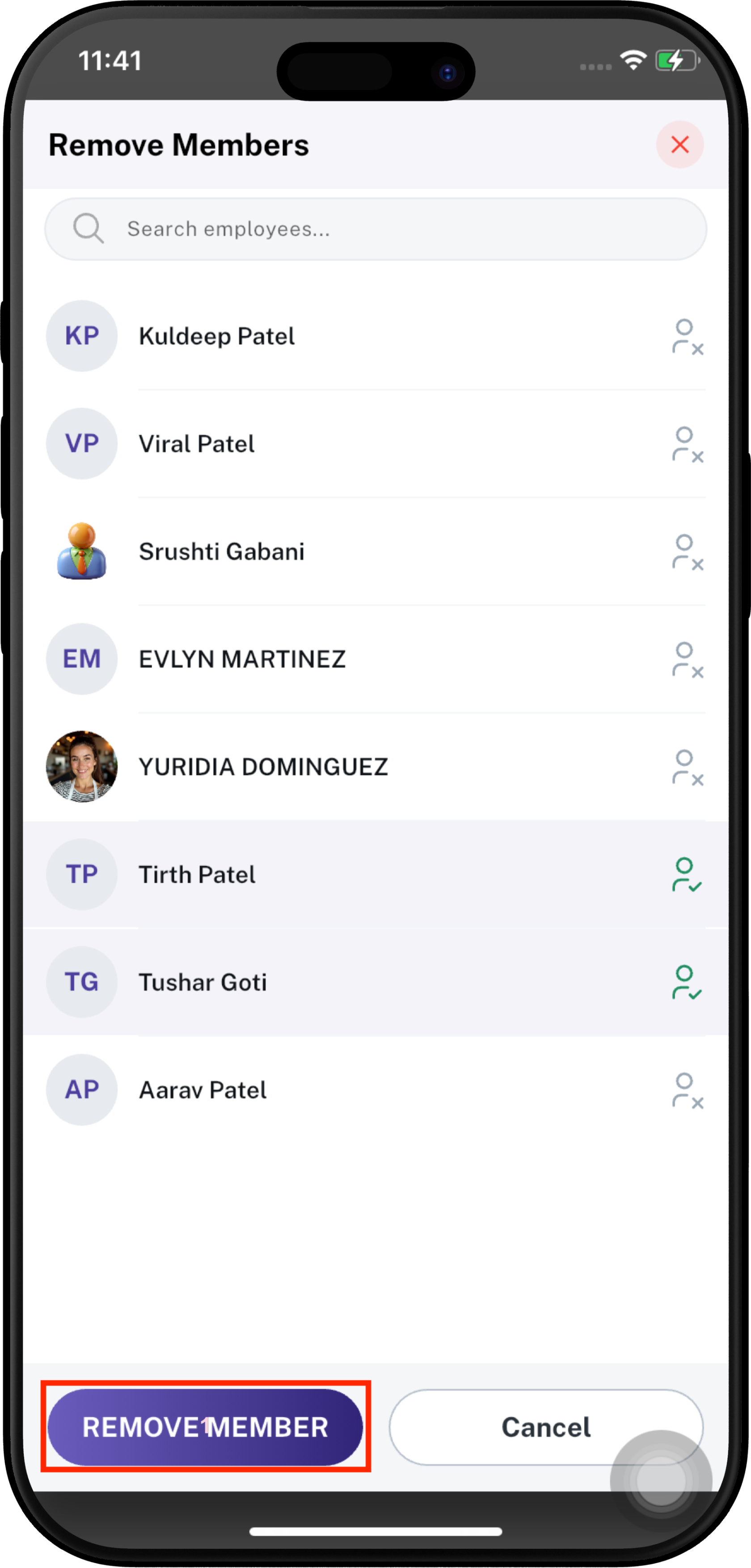
##### **Remove Members**

A group administrator can remove existing members from the group.

1. From **Group Info**, tap the **Remove Members** icon.
2. The **Remove Members** screen opens.
3. Search for an employee if required.
4. Select the member or members to remove.
5. Tap **REMOVE MEMBER**.
6. Tap **Cancel** to stop the action.

<div align="center" style="display: flex; justify-content: center; gap: 60px; flex-wrap: wrap;">
  <div>
    <a href="https://docs.spendwelltechsystem.com/uploads/images/gallery/2026-09/scaled-1680-/nlWimockup-iphone-16-pro-max-57.png">
      <img src="https://docs.spendwelltechsystem.com/uploads/images/gallery/2026-09/scaled-1680-/nlWimockup-iphone-16-pro-max-57.png" width="250">
    </a>
  </div>

  <div>
    <a href="https://docs.spendwelltechsystem.com/uploads/images/gallery/2026-09/scaled-1680-/imockup-iphone-16-pro-max-59.png">
      <img src="https://docs.spendwelltechsystem.com/uploads/images/gallery/2026-09/scaled-1680-/imockup-iphone-16-pro-max-59.png" width="250">
    </a>
  </div>
</div>

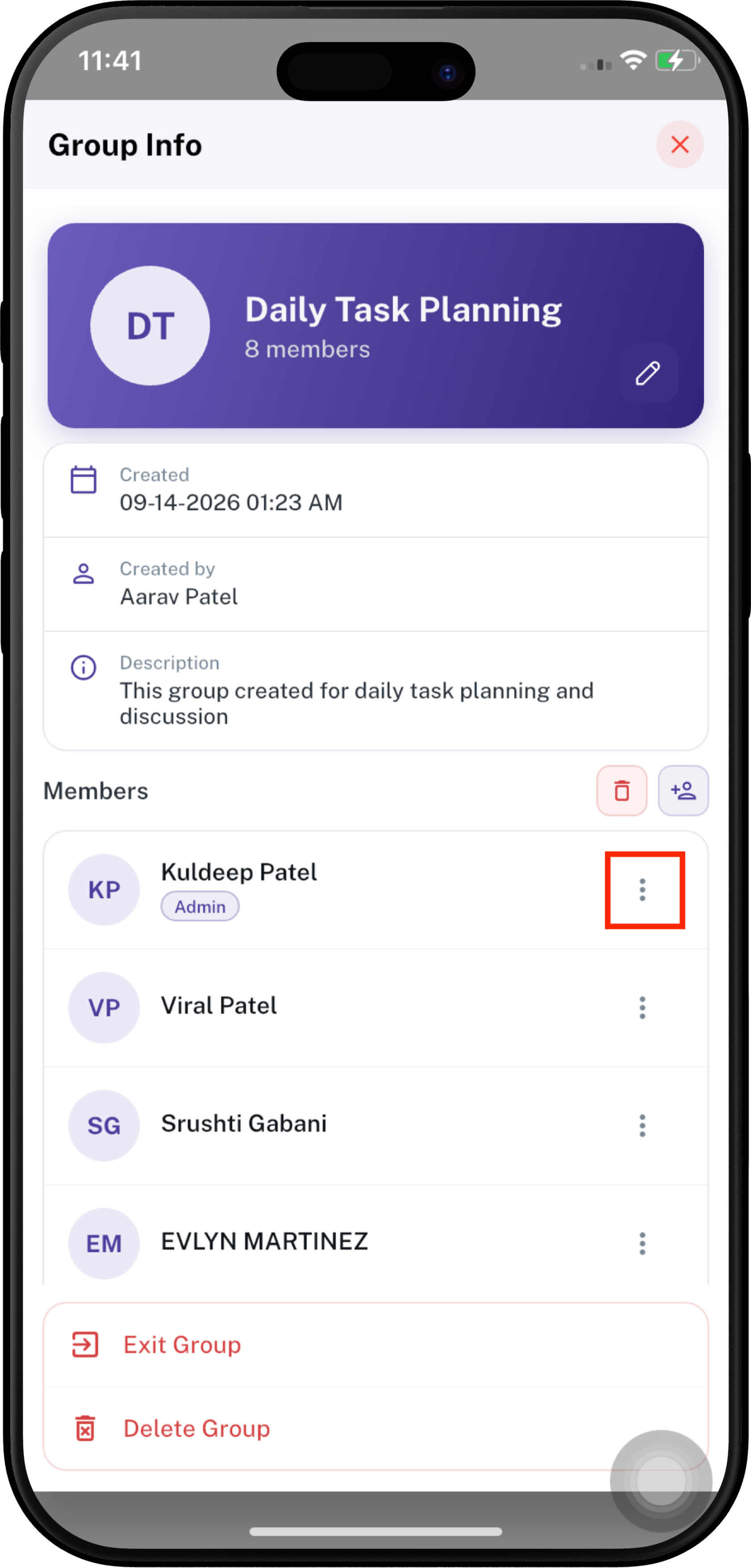
##### **Manage a Member**

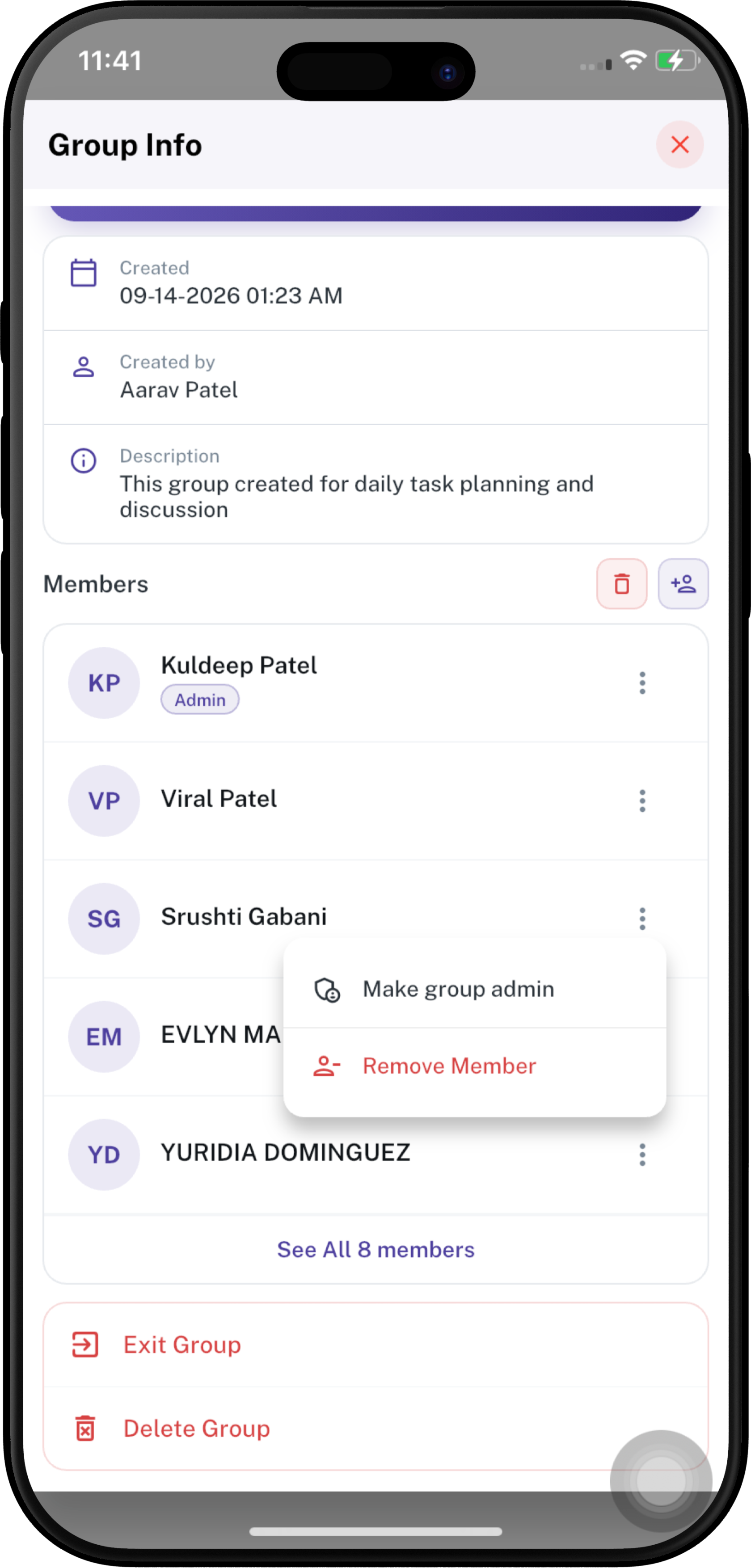
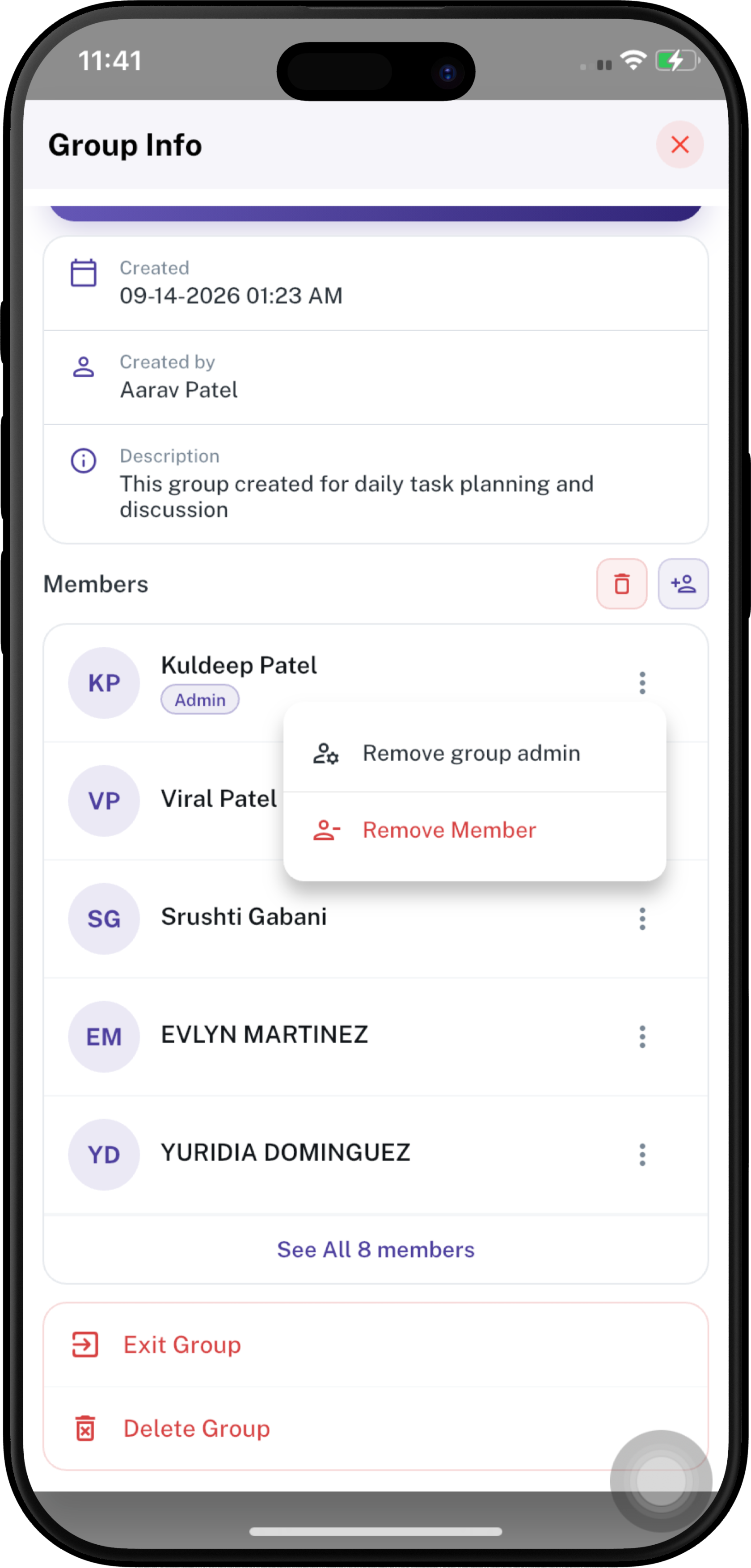
Tap the **⋮** menu next to a member to see the available member-management actions.

For a group admin, the menu can include:

- **Make group admin** — Gives the selected member group-admin privileges. The admin status is shown with an **Admin** label beside the member's name.
- **Remove group admin** — If a member is already a group admin, the member remains in the group but no longer has group-admin privileges.
- **Remove Member** — Removes the selected member from the group.

<div align="center" style="display: flex; justify-content: center; gap: 40px; flex-wrap: wrap;">
  <div>
    <a href="https://docs.spendwelltechsystem.com/uploads/images/gallery/2026-09/scaled-1680-/lhZimockup-iphone-16-pro-max-56.png">
      <img src="https://docs.spendwelltechsystem.com/uploads/images/gallery/2026-09/scaled-1680-/lhZimockup-iphone-16-pro-max-56.png" width="250">
    </a>
  </div>
  <div>
    <a href="https://docs.spendwelltechsystem.com/uploads/images/gallery/2026-09/scaled-1680-/imockup-iphone-16-pro-max-61.png">
      <img src="https://docs.spendwelltechsystem.com/uploads/images/gallery/2026-09/scaled-1680-/imockup-iphone-16-pro-max-61.png" width="250">
    </a>
  </div>
   <div>
    <a href="https://docs.spendwelltechsystem.com/uploads/images/gallery/2026-09/scaled-1680-/imockup-iphone-16-pro-max-60.png">
      <img src="https://docs.spendwelltechsystem.com/uploads/images/gallery/2026-09/scaled-1680-/imockup-iphone-16-pro-max-60.png" width="250">
    </a>
  </div>
</div>

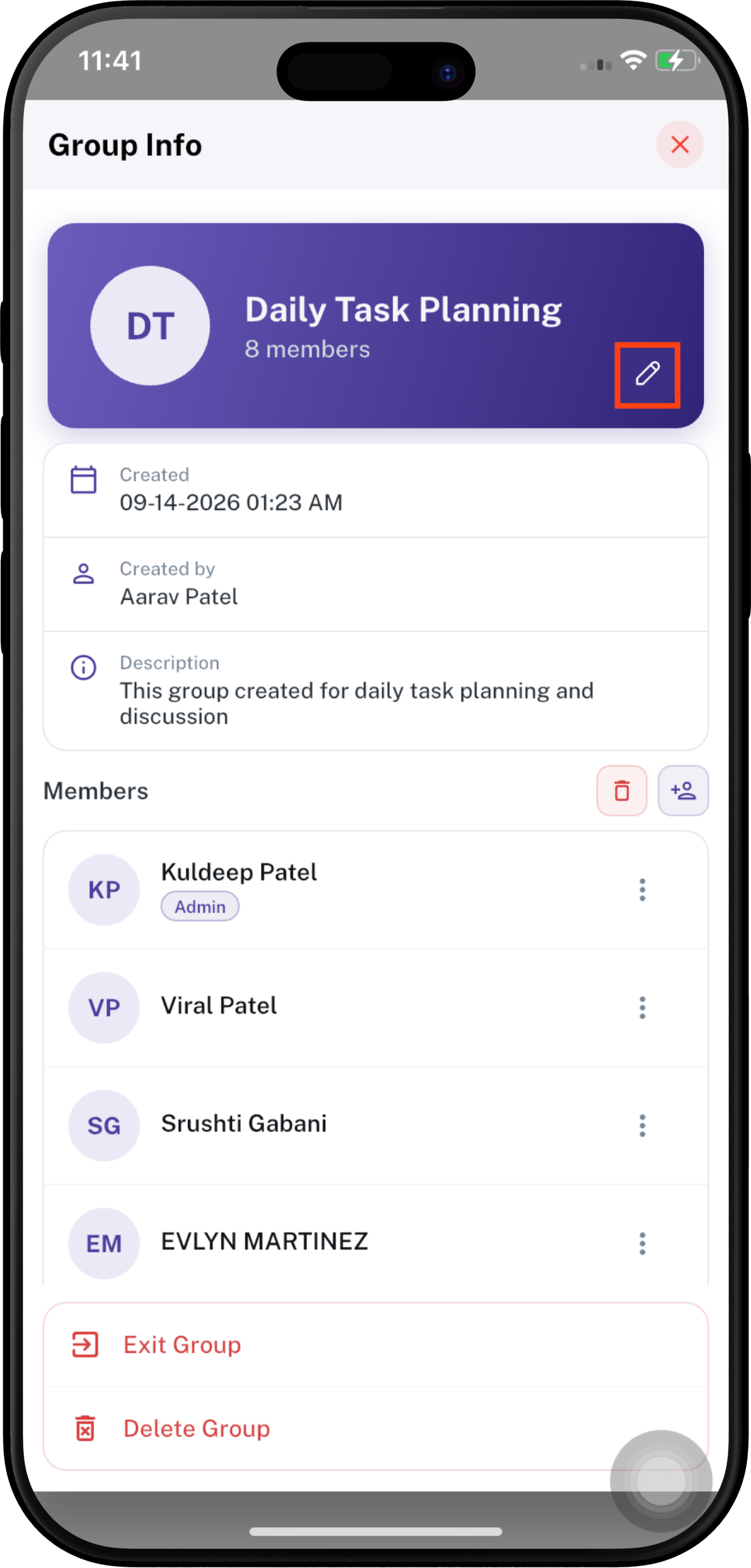
##### **Edit Group**

Group administrators can update group information.

1. Open **Group Info**.
2. Tap the **Edit** icon.
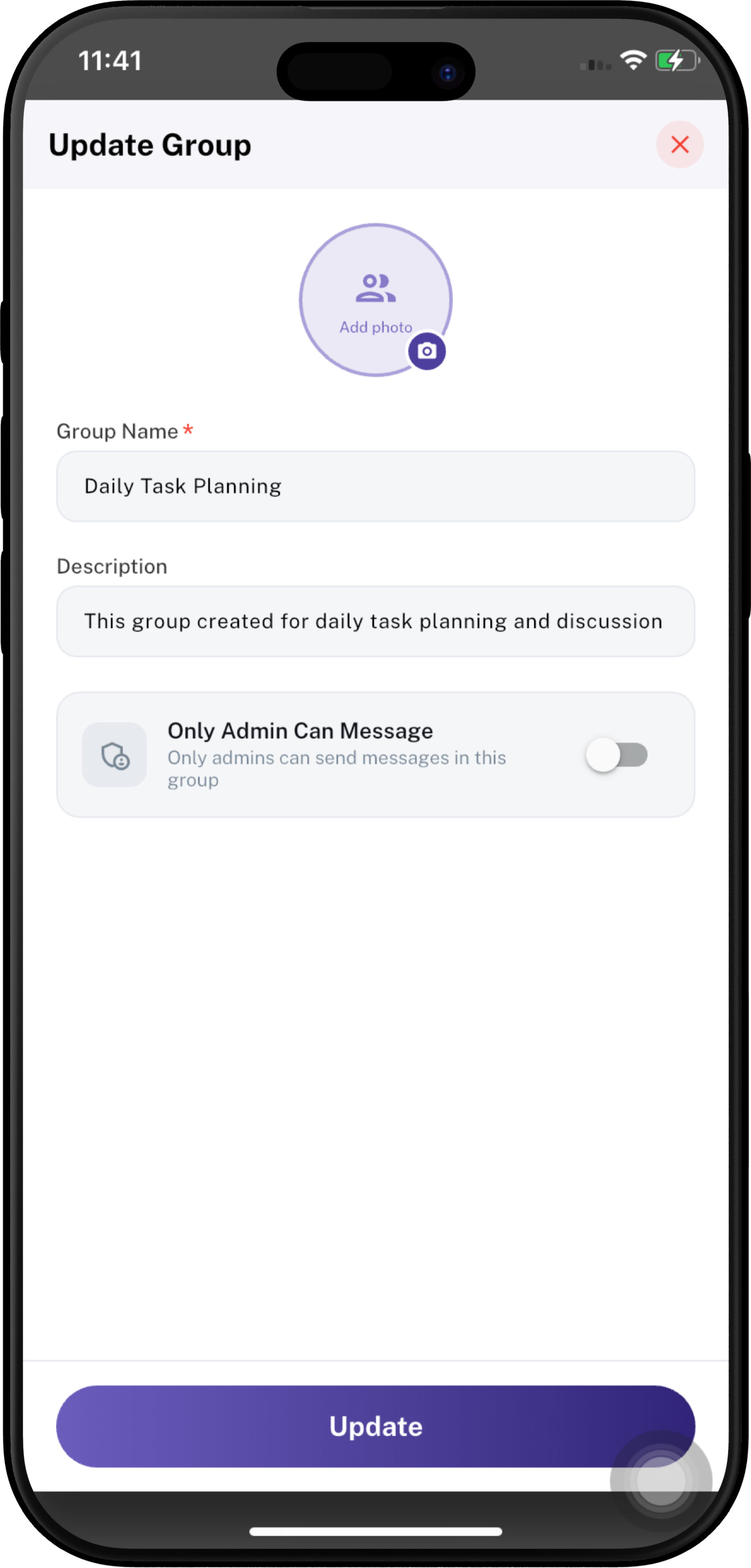
3. The **Update Group** screen opens.
4. Update the required group information:
   - **Add Photo**
   - **Group Name**
   - **Description**
   - **Only Admin Can Message**
5. Tap **Update** to save the changes.
6. Tap **Close** to close the screen without saving.

<div align="center" style="display: flex; justify-content: center; gap: 60px; flex-wrap: wrap;">
  <div>
    <a href="https://docs.spendwelltechsystem.com/uploads/images/gallery/2026-09/scaled-1680-/IJeimockup-iphone-16-pro-max-56.png">
      <img src="https://docs.spendwelltechsystem.com/uploads/images/gallery/2026-09/scaled-1680-/IJeimockup-iphone-16-pro-max-56.png" width="250">
    </a>
  </div>
  <div>
    <a href="https://docs.spendwelltechsystem.com/uploads/images/gallery/2026-09/scaled-1680-/imockup-iphone-16-pro-max-62.png">
      <img src="https://docs.spendwelltechsystem.com/uploads/images/gallery/2026-09/scaled-1680-/imockup-iphone-16-pro-max-62.png" width="250">
    </a>
  </div>
</div>

##### **Only Admin Can Message**

The **Only Admin Can Message** option controls who can send messages in the group.

- **Enabled** — Only group administrators can send messages.
- **Disabled** — Group members can send messages according to the group's normal permissions.

The setting can be changed from **Update Group**.

---

##### **Exit Group**

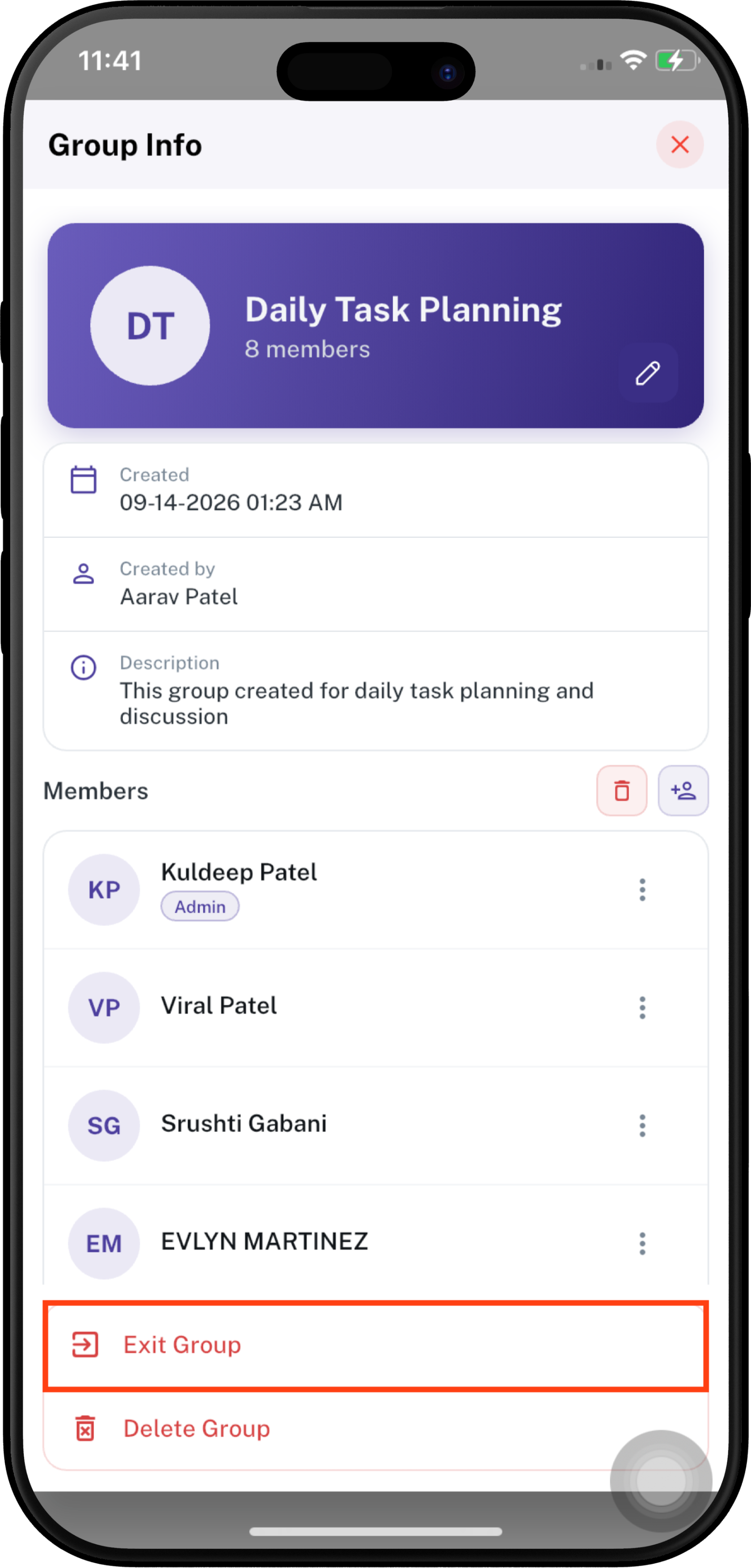
A member can leave the group by selecting **Exit Group** from Group Info.

1. Open **Group Info**.
2. Tap **Exit Group**.
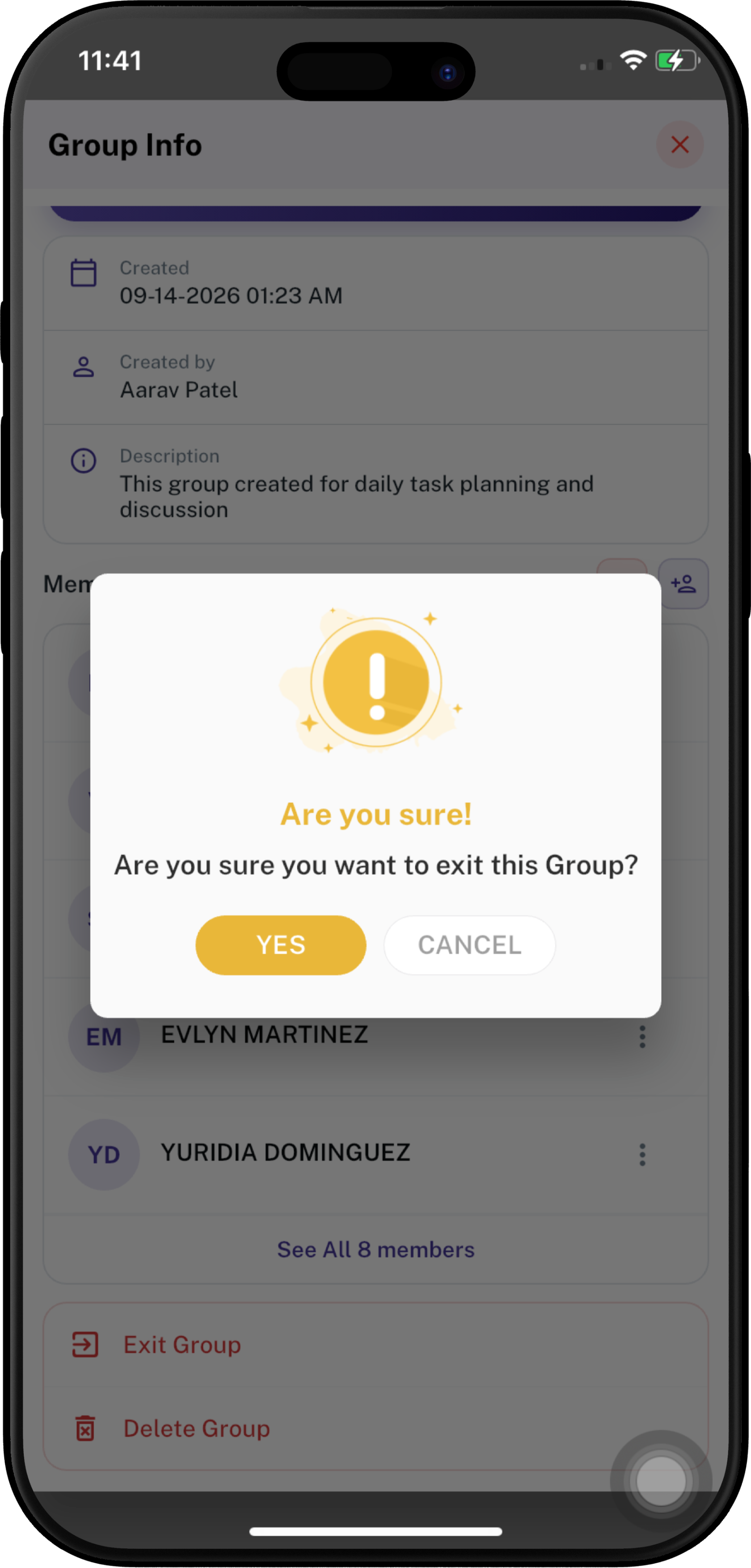
3. A confirmation message appears: **“Are you sure you want to exit this Group?”**
4. Tap **YES** to leave the group.
5. Tap **CANCEL** to stay in the group.

<div align="center" style="display: flex; justify-content: center; gap: 60px; flex-wrap: wrap;">
  <div>
    <a href="https://docs.spendwelltechsystem.com/uploads/images/gallery/2026-09/scaled-1680-/3Y2imockup-iphone-16-pro-max-56.png">
      <img src="https://docs.spendwelltechsystem.com/uploads/images/gallery/2026-09/scaled-1680-/3Y2imockup-iphone-16-pro-max-56.png" width="250">
    </a>
  </div>
  <div>
    <a href="https://docs.spendwelltechsystem.com/uploads/images/gallery/2026-09/scaled-1680-/imockup-iphone-16-pro-max-64.png">
      <img src="https://docs.spendwelltechsystem.com/uploads/images/gallery/2026-09/scaled-1680-/imockup-iphone-16-pro-max-64.png" width="250">
    </a>
  </div>
</div>

---

##### **Delete Group**

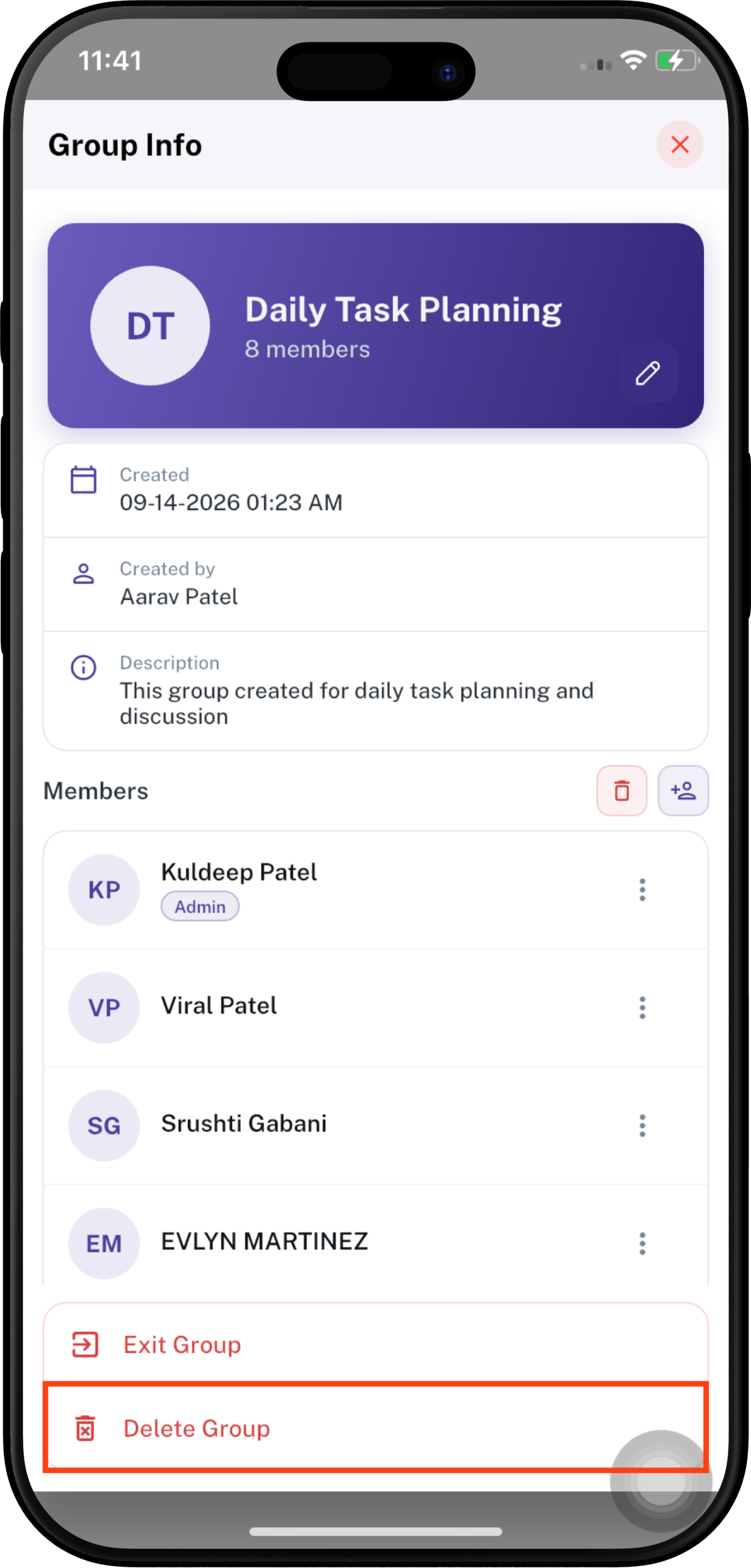
The group creator/authorized administrator can delete the group when the option is available.

1. Open **Group Info**.
2. Tap **Delete Group**.
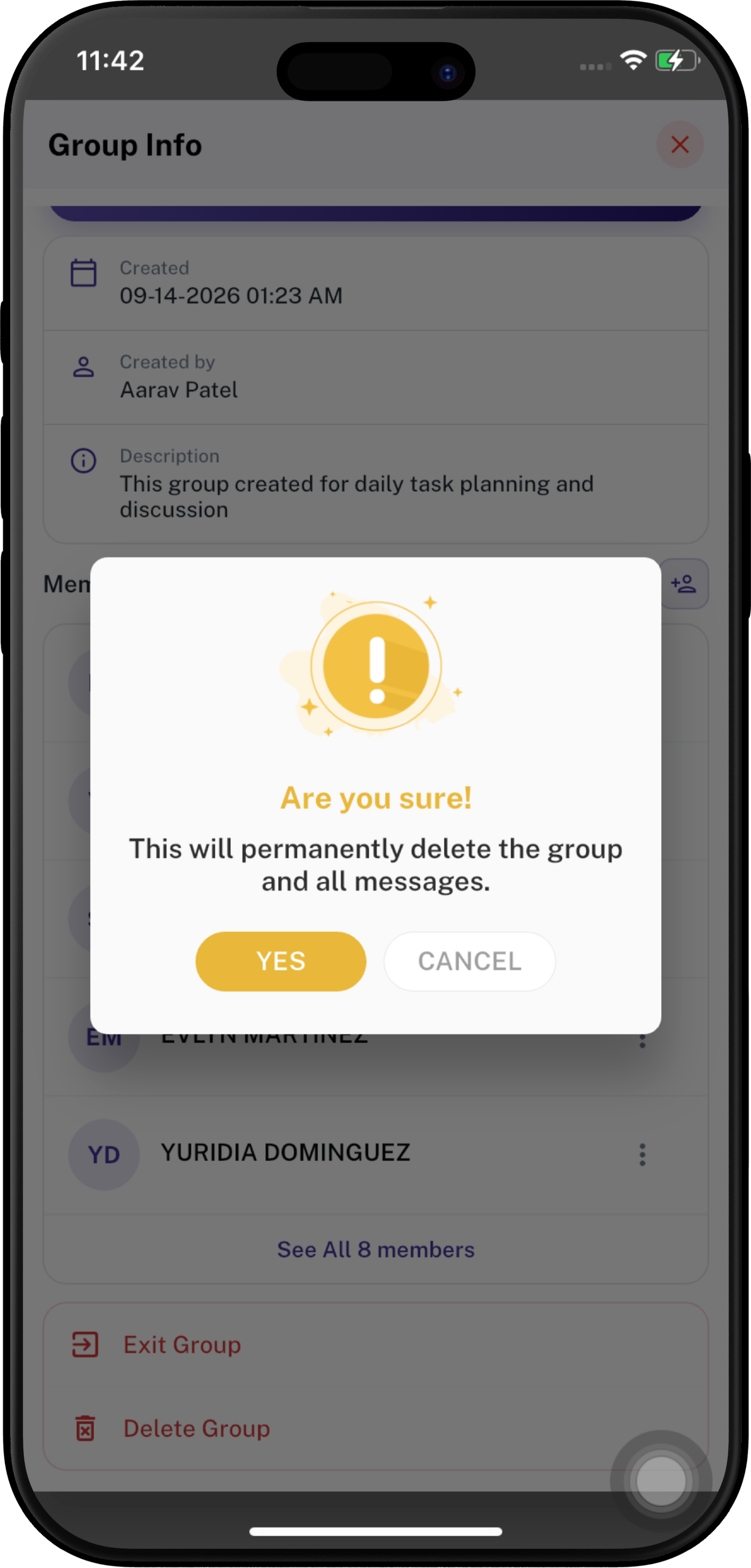
3. A confirmation message appears explaining that the group and all messages will be permanently deleted.
4. Tap **YES** to permanently delete the group.
5. Tap **CANCEL** to stop the deletion.

<div align="center" style="display: flex; justify-content: center; gap: 60px; flex-wrap: wrap;">
  <div>
    <a href="https://docs.spendwelltechsystem.com/uploads/images/gallery/2026-09/scaled-1680-/A6Jimockup-iphone-16-pro-max-56.png">
      <img src="https://docs.spendwelltechsystem.com/uploads/images/gallery/2026-09/scaled-1680-/A6Jimockup-iphone-16-pro-max-56.png" width="250">
    </a>
  </div>
  <div>
    <a href="https://docs.spendwelltechsystem.com/uploads/images/gallery/2026-09/scaled-1680-/imockup-iphone-16-pro-max-63.png">
      <img src="https://docs.spendwelltechsystem.com/uploads/images/gallery/2026-09/scaled-1680-/imockup-iphone-16-pro-max-63.png" width="250">
    </a>
  </div>
</div>

> **Important:** Deleting a group is permanent and removes the group and its messages. Users should confirm the action carefully.

---

#### **Messaging and Chat Actions**

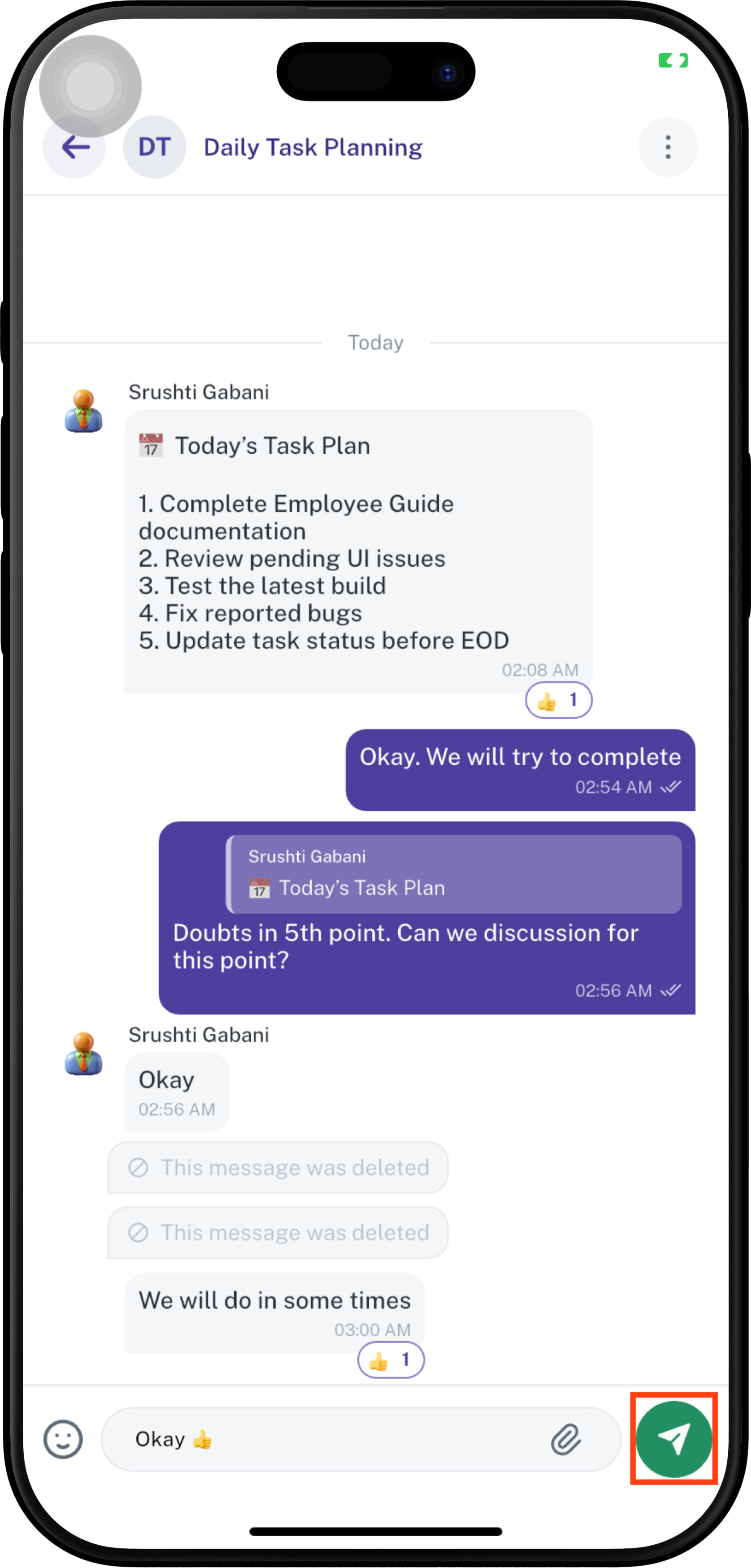
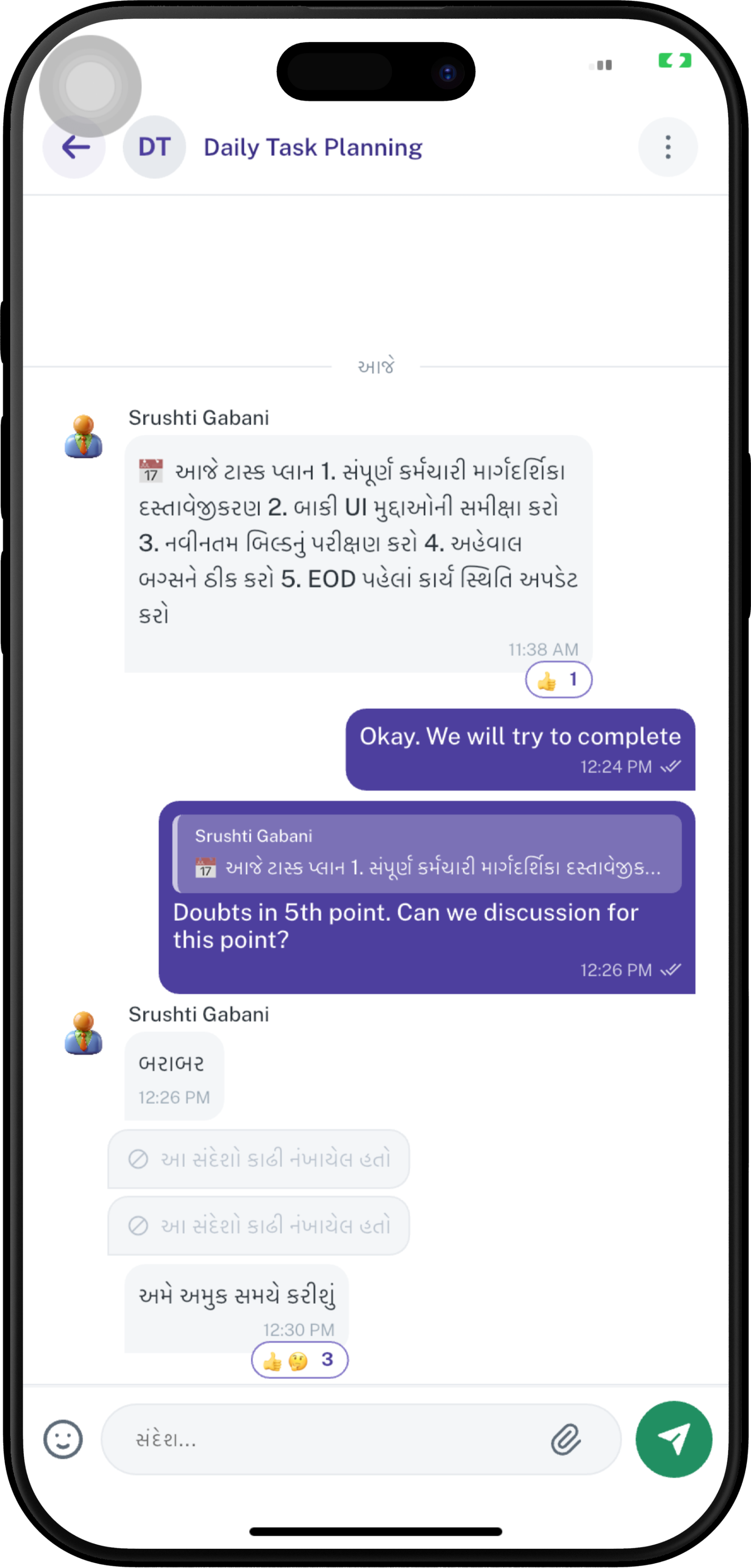
Once a conversation is open, employees can send **text messages**, **emojis**, **photos**, **videos**, **documents**, and **polls**. Users can also **reply to**, **copy**, **react to**, or **delete** messages and manage the conversation from the **⋮** menu.

##### **Send a Message**

1. Open the required conversation.
2. Tap the **Message...** field at the bottom.
3. Type the message.
4. Tap the **Send** button.
5. The message appears in the conversation with its sent time.


<div align="center">
    <a href="https://docs.spendwelltechsystem.com/uploads/images/gallery/2026-09/scaled-1680-/imockup-iphone-16-pro-max-73.png">
      <img src="https://docs.spendwelltechsystem.com/uploads/images/gallery/2026-09/scaled-1680-/imockup-iphone-16-pro-max-73.png" width="250">
    </a>
  </div>

---

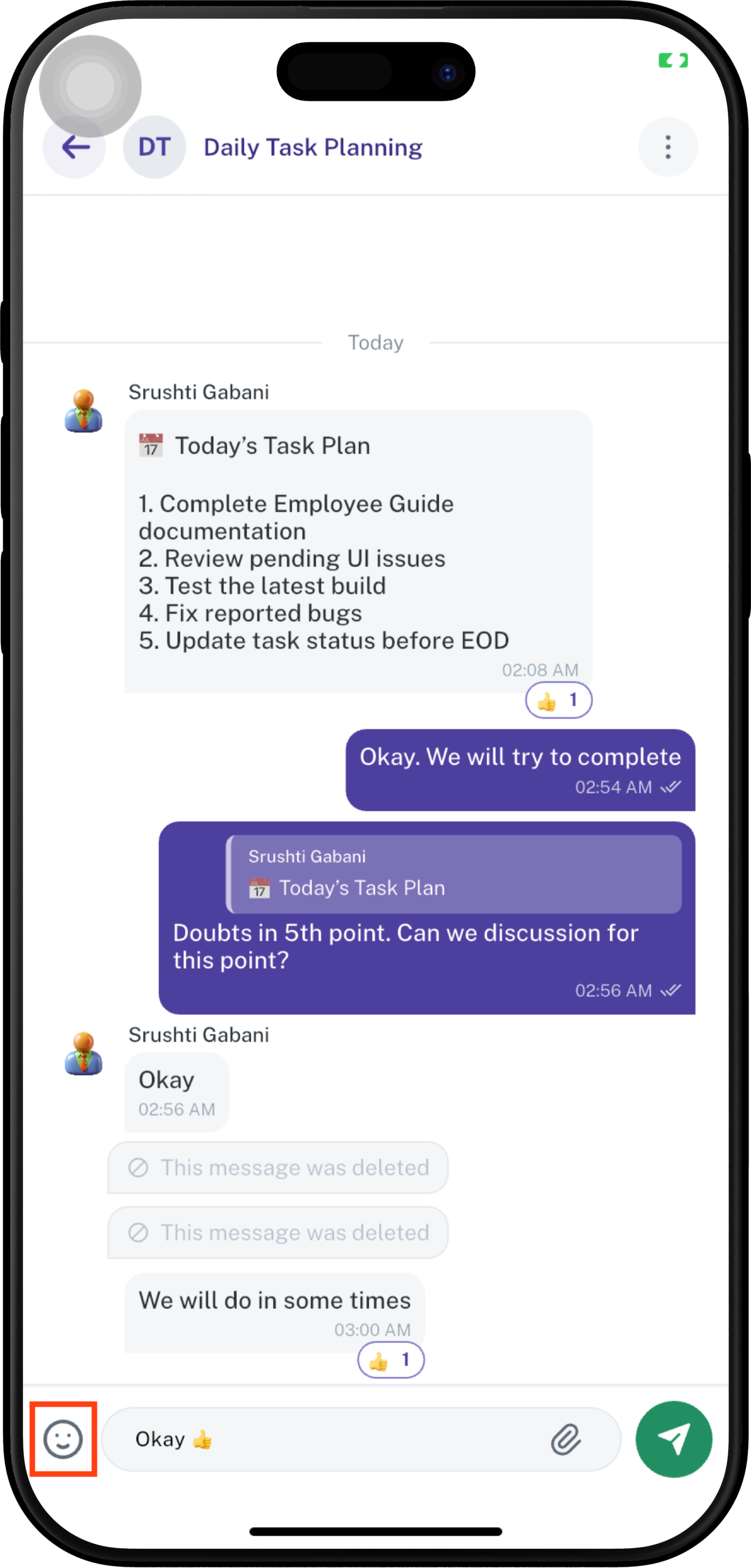
##### **Send an Emoji**

1. Tap the **😊** icon beside the message field.
2. The emoji panel opens.
3. Select the required emoji.
4. The selected emoji is added to the message field.
5. Tap **Send** to send it.

The emoji panel also provides categories for quickly finding different types of emojis.

<div align="center">
    <a href="https://docs.spendwelltechsystem.com/uploads/images/gallery/2026-09/scaled-1680-/992imockup-iphone-16-pro-max-73.png">
      <img src="https://docs.spendwelltechsystem.com/uploads/images/gallery/2026-09/scaled-1680-/992imockup-iphone-16-pro-max-73.png" width="250">
    </a>
  </div>

---

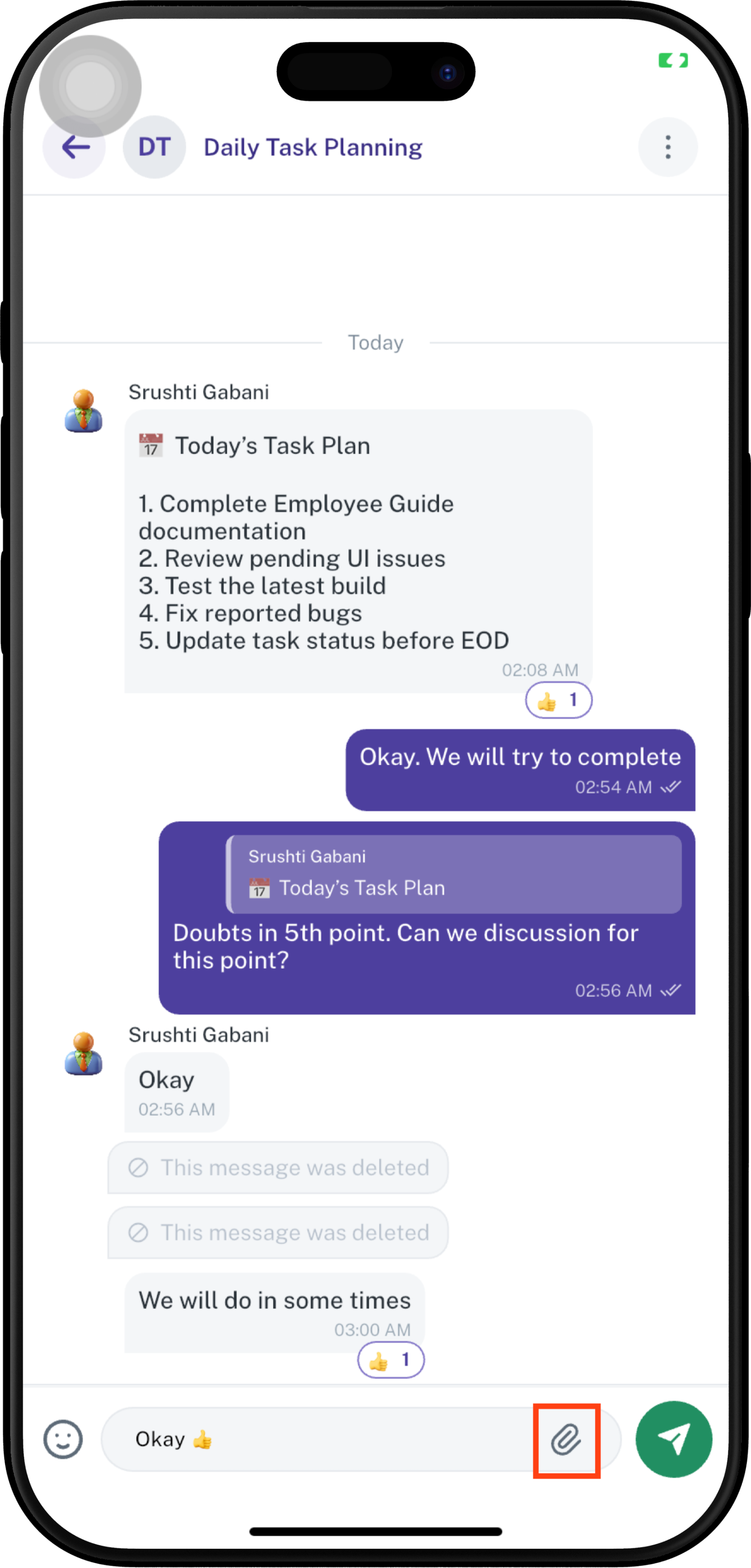
##### **Add an Attachment**

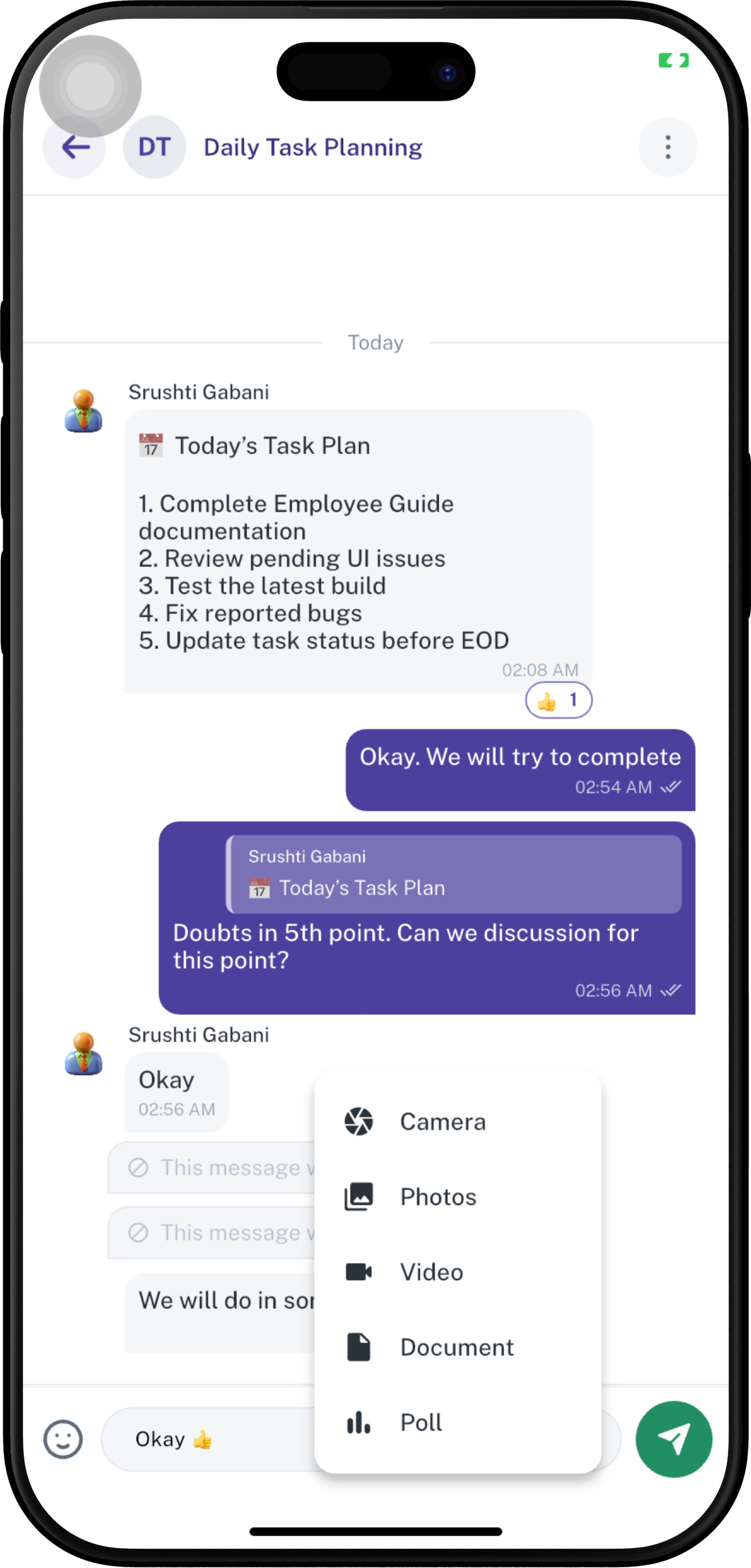
Tap the **📎 Attachment** icon beside the message field to open the attachment options.

The following options are available:

- **Camera** — Capture a new photo using the device's camera.
- **Photos** — Select an existing photo from the device.
- **Video** — Select or attach a video.
- **Document** — Select and attach a document.
- **Poll** — Create and send a poll in **groups** and **channels** only.

<div align="center" style="display: flex; justify-content: center; gap: 60px; flex-wrap: wrap;">
  <div>
    <a href="https://docs.spendwelltechsystem.com/uploads/images/gallery/2026-09/scaled-1680-/OG1imockup-iphone-16-pro-max-73.png">
      <img src="https://docs.spendwelltechsystem.com/uploads/images/gallery/2026-09/scaled-1680-/OG1imockup-iphone-16-pro-max-73.png" width="250">
    </a>
  </div>
  <div>
    <a href="https://docs.spendwelltechsystem.com/uploads/images/gallery/2026-09/scaled-1680-/imockup-iphone-16-pro-max-66.png">
      <img src="https://docs.spendwelltechsystem.com/uploads/images/gallery/2026-09/scaled-1680-/imockup-iphone-16-pro-max-66.png" width="250">
    </a>
  </div>
</div>

---

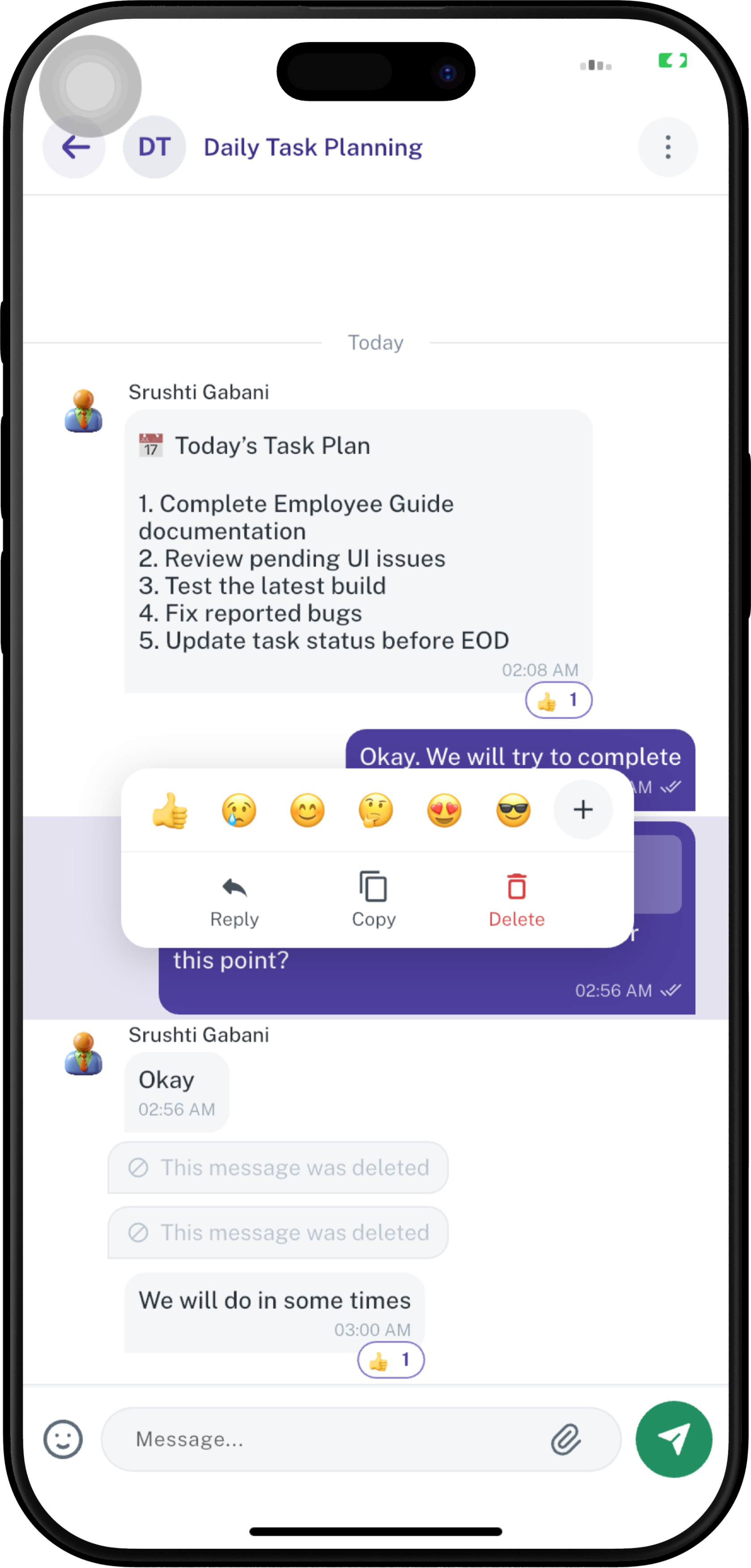
##### **Message Actions**

Users can interact with an existing message by pressing and holding the message. The available actions can depend on whether the message belongs to the user and on the user's permissions.

<div align="center">
    <a href="https://docs.spendwelltechsystem.com/uploads/images/gallery/2026-09/scaled-1680-/imockup-iphone-16-pro-max-71.png">
      <img src="https://docs.spendwelltechsystem.com/uploads/images/gallery/2026-09/scaled-1680-/imockup-iphone-16-pro-max-71.png" width="250">
    </a>
  </div>

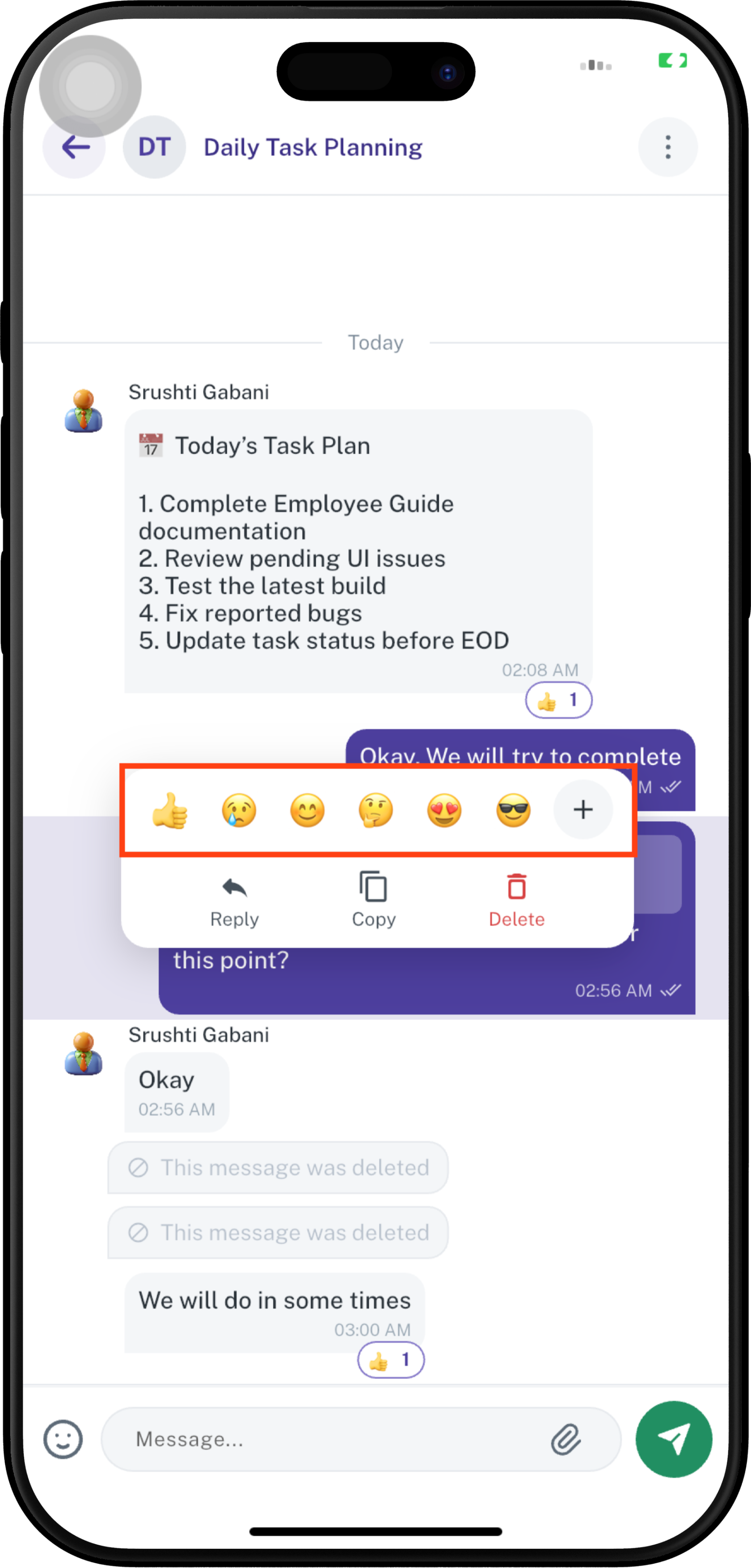
###### **Reactions**

1. Press and hold the message.
2. Select a reaction from the reaction bar.
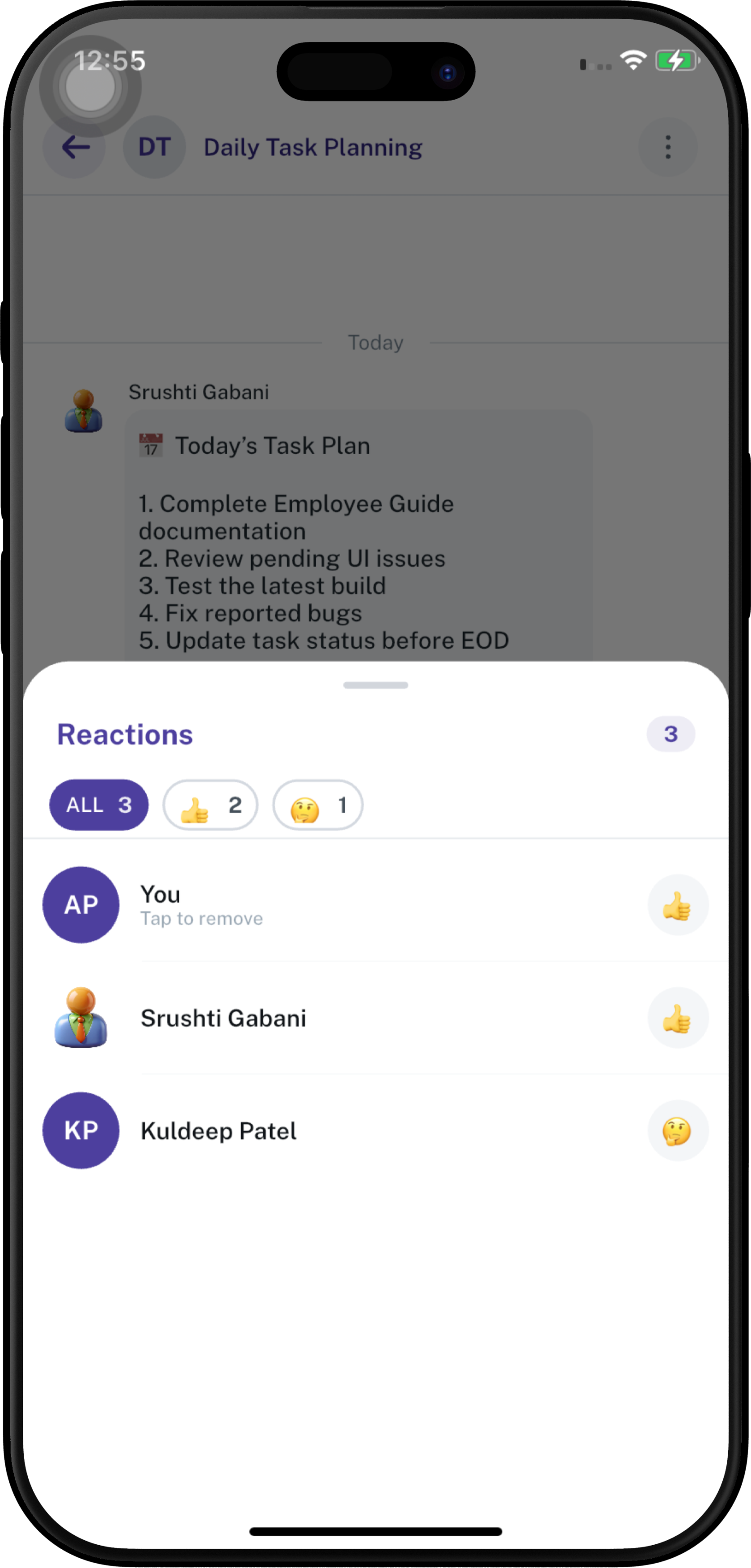
3. The selected reaction appears in the message.
4. A reaction count is displayed when applicable.
5. You can remove your reaction by tapping **Tap to Remove** or selecting the **reaction bar**.

Common quick reactions include **👍, 😢, 😊, 🤔, 😍, and 😎**. Tap **+** to view more available emojis.

<div align="center" style="display: flex; justify-content: center; gap: 60px; flex-wrap: wrap;">
  <div>
    <a href="https://docs.spendwelltechsystem.com/uploads/images/gallery/2026-09/scaled-1680-/5gkimockup-iphone-16-pro-max-71.png">
      <img src="https://docs.spendwelltechsystem.com/uploads/images/gallery/2026-09/scaled-1680-/5gkimockup-iphone-16-pro-max-71.png" width="250">
    </a>
  </div>
  <div>
    <a href="https://docs.spendwelltechsystem.com/uploads/images/gallery/2026-09/scaled-1680-/imockup-iphone-16-pro-max-75.png">
      <img src="https://docs.spendwelltechsystem.com/uploads/images/gallery/2026-09/scaled-1680-/imockup-iphone-16-pro-max-75.png" width="250">
    </a>
  </div>
</div>

---

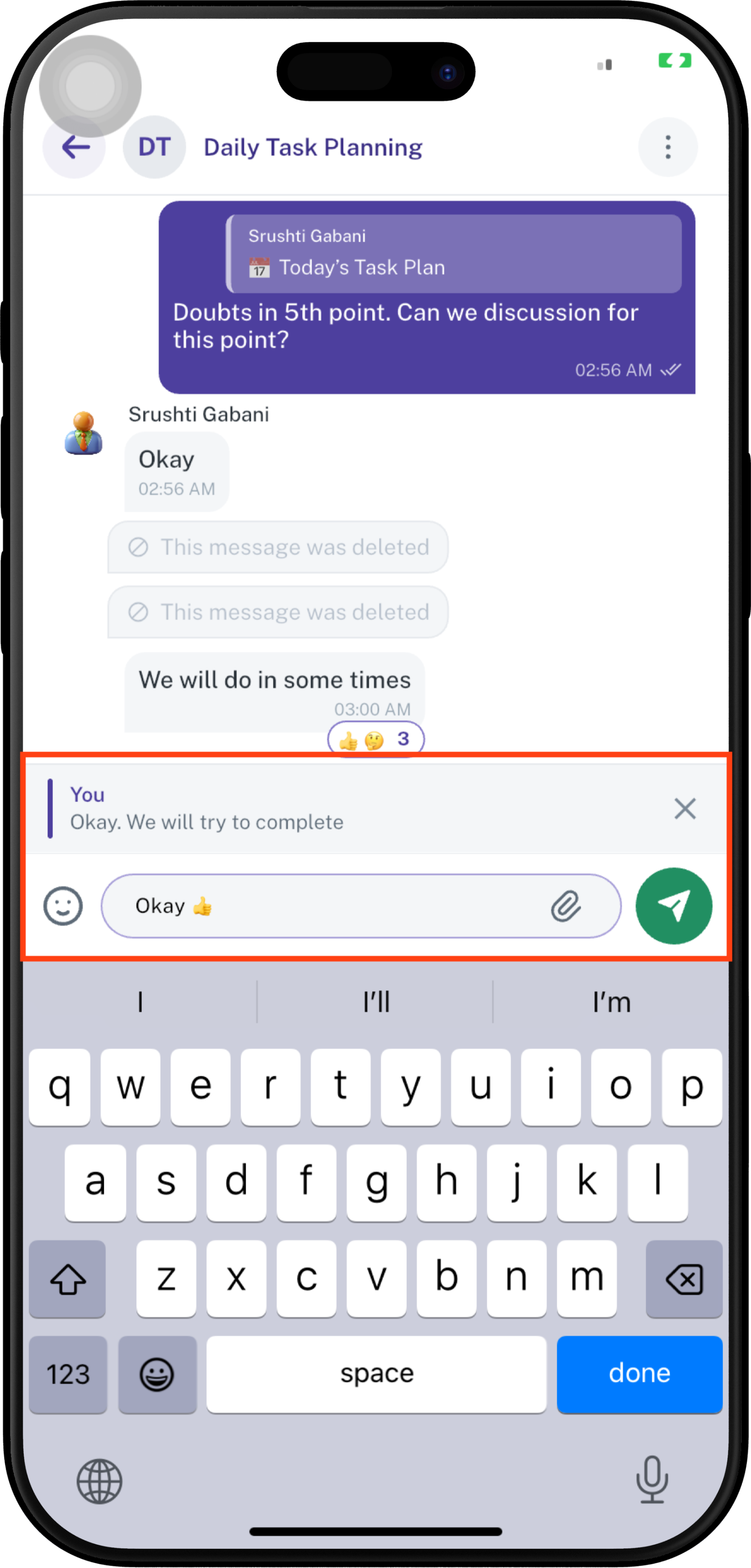
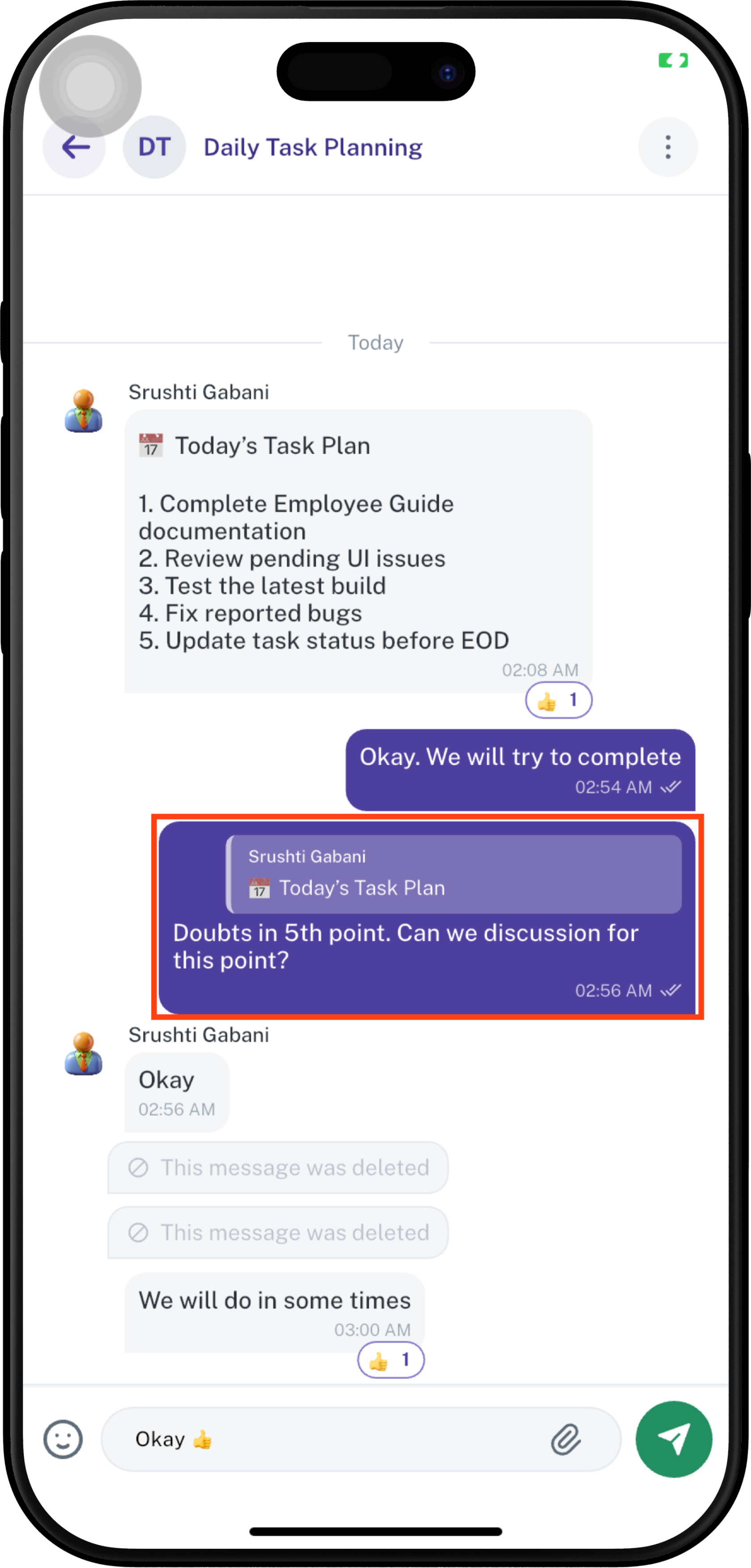
###### **Reply to a Message**

1. Press and hold the message.
2. Tap **Reply**.
3. The selected message is attached to the reply composer.
4. Type your response.
5. Tap **Send**.

The reply shows the original message above the response, so the conversation context is clear.

<div align="center" style="display: flex; justify-content: center; gap: 60px; flex-wrap: wrap;">
  <div>
    <a href="https://docs.spendwelltechsystem.com/uploads/images/gallery/2026-09/scaled-1680-/imockup-iphone-16-pro-max-76.png">
      <img src="https://docs.spendwelltechsystem.com/uploads/images/gallery/2026-09/scaled-1680-/imockup-iphone-16-pro-max-76.png" width="250">
    </a>
  </div>
  <div>
    <a href="https://docs.spendwelltechsystem.com/uploads/images/gallery/2026-09/scaled-1680-/8aKimockup-iphone-16-pro-max-73.png">
      <img src="https://docs.spendwelltechsystem.com/uploads/images/gallery/2026-09/scaled-1680-/8aKimockup-iphone-16-pro-max-73.png" width="250">
    </a>
  </div>
</div>

---

###### **Copy a Message**

1. Press and hold the message.
2. Tap **Copy**.
3. The message text is copied to the device clipboard.
4. Paste it wherever required.

---

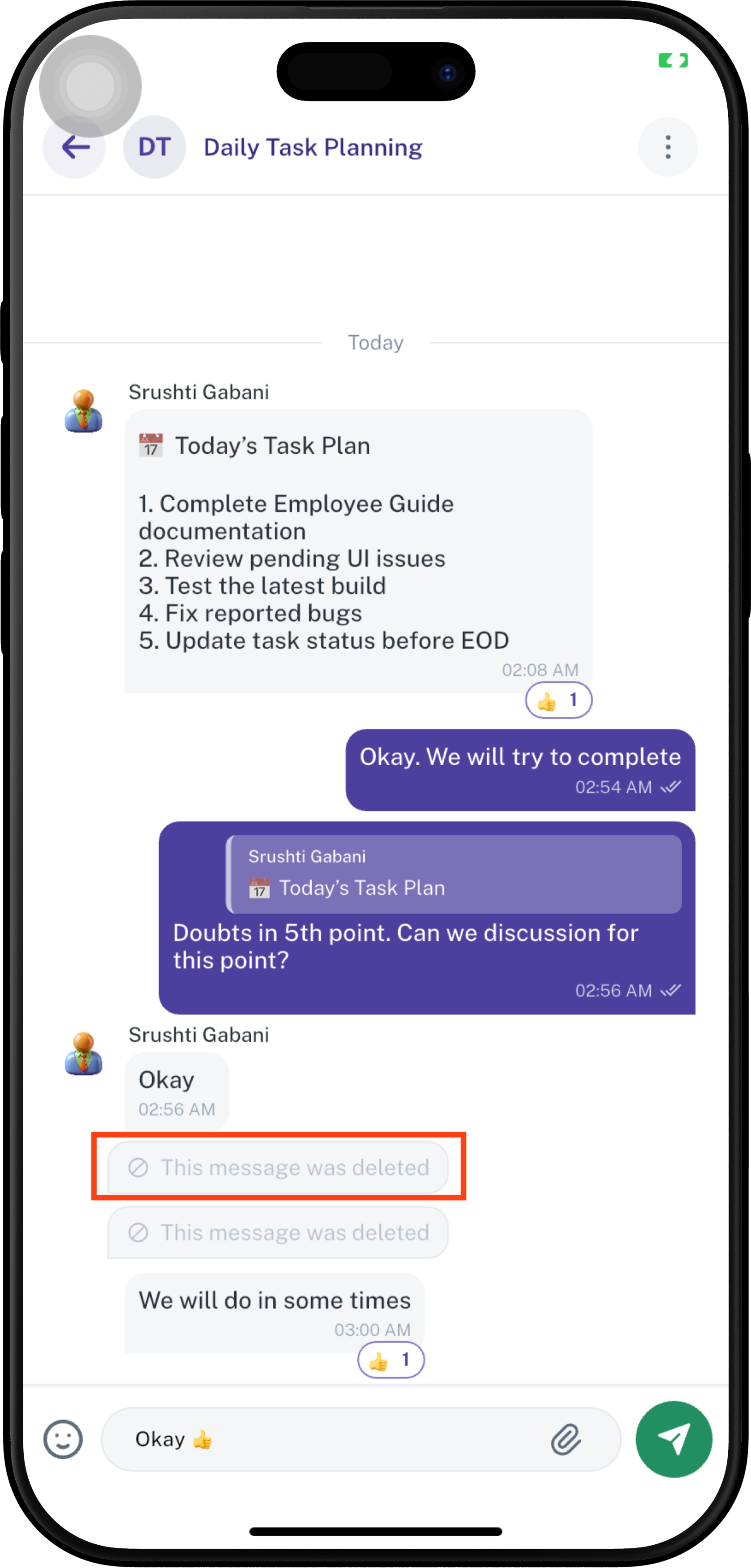
###### **Delete a Message**

1. Press and hold the message.
2. Tap **Delete** when the option is available.
3. Confirm the deletion if a confirmation prompt appears.
4. Deleted messages are displayed as **This message was deleted**

<div align="center">
  <div>
    <a href="https://docs.spendwelltechsystem.com/uploads/images/gallery/2026-09/scaled-1680-/N9cimockup-iphone-16-pro-max-73.png">
      <img src="https://docs.spendwelltechsystem.com/uploads/images/gallery/2026-09/scaled-1680-/N9cimockup-iphone-16-pro-max-73.png" width="250">
    </a>
  </div>
</div>

> **Note:** The **Delete** option may be available only for messages the user is permitted to delete.

---

##### **Chat Menu Actions**

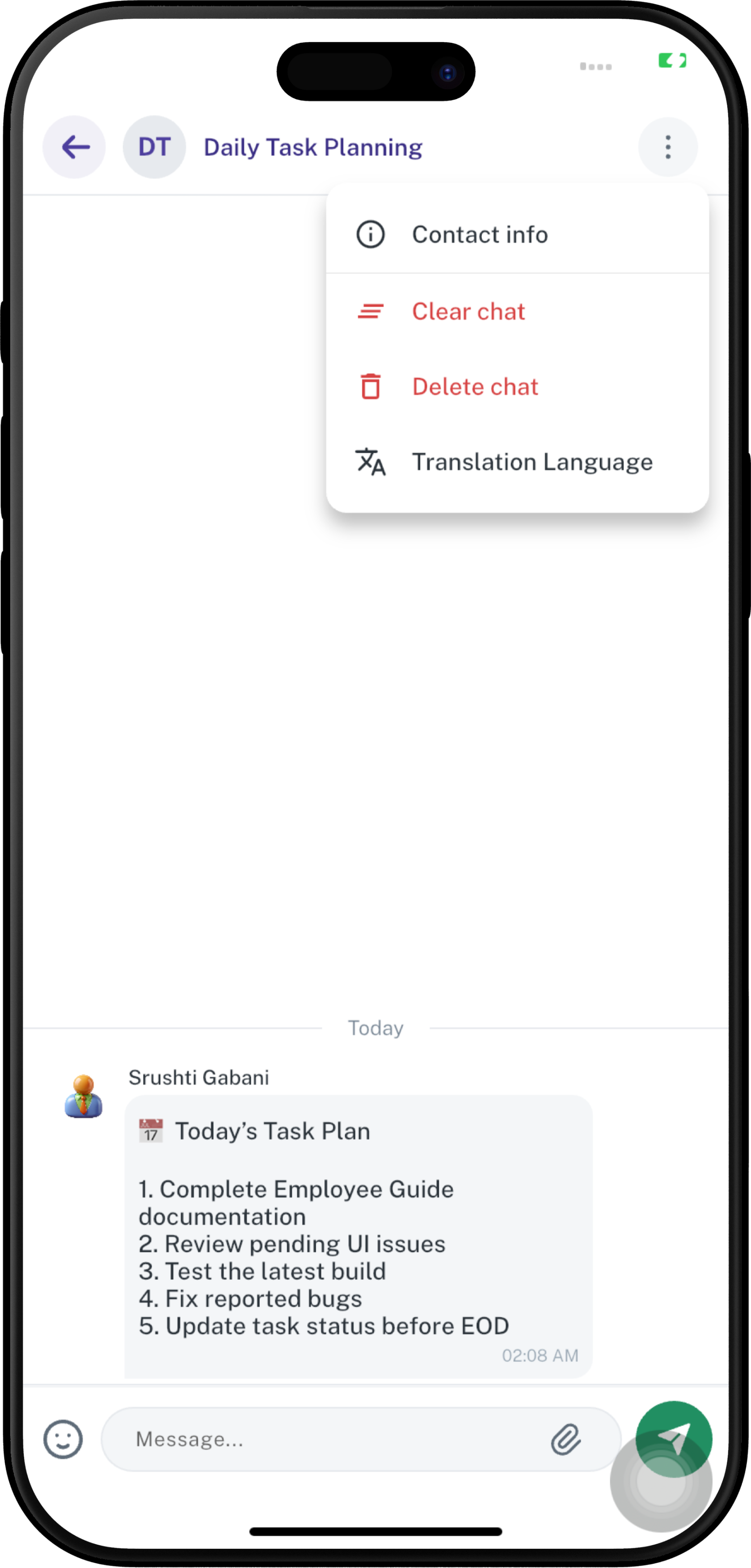
Tap the **⋮** menu in the top-right corner of the conversation to access chat-level actions.

The menu provides the following options:

- **Contact info** — View information related to the current contact or conversation.
- **Clear chat** — Clear the messages from the current conversation.
- **Delete chat** — Delete the current chat/conversation.
- **Translation Language** — Select the language used for chat translation.

<div align="center">
  <div>
    <a href="https://docs.spendwelltechsystem.com/uploads/images/gallery/2026-09/scaled-1680-/imockup-iphone-16-pro-max-68.png">
      <img src="https://docs.spendwelltechsystem.com/uploads/images/gallery/2026-09/scaled-1680-/imockup-iphone-16-pro-max-68.png" width="250">
    </a>
  </div>
</div>


###### **Clear Chat**

1. Tap **⋮**.
2. Select **Clear chat**.
3. Confirm the action if prompted.

>  **Note:** **Clear chat** removes the conversation only for the person who clears it. Other participants in the group will continue to see their chat messages as they were.


###### **Delete Chat**

1. Tap **⋮**.
2. Select **Delete chat**.
3. Confirm the deletion if prompted.

> **Important:** Review the confirmation carefully before deleting a chat.

---

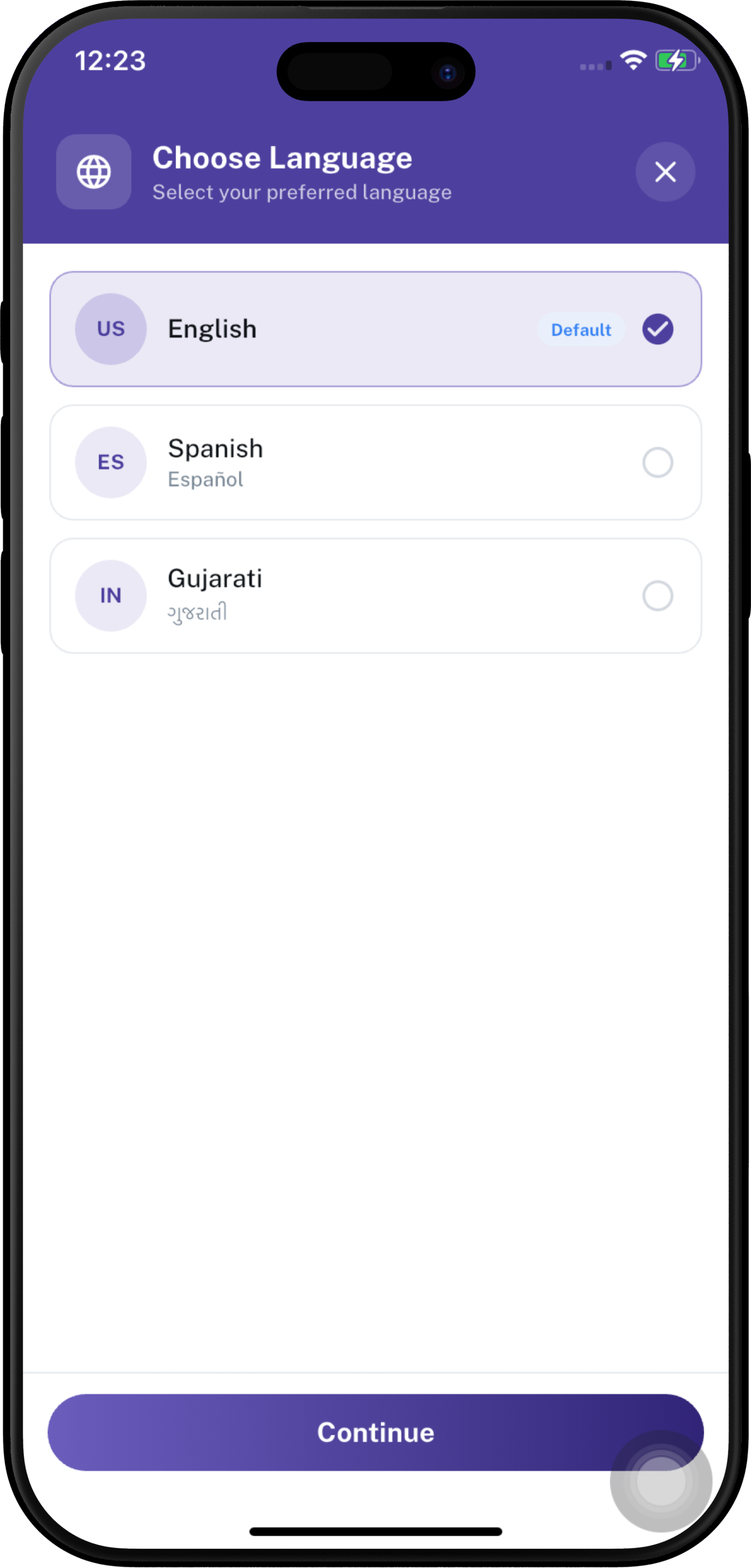
###### **Translation Language**

The chat provides a **Translation Language** option for selecting the preferred language for translated messages.

1. Tap **⋮** in the top-right corner.
2. Select **Translation Language**.
3. The **Choose Language** screen opens.
4. Select the preferred language.
5. Tap **Continue**.


<div align="center" style="display: flex; justify-content: center; gap: 60px; flex-wrap: wrap;">
  <div>
    <a href="https://docs.spendwelltechsystem.com/uploads/images/gallery/2026-09/scaled-1680-/imockup-iphone-16-pro-max-69.png">
      <img src="https://docs.spendwelltechsystem.com/uploads/images/gallery/2026-09/scaled-1680-/imockup-iphone-16-pro-max-69.png" width="250">
    </a>
  </div>
  <div>
    <a href="https://docs.spendwelltechsystem.com/uploads/images/gallery/2026-09/scaled-1680-/imockup-iphone-16-pro-max-77.png">
      <img src="https://docs.spendwelltechsystem.com/uploads/images/gallery/2026-09/scaled-1680-/imockup-iphone-16-pro-max-77.png" width="250">
    </a>
  </div>
</div>
<br>

> **Note:** The languages available in the application may depend on the configured language list.

---

#### **Quick Messaging Guide**

| Action | How to access |
|---|---|
| **Send Message** | Type in **Message...** → **Send** |
| **Emoji** | Tap **😊** → Select emoji → **Send** |
| **Camera** | Tap **📎** → **Camera** |
| **Photos** | Tap **📎** → **Photos** |
| **Video** | Tap **📎** → **Video** |
| **Document** | Tap **📎** → **Document** |
| **Poll** | Tap **📎** → **Poll** |
| **Reaction** | Press and hold message → Select reaction |
| **Reply** | Press and hold message → **Reply** |
| **Copy** | Press and hold message → **Copy** |
| **Delete Message** | Press and hold message → **Delete** |
| **Clear Chat** | **⋮** → **Clear chat** |
| **Delete Chat** | **⋮** → **Delete chat** |
| **Translation Language** | **⋮** → **Translation Language** → Select language → **Continue** |

<br>