User Role Hierarchy
Overview
The User Role Hierarchy defines how user roles are organized and how one role is connected to another. It helps administrators build a clear reporting and access structure by adding or removing roles under a selected parent role.
A typical hierarchy can look like:
Open User Role Hierarchy
- Open the Configuration menu.
- Select User Role Hierarchy.
- The existing role structure is displayed as connected role cards.
- Select a role card to manage the roles below it.
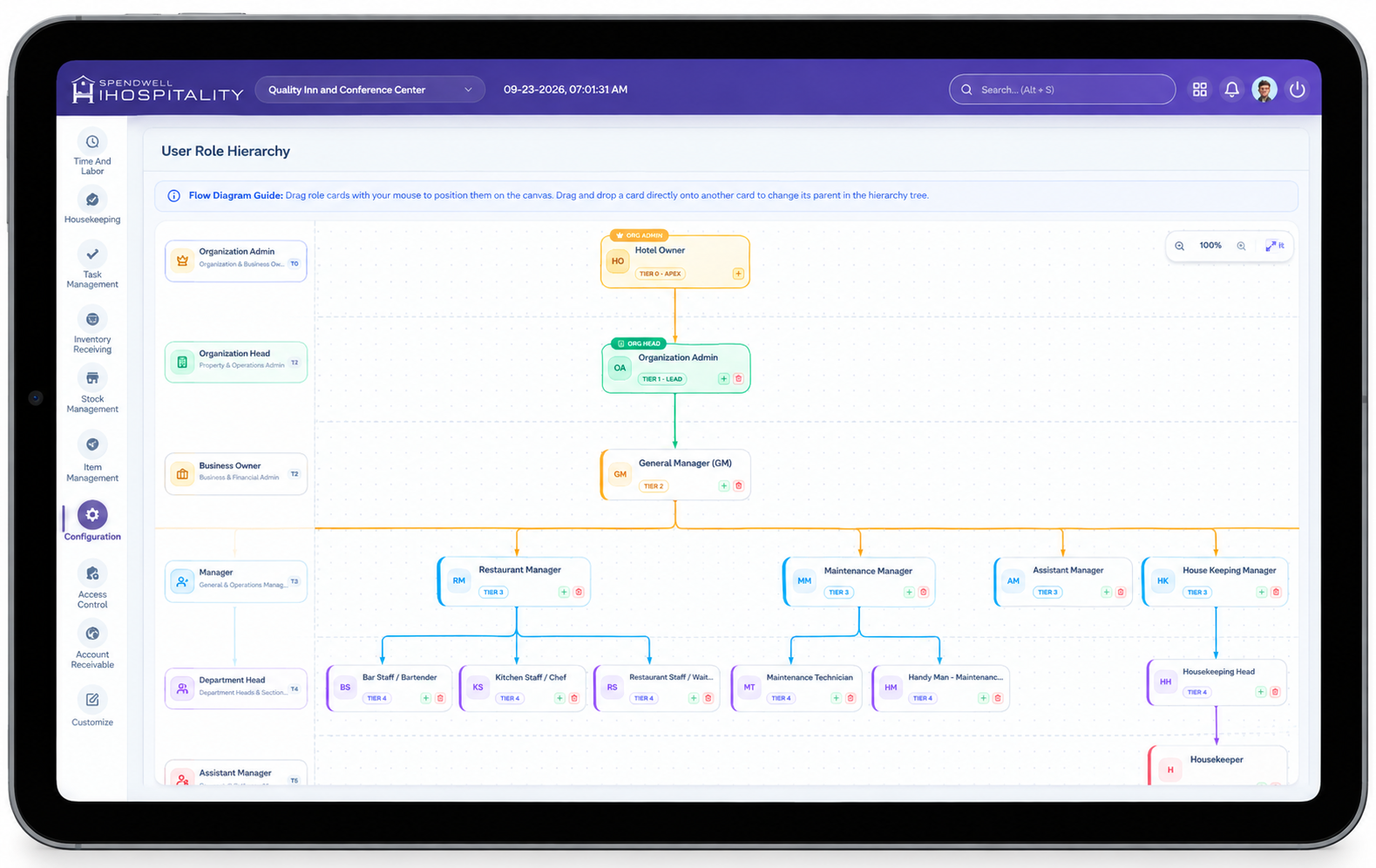
The hierarchy is managed visually from the User Role Hierarchy screen.
Understand the Hierarchy
Each role is displayed as a card connected to its parent role.
For example:
- Super Admin is at the top level.
- Organization Admin is connected below the Super Admin.
- Property Admin is connected below the Organization Admin.
- Hotel Manager is connected below the Property Admin.
- Lower-level roles can be connected beneath the appropriate parent role.
The connecting lines show the relationship between parent and child roles.
Add or Remove a Role to the Hierarchy
Use Add when you want to assign one or more available roles below a selected parent role.
Select the Parent Role
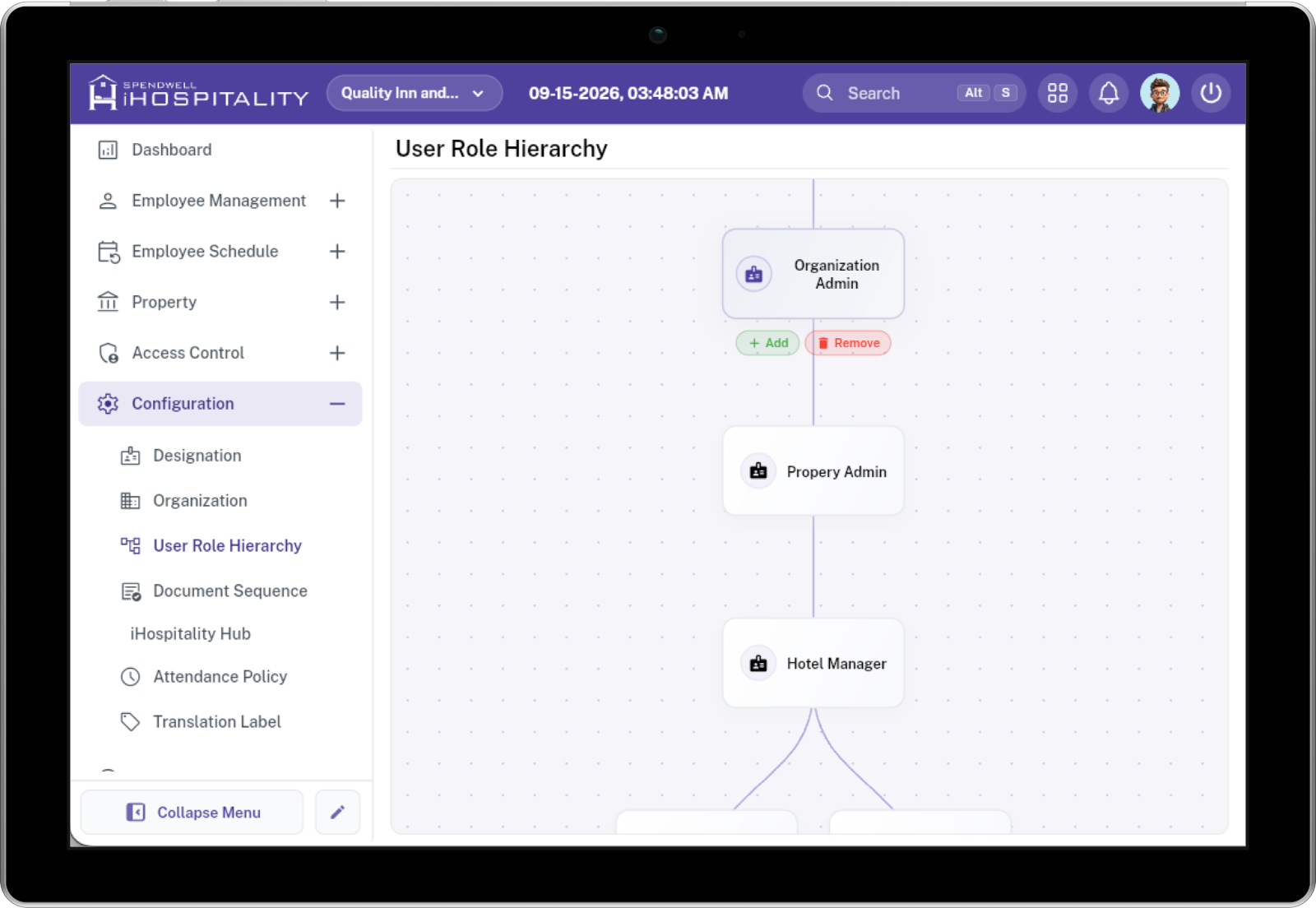
Select the role card under which you want to add another role.
For example, select Organization Admin.
The Add and Remove actions appear for the selected role.
Add User Role
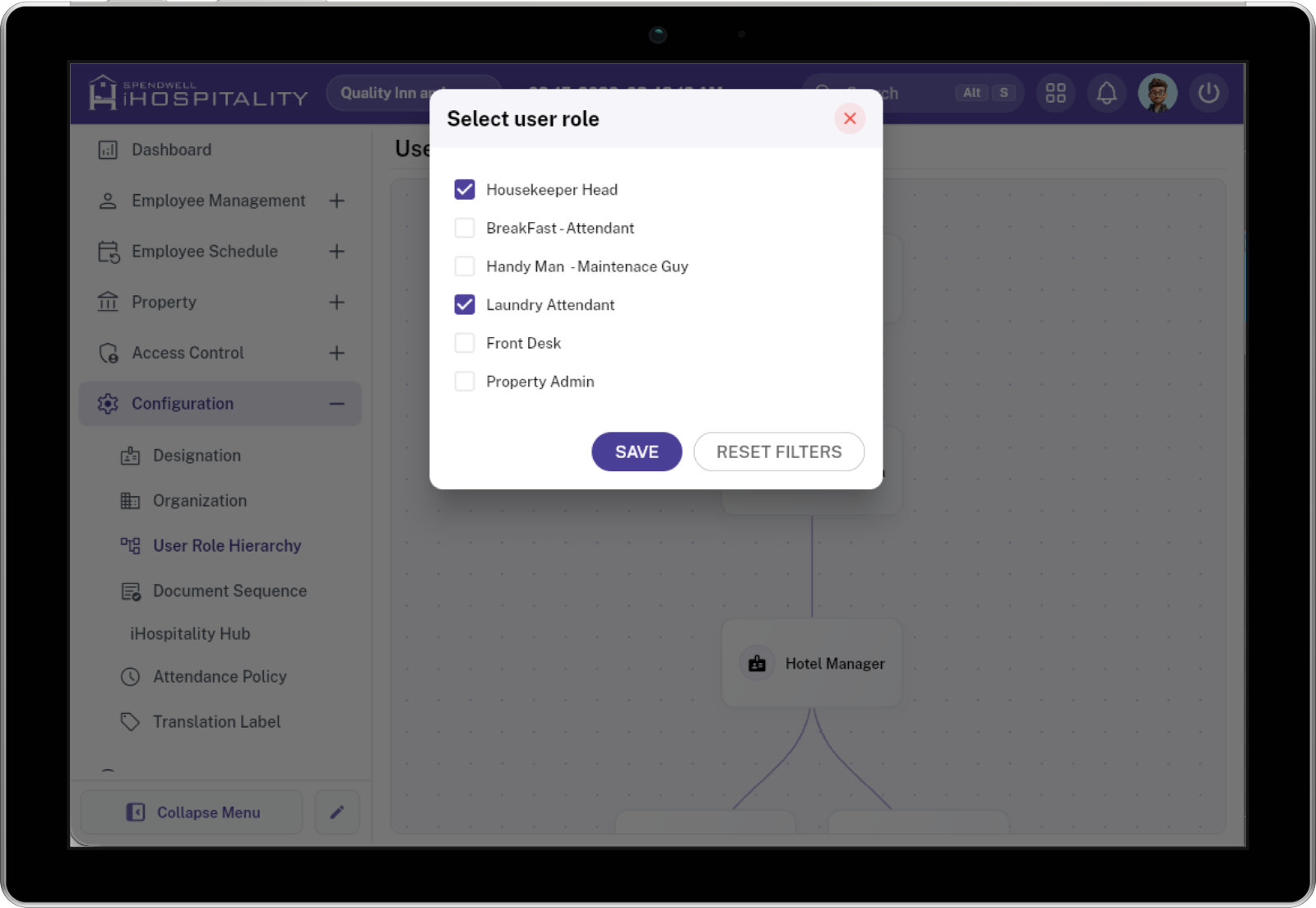
A Select user role window opens.
-
The window displays the available roles with checkboxes.
- Select the checkbox next to each role you want to add.
- You can select more than one role.
- Selected roles are shown with a checked checkbox.
-
Select SAVE.
-
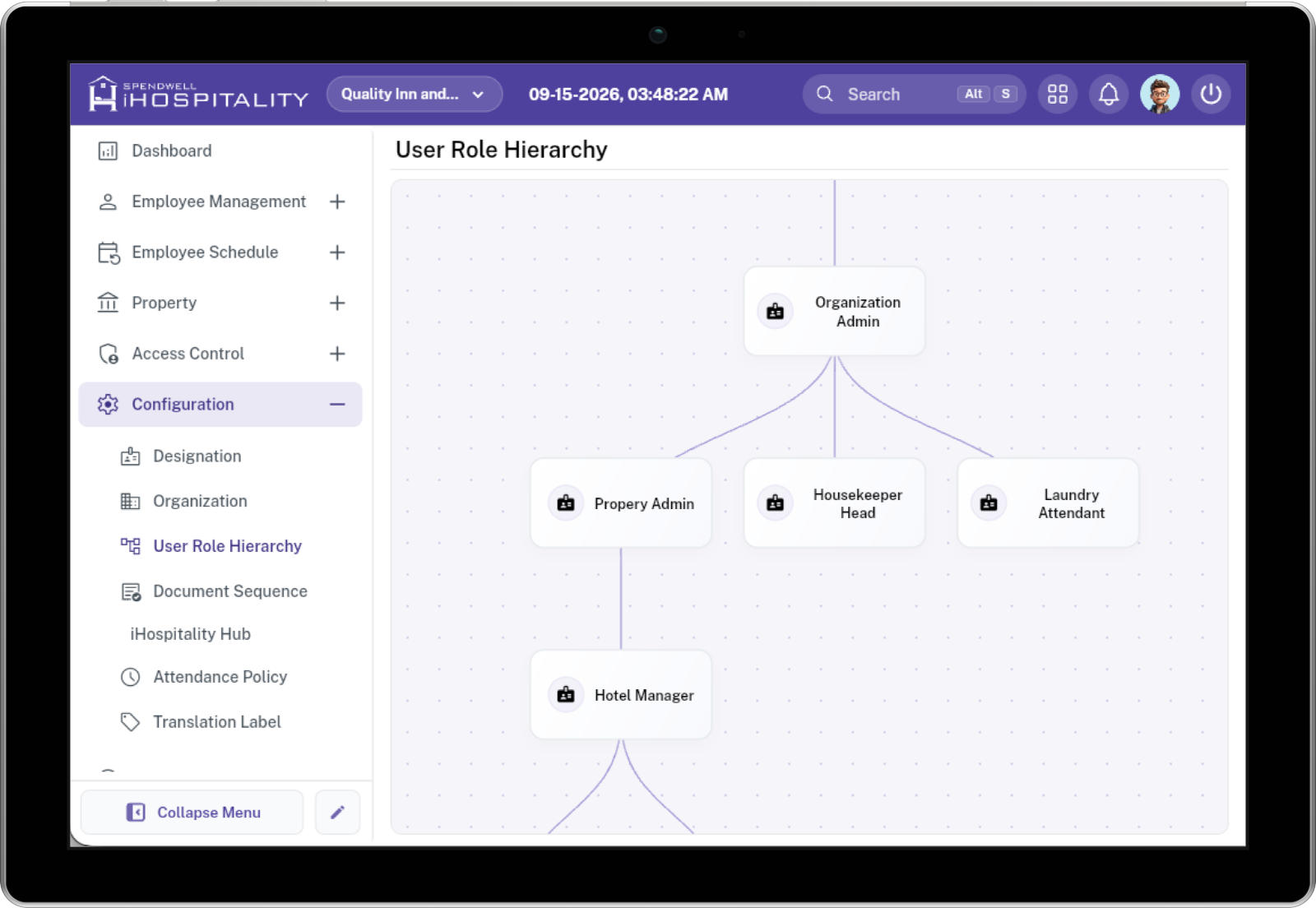
The selected roles are added under the parent role in the hierarchy.
Remove a Role from the Hierarchy
Use Remove when a role or role relationship is no longer required under the selected parent.
- Select the role that you want to remove.
- The Remove action appears next to the Add action.
- Select Remove.
- The selected role is removed from that hierarchy position.
Important: Removing a role from the hierarchy changes its relationship with the selected parent.